Document Metadata
Format: PDF 1.4
Title: Command Line Interface Reference Guide for Cisco Unified Communications Solutions, Release 15 and SUs
Author: jnishant
Creator: DITA Open Toolkit
Producer: XEP 4.30.961; modified using iText 2.1.7 by 1T3XT
Creation Date: D:20260408034542Z
Mod Date: D:20260407204902-07'00'
Page 1
Command Line Interface Reference Guide for Cisco Unified
Communications Solutions, Release 15 and SUs
First Published: 2023-12-18
Last Modified: 2026-04-06
Americas Headquarters
Cisco Systems, Inc.
170 West Tasman Drive
San Jose, CA 95134-1706
USA
http://www.cisco.com
Tel: 408 526-4000
800 553-NETS (6387)
Fax: 408 527-0883

Page 2
THE SPECIFICATIONS AND INFORMATION REGARDING THE PRODUCTS IN THIS MANUAL ARE SUBJECT TO CHANGE WITHOUT NOTICE. ALL STATEMENTS,
INFORMATION, AND RECOMMENDATIONS IN THIS MANUAL ARE BELIEVED TO BE ACCURATE BUT ARE PRESENTED WITHOUT WARRANTY OF ANY KIND,
EXPRESS OR IMPLIED. USERS MUST TAKE FULL RESPONSIBILITY FOR THEIR APPLICATION OF ANY PRODUCTS.
THE SOFTWARE LICENSE AND LIMITED WARRANTY FOR THE ACCOMPANYING PRODUCT ARE SET FORTH IN THE INFORMATION PACKET THAT SHIPPED WITH
THE PRODUCT AND ARE INCORPORATED HEREIN BY THIS REFERENCE. IF YOU ARE UNABLE TO LOCATE THE SOFTWARE LICENSE OR LIMITED WARRANTY,
CONTACT YOUR CISCO REPRESENTATIVE FOR A COPY.
The Cisco implementation of TCP header compression is an adaptation of a program developed by the University of California, Berkeley (UCB) as part of UCB's public domain version of
the UNIX operating system. All rights reserved. Copyright © 1981, Regents of the University of California.
NOTWITHSTANDING ANY OTHER WARRANTY HEREIN, ALL DOCUMENT FILES AND SOFTWARE OF THESE SUPPLIERS ARE PROVIDED “AS IS" WITH ALL FAULTS.
CISCO AND THE ABOVE-NAMED SUPPLIERS DISCLAIM ALL WARRANTIES, EXPRESSED OR IMPLIED, INCLUDING, WITHOUT LIMITATION, THOSE OF
MERCHANTABILITY, FITNESS FOR A PARTICULAR PURPOSE AND NONINFRINGEMENT OR ARISING FROM A COURSE OF DEALING, USAGE, OR TRADE PRACTICE.
IN NO EVENT SHALL CISCO OR ITS SUPPLIERS BE LIABLE FOR ANY INDIRECT, SPECIAL, CONSEQUENTIAL, OR INCIDENTAL DAMAGES, INCLUDING, WITHOUT
LIMITATION, LOST PROFITS OR LOSS OR DAMAGE TO DATA ARISING OUT OF THE USE OR INABILITY TO USE THIS MANUAL, EVEN IF CISCO OR ITS SUPPLIERS
HAVE BEEN ADVISED OF THE POSSIBILITY OF SUCH DAMAGES.
Any Internet Protocol (IP) addresses and phone numbers used in this document are not intended to be actual addresses and phone numbers. Any examples, command display output, network
topology diagrams, and other figures included in the document are shown for illustrative purposes only. Any use of actual IP addresses or phone numbers in illustrative content is unintentional
and coincidental.
All printed copies and duplicate soft copies of this document are considered uncontrolled. See the current online version for the latest version.
Cisco has more than 200 offices worldwide. Addresses and phone numbers are listed on the Cisco website at www.cisco.com/go/offices.
Cisco and the Cisco logo are trademarks or registered trademarks of Cisco and/or its affiliates in the U.S. and other countries. To view a list of Cisco trademarks, go to this URL:
https://www.cisco.com/c/en/us/about/legal/trademarks.html. Third-party trademarks mentioned are the property of their respective owners. The use of the word partner does not imply a
partnership relationship between Cisco and any other company. (1721R)
© 2023–2026 Cisco Systems, Inc. All rights reserved.
Page 3
C O N T E N T S
Preface
xxiii
P R E F A C E
Purpose
xxiii
Audience
xxiii
Organization
xxiii
Related Documents
xxiv
New and Changed Information
1
C H A P T E R 1
New and Changed Information
1
About CLI
5
C H A P T E R 2
CLI Privilege Levels
5
Start CLI session
5
Tab completes command
7
Command help
7
Ctrl-C exits command
8
Quit CLI session
8
Delete Commands
9
C H A P T E R 3
delete account
9
delete cuc futuredelivery
9
delete cuc locale
10
delete dns
11
delete dscp
11
delete ipsec policy_group
12
delete ipsec policy_name
12
delete process
13
Command Line Interface Reference Guide for Cisco Unified Communications Solutions, Release 15 and SUs
iii

Page 4
delete smtp
13
File Commands
15
C H A P T E R 4
file build log
15
file check
19
file delete
20
file delete tftp
20
file delete dir tftp
21
file dump
22
file dump sftpdetails
22
file dump tftp
23
file fragmentation sdi
23
file fragmentation sdi file
24
file fragmentation sdi all
24
file fragmentation sdl
25
file fragmentation sdl file
25
file fragmentation sdl all
26
file get
26
file get salog
27
file get tftp
28
file list
29
file list salog
30
file list tftp
31
file search
32
file search tftp
32
file tail activelog
33
file tail tftp
34
file view
34
file view activelog
35
file view inactivelog
36
file view system-management-log
37
file view tftp
37
License Commands
39
C H A P T E R 5
Command Line Interface Reference Guide for Cisco Unified Communications Solutions, Release 15 and SUs
iv
Contents
Page 5
license smart deregister
39
license smart register idtoken <token> [force]
40
license smart renew auth
40
license smart renew ID
40
license smart transport direct
41
license smart transport gateway <URL> (Applicable Until Release 14SU4 and 15SU2)
41
license smart transport gateway <URL> (Applicable From Release 14SU4 and 15SU2 Onwards)
42
license smart transport proxy <proxy-server> <proxy-port>
42
license smart transport ssm-satellite <URL> (Release 14SU4 and 15SU2 onwards)
43
license smart factory reset
44
license smart reservation enable
44
license smart reservation disable
44
license smart reservation request
45
license smart reservation cancel
45
license smart reservation install "<authorization-code>"
45
license smart reservation install-file <url>
46
license smart reservation return
46
license smart reservation return authorization "<authorization-code>"
47
license smart reservation set license_count
47
license smart export request local <exportfeaturename>
47
license smart export return local <exportfeaturename>
48
license smart export cancel
48
Run Commands
51
C H A P T E R 6
run cuc dbquery
51
run cuc preupgrade test
52
run cuc sysagent task
54
run cuc vui rebuild
55
run loadcsv
55
run loadxml
55
run sql
56
run pe sql
57
Set Commands
59
C H A P T E R 7
Command Line Interface Reference Guide for Cisco Unified Communications Solutions, Release 15 and SUs
v
Contents
Page 6
set account enable
61
set account name
62
set accountlocking
63
set accountlocking count
64
set accountlocking unlocktime
65
set account ssorecoveryurlaccess
65
set account ssouidvalue
66
set cert bulk consolidate
67
set cert bulk export
67
set cert bulk import
68
set cert bulk sftp
68
set cert default-ca-list disable
69
set cert default-ca-list enable
70
set cert delete
72
set cert import
72
set cert regen
73
set cert regen ITLRecovery
74
set cli pagination
75
set cli session timeout
76
set commandcount
76
set csr gen
77
set cuc jetty stderrlog
77
set cuc jetty stdoutlog
78
set cuc jetty requestlog
79
set cuc speechview registration certificate size
80
set cuc srsv timeout
80
set cuc trace
81
set date
82
set dscp defaults
82
set dscp
83
set dscp marking
83
set http min-version HTTP/1.1
84
set http min-version HTTP/2
85
set ipsec policy_group
86
Command Line Interface Reference Guide for Cisco Unified Communications Solutions, Release 15 and SUs
vi
Contents
Page 7
set ipsec policy_name
86
set key regen authz encryption
87
set key regen authz signing
87
set logging
87
set Login Grace Timeout
88
set network cluster publisher
88
set network cluster subscriber details
89
set network cluster subscriber dynamic-cluster-configuration
90
set network dhcp eth0
90
set network dns
91
set network dns options
91
set network domain
92
set network failover
93
set network gateway
93
set network hostname
94
set network ip eth0
96
set network ipv6 dhcp
97
set network ipv6 gateway
98
set network ipv6 service
98
set network ipv6 static_address
99
set network max_ip_conntrack
99
set network mtu
100
set network name-service hosts cache-enable
101
set network name-service hosts max-db-size
101
set network name-service hosts negative-time-to-live
102
set network name-service hosts persistent
102
set network name-service hosts positive-time-to-live
103
set network name-service hosts suggested-size
103
set network name-service services cache-enable
103
set network name-service services max-db-size
104
set network name-service services negative-time-to-live
104
set network name-service services persistent
105
set network name-service services positive-time-to-live
105
set network name-service services suggested-size
106
Command Line Interface Reference Guide for Cisco Unified Communications Solutions, Release 15 and SUs
vii
Contents
Page 8
set network nic eth0
106
set network ntp option
107
set network pmtud state
107
set network restore
108
set network status eth0
109
set network name-service
110
set password complexity minimum-length
110
set password age
111
set password change-at-login
111
set password complexity character
112
set password complexity character difference
113
set password complexity character max-repeat
114
set password expiry maximum-age
114
set password expiry user maximum-age configure
115
set password expiry minimum-age
116
set password expiry user maximum-age
117
set password expiry user minimum-age
117
set password history
118
set password inactivity
119
set password system bootloader encryptHash
120
set password user admin
120
set password user security
120
Set replication-sync monitor
121
set samltrace level
122
set session maxlimit
122
set sip-trunkbusyout disable
123
set sip-trunkbusyout enable
123
set smtp
124
set strace enable
124
set strace disable
125
set timezone
125
set tls min-version
126
set trace disable
128
set trace enable
128
Command Line Interface Reference Guide for Cisco Unified Communications Solutions, Release 15 and SUs
viii
Contents
Page 9
set tlsresumptiontimeout
129
set tlstrace*
130
set tlstrace disable
130
set tlstrace enable
130
set web-security
131
set webapp session timeout
132
set webapp session maxlimit
133
set workingdir
136
Show Commands
137
C H A P T E R 8
show account
141
show accountlocking
141
show cert default-ca-list
142
show cert list
143
show cert list type
143
show cert own
144
show cert trust
144
show cli pagination
145
show cli session timeout
145
show csr list
146
show ctl
146
show cuc cluster status
147
show cuc config groups
147
show cuc config settings
148
show cuc dbconsistency
148
show cuc dbcontents
150
show cuc dbschema
151
show cuc dbserver disk
151
show cuc dbserver session
152
show cuc dbserver sessions all
152
show cuc dbserver sessions list
153
show cuc dbserver user list
153
show cuc dbserver user waiting
154
show cuc dbtable contents
154
Command Line Interface Reference Guide for Cisco Unified Communications Solutions, Release 15 and SUs
ix
Contents
Page 10
show cuc dbtable list
155
show cuc dbtable schema
156
show cuc dbview contents
158
show cuc dbview list
159
show cuc dbview schema
160
show cuc jetty ssl status
161
show cuc locales
161
show cuc speechview registration certificate size
162
show cuc sysagent task list
162
show cuc sysagent task results
163
show cuc sysinfo
164
show cuc tech dbschemaversion
165
show cuc tech dbserver all
166
show cuc tech dbserver integrity
166
show cuc tech dbserver log diagnostic
167
show cuc tech dbserver log message
167
show cuc tech dbserver status
168
show cuc trace levels
168
show cuc version
169
show date
170
show diskusage
170
show dscp all
171
show dscp defaults
171
show dscp marking
171
show dscp status
172
show environment fans
173
show environment power-supply
173
show environment temperatures
173
show fileserver transferspeed
174
show haproxy client-auth
174
show hardware
175
show http min-version
176
show ipsec information
176
show ipsec policy_group
177
Command Line Interface Reference Guide for Cisco Unified Communications Solutions, Release 15 and SUs
x
Contents
Page 11
show ipsec policy_name
178
show ipsec status
178
show itl
178
show logins
179
show logins successful
179
show logins unsuccessful
179
show key authz encryption
180
show key authz signing
180
show license all
181
show license status
181
show license summary
181
show license tech support
182
show license trace
182
show license UDI
182
show license usage
183
show Login Grace Timeout
183
show media streams
183
show memory
185
show myself
185
show network all
186
show network cluster
186
show network dhcp eth0
186
show network eth0
187
show network failover
187
show network ip_conntrack
188
show network ipprefs
188
show network ipv6
189
show network max_ip_conntrack
189
show network ntp option
190
show network route
190
show network status
190
show network name-service attributes
191
show network name-service cache-stats
192
show network name-service {hosts|services} attributes
192
Command Line Interface Reference Guide for Cisco Unified Communications Solutions, Release 15 and SUs
xi
Contents
Page 12
show open files all
193
show open files process
193
show open files regexp
194
show open ports all
194
show open ports regexp
194
show packages
195
show password
195
show password change-at-login
196
show password complexity character
196
show password complexity length
197
show password expiry
197
show password expiry user
198
show password expiry user list
198
show perf counterhelp
198
show perf list categories
199
show perf list classes
199
show perf list counters
200
show perf list instances
200
show perf query class
201
show perf query counter
201
show perf query instance
202
show perf query path
202
show process list
203
show process load
204
show process name
204
show process name process-name
205
show process open
205
show process open-fd
206
show process pid
206
show process search
207
show process user
207
show process using-most cpu
208
show process using-most memory
208
show registry
209
Command Line Interface Reference Guide for Cisco Unified Communications Solutions, Release 15 and SUs
xii
Contents
Page 13
show risdb list
210
show risdb query
210
show samltrace level
211
show session maxlimit
211
show smtp
212
show stats io
212
show status
213
show tech activesql
213
show tech all
214
show tech ccm_service
214
show tech database
215
show tech dberrcode
215
show tech dbhighcputasks
215
show tech dbintegrity
216
show tech dbschema
216
show tech dbinuse
217
show tech dbstateinfo
217
show tech devdefaults
217
show tech dumpCSVandXML
218
show tech gateway
218
show tech locales
219
show tech network all
219
show tech network hosts
220
show tech network interfaces
220
show tech network resolv
221
show tech network routes
221
show tech network sockets
222
show tech notify
222
show tech params
223
show tech prefs
223
show tech procedures
224
show tech repltimeout
224
show tech routepatterns
225
show tech routeplan
225
Command Line Interface Reference Guide for Cisco Unified Communications Solutions, Release 15 and SUs
xiii
Contents
Page 14
show tech runtime
225
show tech sqlhistory
226
show tech systables
226
show tech system
227
show tech table
228
show tech triggers
228
show tech version
228
show timezone config
229
show timezone list
229
show tls trace
230
show tls min-version
230
show tlsresumptiontimeout
231
show trace
231
show ups status
231
show version active
232
show version inactive
232
show vos version
233
show web-security
233
show webapp session timeout
234
show workingdir
234
show logins unsuccessful
234
Unset Commands
237
C H A P T E R 9
unset ipsec policy_group
237
unset ipsec policy_name
237
unset network cluster subscriber details
238
unset network cluster subscriber dynamic-cluster-configuration
238
unset network dns options
239
unset network domain
239
unset network ntp options
240
unset network ipv6 gateway
240
unset network ipv6 static_address
241
Utils Commands
243
C H A P T E R 1 0
Command Line Interface Reference Guide for Cisco Unified Communications Solutions, Release 15 and SUs
xiv
Contents
Page 15
utils addon-input-validation enable
248
utils addon-input-validation disable
249
utils addon-input-validation status
249
utils auditd
250
utils BE6000Mode enable
251
utils BE6000Mode disable
251
utils BE6000Mode status
251
utils branding enable
251
utils branding disable
252
utils branding status
252
utils contactsearchauthentication disable
252
utils contactsearchauthentication enable
253
utils contactsearchauthentication status
253
utils core analyze
253
utils core list
254
utils capf cert import
254
utils capf set keep_alive
255
utils capf stale-lsc
255
utils create report
255
utils create report database
256
utils ctl
256
utils ctl reset localkey
257
utils cuc activate CUSRSV
258
utils cuc auto ITL download
258
utils cuc cluster activate
259
utils cuc cluster deactivate
260
utils cuc cluster makeprimary
260
utils cuc cluster overwritedb
260
utils cuc cluster renegotiate
261
utils cuc create report
261
utils cuc dbreplication 01_tear_down
262
utils cuc dbreplication 02_define_servers
263
utils cuc dbreplication 03_define_db_template
263
utils cuc dbreplication 04_sync_database
264
Command Line Interface Reference Guide for Cisco Unified Communications Solutions, Release 15 and SUs
xv
Contents
Page 16
utils cuc dbreplication reset_all
265
utils cuc encryption
265
utils cuc hwconfig update
266
utils cuc jetty ssl disable
267
utils cuc jetty ssl enable
267
utils cuc licensing reset udi
268
utils cuc networking clear_replication
269
utils cuc networking dscp
269
utils cuc odbc non-secure enable
270
utils cuc odbc non-secure disable
270
utils cuc odbc non-secure status
270
utils cuc reset password
271
utils cuc set PinExpiry_PromptTime “Authentication Rule Name”
271
utils container-engine start
272
utils container-engine stop
272
utils container-engine restart
272
utils container-engine status
273
utils dbreplication dropadmindb
273
utils dbreplication forcedatasyncsub
273
utils dbreplication quickaudit
274
utils dbreplication rebuild
275
utils dbreplication repair
276
utils dbreplication repairreplicate
276
utils dbreplication repairtable
277
utils dbreplication reset
278
utils dbreplication runtimestate
278
utils dbreplication setprocess
279
utils dbreplication setrepltimeout
279
utils dbreplication status
280
utils dbreplication stop
281
utils imdb_replication replication status
281
utils diagnose
282
utils disaster_recovery backup network
283
utils disaster_recovery cancel_backup
283
Command Line Interface Reference Guide for Cisco Unified Communications Solutions, Release 15 and SUs
xvi
Contents
Page 17
utils disaster_recovery device add network
284
utils disaster_recovery device delete
284
utils disaster_recovery device list
285
utils disaster_recovery estimate_tar_size
285
utils disaster_recovery history
286
utils disaster_recovery jschLogs operation
286
utils disaster_recovery prepare restore pub_from_sub
287
utils disaster_recovery restore network
287
utils disaster_recovery schedule add
288
utils disaster_recovery schedule
288
utils disaster_recovery schedule delete
289
utils disaster_recovery schedule disable
289
utils disaster_recovery schedule list
290
utils disaster_recovery show_backupfiles
290
utils disaster_recovery show_registration
291
utils disaster_recovery status
291
utils EnhancedSecurityMode disable
291
utils EnhancedSecurityMode enable
292
utils EnhancedSecurityMode status
292
utils filebeat config
292
utils filebeat disable
293
utils filebeat enable
293
utils filebeat status
294
utils filebeat tls
294
utils fior
295
utils fior disable
295
utils fior enable
295
utils fior list
296
utils fior start
296
utils fior status
297
utils fior stop
297
utils fior top
297
utils fips
298
utils fips_common_criteria
299
Command Line Interface Reference Guide for Cisco Unified Communications Solutions, Release 15 and SUs
xvii
Contents
Page 18
utils firewall ipv4 debug
300
utils firewall ipv4
300
utils firewall ipv4 list
301
utils firewall ipv4 status
301
utils firewall ipv6 debug
302
utils firewall ipv6
302
utils firewall ipv6 list
303
utils firewall ipv6 status
303
utils ha failover
304
utils ha fallback
304
utils haproxy set {required|optional|disable} client-auth
305
utils ha recover
307
utils ha status
308
utils ils showpeerinfo
309
utils import config
309
utils iostat
310
utils iothrottle
310
utils itl reset localkey
311
utils ipsec restart
312
utils ldap config
312
utils ldap config status
313
utils managementAgent alarms minpushLevel
313
utils managementAgent alarms pushfrequency
314
utils managementAgent alarms pushnow
314
utils network arp delete
314
utils network arp set
315
utils network arp list
315
utils network capture
316
utils network capture-rotate
317
utils network connectivity
318
utils network host
319
utils network ipv6 host
320
utils network ipv6 traceroute
320
utils network ipv6 ping
321
Command Line Interface Reference Guide for Cisco Unified Communications Solutions, Release 15 and SUs
xviii
Contents
Page 19
utils network name-service {hosts|services} cache invalidate
321
utils network ping
322
utils network traceroute
322
utils network usgv6 enable
323
utils network usgv6 disable
323
utils network usgv6 interface-reset
324
utils network usgv6 interface_identifier
324
utils network usgv6 ping
325
utils ntp auth symmetric-key
326
utils ntp server add
328
utils ntp server delete
329
utils ntp config
331
utils ntp restart
331
utils ntp server list
331
utils ntp start
332
utils ntp status
332
utils os kerneldump
333
utils os kerneldump ssh
333
utils os kerneldump status
334
utils os secure
334
utils os secure dynamic-policies compile
335
utils os secure dynamic-policies list
335
utils os secure dynamic-policies load
336
utils os secure dynamic-policies remove
336
utils os secure dynamic-policies show
337
utils os secure dynamic-policies start-recording
337
utils os secure dynamic-policies stop-recording
338
utils PlatformWebAccess disable
338
utils PlatformWebAccess enable
339
utils PlatformWebAccess status
339
utils processCoreDumps disable
339
utils processCoreDumps enable
340
utils processCoreDumps status
340
utils remote_account create
340
Command Line Interface Reference Guide for Cisco Unified Communications Solutions, Release 15 and SUs
xix
Contents
Page 20
utils remote_account disable
341
utils remote_account enable
341
utils remote_account status
341
utils remotesyslog set protocol tcp
342
utils remotesyslog set protocol udp
342
utils remotesyslog set protocol tls
343
utils remotesyslog show protocol
343
utils reset_application_ui_administrator_name
344
utils reset_application_ui_administrator_password
344
utils restore_application_ui_administrator_account
344
utils rosters list limited
345
utils rosters list full
345
utils rosters list watchers
346
utils rosters list contacts
346
utils rosters delete
346
utils sipOAuth-mode
347
utils scheduled-task disable
347
utils scheduled-task enable
348
utils scheduled-task list
348
utils set urlpattern disable
349
utils set urlpattern enable
349
utils service
349
utils service list
350
utils service auto-restart
351
utils service start
351
utils service stop
352
utils snmp config 1/2c community-string
352
utils snmp config 1/2c inform
353
utils snmp config 1/2c trap
353
utils snmp config 3 inform
354
utils snmp config mib2
355
utils snmp config 3 trap
355
utils snmp config 3 user
356
utils snmp get
356
Command Line Interface Reference Guide for Cisco Unified Communications Solutions, Release 15 and SUs
xx
Contents
Page 21
utils snmp get 1
357
utils snmp get 2c
358
utils snmp get 3
358
utils snmp hardware-agents
359
utils snmp test
360
utils snmp walk
360
utils snmp walk 1
362
utils snmp walk 2c
362
utils snmp walk 3
363
utils soap realtimeservice test
364
utils sso
364
utils sso recovery-url
365
utils syslog logging rfc3339
365
utils system restart
366
utils system shutdown
366
utils system switch-version
367
utils system boot
367
utils system upgrade (Release 14SU2)
367
utils system upgrade (Release 14SU3 onwards)
370
utils system upgrade cluster
372
utils system enableAdministration
375
utils update dst
376
utils users validate
376
utils vmtools status
377
utils system boot status
377
utils system upgrade dataexport initiate
377
utils system upgrade dataexport status
378
utils system upgrade dataexport cancel
378
utils tls client-auth-validation disable
379
utils tls client-auth-validation enable
380
utils tls client-auth-validation status
380
utils ucmgmt agent disable
381
utils ucmgmt agent enable
381
utils ucmgmt agent remove
382
Command Line Interface Reference Guide for Cisco Unified Communications Solutions, Release 15 and SUs
xxi
Contents
Page 22
utils ucmgmt agent restart
382
utils ucmgmt agent status
382
utils ucmgmt agent verification
383
utils ucmgmt config export
383
utils ucmgmt config import
384
utils ucmgmt organization
384
utils ucmgmt proxy add
385
utils ucmgmt proxy clear
386
utils ucmgmt proxy force add
386
utils ucmgmt proxy list
387
Command Line Interface Reference Guide for Cisco Unified Communications Solutions, Release 15 and SUs
xxii
Contents
Page 23
Preface
• Purpose, on page xxiii
• Audience, on page xxiii
• Organization, on page xxiii
• Related Documents, on page xxiv
Purpose
The Command Line Interface Reference Guide for Cisco Unified Communications Solutions provides
information about all the commands supported on the IM and Presence Service, Cisco Unified Communications
Manager, and Cisco Unity Connection. Every command includes an "Applies to" section identifying applicable
products.
Audience
The Command Line Interface Reference Guide for Cisco Unified Communications Solutions provides
information to execute specific commands for network administrators responsible for managing and supporting
IM and Presence, Cisco Unified Communications Manager, and Cisco Unity Connection.
Organization
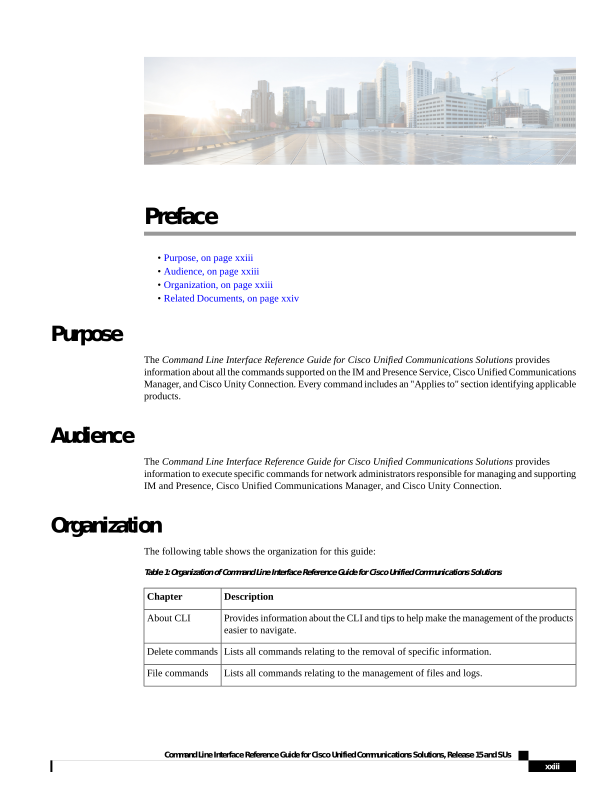
The following table shows the organization for this guide:
Table 1: Organization of Command Line Interface Reference Guide for Cisco Unified Communications Solutions
Description
Chapter
Provides information about the CLI and tips to help make the management of the products
easier to navigate.
About CLI
Lists all commands relating to the removal of specific information.
Delete commands
Lists all commands relating to the management of files and logs.
File commands
Command Line Interface Reference Guide for Cisco Unified Communications Solutions, Release 15 and SUs
xxiii

Page 24
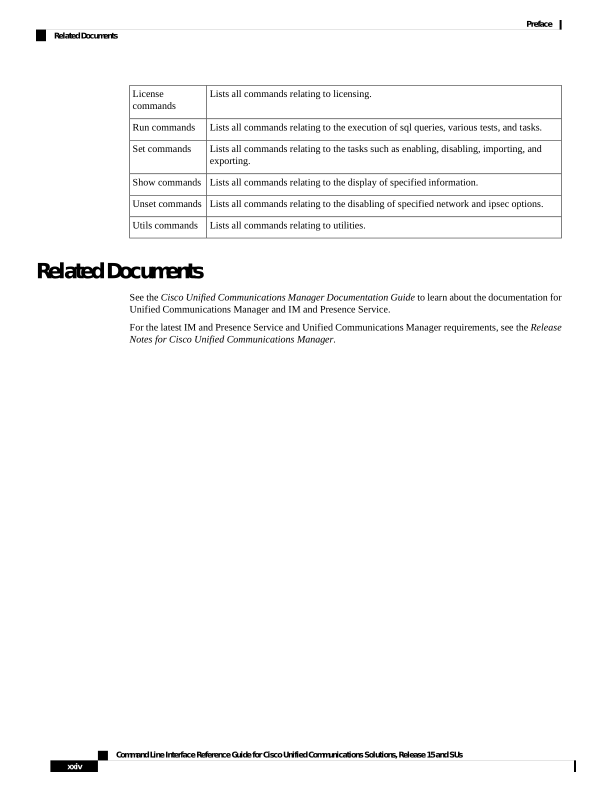
Lists all commands relating to licensing.
License
commands
Lists all commands relating to the execution of sql queries, various tests, and tasks.
Run commands
Lists all commands relating to the tasks such as enabling, disabling, importing, and
exporting.
Set commands
Lists all commands relating to the display of specified information.
Show commands
Lists all commands relating to the disabling of specified network and ipsec options.
Unset commands
Lists all commands relating to utilities.
Utils commands
Related Documents
See the Cisco Unified Communications Manager Documentation Guide to learn about the documentation for
Unified Communications Manager and IM and Presence Service.
For the latest IM and Presence Service and Unified Communications Manager requirements, see the Release
Notes for Cisco Unified Communications Manager.
Command Line Interface Reference Guide for Cisco Unified Communications Solutions, Release 15 and SUs
xxiv
Preface
Related Documents
Page 25
C H A P T E R 1
New and Changed Information
• New and Changed Information, on page 1
New and Changed Information
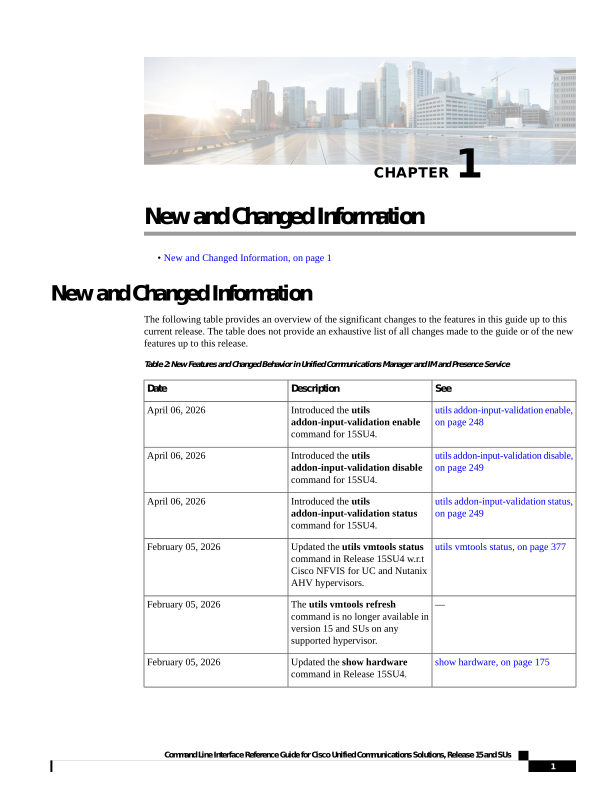
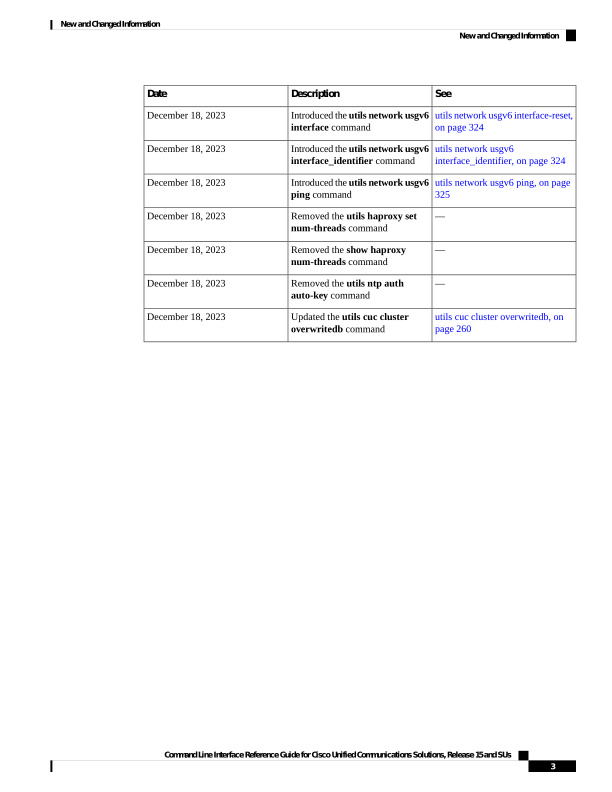
The following table provides an overview of the significant changes to the features in this guide up to this
current release. The table does not provide an exhaustive list of all changes made to the guide or of the new
features up to this release.
Table 2: New Features and Changed Behavior in Unified Communications Manager and IM and Presence Service
See
Description
Date
utils addon-input-validation enable,
on page 248
Introduced the utils
addon-input-validation enable
command for 15SU4.
April 06, 2026
utils addon-input-validation disable,
on page 249
Introduced the utils
addon-input-validation disable
command for 15SU4.
April 06, 2026
utils addon-input-validation status,
on page 249
Introduced the utils
addon-input-validation status
command for 15SU4.
April 06, 2026
utils vmtools status, on page 377
Updated the utils vmtools status
command in Release 15SU4 w.r.t
Cisco NFVIS for UC and Nutanix
AHV hypervisors.
February 05, 2026
—
The utils vmtools refresh
command is no longer available in
version 15 and SUs on any
supported hypervisor.
February 05, 2026
show hardware, on page 175
Updated the show hardware
command in Release 15SU4.
February 05, 2026
Command Line Interface Reference Guide for Cisco Unified Communications Solutions, Release 15 and SUs
1

Page 26
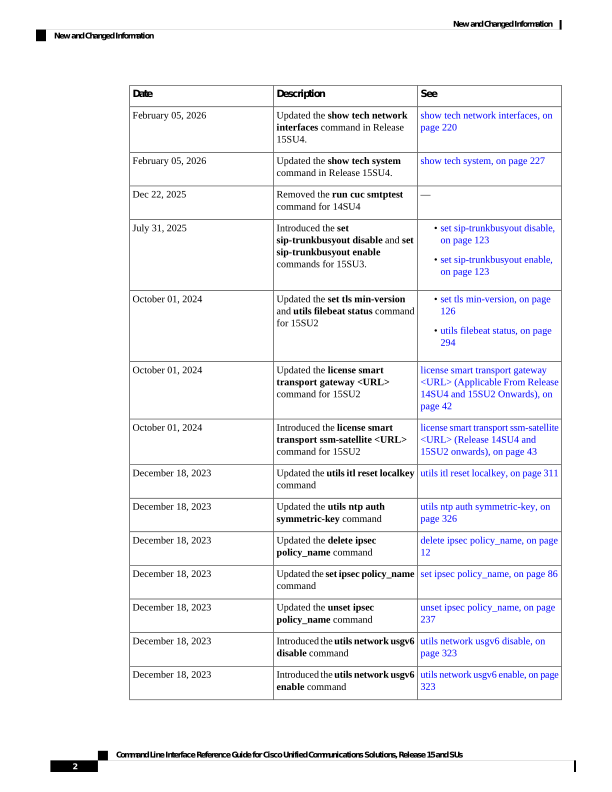
See
Description
Date
show tech network interfaces, on
page 220
Updated the show tech network
interfaces command in Release
15SU4.
February 05, 2026
show tech system, on page 227
Updated the show tech system
command in Release 15SU4.
February 05, 2026
—
Removed the run cuc smtptest
command for 14SU4
Dec 22, 2025
• set sip-trunkbusyout disable,
on page 123
• set sip-trunkbusyout enable,
on page 123
Introduced the set
sip-trunkbusyout disable and set
sip-trunkbusyout enable
commands for 15SU3.
July 31, 2025
• set tls min-version, on page
126
• utils filebeat status, on page
294
Updated the set tls min-version
and utils filebeat status command
for 15SU2
October 01, 2024
license smart transport gateway
<URL> (Applicable From Release
14SU4 and 15SU2 Onwards), on
page 42
Updated the license smart
transport gateway <URL>
command for 15SU2
October 01, 2024
license smart transport ssm-satellite
<URL> (Release 14SU4 and
15SU2 onwards), on page 43
Introduced the license smart
transport ssm-satellite <URL>
command for 15SU2
October 01, 2024
utils itl reset localkey, on page 311
Updated the utils itl reset localkey
command
December 18, 2023
utils ntp auth symmetric-key, on
page 326
Updated the utils ntp auth
symmetric-key command
December 18, 2023
delete ipsec policy_name, on page
12
Updated the delete ipsec
policy_name command
December 18, 2023
set ipsec policy_name, on page 86
Updated the set ipsec policy_name
command
December 18, 2023
unset ipsec policy_name, on page
237
Updated the unset ipsec
policy_name command
December 18, 2023
utils network usgv6 disable, on
page 323
Introduced the utils network usgv6
disable command
December 18, 2023
utils network usgv6 enable, on page
323
Introduced the utils network usgv6
enable command
December 18, 2023
Command Line Interface Reference Guide for Cisco Unified Communications Solutions, Release 15 and SUs
2
New and Changed Information
New and Changed Information
Page 27
See
Description
Date
utils network usgv6 interface-reset,
on page 324
Introduced the utils network usgv6
interface command
December 18, 2023
utils network usgv6
interface_identifier, on page 324
Introduced the utils network usgv6
interface_identifier command
December 18, 2023
utils network usgv6 ping, on page
325
Introduced the utils network usgv6
ping command
December 18, 2023
—
Removed the utils haproxy set
num-threads command
December 18, 2023
—
Removed the show haproxy
num-threads command
December 18, 2023
—
Removed the utils ntp auth
auto-key command
December 18, 2023
utils cuc cluster overwritedb, on
page 260
Updated the utils cuc cluster
overwritedb command
December 18, 2023
Command Line Interface Reference Guide for Cisco Unified Communications Solutions, Release 15 and SUs
3
New and Changed Information
New and Changed Information
Page 28
Command Line Interface Reference Guide for Cisco Unified Communications Solutions, Release 15 and SUs
4
New and Changed Information
New and Changed Information
Page 29
C H A P T E R 2
About CLI
• CLI Privilege Levels, on page 5
• Start CLI session, on page 5
• Tab completes command, on page 7
• Command help, on page 7
• Ctrl-C exits command, on page 8
• Quit CLI session, on page 8
CLI Privilege Levels
During installation of Unified Communications Manager, an administrator with level 4 privilege is created
at the platform level. This administrator has all privileges to execute all the command line interface (CLI)
commands. Through the CLI commands, the administrator with level 4 privilege creates the following
administrators:
• Administrator with level 0 privilege—This administrator has read-only access privilege on the interface.
• Administrator with level 1 privilege—This administrator has both read and write access privilege on the
interface.
Administrators can execute CLI commands based on the privileges defined for each of them.
Note
After the administrators with the various privileges are created, you can start the CLI session.
Start CLI session
This procedure applies to both Unified Communications Manager and the IM and Presence Service. The
Operating System for Unified Communications Manager is called the Cisco Unified Operating System. The
Operating System for the IM and Presence Service is called the Unified IM and Presence Operating System.
To start a CLI session for the IM and Presence Service, you must use the Unified IM and Presence Operating
System.
Note
Command Line Interface Reference Guide for Cisco Unified Communications Solutions, Release 15 and SUs
5


Page 30
You can access the Cisco Unified Operating System (or, for the IM and Presence Service, the Unified IM and
Presence Operating System) remotely or locally:
• From a web client workstation, such as the workstation that you use for Cisco Unified Operating System
Administration, you can use SSH to connect securely to the Cisco Unified Operating System.
• You can access the Cisco Unified Operating System CLI directly by using the monitor and keyboard
that you used during installation or by using a terminal server that is connected to the serial port. Use
this method if a problem exists with the IP address.
Before you begin
Ensure you have the following information that is defined during installation:
• A primary IP address and hostname
• An administrator ID
• A password
You will need this information to log in to the Cisco Unified Operating System.
Procedure
Step 1
Perform one of the following actions depending on your method of access:
a)
From a remote system, use SSH to connect securely to the Cisco Unified Operating System. In your SSH
client, enter
ssh adminname@hostname
where adminname specifies the Administrator ID and hostname specifies the hostname that was defined
during installation.
For example, ssh admin@ipt-1.
b) From a direct connection, you receive this prompt automatically:
ipt-1 login:
where ipt-1 represents the host name of the system.
Enter the administrator ID that was defined during installation.
Step 2
Enter the password that was defined at installation.
The CLI prompt displays. The prompt represents the Administrator ID; for example:
admin:
You can now use any CLI command.
Command Line Interface Reference Guide for Cisco Unified Communications Solutions, Release 15 and SUs
6
About CLI
Start CLI session
Page 31
Tab completes command
To complete commands, use Tab:
• Enter the start of a command and press Tab to complete the command. For example, if you enter se and
press Tab, set is completed.
• Enter a full command name and press Tab to display all the commands or subcommands that are available.
For example, if you enter set and press Tab, you see all the set subcommands. An * identifies the
commands that have subcommands.
• If you reach a command, keep pressing Tab, and the current command line repeats; this indicates that
no additional expansion is available.
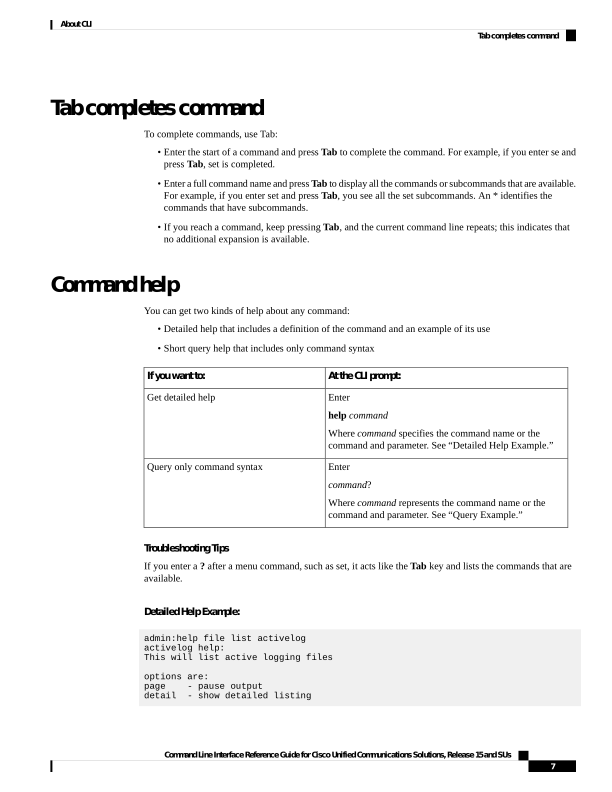
Command help
You can get two kinds of help about any command:
• Detailed help that includes a definition of the command and an example of its use
• Short query help that includes only command syntax
At the CLI prompt:
If you want to:
Enter
help command
Where command specifies the command name or the
command and parameter. See “Detailed Help Example.”
Get detailed help
Enter
command?
Where command represents the command name or the
command and parameter. See “Query Example.”
Query only command syntax
Troubleshooting Tips
If you enter a ? after a menu command, such as set, it acts like the Tab key and lists the commands that are
available.
Detailed Help Example:
admin:help file list activelog
activelog help:
This will list active logging files
options are:
page
- pause output
detail
- show detailed listing
Command Line Interface Reference Guide for Cisco Unified Communications Solutions, Release 15 and SUs
7
About CLI
Tab completes command
Page 32
reverse - reverse sort order
date
- sort by date
size
- sort by size
file-spec can contain '*' as wildcards
Example:
admin:file list activelog platform detail
02 Dec,2004 12:00:59
<dir>
drf
02 Dec,2004 12:00:59
<dir>
log
16 Nov,2004 21:45:43
8,557
enGui.log
27 Oct,2004 11:54:33
47,916
startup.log
dir count = 2, file count = 2
Query Example:
admin:file list activelog?Syntax:
file list activelog file-spec [options]
file-spec
mandatory
file to view
options
optional
page|detail|reverse|[date|size]
Ctrl-C exits command
You can stop most interactive commands by entering the Ctrl-C key sequence, as shown in the following
example:
Exiting a Command with Ctrl-C
admin:utils system upgrade initiateWarning: Do not close this window without first
exiting the upgrade command.
Source:
- Remote Filesystem
- DVD/CD
q) quit
Please select an option (1 - 2 or "q" ):
Exiting upgrade command. Please wait...
Control-C pressed
admin:
If you execute the command utils system switch-version and enter Yes to start the process, entering
Ctrl-C exits the command but does not stop the switch-version process.
Note
Quit CLI session
At the CLI prompt, enter quit. If you are logged in remotely, you get logged off, and the ssh session is dropped.
If you are logged in locally, you get logged off, and the login prompt returns.
Command Line Interface Reference Guide for Cisco Unified Communications Solutions, Release 15 and SUs
8
About CLI
Ctrl-C exits command

Page 33
C H A P T E R 3
Delete Commands
• delete account, on page 9
• delete cuc futuredelivery, on page 9
• delete cuc locale, on page 10
• delete dns, on page 11
• delete dscp, on page 11
• delete ipsec policy_group, on page 12
• delete ipsec policy_name, on page 12
• delete process, on page 13
• delete smtp, on page 13
delete account
This command allows you to delete an administrator account.
delete account account-name
Syntax Description
Description
Parameters
Specifies the name of an administrator account.
account-name
Command Modes
Administrator (admin:)
Requirements
Command privilege level: 1
Allowed during upgrade: No
Applies to: Unified Communications Manager, IM and Presence Service on Unified Communications Manager,
Cisco Unity Connection
delete cuc futuredelivery
This command deletes all messages that have been marked for future delivery.
Command Line Interface Reference Guide for Cisco Unified Communications Solutions, Release 15 and SUs
9

Page 34
delete cuc futuredelivery
Command Modes
Administrator (admin:)
Requirements
Command privilege level: 1
Allowed during upgrade: Yes
Applies to: Cisco Unity Connection
Example
The following example deletes two messages that have been marked for future delivery.
admin: delete cuc futuredelivery
Deleting File : UmssMtaFutureDelivery/UnityMbxDb1/5C56C086-E64B-11DC-9BAF-41FC55D89593.eml
Deleting File : UmssMtaFutureDelivery/UnityMbxDb1/6D7DD796-E64B-11DC-A0E6-D1FD55D89593.eml
Files : Found = 2, Deleted = 2
Note: Files that are in use cannot be deleted
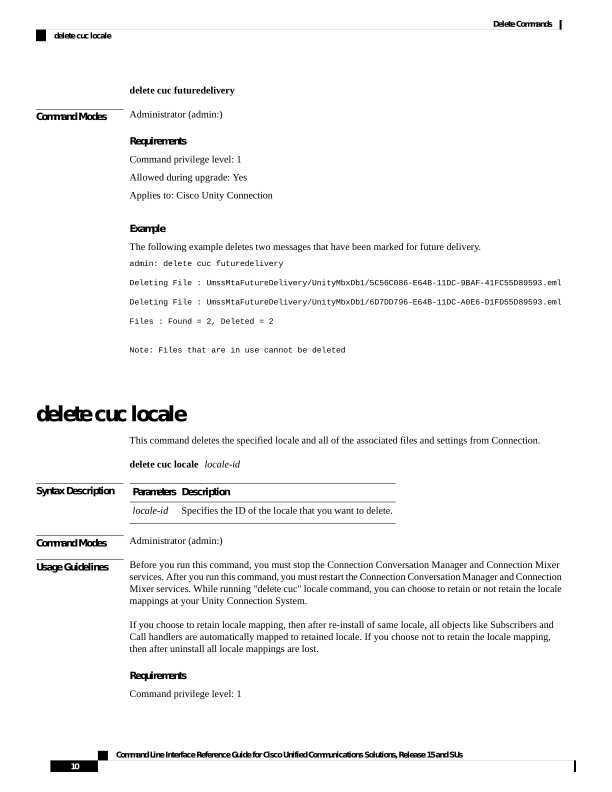
delete cuc locale
This command deletes the specified locale and all of the associated files and settings from Connection.
delete cuc locale locale-id
Syntax Description
Description
Parameters
Specifies the ID of the locale that you want to delete.
locale-id
Command Modes
Administrator (admin:)
Usage Guidelines
Before you run this command, you must stop the Connection Conversation Manager and Connection Mixer
services. After you run this command, you must restart the Connection Conversation Manager and Connection
Mixer services. While running "delete cuc" locale command, you can choose to retain or not retain the locale
mappings at your Unity Connection System.
If you choose to retain locale mapping, then after re-install of same locale, all objects like Subscribers and
Call handlers are automatically mapped to retained locale. If you choose not to retain the locale mapping,
then after uninstall all locale mappings are lost.
Requirements
Command privilege level: 1
Command Line Interface Reference Guide for Cisco Unified Communications Solutions, Release 15 and SUs
10
Delete Commands
delete cuc locale
Page 35
Allowed during upgrade: Yes
Applies to: Cisco Unity Connection
Example
The following example deletes the en-GB locale and all of the associated files and settings.
admin:delete cuc locale en-GB
en-GB uninstalled
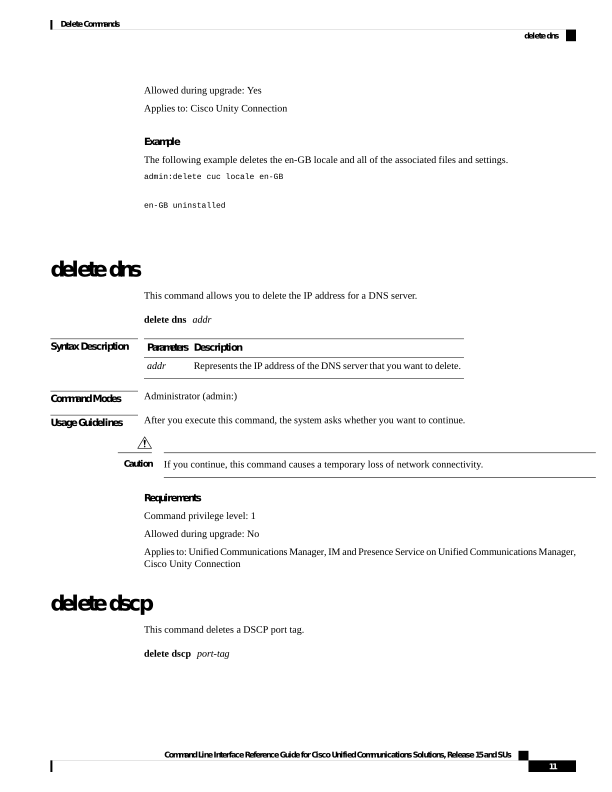
delete dns
This command allows you to delete the IP address for a DNS server.
delete dns addr
Syntax Description
Description
Parameters
Represents the IP address of the DNS server that you want to delete.
addr
Command Modes
Administrator (admin:)
Usage Guidelines
After you execute this command, the system asks whether you want to continue.
If you continue, this command causes a temporary loss of network connectivity.
Caution
Requirements
Command privilege level: 1
Allowed during upgrade: No
Applies to: Unified Communications Manager, IM and Presence Service on Unified Communications Manager,
Cisco Unity Connection
delete dscp
This command deletes a DSCP port tag.
delete dscp port-tag
Command Line Interface Reference Guide for Cisco Unified Communications Solutions, Release 15 and SUs
11
Delete Commands
delete dns

Page 36
Syntax Description
Description
Parameters
Represents a DSCP port tag, which is a string that is mapped to a TCP or UDP port to identify
the application that uses the port. This value is for the portTag field displayed when you use the
command show dscp defaults. The set of port tags is predefined.
port-tag
Command Modes
Administrator (admin:)
Usage Guidelines
After you delete an enabled port tag, DSCP marking on that port tag stops. You can recreate a deleted port
tag when you use the set dscp marking command; enter the name of the port tag that you previously deleted.
Use the command show dscp defaults to list the configured port tags.
Tip
Requirements
Command privilege level: 1
Applies to: Unified Communications Manager, Cisco Unity Connection
delete ipsec policy_group
This command deletes all policies within the specified group or all groups.
delete ipsec policy_group
{group | all}
Syntax Description
Description
Parameters
Represents a specific group name.
group
Deletes all groups.
all
Command Modes
Administrator (admin:)
Requirements
Command privilege level: 1
Allowed during upgrade: No
Applies to: Unified Communications Manager, Cisco Unity Connection
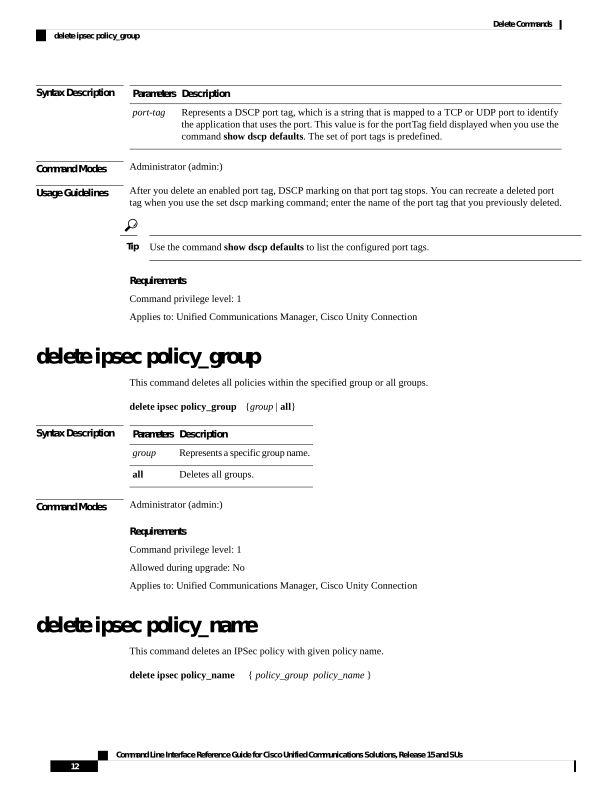
delete ipsec policy_name
This command deletes an IPSec policy with given policy name.
delete ipsec policy_name
{ policy_group policy_name }
Command Line Interface Reference Guide for Cisco Unified Communications Solutions, Release 15 and SUs
12
Delete Commands
delete ipsec policy_group

Page 37
Syntax Description
Description
Parameters
Represents the policy
group.
policy_group
Represents the policy name.
policy_name
Command Modes
Administrator (admin:)
Requirements
Command privilege level: 1
Allowed during upgrade: No
Applies to: Unified Communications Manager, Cisco Unity Connection
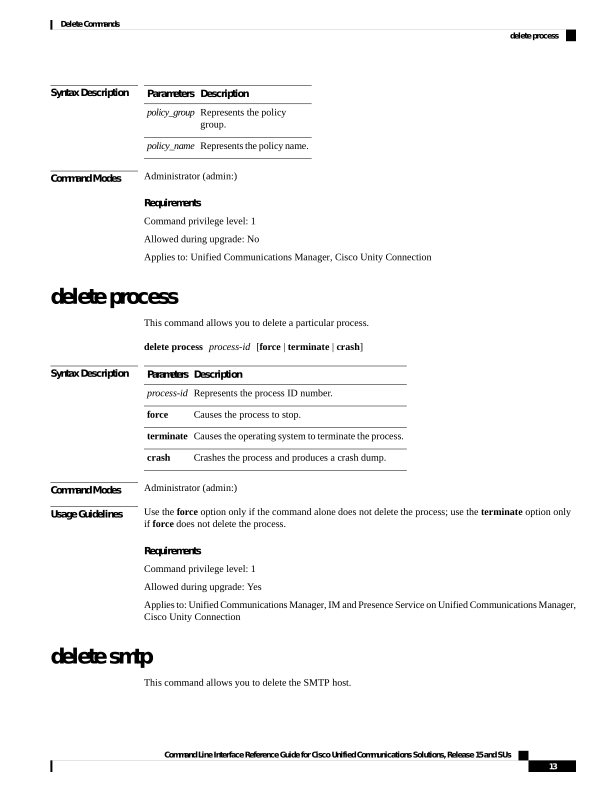
delete process
This command allows you to delete a particular process.
delete process process-id [force | terminate | crash]
Syntax Description
Description
Parameters
Represents the process ID number.
process-id
Causes the process to stop.
force
Causes the operating system to terminate the process.
terminate
Crashes the process and produces a crash dump.
crash
Command Modes
Administrator (admin:)
Usage Guidelines
Use the force option only if the command alone does not delete the process; use the terminate option only
if force does not delete the process.
Requirements
Command privilege level: 1
Allowed during upgrade: Yes
Applies to: Unified Communications Manager, IM and Presence Service on Unified Communications Manager,
Cisco Unity Connection
delete smtp
This command allows you to delete the SMTP host.
Command Line Interface Reference Guide for Cisco Unified Communications Solutions, Release 15 and SUs
13
Delete Commands
delete process
Page 38
delete smtp
Command Modes
Administrator (admin:)
Requirements
Command privilege level: 1
Allowed during upgrade: No
Applies to: Unified Communications Manager, IM and Presence Service on Unified Communications Manager,
Cisco Unity Connection
Command Line Interface Reference Guide for Cisco Unified Communications Solutions, Release 15 and SUs
14
Delete Commands
delete smtp
Page 39
C H A P T E R 4
File Commands
• file build log, on page 15
• file check, on page 19
• file delete, on page 20
• file delete tftp, on page 20
• file dump, on page 22
• file dump sftpdetails, on page 22
• file dump tftp, on page 23
• file fragmentation sdi, on page 23
• file fragmentation sdl, on page 25
• file get, on page 26
• file get tftp, on page 28
• file list, on page 29
• file list tftp, on page 31
• file search, on page 32
• file search tftp, on page 32
• file tail activelog, on page 33
• file tail tftp, on page 34
• file view , on page 34
• file view tftp, on page 37
file build log
This command collects log information by service or feature and duration.
file build log service/feature duration
Syntax Description
Description
Parameters
specifies the component or functional area from which to retrieve log information
service/feature
specifies the time period, measured in days, from which the log information is retrieved.
duration
Command Modes
Administrator (admin:)
Command Line Interface Reference Guide for Cisco Unified Communications Solutions, Release 15 and SUs
15

Page 40
Usage Guidelines
Requirements
Command privilege level:
Allowed during upgrade:
Applies to: IM and Presence Service on Unified Communications Manager
Examples
This command collects logs for the Client Profile Agent.
admin: file build log cpa 10
Collecting logs
Collecting: logname1.txt
Collecting: logname2.txt
To retrieve run the following command:
file get epas/trace/acdc_2012-06-28-111258.tar.gz
This command collects all logs defined in the xml config.
admin:file build log all
Collecting logs
Collecting: logname1.txt
Collecting: logname2.txt
To retrieve run the following command:
file get epas/trace/acdc_2012-06-28-111258.tar.gz
This command collects logs for multiple services.
admin:file build log dbmon cpa
Collecting logs
Collecting: logname1.txt
Collecting: logname2.txt
To retrieve run the following command:
file get epas/trace/acdc_2012-06-28-111258.tar.gz
This command shows help.
admin:file build log ?
Syntax:
file build log [serviceName [serviceName] ..]
Service Names:
FullName
ShortName
cisco_client_profile_agent
cpa
cisco_database_layer_monitor
dbmon
cisco_audit_logs
audit
cisco_ris_dat_collector
risdc
This command shows information for the deployment.
admin: file build log deployment info 0
DB Queriesmay take up to 5 minutes to complete. Please be patient...
About to start queries for deployment data... please wait...
Gathering CUCM Version...
Command Line Interface Reference Guide for Cisco Unified Communications Solutions, Release 15 and SUs
16
File Commands
file build log
Page 41
ccmversion
11.0.1.100000(9)
Gathering CUCM Publisher Node
ccmpublisherhostname
gwydlg050498vm1
Gathering Rosters table...
rosters
3032681
Gathering Groups table...
groups
1518966
Gathering Non-Presence contacts...
nonpresencecontacts
502573
Gathering Number of inter-cluster users...
enduser
0
Gathering CUCM Nodes in cluster...
processnode
2
Gathering CUCM Node names in cluster...
name
EnterpriseWideData
processnode
gwydlg050408vm1
Gathering IM&P nodes in cluster...
processnode
2
Gathering XCP Routing Node...
paramvalue
t
Gathering Exchange Calendaring...
pebackendgateway
Gathering XMPP Inter-domain Federation...
xmpps2ssnodes
0
Gathering Intra-domain Partitioned Federation...
enablepartitionedfedwithacs
f
Gathering Inter-cluster Peering...
cupsinterclusterpeers
Gathering Message Archiver...
pkid
8fede7a9-b6a6-4ad4-8da6-b8ea4c8d5411
Command Line Interface Reference Guide for Cisco Unified Communications Solutions, Release 15 and SUs
17
File Commands
file build log
Page 42
databasetype
Postgres
databasename
tcmadb
name
gwydlg050408vm2
tknodeusage
0
tkprocessnoderole
2
nodeid
3
Gathering Third-party compliance...
ftextdbprocessnodemap
0
Gathering Persistent Chat...
enablepersistentgear
t
databasetype
Postgres
datanasename
tcmadb
name
gwydlg050408vm2
tknodeusage
0
tkprocessnoderole
2
nodeid
2
Gathering Advanced File Transfer...
tkfiletransfer
2
databasetype
Postgres
datbasename
tcmadb
name
gwydlg050408vm2
tknodeusage
0
tkprocessnoderole
2
nodeid
3
Gathering AD Groups...
paramvalue
t
Gathering XEP-198...
paramvalue
t
Gathering DB Replication Status...
replicationdynamic
2
Services on this node that currently have debug logging enabled are:
Cisco Presence Engine
Cisco DRF Local
Command Line Interface Reference Guide for Cisco Unified Communications Solutions, Release 15 and SUs
18
File Commands
file build log
Page 43
Cisco XCP File Transfer Manager
Collecting Logs for deployment_info
Collected: platformConfig.xml
Collected: deployment_info.xml
Collected: system_info.txt
To retrieve the logs, run the following CLI Command:
file get activelog epas/trace/log_2015-08-17-154010.tar.gz
To maintain a stable system it is recommended that you remove the file after retrieval.
To do this run the CLI Command:
file delete activelog epas/trace/log_2015-08-17-154010.tar.gz
Please Note: Debug logging is not enabled for any of the files you have retrieved
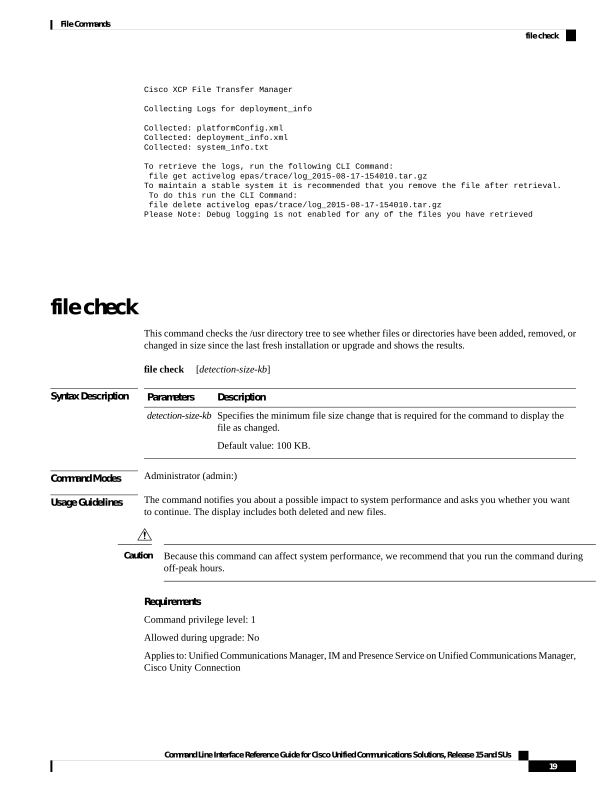
file check
This command checks the /usr directory tree to see whether files or directories have been added, removed, or
changed in size since the last fresh installation or upgrade and shows the results.
file check
[detection-size-kb]
Syntax Description
Description
Parameters
Specifies the minimum file size change that is required for the command to display the
file as changed.
Default value: 100 KB.
detection-size-kb
Command Modes
Administrator (admin:)
Usage Guidelines
The command notifies you about a possible impact to system performance and asks you whether you want
to continue. The display includes both deleted and new files.
Because this command can affect system performance, we recommend that you run the command during
off-peak hours.
Caution
Requirements
Command privilege level: 1
Allowed during upgrade: No
Applies to: Unified Communications Manager, IM and Presence Service on Unified Communications Manager,
Cisco Unity Connection
Command Line Interface Reference Guide for Cisco Unified Communications Solutions, Release 15 and SUs
19
File Commands
file check

Page 44
file delete
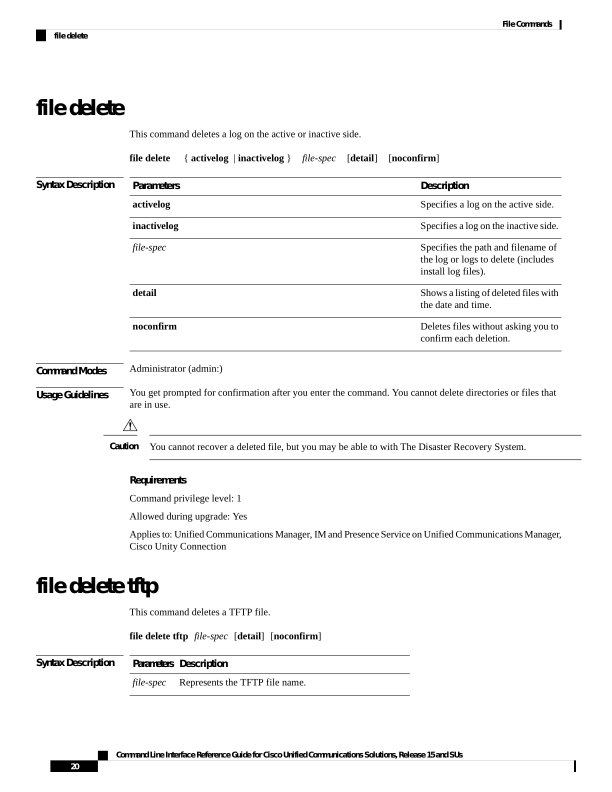
This command deletes a log on the active or inactive side.
file delete
{ activelog | inactivelog }
file-spec
[detail]
[noconfirm]
Syntax Description
Description
Parameters
Specifies a log on the active side.
activelog
Specifies a log on the inactive side.
inactivelog
Specifies the path and filename of
the log or logs to delete (includes
install log files).
file-spec
Shows a listing of deleted files with
the date and time.
detail
Deletes files without asking you to
confirm each deletion.
noconfirm
Command Modes
Administrator (admin:)
Usage Guidelines
You get prompted for confirmation after you enter the command. You cannot delete directories or files that
are in use.
You cannot recover a deleted file, but you may be able to with The Disaster Recovery System.
Caution
Requirements
Command privilege level: 1
Allowed during upgrade: Yes
Applies to: Unified Communications Manager, IM and Presence Service on Unified Communications Manager,
Cisco Unity Connection
file delete tftp
This command deletes a TFTP file.
file delete tftp file-spec [detail] [noconfirm]
Syntax Description
Description
Parameters
Represents the TFTP file name.
file-spec
Command Line Interface Reference Guide for Cisco Unified Communications Solutions, Release 15 and SUs
20
File Commands
file delete

Page 45
Description
Parameters
Shows a listing of deleted files with the date and time.
detail
Deletes files without asking you to confirm each deletion.
noconfirm
Command Modes
Administrator (admin:)
Usage Guidelines
You get prompted for confirmation after you enter the command. You cannot delete directories or files that
are in use.
You cannot recover a deleted file, but you may be able to with the Disaster Recovery System.
Caution
Requirements
Command privilege level: 1
Allowed during upgrade: Yes
Applies to:Unified Communications Manager, IM and Presence Service on Unified Communications Manager,
Cisco Unity Connection
file delete dir tftp
This command deletes the TFTP directory.
file delete dir tftp dir-name [detail]
Syntax Description
Description
Parameters
Specifies the TFTP directory to delete.
dir-name
Shows a listing of deleted files with the date and time.
detail
Command Modes
Administrator (admin:)
Usage Guidelines
You get prompted for confirmation after you enter the command. You cannot delete directories or files that
are in use.
You cannot recover a deleted file, but you may be able to with the Disaster Recovery System.
Caution
Requirements
Command privilege level: 1
Allowed during upgrade: Yes
Applies to: Unified Communications Manager, IM and Presence Service on Unified Communications Manager,
Cisco Unity Connection
Command Line Interface Reference Guide for Cisco Unified Communications Solutions, Release 15 and SUs
21
File Commands
file delete dir tftp

Page 46
file dump
This command dumps the contents of a log, a page at a time.
file dump
{activelog | inactivelog | install} file-spec [hex] [recent] [regexp expression]
Syntax Description
Description
Parameters
Specifies a log on the active side.
activelog
Specifies a log on the inactive side.
inactivelog
Specifies an installation log.
install
Represents the log file to dump.
file-spec
Shows output in hexadecimal.
hex
Dumps the most recently changed
file in the directory.
recent
Displays only the lines in the file
that match the regular expression
expression.
regexp expression
Command Modes
Administrator (admin:)
Requirements
Command privilege level: 1
Allowed during upgrade: Yes
Applies to: Unified Communications Manager, IM and Presence Service on Unified Communications Manager,
Cisco Unity Connection
Example
This command dumps contents of file _cdrIndex.idx.
admin: file dump activelog cm/cdr/_cdrIndex.idx
file dump sftpdetails
This command specifies the list of files that can be dumped in the SFTP context and allows you to choose
which file to dump.
file dump sftpdetails
Command Modes
Administrator (admin:)
Command Line Interface Reference Guide for Cisco Unified Communications Solutions, Release 15 and SUs
22
File Commands
file dump
Page 47
Usage Guidelines
Enter a to dump all SFTP-related files. Enter q to exit this command.
Requirements
Command privilege level: 1
Allowed during upgrade: Yes
Applies to: Unified Communications Manager, Cisco Unity Connection
file dump tftp
This command dumps the contents of a TFTP file to the screen, a page at a time.
file dump tftp file-spec [page] [detail] [hex]
Syntax Description
Description
Parameters
Represents the name of a TFTP file.
file-spec
Displays the output one screen at a time.
page
Displays the listing with the date and time.
detail
Displays the output in hexadecimal.
hex
Command Modes
Administrator (admin:)
Usage Guidelines
file-spec must resolve to a single file.
Note
Requirements
Command privilege level: 1
Allowed during upgrade: Yes
Applies to: Unified Communications Manager, Cisco Unity Connection
file fragmentation sdi
This command shows file fragmentation information about SDI log files.
file fragmentation sdi most
{fragmented | recent} [number]
Syntax Description
Description
Parameters
Represents the most fragmented log files.
most fragmented
Command Line Interface Reference Guide for Cisco Unified Communications Solutions, Release 15 and SUs
23
File Commands
file dump tftp

Page 48
Description
Parameters
Represents the most recent logs files.
most recent
Represents the number of files to list.
number
Command Modes
Administrator (admin:)
Requirements
Command privilege level: 1
Allowed during upgrade: Yes
Applies to: Unified Communications Manager, IM and Presence Service on Unified Communications Manager,
Cisco Unity Connection
file fragmentation sdi file
This command shows file fragmentation information about an SDI log file.
file fragmentation sdi file filename [verbose]
Syntax Description
Description
Parameters
Represents the SDI log file name.
filename
Shows more detailed information on the screen.
verbose
Command Modes
Administrator (admin:)
Requirements
Command privilege level:1
Allowed during upgrade: Yes
Applies to: Unified Communications Manager, IM and Presence Service on Unified Communications Manager,
Cisco Unity Connection
file fragmentation sdi all
This command shows file fragmentation information about all SDI log files in the directory.
file fragmentation sdi all filename
Syntax Description
Description
Parameters
Specifies the SDI log file name for which you want to show all fragmentation details.
filename
Command Modes
Administrator (admin:)
Command Line Interface Reference Guide for Cisco Unified Communications Solutions, Release 15 and SUs
24
File Commands
file fragmentation sdi file
Page 49
Requirements
Command privilege level: 1
Allowed during upgrade: Yes
Applies to: Unified Communications Manager, IM and Presence Service on Unified Communications Manager,
Cisco Unity Connection
file fragmentation sdl
This command shows file fragmentation information about the most fragmented SDL log files.
file fragmentation sdl most
{fragmented | recent} [number]
Syntax Description
Description
Parameters
Represents the most fragmented log
files.
most fragmented
Represents the most recent log files.
most recent
Represents the number of files to
list.
number
Command Modes
Administrator (admin:)
Requirements
Command privilege level: 1
Allowed during upgrade: Yes
Applies to: Unified Communications Manager, IM and Presence Service on Unified Communications Manager,
Cisco Unity Connection.
file fragmentation sdl file
This command displays file fragmentation information about an SDL log file.
file fragmentation sdl file filename [verbose]
Syntax Description
Description
Parameters
Represents the file name of the SDL log file.
filename
Shows more detailed information on the screen.
verbose
Command Modes
Administrator (admin:)
Command Line Interface Reference Guide for Cisco Unified Communications Solutions, Release 15 and SUs
25
File Commands
file fragmentation sdl
Page 50
Requirements
Command privilege level: 1
Allowed during upgrade: Yes
Applies to: Unified Communications Manager, IM and Presence Service on Unified Communications Manager,
Cisco Unity Connection.
file fragmentation sdl all
This command shows file fragmentation information about all SDL log files in the directory.
file fragmentation sdl all filename
Syntax Description
Description
Parameters
Represents the file name for which you want to show all fragmentation details.
filename
Command Modes
Administrator (admin:)
Requirements
Command privilege level: 1
Allowed during upgrade: Yes
Applies to: Unified Communications Manager, IM and Presence Service on Unified Communications Manager,
Cisco Unity Connection.
file get
This command sends a log to another system by using SFTP.
file get {activelog | inactivelog | install} file-spec [reltimeabstime] [match regex] [recurs] [compress]
Syntax Description
Description
Parameters
Specifies a log on the active side.
activelog
Specifies a log on the inactive side.
inactivelog
Specifies an installation log.
install
Specifies the name of the file to
transfer.
file-spec
The relative time period, specified
in minutes | hours | days
| weeks | months | time
value
reltime
Command Line Interface Reference Guide for Cisco Unified Communications Solutions, Release 15 and SUs
26
File Commands
file fragmentation sdl all
Page 51
Description
Parameters
The absolute time period, specified
as hh:mm:MM/DD/YY
hh:mm:MM/DD/YY
abstime
Match a particular string in the
filename, specified as regex.
match regex
Get all files, including
subdirectories.
recurs
Transfer files as compressed file.
compress
tftp
Command Modes
Administrator (admin:)
Usage Guidelines
After the command identifies the specified files, you get prompted to enter an SFTP host, username, and
password.
Requirements
Command privilege level: 0
Allowed during upgrade: Yes
Applies to: Unified Communications Manager, IM and Presence Service on Unified Communications Manager,
Cisco Unity Connection
Example
This example gets all files in the activelog operating system directory that match the string "plat."
admin: file get activelog platform match plat
This example gets all operating system log files for a particular time period.
admin: file get activelog platform/log abstime 18:00:10/20/13 18:00:10/21/13
file get salog
This command sends the partBsalog or salog directory to another system by using SFTP.
file get
{partBsalog | salog} file-spec [reltimeabstime] [match regex] [recurs] [compress]
Syntax Description
Description
Parameters
Specifies the partBsalog directory.
partBsalog
Specifies the salog directory.
salog
Command Line Interface Reference Guide for Cisco Unified Communications Solutions, Release 15 and SUs
27
File Commands
file get salog
Page 52
Description
Parameters
Specifies the name of the file to
transfer.
file-spec
The relative time period, specified
in minutes | hours | days
| weeks | months | time
value
reltime
The absolute time period, specified
as hh:mm:MM/DD/YY
hh:mm:MM/DD/YY
abstime
Match a particular string in the
filename, specified as regex.
match regex
Get all files, including
subdirectories.
recurs
Transfer files as compressed file.
compress
Command Modes
Administrator (admin:)
Usage Guidelines
After the command identifies the specified files, you get prompted to enter an SFTP host, username, and
password.
Requirements
Command privilege level: 0
Allowed during upgrade: Yes
Applies to: Unified Communications Manager, Cisco Unity Connection
file get tftp
This command sends a TFTP file to another system by using SFTP.
file get tftp file-spec [reltimeabstime] [match regex] [recurs] [compress]
Syntax Description
Description
Parameters
Specifies the name of the TFTP file
to transfer.
file-spec
The relative time period, specified
in minutes | hours | days
| weeks | months | time
value
reltime
Command Line Interface Reference Guide for Cisco Unified Communications Solutions, Release 15 and SUs
28
File Commands
file get tftp
Page 53
Description
Parameters
The absolute time period, specified
as hh:mm:MM/DD/YY
hh:mm:MM/DD/YY
abstime
Match a particular string in the
filename, specified as regex.
match regex
Get all files, including
subdirectories.
recurs
Transfer files as compressed file.
compress
Command Modes
Administrator (admin:)
Usage Guidelines
After the command identifies the specified files, you get prompted to enter an SFTP host, username, and
password.
Requirements
Command privilege level: 0
Allowed during upgrade: Yes
Applies to: Unified Communications Manager, Cisco Unity Connection
file list
This command lists the log files in an available log directory.
file list
{activelog | inactivelog | install} file-spec [page | detail | reverse] [date | size]
Syntax Description
Description
Parameters
Specifies a log on the active side.
activelog
Specifies a log on the inactive side.
inactivelog
Specifies an installation log.
install
Specifies the name of the log file .
file-spec
Shows the output one screen at a
time.
page
Shows a detailed listing with date
and time.
detail
Reverses the sort direction.
reverse
Sorts files by date.
date
Command Line Interface Reference Guide for Cisco Unified Communications Solutions, Release 15 and SUs
29
File Commands
file list
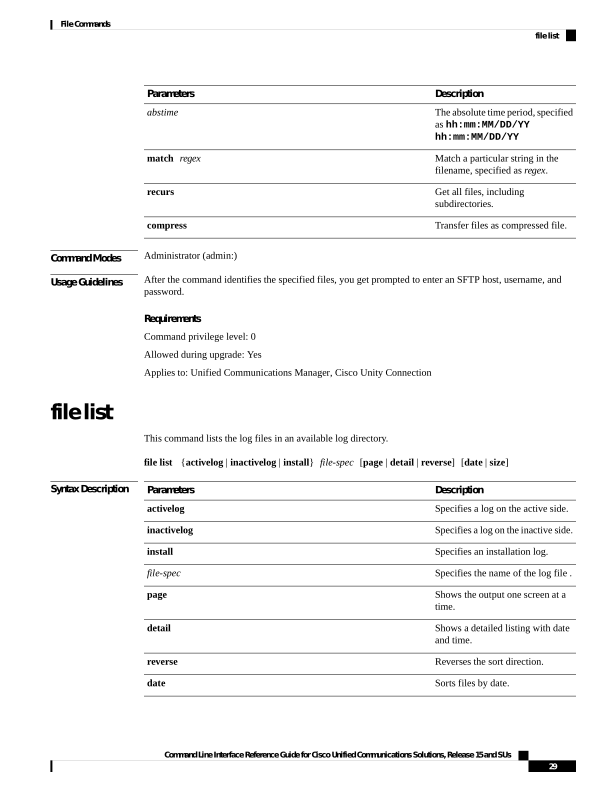
Page 54
Description
Parameters
Sorts files by size.
size
Command Modes
Administrator (admin:)
Usage Guidelines
Requirements
Command privilege level: 0
Allowed during upgrade: Yes
Applies to: Unified Communications Manager, IM and Presence Service on Unified Communications Manager,
Cisco Unity Connection
Example: Log Files with Details
This example lists operating system log files with details.
admin: file list activelog platform/log page detail
Example: Directories in the CDR Repository
This example lists directories in CDR repository.
admin: file list activelog cm/cdr_repository
Example: CDR Files by Size
This example lists CDR files in a specified directory by size.
admin: file list activelog cm/cdr_repository/processed/20050812 size
file list salog
This command lists the partBsalog or salog directory.
file list
{partBsalog | salog} file-spec [page | detail | reverse] [date | size]
Syntax Description
Description
Parameters
Specifies the partBsalog log directory.
partBsalog
Specifies the salog log directory.
salog
Specifies the path to the file or files to list.
file-spec
Shows the output one screen at a time.
page
Shows a detailed listing with date and time.
detail
Reverses the sort direction.
reverse
Command Line Interface Reference Guide for Cisco Unified Communications Solutions, Release 15 and SUs
30
File Commands
file list salog
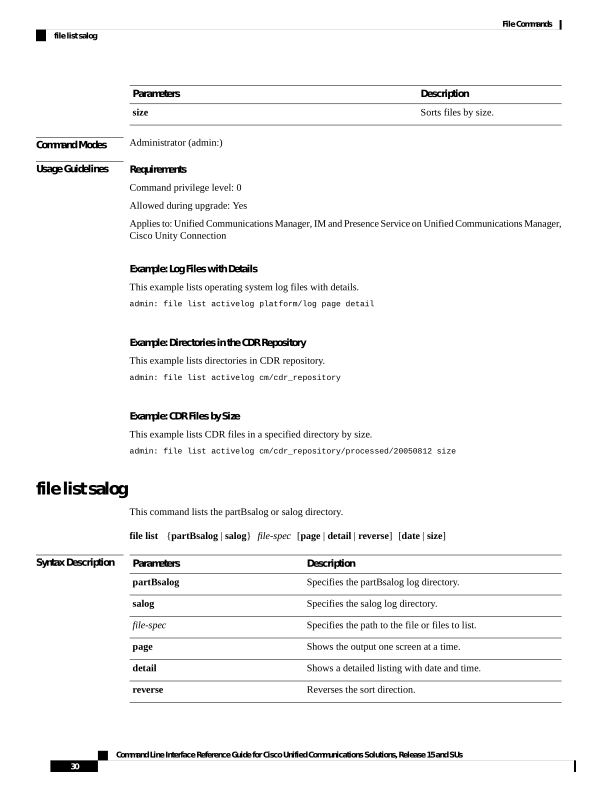
Page 55
Description
Parameters
Sorts files by date.
date
Sorts files by size.
size
Command Modes
Administrator (admin:)
Requirements
Command privilege level: 0
Allowed during upgrade: Yes
Applies to:Unified Communications Manager, Cisco Unity Connection
file list tftp
This command lists TFTP files.
file list tftp file-spec [page | detail | reverse] [date | size]
Syntax Description
Description
Parameters
Specifies the name of the TFTP file
.
file-spec
Shows the output one screen at a
time.
page
Shows a detailed listing with date
and time.
detail
Reverses the sort direction.
reverse
Sorts files by date.
date
Sorts files by size.
size
Command Modes
Administrator (admin:)
Requirements
Command privilege level: 0
Allowed during upgrade: Yes
Applies to: Unified Communications Manager, Cisco Unity Connection
Command Line Interface Reference Guide for Cisco Unified Communications Solutions, Release 15 and SUs
31
File Commands
file list tftp
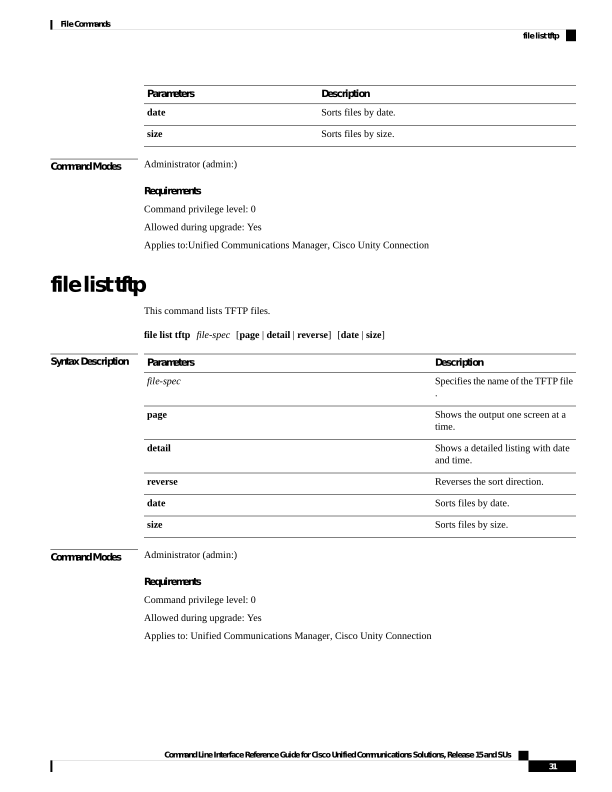
Page 56
file search
This command searches the content of a log and shows the matching lines a page at a time.
file search
{activelog | inactivelog | install} file-spec [reltimeabstime] [ignorecase]
Syntax Description
Description
Parameters
Specifies a log on the active side.
activelog
Specifies a log on the inactive side.
inactivelog
Specifies an installation log.
install
Specifies the name of the file to
search.
file-spec
The relative time period, specified
in minutes | hours | days
| weeks | months | time
value
reltime
The absolute time period, specified
as hh:mm:MM/DD/YY
hh:mm:MM/DD/YY
abstime
Ignores case in a search.
ignorecase
Command Modes
Administrator (admin:)
Usage Guidelines
Write the search term in the form of a regular expression, which is a special text string to describe a search
pattern.
If the search term is found in only one file, the filename appears at the top of the output. If the search term is
found in multiple files, each line of the output begins with the filename in which the matching line was found.
Requirements
Command privilege level: 0
Allowed during upgrade: Yes
file search tftp
This command searches the content of a TFTP file and shows the matching lines a page at a time.
file search tftp file-spec [reltimeabstime] [ignorecase]
Command Line Interface Reference Guide for Cisco Unified Communications Solutions, Release 15 and SUs
32
File Commands
file search
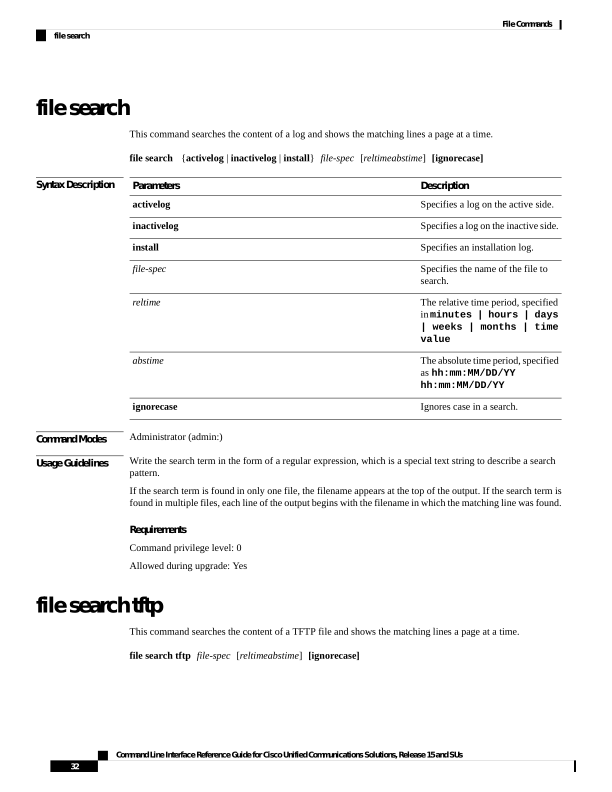
Page 57
Syntax Description
Description
Parameters
Specifies the name of the TFTP file
to search.
file-spec
The relative time period, specified
in minutes | hours | days
| weeks | months | time
value
reltime
The absolute time period, specified
as hh:mm:MM/DD/YY
hh:mm:MM/DD/YY
abstime
Ignores case in a search.
ignorecase
Command Modes
Administrator (admin:)
Usage Guidelines
Write the search term in the form of a regular expression, which is a special text string to describe a search
pattern.
If the search term is found in only one file, the filename appears at the top of the output. If the search term is
found in multiple files, each line of the output begins with the filename in which the matching line was found.
Requirements
Command privilege level: 0
Allowed during upgrade: Yes
file tail activelog
This command tails (prints the last few lines) of a log file.
file tail
{activelog | inactivelog | install} filespec [hex] [lines] [regexp expression]
Syntax Description
Description
Parameters
Specifies a log on the active side.
activelog
Specifies a log on the inactive side.
inactivelog
Specifies an installation log.
install
Specifies the path to the file. You can use the wildcard character, *, for filename as long
as it resolves to one file.
filespec
Show the listing in hexadecimal.
hex
Specifies the number of lines to display.
lines
Tails log files that match expression
regexp
expression
Command Line Interface Reference Guide for Cisco Unified Communications Solutions, Release 15 and SUs
33
File Commands
file tail activelog
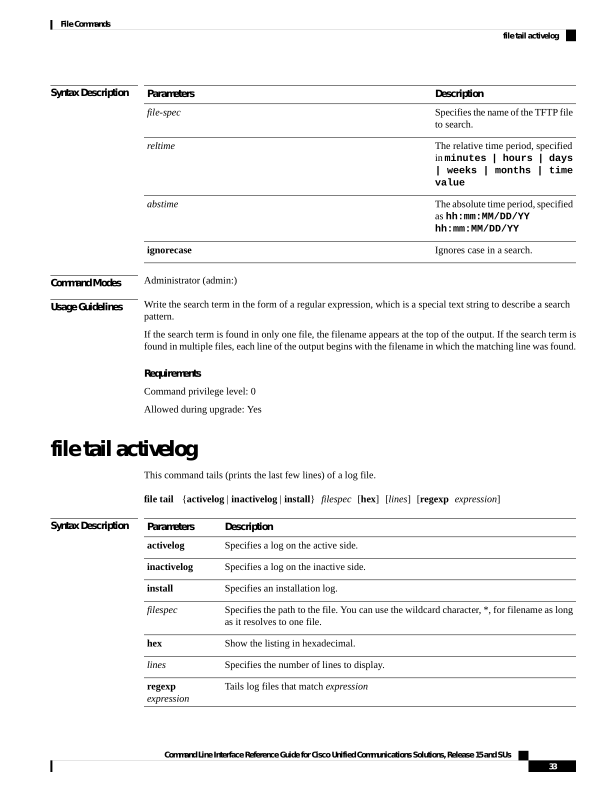
Page 58
Command Modes
Administrator (admin:)
Requirements
Command privilege level: 1
Allowed during upgrade: Yes
Applies to: Unified Communications Manager, IM and Presence Service on Unified Communications Manager,
Cisco Unity Connection
Example
This example tails the operating system CLI log file.
admin: file tail activelog platform/log/cli00001.log
file tail tftp
This command tails (prints the last few lines) of a TFTP file.
file tail tftp filespec [detail] [hex] [lines]
Syntax Description
Description
Parameters
Specifies the path to the file. You can use the wildcard character, *, for filename as long as it
resolves to one file.
filespec
Long listing with date and time
detail
Show the listing in hexadecimal.
hex
Specifies the number of lines to display.
lines
Command Modes
Administrator (admin:)
Requirements
Command privilege level: 0
Allowed during upgrade: Yes
Applies to: Unified Communications Manager, Cisco Unity Connection
file view
This command shows the contents of log files.
file view {activelog/inactivelog/install}} file-spec
Command Line Interface Reference Guide for Cisco Unified Communications Solutions, Release 15 and SUs
34
File Commands
file tail tftp
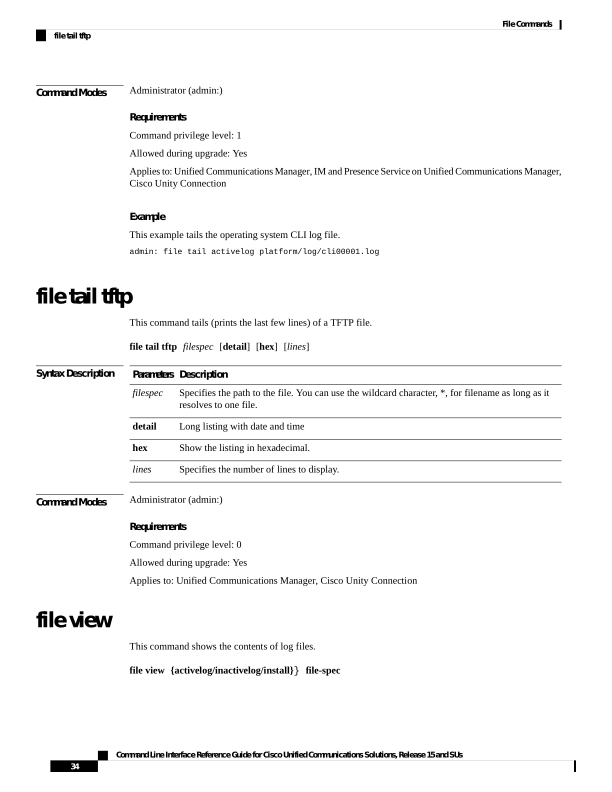
Page 59
Syntax Description
Description
Parameters
Shows the contents of an active side logging files
activelog
Shows the contents of an inactive side logging files
inactivelog
Shows the contents of an install logging file
install
Specifies the path to the file to view. You can use the wildcard
character, *, as long as it resolves to one file.
file-spec
Command Modes
Administrator (admin:)
Usage Guidelines
Do not use this command to view binary files because this can corrupt the terminal session.
Caution
Requirements
Command privilege level: 0
Allowed during upgrade: Yes
Applies to: Unified Communications Manager, IM and Presence Service on Unified Communications Manager,
Cisco Unity Connection
Example
This example shows a particular CDR log on the active side.
admin: file view activelog /cm/cdr_repository/processed/20058012/{filename}
file view activelog
This command shows the contents of log files.
file view activelog file-spec
Syntax Description
Description
Parameters
Shows the contents of an active side logging files
activelog
Specifies the path to the file to view. You can use the wildcard
character, *, as long as it resolves to one file.
file-spec
Command Modes
Administrator (admin:)
Command Line Interface Reference Guide for Cisco Unified Communications Solutions, Release 15 and SUs
35
File Commands
file view activelog

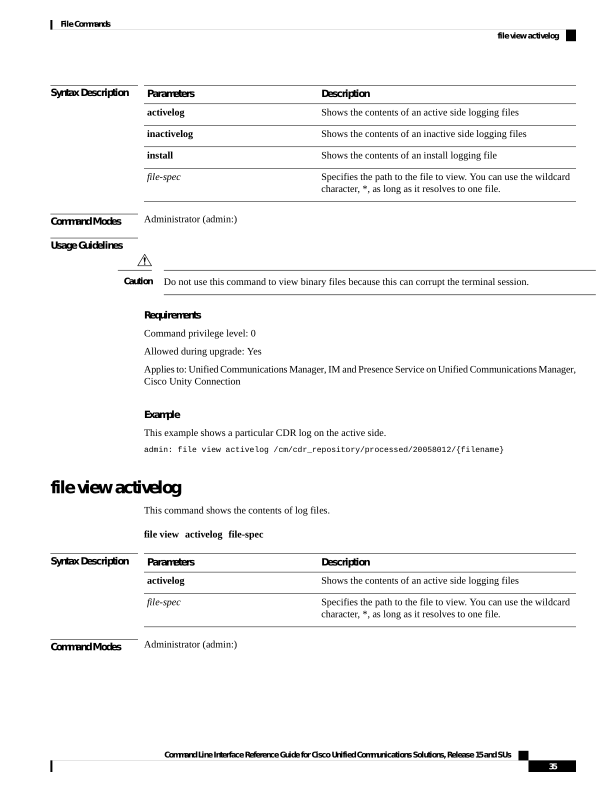
Page 60
Usage Guidelines
Do not use this command to view binary files because this can corrupt the terminal session.
Caution
This command may use a considerable amount of I/O and running it may impact system performance. It is
highly recommended that this command be run off-hours.
Note
Requirements
Command privilege level: 0
Allowed during upgrade: Yes
Applies to: Unified Communications Manager, IM and Presence Service on Unified Communications Manager,
Cisco Unity Connection
Example
This example shows a particular log on the active side.
admin:file view activelog cm/trace/ccm/sdl/{filename}
file view inactivelog
This command displays the contents of a log on the inactive side.
file view inactivelog
{file-spec}
Syntax Description
Description
Parameters
Specifies the path to the file to view. You can use the wildcard character, *, for file-spec as long
as it resolves to one file.
file-spec
Command Modes
Administrator (admin:)
Usage Guidelines
Do not use this command to view binary files because this can corrupt the terminal session.
Caution
This command may use a considerable amount of I/O and running it may impact system performance. It is
highly recommended that this command be run off-hours.
Note
Command Line Interface Reference Guide for Cisco Unified Communications Solutions, Release 15 and SUs
36
File Commands
file view inactivelog


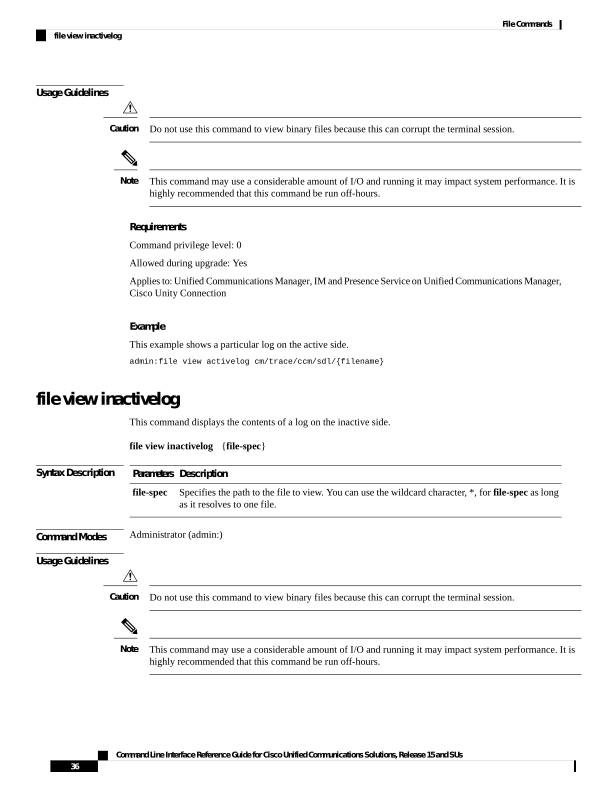
Page 61
Requirements
Command privilege level: 0
Allowed during upgrade: Yes
Applies to: Unified CM, Unified CM with IM and Presence, Cisco Unity Connection
Example
This example shows a particular log on the inactive side.
admin:file view inactivelog cm/trace/ccm/sdl/{filename}
file view system-management-log
This command shows the contents of the Integrated Management Logs (IML).
file view system-management-log
Command Modes
Administrator (admin:)
Usage Guidelines
Do not use this command to view binary files because this can corrupt the terminal session.
Caution
Requirements
Command privilege level: 1
Allowed during upgrade: Yes
Applies to: Unified Communications Manager, Cisco Unity Connection
file view tftp
This command displays the contents of the installation log.
file view tftp file-spec
Syntax Description
Description
Parameters
Specifies the path to the file to view. You can use the wildcard character, *, as long as it resolves
to one file.
file-spec
Command Modes
Administrator (admin:)
Command Line Interface Reference Guide for Cisco Unified Communications Solutions, Release 15 and SUs
37
File Commands
file view system-management-log

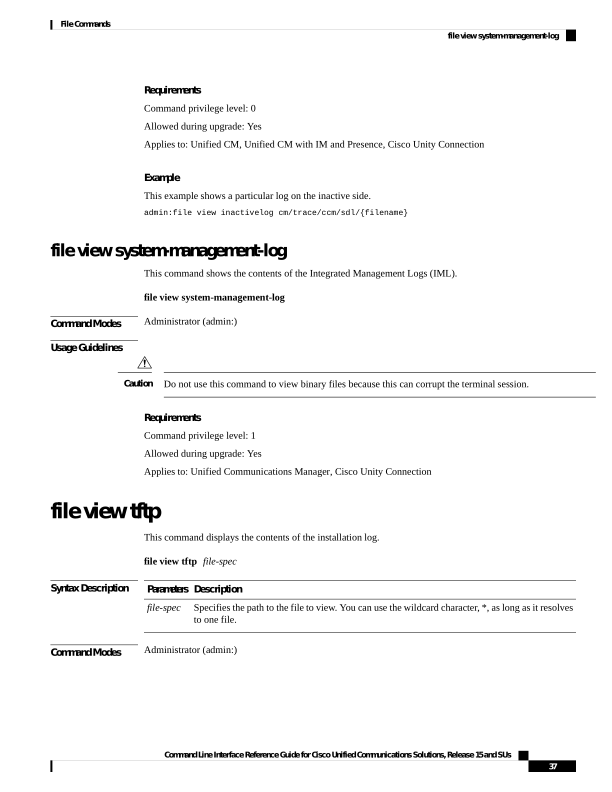
Page 62
Usage Guidelines
Do not use this command to view binary files because this can corrupt the terminal session.
Caution
Requirements
Command privilege level: 0
Allowed during upgrade: Yes
Applies to: Unified Communications Manager, Cisco Unity Connection
Command Line Interface Reference Guide for Cisco Unified Communications Solutions, Release 15 and SUs
38
File Commands
file view tftp

Page 63
C H A P T E R 5
License Commands
• license smart deregister, on page 39
• license smart register idtoken <token> [force], on page 40
• license smart renew auth, on page 40
• license smart renew ID, on page 40
• license smart transport direct, on page 41
• license smart transport gateway <URL> (Applicable Until Release 14SU4 and 15SU2), on page 41
• license smart transport gateway <URL> (Applicable From Release 14SU4 and 15SU2 Onwards), on
page 42
• license smart transport proxy <proxy-server> <proxy-port>, on page 42
• license smart transport ssm-satellite <URL> (Release 14SU4 and 15SU2 onwards), on page 43
• license smart factory reset, on page 44
• license smart reservation enable, on page 44
• license smart reservation disable, on page 44
• license smart reservation request, on page 45
• license smart reservation cancel, on page 45
• license smart reservation install "<authorization-code>", on page 45
• license smart reservation install-file <url>, on page 46
• license smart reservation return, on page 46
• license smart reservation return authorization "<authorization-code>", on page 47
• license smart reservation set license_count, on page 47
• license smart export request local <exportfeaturename>, on page 47
• license smart export return local <exportfeaturename>, on page 48
• license smart export cancel, on page 48
license smart deregister
Use this command to unregister smart licensing on Unified Communications Manager and remove the product
from Cisco Smart Software Manager.
license smart deregister
Command Modes
Administrator (admin)
Command Line Interface Reference Guide for Cisco Unified Communications Solutions, Release 15 and SUs
39

Page 64
Requirements
Command privilege level: 4
Allowed during upgrade: Yes
Applies to: Unified Communications Manager and Cisco Unity Connection
license smart register idtoken <token> [force]
Use this command to register Unified Communications Manager with Cisco Smart Software Manager using
an ID token.
license smart register idtoken <token> [force]
Command Modes
Administrator (admin:)
Requirements
Command privilege level: 4
Allowed during upgrade: Yes
Applies to: Unified Communications Manager and Cisco Unity Connection
license smart renew auth
Use this command to manually renew the license usage information .
license smart renew auth
Command Modes
Administrator (admin)
Requirements
Command privilege level: 4
Allowed during upgrade: Yes
Applies to: Unified Communications Manager and Cisco Unity Connection
license smart renew ID
Use this command to manually renew the license registration.
license smart renew ID
Command Modes
Administrator (admin)
Command Line Interface Reference Guide for Cisco Unified Communications Solutions, Release 15 and SUs
40
License Commands
license smart register idtoken <token> [force]
Page 65
Requirements
Command privilege level: 4
Allowed during upgrade: Yes
Applies to: Unified Communications Manager and Cisco Unity Connection
license smart transport direct
Use the following command to configure the Smart Licensing feature to send license usage information directly
to Cisco Smart Software Manager. This is a default setting.
license smart transport direct
Command Modes
Administrator (admin)
Requirements
Command privilege level: 4
Allowed during upgrade: Yes
Applies to: Unified Communications Manager
The following command is executed when Unified Communications Manager is unregistered with Cisco
Smart Software Manager or satellite.
Note
license smart transport gateway <URL> (Applicable Until
Release 14SU4 and 15SU2)
Use the following command to configure the Smart Licensing feature to send license usage information to
Cisco Smart Software Manager through an on-premise Transport Gateway or Smart Software Manager satellite.
The setting is used when the product does not have internet access.
license smart transport gateway <URL>
Command Modes
Administrator (admin)
Requirements
Command privilege level: 4
Allowed during upgrade: Yes
Applies to: Unified Communications Manager
Command Line Interface Reference Guide for Cisco Unified Communications Solutions, Release 15 and SUs
41
License Commands
license smart transport direct

Page 66
The following command is executed when Unified Communications Manager is unregistered with Cisco
Smart Software Manager or satellite.
Note
license smart transport gateway <URL> (Applicable From
Release 14SU4 and 15SU2 Onwards)
Use the following command to configure the Smart Licensing feature to send license usage information to
Cisco Smart Software Manager through an on-premise Transport Gateway. The setting is used when the
product does not have internet access.
license smart transport gateway <URL>
Command Modes
Administrator (admin)
Requirements
Command privilege level: 4
Allowed during upgrade: Yes
Applies to: Unified Communications Manager
The following command is executed when Unified Communications Manager is unregistered with Cisco
Smart Software Manager or satellite.
Note
This command is executed to configure the Transport Gateway URL. This command cannot be executed on
Unified Communications Manager using the Smart Transport mode for communication as Transport Gateway
is not supported. Use the ‘license smart transport ssm-satellite <URL>’ CLI command to configure the satellite
URL. Smart Transport gateway is not supported for freshly deployed Unified Communications Manager
systems.
Note
You must use this command in case there are any issues with Smart Transport mode and wants to fall back
to the Call Home mode post deregister.
Note
license smart transport proxy <proxy-server> <proxy-port>
Use the following command to configure the Smart Licensing feature to communicate with Cisco Smart
Software Manager through an HTTP or HTTPS Proxy:
Command Line Interface Reference Guide for Cisco Unified Communications Solutions, Release 15 and SUs
42
License Commands
license smart transport gateway <URL> (Applicable From Release 14SU4 and 15SU2 Onwards)

Page 67
<proxy-server> - Proxy Server IP Address/HostName
<proxy-port> - Proxy Server Port
license smart transport proxy <proxy-server> <proxy-port>
Command Modes
Administrator (admin)
Requirements
Command privilege level: 4
Allowed during upgrade: Yes
Applies to: Unified Communications Manager
The following command is executed when Unified Communications Manager is unregistered with Cisco
Smart Software Manager.
Note
When user gets the prompt Do you want to enable Authentication based proxy? Yes/No
Enter "Yes" if you want to register Unified Communication Manager with Cisco Smart Software Manager
using authentication based proxy server.
Note
Example
admin:license smart transport proxy <proxy-server> <proxy-port>
Do you want to enable Authentication based proxy ? y/n y
User Name : xyz
Password: *********
Result: Transport settings updated successfully.
license smart transport ssm-satellite <URL> (Release 14SU4
and 15SU2 onwards)
Use the following command to configure the Smart Licensing feature to send license usage information to an
on-premise Smart Software Manager satellite. This setting is used when the product does not have any access
to the Internet.
license smart transport ssm-satellite <URL>
Command Modes
Administrator (admin)
Command Line Interface Reference Guide for Cisco Unified Communications Solutions, Release 15 and SUs
43
License Commands
license smart transport ssm-satellite <URL> (Release 14SU4 and 15SU2 onwards)

Page 68
Requirements
Command privilege level: 4
Allowed during upgrade: Yes
Applies to: Unified Communications Manager
license smart factory reset
Use this command to clear all licensing information from the trusted store and memory, except the evaluation
period count down and the Specific License Reservation (SLR) sequence number.
license smart factory reset
Command Modes
Administrator (admin)
Requirements
Command privilege level: 4
Allowed during upgrade: Yes
Applies to: Cisco Unified Communications Manager
license smart reservation enable
Use this command to enable the license reservation feature.
license smart reservation enable
Command Modes
Administrator (admin)
Requirements
Command privilege level: 4
Allowed during upgrade: Yes
Applies to: Unified Communications Manager and Cisco Unity Connection
license smart reservation disable
Use this command to disable the license reservation feature.
license smart reservation disable
Command Modes
Administrator (admin)
Command Line Interface Reference Guide for Cisco Unified Communications Solutions, Release 15 and SUs
44
License Commands
license smart factory reset
Page 69
Requirements
Command privilege level: 4
Allowed during upgrade: Yes
Applies to: Unified Communications Manager and Cisco Unity Connection
license smart reservation request
Use this command to generate reservation request code from Unified Communications Manager product.
license smart reservation request
Command Modes
Administrator (admin)
Requirements
Command privilege level: 4
Allowed during upgrade: Yes
Applies to: Unified Communications Manager and Cisco Unity Connection
license smart reservation cancel
Use this command to cancel the reservation process before the authorization code obtained from Cisco Smart
Software Manager against the Product request code is installed.
license smart reservation cancel
Command Modes
Administrator (admin)
Requirements
Command privilege level: 4
Allowed during upgrade: Yes
Applies to: Unified Communications Manager and Cisco Unity Connection
license smart reservation install "<authorization-code>"
Use this command to install the license reservation authorization-code generated on the Cisco Smart Software
Manager.
license smart reservation install "<authorization-code>"
Command Modes
Administrator (admin)
Command Line Interface Reference Guide for Cisco Unified Communications Solutions, Release 15 and SUs
45
License Commands
license smart reservation request
Page 70
Requirements
Command privilege level: 4
Allowed during upgrade: Yes
Applies to: Unified Communications Manager and Cisco Unity Connection
license smart reservation install-file <url>
Use this command to install the license reservation authorization-code file generated on the Cisco Smart
Software Manager.
license smart reservation install-file <url>
Command Modes
Administrator (admin)
Requirements
Command privilege level: 4
Allowed during upgrade: Yes
Applies to: Unified Communications Manager and Cisco Unity Connection
url is mandatory Path to the authorization-code file on SFTP server in below format:
sftp://<HostName/IP>:<port>/<Path to Authorization-Code file>
Note
license smart reservation return
Use this command to generate a return code that must be entered into the Cisco Smart Software Manager to
return the licenses to the virtual account pool.
license smart reservation return
Command Modes
Administrator (admin)
Requirements
Command privilege level: 4
Allowed during upgrade: Yes
Applies to: Unified Communications Manager and Cisco Unity Connection
Command Line Interface Reference Guide for Cisco Unified Communications Solutions, Release 15 and SUs
46
License Commands
license smart reservation install-file <url>

Page 71
license smart reservation return authorization
"<authorization-code>"
Use this command to generate a return code using the authorization code specified on the command line. The
return code must be entered into the Cisco Smart Software Manager to return the licenses to the virtual account
pool.
license smart reservation return authorization "<authorization-code>"
Command Modes
Administrator (admin)
Requirements
Command privilege level: 4
Allowed during upgrade: Yes
Applies to: Unified Communications Manager and Cisco Unity Connection
license smart reservation set license_count
Use this command to configure or update the license count for the system to operate within when Permanent
License Reservation is enabled. License count configured using this CLI does not affect compliance status
and is for administrator reference only. The license count set by admin using the CLI will be displayed on the
Unified Communications Manager License Management UI screen.
license smart reservation set license_count
Command Modes
Administrator (admin:)
Requirements
Command privilege level: 4
Allowed during upgrade: Yes
Applies to: Unified Communications Manager , Cisco Emergency Responder, and Cisco Unity Connection
license smart export request local <exportfeaturename>
Use this command to allow user with Smart Account for whom Export Restrictions apply, to request a regulatory
export license from Cisco Smart Software Manager or satellite.
The command returns an export authorization key if regulatory Export License is available from Cisco Smart
Software Manager or satellite and enable export-controlled functionality on the product.
license smart export request local <exportfeaturename>
Command Line Interface Reference Guide for Cisco Unified Communications Solutions, Release 15 and SUs
47
License Commands
license smart reservation return authorization "<authorization-code>"
Page 72
• Export restricted feature name for Unified Communications Manager is
<CUCM_Export_Restricted_Authorization_Key>
• Export restricted feature name for Cisco Unity Connection is
<CUC_Export_Restricted_Authorization_Key>
Note
Command Modes
Administrator (admin)
Requirements
Command privilege level: 4
Allowed during upgrade: Yes
Applies to: Cisco Unified Communications Manager, Cisco Unity Connection.
license smart export return local <exportfeaturename>
Use this command to allow a return, previously requested export restricted license to Cisco Smart Software
Manager or satellite. The export authorization key for the export restricted feature is removed from the system.
license smart export return local <exportfeaturename>
• Export restricted feature name for Unified Communications Manager is
<CUCM_Export_Restricted_Authorization_Key>
• Export restricted feature name for Cisco Unity Connection is
<CUC_Export_Restricted_Authorization_Key>
Note
Command Modes
Administrator (admin)
Requirements
Command privilege level: 4
Allowed during upgrade: Yes
Applies to: Cisco Unified Communications Manager, Cisco Unity Connection.
license smart export cancel
Use this command to allow user with Smart Account for whom Export Restrictions apply, to cancel the
automatic retry of previously failed export request or return from Cisco Smart Software Manager or satellite.
license smart export cancel
Command Line Interface Reference Guide for Cisco Unified Communications Solutions, Release 15 and SUs
48
License Commands
license smart export return local <exportfeaturename>

Page 73
Command Modes
Administrator (admin)
Requirements
Command privilege level: 4
Allowed during upgrade: Yes
Applies to: Cisco Unified Communications Manager, Cisco Unity Connection.
Command Line Interface Reference Guide for Cisco Unified Communications Solutions, Release 15 and SUs
49
License Commands
license smart export cancel
Page 74
Command Line Interface Reference Guide for Cisco Unified Communications Solutions, Release 15 and SUs
50
License Commands
license smart export cancel
Page 75
C H A P T E R 6
Run Commands
• run cuc dbquery, on page 51
• run cuc preupgrade test, on page 52
• run cuc sysagent task, on page 54
• run cuc vui rebuild, on page 55
• run loadcsv, on page 55
• run loadxml, on page 55
• run sql, on page 56
• run pe sql, on page 57
run cuc dbquery
This command runs an SQL query and displays the results.
run cuc dbquery database_name sql_query [page]
Syntax Description
Description
Parameters
Specifies the database that sql_statement operates on.
Note
Be aware that database names are case sensitive.
Connection databases include:
unitydirdb: Contains the directory and configuration data.
unitydyndb: Contains dynamic data that Connection uses internally.
unitymbxdb1 to unitymbxdb5: Contains the data about the current voice messages in
the corresponding mailbox store. This data includes pointers to the audio files that are stored
in the file system. If only one mailbox store is configured, the name of the mailbox store
database is always unitymbxdb1.
unityrptdb: Contains audit log data.
database_name
Specifies the SQL query that you want to run.
sql_query
Command Line Interface Reference Guide for Cisco Unified Communications Solutions, Release 15 and SUs
51

Page 76
Description
Parameters
Shows the output one page at a time.
Note
Be aware that page is case sensitive.
page
Command Modes
Administrator (admin:)
Usage Guidelines
You can also use the run cuc dbquery command with the csp_ConfigurationModify procedure, which
configures the Wait for Blind Transfer Ringing timer. The command usage for this timer is as follows:
run cuc dbquery unitydirdb execute procedure
csp_ConfigurationModify(pFullName='System.Telephony.WaitForBlindTransferLongTimeoutMs',pvaluelong="new
value"
where, new value specifies the value of the Wait for Blind Transfer Ringing Timer parameter. The default
and minimum value of this parameter is 500ms. The maximum value of this parameter can be 5000ms.
•
Requirements
Command privilege level: 1
Allowed during upgrade: Yes
Applies to: Cisco Unity Connection
Example
The following example runs the SQL query select alias from vw_usertemplate on the
unitydirdb database.
admin: run cuc dbquery unitydirdb select alias from vw_usertemplate
alias
AdministratorTemplate
VoiceMailUserTemplate
run cuc preupgrade test
This command verifies the state of the connection server on which the upgrade process is to be performed
and specifies the actions that can be taken before upgrading the system.
run cuc preupgrade test
Command Modes
Administrator (admin:)
Command Line Interface Reference Guide for Cisco Unified Communications Solutions, Release 15 and SUs
52
Run Commands
run cuc preupgrade test
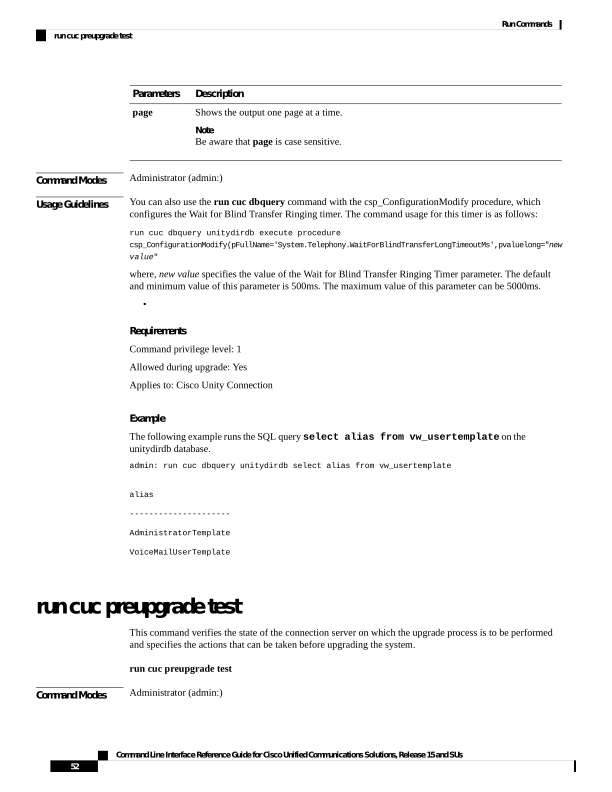
Page 77
Usage Guidelines
None
Requirements
Command privilege level: 1
Allowed during upgrade: Yes
Applies to: Cisco Unity Connection only.
Example
admin:run cuc preupgrade test
DISCLAIMER ::
This cli command should be executed from publisher before upgrade to
check system health. This cli command is not intended to correct the
system state , rather it aims at informing the administrator what all
actions are advised to be taken before running upgrade.
Checking connection db. Please wait...Done
Checking critical services. Please wait...Done
Checking cluster state. Please wait...Done
Checking cop file installation. Please wait...Done
Checking locales installation. Please wait...Done
Checking drs backup history. Please wait...Done
R E P O R T
C A R D
Locales Installation Test: PASS
Connection DB Test: PASS
DRS Backup History Test: FAIL
Cluster State Test: SKIPPED
Critical Services Test: PASS
Cop File Installation Test: SKIPPED
A C T I O N
S U M M A R Y
ACTION : Connection DB is online.
NO constraints were found disabled in :unitydirdb,NO ACTION required before upgrade.
NO indexes were found disabled in :unitydirdb,NO ACTION required before upgrade.
NO constraints were found disabled in :unitydyndb,NO ACTION required before upgrade.
NO indexes were found disabled in :unitydyndb,NO ACTION required before upgrade.
NO constraints were found disabled in :unitymbxdb1,NO ACTION required before
upgrade.
NO indexes were found disabled in :unitymbxdb1,NO ACTION required before upgrade.
NO constraints were found disabled in :unityrptdb,NO ACTION required before upgrade.
NO indexes were found disabled in :unityrptdb,NO ACTION required before upgrade.
Connection DB state is GOOD,NO ACTION required before upgrade.
ACTION : All Critical services are running ,NO ACTION required before upgrade.
ACTION : Standalone/Cores detected , excluding cluster state checking
ACTION : Skipping COP installation check, product version detected :'8.6.2.21018-1',NO
ACTION required before upgrade.
ACTION : No locales were found installed ,NO ACTION required before upgrade.
ACTION : Make Sure DRS backup is taken aleast a day before upgrade.
Check report /var/log/active/cuc/cli/preupgrade_120325-224523.txt for details.
Command Line Interface Reference Guide for Cisco Unified Communications Solutions, Release 15 and SUs
53
Run Commands
run cuc preupgrade test
Page 78
run cuc sysagent task
This command runs a Sysagent task.
run cuc sysagent task task_name
Syntax Description
Description
Parameters
Specifies the name of the Sysagent task that you want to run.
task_name
In an HTTP(S) network, you need to provide the HTTP(S) link display name as a parameter in the command
to run directory synchronization (Data.LocalNetworkSync) and voice name synchronization
(Data.LocalNetworkSync.Voicename) tasks. The syntax is shown below:
run cuc sysagent task
task_name HTTP(S)LinkDisplayName
The following example runs the Data.LocalNetworkSync task:
admin: run cuc sysagent task Data.LocalNetworkSync HTTP(S)LinkDisplayName1
Data.LocalNetworkSync started
Where HTTP(S)LinkDisplayName is the display name of the HTTP(S) link with which you want to
synchronize the directory information.
Before running the command, make sure that the scheduled task for directory or voice name
synchronization is disabled for the specified HTTP(S) link "HTTP(S)LinkDisplayName" to avoid
any issues in synchronization.
Note
Command Modes
Administrator (admin:)
Usage Guidelines
For a list of Sysagent tasks, run the command show cuc sysagent task list (Cisco Unity Connection only).
Be aware that sysagent task names are case sensitive.
Requirements
Command privilege level: 1
Allowed during upgrade: Yes
Applies to: Cisco Unity Connection
Example
The following example runs the Sysagent task Umss.CleanDeletedMessagesTask.
admin: run cuc sysagent task Umss.CleanDeletedMessagesTask
Command Line Interface Reference Guide for Cisco Unified Communications Solutions, Release 15 and SUs
54
Run Commands
run cuc sysagent task

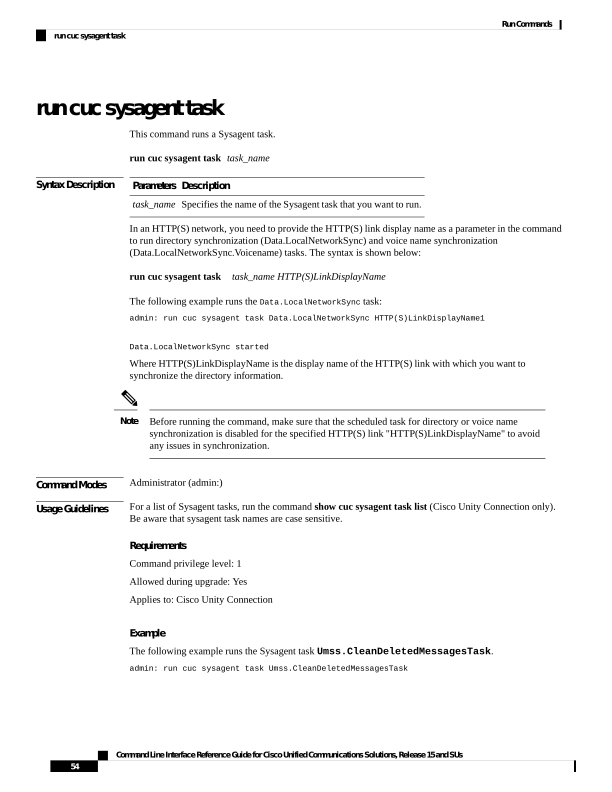
Page 79
Umss.CleanDeletedMessagesTask started
run cuc vui rebuild
This command instructs the voice recognition transport utility to immediately rebuild the voice recognition
name grammars with pending changes.
run cuc vui rebuild
Command Modes
Administrator (admin:)
Usage Guidelines
This command rebuilds only grammars that have changes flagged in the database. This command ignores
name grammar update blackout schedules and executes immediately. Due to the overhead of retrieving
potentially large amounts of name-related data from the database, you should use this command sparingly
and only when absolutely necessary.
Requirements
Command privilege level: 1
Allowed during upgrade: Yes
Applies to: Cisco Unity Connection
run loadcsv
This command is used on the publisher node to install the csv files that are available on a server.
run loadcsv
Command Modes
Administrator (admin:)
Usage Guidelines
Requirements
Command privilege level: 1
Allowed during upgrade: No
Applies to: Unified Communications Manager, IM and Presence Service on Unified Communications Manager,
Cisco Unity Connection
run loadxml
This command is a workaround for when service parameters or product-specific information does not appear
in the administration window as expected.
run loadxml
Command Line Interface Reference Guide for Cisco Unified Communications Solutions, Release 15 and SUs
55
Run Commands
run cuc vui rebuild
Page 80
Command Modes
Administrator (admin:)
Usage Guidelines
This command is processor intensive, and you may need to restart some services after you run this command.
Note
Requirements
Command privilege level: 1
Allowed during upgrade: No
Applies to: Unified Communications Manager, IM and Presence Service on Unified Communications Manager,
Cisco Unity Connection
run sql
This command allows you to run an SQL command.
run sql sql_statement
Syntax Description
Description
Parameters
Specifies the SQL command to run.
sql_statement
Command Modes
Administrator (admin:)
Requirements
Command privilege level: 0
Allowed during upgrade: 0
Applies to: Unified Communications Manager, IM and Presence Service on Unified Communications Manager,
Cisco Unity Connection
Users with ordinary privileges can run read-only SQL commands.
Note
Example
This example runs an SQL command.
admin: run sql select name from device
Command Line Interface Reference Guide for Cisco Unified Communications Solutions, Release 15 and SUs
56
Run Commands
run sql

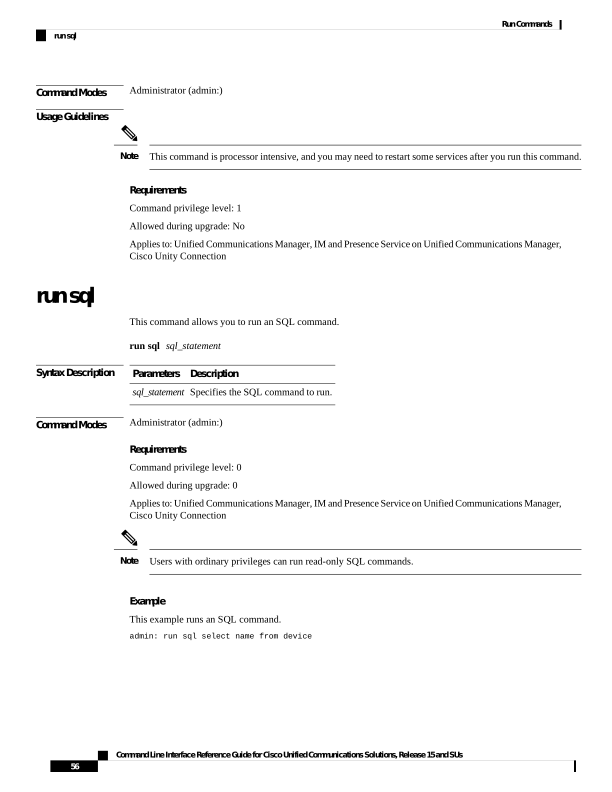
Page 81
run pe sql
This command allows you to run an input SQL statement against the specified presence datastore.
run pe sql datastore_name sql_statement
Syntax Description
Description
Parameters
Represents the name of the datastore.
datastore_name
Represents the SQL command to run.
sql_statement
Command Modes
Administrator (admin:)
Usage Guidelines
Requirements
Command privilege level: 1
Allowed during upgrade: Yes
Applies to: IM and Presence Service on Unified Communications Manager
Users with ordinary privileges can run read-only SQL commands.
Note
Example
This example runs an SQL command against the datastore.
admin: run pe sql ttsoft select * from presenceeventtable
Command Line Interface Reference Guide for Cisco Unified Communications Solutions, Release 15 and SUs
57
Run Commands
run pe sql

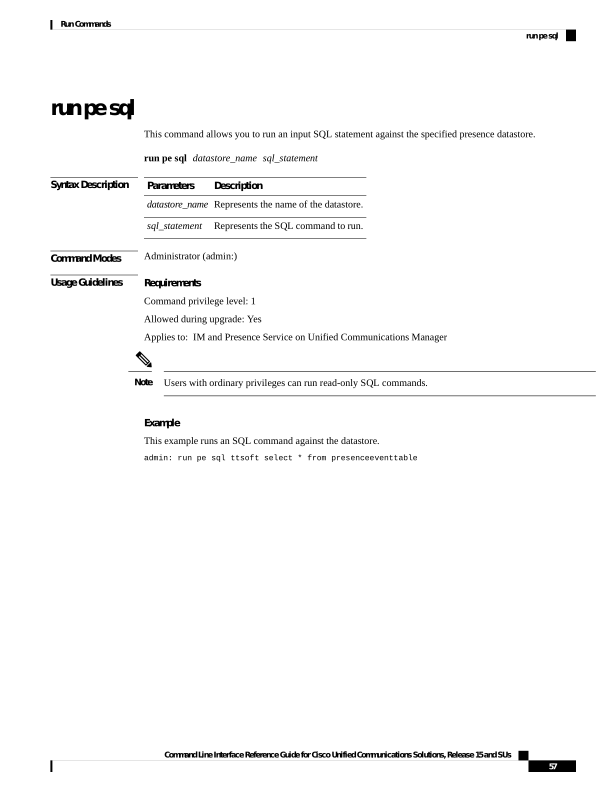
Page 82
Command Line Interface Reference Guide for Cisco Unified Communications Solutions, Release 15 and SUs
58
Run Commands
run pe sql
Page 83
C H A P T E R 7
Set Commands
• set account enable, on page 61
• set account name, on page 62
• set accountlocking, on page 63
• set accountlocking count, on page 64
• set accountlocking unlocktime, on page 65
• set account ssorecoveryurlaccess, on page 65
• set account ssouidvalue, on page 66
• set cert bulk consolidate, on page 67
• set cert bulk export, on page 67
• set cert bulk import, on page 68
• set cert bulk sftp, on page 68
• set cert default-ca-list disable, on page 69
• set cert default-ca-list enable, on page 70
• set cert delete, on page 72
• set cert import, on page 72
• set cert regen, on page 73
• set cert regen ITLRecovery, on page 74
• set cli pagination, on page 75
• set cli session timeout, on page 76
• set commandcount, on page 76
• set csr gen, on page 77
• set cuc jetty stderrlog, on page 77
• set cuc jetty stdoutlog, on page 78
• set cuc jetty requestlog, on page 79
• set cuc speechview registration certificate size, on page 80
• set cuc srsv timeout, on page 80
• set cuc trace, on page 81
• set date, on page 82
• set dscp defaults, on page 82
• set dscp, on page 83
• set dscp marking, on page 83
• set http min-version HTTP/1.1, on page 84
• set http min-version HTTP/2, on page 85
Command Line Interface Reference Guide for Cisco Unified Communications Solutions, Release 15 and SUs
59

Page 84
• set ipsec policy_group, on page 86
• set ipsec policy_name, on page 86
• set key regen authz encryption, on page 87
• set key regen authz signing , on page 87
• set logging, on page 87
• set Login Grace Timeout, on page 88
• set network cluster publisher, on page 88
• set network cluster subscriber details, on page 89
• set network cluster subscriber dynamic-cluster-configuration, on page 90
• set network dhcp eth0, on page 90
• set network dns, on page 91
• set network dns options, on page 91
• set network domain, on page 92
• set network failover, on page 93
• set network gateway, on page 93
• set network hostname, on page 94
• set network ip eth0, on page 96
• set network ipv6 dhcp, on page 97
• set network ipv6 gateway, on page 98
• set network ipv6 service, on page 98
• set network ipv6 static_address, on page 99
• set network max_ip_conntrack, on page 99
• set network mtu, on page 100
• set network name-service hosts cache-enable, on page 101
• set network name-service hosts max-db-size, on page 101
• set network name-service hosts negative-time-to-live, on page 102
• set network name-service hosts persistent, on page 102
• set network name-service hosts positive-time-to-live, on page 103
• set network name-service hosts suggested-size, on page 103
• set network name-service services cache-enable, on page 103
• set network name-service services max-db-size, on page 104
• set network name-service services negative-time-to-live, on page 104
• set network name-service services persistent, on page 105
• set network name-service services positive-time-to-live, on page 105
• set network name-service services suggested-size, on page 106
• set network nic eth0, on page 106
• set network ntp option, on page 107
• set network pmtud state, on page 107
• set network restore , on page 108
• set network status eth0, on page 109
• set network name-service, on page 110
• set password complexity minimum-length, on page 110
• set password age, on page 111
• set password change-at-login, on page 111
• set password complexity character, on page 112
• set password complexity character difference, on page 113
Command Line Interface Reference Guide for Cisco Unified Communications Solutions, Release 15 and SUs
60
Set Commands
Page 85
• set password complexity character max-repeat, on page 114
• set password expiry maximum-age, on page 114
• set password expiry user maximum-age configure, on page 115
• set password expiry minimum-age, on page 116
• set password expiry user maximum-age, on page 117
• set password expiry user minimum-age, on page 117
• set password history, on page 118
• set password inactivity, on page 119
• set password system bootloader encryptHash , on page 120
• set password user admin, on page 120
• set password user security, on page 120
• Set replication-sync monitor, on page 121
• set samltrace level, on page 122
• set session maxlimit, on page 122
• set sip-trunkbusyout disable, on page 123
• set sip-trunkbusyout enable, on page 123
• set smtp, on page 124
• set strace enable, on page 124
• set strace disable, on page 125
• set timezone, on page 125
• set tls min-version, on page 126
• set trace disable, on page 128
• set trace enable, on page 128
• set tlsresumptiontimeout, on page 129
• set tlstrace*, on page 130
• set web-security, on page 131
• set webapp session timeout, on page 132
• set webapp session maxlimit, on page 133
• set workingdir, on page 136
set account enable
This command enables the OS user account that was disabled because of password inactivity.
set account enable user-id
Syntax Description
Description
Parameters
Specifies the user ID of the account that was disabled.
user-id
Command Modes
Administrator (admin:)
Requirements
Command privilege level: 4
Allowed during upgrade: No
Command Line Interface Reference Guide for Cisco Unified Communications Solutions, Release 15 and SUs
61
Set Commands
set account enable
Page 86
Applies to: Unified Communications Manager, IM and Presence Service on Unified Communications Manager,
Cisco Unity Connection
set account name
This command sets up a new account on the operating system.
set account name name
Syntax Description
Description
Parameters
Represents the username for the new account.
Enter a name comprised of only alphabets or characters comprised of alphanumeric characters
(a-z, A-D, 0-9).
Note
Umlaut characters are not supported.
name
Command Modes
Administrator (admin:)
Usage Guidelines
After you enter the username, the system prompts you to enter the privilege level (0 or 1) and password for
the new account. The privilege levels definitions are as follows:
Privilege level 0
Specifies an ordinary privilege level. Users with ordinary privileges can run CLI commands with privilege
level 0 only.
Privilege level 1
Specifies an advanced privilege level. Users with advanced privileges can run CLI commands with
privilege level 1 and below.
The administrator account that the system creates during Unified Communications Manager installation has
a privilege level of 4. The administrator can run all commands in the CLI.
Note
The set account name command includes the following new prompts:
• 'Allow this User to login to SAML SSO-enabled system through the Recovery URL ? (Yes / No)'
— Level 4 administrators can enable or disable the access to the recovery URL sign-in option for new
platform administrators by typing 'Yes' or 'No' on the CLI. The value can be configured to 'Yes' if a
user chooses to sign-in using the Recovery URL.
• 'To authenticate a platform login for SSO, a Unique Identifier (UID) must be provided that identifies
this user to LDAP (such as sAMAccountName or UPN). Please enter the appropriate LDAP Unique
Identifier (UID) for this user:[UID]' — Level 4 administrator can type the unique identifier value for
each platform administrator for this prompt.
Command Line Interface Reference Guide for Cisco Unified Communications Solutions, Release 15 and SUs
62
Set Commands
set account name

Page 87
Only the Level 4 administrator has privileges to run all the CLI commands.
The administrator must ensure to perform the following tasks:
• Type either 'Yes' or 'No' for the 'Allow this User to login to SAML SSO-enabled system through
Recovery URL ? (Yes / No)' prompt. If this prompt value is blank, an error message appears.
• Type a value for the 'To authenticate a platform login for SSO, a Unique Identifier (UID) must be
provided that identifies this user to LDAP (such as sAMAccountName or UPN). Please enter the
appropriate LDAP Unique Identifier (UID) for this user:[UID]' prompt. If the prompt value is
duplicate, an error message appears. You can hit the Enter key and then, the user account name is saved
by default. After the account is created successfully, the administrator will see the message Account
created successfully. Log in to the CLI and update the password before you log in to OS Administration.
• In the case of SAML SSO login for Operating System Admin pages, if LDAP user consists of '&' character,
make sure you create platform user without '&' and then map to LDAP user consisting of '&' character.
• In the case of SAML SSO login for Operating System Admin pages, if LDAP attribute value for User
ID is telephonenumber, make sure you create platform user using consisting of alphanumeric characters
or English alphabets only. Do not include platform user name with only numeric values. Then, map to
the appropriate LDAP user having the UID value as telephone number.
Note
Requirements
Command privilege level: 4
Allowed during upgrade: No
Applies to: Unified Communications Manager, IM and Presence Service on Unified Communications Manager,
Cisco Unity Connection
set accountlocking
This command enables or disables account locking for the current administration accounts.
set accountlocking
{enable | disable}
Syntax Description
Description
Parameters
Enable account locking.
enable
Disable account locking.
disable
Command Modes
Administrator (admin:)
Command Line Interface Reference Guide for Cisco Unified Communications Solutions, Release 15 and SUs
63
Set Commands
set accountlocking

Page 88
Usage Guidelines
After you run this command with enable, the system automatically enables account lockout notification after
the system enables the audit logging function.
When the Administration account locking feature is enabled, and the user enters the wrong password more
than the accountlocking count, the account gets locked for a set period. The message that the account is locked
is only seen on the VM console and secure logs.
Note
Requirements
Applies to: Unified Communications Manager, IM and Presence Service on Unified Communications Manager,
Cisco Unity Connection
set accountlocking count
This command sets the global consecutive failed sign-in attempt count that triggers locking a user account.
set accountlocking count
attempts
Syntax Description
Description
Parameters
Represents the number of consecutive sign-in attempts
before the system locks the account.
Value Range: 2-5
Default value: 3
attempts
Command Modes
Administrator (admin:)
Usage Guidelines
To change the global value for consecutive failed sign-in attempts before the system locks a user account,
execute this command.
This command is only valid when account locking is enabled. If account locking is disabled, the system does
not remember the account locking value and uses the default value, 3, after you enable account locking.
Note
Requirements
Command privilege level: 1
Allowed during upgrade: Yes
Applies to: Unified Communications Manager, IM and Presence Service on Unified Communications Manager,
Cisco Unity Connection
Command Line Interface Reference Guide for Cisco Unified Communications Solutions, Release 15 and SUs
64
Set Commands
set accountlocking count

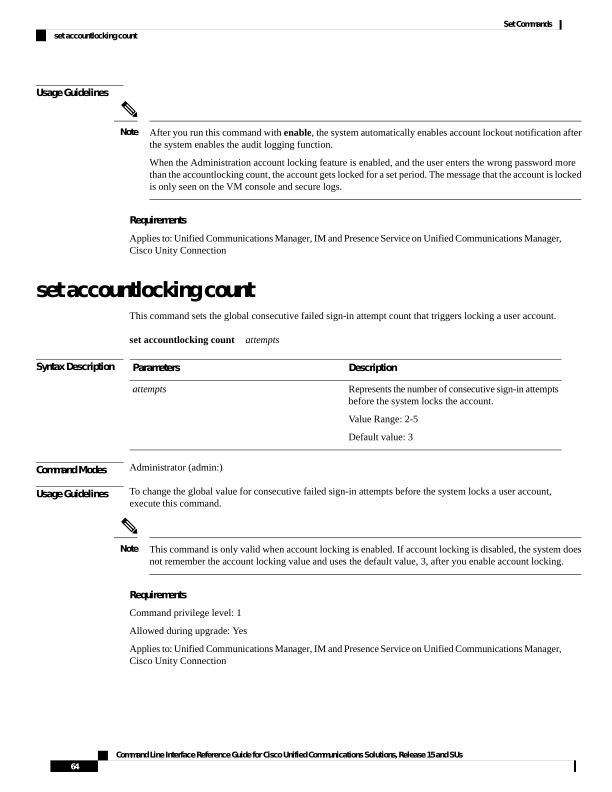
Page 89
set accountlocking unlocktime
This command configures the unlock time for the current Unified Communications Manager admin accounts.
set accountlocking unlocktime seconds
Syntax Description
Description
Parameters
Specifies the unlock time in seconds.
Value Range: 30-3600
Default value: 300
seconds
• The account gets automatically unlocked only after the configured unlock time.
• This command is only valid when account locking is enabled. If account locking is disabled, the system
does not remember the account locking unlock time and uses the default value, 300, after you enable
account locking.
Note
Command Modes
Administrator (admin:)
Requirements
Command privilege level: 0
Allowed during upgrade: No
Applies to: Unified Communications Manager, IM and Presence Service on Unified Communications Manager,
Cisco Unity Connection
set account ssorecoveryurlaccess
This command enables or disables the SSO recovery URL access for platform administrators.
By default, the platform administrator Level 4 has access to the recovery URL. If the platform administrator
Level 4 attempts to update the recovery URL access for own self, an error appears.
Note
set account ssorecoveryurlaccess
{enable | disable}userid
Syntax Description
Description
Parameters
Enable the recovery sign-in option for platform administrators.
enable
Disable the recovery sign-in option for platform administrators.
disable
Command Line Interface Reference Guide for Cisco Unified Communications Solutions, Release 15 and SUs
65
Set Commands
set accountlocking unlocktime

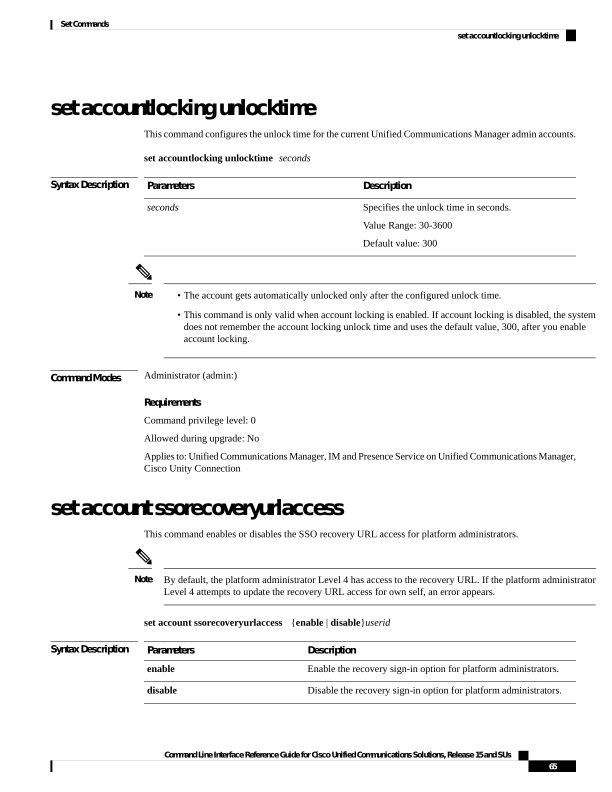
Page 90
Description
Parameters
Specifies a particular Cisco Unified Operating System Administrator
account.
userid
Command Modes
Administrator (admin:)
Usage Guidelines
• If you enable or disable the recovery sign-in option, which is already enabled or disabled, an error appears.
• The administrator account that the system creates when Unified Communications Manager installs has
a privilege level of 4. The administrator can run all commands in the CLI.
Note
Requirements
Command privilege level: 4
Allowed during upgrade: No
Applies to: Unified Communications Manager, IM and Presence Service on Unified Communications Manager
set account ssouidvalue
This command updates the unique identifier value for the existing platform administrators.
set account ssouidvalue userid
Syntax Description
Description
Parameters
Specifies a particular Cisco Unified Operating System
Administrator account whose unique identifier value needs to be
updated.
userid
Command Modes
Administrator (admin:)
Usage Guidelines
• When you run the set account ssouidvalue userid command, a prompt appears to provide the UID value.
If the UID value is blank, then samaccountname is saved as ssouidvalue by default.
• If a duplicate UID value exists, an error appears.
Note
Requirements
Command privilege level: 4
Command Line Interface Reference Guide for Cisco Unified Communications Solutions, Release 15 and SUs
66
Set Commands
set account ssouidvalue

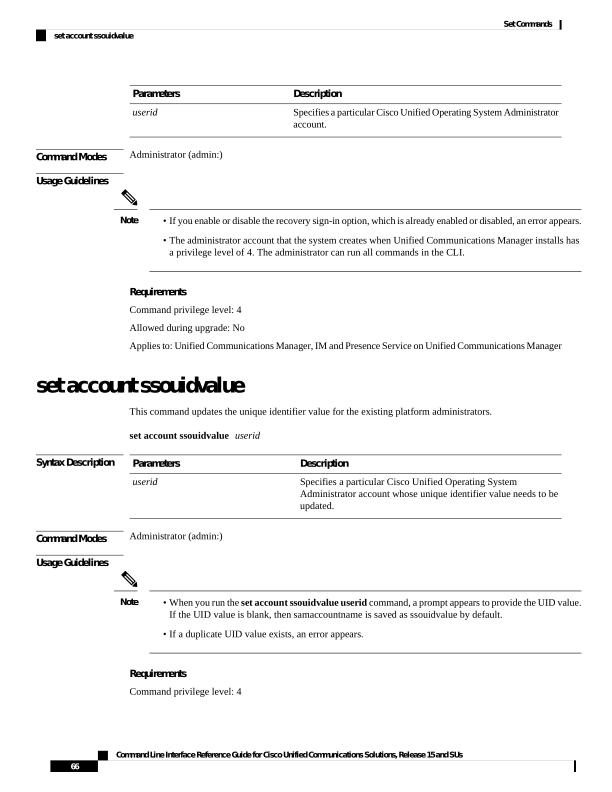
Page 91
Allowed during upgrade: No
Applies to: Unified Communications Manager, IM and Presence Service on Unified Communications Manager
set cert bulk consolidate
This command consolidates all the certificates that are available on the unit.
set cert bulk consolidate unit
Syntax Description
Description
Parameters
Represents the unit
name.
unit
Command Modes
Administrator (admin:)
Usage Guidelines
You must specify the SFTP server information to use for cert bulk operations.
Requirements
Command privilege level: 1
Allowed during upgrade: Yes
Applies to: Unified Communications Manager, IM and Presence Service on Unified Communications Manager,
and Cisco Unity Connection.
Related Topics
set cert bulk sftp, on page 68
set cert bulk export
This command exports all the certificates that are available on the unit.
set cert bulk export unit
Syntax Description
Description
Parameters
Exports all the available certificates for this unit in this cluster to the preconfigured SFTP location.
export
Represents the unit name.
unit
Command Modes
Administrator (admin:)
Usage Guidelines
You must specify the SFTP server information to use for cert bulk operations.
Requirements
Command privilege level: 1
Command Line Interface Reference Guide for Cisco Unified Communications Solutions, Release 15 and SUs
67
Set Commands
set cert bulk consolidate
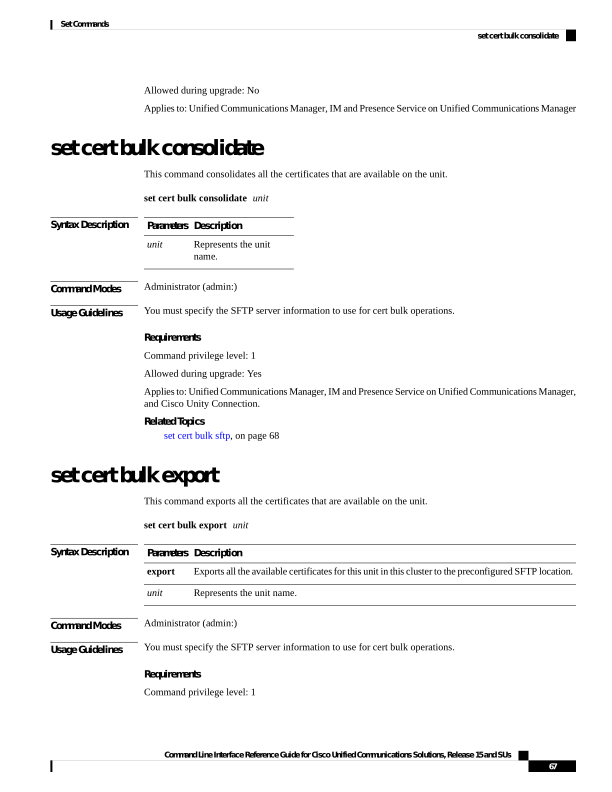
Page 92
Allowed during upgrade: Yes
Applies to: Unified Communications Manager, IM and Presence Service on Unified Communications Manager,
and Cisco Unity Connection.
Example
admin:set cert bulk export all
Successfully exported tomcat certificate(s) to sftp server.
Successfully exported tftp certificate(s) to sftp server.
Related Topics
set cert bulk sftp, on page 68
set cert bulk import
This command imports the certificates that are in the SFTP location into the specified unit trust-store.
set cert bulk import unit
Syntax Description
Description
Parameters
Represents the unit
name.
unit
Command Modes
Administrator (admin:)
Usage Guidelines
You must specify the SFTP server information to use for cert bulk operations.
Requirements
Command privilege level: 1
Allowed during upgrade: Yes
Applies to: Unified Communications Manager, IM and Presence Service on Unified Communications Manager,
and Cisco Unity Connection.
Example
admin:set cert bulk import all
Successfully imported tomcat certificates.
Successfully imported tftp certificates.
Related Topics
set cert bulk sftp, on page 68
set cert bulk sftp
This command prompts for the SFTP server information to use for bulk operations.
Command Line Interface Reference Guide for Cisco Unified Communications Solutions, Release 15 and SUs
68
Set Commands
set cert bulk import
Page 93
set cert bulk sftp
Command Modes
Administrator (admin:)
Usage Guidelines
You must specify the SFTP server information to use for cert bulk operations.
Requirements
Command privilege level: 1
Allowed during upgrade: Yes
Applies to: Unified Communications Manager, IM and Presence Service on Unified Communications Manager,
and Cisco Unity Connection.
set cert default-ca-list disable
This command disables all or particular default CA certificates from all servers in the cluster.
When you try to execute this command, a warning message appears displaying that this operation disables
all or particular default Cisco CA certificates.
set cert default-ca-list disable
{all
| common-name}
• Please ensure that you are executing this command from the Unified Communications Manager publisher
node.
• The default CA certificate names can be obtained by executing the show cert default-ca-list command.
Note
Syntax Description
Description
Parameters
Deletes all the default CA certificates from all servers
in the cluster.
all
Deletes the particular default CA certificate from all
servers in the cluster.
common-name
Command Modes
Administrator (admin:)
Usage Guidelines
Consider the following information after you disable all the default CA certificates.
• Restart the “Cisco Tomcat”, “Cisco CallManager”, “Cisco Tftp”, and “Cisco Certificate Authority Proxy
Function” services.
Consider the following information after you disable the specific default CA certificate.
• Restart the “Cisco CallManager”, “Cisco Tftp”, and “Cisco Certificate Authority Proxy Function” services.
• If you are disabling “VeriSign Class 3 Secure Server CA - G3” certificate, then restarting of only “Cisco
Tomcat” service is sufficient.
Command Line Interface Reference Guide for Cisco Unified Communications Solutions, Release 15 and SUs
69
Set Commands
set cert default-ca-list disable

Page 94
Requirements
Command privilege level: 1
Applies to: Unified Communications Manager
Example
admin:set cert default-ca-list disable all
WARNING: This operation will disable all Cisco CA certificates that have been installed
by default. You can use the "show cert default-ca-list" to view the list of default
Cisco CA certificates.
You must restart the "Cisco Tomcat", "Cisco CallManager", "Cisco Tftp" and
"Cisco Certificate Authority Proxy Function" services after running this command.
This command should be run from the Publisher.
Do you wish to proceed (yes|no)? yes
Successfully disabled the default Cisco CA certificates.
Please wait for a few min to UI to reflect the correct status.
admin:set cert default-ca-list disable common-name
Enter the Common Name of Default CA Certificate : CAP-RTP-001
WARNING: This operation will disable the "CAP-RTP-001" Cisco CA certificate.
You must restart the "Cisco CallManager", "Cisco Certificate Authority Proxy Function" and
"Cisco Tftp" services after running this command. This command should be run from the
Publisher.
Do you wish to proceed (yes|no)? yes
Successfully disabled default "CAP-RTP-001" certificate.
admin:set cert default-ca-list disable common-name
Enter the Common Name of Default CA Certificate : VeriSign Class 3 Secure Server CA - G3
WARNING: This operation will disable the "VeriSign Class 3 Secure Server CA - G3" Cisco CA
certificate. You must restart the "Cisco Tomcat" services after running this command.
This command should be run from the Publisher.
Do you wish to proceed (yes|no)? yes
Successfully disabled default "VeriSign Class 3 Secure Server CA - G3" certificate.
admin:set cert default-ca-list enable common-name
Enter the Common Name of Default CA Certificate : capf
The capf certificate is not in the list of default Cisco CA certificates.
admin:
set cert default-ca-list enable
This command enables all or particular default CA certificates except CAPF-trust on all servers in the cluster.
CAPF-trust certificate enable only on the Unified Communications Manager publisher node not across the
cluster.
When you try to execute this command, a warning message appears displaying that this operation enables all
or particular default Cisco CA certificates as a trusted certificate.
set cert default-ca-list enable
{all
| common-name}
Command Line Interface Reference Guide for Cisco Unified Communications Solutions, Release 15 and SUs
70
Set Commands
set cert default-ca-list enable
Page 95
• Please ensure that you are executing this command from the Unified Communications Manger publisher
node.
• The default CA certificate names can be obtained by executing the show cert default-ca-list command.
Note
Syntax Description
Description
Parameters
Enables all the default CA certificates on all servers
in the cluster.
all
Enables the particular default CA certificate on all
servers in the cluster.
common-name
Command Modes
Administrator (admin:)
Usage Guidelines
Consider the following information after you enable all the default CA certificates.
• Restart the “Cisco Tomcat”, “Cisco CallManager”, “Cisco Tftp”, and “Cisco Certificate Authority Proxy
Function” services.
Consider the following information after you enable the specific default CA certificate.
• Restart the “Cisco CallManager”, “Cisco Tftp”, and “Cisco Certificate Authority Proxy Function” services.
• If you are enabling “VeriSign Class 3 Secure Server CA - G3” certificate, then restarting of only “Cisco
Tomcat” service is sufficient.
Requirements
Command privilege level: 1
Applies to: Unified Communications Manager
Example
admin:set cert default-ca-list enable all
WARNING: This operation will enable all default Cisco CA certificates
as trusted certificates for all nodes in this cluster.
You can use the "show cert default-ca-list" to view the list of default
Cisco CA certificates. You must restart the "Cisco Tomcat", "Cisco CallManager",
"Cisco Tftp" and "Cisco Certificate Authority Proxy Function" services after
running this command. This command should be run from the Publisher.
Do you wish to proceed (yes|no)? yes
Successfully enabled the default Cisco CA certificates.
Please wait for a few minutes for the UI to reflect the correct status.
admin:set cert default-ca-list enable common-name
Enter the Common Name of Default CA Certificate : CAP-RTP-002
WARNING: This operation will install the "CAP-RTP-002" certificate as a trusted certificate
for all nodes in this cluster. You must restart the "Cisco CallManager",
"Cisco Certificate Authority Proxy Function" and
"Cisco Tftp" services after running this
Command Line Interface Reference Guide for Cisco Unified Communications Solutions, Release 15 and SUs
71
Set Commands
set cert default-ca-list enable

Page 96
command. This command should be run from the Publisher.
Do you wish to proceed (yes|no)? yes
Successfully enabled default "CAP-RTP-002" certificate.
admin:set cert default-ca-list enable common-name
Enter the Common Name of Default CA Certificate : VeriSign Class 3 Secure Server CA - G3
WARNING: This operation will install the "VeriSign Class 3 Secure Server CA - G3" certificate
as a trusted certificate for all nodes in this cluster. You must restart the "Cisco Tomcat"
services after running this command. This command should be run from the Publisher.
Do you wish to proceed (yes|no)? yes
Successfully enabled default "VeriSign Class 3 Secure Server CA - G3" certificate.
admin:set cert default-ca-list enable common-name
Enter the Common Name of Default CA Certificate : CAP-RTP-003
The CAP-RTP-003 certificate is not in the list of default Cisco CA certificates.
admin:
set cert delete
This command deletes a specific certificate file from the trust unit.
set cert delete unit
name
Syntax Description
Description
Parameters
Specifies the name of the trust category, as “own” or “trust”.
unit
Certificate file name.
name
Command Modes
Administrator (admin:)
Requirements
Command privilege level: 1
Allowed during upgrade: Yes
Applies to: Unified Communications Manager, IM and Presence Service on Unified Communications Manager,
and Cisco Unity Connection.
Example
admin:set cert delete cucm siptest.pem
set cert import
This command imports the specified certificate for the specified certificate type.
From Release 15SU5 onwards, during uploads, you're given an option to copy the certificate from the server
units to the applicable client units.
Important
Command Line Interface Reference Guide for Cisco Unified Communications Solutions, Release 15 and SUs
72
Set Commands
set cert delete
Page 97
set cert import type name [caCert]
Syntax Description
Description
Parameters
Specifies the certificate type as “own” or “trust”.
type
Represents the unit name.
name
Represents the name of the CA certificate file name.
[caCert]
Command Modes
Administrator (admin:)
Requirements
Command privilege level: 1
Allowed during upgrade: Yes
Applies to: Unified Communications Manager, IM and Presence Service on Unified Communications Manager,
and Cisco Unity Connection.
Example
admin:set cert import trust tomcat
Successfully imported certificate for tomcat.
Please restart services related to tomcat for the new certificate to
become active.
set cert regen
This command regenerates the certificate for the specified unit.
From Release 15SU5 onwards, during certificate regeneration, you're given an option to copy the certificate
from the server units to the applicable client units.
Important
set cert regen name
Syntax Description
Description
Parameters
Represents the unit
name.
name
Command Modes
Administrator (admin:)
Requirements
Command privilege level: 1
Allowed during upgrade: No
Command Line Interface Reference Guide for Cisco Unified Communications Solutions, Release 15 and SUs
73
Set Commands
set cert regen
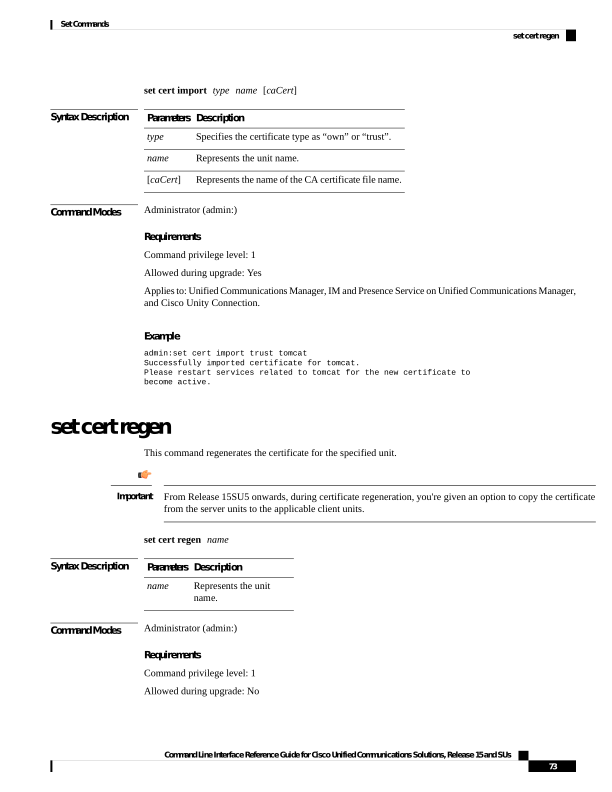
Page 98
Applies to: Unified Communications Manager, IM and Presence Service on Unified Communications Manager,
and Cisco Unity Connection.
Example
admin:set cert regen tomcat
Successfully regenerated certificate for tomcat.
Example (Applicable from Release 15SU5 Onwards)
admin:set cert regen tomcat
WARNING: This operation will overwrite any CA signed certificate previously imported
for
tomcat
Proceed with regeneration (yes|no)? yes
Do you want to use the same certificate for tomcat-client (yes|no) ? yes
Successfully Regenerated Certificate for tomcat and tomcat-client.
You must restart services related to tomcat for the regenerated certificates to become
active.
Restart the Cisco DRF Master and Cisco DRF Local services on the publisher node. Restart
ONLY the Cisco DRF Local service on the subscriber node(s). These services can be
restarted with the 'utils service restart <service>' command from the CLI.If SAML SSO
is enabled with tomcat certificate, please disable and re-enable it. Also re-provision
the SP metadata on the IDP.
set cert regen ITLRecovery
This command regenerates the ITLRecovery certificate for the specified unit.
After you type this command, a warning message appears displaying that if you are using a tokenless CTL
and if the you are regenerating the CallManager certificate, ensure that the CTL file has the updated
CallManager certificate and that certificate is updated to endpoints. To regenerate the certificate, type yes or
else type no.
set cert regen ITLRecovery
Syntax Description
Description
Parameters
Represents the ITLRecovery certificate.
ITLRecovery
Command Modes
Administrator (admin:)
Requirements
You must restart the services related to ITLRecovery for the regenerated certificates to become active.
Caution
Command privilege level: 1
Allowed during upgrade: No
Command Line Interface Reference Guide for Cisco Unified Communications Solutions, Release 15 and SUs
74
Set Commands
set cert regen ITLRecovery

Page 99
Applies to: Unified Communications Manager, IM and Presence Service on Unified Communications Manager,
and Cisco Unity Connection.
Example
admin:set cert regen ITLRecovery
WARNING: If you are using a tokenless CTL and if the CallManager certificate is recently
generated, please ensure that the CTL File already has the new CallManager certificate and
is
updated to the endpoints, before generating the ITL Recovery certificate. Are you sure want
to proceed?
Proceed with regeneration (yes|no)? yes
Successfully Regenerated Certificate for ITLRecovery.
You must restart the services related to ITLRecovery for the regenerated certificates to
become active.
set cli pagination
For the current CLI session, this command turns automatic pagination On or Off.
set cli pagination
{on | off}
Syntax Description
Description
Parameters
Turns pagination
on.
on
Turns pagination
off.
off
Command Modes
Administrator (admin:)
Requirements
Command privilege level: 1
Allowed during upgrade: No
Applies to: Unified Communications Manager, IM and Presence Service on Unified Communications Manager,
and Cisco Unity Connection.
admin:set cli pagination off
Automatic pagination is turned off
Command Line Interface Reference Guide for Cisco Unified Communications Solutions, Release 15 and SUs
75
Set Commands
set cli pagination
Page 100
set cli session timeout
This command sets the time, in minutes, after which an active CLI session times out and disconnects.
set cli session timeout minutes
Syntax Description
Description
Parameters
Specifies the time, in minutes, that can elapse before an active CLI session times out and
disconnects.
• Value range: 5-99999 minutes
• Default value: 30 minutes
minutes
Command Modes
Administrator (admin:)
Usage Guidelines
Be aware that the new session timeout value becomes effective immediately for a new CLI session; however,
active sessions retain their original timeout value. Also the show cli session timeout command reflects the
new value, even if the current session does not use that value.
This setting gets preserved through a software upgrade and does not get reset to the default value.
Note
Requirements
Command privilege level: 1
Allowed during upgrade: No
Applies to: Unified Communications Manager, IM and Presence Service on Unified Communications Manager,
and Cisco Unity Connection.
set commandcount
This command changes the CLI command prompt, so it displays how many CLI commands have executed.
set commandcount
{enable | disable}
Syntax Description
Description
Parameters
Turns on command count.
enable
Turns off command
count.
disable
Command Modes
Administrator (admin:)
Command Line Interface Reference Guide for Cisco Unified Communications Solutions, Release 15 and SUs
76
Set Commands
set cli session timeout

Page 101
Requirements
Command privilege level: 1
Allowed during upgrade: No
Applies to: Unified Communications Manager, IM and Presence Service on Unified Communications Manager,
and Cisco Unity Connection.
set csr gen
This command generates the csr for the unit name.
set csr gen name
Syntax Description
Description
Parameters
Specifies the unit on which the certificate is generated.
name
Command Modes
Administrator (admin:)
Requirements
Applies to: Unified Communications Manager, IM and Presence Service on Unified Communications Manager,
and Cisco Unity Connection.
Example
admin:set csr gen tomcat
Successfully Generated CSR for tomcat.
Requirements
Command privilege level: 1
Allowed during upgrade: No
set cuc jetty stderrlog
This command enables or disables the error log getting generated while any standard error occurs during
communicating with the Jetty server. This error log gets generated and is available at the path
/var/log/active/jetty/.
set cuc jetty stderrlog
{enable | disable}
Syntax Description
Description
Parameters
Enables the error log on the Jetty
server. Be aware that enable is case
sensitive.
enable
Command Line Interface Reference Guide for Cisco Unified Communications Solutions, Release 15 and SUs
77
Set Commands
set csr gen
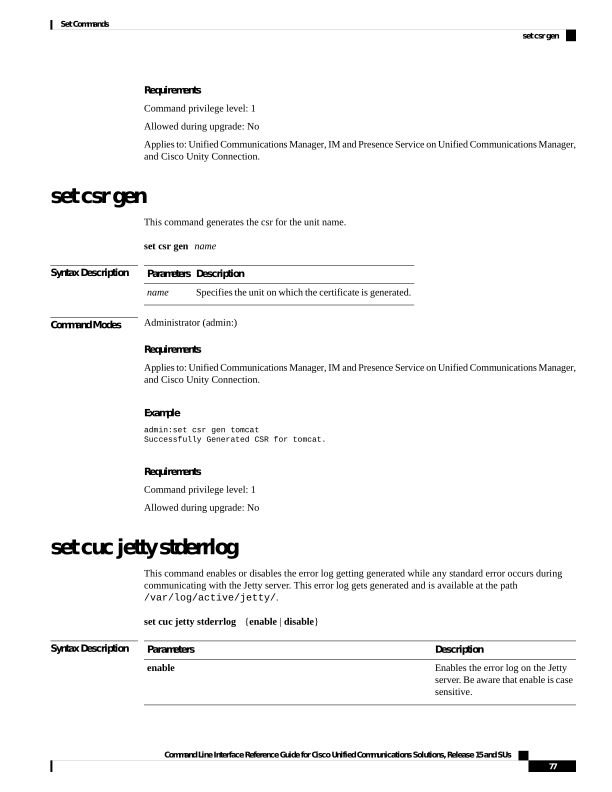
Page 102
Description
Parameters
Disables the error log on the Jetty
server. Be aware that disable is case
sensitive.
disable
Command Modes
Administrator (admin:)
Usage Guidelines
You must restart the Jetty services after enabling or disabling the error log on the Jetty server.
Caution
Requirements
Command privilege level: 0
Allowed during upgrade: No
Applies to: Cisco Unity Connection only.
Enable Error Log on Jetty Server Example
admin:set cuc jetty stderrlog enable
Command is executed successfully
To effect changes restart jetty server
Restart Jetty Server through Unity Connection Serviciabilty .
Go to Tools -> Service Management -> Restart Connection Jetty Service.
Check the logs that should not be generated after running above command.
Check the requestlog by sending one voice message through webinbox.
Notifications should not come in logs
set cuc jetty stdoutlog
This command enables or disables the standard input and output log getting generated while communicating
with Jetty server. This standard input and output log gets generated and is available at the path
/var/log/active/jetty/.
set cuc jetty stdoutlog
{enable | disable}
Syntax Description
Description
Parameters
Enables the standard input and
output log on the Jetty server. Be
aware that enable is case sensitive.
enable
Disables the standard input and
output log on the Jetty server. Be
aware that disable is case sensitive.
disable
Command Line Interface Reference Guide for Cisco Unified Communications Solutions, Release 15 and SUs
78
Set Commands
set cuc jetty stdoutlog

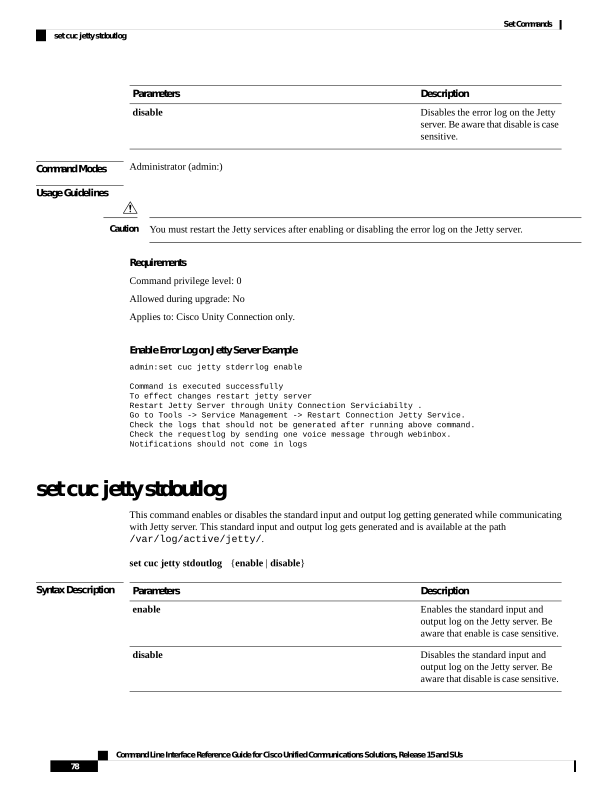
Page 103
Command Modes
Administrator (admin:)
Usage Guidelines
You must restart the Jetty services after enabling or disabling the standard input and output log on the Jetty
server.
Caution
Requirements
Command privilege level: 0
Allowed during upgrade: No
Applies to: Cisco Unity Connection only.
Enable Standard Input and Output Log on Jetty Server Example
admin:set cuc jetty stdoutlog enable
Command is executed successfully
To effect changes restart jetty server
Restart Jetty Server through Unity Connection Serviciabilty .
Go to Tools -> Service Management -> Restart Connection Jetty Service.
Check the logs that should not be generated after running above command.
Check the requestlog by sending one voice message through webinbox.
Notifications should not
come in logs
set cuc jetty requestlog
This command enables or disables the request log getting generated from the Jetty server while any request
is raised for notifications. This request log gets generated and is available at the path
/usr/local/jetty/logs/.
set cuc jetty requestlog
{enable | disable}
Syntax Description
Description
Parameters
Enables the request log on the Jetty
server. Be aware that “enable” is
case sensitive.
enable
Disables the request log on the Jetty
server. Be aware that “disable” is
case sensitive.
disable
Command Modes
Administrator (admin:)
Command Line Interface Reference Guide for Cisco Unified Communications Solutions, Release 15 and SUs
79
Set Commands
set cuc jetty requestlog

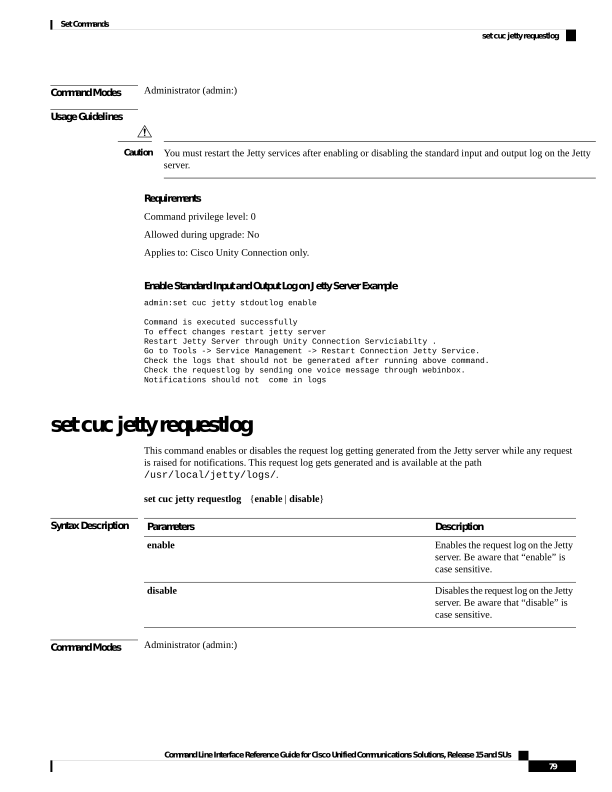
Page 104
Usage Guidelines
You must restart the Jetty services after enabling or disabling the request log on the Jetty server.
Caution
Requirements
Command privilege level: 0
Allowed during upgrade: No
Applies to: Cisco Unity Connection only.
Enable Request Log on Jetty Server Example
admin:set cuc jetty requestlog enable
Command is executed successfully
To effect changes restart jetty server
Restart Jetty Server through Unity Connection Serviciabilty .
Go to Tools -> Service Management -> Restart Connection Jetty Service.
Check the logs that should not be generated after running above command.
Check the requestlog by sending one voice message through webinbox.
Notifications should not come in logs
set cuc speechview registration certificate size
This command sets up new certificate bit size for Speech to Text service registration and Voicemail transcription
with Nuance server.
set cuc speechview registration certificate size bit_size
Syntax Description
Description
Parameters
Specifies the bit_size of certificate.
Its allowed values are 1k, 2k or 4k.
bit_size
Command Modes
Administrator (admin:)
Usage Guidelines
To set the desired certificate bit size, use the set cuc speechview registration certificate size (Cisco Unity
Connection Only) command. The CLI must be executed on the publisher. It will restart the Connection
SpeechView Processor service.
Requirements
Command privilege level: 4
set cuc srsv timeout
This command sets the value for SRSV session timeout.
Command Line Interface Reference Guide for Cisco Unified Communications Solutions, Release 15 and SUs
80
Set Commands
set cuc speechview registration certificate size

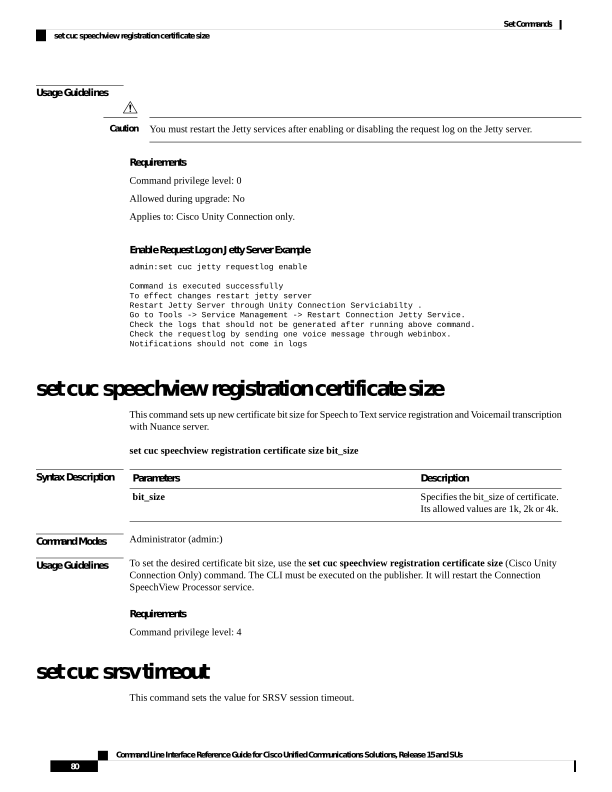
Page 105
set cuc srsv timeout timeout_value
Syntax Description
Description
Parameters
Sets the time for session logout.
timeout_value
Command Modes
Administrator (admin:)
Requirements
Command privilege level: 1
Allowed during upgrade: No
Applies to: Cisco Unity Connection
set cuc trace
This command enables or disables the specified traces and trace levels.
set cuc trace
{enable | disable} trace_name level
Syntax Description
Description
Parameters
Enables Connection traces.
enable
Disables Connection traces.
disable
Specifies the name of the trace to enable or disable. Be aware that trace names are case sensitive.
trace_name
Specifies the level or levels of trace_name that you want to enable or disable. Each trace comprises
up to 31 levels, numbered 0 to 30; each level provides a different type of information for the
specified trace. When you enable or disable multiple levels, use a comma to separate levels and
a hyphen to indicate a range of levels. Do not include spaces.
level
Command Modes
Administrator (admin:)
Usage Guidelines
To display a list of the traces and trace levels that are currently enabled, use the show cuc trace levels (Cisco
Unity Connection Only) command.
Requirements
Command privilege level: 1
Allowed during upgrade: No
Applies to: Cisco Unity Connection only.
Enable VUI Traces 1, 13, and 17 Through 20 Example
admin:set cuc trace enable VUI 1,13,17-20
VUI trace levels are now set to: 1,13,17-20
Command Line Interface Reference Guide for Cisco Unified Communications Solutions, Release 15 and SUs
81
Set Commands
set cuc trace
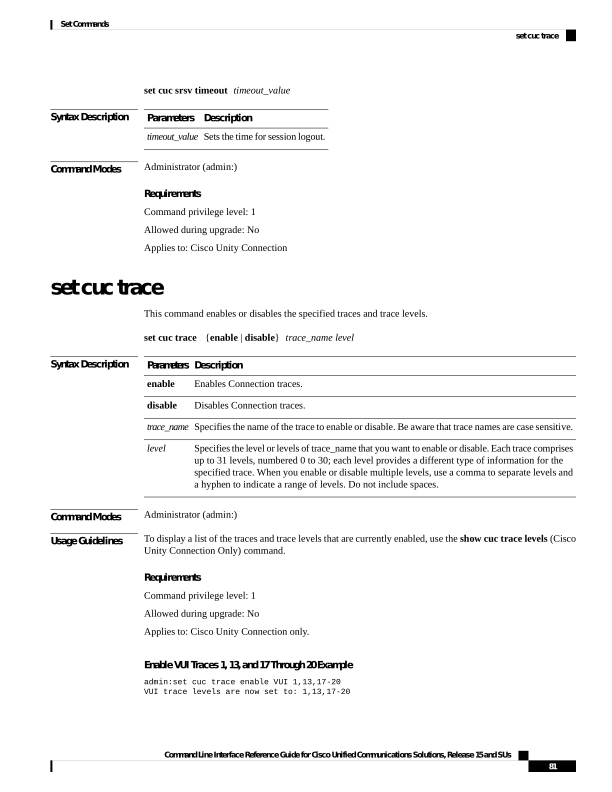
Page 106
Disable VUI Traces 17 Through 20 While VUI Trace Levels 1 and 13 Remain Set Example
admin:set cuc trace disable VUI 17-20
VUI trace levels are now set to: 1,13
Related Topics
show cuc trace levels, on page 168
set date
This command changes the time and date on the server.
set date HH:mm:ss:MM/DD/YY
Syntax Description
Description
Parameters
Represents the time format (24 hours format).
HH:mm:ss
Represents the date format.
Note
Date format MM/DD/YYYY is also accepted.
MM/DD/YY
Command Modes
Administrator (admin:)
Usage Guidelines
If the server is configured to synchronize with external NTP servers, this command requires the user to remove
all of those NTP servers.
Requirements
Applies to: Unified Communications Manager and Cisco Unity Connection.
Set Date and Time to 2:10:33 Pm April 13th 2012 Example
admin:set date 14:10:33:04/13/12
Requirements
Command privilege level: 1
Allowed during upgrade: No
set dscp defaults
This command sets the factory default DSCP settings for all of the port tags.
set dscp defaults
Command Line Interface Reference Guide for Cisco Unified Communications Solutions, Release 15 and SUs
82
Set Commands
set date
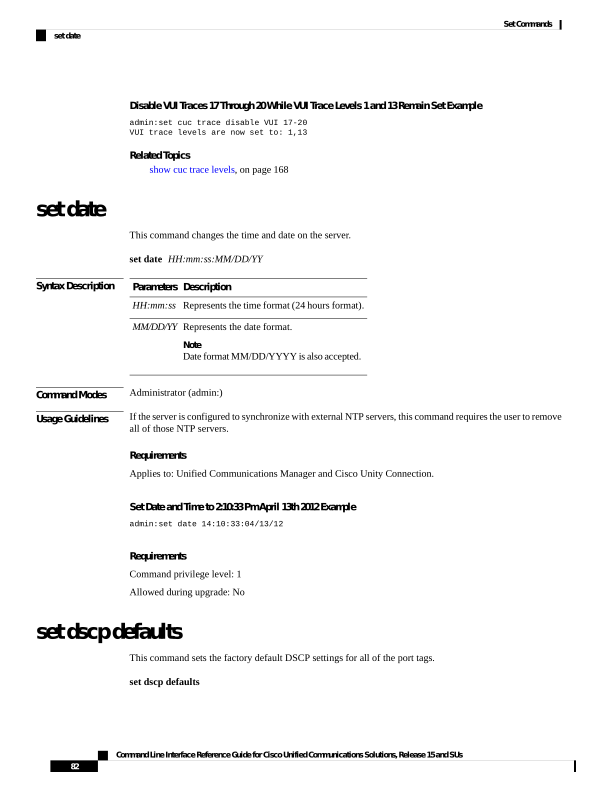
Page 107
Command Modes
Administrator (admin:)
Usage Guidelines
All non-default DSCP settings get removed after you run this command.
You can use the command show dscp defaults to see the factory default DSCP settings.
Requirements
Command privilege level: 1
Allowed during upgrade: No
Applies to: Unified Communications Manager, IM and Presence Service on Unified Communications Manager,
and Cisco Unity Connection.
set dscp
This command enables or disables DSCP marking on outgoing TCP or UDP packets. You can enable or
disable DSCP on a single port tag, or on all port tags at once.
set dscp
{enable | disable} {allport_tag}
Syntax Description
Description
Parameters
Disables all DSCP port tags.
all
Represents a DSCP port tag, which is a string that is mapped to a TCP or UDP port to identify
the application that uses the port. This value is for the portTag field displayed when you use the
command show dscp defaults. The set of port tags is predefined.
port_tag
Command Modes
Administrator (admin:)
Requirements
Command privilege level: 1
Allowed during upgrade: No
Applies to: Unified Communications Manager, IM and Presence Service on Unified Communications Manager,
and Cisco Unity Connection.
set dscp marking
This command sets DSCP markings on port tags by using well-known DSCP classes and numeric values.
set dscp marking port_tag value
Command Line Interface Reference Guide for Cisco Unified Communications Solutions, Release 15 and SUs
83
Set Commands
set dscp
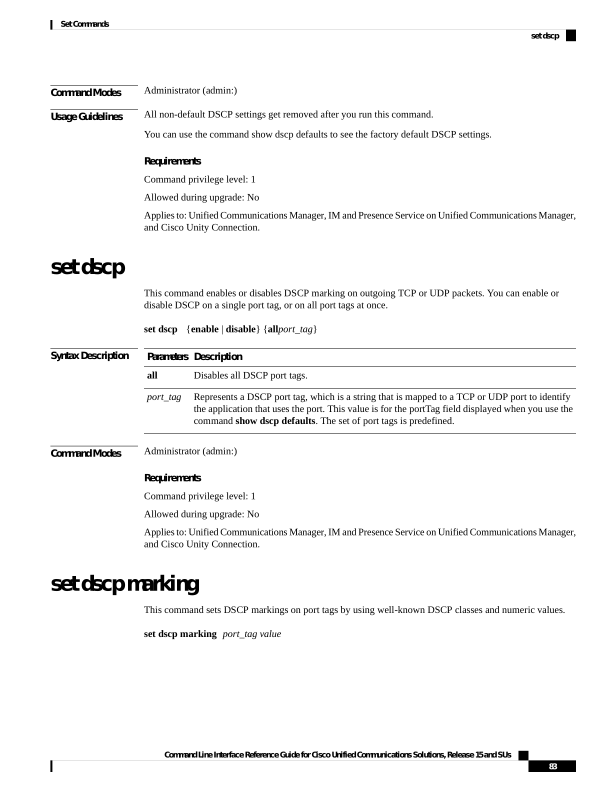
Page 108
Syntax Description
Description
Parameters
Represents a DSCP port tag, which is a string that is mapped to a TCP or UDP port to identify
the application that uses the port. This value is for the portTag field displayed when you use the
command show dscp defaults. The set of port tags is predefined.
port_tag
A DSCP value. You can enter the name of a well-known DSCP class or a numeric value in
decimal or hexadecimal format. Precede hexadecimal values with 0x or 0X.
value
Command Modes
Administrator (admin:)
Usage Guidelines
The valid class names as defined by DSCP are:
• Class Selector: values CS0, CS1, CS2, CS3, CS5, CS6, CS7
The class selector (CS) values correspond to IP Precedence values and are fully compatible with IP
Precedence.
• Expedited Forwarding: value EF
EF PHB is ideally suited for applications such as VoIP that require low bandwidth, guaranteed bandwidth,
low delay, and low jitter.
• Best Effort: value BE
Also called default PHB, this value essentially specifies that a packet be marked with 0x00, which gets
the traditional best-effort service from the network router.
• Assured Forwarding: values AF11, AF12, AF13, AF21, AF22, AF23, AF41, AF42, AF43
There are four types of Assured Forwarding classes, each of which has three drop precedence values.
These precedence values define the order in which a packet is dropped (if needed) due to network
congestion. For example, packets in AF13 class are dropped before packets in the AF12 class.
Requirements
Command privilege level: 1
Allowed during upgrade: No
Applies to: Unified Communications Manager, IM and Presence Service on Unified Communications Manager,
and Cisco Unity Connection.
set http min-version HTTP/1.1
This command sets HTTP/1.1 and later as the minimum protocol version for all the inbound HTTP requests.
set http min-version HTTP/1.1
Command Modes
Administrator (admin:)
Usage Guidelines
Ensure to restart the following services on all the nodes in the Unified Communications Manager cluster:
Command Line Interface Reference Guide for Cisco Unified Communications Solutions, Release 15 and SUs
84
Set Commands
set http min-version HTTP/1.1
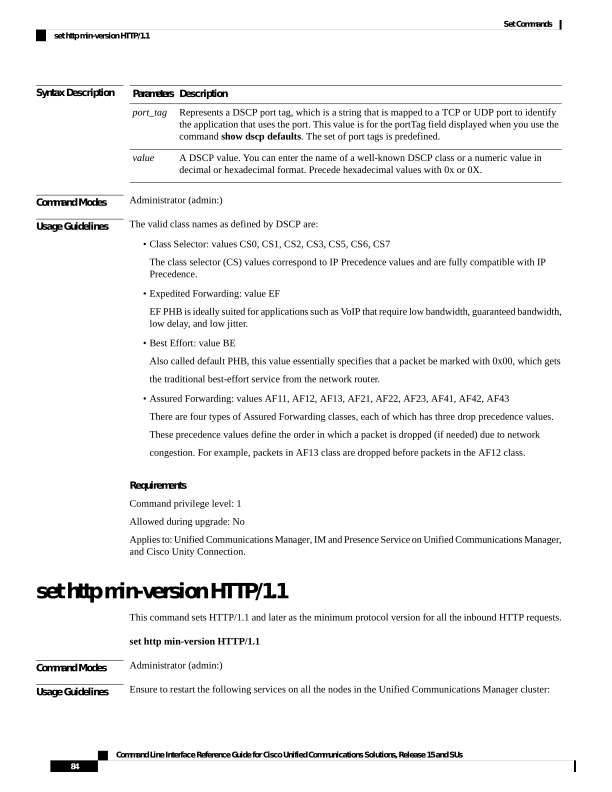
Page 109
• Cisco CallManager
• Cisco TFTP
• Cisco HAProxy
Requirements
Command privilege level: 1
Allowed during upgrade: No
Applies to: Unified Communications Manager, IM and Presence Service on Unified Communications Manager,
and Unity Connection
set http min-version HTTP/2
This command sets HTTP/2 as the minimum protocol version for all the inbound HTTP requests.
set http min-version HTTP/2
Command Modes
Administrator (admin:)
Usage Guidelines
Local Push Notification Service (LPNS) utilizes web sockets exclusively over HTTP/1.1 and it will no longer
function when the HTTP minimum version is set to HTTP/2.
Warning
Ensure to restart the following services on all the nodes in the cluster:
On the Unified Communications Manager:
• Cisco CallManager
• Cisco TFTP
• Cisco HAProxy
On the IM and Presence Service:
• Cisco Tomcat
• Cisco Config Agent
• Cisco XCP Config Manager
• Cisco XCP Router
• Cisco XCP Connection Manager
Requirements
Command privilege level: 1
Command Line Interface Reference Guide for Cisco Unified Communications Solutions, Release 15 and SUs
85
Set Commands
set http min-version HTTP/2

Page 110
Allowed during upgrade: No
Applies to: Unified Communications Manager, IM and Presence Service on Unified Communications Manager,
and Unity Connection
set ipsec policy_group
This command enables ipsec policies with the specified policy group name.
set ipsec policy_group
{ALLgroup}
Syntax Description
Description
Parameters
Enables all ipsec policy groups.
ALL
Specifies the name of a particular ipsec policy group to
enable.
group
Command Modes
Administrator (admin:)
Requirements
Command privilege level: 1
Allowed during upgrade: No
Applies to: Unified Communications Manager and Cisco Unity Connection.
set ipsec policy_name
This command enables the specified IPSec policy.
set ipsec policy_name
{ policy_group policy_name }
Syntax Description
Description
Parameters
Specifies the name of a particular
ipsec policy group to enable.
policy_group
Specifies the name of a particular
ipsec policy to enable.
policy_name
Command Modes
Administrator (admin:)
Requirements
Command privilege level: 1
Allowed during upgrade: No
Applies to: Unified Communications Manager and Cisco Unity Connection.
Command Line Interface Reference Guide for Cisco Unified Communications Solutions, Release 15 and SUs
86
Set Commands
set ipsec policy_group
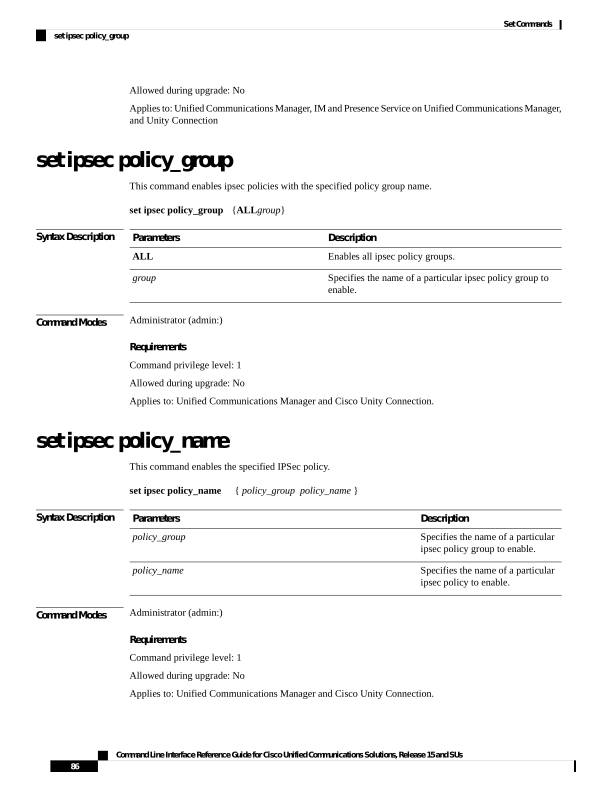
Page 111
set key regen authz encryption
Run this command on the Unified Communications Manager publisher node to regenerate the symmetric
encryption key that encrypts OAuth access tokens and refresh tokens that are used in Cisco Jabber
authentication.
Command Modes
Administrator (admin:)
Requirements
Command privilege level: 4
Allowed during upgrade: No
Applies to: Unified Communications Manager and the IM and Presence Service.
set key regen authz signing
Run this command on the Unified Communications Manager publisher node to regenerate the asymmetric
RSA key pair for signing the OAuth access tokens and refresh tokens that are used in Cisco Jabber
authentication.
Command Modes
Administrator (admin:)
Usage Guidelines
Requirements
Command privilege level: 4
Allowed during upgrade: No
Applies to: Unified Communications Manager and the IM and Presence Service.
set logging
This command allows you to enable or disable CLI Admin logs.
set logging
{enable | disable}
Syntax Description
Description
Parameters
Turns on logging.
enable
Turns off
logging.
disable
Command Modes
Administrator (admin:)
Command Line Interface Reference Guide for Cisco Unified Communications Solutions, Release 15 and SUs
87
Set Commands
set key regen authz encryption
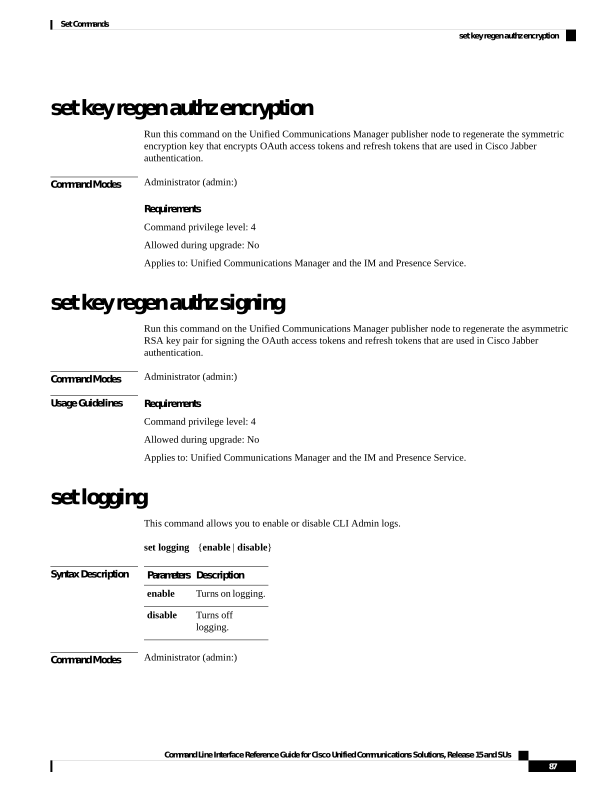
Page 112
Requirements
Command privilege level: 0
Allowed during upgrade: No
Applies to: Unified Communications Manager, IM and Presence Service on Unified Communications Manager,
and Cisco Unity Connection.
set Login Grace Timeout
This command allows you to configure the LoginGraceTimeout value to the mentioned value.
set Login Grace Timeout LoginGraceTimeout value
Syntax Description
Description
Parameters
Sets the LoginGraceTimeout value for login grace timeout.
LoginGraceTimeout value
Command Modes
Administrator (admin:)
Requirements
Command privilege level: 1
Allowed during upgrade: Yes
Applies to: Unified Communications Manager, IM and Presence Service on Unified Communications Manager,
and Cisco Unity Connection.
set network cluster publisher
This command sets the network cluster publisher hostname and IP address.
set network cluster publisher {hostname | ip} name
Syntax Description
Description
Parameters
Specifies the hostname of the
network cluster.
hostname
Specifies the IP address of the
network cluster.
ip
Hostname or IP address to assign
to the network cluster publisher.
name
Command Modes
Administrator (admin:)
Command Line Interface Reference Guide for Cisco Unified Communications Solutions, Release 15 and SUs
88
Set Commands
set Login Grace Timeout
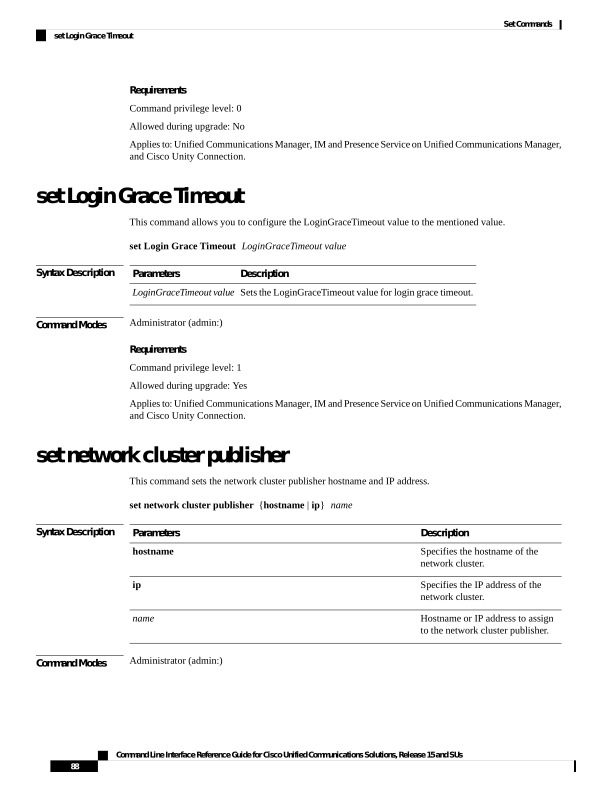
Page 113
Usage Guidelines
• Cisco recommends changing the IP address of node(s) only during the maintenance window.
• From Release 12.5(1)SU7 and 14SU3 and onwards, changing the IP address/hostname on a single node
will trigger the restart of Service Manager and all services on all nodes.
Note
Requirements
Command privilege level: 1
Allowed during upgrade: Yes
Applies to: Unified Communications Manager, IM and Presence Service on Unified Communications Manager,
and Unity Connection.
set network cluster subscriber details
Use this command to add subscriber to the processnode or appserver table when Tomcat Webserver is server
down and GUI is inaccessible.
set network cluster subscriber details servertype hostname ip domainname
Syntax Description
Description
Parameter
Choose one of these products for this parameter— Unified
Communications Manager, IM and Presence Service, and
Cisco Unity Connection. This field is mandatory.
servertype
The hostname of the node that you add to the cluster. The
hostname is supported on the same domain. This field is
mandatory.
hostname
The IPv4 address of the node that you add to the cluster.
This field is mandatory for IM and Presence publisher and
Cisco Unity Connection.
ip
The domain name of the IM and Presence Service publisher.
This field is mandatory for IM and Presence publisher.
domainname
Command Modes
Administrator (admin:)
Requirements
Command privilege level: 1
Allowed during upgrade: Yes
Applies to Unified Communications Manager, IM and Presence Service, and Cisco Unity Connection
Command Line Interface Reference Guide for Cisco Unified Communications Solutions, Release 15 and SUs
89
Set Commands
set network cluster subscriber details

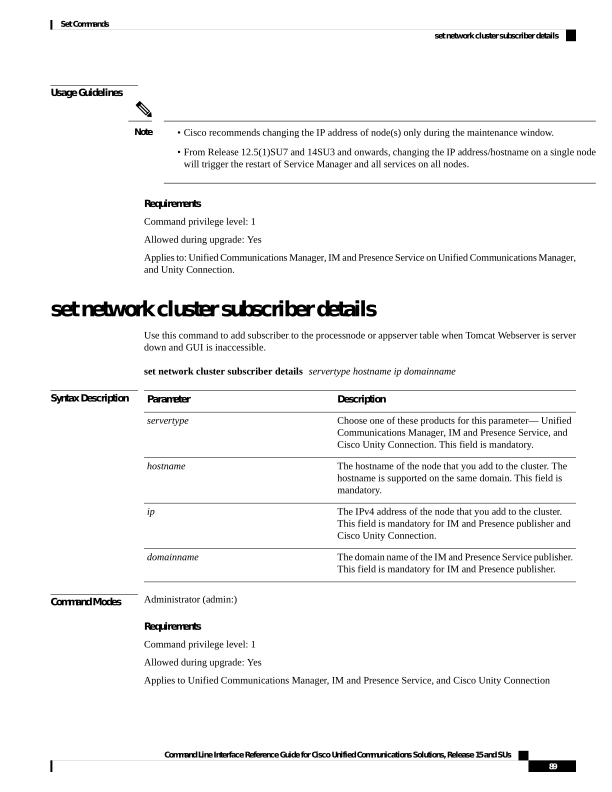
Page 114
set network cluster subscriber dynamic-cluster-configuration
Use this command to enable the Dynamic Cluster Configuration on the publisher. Use this command to specify
the duration in which you can add subscriber nodes to the publisher server table. The addition of subscriber
nodes is authenticated immediately and those nodes need not wait for the publisher details during the installation
of the subscriber nodes.
set network cluster subscriber dynamic-cluster-configuration
{default | no. of hours}
Syntax Description
Description
Parameter
Enables the Dynamic Cluster Configuration for 24 hours.
default
Specifies a value from 1 to 24 hours.
no. of
hours
Command Modes
Administrator (admin)
Requirements
Applies to Unified Communications Manager, IM and Presence Service, and Cisco Unity Connection
set network dhcp eth0
This command enables or disables DHCP for Ethernet interface 0. You cannot configure Ethernet interface
1.
set network dhcp eth0
{enable | disable }
{node_ipnet_maskgateway_ip }
Syntax Description
Description
Parameters
Specifies Ethernet interface 0.
eth0
This enables DHCP.
enable
This disables DHCP.
disable
Represents the static IP address for the server.
node_ip
Represents the subnet mask for the server.
net_mask
Represents the IP address of the default gateway.
gateway_ip
Command Modes
Administrator (admin:)
Command Line Interface Reference Guide for Cisco Unified Communications Solutions, Release 15 and SUs
90
Set Commands
set network cluster subscriber dynamic-cluster-configuration
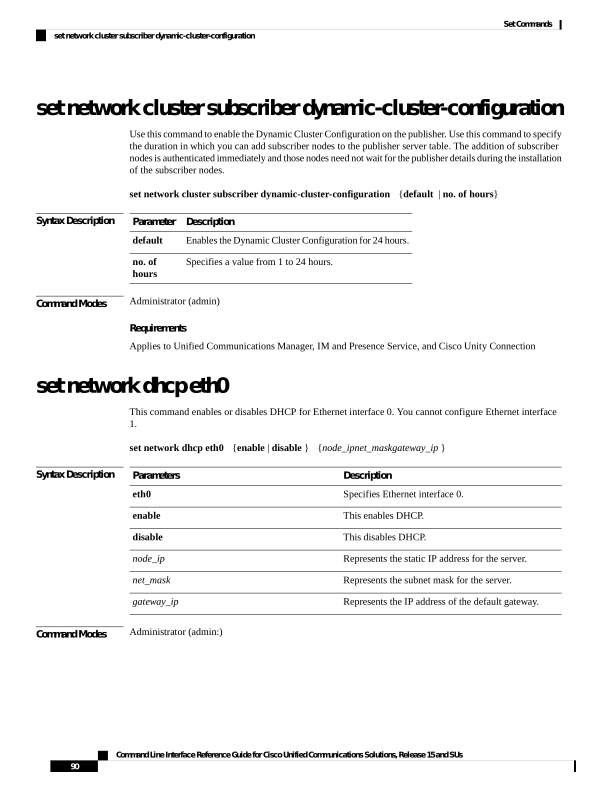
Page 115
Usage Guidelines
If you continue, this command causes the system to restart. We also recommend that you restart all nodes
whenever any IP address gets changed.
Caution
Requirements
Command privilege level: 1
Allowed during upgrade: No
Applies to: Unified Communications Manager, IM and Presence Service on Unified Communications Manager,
and Cisco Unity Connection.
set network dns
This command sets the IP address for the primary or secondary DNS server.
set network dns
{primary | secondary} addr
Syntax Description
Description
Parameters
primary
secondary
Represents the IP address of the
primary or secondary DNS server.
addr
Command Modes
Administrator (admin:)
Requirements
Command privilege level: 1
Allowed during upgrade: No
Applies to: Unified Communications Manager, IM and Presence Service on Unified Communications Manager,
and Cisco Unity Connection.
If you change the IP address for the DNS servers, you must reboot the server through the utils system restart
CLI command.
Note
set network dns options
This command sets DNS options.
Command Line Interface Reference Guide for Cisco Unified Communications Solutions, Release 15 and SUs
91
Set Commands
set network dns


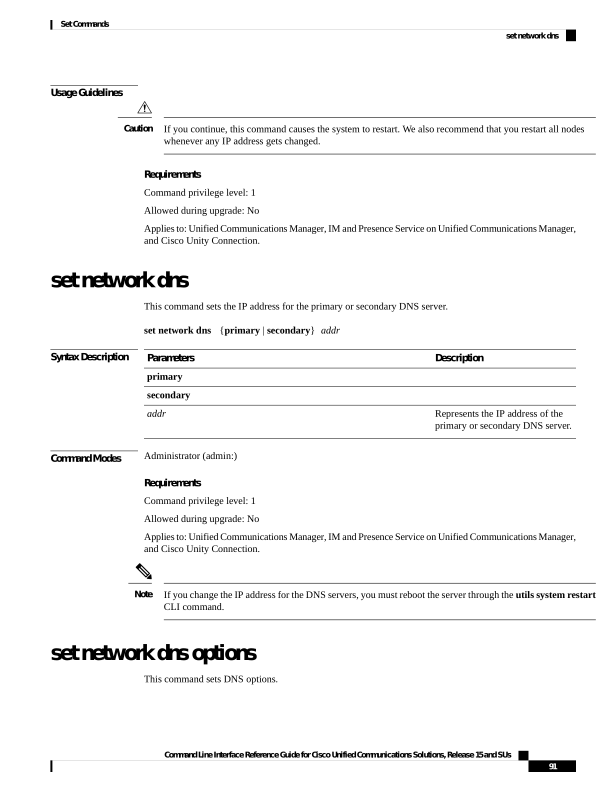
Page 116
set network dns options [timeoutseconds] [attemptsnumber] [rotate]
Syntax Description
Description
Parameters
Sets the DNS timeout.
timeout
Sets the number of times to attempt a DNS request.
attempts
Causes the system to rotate among the configured DNS servers and distribute the load.
rotate
Specifies the DNS timeout period in seconds.
seconds
Specifies the number of attempts.
number
Usage Guidelines
Running this command causes an automatic system restart.
Command Modes
Administrator (admin:)
Requirements
Command privilege level: 0
Allowed during upgrade: Yes
Applies to: Unified Communications Manager, IM and Presence Service on Unified Communications Manager,
and Cisco Unity Connection.
set network domain
This command sets the domain name for the system.
Changing the domain name triggers an automatic regeneration of all Unified Communications Manager
certificates, including any third party signed certificates that have been uploaded. After the server reboots
automatically, phones running in secure (mixed) mode cannot connect to the server until after the CTL client
updates the new CTL file to the phones.
Note
Reboot the servers one at a time in order for the phones to register correctly. For more information about
changing the domain name, see Changing the IP Address and Hostname for Cisco Unified Communications
Manager.
Note
set network domain [domain-name]
Syntax Description
Description
Parameters
Represents the system domain that you want to assign.
domain_name
Command Line Interface Reference Guide for Cisco Unified Communications Solutions, Release 15 and SUs
92
Set Commands
set network domain

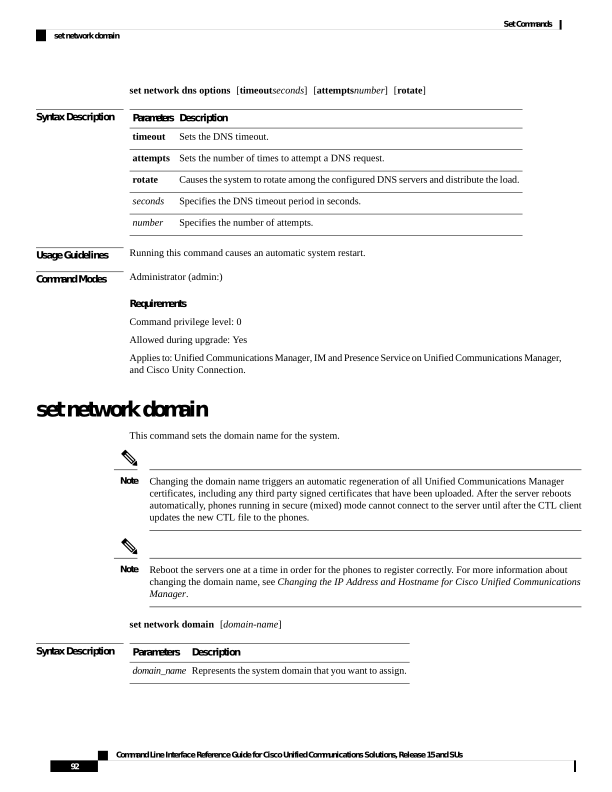
Page 117
Command Modes
Administrator (admin:)
Usage Guidelines
The system asks whether you want to continue to execute this command.
If you continue, this command causes a temporary loss of network connectivity.
Caution
Requirements
Command privilege level: 1
Allowed during upgrade: No
Applies to: Unified Communications Manager, IM and Presence Service on Unified Communications Manager,
and Cisco Unity Connection.
set network failover
This command enables and disables Network Fault Tolerance on the Media Convergence Server network
interface card.
set network failover
{ena | dis}
Syntax Description
Description
Parameters
Enables Network Fault Tolerance.
ena
Disables Network Fault Tolerance.
dis
Command Modes
Administrator (admin:)
Requirements
Command privilege level: 1
Allowed during upgrade: No
Applies to: Unified Communications Manager, IM and Presence Service on Unified Communications Manager,
and Cisco Unity Connection.
set network gateway
This command enables you to configure the IP address of the network gateway.
set network gateway addr
Syntax Description
Description
Parameters
Represents the IP address of the network gateway that you want to assign.
addr
Command Line Interface Reference Guide for Cisco Unified Communications Solutions, Release 15 and SUs
93
Set Commands
set network failover

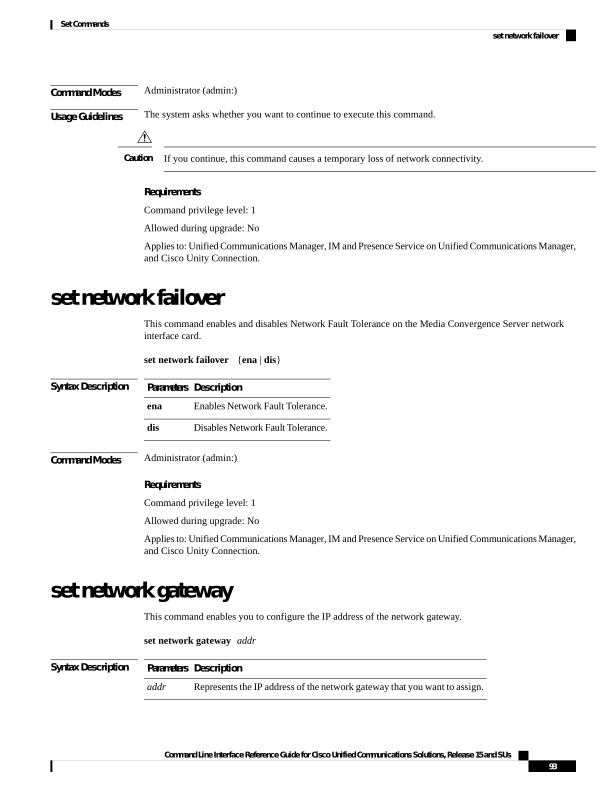
Page 118
Command Modes
Administrator (admin:)
Usage Guidelines
The system asks whether you want to continue to execute this command.
If you continue, this command causes the system to restart.
Caution
Requirements
Command privilege level: 1
Allowed during upgrade: No
Applies to: Unified Communications Manager, IM and Presence Service on Unified Communications Manager,
and Cisco Unity Connection.
set network hostname
This command allows an administrator to set the network host name, change the IP address of the node, and
restart the system.
Before attempting this command, the administrator should have a valid DRF backup. Additionally, before
attempting a Hostname (or Hostname and IP address) change, the administrator should perform the following:
• verify the cluster configuration does not have any configuration problems by executing show hcs cluster
verify detailed
• update the cluster configuration by executing set hcs cluster config
• validate the cluster configuration by executing show hcs cluster verify detailed
set network hostname hostname
Syntax Description
Description
Parameters
Represents the new network hostname of the system.
Note
The host name must follow the rules for ARPANET host names. It must start with an alphabetic
character, end with an alphanumeric character, and consist of alphanumeric characters and
hyphens. The host name can have a maximum length of 63 characters.
hostname
Command Modes
Administrator (admin:)
Usage Guidelines
The system asks whether you want to continue to execute this command.
If you continue, this command causes the system to restart.
Caution
Command Line Interface Reference Guide for Cisco Unified Communications Solutions, Release 15 and SUs
94
Set Commands
set network hostname

Page 119
Requirements
Command privilege level: 1
Allowed during upgrade: No
Applies to: Unified Communications Manager, IM and Presence Service on Unified Communications Manager,
and Cisco Unity Connection.
Example
admin:set network hostname
WARNING: Changing this setting will invalidate software license
on this server. The license will have to be re-hosted.
Continue(y/n):
Continue (y/n)?y
ctrl-c: To quit the input.
*** W A R N I N G ***
Do not close this window without first canceling the command.
This command will automatically restart system services.
The command should not be issued during normal operating
hours.
Note: Please verify that the new hostname is a unique
name across the cluster and, if DNS services are
utilized, any DNS configuration is completed
before proceeding.
Security Warning : This operation will regenerate
all CUCM Certificates including any third party
signed Certificates that have been uploaded.
Enter the hostname:: app-lfwelty5
Would you like to change the network ip address at this time [yes]::
Warning: Do not close this window until command finishes.
ctrl-c: To quit the input.
W A R N I N G
=======================================================
Note: Please verify that the new ip address is unique
across the cluster.
Note: Changing the IP address will automatically restart
system services cluster wide.
Note: The command should not be issued during normal operating hours.
Command Line Interface Reference Guide for Cisco Unified Communications Solutions, Release 15 and SUs
95
Set Commands
set network hostname
Page 120
The administrator can change both the hostname and IP address by responding yes. To change just
the hostname, respond no.
Note
set network ip eth0
This command sets the IP address for Ethernet interface 0. You cannot configure Ethernet interface 1.
Before attempting this command, the administrator should have a valid DRF backup. Also, before attempting
an IP address change, the administrator should perform the following:
• verify that the cluster configuration does not have any configuration problems by executing show hcs
cluster verify detailed
• update the cluster configuration by executing set hcs cluster config
• validate the cluster configuration by executing show hcs cluster verify detailed
set network ip eth0 addr mask gw
Syntax Description
Description
Parameters
Specifies Ethernet interface 0.
eth0
Represents the IP address that you
want to assign.
addr
Represents the IP mask that you
want to assign.
mask
Represents the IP default GW that
you want to assign.
gw
Command Modes
Administrator (admin:)
Usage Guidelines
The system asks whether you want to continue to execute this command.
If you continue, this command restarts the following services:
• NIC driver
• NTP
• CLM
• Service Manager
Caution
Command Line Interface Reference Guide for Cisco Unified Communications Solutions, Release 15 and SUs
96
Set Commands
set network ip eth0


Page 121
Requirements
Command privilege level: 1
Allowed during upgrade: No
Applies to: Unified Communications Manager, IM and Presence Service on Unified Communications Manager,
and Cisco Unity Connection.
Example
admin:set network ip eth0
......
W A R N I N G
=======================================================
Note:
Please verify that the new ip address is unique across the cluster
and, if DNS services are utilized, any DNS configuration is
completed before proceeding.
Note: Changing the IP address will automatically restart
system services cluster wide.
Note: The command should not be issued during normal operating hours.
set network ipv6 dhcp
This command sets the DHCPv6 client on the server and enables IPv6 support. For changes to take effect,
you must restart the server.
set network ipv6 dhcp
{enable | disable} [reboot]
Syntax Description
Description
Parameters
Sets the DHCPv6 client on the server. By default, the server does not restart after you enable
the DHCPv6 client. For your changes to take effect, you must restart the server by either entering
the reboot parameter or manually restarting the server.
dhcp
Enables IPv6 support.
enable
Disables IPv6 support.
disable
(Optional) Causes the server to automatically restart after you enter the command.
reboot
Command Modes
Administrator (admin:)
Requirements
Command privilege level: 1
Allowed during upgrade: No
Applies to: Unified Communications Manager, IM and Presence Service on Unified Communications Manager,
and Cisco Unity Connection.
Command Line Interface Reference Guide for Cisco Unified Communications Solutions, Release 15 and SUs
97
Set Commands
set network ipv6 dhcp
Page 122
set network ipv6 gateway
This command sets the IPv6 gateway for the server. For changes to take effect, you must restart the server.
set network ipv6 gateway addr [reboot]
Syntax Description
Description
Parameters
Sets the IPv6 gateway for the server. By default, the server does not restart after you set the
IPv6 gateway for the server. For your changes to take effect, you must restart the server by either
entering the reboot parameter or manually restarting the server.
gateway
The IPv6 gateway address.
addr
(Optional) Causes the server to automatically restart after you enter the command.
reboot
Command Modes
Administrator (admin:)
Requirements
Command privilege level: 1
Allowed during upgrade: No
Applies to: Unified Communications Manager , IM and Presence Service on Unified Communications Manager,
and Cisco Unity Connection.
set network ipv6 service
This command enables or disables the IPv6 service on the server. For changes to take effect, you must restart
the server.
set network ipv6 service
{enable | disable} [reboot]
Syntax Description
Description
Parameters
Sets the IPv6 service on the server. By default, the server does not restart after you enable or
disable the IPv6 service on the server. For your changes to take effect, you must restart the server
by either entering the reboot parameter or manually restarting the server.
service
Enables IPv6 service on the server.
enable
Disables IPv6 service on the server.
disable
(Optional) Causes the server to automatically restart after you enter the command.
reboot
Command Modes
Administrator (admin:)
Command Line Interface Reference Guide for Cisco Unified Communications Solutions, Release 15 and SUs
98
Set Commands
set network ipv6 gateway
Page 123
Requirements
Command privilege level: 1
Allowed during upgrade: No
Applies to: Unified Communications Manager, IM and Presence Service on Unified Communications Manager,
and Cisco Unity Connection.
set network ipv6 static_address
This command assigns the static IPv6 address to the server. For changes to take effect, you must restart the
server.
set network ipv6 static_address addr mask [reboot]
Syntax Description
Description
Parameters
Assigns a static IPv6 address to the server. By default, the server does not restart after you
assign the static IPv6 address. For your changes to take effect, you must restart the server
by either entering the reboot parameter or manually restarting the server.
static_address
Specifies the static IPv6 address you assign to the server.
addr
Specifies the IPv6 network mask (0-128).
mask
(Optional) Causes the server to automatically restart after you enter the command.
reboot
Command Modes
Administrator (admin:)
Requirements
Command privilege level: 1
Allowed during upgrade: No
Applies to: Unified Communications Manager, IM and Presence Service on Unified Communications Manager,
and Cisco Unity Connection.
set network max_ip_conntrack
This command sets the ip_conntrack_max value.
set network max_ip_conntrack ip_conntrack_max value
Syntax Description
Description
Parameters
Specifies the value for ip_conntrack_max.
Note
The value of ip_conntrack_max cannot be less than 65536.
ip_conntrack_max value
Command Line Interface Reference Guide for Cisco Unified Communications Solutions, Release 15 and SUs
99
Set Commands
set network ipv6 static_address
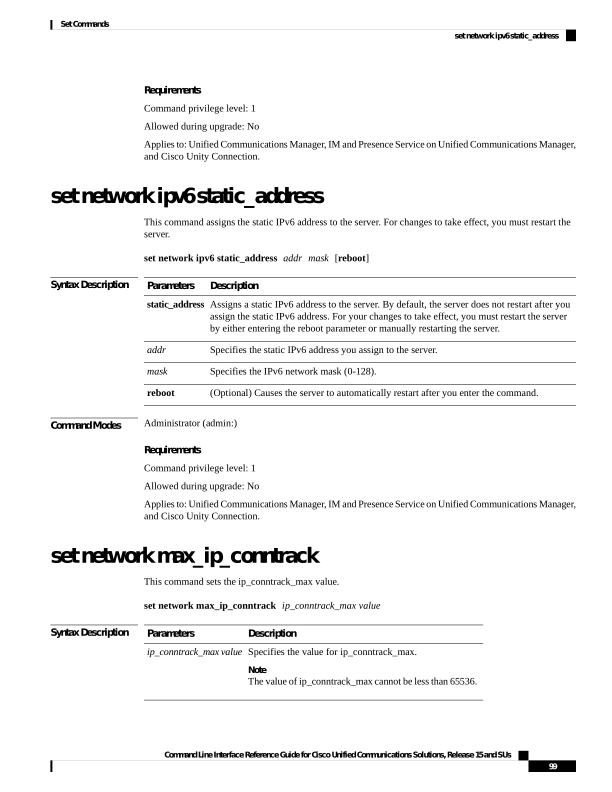
Page 124
Command Modes
Administrator (admin:)
Requirements
Command privilege level: 0
Allowed during upgrade: No
Applies to: Unified Communications Manager, IM and Presence Service on Unified Communications Manager,
and Cisco Unity Connection.
Example
admin:set network max_ip_conntrack 65536
set network mtu
This command sets the maximum MTU value.
set network mtu mtu_max
Syntax Description
Description
Parameters
Specifies the maximum MTU value. The system default MTU value equals 1500.
Caution
When packets on UDP port 8500 that have the DF bit set are exchanged between nodes, if there
is any policy on the WAN router to clear the DF bit and fragment large packets, this may cause
dbreplication issues.
mtu_max
Command Modes
Administrator (admin:)
Usage Guidelines
The system asks whether you want to continue to execute this command.
If you continue, the system loses network connectivity temporarily.
Caution
Requirements
Command privilege level: 1
Allowed during upgrade: No
Applies to: Unified Communications Manager, IM and Presence Service on Unified Communications Manager,
and Cisco Unity Connection.
Example
admin:set network mtu 576
W A R N I N G
This will cause the system to temporarily lose network connectivity
Command Line Interface Reference Guide for Cisco Unified Communications Solutions, Release 15 and SUs
100
Set Commands
set network mtu

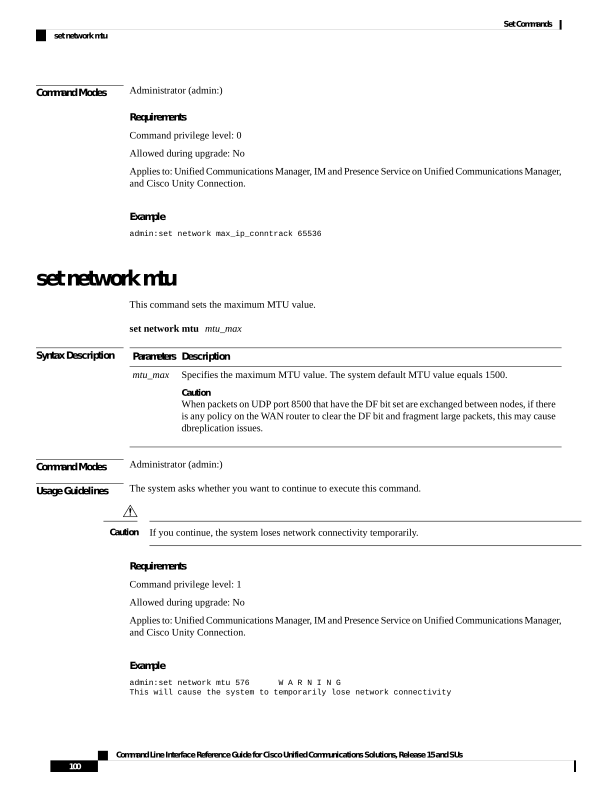
Page 125
Do you want to continue ?
Enter "yes" to continue or any other key to abort
yes
executing...
set network name-service hosts cache-enable
This command enables the nscd related cache.
set network name-service hosts cache-enable value
Syntax Description
Description
Parameters
The boolean value must be either yes or no.
value
Command Modes
Administrator (admin:)
Requirements
Command privilege level: 1
Allowed during upgrade: Yes
Applies to: Unified Communications Manager, IM and Presence Service on Unified Communications Manager,
and Cisco Unity Connection.
set network name-service hosts max-db-size
This command sets the maximum allowed size for a service.
set network name-service hosts max-db-size value
Syntax Description
Description
Parameters
Enter the number of bytes for the database size.
value
Command Modes
Administrator (admin:)
Requirements
Command privilege level: 1
Allowed during upgrade: Yes
Applies to: Unified Communications Manager, IM and Presence Service on Unified Communications Manager,
and Cisco Unity Connection.
Command Line Interface Reference Guide for Cisco Unified Communications Solutions, Release 15 and SUs
101
Set Commands
set network name-service hosts cache-enable
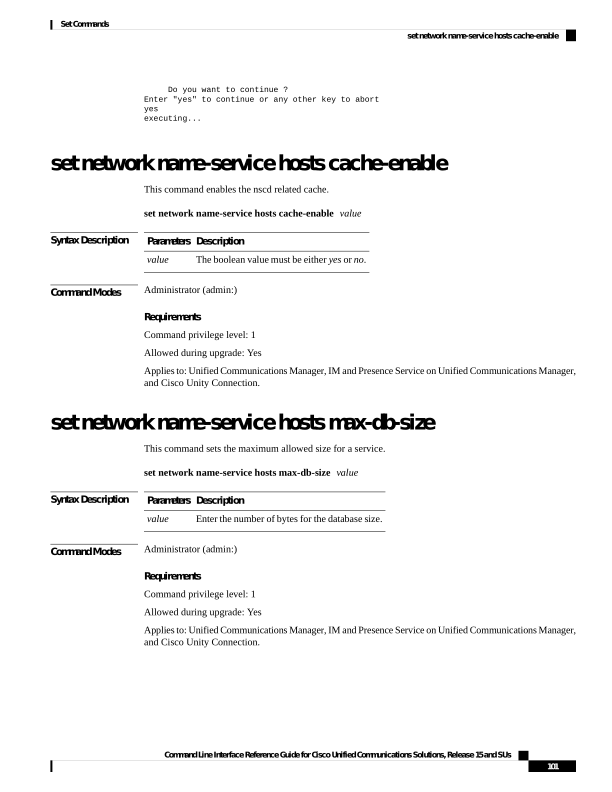
Page 126
set network name-service hosts negative-time-to-live
This command sets the time-to-live (TTL) for negative entries or unsuccessful queries in the specified cache
for service. So, using this command improves the performance if there are various files owned by user IDs
(UIDs) and are unavailable in system databases. For example, files that are available in the Linux kernel
sources as root. To reduce the cache coherency problems, the number of such files should be kept to the
minimum.
set network name-service hosts negative-time-to-live value
Syntax Description
Description
Parameters
Enter the number of seconds.
value
Command Modes
Administrator (admin:)
Requirements
Command privilege level: 1
Allowed during upgrade: Yes
Applies to: Unified Communications Manager, IM and Presence Service on Unified Communications Manager,
and Cisco Unity Connection.
set network name-service hosts persistent
This command retains the content of the cache for service over server restarts. This command is useful when
paranoia mode is configured.
set network name-service hosts persistent value
Syntax Description
Description
Parameters
Enter a value for a service.
value
Command Modes
Administrator (admin:)
Requirements
Command privilege level: 1
Allowed during upgrade: Yes
Applies to: Unified Communications Manager, IM and Presence Service on Unified Communications Manager,
and Cisco Unity Connection.
Command Line Interface Reference Guide for Cisco Unified Communications Solutions, Release 15 and SUs
102
Set Commands
set network name-service hosts negative-time-to-live
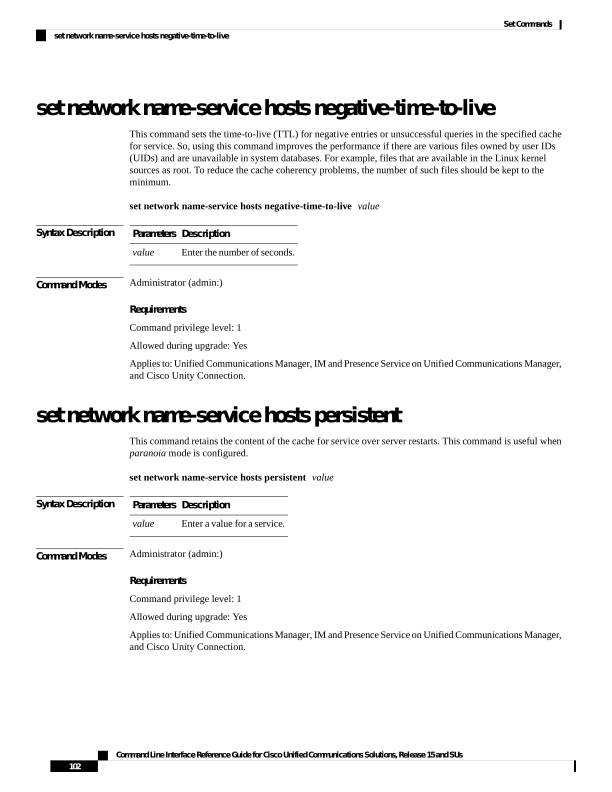
Page 127
set network name-service hosts positive-time-to-live
This command sets the time-to-live (TTL) for positive entries or successful queries in the specified cache for
service. Configure the value in seconds. Larger values increase cache hit rates and reduce mean response
times. However, such values increase problems with cache coherence.
set network name-service hosts positive-time-to-live value
Syntax Description
Description
Parameters
Enter the number of seconds.
value
Command Modes
Administrator (admin:)
Requirements
Command privilege level: 1
Allowed during upgrade: Yes
Applies to: Unified Communications Manager, IM and Presence Service on Unified Communications Manager,
and Cisco Unity Connection.
set network name-service hosts suggested-size
This command changes the internal hash table size.
set network name-service hosts suggested-size value
Syntax Description
Description
Parameters
Enter a prime number for optimum efficiency.
value
Command Modes
Administrator (admin:)
Requirements
Command privilege level: 1
Allowed during upgrade: Yes
Applies to: Unified Communications Manager, IM and Presence Service on Unified Communications Manager,
and Cisco Unity Connection.
set network name-service services cache-enable
This command enables the nscd related cache.
Command Line Interface Reference Guide for Cisco Unified Communications Solutions, Release 15 and SUs
103
Set Commands
set network name-service hosts positive-time-to-live
Page 128
set network name-service services cache-enable value
Syntax Description
Description
Parameters
The boolean value must be either yes or no.
value
Command Modes
Administrator (admin:)
Requirements
Command privilege level: 1
Allowed during upgrade: Yes
Applies to: Unified Communications Manager, IM and Presence Service on Unified Communications Manager,
and Cisco Unity Connection.
set network name-service services max-db-size
This command sets the maximum allowed size for the service.
set network name-service services max-db-size value
Syntax Description
Description
Parameters
Enter the value in number of bytes.
value
Command Modes
Administrator (admin:)
Requirements
Command privilege level: 1
Allowed during upgrade: Yes
Applies to: Unified Communications Manager, IM and Presence Service on Unified Communications Manager,
and Cisco Unity Connection.
set network name-service services negative-time-to-live
This command sets the time-to-live (TTL) for negative entries or unsuccessful queries in the specified cache
for service. So, using this command improves the performance if there are various files owned by user IDs
(UIDs) and are unavailable in system databases. For example, files that are available in the Linux kernel
sources as root. To reduce the cache coherency problems, the number of such files should be kept to the
minimum.
set network name-service services negative-time-to-live value
Command Line Interface Reference Guide for Cisco Unified Communications Solutions, Release 15 and SUs
104
Set Commands
set network name-service services max-db-size
Page 129
Syntax Description
Description
Parameters
Enter a prime number for optimum efficiency.
value
Command Modes
Administrator (admin:)
Requirements
Command privilege level: 1
Allowed during upgrade: Yes
Applies to: Unified Communications Manager, IM and Presence Service on Unified Communications Manager,
and Cisco Unity Connection.
set network name-service services persistent
This command retains the content of the cache for service over server restarts. This command is useful when
paranoia mode is configured.
set network name-service services persistent value
Syntax Description
Description
Parameters
Enter a value for a service.
value
Command Modes
Administrator (admin:)
Requirements
Command privilege level: 1
Allowed during upgrade: Yes
Applies to: Unified Communications Manager, IM and Presence Service on Unified Communications Manager,
and Cisco Unity Connection.
set network name-service services positive-time-to-live
This command sets the time-to-live (TTL) for positive entries or successful queries in the specified cache for
service. If you enter a large value for this command, it increases cache hit rates and reduces mean response
times. However, a large value increases issues with cache coherence.
set network name-service services positive-time-to-live value
Syntax Description
Description
Parameters
Enter the number of seconds.
value
Command Modes
Administrator (admin:)
Command Line Interface Reference Guide for Cisco Unified Communications Solutions, Release 15 and SUs
105
Set Commands
set network name-service services persistent
Page 130
Requirements
Command privilege level: 1
Allowed during upgrade: Yes
Applies to: Unified Communications Manager, IM and Presence Service on Unified Communications Manager,
and Cisco Unity Connection.
set network name-service services suggested-size
This command sets the internal hash table size.
set network name-service services suggested-size value
Syntax Description
Description
Parameters
Enter a prime number for optimum efficiency.
value
Command Modes
Administrator (admin:)
Requirements
Command privilege level: 1
Allowed during upgrade: Yes
Applies to: Unified Communications Manager, IM and Presence Service on Unified Communications Manager,
and Cisco Unity Connection.
set network nic eth0
This command sets the properties of the Ethernet Interface 0. You cannot configure Ethernet interface 1.
set network nic eth0
{auto | {en | dis}}
{speed | {10 | 100}}
{duplex half | {half | full}}
Syntax Description
Description
Parameters
Specifies Ethernet interface 0.
eth0
Specifies whether auto negotiation
gets enabled or disabled.
auto
Specifies whether the speed of the
Ethernet connection: 10 or 100
Mb/s.
speed
Specifies half-duplex or
full-duplex.
duplex
Command Modes
Administrator (admin:)
Command Line Interface Reference Guide for Cisco Unified Communications Solutions, Release 15 and SUs
106
Set Commands
set network name-service services suggested-size
Page 131
Usage Guidelines
The system asks whether you want to continue to execute this command.
You can enable only one active NIC at a time.
Note
If you continue, this command causes a temporary loss of network connections while the NIC gets reset.
Caution
Requirements
Command privilege level: 1
Allowed during upgrade: No
Applies to: Unified Communications Manager, IM and Presence Service on Unified Communications Manager,
and Cisco Unity Connection.
set network ntp option
This command adds the noquery option to the /etc/config file.
set network ntp option
Command Modes
Administrator (admin:)
Requirements
Command privilege level: 1
Allowed during upgrade: Yes
Applies to: Unified Communications Manager, IM and Presence Service on Unified Communications Manager,
and Cisco Unity Connection.
set network pmtud state
This command enables and disables Path MTU Discovery.
set network pmtud state
{enable | disable}
Syntax Description
Description
Parameters
Enables Path MTU Discovery.
enable
Disables Path MTU Discovery.
disable
Command Modes
Administrator (admin:)
Command Line Interface Reference Guide for Cisco Unified Communications Solutions, Release 15 and SUs
107
Set Commands
set network ntp option


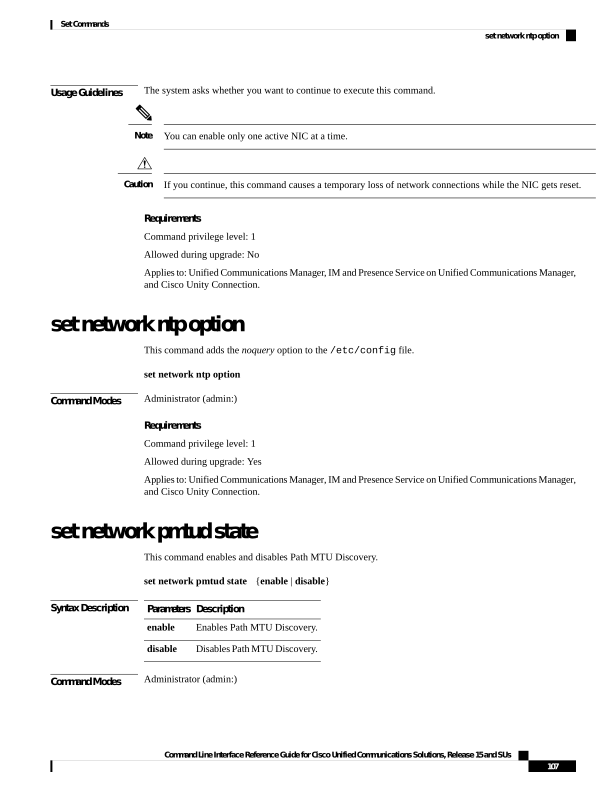
Page 132
Usage Guidelines
The system asks whether you want to continue to execute this command.
If you continue, the system loses network connectivity temporarily.
Caution
Requirements
Command privilege level: 1
Allowed during upgrade: No
Applies to: Unified Communications Manager, IM and Presence Service on Unified Communications Manager,
and Cisco Unity Connection.
Example
admin:set network pmtud state enable
W A R N I N G
This will cause the system to temporarily lose network connectivity
Do you want to continue ?
Enter "yes" to continue or any other key to abort
yes
executing...
set network restore
This command configures the specified Ethernet port to use a specified static IP address.
set network restore eth0 ip-address network-mask gateway
Syntax Description
Description
Parameters
Specifies Ethernet interface 0.
eth0
Represents the IP address of the primary or secondary DNS server, or the network gateway
that you want to assign. If you continue, this command causes a temporary loss of network
connectivity. If you change the IP address for the primary DNS server, you must also restart
the Cisco Tomcat service. For more information, see the utils service command. We also
recommend that you restart all nodes whenever any IP address gets changed.
ip-address
Represents the subnet mask for the server.
network-mask
Specifies the IP address of the default gateway.
gateway
Represents the IP address of the primary or secondary DNS server, or the network gateway
that you want to assign. If you continue, this command causes a temporary loss of network
connectivity. If you change the IP address for the primary DNS server, you must also restart
the Cisco Tomcat service. For more information, see the utils service command. We also
recommend that you restart all nodes whenever any IP address gets changed.
ip-address
Command Modes
Administrator (admin:)
Command Line Interface Reference Guide for Cisco Unified Communications Solutions, Release 15 and SUs
108
Set Commands
set network restore

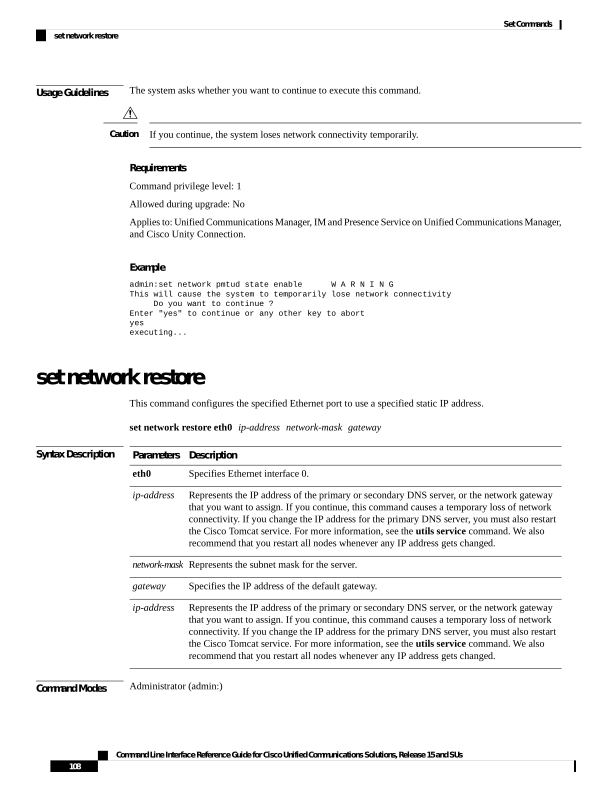
Page 133
Usage Guidelines
Only use this command option if you cannot restore network connectivity through any other set network
commands. This command deletes all previous network settings for the specified network interface, including
Network Fault Tolerance. After you run this command, you must restore your previous network configuration
manually.
Caution
The server temporarily loses network connectivity after you run this command.
Caution
Requirements
Command privilege level: 0
Allowed during upgrade: Yes
Applies to: Unified Communications Manager, IM and Presence Service on Unified Communications Manager,
and Cisco Unity Connection.
Example
admin:set network restore eth0
10.94.150.108
255.255.255.0
10.94.150.1
set network status eth0
This command sets the status of Ethernet 0 to up or down. You cannot configure Ethernet interface 1.
set network status eth0
{up | down}
Syntax Description
Description
Parameters
Specifies Ethernet interface 0.
eth0
Sets the status of Ethernet interface 0 to up.
up
Sets the status of Ethernet interface 0 to down.
down
Command Modes
Administrator (admin:)
Usage Guidelines
The system asks whether you want to continue to execute this command.
If you continue, the system loses network connectivity temporarily.
Caution
Requirements
Command privilege level: 1
Command Line Interface Reference Guide for Cisco Unified Communications Solutions, Release 15 and SUs
109
Set Commands
set network status eth0

Page 134
Allowed during upgrade: No
Applies to: Unified Communications Manager, IM and Presence Service on Unified Communications Manager,
and Cisco Unity Connection.
set network name-service
This command displays name service cache attributes.
set network name-service [attribute] [value]
Syntax Description
Value
Attribute
Bool must be either Yes or No. Enabling paranoia mode causes Name Service to restart
itself periodically.
Paranoia
If level is higher than 0, Name Service will create some debug output. Higher the level,
more verbose the output.
debug-level
Sets the number of times a cached record is reloaded before it is pruned from the cache.
Each cache record has a timeout. When that timeout expires Name Service will either reload
it (query the NSS service again if the data hasn't changed) or drop it.
reload-count
Sets the restart interval to time seconds if periodic restart is enabled by enabling paranoia
mode. The default value is 3600.
restart-interval
Command Modes
Administrator (admin:)
Requirements
Command privilege level: 1
Allowed during upgrade: No
set password complexity minimum-length
This command modifies the value of minimum password length for the OS administration accounts.
Use this command after you enable the character complexity of passwords.
Note
set password complexity minimum-length max-repeat
Syntax Description
Description
Parameters
Enter a value of or greater than eight.
value
Command Modes
Administrator (admin:)
Command Line Interface Reference Guide for Cisco Unified Communications Solutions, Release 15 and SUs
110
Set Commands
set network name-service

Page 135
Requirements
Command privilege level: 1
Allowed during upgrade: No
Applies to: Unified Communications Manager, IM and Presence Service on Unified Communications Manager,
and Cisco Unity Connection.
set password age
This command modifies the value for password age, in days, for Cisco Collaboration Communication OS
(C3OS) accounts.
set password age
{maximum | minimum} days
Syntax Description
Description
Parameters
Specifies the maximum age.
maximum
Specifies the minimum age.
minimum
Specifies the maximum password
age and must be greater-than or
equal-to 90 days.
days
Command Modes
Administrator (admin:)
Requirements
Command privilege level: 1
Allowed during upgrade: No
Applies to: Unified Communications Manager, IM and Presence Service on Unified Communications Manager,
and Cisco Unity Connection.
set password change-at-login
Use this command to force new or existing users to change their password when they sign in to the system
the next time.
set password change-at-login
{disable | enable} userid
Syntax Description
Description
Parameters
This does not force users to change their password.
disable
This forces users to change their password when they sign in to the system the next time.
enable
Specifies the affected user account.
userid
Command Line Interface Reference Guide for Cisco Unified Communications Solutions, Release 15 and SUs
111
Set Commands
set password age
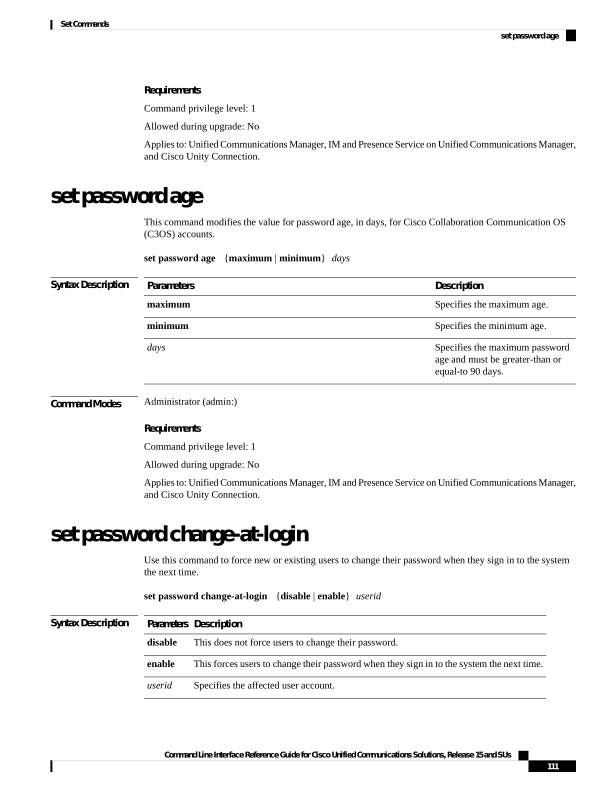
Page 136
Command Modes
Administrator (admin:)
Usage Guidelines
By default, this command is enabled for new users, so users have to change their password the first time they
sign in to the system.
Requirements
Command privilege level: 4
Allowed during upgrade: No
Applies to: IM and Presence Service on Unified Communications Manager only.
set password complexity character
Use this command to enable or disable password complexity rules for the type of characters in a password.
After you enable password complexity, this command also enables password history if it has not already been
enabled (for more information, see the set password history command). If you had not previously enabled
password history, the password history number parameter value gets set to 10. If you previously enabled
password history with a value of less than 10, the value gets reset to 10 after you execute this command. If
you previously enabled password history with a value of 10 or greater, the value remains unchanged after you
execute this command.
Note
set password complexity character
{disable | enable} num-char
Syntax Description
Description
Parameters
This turns off password complexity for character types.
disable
This turns on password complexity for character types.
Note
When you disable password complexity, you also turn off password character difference,
password character max-repeat, and password history.
enable
This specifies the number of characters required from each of the four character sets: lowercase,
uppercase, numbers, and special characters.
• Value range: 0-8
• Default value: 1
num-char
Command Modes
Administrator (admin:)
Usage Guidelines
When you enable password complexity, you must follow these guidelines when you assign a password:
• It must have at least the current setting, num-chars, of lower-case character.
• It must have at least the current setting, num-chars, of uppercase characters.
Command Line Interface Reference Guide for Cisco Unified Communications Solutions, Release 15 and SUs
112
Set Commands
set password complexity character

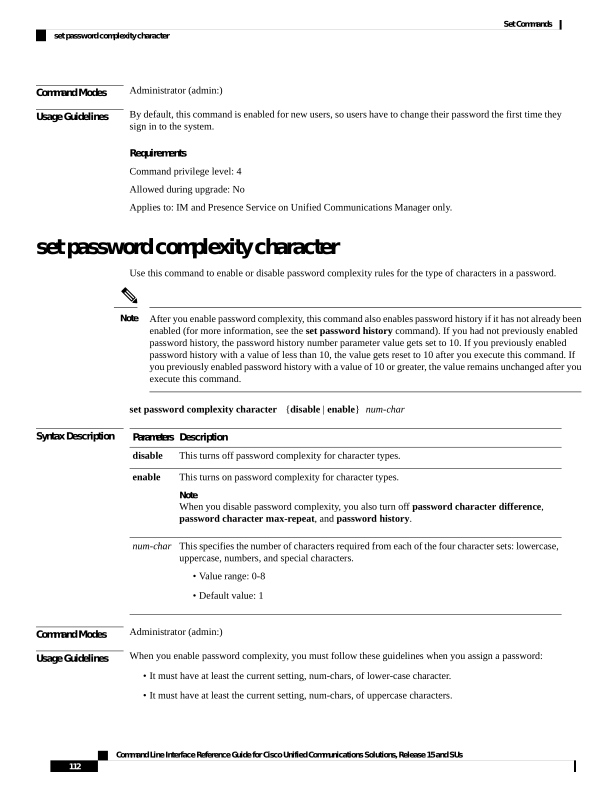
Page 137
• It must have at least the current setting, num-chars, of digit characters.
• It must have at least the current setting, num-chars, of special characters.
• You cannot use adjacent characters on the keyboard; for example, qwerty.
• You cannot reuse any of the previous passwords that match the passwords retained by password history.
• By default, the admin user password can be changed only once in a 24-hour day.
Requirements
Command privilege level: 1
Allowed during upgrade: No
Applies to: Unified Communications Manager, IM and Presence Service on Unified Communications Manager,
and Cisco Unity Connection.
set password complexity character difference
This command specifies the number of characters that the character sequence in a new password must differ
from the character sequence in the old password.
set password complexity character difference num-char
Syntax Description
Description
Parameters
This specifies the number of characters that the character sequence in a new password must differ
from the character sequence in the old password.
• Value range: 0-31
num-char
Command Modes
Administrator (admin:)
Usage Guidelines
Enter 0 to indicate no difference.
The maximum password length is 31 characters.
Note
Requirements
Command privilege level: 1
Allowed during upgrade: No
Applies to: Unified Communications Manager, IM and Presence Service on Unified Communications Manager,
and Cisco Unity Connection.
Command Line Interface Reference Guide for Cisco Unified Communications Solutions, Release 15 and SUs
113
Set Commands
set password complexity character difference

Page 138
set password complexity character max-repeat
This command specifies the number of times you can consecutively repeat a single character in a new password.
set password complexity character max-repeat max-repeat
Syntax Description
Description
Parameters
This specifies the number of times you can consecutively repeat a single character in a new
password.
• Value range: 0 – 10
Default value: 0
max-repeat
Command Modes
Administrator (admin:)
Requirements
Command privilege level: 1
Allowed during upgrade: No
Applies to: Unified Communications Manager, IM and Presence Service on Unified Communications Manager,
and Cisco Unity Connection.
set password expiry maximum-age
This command enables or disables the password expiry maximum age settings for Cisco Collaboration
Communication OS (C3OS) Administrator accounts.
set password expiry maximum-age
{enable | disable}
Syntax Description
Description
Parameters
Turns on password expiry
maximum age settings for Cisco
Unified Operating System
administrator accounts. The set
password expiry enable command
sets the value of maximum
password age to 3650 days (10
yrs) for Cisco Unified Operating
System Administrator accounts.
enable
Command Line Interface Reference Guide for Cisco Unified Communications Solutions, Release 15 and SUs
114
Set Commands
set password complexity character max-repeat
Page 139
Description
Parameters
Turns off password expiry
maximum age settings for Cisco
Unified Operating System
administrator accounts. The set
password expiry disable command
results in Cisco Unified Operating
System Administrator accounts
never expiring.
disable
Command Modes
Administrator (admin:)
Requirements
Command privilege level: 1
Allowed during upgrade: No
Applies to: Unified Communications Manager, IM and Presence Service on Unified Communications Manager,
and Cisco Unity Connection.
Example
admin:set password expiry maximum-age disable
Operation Successful.
set password expiry user maximum-age configure
This command modifies the value of the maximum password age for a particular Cisco Collaboration
Communication OS Administration account in days.
set password expiry user maximum-age configure userid maximum password age
Syntax Description
Description
Parameters
Enter Cisco Collaboration Communication OS (C3OS)
Administrator account.
userid
Enter the maximum password age in days. This value
must be equal to or greater than 10 days but less than
3650 days (10 years).
maximum password age
Command Modes
Administrator (admin:)
Requirements
Command privilege level: 1
Allowed during upgrade: Yes
Command Line Interface Reference Guide for Cisco Unified Communications Solutions, Release 15 and SUs
115
Set Commands
set password expiry user maximum-age configure
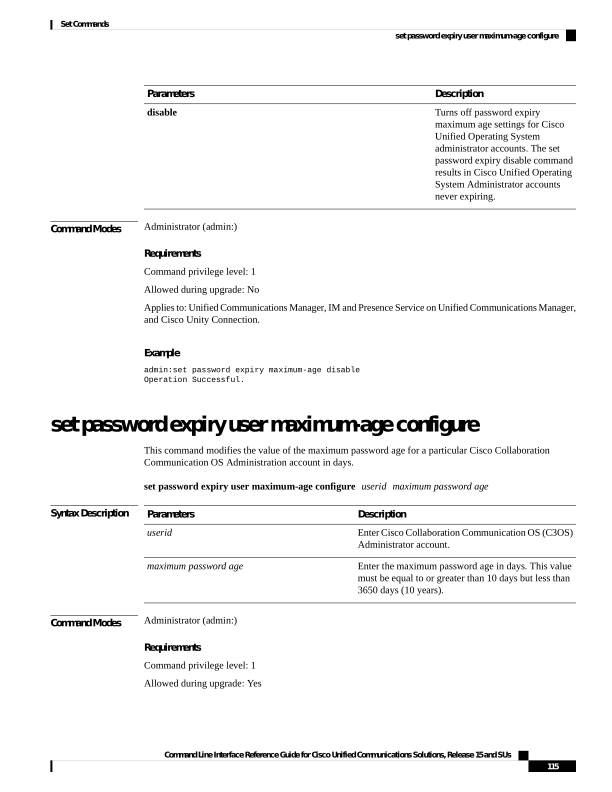
Page 140
Applies to: Unified Communications Manager, IM and Presence Service on Unified Communications Manager,
and Cisco Unity Connection.
set password expiry minimum-age
This command enables or disables the password expiry minimum age settings for Cisco Unified Operating
System Administrator accounts.
set password expiry minimum-age
{enable | disable}
Syntax Description
Description
Parameters
Turns on password expiry
minimum age settings for Cisco
Unified Operating System
administrator accounts. The set
password expiry enable command
sets the value of minimum
password age to one day (24 hrs)
for Cisco Collaboration
Communication OS (C3OS)
Administrator accounts.
enable
Turns off password expiry
minimum age settings for Cisco
Collaboration Communication OS
(C3OS) administrator accounts.
This means that passwords for
administrator accounts can be
changed at any interval.
disable
Command Modes
Administrator (admin:)
Requirements
Command privilege level: 1
Allowed during upgrade: No
Applies to: Unified Communications Manager, IM and Presence Service on Unified Communications Manager,
and Cisco Unity Connection.
Example
admin:set password expiry minimum-age disable
Operation Successful.
Command Line Interface Reference Guide for Cisco Unified Communications Solutions, Release 15 and SUs
116
Set Commands
set password expiry minimum-age
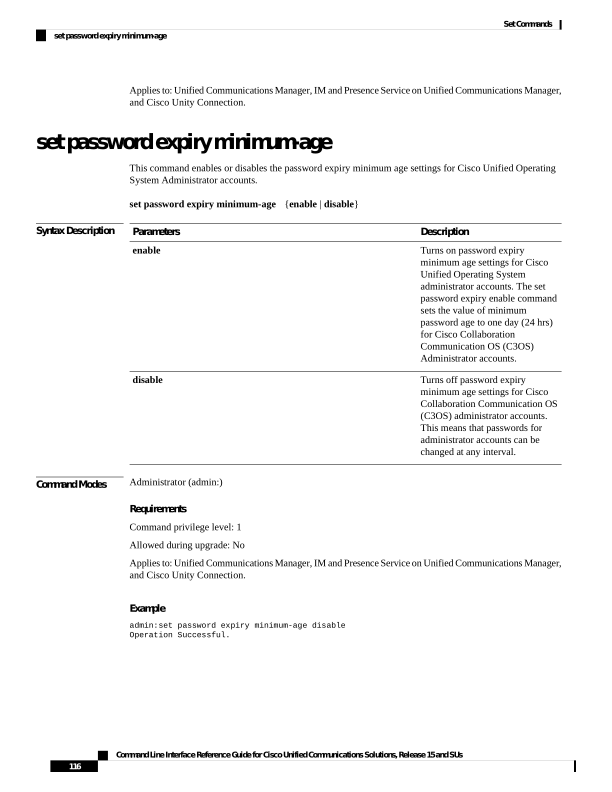
Page 141
set password expiry user maximum-age
This command disables the maximum age password expiry for a particular Cisco Unified Operating System
Administrator account.
set password expiry user maximum-age
{enable | disable}userid
Syntax Description
Description
Parameters
Turns on the maximum age password expiry settings for a particular Cisco Collaboration
Communication OS (C3OS) administrator account. The set password expiry user enable command
sets the value of maximum password age to 3650 days (10 yrs) for the Cisco Unified Operating
System Administrator account.
enable
Turns on the maximum age password expiry settings for a particularCisco Collaboration
Communication OS (C3OS) administrator account. The set password expiry user enable command
sets the value of maximum password age to 3650 days (10 yrs) for the Cisco Unified Operating
System Administrator account.
disable
Specifies a particular Cisco Collaboration Communication OS (C3OS) Administrator account.
userid
Command Modes
Administrator (admin:)
Requirements
Command privilege level: 1
Allowed during upgrade: No
Applies to: Unified Communications Manager, IM and Presence Service on Unified Communications Manager,
and Cisco Unity Connection.
Example
admin:set password expiry user maximum-age enable
Operation Successful.
set password expiry user minimum-age
This command enables or disables the maximum age password expiry for a particular Cisco Unified Operating
System Administrator account.
set password expiry user minimum-age
{enable | disable} userid
Command Line Interface Reference Guide for Cisco Unified Communications Solutions, Release 15 and SUs
117
Set Commands
set password expiry user maximum-age
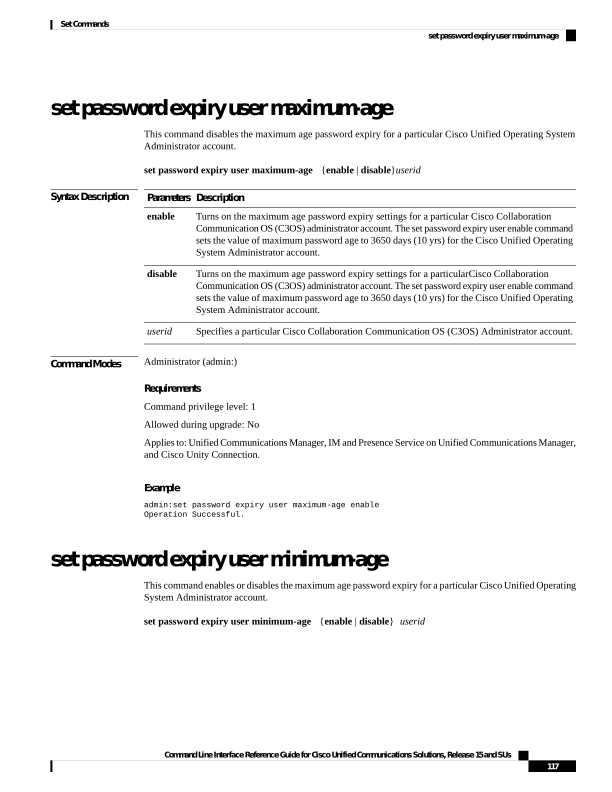
Page 142
Syntax Description
Description
Parameters
Turns on the minimum age
password expiry settings for a
particular Cisco Unified Operating
System administrator account.
enable
Turns off the minimum age
password expiry settings for a
particular Cisco Unified Operating
System administrator account.
disable
Specifies a particular Cisco Unified
Operating System Administrator
account.
userid
Command Modes
Administrator (admin:)
Requirements
Command privilege level: 1
Allowed during upgrade: No
Applies to: Unified Communications Manager, IM and Presence Service on Unified Communications Manager,
and Cisco Unity Connection.
Example
admin:set password expiry user minimum-age disable
Operation Successful.
set password history
This command modifies the number of passwords that get maintained in the history for OS admin accounts.
New passwords matching remembered passwords get rejected.
set password history number
Syntax Description
Description
Parameters
Specifies the mandatory number of passwords to maintain in history.
number
Command Modes
Administrator (admin:)
Usage Guidelines
• To disable, enter 0.
• Default specifies 10.
• Upper limit specifies 20.
Command Line Interface Reference Guide for Cisco Unified Communications Solutions, Release 15 and SUs
118
Set Commands
set password history
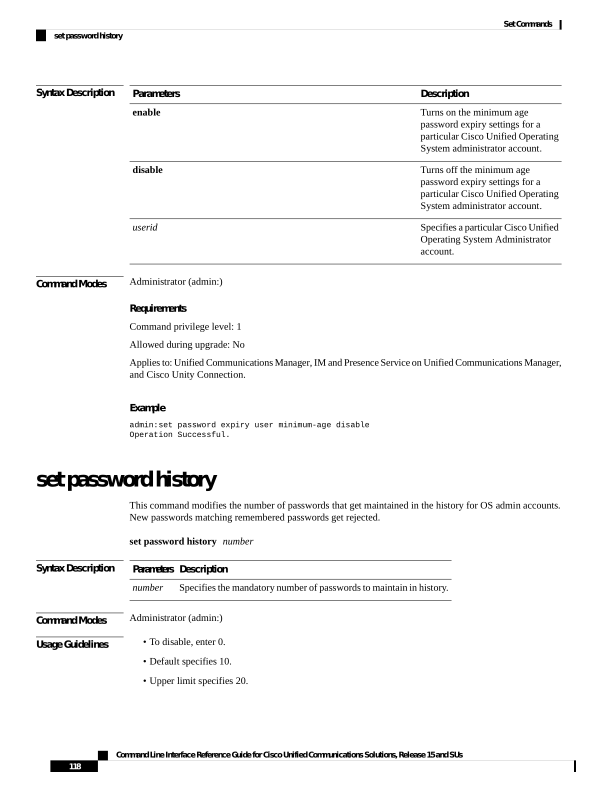
Page 143
Requirements
Command privilege level: 1
Allowed during upgrade: Yes
Applies to: Unified Communications Manager, IM and Presence Service on Unified Communications Manager,
and Cisco Unity Connection.
set password inactivity
set password inactivity
{enable | disable | period} days
Syntax Description
Description
Parameters
Enable the password inactivity globally and update individual OS users according to the setting.
enable
Disable the password inactivity globally and update individual OS users according to the setting.
disable
Configure the password inactivity period globally and update individual OS users according to
the setting.
period
Specify the number of days of inactivity after a password has expired before the account gets
disabled. Valid range is 1 - 99.
days
Command Modes
Administrator (admin:)
Usage Guidelines
• To enable password inactivity globally, execute the set password inactivity enable command. This
command enables the password inactivity globally and updates individual OS users according to the
setting.
• To disable password inactivity globally, execute the set password inactivity disable command. This
command disables the password inactivity globally and updates individual OS users according to the
setting.
A user whose account is disabled must contact the system administrator to use the system again.
• To configure the password inactivity period execute the set password inactivity period days command.
This command configures the password inactivity globally and updates individual OS users according
to the setting.
Requirements
Command privilege level: 0
Allowed during upgrade: No
Applies to: Unified Communications Manager, IM and Presence Service on Unified Communications Manager,
and Cisco Unity Connection.
Command Line Interface Reference Guide for Cisco Unified Communications Solutions, Release 15 and SUs
119
Set Commands
set password inactivity
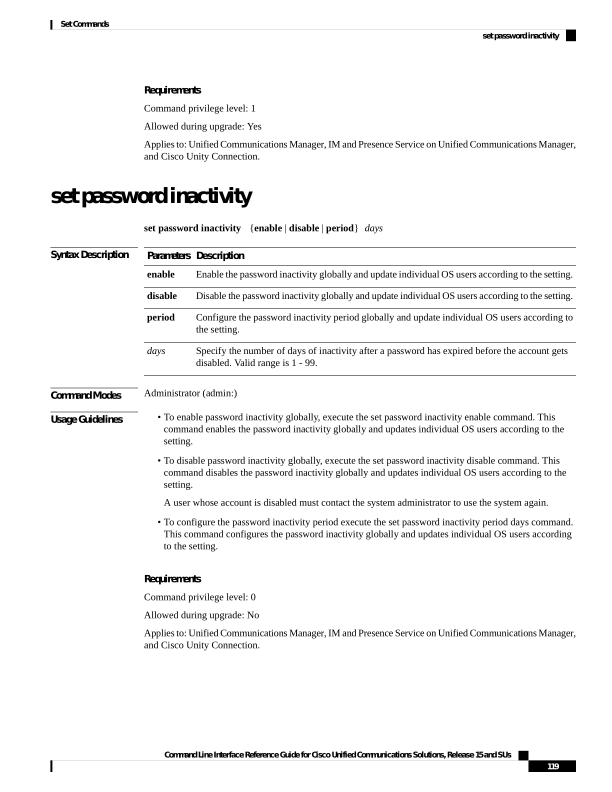
Page 144
set password system bootloader encryptHash
Use this command to configure the encrypted password in the grub.conf file for the system boot loader.
set password system bootloader encryptHash
Command Modes
Administrator (admin:)
Requirements
Command privilege level: 4
Allowed during upgrade: No
Applies to: Unified Communications Manager, IM and Presence Service on Unified Communications Manager,
and Cisco Unity Connection.
set password user admin
This command allows you to change the administrator password.
set password user admin
Command Modes
Administrator (admin:)
Usage Guidelines
The systems prompts you for the old and new passwords.
• You can change the password only for the administrator account that you logged in to.
• The password must contain at least eight characters, and the system checks it for strength.
Note
Requirements
Command privilege level: 1
Allowed during upgrade: No
Applies to: Unified Communications Manager, IM and Presence Service on Unified Communications Manager,
and Cisco Unity Connection.
set password user security
This command allows you to change the security password.
set password user security
Command Line Interface Reference Guide for Cisco Unified Communications Solutions, Release 15 and SUs
120
Set Commands
set password system bootloader encryptHash

Page 145
Command Modes
Administrator (admin:)
Usage Guidelines
The systems prompts you for the old and new passwords.
The password must contain at least eight characters, and the system checks it for strength.
Note
Servers in a cluster use the security password to authenticate communication between servers. You must reset
the cluster after you change the security password.
We recommend that you restart each server after the password is changed on that server.
1.
Change the security password on the publisher server (first node) and then reboot the server (node).
2.
Change the security password on all the subsequent servers and nodes to the same password that you
created on the first node and restart subsequent nodes, including application servers, to propagate the
password change.
Note
Failure to reboot the servers (nodes) causes system service problems and problems with the Cisco Collaboration
Communication OS (C3OS) Administration windows on the subscriber servers.
Note
Requirements
Command privilege level: 1
Allowed during upgrade: No
Applies to: Unified Communications Manager, IM and Presence Service on Unified Communications Manager,
and Cisco Unity Connection.
Set replication-sync monitor
This command enables or disables replication monitoring by the Cisco Replication Watcher service. The
Cisco Replication Watcher service blocks other services from starting until database replication is setup and
functioning normally.
set replication-sync monitor {enable | disable}
Syntax Description
Description
Parameters
Turns on the replication monitoring service.
enable
Turns off the replication monitoring service
disable
Command Modes
Administrator (admin:)
Command Line Interface Reference Guide for Cisco Unified Communications Solutions, Release 15 and SUs
121
Set Commands
Set replication-sync monitor

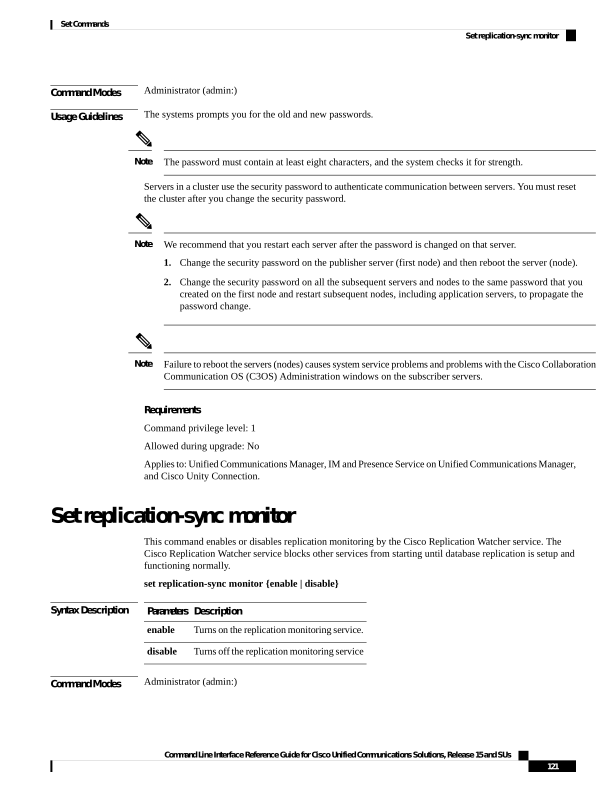
Page 146
Requirements
Command privilege level: 1
Allowed during upgrade: No
Applies to: IM and Presence Service on Unified Communications Manager only
set samltrace level
This command sets the SAML trace level.
set samltrace level trace level
Syntax Description
Description
Parameters
Specifies the trace level. The available options are:
• DEBUG
• INFO
• WARNING
• ERROR
• FATAL
Note
The default trace level is INFO.
trace level
Command Modes
Administrator (admin:)
Requirements
Command privilege level: 0
Allowed during upgrade: Yes
Applies to: Unified Communications Manager, IM and Presence Service on Unified Communications Manager,
and Cisco Unity Connection.
set session maxlimit
This command sets the upper limit for concurrent sessions.
set session maxlimit [value]
Syntax Description
Description
Parameters
This command sets the upper limit for concurrent sessions. Acceptable values are 1 - 10.
If no upper limit is entered, the default value of 10 is assigned to sshd_config param.
maxlimit
Command Line Interface Reference Guide for Cisco Unified Communications Solutions, Release 15 and SUs
122
Set Commands
set samltrace level
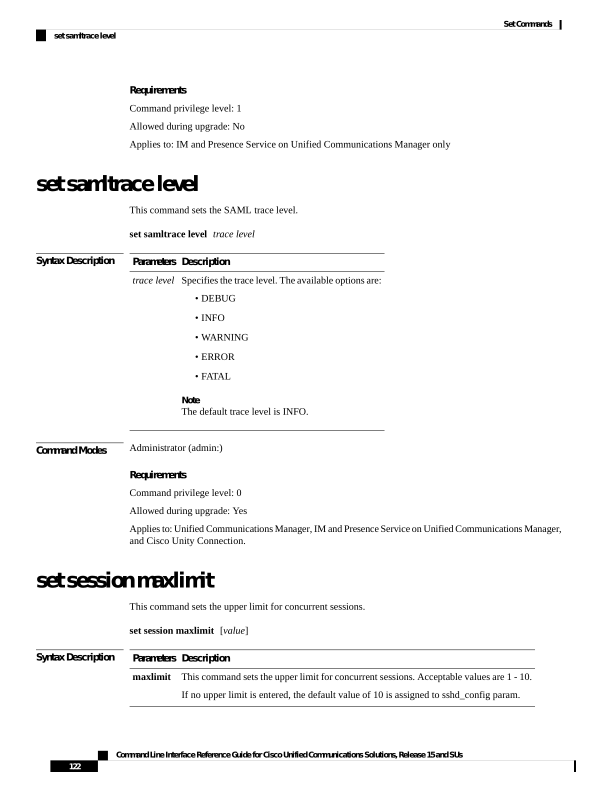
Page 147
Description
Parameters
Acceptable values are 1 - 10.
value
Command Modes
Administrator (admin:)
Requirements
Command privilege level: 1
Allowed during upgrade: Yes
Applies to: Unified Communications Manager, IM and Presence Service on Unified Communications Manager,
and Cisco Unity Connection.
set sip-trunkbusyout disable
This command makes all SIP Trunks respond to the OPTIONS request message with a success (200 OK)
message, provided there are no other error conditions. This is a cluster-wide command. A Cisco CallManager
Service restart is not necessary.
set sip-trunkbusyout disable
Requirements
Command privilege level: 1
Applies to: Unified Communications Manager
Example
admin:set sip-trunkbusyout disable
Warning: This command has no impact if OPTIONS ping/keepalive is not enabled
in your deployment. Proceed with this operation(yes|no)? yes
set sip-trunkbusyout enable
This command makes all the SIP trunks respond to the OPTIONS request message with a ‘503 Service
Unavailable’ error. This is a cluster-wide command. A Cisco CallManager service restart is not necessary.
set sip-trunkbusyout enable
Requirements
Command privilege level: 1
Applies to: Unified Communications Manager
Command Line Interface Reference Guide for Cisco Unified Communications Solutions, Release 15 and SUs
123
Set Commands
set sip-trunkbusyout disable
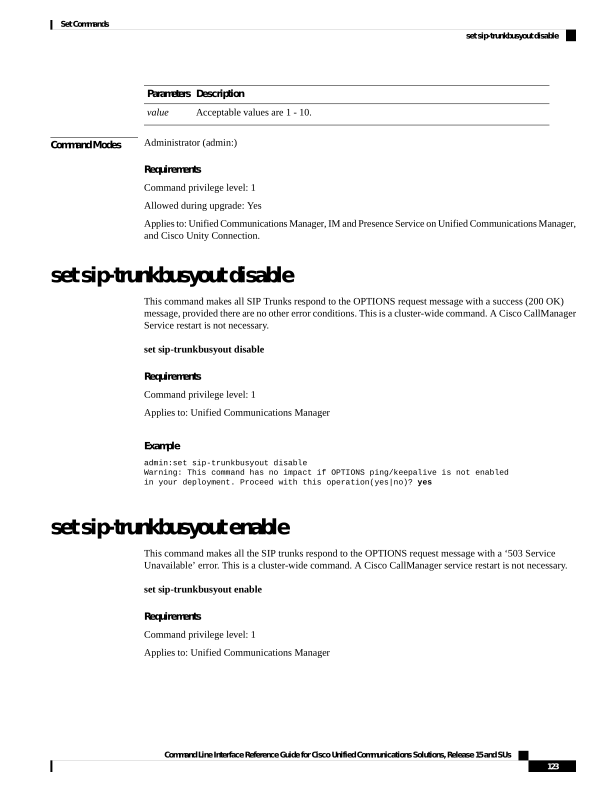
Page 148
Example
admin:set sip-trunkbusyout enable
This command makes all the SIP Trunks respond to the OPTIONS request
message with a '503 Service Unavailable error. This is a clusterwide command.
A Cisco CallManager service restart is not necessary.
Warning: If OPTIONS Keepalive/Ping is enabled for peer SIP clients
such as Unified CM, IM and Presence Service, Cisco Unified Border
Element, or Unity Connection, activating this configuration renders
the SIP Trunk for this cluster non-operational on those peers. This
may result in call failures, call rerouting, and other operational
impacts. Existing calls continue to be active until it is terminated.
This command has no impact if OPTIONS ping/keepalive is not enabled
in your deployment.
Proceed with this operation(yes|no)? yes
set smtp
This command sets the SMTP server hostname.
set smtp hostname
Syntax Description
Description
Parameters
Represents the SMTP server name.
hostname
Command Modes
Administrator (admin:)
Requirements
Command privilege level: 0
Allowed during upgrade: No
Applies to: Unified Communications Manager, IM and Presence Service on Unified Communications Manager,
and Cisco Unity Connection.
set strace enable
This command enables the service trace and sets the trace level.
set strace enable [all]tracevalue servicename
Syntax Description
Description
Parameters
Optional parameter to propagate the service trace settings change to all nodes.
all
Represents allowed trace values. Allowed trace values are [Info|Debug|Warn|Error|Fatal]
tracevalue
Command Line Interface Reference Guide for Cisco Unified Communications Solutions, Release 15 and SUs
124
Set Commands
set smtp
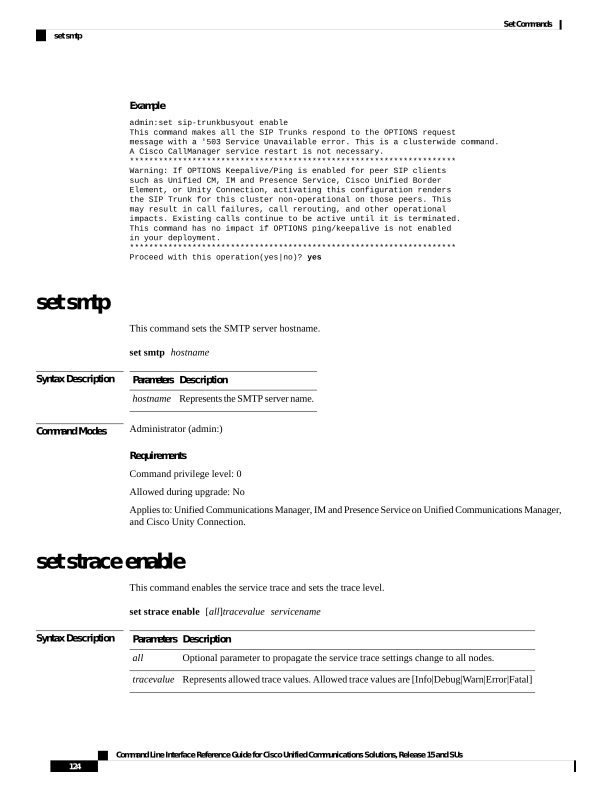
Page 149
Description
Parameters
Represents the service for which the trace is enabled.
servicename
Command Modes
Administrator (admin:)
Requirements
Command privilege level: 0
Allowed during upgrade: No
Applies to: Unified Communications Manager and IM and Presence Service on Unified Communications
Manager
set strace disable
This command disables the service trace.
set strace disable [all] servicename
Syntax Description
Description
Parameters
Optional parameter to propagate the service trace settings change to all nodes.
all
Represents the service for which the trace is enabled.
servicename
Command Modes
Administrator (admin:)
Requirements
Command privilege level: 0
Allowed during upgrade: No
Applies to: Unified Communications Manager and IM and Presence Service on Unified Communications
Manager
set timezone
This command lets you change the system timezone.
set timezone zone
Syntax Description
Description
Parameters
Specifies the new timezone. Enter the appropriate string or zone index id to uniquely identify
the timezone. To view a list of valid timezones, use the CLI command: show timezone list.
zone
Command Modes
Administrator (admin:)
Command Line Interface Reference Guide for Cisco Unified Communications Solutions, Release 15 and SUs
125
Set Commands
set strace disable
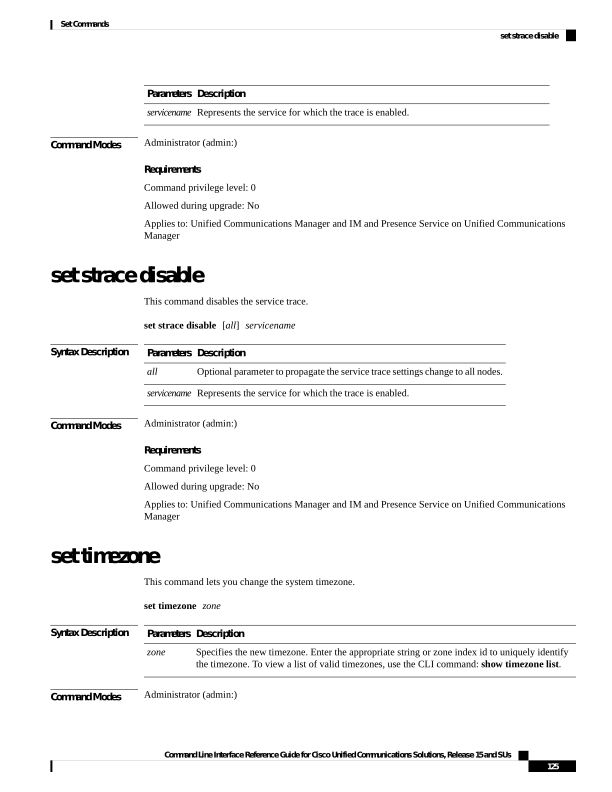
Page 150
Usage Guidelines
Enter characters to uniquely identify the new timezone. Be aware that the timezone name is case-sensitive.
Changing the system time zone to US time zone may require system compliance to FCC Call Routing
Regulations in US. Unified Communications Manager Administrator must refer the Emergency Call Routing
Regulations page and complete necessary configuration.
Note
You must restart the system after you change the timezone.
Caution
Requirements
Command privilege level: 1
Allowed during upgrade: No
Applies to: Unified Communications Manager, IM and Presence Service on Unified Communications Manager,
and Cisco Unity Connection.
Example Setting Timezone to Pacific Time
admin:set timezone Pac
set tls min-version
This command sets the minimum version of the Transport Layer Security (TLS) protocol.
• Until Release 15SU2, ensure that you configure the minimum TLS version for each node. After you set
the minimum TLS version, the system reboots.
• From Release 15SU2 onwards, the minimum TLS version is supported cluster-wide and any change to
the Unified Communications Manager Publisher node is replicated across all other nodes in the cluster.
You must also configure the minimum TLS version on IM and Presence Service separately. Ensure that
you restart all the nodes in the Unified Communications Manager and IM and Presence Service clusters
for the changes to take effect.
Note
set tls min-version tls minVersion
Command Line Interface Reference Guide for Cisco Unified Communications Solutions, Release 15 and SUs
126
Set Commands
set tls min-version


Page 151
Syntax Description
Description
Parameters
Type one of the following options to set it as the minimum TLS version:
• 1.0
• 1.1
• 1.2
• 1.3
tls
minVersion
Command Modes
Administrator (admin:)
Usage Guidelines
Requirements
Command privilege level: 1
Allowed during upgrade: Yes
Applies to: Unified Communications Manager and IM and Presence Service on Unified Communications
Manager
Example
admin: set tls min-version 1.1
This command will result in setting minimum TLS version to 1.1 on all the secure interfaces.
If you have custom applications that makes secure connection to the system, please ensure
they support the TLS version you have chosen to configure.
Also, please refer to the Cisco Unified Reporting Administration Guide to ensure the
endpoints in your deployment supports this feature.
Warning: This will set the minimum TLS to 1.1 and the server will reboot.
Do you want to continue (yes/no) ? yes
Successfully set minimum TLS version to 1.1
The system will reboot in few minutes.
Example (Applicable from Release 15SU2 Onwards)
admin:set tls min-version 1.3
This command will result in setting minimum TLS version to 1.3 on all the secure interfaces.
If you have custom applications that makes secure connection to the system, please ensure
they support the TLS version you have chosen to configure.
Also, please refer to the Cisco Unified Reporting Administration Guide to ensure all the
endpoints in your deployment supports this feature
Warning: This will set the minimum TLS to 1.3 across all the callmanager nodes
in the
Command Line Interface Reference Guide for Cisco Unified Communications Solutions, Release 15 and SUs
127
Set Commands
set tls min-version
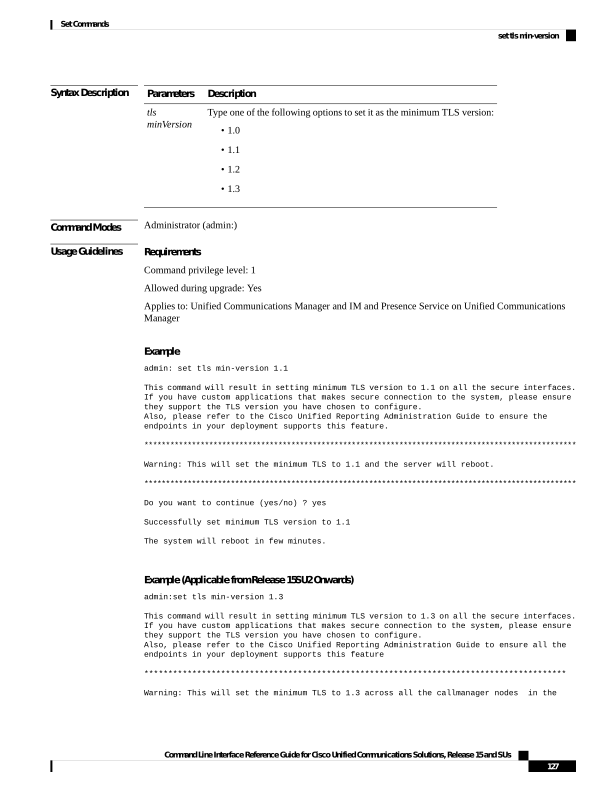
Page 152
cluster. Please reboot all the nodes in the cluster using utils system restart for updated
minimum TLS value to take affect.
The Authenticated mode for Phone Security Profile and SIP Trunk Security Profile will not
work when the system is set to minimum TLS 1.3.
NOTE:- This will set minimum TLS version for CallManager only. Please ensure to set the
desired minimum TLS version in IM & Presense publisher.
Do you want to continue (yes/no) ? yes
Successfully set minimum TLS version to 1.3
set trace disable
This command unsets trace activity for the specified task.
set trace disable tname
Syntax Description
Description
Parameters
Unsets the task trace settings.
disable
Represents the task for which you want to disable traces.
tname
Command Modes
Administrator (admin:)
Requirements
Command privilege level: 1
Allowed during upgrade: No
Applies to: Unified Communications Manager, IM and Presence Service on Unified Communications Manager,
and Cisco Unity Connection.
set trace enable
This command sets trace activity for the specified task.
set trace enable
{Arbitrary | Detailed | Entry_exit | Error | Significant | Special | State_Transition}
tname
Syntax Description
Description
Parameters
Sets task trace settings to the arbitrary level.
Arbitrary
Sets task trace settings to the detailed level.
Detailed
Command Line Interface Reference Guide for Cisco Unified Communications Solutions, Release 15 and SUs
128
Set Commands
set trace disable
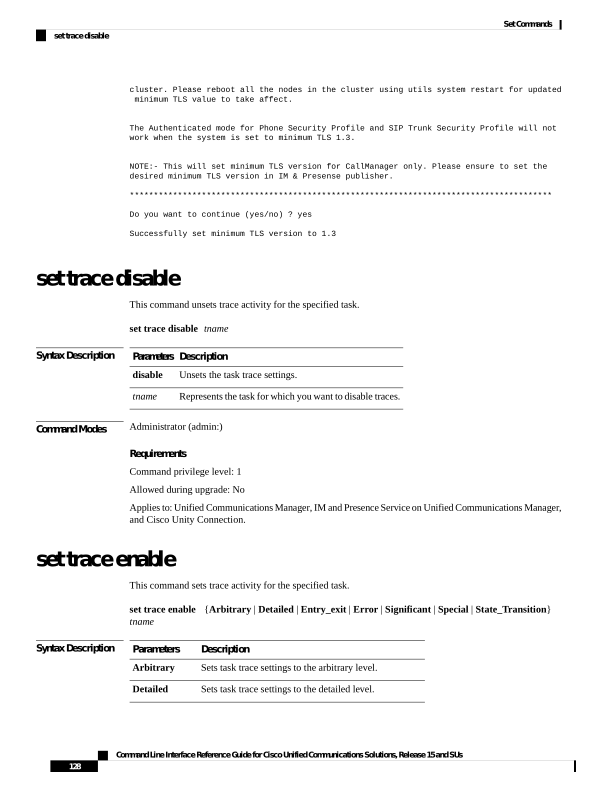
Page 153
Description
Parameters
Sets task trace settings to the entry_exit level.
Entry_exit
Sets task trace settings to the error level.
Error
Sets task trace settings to the significant level.
Significant
Sets task trace settings to the special level.
Special
Sets task trace settings to the state transition level.
State_transition
Represents the task for which you want to disable traces.
tname
Command Modes
Administrator (admin:)
Requirements
Command privilege level: 1
Allowed during upgrade: No
Applies to: Unified Communications Manager, IM and Presence Service on Unified Communications Manager,
and Cisco Unity Connection.
set tlsresumptiontimeout
This command sets the number of seconds after which TLS resumption will not work and sessions are
invalidated.
set tlsresumptiontimeout seconds
Syntax Description
Description
Parameters
Enter a value up to 3600 seconds. The TLS sessions are invalid after the configured value.
seconds
Command Modes
Administrator (admin:)
Requirements
Command privilege level: 1
Allowed during upgrade: Yes
Applies to: Unified Communications Manager, IM and Presence Service on Unified Communications Manager,
and Cisco Unity Connection.
Command Line Interface Reference Guide for Cisco Unified Communications Solutions, Release 15 and SUs
129
Set Commands
set tlsresumptiontimeout
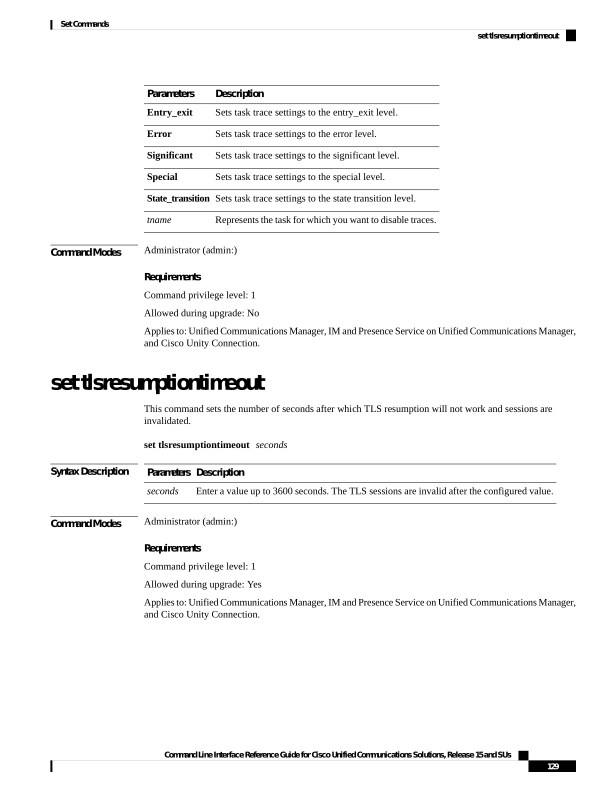
Page 154
set tlstrace*
Unified Communications Manager Release 11.0 onwards, you can enable or disable TLS tracing for services.
Currently, Tomcat is the only supported service. Use the CLI commands to view the reasons of connection
failure of TLS connections to Unified Communications Manager.
Following TLS-based CLI commands are added for TLS tracing:
set tlstrace disable
This CLI command disables the TLS tracing for a service.
set tlstrace disable service
Syntax Description
Description
Parameters
Specifies the service that you use to disable TLS tracing.
service
Command Modes
Administrator (admin:)
Example
admin:set tlstrace disable tomcat
TLS tracing is disabled for: tomcat
Requirements
Command privilege level: 1
Allowed during upgrade: No
set tlstrace enable
This CLI command enables the TLS tracing for a service.
set tlstrace enable service
Syntax Description
Description
Parameters
Specifies the service that you use to enable TLS tracing.
service
Command Modes
Administrator (admin:)
Example
admin:set tlstrace enable tomcat
TLS tracing is enabled for: tomcat
Command Line Interface Reference Guide for Cisco Unified Communications Solutions, Release 15 and SUs
130
Set Commands
set tlstrace*
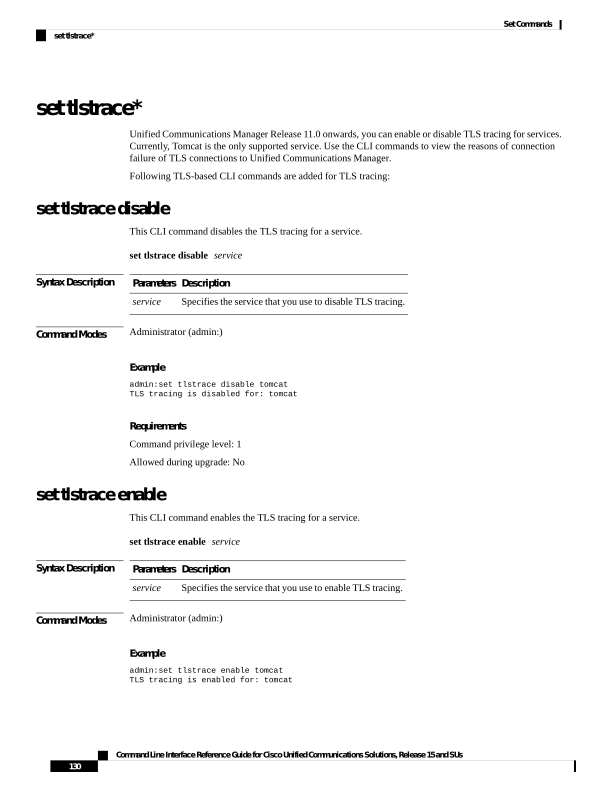
Page 155
Requirements
Command privilege level: 1
Allowed during upgrade: No
set web-security
This command sets the web security certificate information for the operating system.
set web-security orgunit orgname locality state [country] [alternatehostname]
Syntax Description
Description
Parameters
Represents the organizational unit (OU) name.
You can use this command to enter multiple organizational units. To enter more than one
organizational unit name, separate the entries with a comma. For entries that already
contain a comma, enter a backslash before the comma that is included as part of the entry.
To enter multiple values for organizational unit, enclose them in quotation marks, as
shown in the example for this command.
Note
For OU’s that already contains a backslash, do not enter one more backslash as SLM
registration and CSR generation fails during the time of installation.
orgunit
Represents the organizational name.
orgname
Represents the organization location.
locality
Represents the organization state.
state
(Optional) Represents the organization country.
country
(Optional) Specifies an alternate name for the host when you generate a web-server
(Tomcat) certificate.
You can use alternatehostname to set subject alternate hostname for self signed certificates.
Subject alternate hostname for CSR is defined in the Certificate Management page. If
you have set the alternate hostname for CSR using this command, the CSR generation
process replaces the set alternate hostname.
alternatehostname
The set web-security command when adding in the alternate hostname will apply and will be added to all
future generated CSR's including, Tomcat, CallManager, CAPF, TVS, and IPsec.
Note
Command Modes
Administrator (admin:)
Usage Guidelines
In case you are planning to rebuild the Unified CM server, ensure that you should use the same OU subject
parameters. Else, this will create discrepancies when you execute the command show web-security. This is
Command Line Interface Reference Guide for Cisco Unified Communications Solutions, Release 15 and SUs
131
Set Commands
set web-security

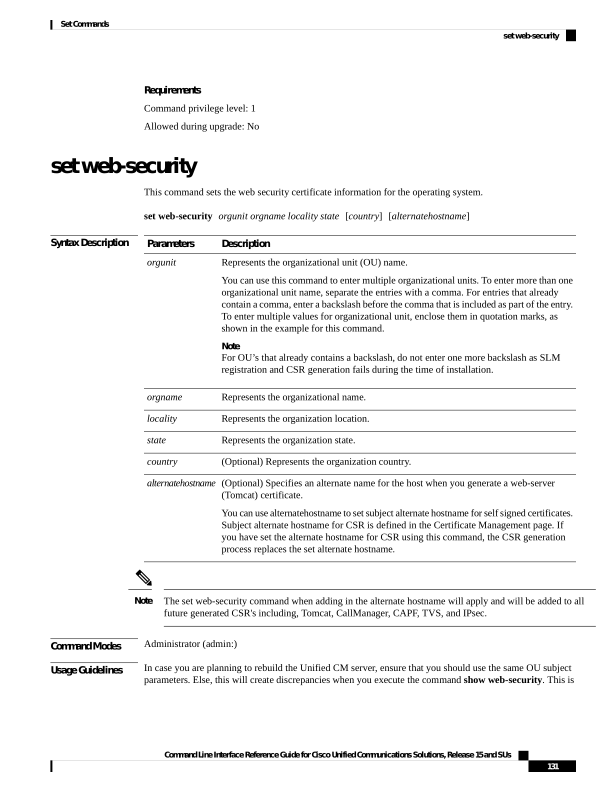
Page 156
because the platformConfig.xml file will not have the saved parameters information provided before the
rebuild as this file is not backed up during DRS backup.
Requirements
Command privilege level: 0
Allowed during upgrade: No
Applies to: Unified Communications Manager, IM and Presence Service on Unified Communications Manager,
and Cisco Unity Connection.
Example
This example shows the web-security command with multiple organizational unit names using comma
separators. The certificate has three OU fields:
• OU=accounting
• OU=personnel, CA
• OU=personnel, MA
admin:set web-security “accounting,personnel,CA,personnel,MA” Cisco Milpitas
CA
set web-security "Voice\Video" "Cisco" "RTP" NC
set webapp session timeout
This command sets the time, in minutes, that can elapse before a web application, such as Unified
Communications Manager Administration, times out and logs off the user.
For the new webapp session timeout setting to become effective, you must restart the Cisco Tomcat service.
Until you restart the Cisco Tomcat service, the show webapp session timeout command reflects the new
values, but system continues to use and reflect the old values. This command prompts you to restart the service.
Restarting the Cisco Tomcat service ends all active sessions and can affect system performance. Cisco
recommends that you only execute this command during off-peak traffic hours.
Caution
This setting gets preserved through a software upgrade and does not get reset to the default value.
Note
set webapp session timeout minutes
Command Line Interface Reference Guide for Cisco Unified Communications Solutions, Release 15 and SUs
132
Set Commands
set webapp session timeout


Page 157
Syntax Description
Description
Parameters
Specifies the time, in minutes, that can elapse before a web application times out and logs off
the user.
• Value range: 5-99999 minutes
• Default value: 30 minutes
minutes
Command Modes
Administrator (admin:)
Requirements
Command privilege level: 1
Allowed during upgrade: No
Applies to: Unified Communications Manager, IM and Presence Service on Unified Communications Manager,
and Cisco Unity Connection.
set webapp session maxlimit
This command sets the maximum limit for concurrent web application sessions per user. This applies to the
following interfaces:
• Cisco Unified CM Administration
• Cisco Unified Serviceability
• Cisco Unified Reporting
• Cisco Unified Communications Self Care Portal
• Cisco Unified CM IM and Presence Administration
• Cisco Unified IM and Presence Serviceability
• Cisco Unified IM and Presence Reporting
For the session maximum limit setting to become effective, the administrator must restart the Cisco Tomcat
service.
Restarting the Cisco Tomcat service ends all active sessions and can affect the system performance. Cisco
recommends that you only execute this command during off-peak traffic hours.
Caution
This setting gets preserved through a software upgrade and does not get reset to the default value.
Note
set webapp session maxlimit number
Command Line Interface Reference Guide for Cisco Unified Communications Solutions, Release 15 and SUs
133
Set Commands
set webapp session maxlimit


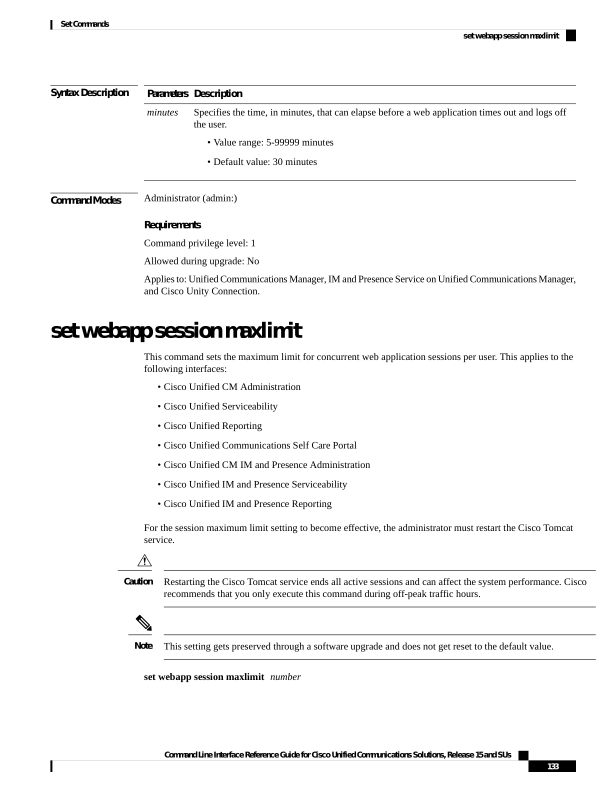
Page 158
Syntax Description
Description
Parameters
Specifies the number to limit the concurrent web application sessions.
The value ranges from 1 to 10.
Default value is 10.
If the utils EnhancedSecurityMode is enabled, then the session limit is restricted to 3. For
more details on how to Configure Enhanced Security Mode, see the “FIPS 140-2 Mode Setup”
chapter in the Security Guide for Cisco Unified Communications Manager, Release 11.5(1)SU1
at https://www.cisco.com/c/en/us/support/unified-communications/
unified-communications-manager-callmanager/products-maintenance-guides-list.html.
Note
• When you exceed the defined sign-in sessions maximum limit, then the interface sign-in
page displays the Logon Status message as: The Session limit has already
been reached for <username>. Please logout from those
sessions or wait 30 minutes for inactive sessions to be
automatically closed.
• When Enhanced Security Mode is enabled, then the session limit is restricted to 3. However,
Administrator can change the session limit using the set webapp session maxlimit
command to any value ranging from 1 to 10.
number
Command Modes
Administrator (admin:)
Requirements
Command privilege level: 4
Allowed during upgrade: No
Applies to: Unified Communications Manager, Unified Communications Manager IM and Presence Service
and Cisco Unity Connection.
Example
This example details on how to set webapp session maxlimit to 4:
admin:set webapp session maxlimit 4
W A R N I N G***
The Cisco Tomcat service needs to be restarted for the changes to take effect.This will
disconnect active web sessions and all web applications on this node will be unavailable
until the service restarts.This service restart will take several minutes to complete.
Do you want to continue (yes/no) ? yes
Restarting Tomcat**
Service Manager is running
Cisco Tomcat[STOPPING]
Cisco Tomcat[STOPPING]
Cisco Tomcat[STOPPING]
Cisco Tomcat[STOPPING]
Cisco Tomcat[STARTING]
Cisco Tomcat[STARTING]
Cisco Tomcat[STARTED]
The webapp session limit has been successfully set to 4.
Command Line Interface Reference Guide for Cisco Unified Communications Solutions, Release 15 and SUs
134
Set Commands
set webapp session maxlimit
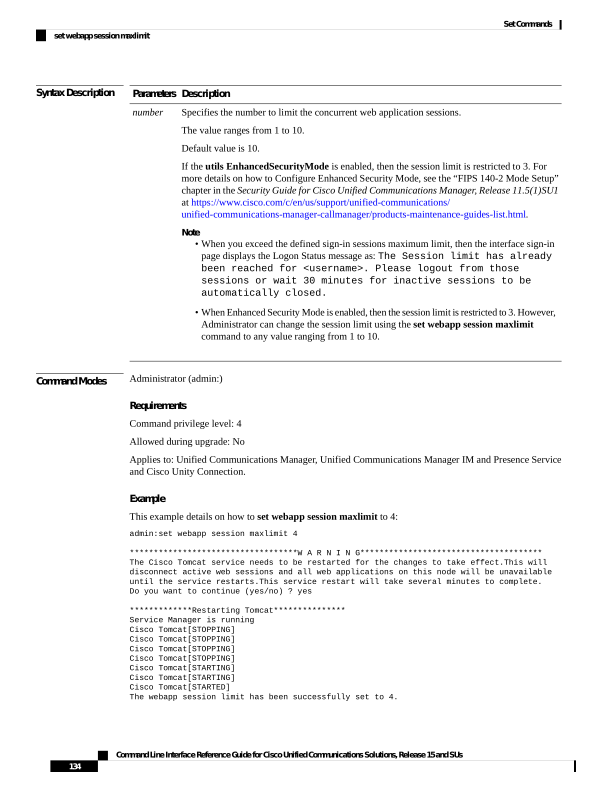
Page 159
This example details on how to enable utils EnhancedSecurityMode:
admin:utils EnhancedSecurityMode enable
The system is operating in NON-FIPS and NOT operating in Enhanced Security Mode.
Enhanced Security Mode can be enabled only when the system is operating in FIPS mode
Do you wish to enable
FIPS mode as well (yes/no) ? yes
Warning : This operation will modify the password policies
1)Password Length should be between 14 to 127 characters.
2)Password should have at least 1 lowercase, 1 uppercase, 1 digit and 1 special character.
3)Any of the previous 24 passwords cannot be reused.
4)Minimum age of the password is 1 day and Maximum age of the password is 60 days.
5)Any newly generated password's character sequence will need to differ by at least 4
characters from the old password's character sequence.
Warning : This mode will limit the total number of concurrent web application sessions to
3.
This will change the system to Enhanced Security Mode and will reboot
Do you want to continue (yes/no) ? yes
The protocol for communication with remote syslog server is already set to tcp. No changes
required.
The system is already operating in contact search authentication enable mode; no change
required. Exiting.
The concurrent web application session limit has been successfully set to 3.
Setting password restrictions as part of Enhanced Security Mode enable
Calling fips enable
Security Warning : The operation will regenerate certificates for
1)CallManager
2)Tomcat
3)IPsec
4)TVS
5)CAPF
6)SSH
7)ITLRecovery
Any third party CA signed certificates that have been uploaded for the above
components will need to be re-uploaded.
If the system is operating in mixed mode, then the CTL client needs to be run
again to update the CTL file.
If there are other servers in the cluster, please wait and do not change the
FIPS settings on any other node until the FIPS operation on this node is complete
and the system is back up and running.
This will change the system to FIPS mode and will reboot.
Command Line Interface Reference Guide for Cisco Unified Communications Solutions, Release 15 and SUs
135
Set Commands
set webapp session maxlimit
Page 160
set workingdir
This command sets the working directory for active, inactive, and installation logs.
set workingdir
{activelog | inactivelog | tftp} directory
Syntax Description
Description
Parameters
Sets the working directory for active logs. Choose a valid sub-directory of activelog.
activelog
Set the working directory for inactive logs. Choose a valid sub-directory of inactivelog.
inactivelog
Sets the working directory for TFTP files.
tftp
Represents the current working directory.
directory
Command Modes
Administrator (admin:)
Requirements
Command privilege level: 1
Allowed during upgrade: Yes
Applies to: Unified Communications Manager, IM and Presence Service on Unified Communications Manager,
and Cisco Unity Connection.
Command Line Interface Reference Guide for Cisco Unified Communications Solutions, Release 15 and SUs
136
Set Commands
set workingdir
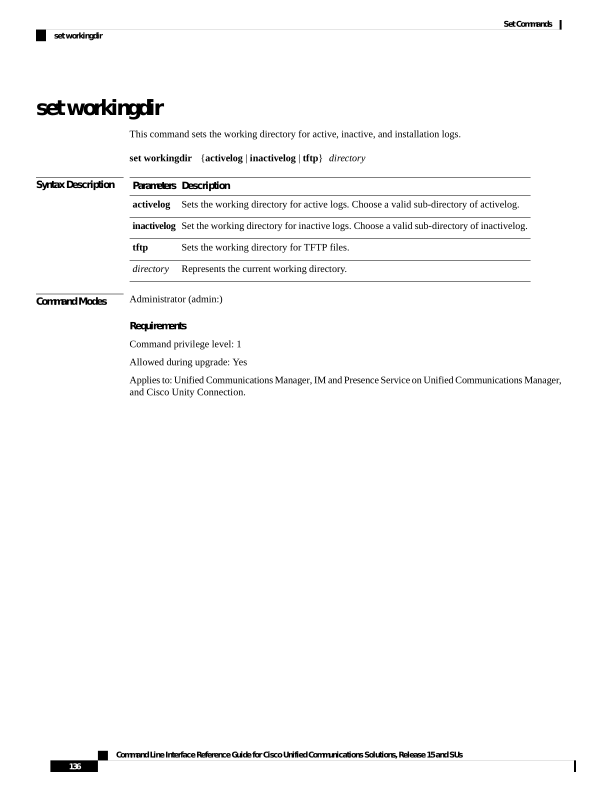
Page 161
C H A P T E R 8
Show Commands
• show account, on page 141
• show accountlocking, on page 141
• show cert default-ca-list, on page 142
• show cert list, on page 143
• show cert list type, on page 143
• show cert own, on page 144
• show cert trust, on page 144
• show cli pagination, on page 145
• show cli session timeout, on page 145
• show csr list, on page 146
• show ctl, on page 146
• show cuc cluster status, on page 147
• show cuc config groups, on page 147
• show cuc config settings, on page 148
• show cuc dbconsistency, on page 148
• show cuc dbcontents, on page 150
• show cuc dbschema, on page 151
• show cuc dbserver disk, on page 151
• show cuc dbserver session, on page 152
• show cuc dbserver sessions all, on page 152
• show cuc dbserver sessions list, on page 153
• show cuc dbserver user list, on page 153
• show cuc dbserver user waiting, on page 154
• show cuc dbtable contents, on page 154
• show cuc dbtable list, on page 155
• show cuc dbtable schema, on page 156
• show cuc dbview contents, on page 158
• show cuc dbview list, on page 159
• show cuc dbview schema, on page 160
• show cuc jetty ssl status , on page 161
• show cuc locales, on page 161
• show cuc speechview registration certificate size, on page 162
• show cuc sysagent task list, on page 162
Command Line Interface Reference Guide for Cisco Unified Communications Solutions, Release 15 and SUs
137

Page 162
• show cuc sysagent task results, on page 163
• show cuc sysinfo, on page 164
• show cuc tech dbschemaversion, on page 165
• show cuc tech dbserver all, on page 166
• show cuc tech dbserver integrity, on page 166
• show cuc tech dbserver log diagnostic, on page 167
• show cuc tech dbserver log message, on page 167
• show cuc tech dbserver status, on page 168
• show cuc trace levels, on page 168
• show cuc version, on page 169
• show date, on page 170
• show diskusage , on page 170
• show dscp all, on page 171
• show dscp defaults, on page 171
• show dscp marking, on page 171
• show dscp status, on page 172
• show environment fans, on page 173
• show environment power-supply, on page 173
• show environment temperatures, on page 173
• show fileserver transferspeed, on page 174
• show haproxy client-auth, on page 174
• show hardware, on page 175
• show http min-version, on page 176
• show ipsec information, on page 176
• show ipsec policy_group, on page 177
• show ipsec policy_name, on page 178
• show ipsec status, on page 178
• show itl, on page 178
• show logins, on page 179
• show key authz encryption, on page 180
• show key authz signing, on page 180
• show license all, on page 181
• show license status, on page 181
• show license summary, on page 181
• show license tech support, on page 182
• show license trace, on page 182
• show license UDI, on page 182
• show license usage, on page 183
• show Login Grace Timeout, on page 183
• show media streams, on page 183
• show memory, on page 185
• show myself, on page 185
• show network all, on page 186
• show network cluster, on page 186
• show network dhcp eth0, on page 186
• show network eth0, on page 187
Command Line Interface Reference Guide for Cisco Unified Communications Solutions, Release 15 and SUs
138
Show Commands
Page 163
• show network failover, on page 187
• show network ip_conntrack, on page 188
• show network ipprefs, on page 188
• show network ipv6, on page 189
• show network max_ip_conntrack, on page 189
• show network ntp option, on page 190
• show network route, on page 190
• show network status, on page 190
• show network name-service attributes, on page 191
• show network name-service cache-stats, on page 192
• show network name-service {hosts|services} attributes, on page 192
• show open files all, on page 193
• show open files process, on page 193
• show open files regexp, on page 194
• show open ports all, on page 194
• show open ports regexp, on page 194
• show packages, on page 195
• show password, on page 195
• show password complexity character, on page 196
• show password complexity length, on page 197
• show password expiry, on page 197
• show password expiry user, on page 198
• show password expiry user list, on page 198
• show perf counterhelp, on page 198
• show perf list categories, on page 199
• show perf list classes, on page 199
• show perf list counters, on page 200
• show perf list instances, on page 200
• show perf query class, on page 201
• show perf query counter, on page 201
• show perf query instance, on page 202
• show perf query path, on page 202
• show process list, on page 203
• show process load, on page 204
• show process name, on page 204
• show process name process-name , on page 205
• show process open, on page 205
• show process open-fd, on page 206
• show process pid, on page 206
• show process search, on page 207
• show process user, on page 207
• show process using-most cpu, on page 208
• show process using-most memory, on page 208
• show registry, on page 209
• show risdb list, on page 210
• show risdb query, on page 210
Command Line Interface Reference Guide for Cisco Unified Communications Solutions, Release 15 and SUs
139
Show Commands
Page 164
• show samltrace level, on page 211
• show session maxlimit, on page 211
• show smtp, on page 212
• show stats io, on page 212
• show status, on page 213
• show tech activesql, on page 213
• show tech all, on page 214
• show tech ccm_service, on page 214
• show tech database, on page 215
• show tech dberrcode, on page 215
• show tech dbhighcputasks, on page 215
• show tech dbintegrity, on page 216
• show tech dbschema, on page 216
• show tech dbinuse, on page 217
• show tech dbstateinfo, on page 217
• show tech devdefaults, on page 217
• show tech dumpCSVandXML, on page 218
• show tech gateway, on page 218
• show tech locales, on page 219
• show tech network all, on page 219
• show tech network hosts, on page 220
• show tech network interfaces, on page 220
• show tech network resolv, on page 221
• show tech network routes, on page 221
• show tech network sockets, on page 222
• show tech notify, on page 222
• show tech params, on page 223
• show tech prefs, on page 223
• show tech procedures, on page 224
• show tech repltimeout, on page 224
• show tech routepatterns, on page 225
• show tech routeplan, on page 225
• show tech runtime, on page 225
• show tech sqlhistory, on page 226
• show tech systables, on page 226
• show tech system, on page 227
• show tech table, on page 228
• show tech triggers, on page 228
• show tech version, on page 228
• show timezone config, on page 229
• show timezone list, on page 229
• show tls trace, on page 230
• show tls min-version, on page 230
• show tlsresumptiontimeout, on page 231
• show trace, on page 231
• show ups status, on page 231
Command Line Interface Reference Guide for Cisco Unified Communications Solutions, Release 15 and SUs
140
Show Commands
Page 165
• show version active, on page 232
• show version inactive, on page 232
• show vos version , on page 233
• show web-security, on page 233
• show webapp session timeout, on page 234
• show workingdir, on page 234
• show logins unsuccessful, on page 234
show account
This command lists current administrator accounts.
show account
Command Modes
Administrator (admin:)
Requirements
Command privilege level: 4
Allowed during upgrade: Yes
Applies to: Unified Communications Manager, IM and Presence Service on Unified Communications Manager,
and Cisco Unity Connection.
show accountlocking
This command displays the current account locking settings.
show accountlocking
Command Modes
Administrator (admin:)
Requirements
Applies to: Unified Communications Manager, IM and Presence Service on Unified Communications Manager,
and Cisco Unity Connection.
Example
admin:show accountlocking
Account Lockout is enabled
Unlock Time : 300 seconds
Retry Count : 3 attempts
Requirements
Command privilege level: 0
Allowed during upgrade: Yes
Command Line Interface Reference Guide for Cisco Unified Communications Solutions, Release 15 and SUs
141
Show Commands
show account
Page 166
show cert default-ca-list
This command displays all the default CA certificates, which are bundled with Unified Communications
Manager and IM and Presence Service.
show cert default-ca-list
Command Modes
Administrator (admin:)
Requirements
Applies to: Unified Communications Manager and IM and Presence Service.
Example
admin:show cert default-ca-list
Common Name
Trust Stores
Purpose
"VeriSign Class 3
tomcat-trust
This certificate is used by UCM
Secure Server CA - G3"
to communicate with Cisco if
Call-Home feature is enabled.
"CAP-RTP-002"
CallManager-trust,
This certificate was used to
CAPF-trust
sign the MIC installed on Cisco
endpoint.Presence of this
certificate allows the end point
to communicate securely with UCM
using the MIC when associated
with a secure profile
"Cisco Manufacturing
CallManager-trust,
This certificate was used to
CA"
CAPF-trust
sign the MIC installed on Cisco
endpoint. Presence of this
certificate allows the end point
to communicate securely with UCM
using the MIC when associated
with a secure profile.
"CAP-RTP-001"
CallManager-trust,
This certificate was used to
CAPF-trust
sign the MIC installed on Cisco
endpoint. Presence of this
certificate allows the end point
to communicate securely with UCM
using the MIC when associated
with a secure profile
"ACT2 SUDI CA"
CallManager-trust,
This certificate was used to
CAPF-trust
sign the MIC installed on Cisco
endpoint. Presence of this
certificate allows the end point
to communicate securely with UCM
using the MIC when associated
with a secure profile.
"Cisco Manufacturing
CallManager-trust,
This certificate was used to
CA SHA2"
CAPF-trust
sign the MIC installed on Cisco
endpoint. Presence of this
Command Line Interface Reference Guide for Cisco Unified Communications Solutions, Release 15 and SUs
142
Show Commands
show cert default-ca-list
Page 167
certificate allows the end point
to communicate securely with UCM
using the MIC when associated
with a secure profile.
"Cisco Root CA 2048"
CallManager-trust,
This certificate was used to
CAPF-trust
sign the MIC installed on Cisco
endpoint. Presence of this
certificate allows the end point
to communicate securely with UCM
using the MIC when associated
with a secure profile.
"Cisco Root CA M2"
CallManager-trust,
This certificate was used to
CAPF-trust
sign the MIC installed on Cisco
endpoint. Presence of this
certificate allows the end point
to communicate securely with UCM
using the MIC when associated
with a secure profile.
show cert list
This command displays certificate trust lists.
show cert list
{own | trust}
Syntax Description
Description
Parameters
Specifies owned certificates.
own
Specifies trusted certificates.
trust
Command Modes
Administrator (admin:)
Requirements
Command privilege level: 1
Allowed during upgrade: Yes
Applies to: Unified Communications Manager, IM and Presence Service on Unified Communications Manager,
and Cisco Unity Connection.
Example
admin:cert list own
show cert list type
This command displays the available selected type certificate files.
Command Line Interface Reference Guide for Cisco Unified Communications Solutions, Release 15 and SUs
143
Show Commands
show cert list
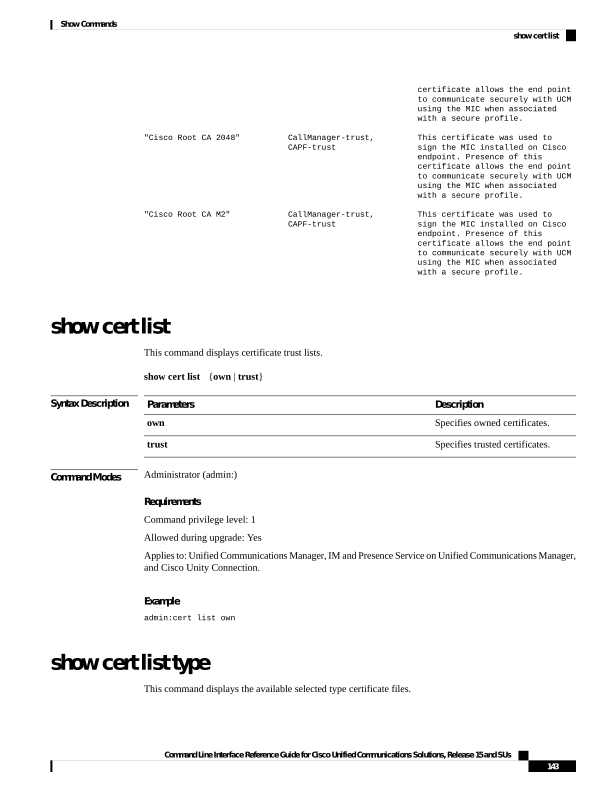
Page 168
show cert list type
{own | trust}
Syntax Description
Description
Parameters
Specifies owned certificates.
own
Specifies trusted certificates.
trust
Command Modes
Administrator (admin:)
Requirements
Command privilege level: 1
Allowed during upgrade: Yes
Applies to: Unified Communications Manager, IM and Presence Service on Unified Communications Manager,
and Cisco Unity Connection.
show cert own
This command displays certificate contents.
show cert own filename
Syntax Description
Description
Parameters
Specifies owned certificates.
own
Represents the name of the
certificate file.
filename
Command Modes
Administrator (admin:)
Requirements
Command privilege level: 1
Allowed during upgrade: Yes
Applies to: Unified Communications Manager, IM and Presence Service on Unified Communications Manager,
and Cisco Unity Connection.
show cert trust
This command displays certificate contents.
show cert trust filename
Command Line Interface Reference Guide for Cisco Unified Communications Solutions, Release 15 and SUs
144
Show Commands
show cert own
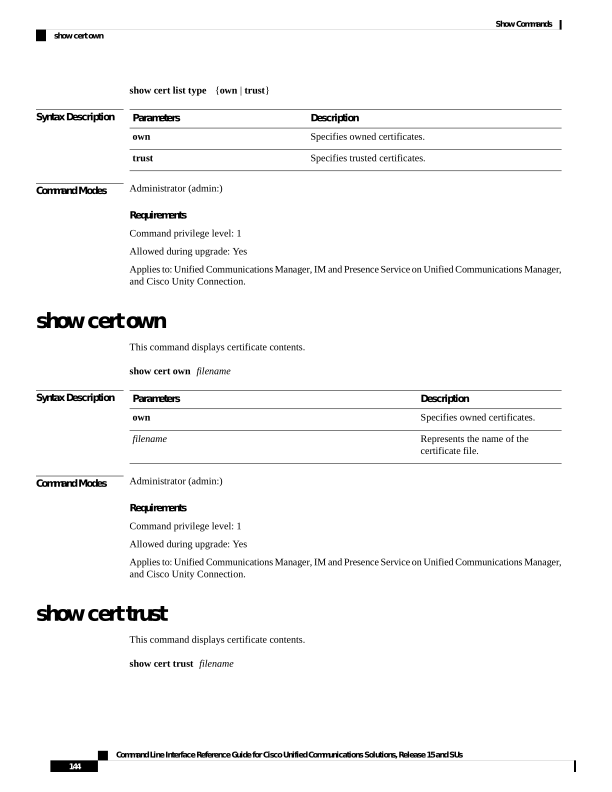
Page 169
Syntax Description
Description
Parameters
Specifies trusted certificates.
trust
Represents the name of the
certificate file.
filename
Command Modes
Administrator (admin:)
Requirements
Command privilege level: 1
Allowed during upgrade: Yes
Applies to: Unified Communications Manager, IM and Presence Service on Unified Communications Manager,
and Cisco Unity Connection.
show cli pagination
This command displays the status of automatic CLI automatic pagination.
show cli pagination
Command Modes
Administrator (admin:)
Requirements
Command privilege level: 0
Allowed during upgrade: Yes
Applies to: Unified Communications Manager, IM and Presence Service on Unified Communications Manager,
and Cisco Unity Connection.
Example
admin:show cli pagination
Automatic Pagination : Off.
show cli session timeout
This command displays the CLI session timeout value, which is the amount of time, in minutes, that can elapse
before a CLI session times out and disconnects.
show cli session timeout
Command Modes
Administrator (admin:)
Command Line Interface Reference Guide for Cisco Unified Communications Solutions, Release 15 and SUs
145
Show Commands
show cli pagination
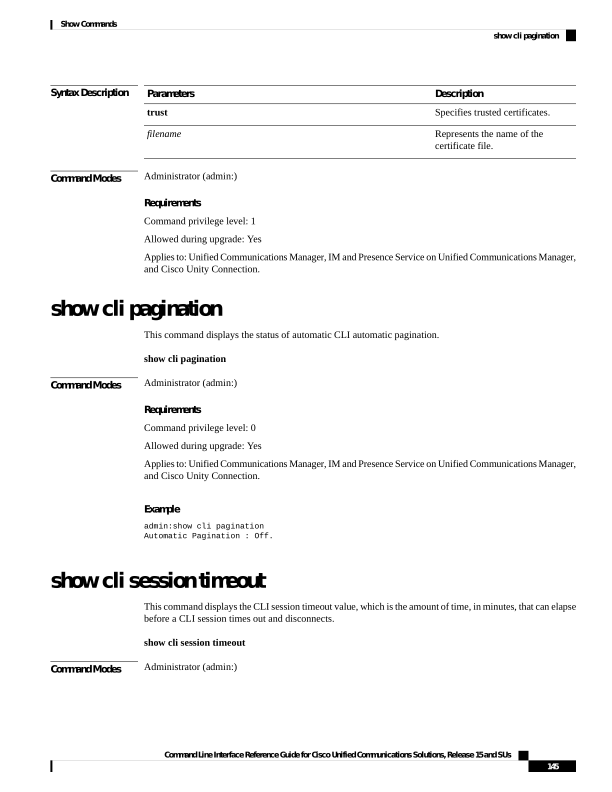
Page 170
Requirements
Command privilege level: 0
Allowed during upgrade: Yes
Applies to: Unified Communications Manager, IM and Presence Service on Unified Communications Manager,
and Cisco Unity Connection.
show csr list
This command displays Certificate Sign Request contents.
show csr list
Command Modes
Administrator (admin:)
Requirements
Command privilege level: 1
Allowed during upgrade:
Applies to: Unified Communications Manager, IM and Presence Service on Unified Communications Manager,
Cisco Unity Connection
Example
admin: show csr list
tomcat/tomcat.csr
Vipr-QuetzalCoatl/Vipr-QuetzalCoatl.csr
.....
.....
.....
Example
admin: show csr list
No Certificate Sign Request available for display
show ctl
This command displays the contents of the Certificate Trust List (CTL) file on the server. It notifies you if
the CTL is invalid.
show ctl
Command Modes
Administrator (admin:)
Command Line Interface Reference Guide for Cisco Unified Communications Solutions, Release 15 and SUs
146
Show Commands
show csr list
Page 171
Requirements
Command privilege level: 0
Allowed during upgrade: Yes
Applies to: Unified Communications Manager, IM and Presence Service on Unified Communications Manager,
Cisco Unity Connection
show cuc cluster status
This command shows the status of the servers in the cluster.
show cuc cluster status
Command Modes
Administrator (admin:)
Requirements
Command privilege level: 0
Allowed during upgrade: Yes
Applies to: Cisco Unity Connection
show cuc config groups
This command displays a list of the valid configuration group names.
show cuc config groups [page]
Syntax Description
Description
Parameters
Causes the output to display one page at a time. Be aware that page is case sensitive.
page
Command Modes
Administrator (admin:)
Usage Guidelines
To see a list of the settings for a specified group, run the command show cuc config settings.
Requirements
Command privilege level: 0
Allowed during upgrade: Yes
Applies to: Cisco Unity Connection
Example
admin: show cuc config groups
Command Line Interface Reference Guide for Cisco Unified Communications Solutions, Release 15 and SUs
147
Show Commands
show cuc cluster status
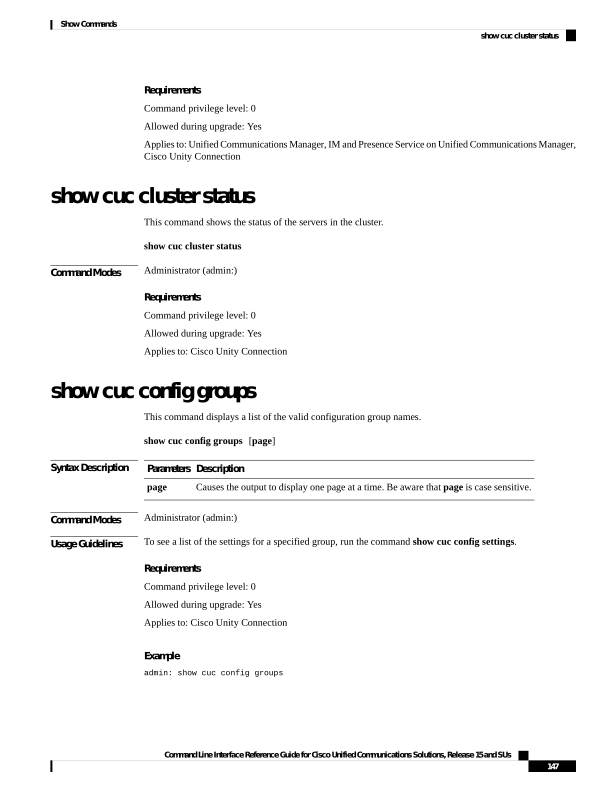
Page 172
CiscoLicensing
ConfigurationAssistant
Conversations
Directory
Groupware
LogMgr
Messaging
:
:
Telephony
show cuc config settings
This command displays the settings and values for a specified group of Connection configuration settings.
show cuc config settings group_name page
Syntax Description
Description
Parameters
Specifies the name of the configuration group whose settings you want to display. To see a list
of valid group names, run the command show cuc config groups. Be aware that group names
are case sensitive.
group_name
Causes the output to display one page at a time. Be aware that page is case sensitive.
pagepage
Command Modes
Administrator (admin:)
Requirements
Command privilege level: 0
Allowed during upgrade: Yes
Applies to: Cisco Unity Connection
Configuration Settings for the Group SA
admin: show cuc config settings SA
SA Setting
Value
SessionTimeout
20
Use24HrClockFormat
0
show cuc dbconsistency
This command checks the tables and indexes of a specified database for inconsistencies.
show cuc dbconsistency [database_name]
Command Line Interface Reference Guide for Cisco Unified Communications Solutions, Release 15 and SUs
148
Show Commands
show cuc config settings
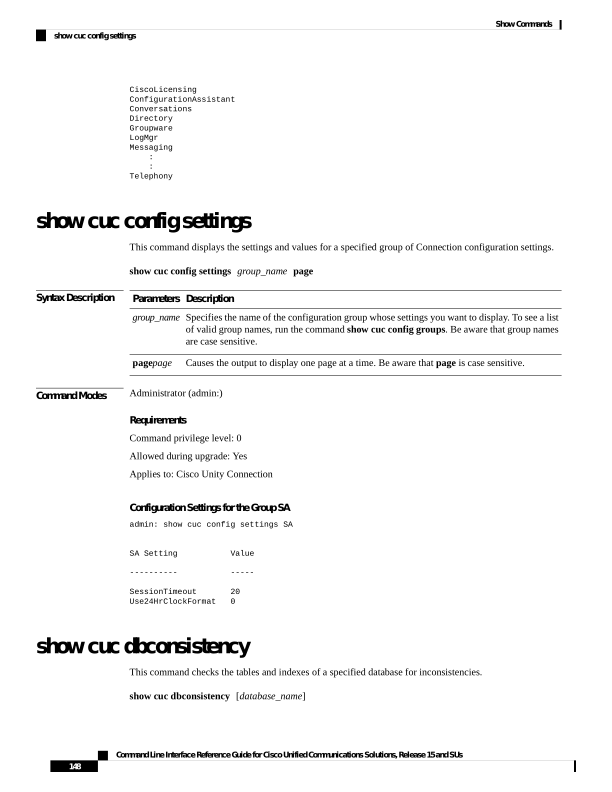
Page 173
Syntax Description
Description
Parameters
Specifies the name of the database that you want to check. Be aware that database names
are case sensitive. Connection databases include:
• unitydirdb-Contains the directory and configuration data.
• unitydyndb-Contains dynamic data that Connection uses internally.
• unitymbxdb1 to unitymbxdb5-Contains the data about the current voice messages in
the corresponding mailbox store, including pointers to the audio files that are stored
in the file system. If only one mailbox store is configured, the name of the mailbox
store database is always unitymbxdb1.
• unityrptdb-Contains audit log data.
database_name
Command Modes
Administrator (admin:)
Usage Guidelines
After the command completes, the system saves detailed information in a log file and displays a summary of
the results, including the location of the log file. Use the file commands to display the contents of the file.
Checking database consistency makes a significant impact on system performance. Run this command only
when little or no system activity is occurring. After the operation begins, you can not cancel it. Do not restart
the server during the operation; the operation must complete successfully before Connection will function
properly.
Caution
Requirements
Command privilege level: 0
Allowed during upgrade: Yes
Applies to: Cisco Unity Connection
Example of a Consistency Check of the unityrptdb Database
admin: show cuc dbconsistency unityrptdb
Checking consistency of unityrptdb tables. Please wait.
Consistency check of unityrptdb tables successful.
Validation of unityrptdb indexes successful.
Output is in file: cuc/cli/consistency_unityrptdb_070404-123636.txt
Command Line Interface Reference Guide for Cisco Unified Communications Solutions, Release 15 and SUs
149
Show Commands
show cuc dbconsistency

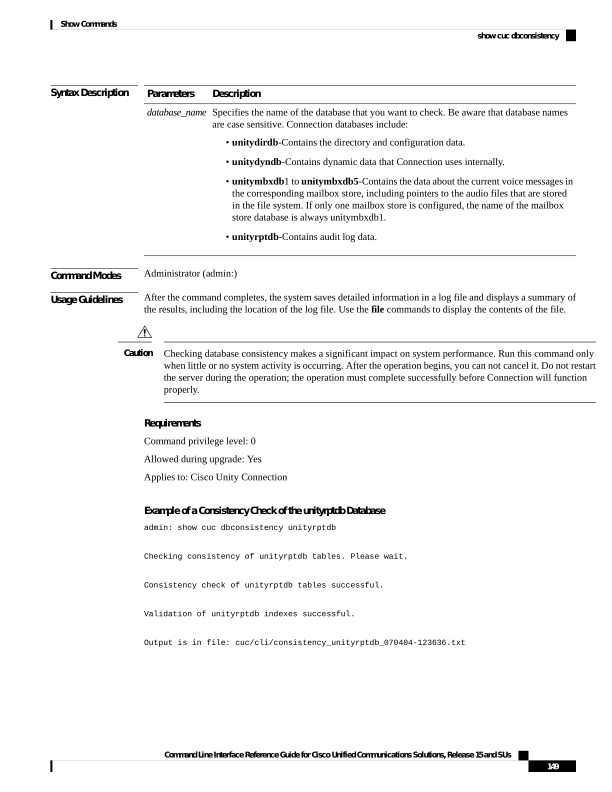
Page 174
show cuc dbcontents
This command exports the data from a specified database to a CSV file.
show cuc dbcontents [database_name]
Syntax Description
Description
Parameters
Specifies the name of the database whose data you want to export to a CSV file. Be aware
that database names are case sensitive. Connection databases include:
• unitydirdb-Contains the directory and configuration data.
• unitydyndb-Contains dynamic data that Connection uses internally.
• unitymbxdb1 to unitymbxdb5-Contains the data about the current voice messages in
the corresponding mailbox store, including pointers to the audio files that are stored in
the file system. If only one mailbox store is configured, the name of the mailbox store
database is always unitymbxdb1.
• unityrptdb-Contains audit log data.
database_name
Command Modes
Administrator (admin:)
Usage Guidelines
After the command completes, the location of the CSV file displays. Use the file commands to display the
contents of the file.
Saving the contents of a database to a CSV file affects system performance. Run this command only when
little or no system activity is occurring.
Caution
Requirements
Command privilege level: 1
Allowed during upgrade: Yes
Applies to: Cisco Unity Connection
Example of Exporting the Data From the unitydirdb Database to a CSV File and Displays the Location
of the File
admin: show cuc dbcontents unitydirdb
This operation may take a few minutes to complete. Please wait.
Output is in file: cuc/cli/contents_unitydirdb_070404-124027.csv
Command Line Interface Reference Guide for Cisco Unified Communications Solutions, Release 15 and SUs
150
Show Commands
show cuc dbcontents

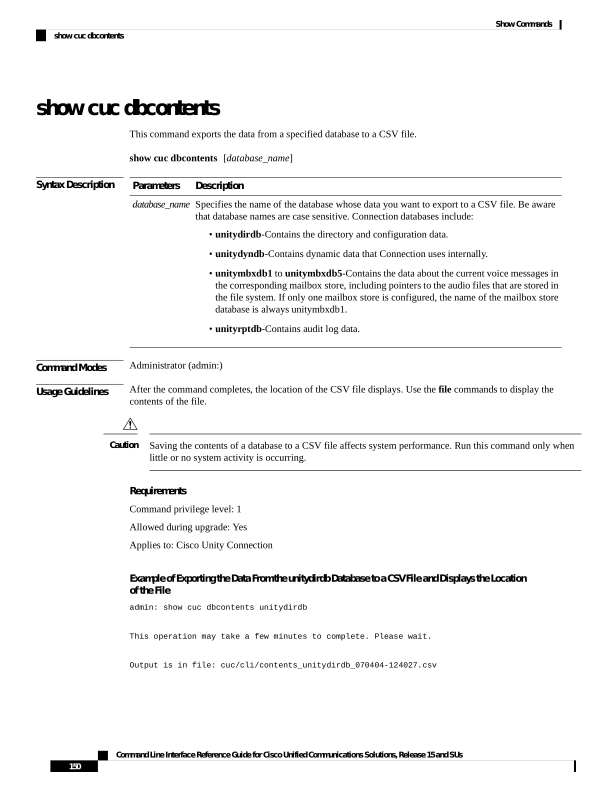
Page 175
show cuc dbschema
This command exports the SQL statements that are necessary to replicate the schema for a specified database
to a file.
show cuc dbschema [database_name]
Syntax Description
Description
Parameters
Speicifies the name of the database whose schema you want to export. Be aware that database
names are case sensitive. Connection databases include:
• unitydirdb-Contains the directory and configuration data.
• unitydyndb-Contains dynamic data that Connection uses internally.
• unitymbxdb1 to unitymbxdb5-Contains the data about the current voice messages in
the corresponding mailbox store, including pointers to the audio files that are stored
in the file system. If only one mailbox store is configured, the name of the mailbox
store database is always unitymbxdb1.
• unityrptdb-Contains audit log data.
database_name
Command Modes
Administrator (admin:)
Usage Guidelines
After the command completes, the location of the file displays. Use the file commands to display the file.
Requirements
Command privilege level: 0
Allowed during upgrade: Yes
Applies to: Cisco Unity Connection
Example of Exporting the Schema of the unitydirdb Database to a File and Displays the Location of
the File
admin: show cuc dbschema unitydirdb
Output is in file: cuc/cli/schema_unitydirdb_061013-115815.sql
show cuc dbserver disk
This command displays summary information about informix storage space for all Connection databases on
the current server.
show cuc dbserver disk [page] [file]
Command Line Interface Reference Guide for Cisco Unified Communications Solutions, Release 15 and SUs
151
Show Commands
show cuc dbschema
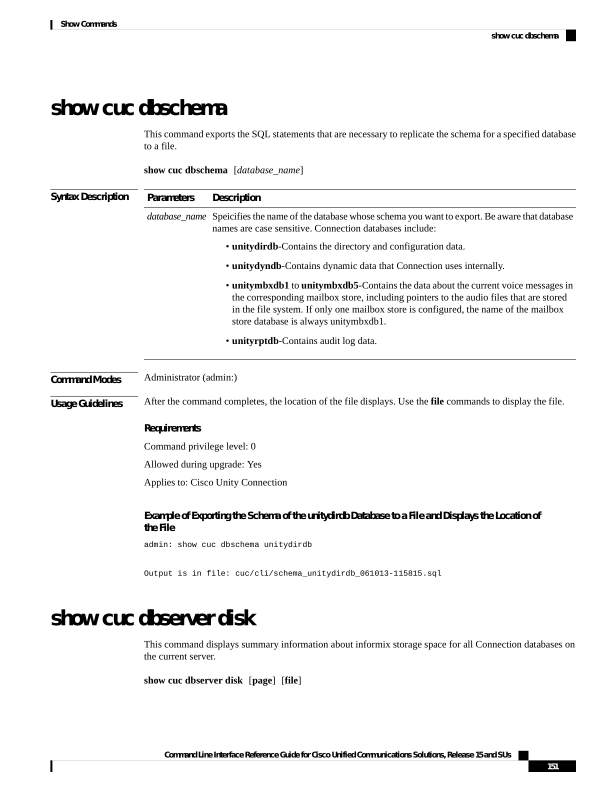
Page 176
Syntax Description
Description
Parameters
Causes the output to display one page at a time. Be aware that page is case sensitive.
[page]
Saves the output to a file. If you include this option, the summary includes the location of the
file. Be aware that file is case sensitive.
[file]
Command Modes
Administrator (admin:)
Requirements
Command privilege level: 0
Allowed during upgrade: Yes
Applies to: Cisco Unity Connection
show cuc dbserver session
This command displays summary information about a specified informix database user session.
show cuc dbserver session session_id [page] [file]
Syntax Description
Description
Parameters
Specifies the database user session for which you want to display summary information. To get
a list of current sessions, use either the show cuc dbserver sessions list command or the show
cuc dbserver user list command.
session_id
Causes the output to display one page at a time. Be aware that page is case sensitive.
[page]
Saves the output to a file. If you include this option, the summary includes the location of the
file. Be aware that file is case sensitive.
[file]
Command Modes
Administrator (admin:)
Requirements
Command privilege level: 1
Allowed during upgrade: Yes
Applies to: Cisco Unity Connection
show cuc dbserver sessions all
This command displays summary information about all the current Informix database user sessions.
show cuc dbserver sessions all [page] [file]
Command Line Interface Reference Guide for Cisco Unified Communications Solutions, Release 15 and SUs
152
Show Commands
show cuc dbserver session
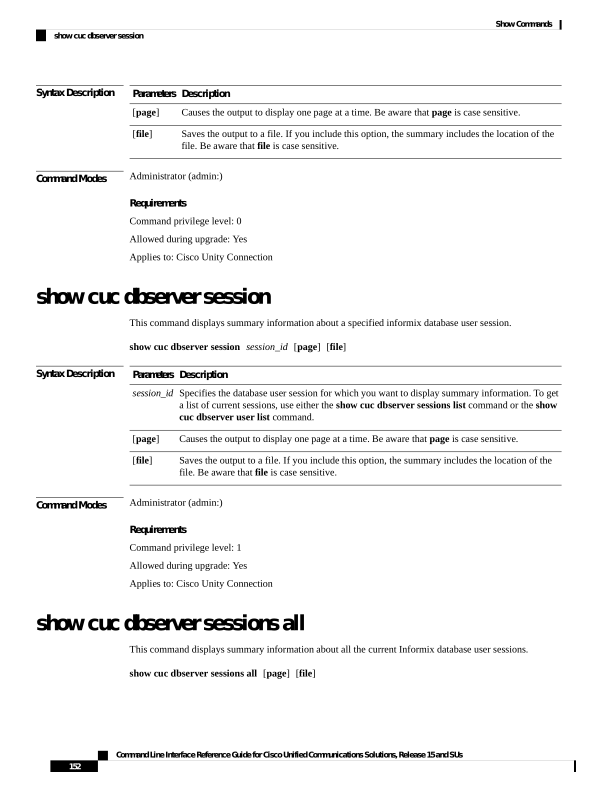
Page 177
Syntax Description
Description
Parameters
Causes the output to display one page at a time. Be aware that page is case sensitive.
[page]
Saves the output to a file. If you include this option, the summary includes the location of the
file. Be aware that file is case sensitive.
[file]
Command Modes
Administrator (admin:)
Requirements
Command privilege level: 1
Allowed during upgrade: Yes
Applies to: Cisco Unity Connection
show cuc dbserver sessions list
This command displays a list of the current Informix database user sessions.
show cuc dbserver sessions list [page]
Syntax Description
Description
Parameters
Causes the output to display one page at a time. Be aware that page is case sensitive.
[page]
Command Modes
Administrator (admin:)
Usage Guidelines
The names of internal database users generally correspond with the names of Connection components. Run
this command before you run the show cuc dbserver session command to obtain the required session id.
Results are sorted by session id.
Requirements
Command privilege level: 1
Allowed during upgrade: Yes
Applies to: Cisco Unity Connection
show cuc dbserver user list
This command displays a list of the active Connection internal database users.
show cuc dbserver user list [page]
Syntax Description
Description
Parameters
Causes the output to display one page at a time. Be aware that page is case sensitive.
[page]
Command Line Interface Reference Guide for Cisco Unified Communications Solutions, Release 15 and SUs
153
Show Commands
show cuc dbserver sessions list
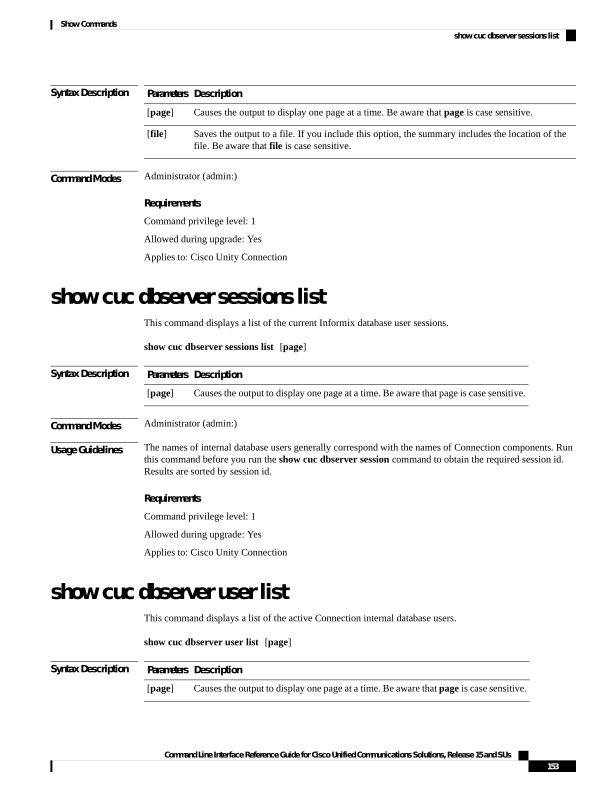
Page 178
Command Modes
Administrator (admin:)
Usage Guidelines
The names of internal database users generally correspond with the names of Connection components.
Results get sorted first by database and then by user.
Requirements
Command privilege level: 1
Allowed during upgrade: Yes
Applies to: Cisco Unity Connection
show cuc dbserver user waiting
This command displays a list of the Connection internal users that are waiting for a resource.
show cuc dbserver user waiting [page]
Syntax Description
Description
Parameters
Causes the output to display one page at a time. Be aware that page is case sensitive.
[page]
Command Modes
Administrator (admin:)
Usage Guidelines
The names of the internal database users generally correspond with the names of Connection components.
Requirements
Command privilege level: 1
Allowed during upgrade: Yes
Applies to: Cisco Unity Connection
show cuc dbtable contents
This command exports the contents of a specified Connection table to a CSV file.
show cuc dbtable contents {database_nametable_name}
Command Line Interface Reference Guide for Cisco Unified Communications Solutions, Release 15 and SUs
154
Show Commands
show cuc dbserver user waiting
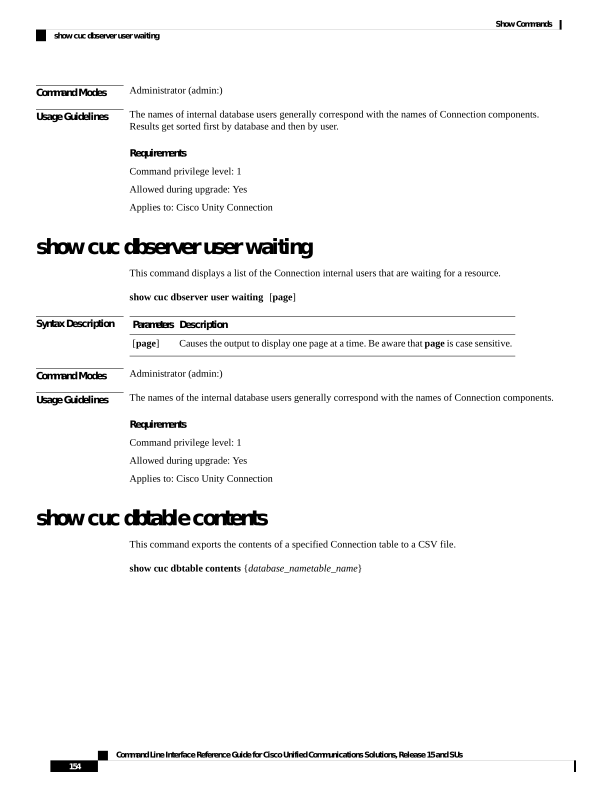
Page 179
Syntax Description
Description
Parameters
Specifies the database that contains the table whose contents you want to export to a CSV
file. Be aware that database names are case sensitive. Connection databases include:
• unitydirdb—Contains the directory and configuration data.
• unitydyndb—Contains dynamic data that Connection uses internally.
• unitymbxdb1 to unitymbxdb5—Contains the data about the current voice messages
in the corresponding mailbox store, including pointers to the audio files that are stored
in the file system. If only one mailbox store is configured, the name of the mailbox
store database is always unitymbxdb1.
• unityrptdb—Contains audit log data.
database_name
Specifies the table whose contents you want to export to a CSV file.
Note
For a list of the tables in a specified database, use the show cuc dbtable list command. Be
aware that table names are case sensitive.
table_name
Command Modes
Administrator (admin:)
Usage Guidelines
After the command completes, the location of the CSV file displays. Use the file commands to display the
contents of the file.
Requirements
Command privilege level: 1
Allowed during upgrade: Yes
Applies to: Cisco Unity Connection
Example
admin: show cuc dbtable contents unitydirdb tbl_cos
Output is in file: cuc/cli/contents_tbl_cos_1013-113910.csv
show cuc dbtable list
This command displays a list of the tables in a specified database.
show cuc dbtable list database_name [page]
Command Line Interface Reference Guide for Cisco Unified Communications Solutions, Release 15 and SUs
155
Show Commands
show cuc dbtable list
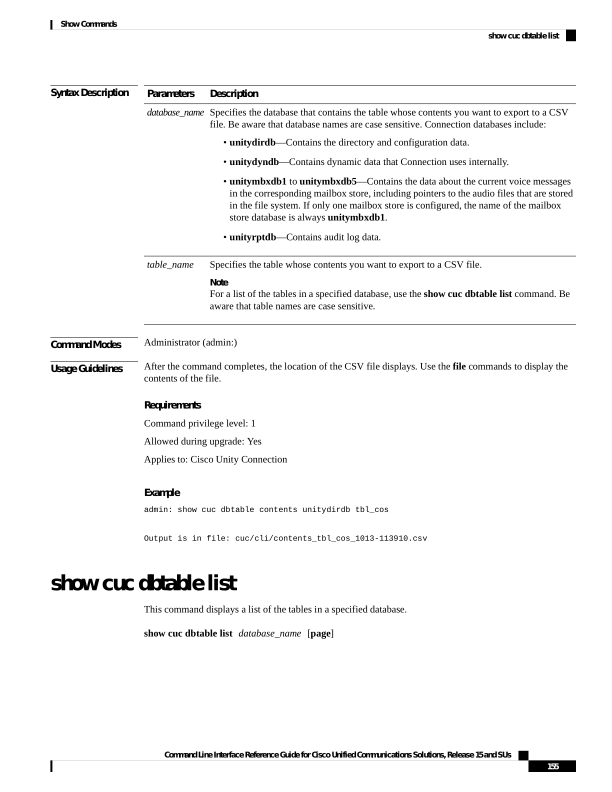
Page 180
Syntax Description
Description
Parameters
Specifies the database for which you want a list of tables. Be aware that database names are
case sensitive. Connection databases include:
• unitydirdb—Contains the directory and configuration data.
• unitydyndb—Contains dynamic data that Connection uses internally.
• unitymbxdb1 to unitymbxdb5—Contains the data about the current voice messages
in the corresponding mailbox store, including pointers to the audio files that are stored
in the file system. If only one mailbox store is configured, the name of the mailbox
store database is always unitymbxdb1.
• unityrptdb—Contains audit log data.
database_name
Causes the output to display one page at a time. Be aware that page is case sensitive.
[page]
Command Modes
Administrator (admin:)
Requirements
Command privilege level: 0
Allowed during upgrade: Yes
Applies to: Cisco Unity Connection
Example
admin: show cuc dbtable list unitydirdb
tbl_accountlogonpolicy
tbl_agency
tbl_agencyextensionrange
tbl_alias
tbl_alternatename
tbl_broadcastmessage
tbl_broadcastmessagerecipient
...
tbl_waveformat
show cuc dbtable schema
This command displays a description for a specified table and a list of the columns in the table.
show cuc dbtable schema
{database_nametable_name} [page]
Command Line Interface Reference Guide for Cisco Unified Communications Solutions, Release 15 and SUs
156
Show Commands
show cuc dbtable schema
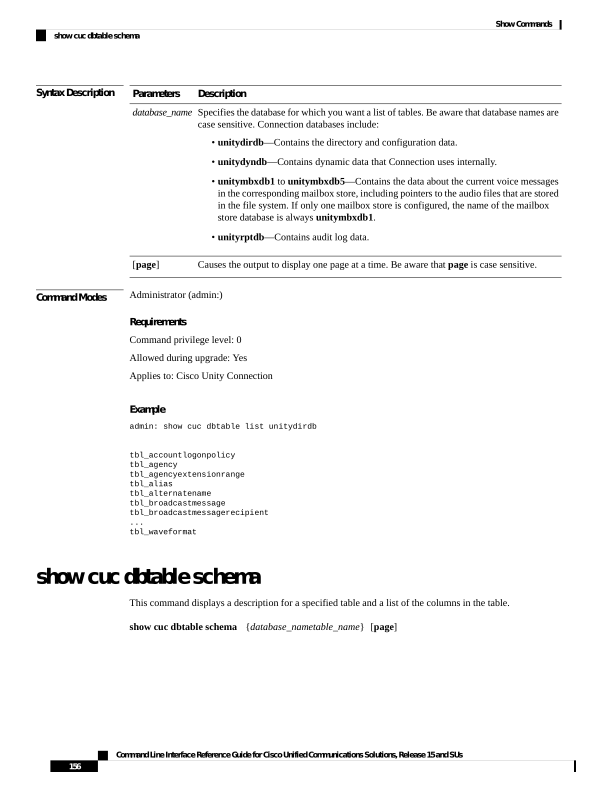
Page 181
Syntax Description
Description
Parameters
Specifies the database that contains
the table show schema you want to
display. Be aware that database
names are case sensitive.
Connection databases include:
• unitydirdb—Contains the
directory and configuration
data.
• unitydyndb—Contains
dynamic data that Connection
uses internally.
• unitymbxdb1 to
unitymbxdb5—Contains the
data about the current voice
messages in the corresponding
mailbox store, including
pointers to the audio files that
are stored in the file system.
If only one mailbox store is
configured, the name of the
mailbox store database is
always unitymbxdb1.
• unityrptdb—Contains audit
log data.
database_name
Specifies the table whose schema
you want to display.
Note
For a list of the tables in a
specified database, use the show
cuc dbtable list command. Be
aware that table names are case
sensitive.
table_name
Causes the output to display one
page at a time. Be aware that page
is case sensitive.
[page]
Command Modes
Administrator (admin:)
Requirements
Command privilege level: 0
Allowed during upgrade: Yes
Applies to: Cisco Unity Connection
Command Line Interface Reference Guide for Cisco Unified Communications Solutions, Release 15 and SUs
157
Show Commands
show cuc dbtable schema
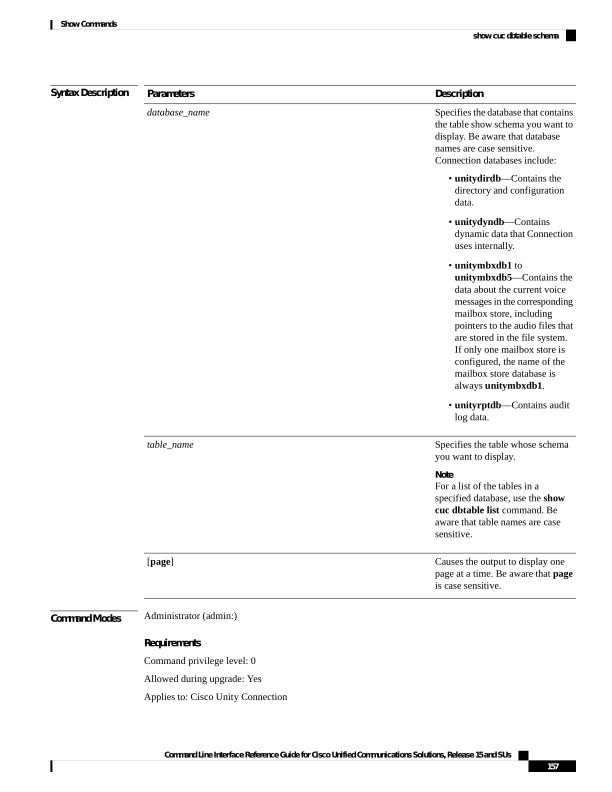
Page 182
Example of Displaying the Schema for the Table tbl_user in the unitydirdb Database
admin: show cuc dbtable schema unitydirdb tbl_cos
A collection of service privileges for subscribers that control access to features and use
of the system into classes. Class of Service objects determine which features a subscriber
is licensed to use, the maximum length of their greetings and messages, what numbers they
are
allowed to dial, and what options are available to the subscriber among other things.
Columns:
displayname
movetodeletefolder
accessunifiedclient
...
accesslivereply
show cuc dbview contents
This command saves the results from a specified SQL view in a CSV file.
show cuc dbview contents
{database_nameview_name}
Syntax Description
Description
Parameters
Specifies the database that contains the view whose results you want to save to a file. Be
aware that database names are case sensitive. Connection databases include:
• unitydirdb—Contains the directory and configuration data.
• unitydyndb—Contains dynamic data that Connection uses internally.
• unitymbxdb1 to unitymbxdb5—Contains the data about the current voice messages
in the corresponding mailbox store, including pointers to the audio files that are stored
in the file system. If only one mailbox store is configured, the name of the mailbox
store database is always unitymbxdb1.
• unityrptdb—Contains audit log data.
database_name
Specifies the view whose results you want to save to a file.
Note
For a list of the views in a specified database, use the show cuc dbview list command. Be
aware that view names are case sensitive.
view_name
Command Modes
Administrator (admin:)
Usage Guidelines
After the command completes, the location of the CSV file displays. Use the file commands to display the
contents of the file.
Command Line Interface Reference Guide for Cisco Unified Communications Solutions, Release 15 and SUs
158
Show Commands
show cuc dbview contents
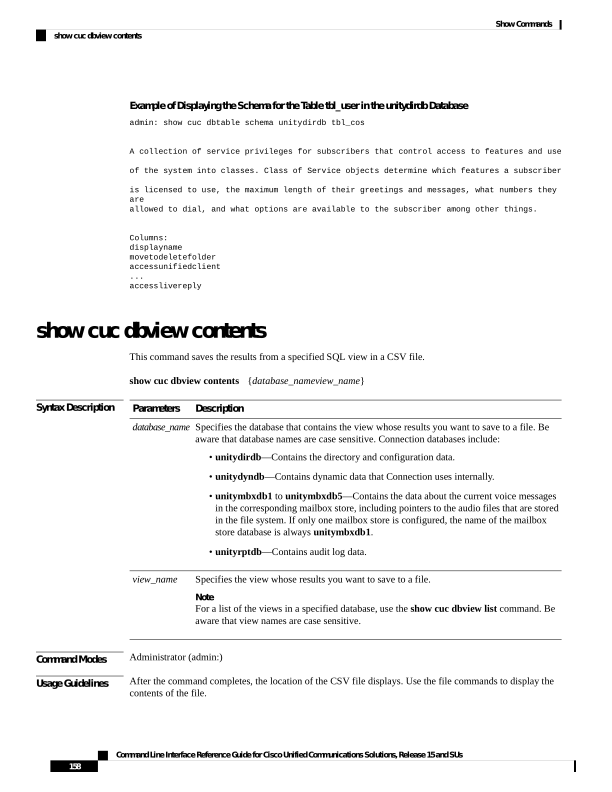
Page 183
Requirements
Command privilege level: 1
Allowed during upgrade: Yes
Applies to: Cisco Unity Connection
Example
The following example saves the results from the view vw_cos, in the database unitydirdb, to a CSV
file.
admin: show cuc dbview contents unitydirdb vw_cos_061013-113910.csv
show cuc dbview list
This command displays a list of the views in a specified database.
show cuc dbview list database_name [page]
Syntax Description
Description
Parameters
Specifies the database for which you want a list of views. Be aware that database names are
case sensitive. Connection databases include:
• unitydirdb—Contains the directory and configuration data.
• unitydyndb—Contains dynamic data that Connection uses internally.
• unitymbxdb1 to unitymbxdb5—Contains the data about the current voice messages
in the corresponding mailbox store, including pointers to the audio files that are stored
in the file system. If only one mailbox store is configured, the name of the mailbox
store database is always unitymbxdb1.
• unityrptdb—Contains audit log data.
database_name
Causes the output to display one page at a time. Be aware that page is case sensitive.
[page]
Command Modes
Administrator (admin:)
Requirements
Command privilege level: 0
Allowed during upgrade: Yes
Example
The following example displays a list of the views in the unitydirdb database.
admin: show cuc dbview list unitydirdb
Command Line Interface Reference Guide for Cisco Unified Communications Solutions, Release 15 and SUs
159
Show Commands
show cuc dbview list
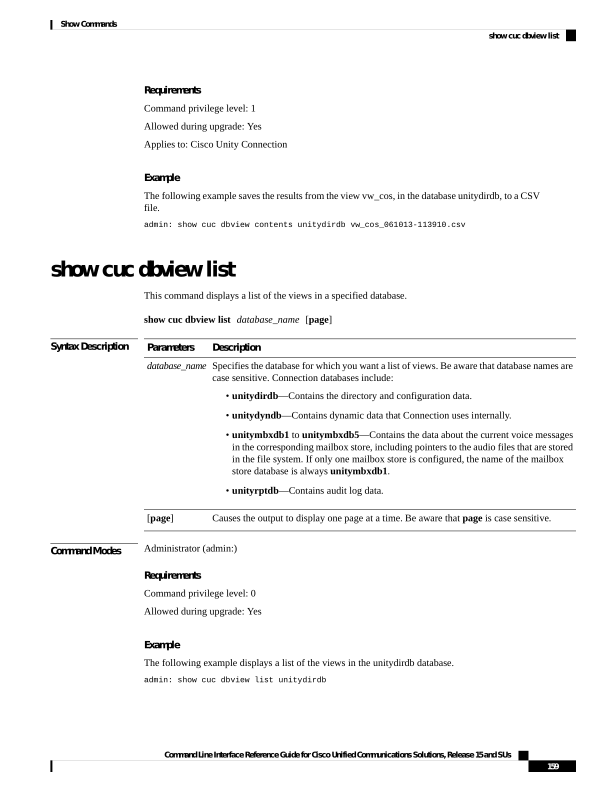
Page 184
vw_agency
vw_agencyextensionrange
vw_alias
vw_alternatename
vw_broadcastmessage
vw_broadcastmessagerecipient
vw_callaction
...
vw_waveformat
show cuc dbview schema
This command displays the schema for a specified view.
show cuc dbview schema
{database_nameview_name} [page]
Syntax Description
Description
Parameters
Specifies the database that contains the view for which you want to display the schema. Be
aware that database names are case sensitive. Connection databases include:
• unitydirdb—Contains the directory and configuration data.
• unitydyndb—Contains dynamic data that Connection uses internally.
• unitymbxdb1 to unitymbxdb5—Contains the data about the current voice messages
in the corresponding mailbox store, including pointers to the audio files that are stored
in the file system. If only one mailbox store is configured, the name of the mailbox
store database is always unitymbxdb1.
• unityrptdb—Contains audit log data.
database_name
Specifies the view for which you want to display the schema.
Note
For a list of the views in a specified database, use the show cuc dbview list command. Be
aware that view names are case sensitive.
view_name
Causes the output to display one page at a time. Be aware that page is case sensitive.
[page]
Command Modes
Administrator (admin:)
Requirements
Command privilege level: 0
Allowed during upgrade: Yes
Applies to: Cisco Unity Connection
Example
The following example displays the schema for the view vw_user in the database unitydirdb.
Command Line Interface Reference Guide for Cisco Unified Communications Solutions, Release 15 and SUs
160
Show Commands
show cuc dbview schema
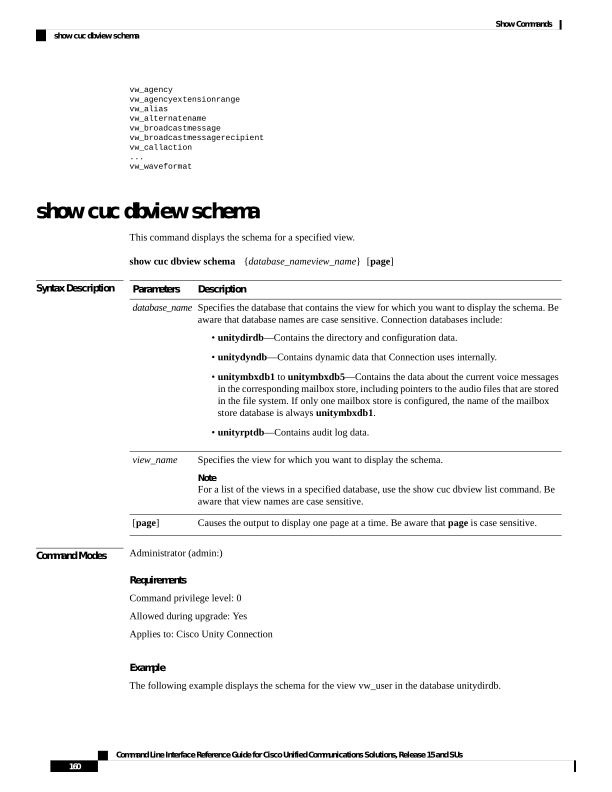
Page 185
admin: show cuc dbview schema unitydirdb vw_cos
A simple view for tbl_Cos.
Columns:
objectid
accessfaxmail
accesstts
callholdavailable
callscreenavailable
canrecordname
...
requiresecuremessages
show cuc jetty ssl status
This command allows you to check the status of SSL (Enabled/Disabled) on the Jetty server for notifications.
show cuc jetty ssl status
Command Modes
Administrator (admin:)
Requirements
Command privilege level: 0
Allowed during upgrade: Yes
Applies to: Cisco Unity Connection
Example
admin: show cuc jetty ssl status
Command completed successfully.
SSL notification is DISABLED
show cuc locales
This command displays a list of the locales currently installed.
show cuc locales
Command Modes
Administrator (admin:)
Requirements
Command privilege level: 0
Allowed during upgrade: Yes
Command Line Interface Reference Guide for Cisco Unified Communications Solutions, Release 15 and SUs
161
Show Commands
show cuc jetty ssl status
Page 186
Applies to: Cisco Unity Connection
Example
admin: show cuc locales
Installed Locale Package
Locale
uc-locale-en_GB-6.0.0.0-0
en-GB
uc-locale-fr_CA-6.0.0.0-0
fr-CA
show cuc speechview registration certificate size
This command displays the current certificate bit size used for Speech to Text service registration and Voicemail
transcription with Nuance server.
show cuc speechview registration certificate size
Command Modes
Administrator (admin:)
Usage Guidelines
To view the current certificate bit size, use the show cuc speechview registration certificate size (Cisco
Unity Connection Only) command.
Requirements
Command privilege level: 4
Allowed during upgrade: Yes
Applies to: Cisco Unity Connection only.
show cuc sysagent task list
This command displays a list of the Sysagent tasks.
show cuc sysagent task list [page]
Syntax Description
Description
Parameters
Causes the output to display one page at a time. Be aware that page is case sensitive.
[page]
Command Modes
Administrator (admin:)
Usage Guidelines
To run a sysagent task, use the run cuc sysagent task command. If the value of the Is Singleton column is Y
for a specified task, the task can only be run on the primary server in a multi-server cluster. If this server is
standalone, then all tasks run on this server.
Command Line Interface Reference Guide for Cisco Unified Communications Solutions, Release 15 and SUs
162
Show Commands
show cuc speechview registration certificate size
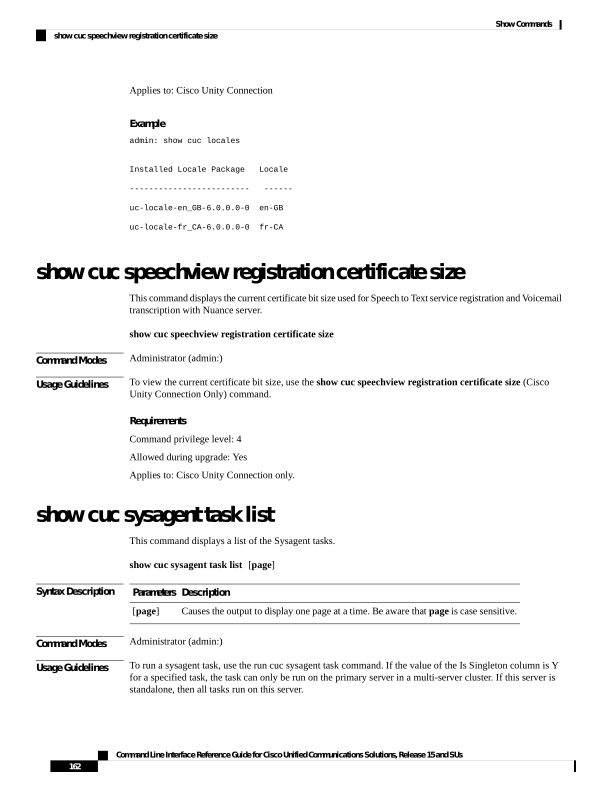
Page 187
Requirements
Command privilege level: 0
Allowed during upgrade: Yes
Applies to: Cisco Unity Connection
Example
admin: show cuc sysagent task list
Task Name
Is Singleton
Data.BroadcastMessagePurge
N
Umss.CleanDeletedMessagesTask
Y
Umss.CleanDirectoryStreamFilesTask
Y
Umss.CleanOrphanAttachmentFilesTask
Y
...
Data.UpdateDatabaseStats
N
show cuc sysagent task results
This command displays the times at which the specified task started and completed, with the most recent time
listed first.
show cuc sysagent task results task_name [page]
Syntax Description
Description
Parameters
Specifies the task for which you want to display information when the task starts and completes.
Note
For a list of task names, run the show cuc sysagent task list command. Be aware that task names
are case sensitive.
task_name
Causes the output to display one page at a time. Be aware that page is case sensitive.
[page]
Command Modes
Administrator (admin:)
Usage Guidelines
To run a Sysagent task, use the run cuc sysagent task command.
Requirements
Command privilege level: 0
Allowed during upgrade: Yes
Command Line Interface Reference Guide for Cisco Unified Communications Solutions, Release 15 and SUs
163
Show Commands
show cuc sysagent task results
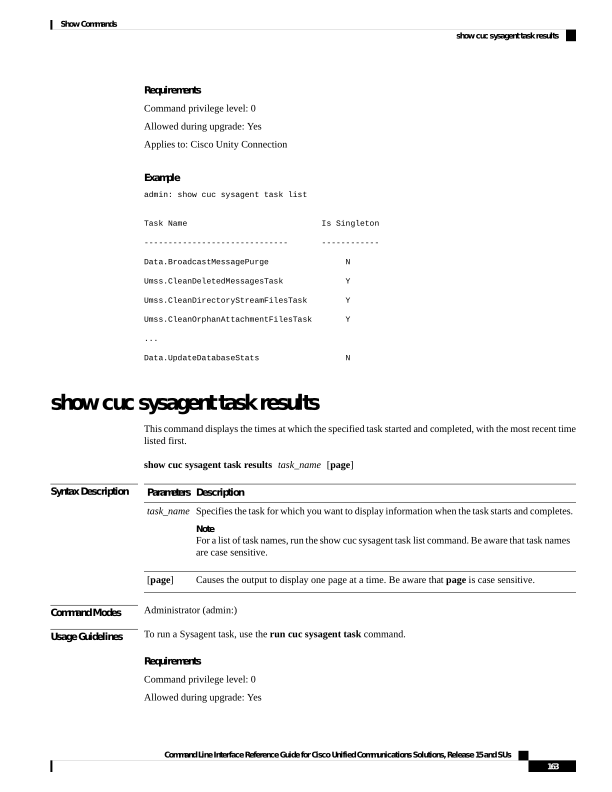
Page 188
Applies to: Cisco Unity Connection
Example
The following example displays the times at which the Sysagent task
Umss.CleanDeletedMessagesTask started and completed.
admin: show cuc sysagent task results Umss.CleanDeletedMessagesTask
Time Started
Time Completed
2006-10-25 17:31:45.689
2006-10-25 17:31:45.785
2006-10-25 17:16:45.702
2006-10-25 17:16:45.742
2006-10-25 17:01:45.690
2006-10-25 17:01:45.730
show cuc sysinfo
This command displays a summary of hardware and software system information for the current Connection
server, including the version installed on the active and inactive partitions; whether a cluster is configured;
QOS settings; hardware specifications; the amount of used and free disk space on the active, inactive, and
common partitions; licensing information; and so on.
show cuc sysinfo
Command Modes
Administrator (admin:)
Requirements
Command privilege level: 0
Allowed during upgrade: No
Applies to: Cisco Unity Connection
Example
admin: show cuc sysinfo
Gather Data/Time : Wed Oct 21 09:45:29 PDT 2009
Connection Install Information:
Host Name : connection1
Version:
Active Version : 8.0.0.98000-210
Command Line Interface Reference Guide for Cisco Unified Communications Solutions, Release 15 and SUs
164
Show Commands
show cuc sysinfo
Page 189
Inactive Version : 8.0.0.98000-201
High Availability (this server is) : Pri_Single_Server
Publisher : connection1.cisco.com - 10.10.10.10
Subscriber(s) : None
QOS Settings :
Call Signaling DSCP : CS3
Media Signaling DSCP : EF
Hardware :
HW Platform
: 7825I3
Processors
: 1
Type
: Family: Core 2
CPU Speed
: 2130
Memory
: 2048
Object Id
: 1.3.6.1.4.1.9.1.746
OS Version
: UCOS 4.0.0.0-31
...
show cuc tech dbschemaversion
This command displays the schema version information for each database.
show cuc tech dbschemaversion [page]
Syntax Description
Description
Parameters
Causes the output to display one page at a time. Be aware that page is case sensitive.
[page]
Command Modes
Administrator (admin:)
Requirements
Command privilege level: 0
Allowed during upgrade: Yes
Applies to: Cisco Unity Connection
Command Line Interface Reference Guide for Cisco Unified Communications Solutions, Release 15 and SUs
165
Show Commands
show cuc tech dbschemaversion
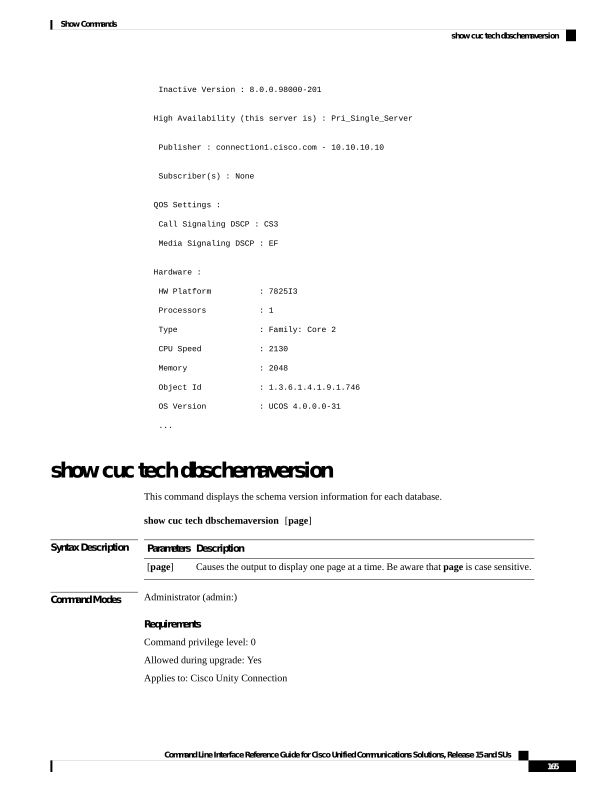
Page 190
Example
admin: show cuc tech dbschemaversion
unitydirdb
Schema Version
Product Version
Date
1.2.363
2.1
2007-02-13 19:10:50.0
show cuc tech dbserver all
This command runs all the show cuc tech commands in sequence and saves the results in a text file.
show cuc tech dbserver all
Command Modes
Administrator (admin:)
Usage Guidelines
After the command completes, detailed information gets saved in a text file and the location of the text file
displays. Use the file commands to display the contents of the file.
Requirements
Command privilege level: 1
Allowed during upgrade: Yes
Example
admin: show cuc tech dbserver all
Output is in file: cuc/cli/dbserverall_061013-111801.txt
show cuc tech dbserver integrity
This command checks the integrity of the Informix database server storage space structure.
show cuc tech dbserver integrity
Command Modes
Administrator (admin:)
Usage Guidelines
After the command completes, detailed information gets saved in a text file, and a summary of the results
displays, including the location of the file. Use the file commands to display the contents of the file.
Command Line Interface Reference Guide for Cisco Unified Communications Solutions, Release 15 and SUs
166
Show Commands
show cuc tech dbserver all
Page 191
Requirements
Command privilege level: 0
Allowed during upgrade: Yes
Applies to: Cisco Unity Connection
Example
admin: show cuc tech dbserver integrity
Database system catalog tables were successfully validated.
Database disk extents were successfully validated.
Database reserved pages were successfully validated.
Output is in file: cuc/cli/integrity_061013-95853.txt
show cuc tech dbserver log diagnostic
This command checks for the existence of Informix assertion-failure and shared-memory-dump logs.
show cuc tech dbserver log diagnostic
Command Modes
Administrator (admin:)
Usage Guidelines
If the logs exist, their location displays. Use the file commands to display the contents of the files.
Requirements
Command privilege level: 0
Allowed during upgrade: Yes
Applies to: Cisco Unity Connection only.
Example
admin:show cuc tech dbserver log diagnostic
The following Informix logs are available for the UC database server:
core/af.3599c
core/af.36858
show cuc tech dbserver log message
This command displays the end of the Informix message log.
show cuc tech dbserver log message [lines] [page]
Syntax Description
Description
Parameters
Specifies the number of lines that display at the end of the Informix message log. If the lines
parameter is not included, the last 20 lines of the log are displayed.
lines
Command Line Interface Reference Guide for Cisco Unified Communications Solutions, Release 15 and SUs
167
Show Commands
show cuc tech dbserver log diagnostic
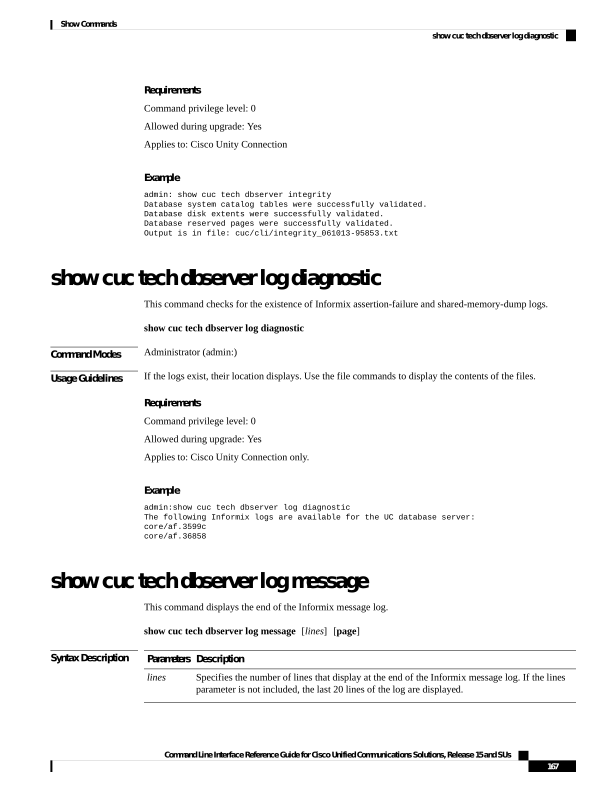
Page 192
Description
Parameters
(Optional) Causes the output to display one page at a time. Be aware that page is case sensitive.
page
Command Modes
Administrator (admin:)
Requirements
Command privilege level: 0
Allowed during upgrade: Yes
Applies to: Cisco Unity Connection only.
Example
admin:show cuc tech dbserver log message
Message Log File: online.ciscounity.log
18:09:01 Fuzzy Checkpoint Completed: duration was 0 seconds, 6 buffers
not flushed.
18:09:01 Checkpoint loguniq 57, logpos 0x208418, timestamp: 0x33b807
18:09:01 Maximum server connections 159
18:14:01 Fuzzy Checkpoint Completed: duration was 0 seconds, 6 buffers
not flushed.
18:14:01 Checkpoint loguniq 57, logpos 0x20a57c, timestamp: 0x33b9fc
show cuc tech dbserver status
This command saves a detailed status report of the database server instance to a file.
show cuc tech dbserver status
Command Modes
Administrator (admin:)
Requirements
Command privilege level: 1
Allowed during upgrade: Yes
Applies to: Cisco Unity Connection only.
Example
admin:show cuc tech dbserver status
Output is in file: cuc/cli/status_061013-95031.txt
show cuc trace levels
This command displays a list of all the diagnostic traces and trace levels that are currently enabled.
Command Line Interface Reference Guide for Cisco Unified Communications Solutions, Release 15 and SUs
168
Show Commands
show cuc tech dbserver status
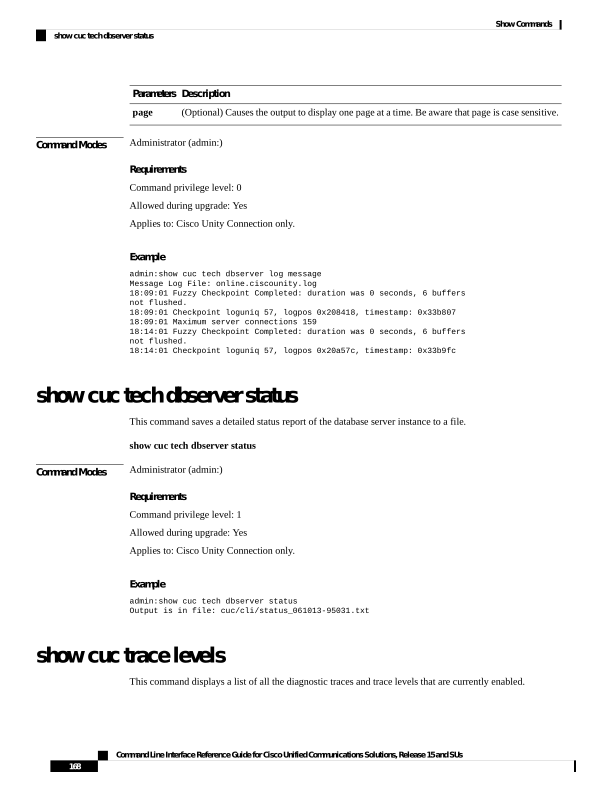
Page 193
show cuc trace levels [page]
Syntax Description
Description
Parameters
(Optional) Causes the output to display one page at a time. Be aware that page is case sensitive.
page
Command Modes
Administrator (admin:)
Usage Guidelines
To enable or disable specified traces and trace levels, use the set cuc trace (Cisco Unity Connection only)
command.
Requirements
Command privilege level: 0
Allowed during upgrade: Yes
Applies to: Cisco Unity Connection only.
Example
admin:show cuc trace levels
Trace Name Levels
Arbiter -
AudioStore 0
AxlAccess -
BulkAdministrationTool 0
CCL 10,11
CDE 3,14
CDL 11,13,15,17
::
VirtualQueue -
show cuc version
This command displays the Cisco Unity Connection version that is currently installed on the active and inactive
partitions.
show cuc version
Command Modes
Administrator (admin:)
Usage Guidelines
This command always displays the version in the active partition. If the active partition contains an upgrade,
the command also shows the version in the inactive partition. The current Engineering Special also displays.
Requirements
Command privilege level: 0
Allowed during upgrade: Yes
Applies to: Cisco Unity Connection only.
Command Line Interface Reference Guide for Cisco Unified Communications Solutions, Release 15 and SUs
169
Show Commands
show cuc version
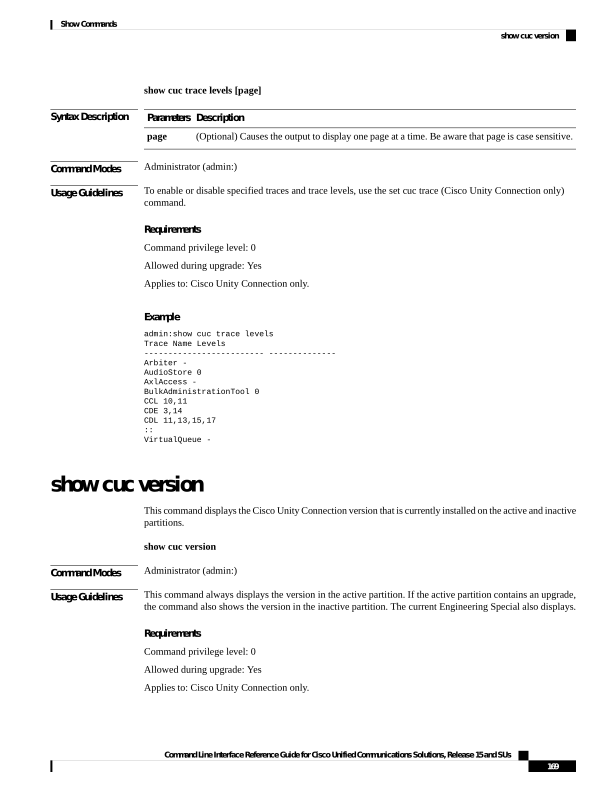
Page 194
Example
admin:show cuc version
Active version: 7.0.1.10000-323
Inactive version: 7.0.0.39700-277
show date
This command displays the date and time on the server.
show date
Command Modes
Administrator (admin:)
Example
admin: show date
Sat Jul 17 01:28:57 IST 2010
show diskusage
This command displays disk usage information about specific directories.
show diskusage activelog
{activelog | common | inactivelog | install | tftp | tmp} filename filename
{directory | sort}
Syntax Description
Description
Parameters
Saves the output to a specified file.
These files are stored in the
platform/cli directory. To view
saved files, use the file view
activelog command.
filename filename
Displays the directory sizes only.
directory
Sorts the output on the basis of file
size. File sizes display in 1024-byte
blocks.
sort
Command Modes
Administrator (admin:)
Requirements
Command privilege level: 0
Allowed during upgrade: Yes
Command Line Interface Reference Guide for Cisco Unified Communications Solutions, Release 15 and SUs
170
Show Commands
show date
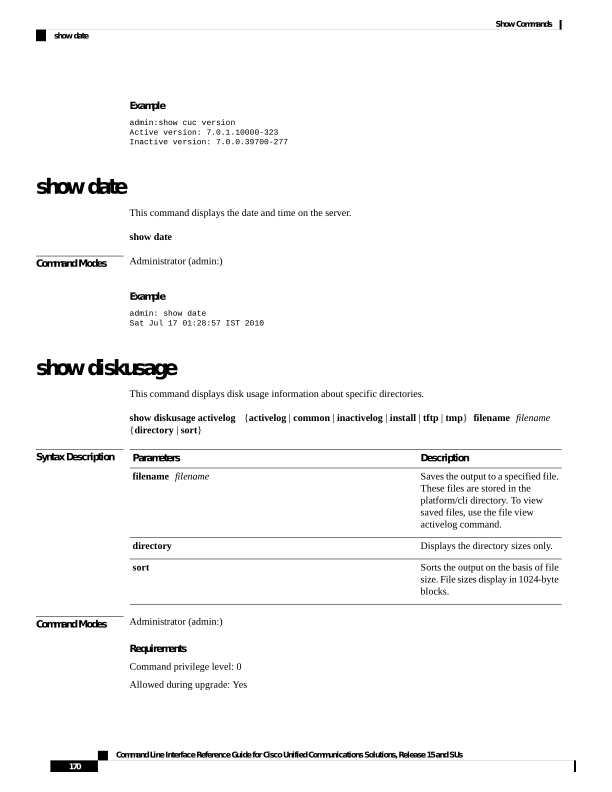
Page 195
Applies to: Unified Communications Manager, IM and Presence Service on Unified Communications Manager,
and Cisco Unity Connection
show dscp all
This command displays the current DSCP traffic markings on all the ports. It displays the DSCP markings in
decimal and hexidecimal. If the value corresponds to a class then it displays the correct class. If the value
does not correspond to a class, then it displays N/A.
show dscp all
Command Modes
Administrator (admin:)
Requirements
Command privilege level: 0
Allowed during upgrade: No
Applies to: Unified Communications Manager and Cisco Unity Connection
show dscp defaults
This command displays the default factory DSCP settings. These values take effect if the set dscp defaults
command is executed.
show dscp defaults
Command Modes
Administrator (admin:)
Requirements
Command privilege level: 0
Allowed during upgrade: No
Applies to: Unified Communications Manager and Cisco Unity Connection
show dscp marking
This command displays the current DSCP traffic markings for a particular DSCP value.
show dscp marking value
Syntax Description
Description
Parameters
DSCP value. You can enter the name of a well-known DSCP class, or a numeric value in decimal
or hexadecimal format. Precede hexadecimal values with 0x or 0X.
value
Command Line Interface Reference Guide for Cisco Unified Communications Solutions, Release 15 and SUs
171
Show Commands
show dscp all
Page 196
Command Modes
Administrator (admin:)
Usage Guidelines
The valid class names as defined by DSCP are:
• Class Selector: values CSO, CS1, CS2, CS3, CS5, CS6 CS7
The class selector (CS) values correspond to IP Precedence values and are fully compatible with IP
Precedence.
• Expedited Forwarding: value EF
EF PHB is ideally suited for applications such as VoIP that require low bandwidth, guaranteed bandwidth,
low delay, and low jitter.
• Best Effort: value BE
Also called default PHB, this value essentially specifies that a packet be marked with 0x00, which gets
the traditional best-effort service from the network router.
• Assured Forwarding: values AF11, AF12, AF13, AF21, AF22, AF23, AF41, AF42, AF43
There are four types of Assured Forwarding classes, each of which has three drop precedence values.
These precedence values define the order in which a packet is dropped (if needed) due to network
congestion. For example, packets in AF13 class are dropped before packets in the AF12 class.
Requirements
Command privilege level: 1
Allowed during upgrade: No
Applies to: Unified Communications Manager, IM and Presence Service on Unified Communications Manager,
and Cisco Unity Connection
show dscp status
This command displays the current DSCP traffic markings.
show dscp status
{enabled | disabled}
Syntax Description
Description
Parameters
Filters the output to show only DSCP traffic markings that are enabled. If you do not specify a
status, this filter is the default option.
enabled
Filters the output to show only DSCP traffic markings that are disabled.
disabled
Command Modes
Administrator (admin:)
Requirements
Command privilege level: 0
Allowed during upgrade: No
Command Line Interface Reference Guide for Cisco Unified Communications Solutions, Release 15 and SUs
172
Show Commands
show dscp status
Page 197
Applies to: Unified Communications Manager, IM and Presence Service on Unified Communications Manager,
and Cisco Unity Connection
show environment fans
This command shows the status of the fan sensors.
show environment fans
Command Modes
Administrator (admin:)
Requirements
Command privilege level: 0
Allowed during upgrade: Yes
Applies to: Unified Communications Manager, IM and Presence Service on Unified Communications Manager,
Cisco Unity Connection
show environment power-supply
This command shows the status of the power supply for MCS-7845, MCS-7835, MCS-7825H3/H4, and
MCS-7816H3 servers—those with redundant power supply or embedded health hardware.
show tlstrace
Command Modes
Administrator (admin:)
Requirements
Command privilege level: 0
Allowed during upgrade: Yes
Applies to: Unified Communications Manager, IM and Presence Service on Unified Communications Manager,
Cisco Unity Connection
show environment temperatures
This command retrieves the status of the temperature sensors.
show environment temperatures
Command Modes
Administrator (admin:)
Requirements
Command privilege level: 0
Command Line Interface Reference Guide for Cisco Unified Communications Solutions, Release 15 and SUs
173
Show Commands
show environment fans
Page 198
Allowed during upgrade: Yes
Applies to: Unified Communications Manager, IM and Presence Service on Unified Communications Manager,
Cisco Unity Connection
show fileserver transferspeed
This command shows the reading and writing speed between the IM and Presence Service node and the
external file server. It involves copying a large file onto the mounted directory and then copying it back onto
the node. As a result, this command may have a performance impact on the node from which it is run.
show fileserver transferspeed
Command Modes
Administrator (admin:)
Requirements
Applies to: IM and Presence Service on Unified Communications Manager.
Example
admin:show fileserver transferspeed
WARNING: This command involves copying a large file to and from the mounted directory. It
can impact the performance of the system.
Do you want to continue? (y/n):y
Creating a file to perform the test, please wait...
Copying the file onto the mounted file system. Please note the writing speed recorded below.
262144+0 records in
262144+0 records out
1073741824 bytes (1.1 GB) copied, 28.9302 s, 37.1 MB/s
Copying the file from the mounted file system. Please note the reading speed recorded below.
262144+0 records in
262144+0 records out
1073741824 bytes (1.1 GB) copied, 67.7504 s, 15.8 MB/s
Clean-up finised
admin:
show haproxy client-auth
This command displays the client authentication configured on the specified port.
show haproxy client-auth portnum
Command Line Interface Reference Guide for Cisco Unified Communications Solutions, Release 15 and SUs
174
Show Commands
show fileserver transferspeed
Page 199
Description
Parameter
Enter the port number to view the client authentication
configured on the specified port.
Note
The supported port numbers are 6971, 6972 and 9443.
portnum
Command Modes
Administrator (admin:)
Usage Guidelines
Administrator can execute the help show haproxy client-auth <portnum> command to view the help content.
Requirements
Command privilege level: 0
Applies to: Unified Communications Manager
Example
admin:show haproxy client-auth 9443
Client authentication on the port 9443 is currently set to optional
admin:show haproxy client-auth 9456
Enter valid values for the port.
Suggested values are 6971, 6972 and 9443
Executed command unsuccessfully
admin:help show haproxy client-auth 9443
show haproxy client-auth help:
This command will display client-auth for the specified port.
Example:
admin:show haproxy client-auth 6971
Client authentication on the port 6971 is currently set to required.
show hardware
This command displays hardware-related information about the platform.
The output of some fields will vary by hypervisor, depending on the information reported to the workload by
the hypervisor.
Note
show hardware
Command Modes
Administrator (admin:)
Usage Guidelines
The following information is displayed:
• Platform
Command Line Interface Reference Guide for Cisco Unified Communications Solutions, Release 15 and SUs
175
Show Commands
show hardware

Page 200
• Serial number
• BIOS build level
• BIOS manufacturer
• Active processors
• RAID controller status
• Disk partition details
Requirements
Command privilege level: 0
Allowed during upgrade: Yes
Applies to: Unified Communications Manager, IM and Presence Service on Unified Communications Manager,
and Cisco Unity Connection
show http min-version
This command shows the minimum configured version for all the inbound and outbound HTTP requests.
show http min-version
Command Modes
Administrator (admin:)
Requirements
Command privilege level: 1
Allowed during upgrade: No
Applies to: Unified Communications Manager, IM and Presence Service on Unified Communications Manager,
and Unity Connection
show ipsec information
This command displays detailed information about the specified ipsec policy.
show ipsec information
{policy_grouppolicy_name}
Syntax Description
Description
Parameters
policy_group
policy_name
Command Modes
Administrator (admin:)
Command Line Interface Reference Guide for Cisco Unified Communications Solutions, Release 15 and SUs
176
Show Commands
show http min-version
Page 201
Usage Guidelines
Requirements
Command privilege level: 1
Allowed during upgrade: yes
Applies to: Unified Communications Manager and IM and Presence Service on Unified Communications
Manager
Example
admin:show ipsec information test test1
PolicyGroup
: test
PolicyName
: test1
Type
: transport
Source Address
: 10.94.171.3
Source Type
: ip
Destination Address
: 10.94.1.2
Destination Type
: ip
Protocol
: tcp
Source Port
: Any
Destination Port
: Any
Remote Port
: Any
Authentication Method
: psk
Destination Certificate : null
PSK
: cisco
Phase 1 Life Time
: 3600
Encryption Algorithm
: des
Hash Algorithm
: sha1
Phase 1 DH Value
: null
Phase 2 Life Time
: 3600
ESP
: null_enc
AH
: hmac_sha1
Phase 2 DH Value
: null
Peer Type
: null
Status
: disabled
Source Certificate
: null
show ipsec policy_group
This command displays all the ipsec policy group on the node.
show ipsec policy_group
Command Modes
Administrator (admin:)
Requirements
Command privilege level: 1
Allowed during upgrade: Yes
Applies to: Unified Communications Manager and Cisco Unity Connection
Command Line Interface Reference Guide for Cisco Unified Communications Solutions, Release 15 and SUs
177
Show Commands
show ipsec policy_group
Page 202
show ipsec policy_name
This command displays the list of ipsec policy names that exist in the specified policy group.
show ipsec policy_name
policy_group
Syntax Description
Description
Parameters
Specifies the policy group name.
policy_group
Command Modes
Administrator (admin:)
Requirements
Command privilege level: 1
Allowed during upgrade: Yes
Applies to: Unified Communications Manager and Cisco Unity Connection
show ipsec status
show ipsec status
Command Modes
Administrator (admin:)
Usage Guidelines
Requirements
Command privilege level:
Allowed during upgrade:
Applies to: Unified Communications Manager and IM and Presence Service on Unified Communications
Manager
show itl
This command displays the ITL file contents or prints an error message if the ITL file is invalid.
show itl
Command Modes
Administrator (admin:)
Requirements
Command privilege level: 0
Allowed during upgrade: Yes
Command Line Interface Reference Guide for Cisco Unified Communications Solutions, Release 15 and SUs
178
Show Commands
show ipsec policy_name
Page 203
Applies to: Unified Communications Manager, IM and Presence Service on Unified Communications Manager,
and Cisco Unity Connection
show logins
This command lists recent logins to the server
show login
[number]
Syntax Description
Description
Parameters
Specifies the number of the most recent logins to display. The default is 20.
number
Command Modes
Administrator (admin:)
Requirements
Command privilege level: 0
Allowed during upgrade: Yes
Applies to: Unified Communications Manager and Cisco Unity Connection
show logins successful
This command shows the previous successful logins.
show logins successful [last n]
Syntax Description
Description
Parameters
(Optional) Represents the last number of logins. By default, the value of this variable is 20.
last n
Command Modes
Administrator (admin:)
Requirements
Command privilege level: 0
Allowed during upgrade: Yes
Applies to: Unified Communications Manager, IM and Presence Service on Unified Communications Manager,
Cisco Unity Connection
show logins unsuccessful
Use this command to list recent unsuccessful login attempts to the following web applications:
• On Unified Communications Manager
• Disaster Recovery System
Command Line Interface Reference Guide for Cisco Unified Communications Solutions, Release 15 and SUs
179
Show Commands
show logins
Page 204
• Cisco Unified OS Administration
• On IM and Presence Service
• IM and Presence Disaster Recovery System
• Unified IM and Presence OS Administration
show logins unsuccessful
[number]
Syntax Description
Description
Parameters
Specifies the number of most recent logins to display. The default is 20.
number
Command Modes
Administrator (admin)
Requirements
Command privilege level: 0
Allowed during upgrade: Yes
Applies to Unified Communications Manager and IM and Presence Service
show key authz encryption
Run this command on any Unified Communications Manager node to view the OAuth signing key checksum
that Unified Communications Manager uses to authenticate Cisco Jabber clients.
Command Modes
Administrator (admin:)
Requirements
Command privilege level: 4
Allowed during upgrade: No
Applies to: Unified Communications Manager and the IM and Presence Service.
show key authz signing
Run this command on any Unified Communications Manager node to view the OAuth signing key checksum
that Unified Communications Manager uses to authenticate Cisco Jabber clients.
Command Modes
Administrator (admin:)
Requirements
Command privilege level: 4
Allowed during upgrade: No
Command Line Interface Reference Guide for Cisco Unified Communications Solutions, Release 15 and SUs
180
Show Commands
show key authz encryption
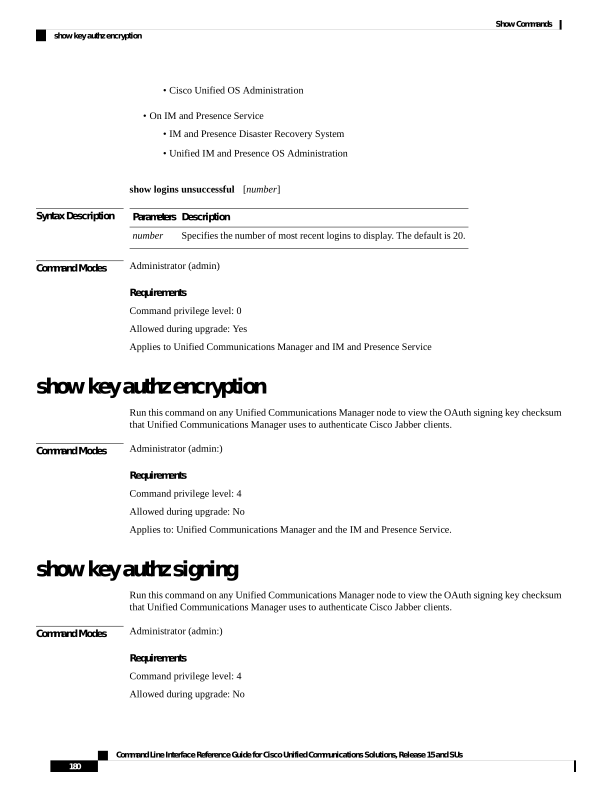
Page 205
Applies to: Unified Communications Manager and the IM and Presence Service.
show license all
This command displays license status, license usage, UDI, and the agent version.
show license all
Command Modes
Administrator (admin:)
Requirements
Command privilege level: 0
Allowed during upgrade: Yes
Applies to: Unified Communications Manager and Cisco Unity Connection
show license status
This command displays the smart licensing status.
show license status
Command Modes
Administrator (admin:)
Requirements
Command privilege level: 0
Allowed during upgrade: Yes
Applies to: Unified Communications Manager and Cisco Unity Connection
show license summary
This command displays the smart licensing status and the license usage details.
show license summary
Command Modes
Administrator (admin:)
Requirements
Command privilege level: 0
Allowed during upgrade: Yes
Applies to: Unified Communications Manager and Cisco Unity Connection
Command Line Interface Reference Guide for Cisco Unified Communications Solutions, Release 15 and SUs
181
Show Commands
show license all
Page 206
show license tech support
This command displays smart licensing status, product information, and product version.
show license tech support
Command Modes
Administrator (admin:)
Requirements
Command privilege level: 0
Allowed during upgrade: Yes
Applies to: Unified Communications Manager and Cisco Unity Connection
show license trace
This command traces the content of smart agent-related logs to the console.
show license trace
Command Modes
Administrator (admin:)
Requirements
Command privilege level: 0
Allowed during upgrade: Yes
Applies to: Unified Communications Manager and Cisco Unity Connection
show license UDI
This command displays all members in the Unique Device Identification(UDI) structure that are not NULL.
Following are the list of UDI instances displayed for Unified Communications Manager:
• PID—Product Identifier
• SN—Serial Number
• UUID—Universal Unique Identifier
show license UDI
Command Modes
Administrator (admin:)
Requirements
Command privilege level: 0
Command Line Interface Reference Guide for Cisco Unified Communications Solutions, Release 15 and SUs
182
Show Commands
show license tech support
Page 207
Allowed during upgrade: Yes
Applies to: Unified Communications Manager and Cisco Unity Connection
show license usage
This command displays the entitlements that are currently in use.
show license usage
Command Modes
Administrator (admin:)
Requirements
Command privilege level: 0
Allowed during upgrade: Yes
Applies to: Unified Communications Manager and Cisco Unity Connection
show Login Grace Timeout
This command shows the login Grace Timeout.
show Login Grace Timeout
Command Modes
Administrator (admin:)
Requirements
Command privilege level: 0
Allowed during upgrade: Yes
Applies to: Unified Communications Manager, IM and Presence Service on Unified Communications Manager,
Cisco Unity Connection
show media streams
This command captures information on current media stream connections.
show media streams
[options]
Command Line Interface Reference Guide for Cisco Unified Communications Solutions, Release 15 and SUs
183
Show Commands
show license usage
Page 208
Syntax Description
Description
Parameters
Enter one of the following options:
• file fname: Limit (valid characters alphanumeric [a-Z, A-Z, 0-9, (-) ad , (_)]. Default:
mediainfo
• count #: Range 1-1000; Default: 2
• sleep #: Range 1-300 seconds; Default 5
• device {ALL | ANN | CFB | CRA | MOH | MTP} Default: device ALL
• info: Displays extra information
• buffers: Displays buffer usage information.
• trace: Activates extra trace from media driver to system log.
Note
Ignore any kernel messages that display on the console screen when show media streams
trace is entered.
options
Command Modes
Administrator (admin:)
Requirements
Command privilege level: 1
Allowed during upgrade: Yes
Applies to: Unified Communications Manager and Cisco Unity Connection
Example
admin: show media streams info buffers
Resulting file /platform/log/mediainfo.txt contains:
Time: 2008.03.04 11:01:42
I/F Ver=5, #Apps: Free=
7, Alloc=
4, #Conf: Free=
12, #Streams: Free=
40
Buffer Size =
652, Allocated Buffers=
1, Free Buffers =
5147
Buffer Size = 8192, Allocated Buffers=
0, Free Buffers =
450
App ID=
332, Cfg=CFB, Dead App Timer=86400, Active=Yes, Streams: Available=
92 Active=
4
Conf ID = 16777225, Type = Two No Sum, Streams: Tx =
2, Rx =
2, Active = Yes
Rx Stream: PktCnt= 5979, PID=16777653, PktSz=20ms, Payld=uLaw, IP=10.89.80.178:24652,
MCast=N, Mute=N, UsrMd=N, Actv=Y, QdPkts=2, PktOR=0, DtmfPL=0 DiscTimeSlice= 0 DiscPkts= 0
10:59:42
Buffer Size =
652, Used Buffers =
1
Buffer Size = 8192, Used Buffers =
0
Rx Stream: PktCnt= 6179, PID=16777651, PktSz=20ms, PayId=uLaw, IP=10.89.80.178:24650,
MCast=N, Mute=N, UsrMd=N, Actv=Y, QdPkts=0, PktOR=0, DtmfPL=0 DiscTimeSlice= 0 DiscPkts= 0
10:59:38
Buffer Size =
652, Used Buffers =
0
Buffer Size = 8192, Used Buffers =
0
Tx Stream: PktCnt= 5988, PID=16777653, PktSz=20ms, Payld=uLaw,
IP=10.13.5.189:29450 (24652), MCast=N, Mute=N, UsrMd=N, Actv=Y, DtmfPL=0, DtmfQ=0 10:59:42
Buffer Size =
652, Used Buffers =
0
Command Line Interface Reference Guide for Cisco Unified Communications Solutions, Release 15 and SUs
184
Show Commands
show media streams
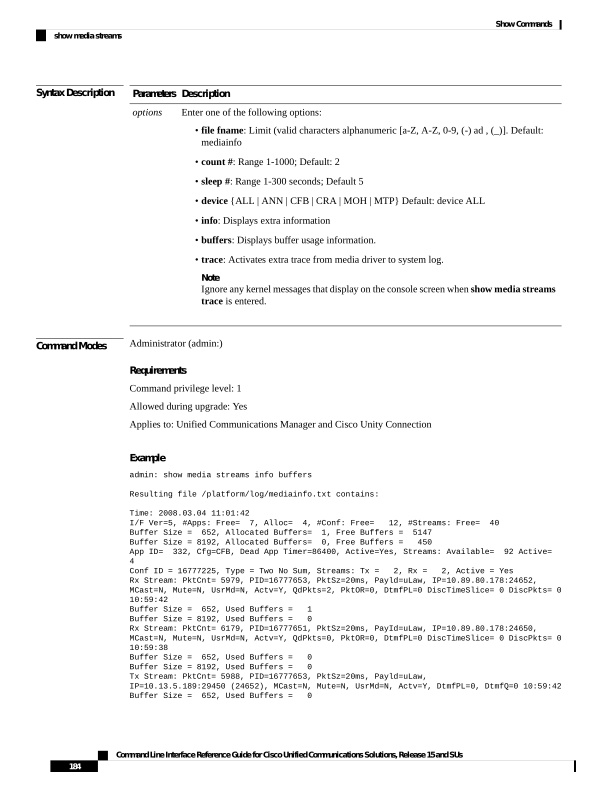
Page 209
Buffer Size = 8192, Used Buffers =
0
Tx Stream: PktCnt= 6193, PID=16777651, PktSz=20ms, Payld=uLaw,
IP=10.13.5.182:28516(24650), MCast=N, Mute=N, UsrMd=N, Actv=Y, DtmfPL=0, DtmfQ=0 10:59:42
Buffer Size =
652, Used Buffers =
0
Buffer Size = 8192, Used Buffers =
0
App ID= 331, Cfg=ANN, Dead App Timer=86400, Active=Yes, Streams: Available=
96 Active=
0
App ID= 330, Cfg=MOH, Dead App Timer=86400, Active=Yes, Streams: Available= 658 Active=
0
App ID= 329, Cfg=MTP, Dead App Timer=86400, Active=Yes, Streams: Available=
96 Active=
0
show memory
This command displays information about the onboard memory.
show memory
{count | modules | size}
Syntax Description
Description
Parameters
Displays the number of memory modules on the system.
count
Displays detailed information about all the memory modules.
modules
Displays the total amount of physical memory.
size
Command Modes
Administrator (admin:)
Requirements
Command privilege level: 0
Allowed during upgrade: Yes
Applies to: Unified Communications Manager, IM and Presence Service on Unified Communications Manager,
and Cisco Unity Connection
show myself
This command displays information about the current account.
show myself
Command Modes
Administrator (admin:)
Requirements
Command privilege level: 0
Allowed during upgrade: Yes
Applies to: Unified Communications Manager, IM and Presence Service on Unified Communications Manager,
and Cisco Unity Connection
Command Line Interface Reference Guide for Cisco Unified Communications Solutions, Release 15 and SUs
185
Show Commands
show memory
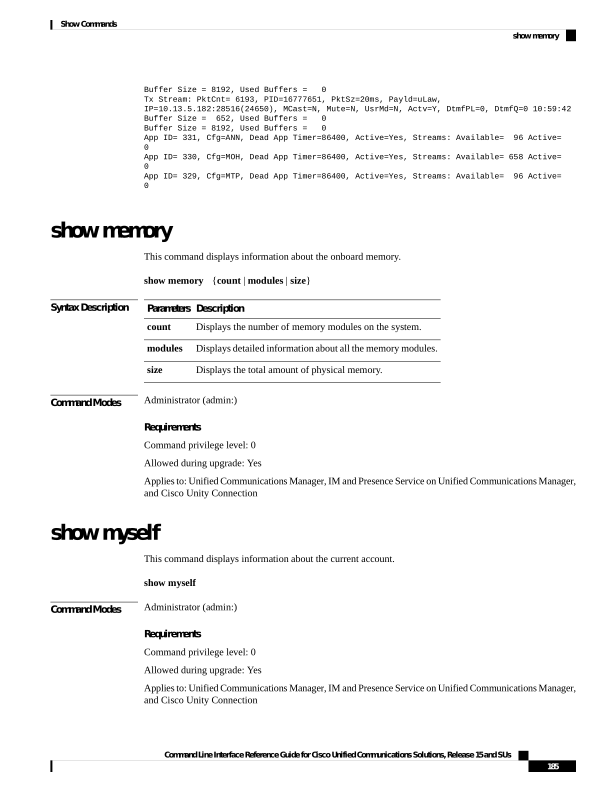
Page 210
show network all
This command shows network information for listening and nonlistening sockets.
show network all [detail] [page] [search srchtext]
Syntax Description
Description
Parameters
Shows additional information.
detail
Displays information one page at a time.
page
Searches for srchtext in the output.
search
srchtext
Command Modes
Administrator (admin:)
Requirements
Command privilege level: 0
Allowed during upgrade: Yes
Applies to: Unified Communications Manager, IM and Presence Service on Unified Communications Manager,
Cisco Unity Connection
show network cluster
This command lists nodes in the network cluster and also shows the remaining timer value when you enable
Dynamic Cluster Configuration.
show network cluster
Command Modes
Administrator (admin:)
Requirements
Command privilege level: 0
Allowed during upgrade: Yes
Applies to: Unified Communications Manager, IM and Presence Service on Unified Communications Manager,
Cisco Unity Connection
show network dhcp eth0
This command shows DHCP status information.
show network dhcp eth0
Command Line Interface Reference Guide for Cisco Unified Communications Solutions, Release 15 and SUs
186
Show Commands
show network all
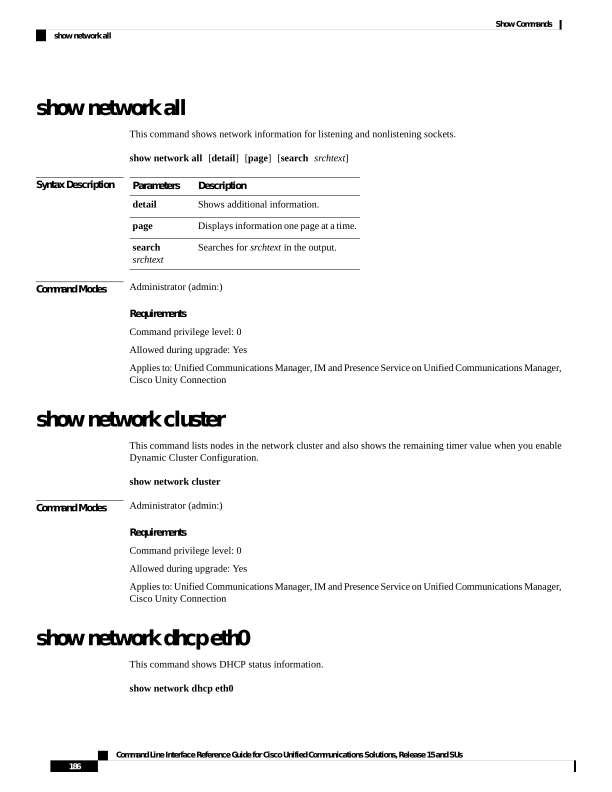
Page 211
Command Modes
Administrator (admin:)
Usage Guidelines
The eth0 parameter displays Ethernet port 0 settings, including DHCP configurations and options.
Requirements
Command privilege level: 0
Allowed during upgrade: Yes
Applies to: Unified Communications Manager, IM and Presence Service on Unified Communications Manager,
Cisco Unity Connection
show network eth0
This command shows network information for ethernet 0.
show network eth0 [detail] [search srchtxt]
Syntax Description
Description
Parameters
Shows additional information.
detail
Searches for srchtxt in the output.
search
srchtxt
Command Modes
Administrator (admin:)
Usage Guidelines
The eth0 parameter displays Ethernet port 0 settings
Requirements
Command privilege level: 0
Allowed during upgrade: Yes
Applies to: Unified Communications Manager, IM and Presence Service on Unified Communications Manager,
Cisco Unity Connection
show network failover
This command shows Network Fault Tolerance information.
show network failover [detail] [page]
Syntax Description
Description
Parameters
Shows additional information.
detail
Shows information one page at a time.
page
Command Line Interface Reference Guide for Cisco Unified Communications Solutions, Release 15 and SUs
187
Show Commands
show network eth0
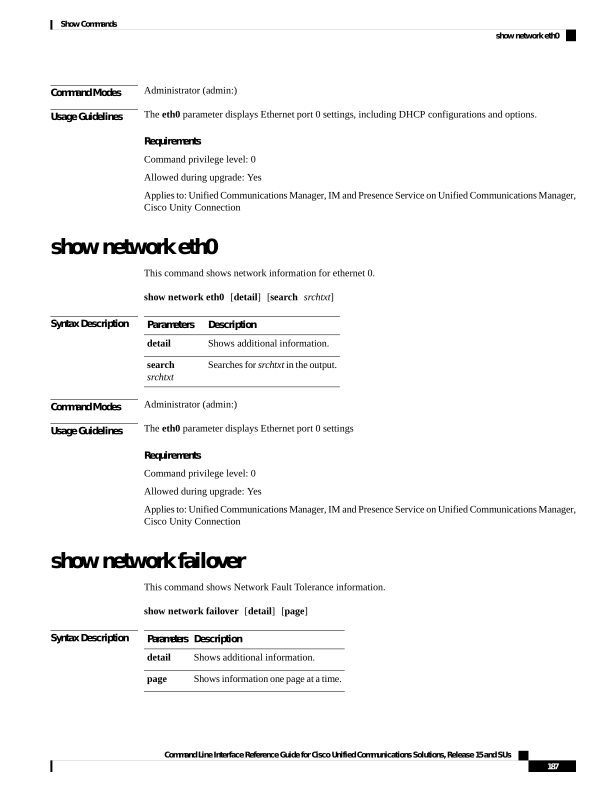
Page 212
Command Modes
Administrator (admin:)
Requirements
Command privilege level: 0
Allowed during upgrade: Yes
Applies to: Unified Communications Manager, IM and Presence Service on Unified Communications Manager,
Cisco Unity Connection
show network ip_conntrack
This command shows ip_conntrack usage information.
show network ip_conntrack
Command Modes
Administrator (admin:)
Requirements
Command privilege level: 0
Allowed during upgrade: Yes
Applies to: Unified Communications Manager, IM and Presence Service on Unified Communications Manager,
Cisco Unity Connection
show network ipprefs
This command shows the list of ports that have been requested to be opened or translated in the firewall.
show network ipprefs
{all | enabled | public}
Syntax Description
Description
Parameters
Shows all incoming ports that may be used on the product.
all
Shows all incoming ports that are currently opened.
enabled
Shows all incoming ports that are currently opened for a remote client.
public
Command Modes
Administrator (admin:)
Requirements
Command privilege level: 0
Allowed during upgrade: Yes
Applies to: Unified Communications Manager, IM and Presence Service on Unified Communications Manager,
Cisco Unity Connection
Command Line Interface Reference Guide for Cisco Unified Communications Solutions, Release 15 and SUs
188
Show Commands
show network ip_conntrack
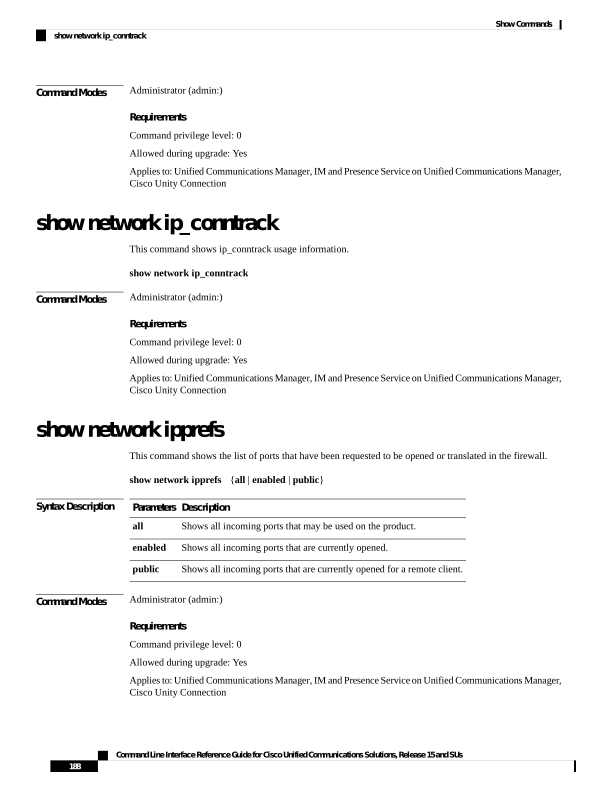
Page 213
Example
admin:show network ipprefs public
Application IPProtocol PortValue HashLimit (max:rate) H-Status ConnLimit C-Status Type
XlatedPort Status
Description
sshd
tcp
22
1500:25/second
enabled
disabled public
enabled sftp and ssh
tomcat
tcp
443
4000:50/second
disabled
300
enabled public
8443
enabled
secure web
tomcat
tcp
80
4000:50/second
disabled
300
enabled public
8080
show network ipv6
This command shows IPv6 network routes and network settings.
show network ipv6
{route | settings}
Syntax Description
Description
Parameters
Shows all IPv6 routes.
route
Shows all IPv6 network settings.
settings
Command Modes
Administrator (admin:)
Requirements
Command privilege level: 0
Allowed during upgrade: Yes
Applies to: Unified Communications Manager, Cisco Unity Connection
show network max_ip_conntrack
This command shows max_ip_conntrack information.
show network max_ip_conntrack
Command Modes
Administrator (admin:)
Requirements
Command privilege level: 0
Allowed during upgrade: Yes
Applies to: Unified Communications Manager, IM and Presence Service on Unified Communications Manager,
Cisco Unity Connection
Command Line Interface Reference Guide for Cisco Unified Communications Solutions, Release 15 and SUs
189
Show Commands
show network ipv6
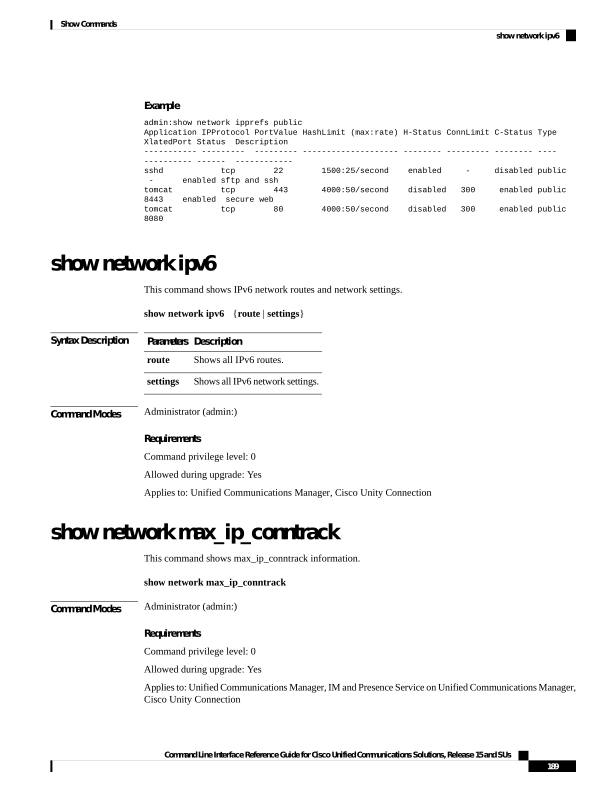
Page 214
show network ntp option
This command displays the security option that is configured in the /etc/config file.
show network ntp option
Command Modes
Administrator (admin:)
Requirements
Command privilege level: 0
Allowed during upgrade: Yes
Applies to: Unified Communications Manager, IM and Presence Service on Unified Communications Manager,
Cisco Unity Connection
show network route
This command shows network routing information.
show network route [detail] [search srchtext]
Syntax Description
Description
Parameters
Shows additional information.
detail
Searches for the srchtext in the output.
search
srchtext
Command Modes
Administrator (admin:)
Requirements
Command privilege level: 0
Allowed during upgrade: Yes
Applies to: Unified Communications Manager, IM and Presence Service on Unified Communications Manager,
Cisco Unity Connection
show network status
This command shows active internet connections.
show network status [detail] [listen] [process] [all] [nodns][search stext]
Command Line Interface Reference Guide for Cisco Unified Communications Solutions, Release 15 and SUs
190
Show Commands
show network ntp option
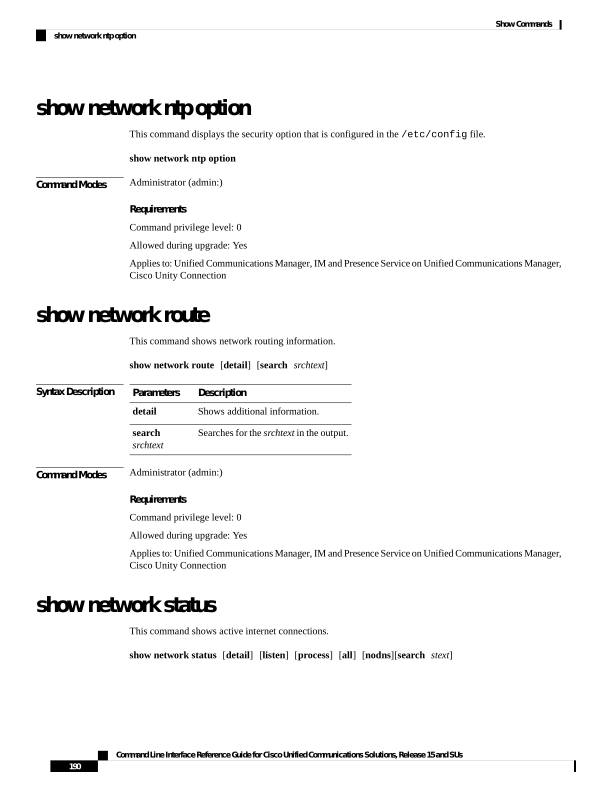
Page 215
Syntax Description
Description
Parameters
Shows additional information.
detail
Shows only listening sockets.
listen
Shows the process ID and name of the program to which each socket belongs.
process
Shows both listening and nonlistening sockets.
all
Shows numerical addresses without any DNS information.
nodns
Searches for the stext in the output.
search
stext
Command Modes
Administrator (admin:)
Requirements
Command privilege level: 0
Allowed during upgrade: Yes
Applies to: Unified Communications Manager, IM and Presence Service on Unified Communications Manager,
Cisco Unity Connection
Example
This example displays active internet connections.
admin: show network status
show network name-service attributes
This command displays name service cache general attributes.
show network name - service attributes
Command Modes
Administrator (admin:)
Requirements
Command privilege level: 0
Allowed during upgrade: No
Example:
admin:show network name-service hosts attributes
enable-cache
yes
positive-time-to-live
3600
negative-time-to-live
20
Successful
Command Line Interface Reference Guide for Cisco Unified Communications Solutions, Release 15 and SUs
191
Show Commands
show network name-service attributes
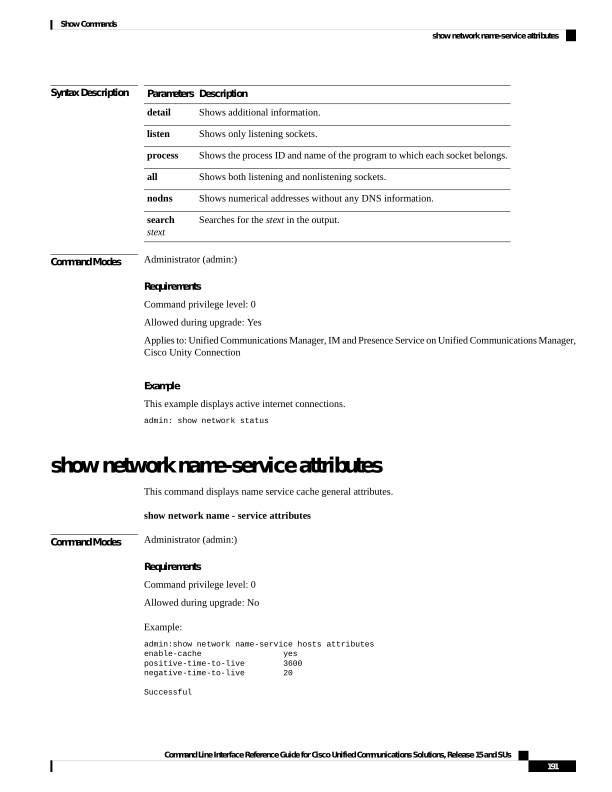
Page 216
show network name-service cache-stats
This command displays name service cache statistics.
show network name-services[host][services] cache-stats
Syntax Description
Description
Parameters
host services cache.
hosts
services service cache.
services
Command Modes
Administrator (admin:)
Requirements
Command privilege level: 0
Allowed during upgrade: No
Example:
admin:show network name-service hosts cache-stats
yes
cache is enabled
no
cache is persistent
yes
cache is shared
211
suggested size
216064
total data pool size
272
used data pool size
3600
seconds time to live for positive entries
20
seconds time to live for negative entries
0
cache hits on positive entries
0
cache hits on negative entries
2
cache misses on positive entries
0
cache misses on negative entries
0% cache hit rate
2
current number of cached values
2
maximum number of cached values
0
maximum chain length searched
0
number of delays on rdlock
0
number of delays on wrlock
0
memory allocations failed
yes
check /etc/hosts for changes
Successful
show network name-service {hosts|services} attributes
This command displays name service cache attributes.
show networkname - service{hosts|services} attributes
Command Line Interface Reference Guide for Cisco Unified Communications Solutions, Release 15 and SUs
192
Show Commands
show network name-service cache-stats
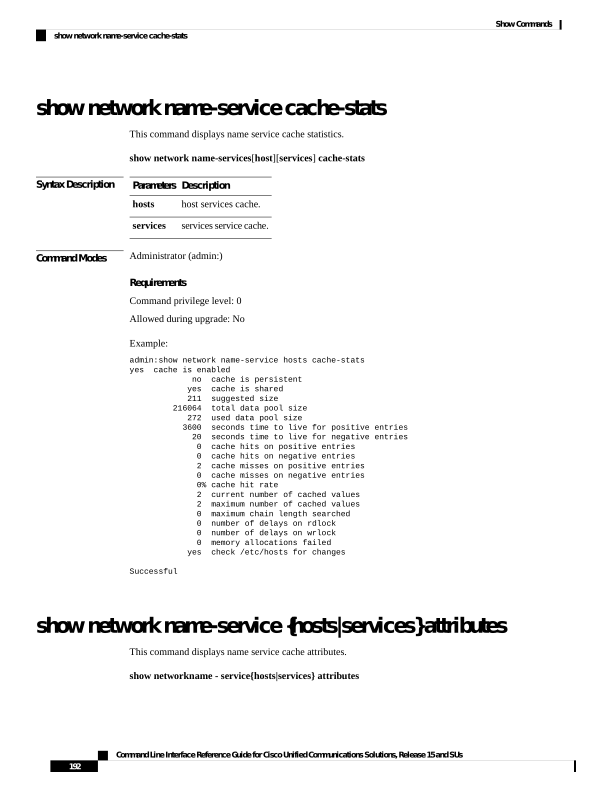
Page 217
Syntax Description
Description
Parameters
hosts services cache.
hosts
services service cache.
services
Command Modes
Administrator (admin:)
Requirements
Command privilege level: 0
Allowed during upgrade: No
Example:
admin:show network name-service hosts attributes
enable-cache
yes
positive-time-to-live
3600
negative-time-to-live
20
suggested-size
211
persistent
no
max-db-size
33554432
Successful
show open files all
This command shows all open files on the system.
show open files all
Command Modes
Administrator (admin:)
Requirements
Command privilege level: 0
Applies to: Unified Communications Manager, IM and Presence Service on Unified Communications Manager,
Cisco Unity Connection
show open files process
The command shows open files that belong to a specified process.
show open files process processID
Syntax Description
Description
Parameters
Specifies a process.
processID
Command Line Interface Reference Guide for Cisco Unified Communications Solutions, Release 15 and SUs
193
Show Commands
show open files all
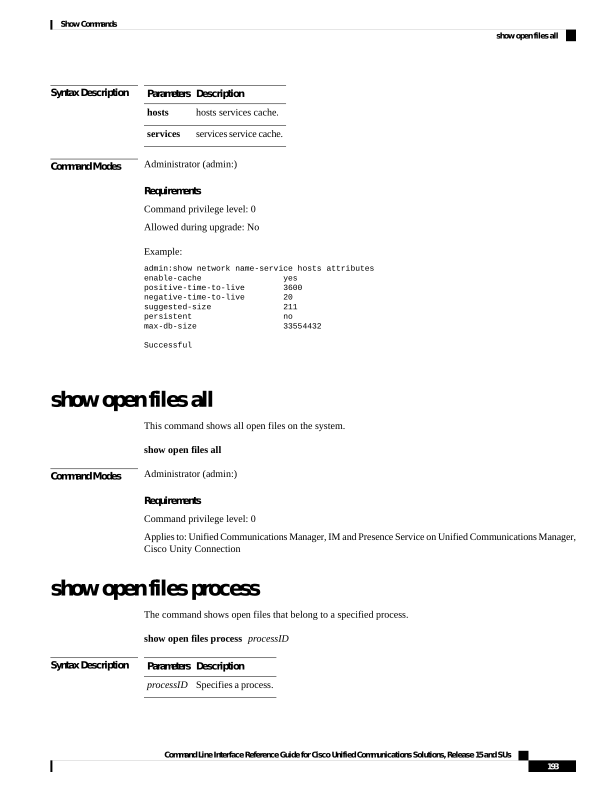
Page 218
Command Modes
Administrator (admin:)
Requirements
Command privilege level: 0
Applies to: Unified Communications Manager, IM and Presence Service on Unified Communications Manager,
Cisco Unity Connection
show open files regexp
This command shows open files that match the specified regular expression.
show open files regexp reg_exp
Syntax Description
Description
Parameters
Specifies a regular expression.
reg_exp
Command Modes
Administrator (admin:)
Requirements
Command privilege level: 0
Applies to: Unified Communications Manager, IM and Presence Service on Unified Communications Manager,
Cisco Unity Connection
show open ports all
This command shows all open ports on the system.
show open ports all
Command Modes
Administrator (admin:)
Requirements
Command privilege level: 0
Applies to: Unified Communications Manager, IM and Presence Service on Unified Communications Manager,
Cisco Unity Connection
show open ports regexp
This command shows open ports that match the specified regular expression.
show open ports regexp reg_exp
Command Line Interface Reference Guide for Cisco Unified Communications Solutions, Release 15 and SUs
194
Show Commands
show open files regexp
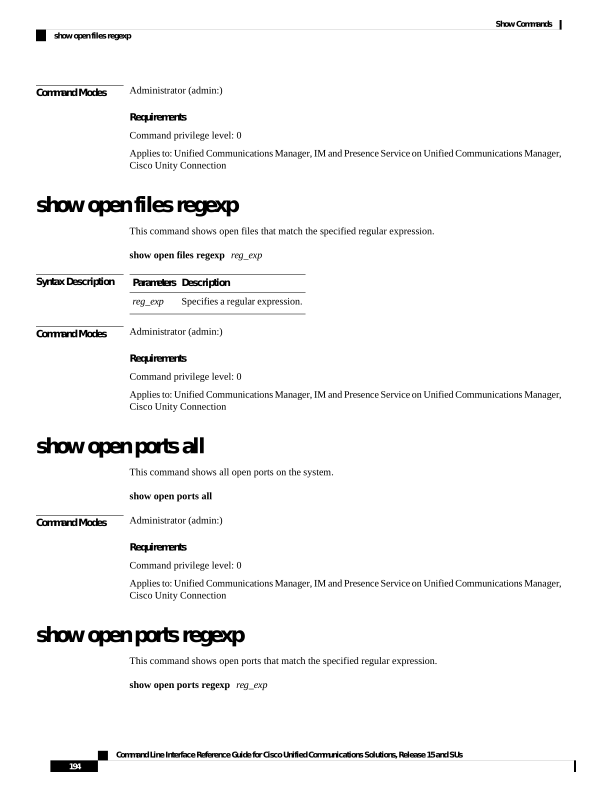
Page 219
Syntax Description
Description
Parameters
Specifies a regular expression.
reg_exp
Command Modes
Administrator (admin:)
Requirements
Command privilege level: 0
Applies to: Unified Communications Manager, IM and Presence Service on Unified Communications Manager,
Cisco Unity Connection
show packages
This command displays the name and version for installed packages.
show packages
{active | inactive} name [page]
Syntax Description
Description
Parameters
Specifies active packages.
active
Specifies inactive packages.
inactive
Specifies the package name. To display all active or inactive packages, use the wildcard character,
*.
name
Shows the output one page at a time
page
Command Modes
Administrator (admin:)
Requirements
Command privilege level: 0
Allowed during upgrade: Yes
Applies to: Unified Communications Manager, IM and Presence Service on Unified Communications Manager,
Cisco Unity Connection
show password
This command shows information about the configured password.
show password
{age | history | inactivity}
Syntax Description
Description
Parameters
Shows information about the configured password age parameters
age
Command Line Interface Reference Guide for Cisco Unified Communications Solutions, Release 15 and SUs
195
Show Commands
show packages
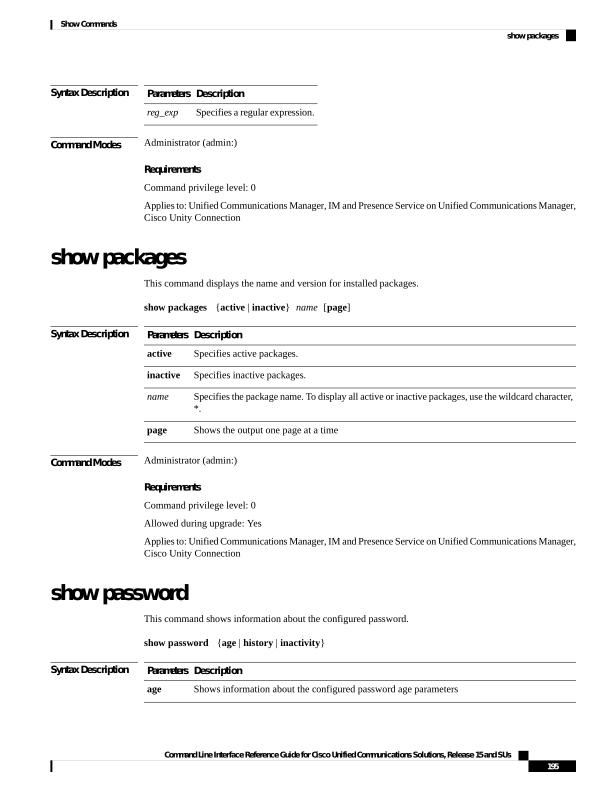
Page 220
Description
Parameters
Shows the number of passwords that the history maintains for OS administration accounts.
history
Shows the status of the password inactivity for OS accounts. Password inactivity is the number
of days of inactivity after a password has expired before the account is disabled.
inactivity
Command Modes
Administrator (admin:)
Requirements
Command privilege level: 0
Allowed during upgrade: Yes
Applies to: Unified Communications Manager, IM and Presence Service on Unified Communications Manager,
Cisco Unity Connection
show password change-at-login
This command shows whether a user is forced to change passwords after the user signs in to the system the
next time.
show password change-at-login userid
Syntax Description
Description
Parameters
Specifies the user account that you want to show.
userid
Command Modes
Administrator (admin:)
Requirements
Command privilege level: 0
Allowed during upgrade: No
Applies to: Unified Communications Manager, IM and Presence Service on Unified Communications Manager,
Cisco Unity Connection
show password complexity character
This command displays the status of the password complexity rules—whether they are disabled or enabled.
If the password complexity rules are enabled, this command displays the shows their current configuration.
show password complexity character
Command Modes
Administrator (admin:)
Command Line Interface Reference Guide for Cisco Unified Communications Solutions, Release 15 and SUs
196
Show Commands
show password change-at-login
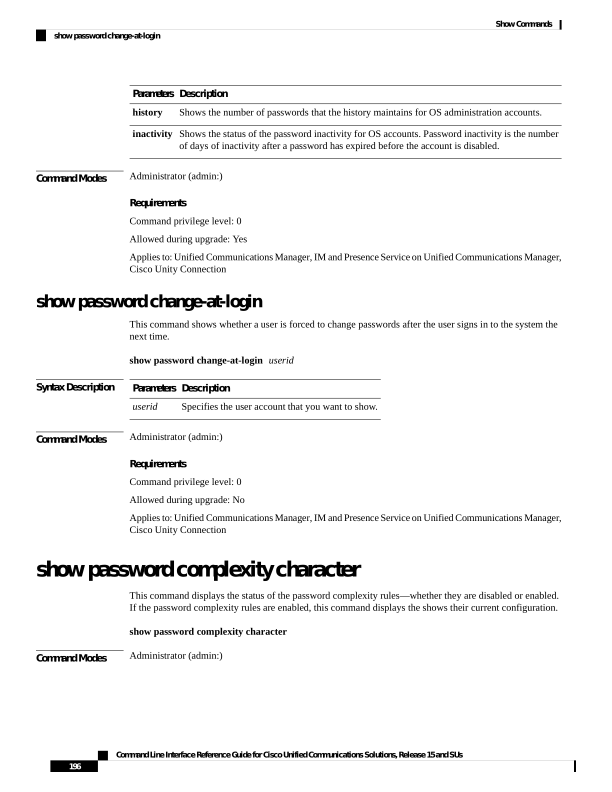
Page 221
Requirements
Command privilege level: 0
Allowed during upgrade: Yes
Applies to: Unified Communications Manager, IM and Presence Service on Unified Communications Manager,
Cisco Unity Connection
show password complexity length
This command displays the minimum length of passwords that need to be used for Cisco OS administrator
accounts. The default minimum length of a password is eight characters.
show password complexity length
Command Modes
Administrator (admin:)
Requirements
Command privilege level: 0
Allowed during upgrade: Yes
Applies to: Unified Communications Manager, IM and Presence Service on Unified Communications Manager,
Cisco Unity Connection
show password expiry
This command shows the configured password expiration parameters.
show password expiry
{maximum-age | minimum-age}
Syntax Description
Description
Parameters
Shows the maximum number of days for set password expiry.
maximum-age
Shows the minimum number of days for set password expiry.
minimum-age
Command Modes
Administrator (admin:)
Requirements
Command privilege level: 0
Allowed during upgrade: Yes
Applies to: Unified Communications Manager, IM and Presence Service on Unified Communications Manager,
Cisco Unity Connection
Command Line Interface Reference Guide for Cisco Unified Communications Solutions, Release 15 and SUs
197
Show Commands
show password complexity length
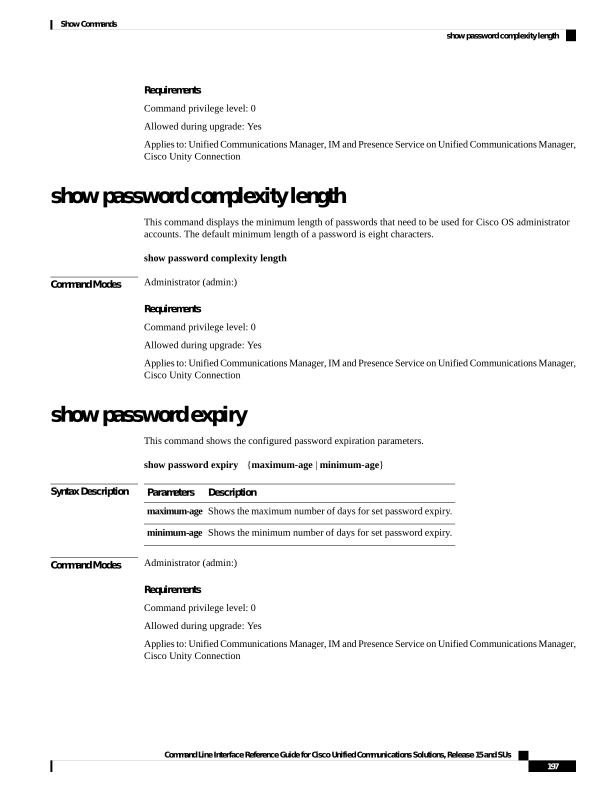
Page 222
show password expiry user
This command shows the configured password expiration parameters for the specified user.
show password expiry user
{maximum-age | minimum-age} userid
Syntax Description
Description
Parameters
Shows the maximum number of days for set password expiry.
maximum-age
Shows the minimum number of days for set password expiry.
minimum-age
Specifies the user account that you want to show.
userid
Command Modes
Administrator (admin:)
Requirements
Command privilege level: 0
Allowed during upgrade: Yes
Applies to: Unified Communications Manager, IM and Presence Service on Unified Communications Manager,
Cisco Unity Connection
show password expiry user list
This command shows the password maximum age and password minimum age for each CLI user in the system.
show password expiry user
Command Modes
Administrator (admin:)
Requirements
Command privilege level: 0
Allowed during upgrade: Yes
Applies to: Unified Communications Manager, IM and Presence Service on Unified Communications Manager,
Cisco Unity Connection
show perf counterhelp
This command displays information about the specified perfmon counter.
show perf counterhelp class-name counter-name
Command Line Interface Reference Guide for Cisco Unified Communications Solutions, Release 15 and SUs
198
Show Commands
show password expiry user
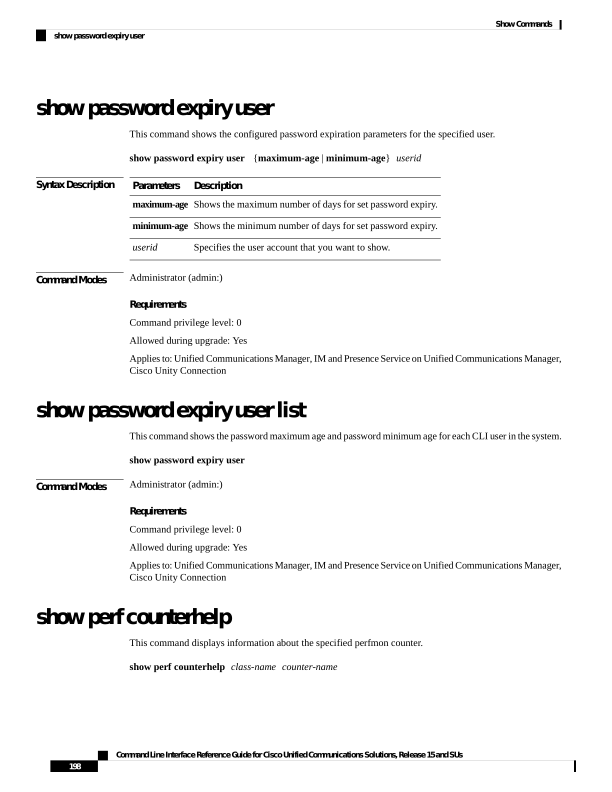
Page 223
Syntax Description
Description
Parameters
Represents the class name that contains the counter.
class-name
Represents the counter that you want to view.
counter-name
Command Modes
Administrator (admin:)
Usage Guidelines
If the class name or counter name contains white spaces, enclose the name in double quotation marks.
Requirements
Command privilege level: 0
Allowed during upgrade: Yes
Applies to: Unified Communications Manager, IM and Presence Service on Unified Communications Manager,
Cisco Unity Connection
show perf list categories
This command lists the categories in the perfmon system.
show perf list categories
Command Modes
Administrator (admin:)
Requirements
Command privilege level: 0
Allowed during upgrade: Yes
Applies to: Unified Communications Manager, IM and Presence Service on Unified Communications Manager,
Cisco Unity Connection
show perf list classes
This command lists perfmon classes (objects).
show perf list classes [cat category] [detail]
Syntax Description
Description
Parameters
Displays perfmon classes for the specified category.
cat
category
Displays detailed information.
detail
Command Modes
Administrator (admin:)
Command Line Interface Reference Guide for Cisco Unified Communications Solutions, Release 15 and SUs
199
Show Commands
show perf list categories
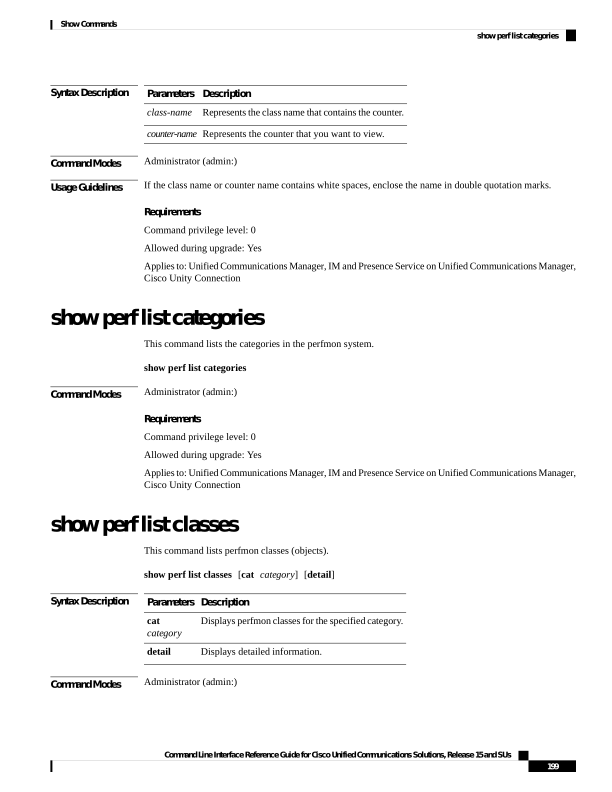
Page 224
Requirements
Command privilege level: 0
Allowed during upgrade: Yes
Applies to: Unified Communications Manager, IM and Presence Service on Unified Communications Manager,
Cisco Unity Connection
show perf list counters
This command lists perfmon counters for the specified perfmon class.
show perf list counters class-name [detail]
Syntax Description
Description
Parameters
Represents the class name that contains the counter.
class-name
Displays detailed information.
detail
Command Modes
Administrator (admin:)
Usage Guidelines
If the class name contains white spaces, enclose the name in double quotation marks.
Requirements
Command privilege level: 0
Allowed during upgrade: Yes
Applies to: Unified Communications Manager, IM and Presence Service on Unified Communications Manager,
Cisco Unity Connection
show perf list instances
This command lists the perfmon instances for the specified perfmon class.
show perf list instances class-name [detail]
Syntax Description
Description
Parameters
Represents the class name that contains the counter.
class-name
Displays detailed information.
detail
Command Modes
Administrator (admin:)
Usage Guidelines
If the class name contains white spaces, enclose the name in double quotation marks.
Command Line Interface Reference Guide for Cisco Unified Communications Solutions, Release 15 and SUs
200
Show Commands
show perf list counters
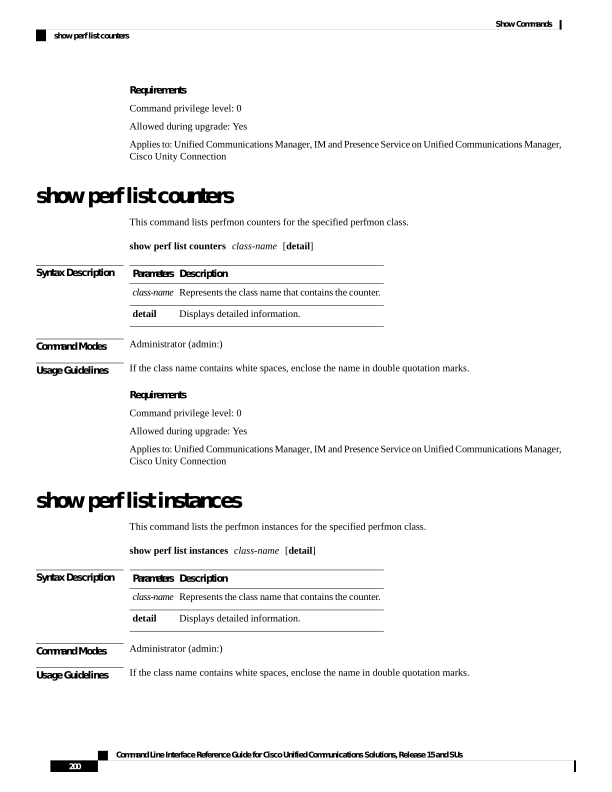
Page 225
Requirements
Command privilege level: 0
Allowed during upgrade: Yes
Applies to: Unified Communications Manager, IM and Presence Service on Unified Communications Manager,
Cisco Unity Connection
show perf query class
This command queries a perfmon class and displays all the instances and counter values of each instance.
show perf query class class-name [,class-name...]
Syntax Description
Description
Parameters
Represents the class name that contains the counter.
class-name
Command Modes
Administrator (admin:)
Usage Guidelines
If the class name contains white spaces, enclose the name in double quotation marks.
You can specify a maximum of five classes for each command.
Requirements
Command privilege level: 0
Allowed during upgrade: Yes
Applies to: Unified Communications Manager, IM and Presence Service on Unified Communications Manager,
Cisco Unity Connection
show perf query counter
This command queries the specified counter or counters and displays the counter value of all instances.
show perf query counter class-name counter-name [,counter-name...]
Syntax Description
Description
Parameters
Represents the class name that contains the counter.
class-name
Represents the counter that you want to view.
counter-name
Command Modes
Administrator (admin:)
Usage Guidelines
If the class name or counter name contains white spaces, enclose the name in double quotation marks.
You can specify a maximum of five counters for each command.
Command Line Interface Reference Guide for Cisco Unified Communications Solutions, Release 15 and SUs
201
Show Commands
show perf query class
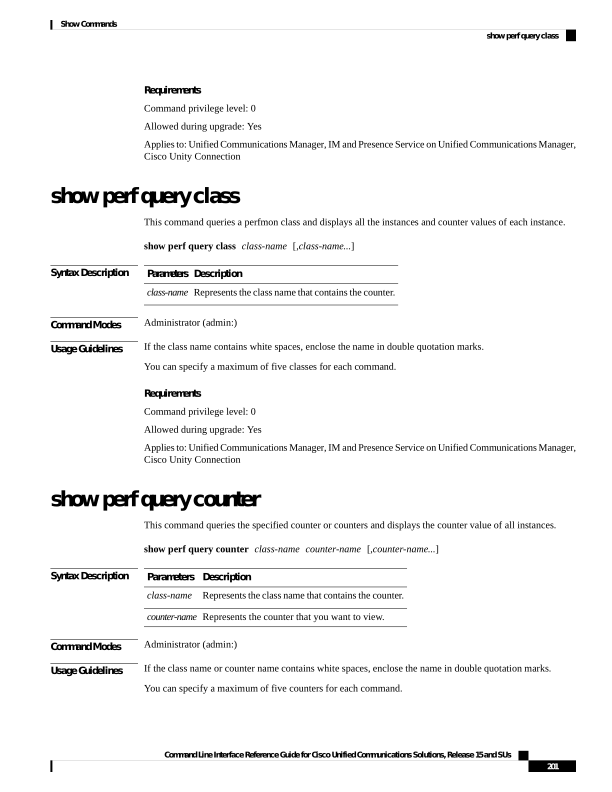
Page 226
The output that this command returns depends on the number of endpoints that is configured in the Route
Groups in Unified Communications Manager.
Note
Requirements
Command privilege level: 0
Allowed during upgrade: Yes
Applies to: Unified Communications Manager, IM and Presence Service on Unified Communications Manager,
Cisco Unity Connection
show perf query instance
This command queries the specified instance and displays all its counter values.
show perf query instance class-name instance-name [,instance-name...]
Syntax Description
Description
Parameters
Represents the class name that contains the counter.
class-name
Specifies the perfmon instance to view.
instance-name
Command Modes
Administrator (admin:)
Usage Guidelines
If the class name contains white spaces, enclose the name in double quotation marks.
You can specify a maximum of five instances for each command.
This command does not apply to singleton perfmon classes.
Requirements
Command privilege level: 0
Allowed during upgrade: Yes
Applies to: Unified Communications Manager, IM and Presence Service on Unified Communications Manager,
Cisco Unity Connection
show perf query path
This command queries a specified perfmon path.
show perf query path path-spec [,path-spec...]
Command Line Interface Reference Guide for Cisco Unified Communications Solutions, Release 15 and SUs
202
Show Commands
show perf query instance

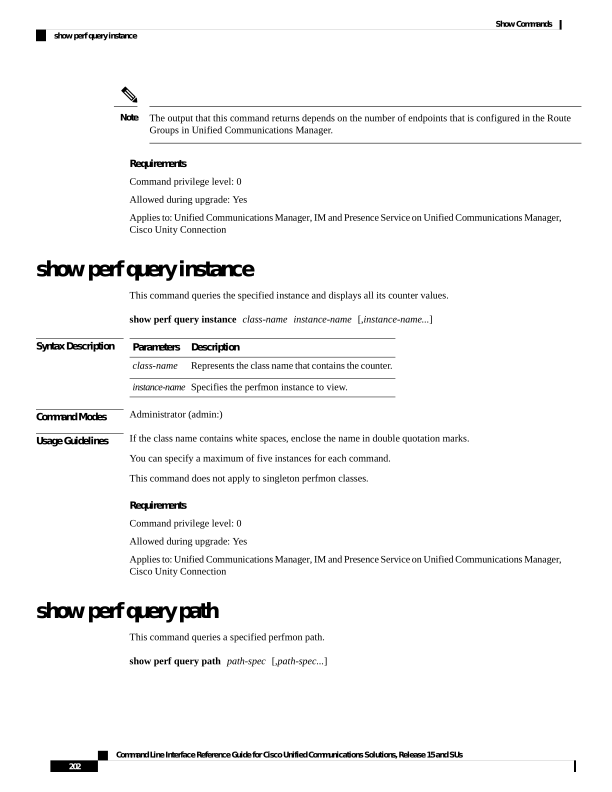
Page 227
Syntax Description
Description
Parameters
Specifies a perfmon path.
path-spec
Command Modes
Administrator (admin:)
Usage Guidelines
For an instance-based perfmon class, you must specify path-spec as follows:
class-name(instance-name)\counter-name
For a non instance-based perfmon class (a singleton), you must specify path-spec as follows:
class-name\counter-name
You can specify a maximum of five paths for each command.
Requirements
Command privilege level: 0
Allowed during upgrade: Yes
Applies to: Unified Communications Manager, IM and Presence Service on Unified Communications Manager,
Cisco Unity Connection
Example
admin: show perf query path "Cisco Phones(phone-0)\CallsAttempted","Cisco Unified
Communications Manager\T1ChannelsActive"
show process list
This command displays a list of all the processes and critical information about each process and visually
indicates the child-parent relationships between the processes.
show process list [file filename] [detail]
Syntax Description
Description
Parameters
Outputs the results to the file that is specified by the filename variable.
file
Specifies the filename.
filename
Displays detailed output.
detail
Command Modes
Administrator (admin:)
Requirements
Command privilege level: 0
Allowed during upgrade: Yes
Command Line Interface Reference Guide for Cisco Unified Communications Solutions, Release 15 and SUs
203
Show Commands
show process list
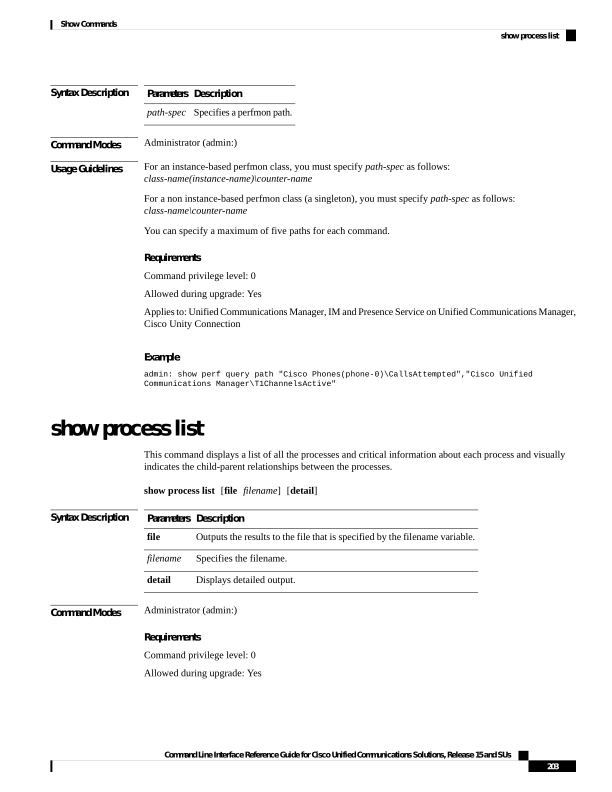
Page 228
Applies to: Unified Communications Manager, IM and Presence Service on Unified Communications Manager,
Cisco Unity Connection
show process load
This command displays the current load on the system.
show process load [cont] [clear] [noidle] [num number] [thread] [cpu
| memory
| time] [page]
Syntax Description
Description
Parameters
Repeats the command continuously.
cont
Clears the screen before displaying output.
clear
Ignores the idle or zombie processes.
noidle
Displays the number of processes that are specified by number. The default number of
processes equals 10. Set number to all to display all processes.
num
number
Displays threads.
thread
Sorts output by CPU usage. This is the default sorting.
cpu
Sorts output by memory usage.
memory
Sorts output by time usage.
time
Displays the output in pages.
page
Command Modes
Administrator (admin:)
Requirements
Command privilege level: 0
Allowed during upgrade: Yes
Applies to: Unified Communications Manager, IM and Presence Service on Unified Communications Manager,
Cisco Unity Connection
show process name
This command displays the details of processes that share the same name and indicates their parent-child
relationship.
show process name process [file filename]
Syntax Description
Description
Parameters
Specifies the name of a process.
process
Command Line Interface Reference Guide for Cisco Unified Communications Solutions, Release 15 and SUs
204
Show Commands
show process load
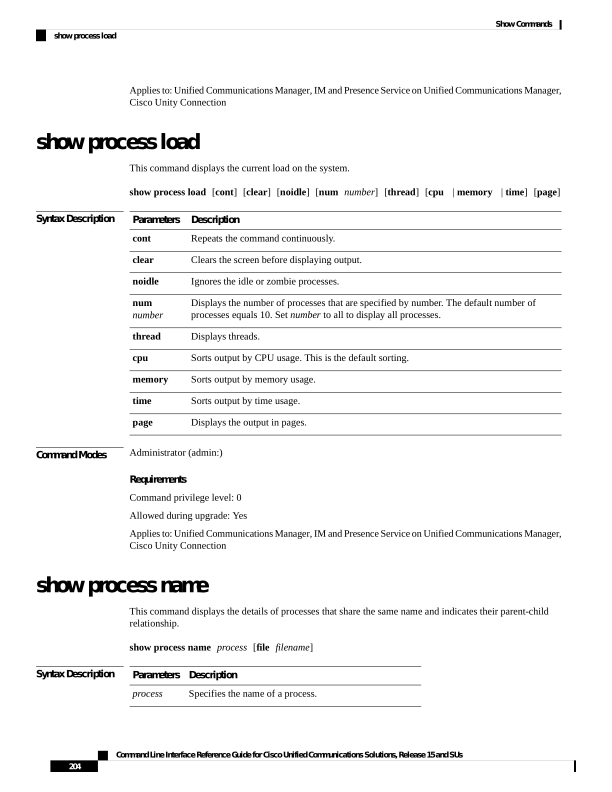
Page 229
Description
Parameters
Outputs the results to the file that is specified by filename.
file
filename
Command Modes
Administrator (admin:)
Requirements
Command privilege level: 0
Allowed during upgrade: Yes
Applies to: Unified Communications Manager, IM and Presence Service on Unified Communications Manager,
Cisco Unity Connection
show process name process-name
The command shows the details of processes that share the same name. This commands displays parent-child
relationship.
show process name process name [file vm detail cont]
Syntax Description
Description
Parameters
Specifies the name of a process.
process
name
(Optional) Shows the file name where the output is to be received.
file
(Optional) Shows the virtual memory of the process.
vm
(Optional) Shows the details, such as page fault, virtual memory, and start time of the process.
detail
(Optional) Repeats the command continuously.
cont
Command Modes
Administrator (admin:)
Requirements
Command privilege level: 0
Allowed during upgrade: Yes
Applies to: Unified Communications Manager, IM and Presence Service on Unified Communications Manager,
Cisco Unity Connection
show process open
This command lists the open file descriptors for a comma separated list of process IDs.
Command Line Interface Reference Guide for Cisco Unified Communications Solutions, Release 15 and SUs
205
Show Commands
show process name process-name
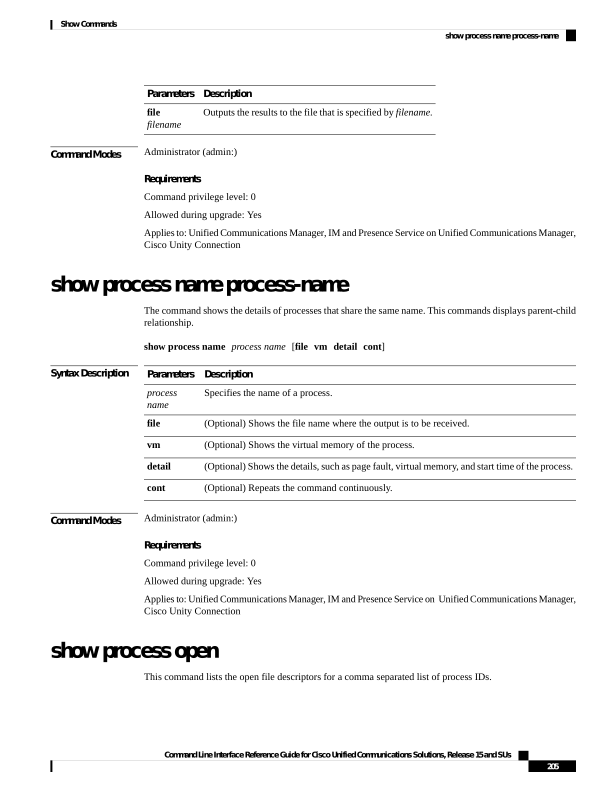
Page 230
show process open file
Syntax Description
Description
Parameters
(Optional) Shows the file name where the output is to be received.
file
Command Modes
Administrator (admin:)
Requirements
Command privilege level: 0
Allowed during upgrade: Yes
Applies to: Unified Communications Manager, IM and Presence Service on Unified Communications Manager,
Cisco Unity Connection
show process open-fd
This command lists the open file descriptors for a comma-separated list of process IDs.
show process open-fd process-id [,process-id2]
Syntax Description
Description
Parameters
Specifies the process-id.
process-id
Command Modes
Administrator (admin:)
Requirements
Command privilege level: 0
Allowed during upgrade: Yes
Applies to: Unified Communications Manager, IM and Presence Service on Unified Communications Manager,
Cisco Unity Connection
show process pid
This command shows a specific process number or command name.
show process pid pid [file filename]
Syntax Description
Description
Parameters
Specifies the process ID number of a process.
pid
Outputs the results to the file that is specified by filename.
file
filename
Command Line Interface Reference Guide for Cisco Unified Communications Solutions, Release 15 and SUs
206
Show Commands
show process open-fd
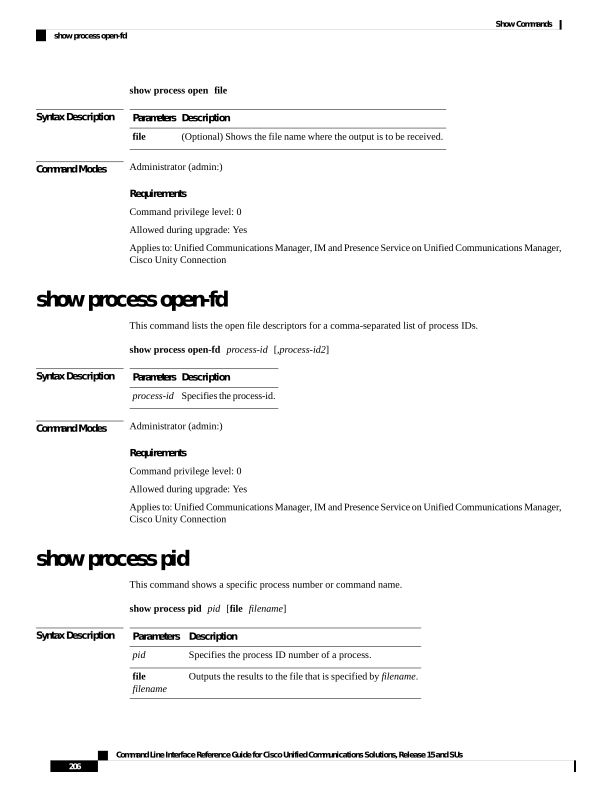
Page 231
Command Modes
Administrator (admin:)
Requirements
Command privilege level: 0
Allowed during upgrade: Yes
Applies to: Unified Communications Manager, IM and Presence Service on Unified Communications Manager,
Cisco Unity Connection
show process search
This command searches for the pattern that the regular expression regexp specifies in the output of the operating
system-specific process listing.
show process search
regexp [file filename]
Syntax Description
Description
Parameters
Represents a regular expression.
regexp
Outputs the results to the file that is specified by filename.
file
filename
Command Modes
Administrator (admin:)
Requirements
Command privilege level: 0
Allowed during upgrade: Yes
Applies to: Unified Communications Manager, IM and Presence Service on Unified Communications Manager,
Cisco Unity Connection
show process user
This command retrieves details of processes that share the user name and displays parent-child relationship.
show process user username [file detail detail detail cont]
Syntax Description
Description
Parameters
Specifies the username.
username
Outputs the results to the file that is specified by filename.
file
filename
(Optional) Shows the virtual memory of the process.
vm
(Optional) Shows the details, such as page fault, virtual memory, and start time of the process.
detail
Command Line Interface Reference Guide for Cisco Unified Communications Solutions, Release 15 and SUs
207
Show Commands
show process search
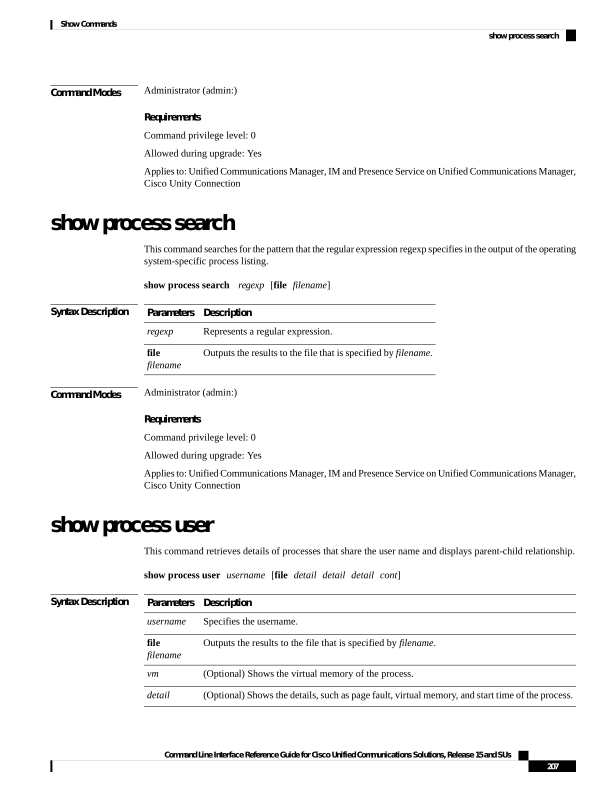
Page 232
Description
Parameters
(Optional) Repeats the command continuously.
cont
Command Modes
Administrator (admin:)
Requirements
Command privilege level: 0
Allowed during upgrade: Yes
Applies to: Unified Communications Manager, IM and Presence Service on Unified Communications Manager,
Cisco Unity Connection
show process using-most cpu
This command displays a list of the most CPU-intensive processes.
show process using-most cpu
[ number ]
[ file
filename
| [ cont ] ]
Syntax Description
Description
Parameters
Specifies the number of processes to display. The default specifies 5.
number
Outputs the results to the file that is specified by filename.
file
filename
Repeats the command continuosly.
cont
Command Modes
Administrator (admin:)
Requirements
Command privilege level: 0
Allowed during upgrade: Yes
Applies to: Unified Communications Manager, IM and Presence Service on Unified Communications Manager,
Cisco Unity Connection
show process using-most memory
This command displays a list of the most memory-intensive processes.
show process using-most memory
[ number ]
[ file
filename
| [ cont ] ]
Syntax Description
Description
Parameters
Specifies the number of processes to display. The default specifies 5.
number
Command Line Interface Reference Guide for Cisco Unified Communications Solutions, Release 15 and SUs
208
Show Commands
show process using-most cpu
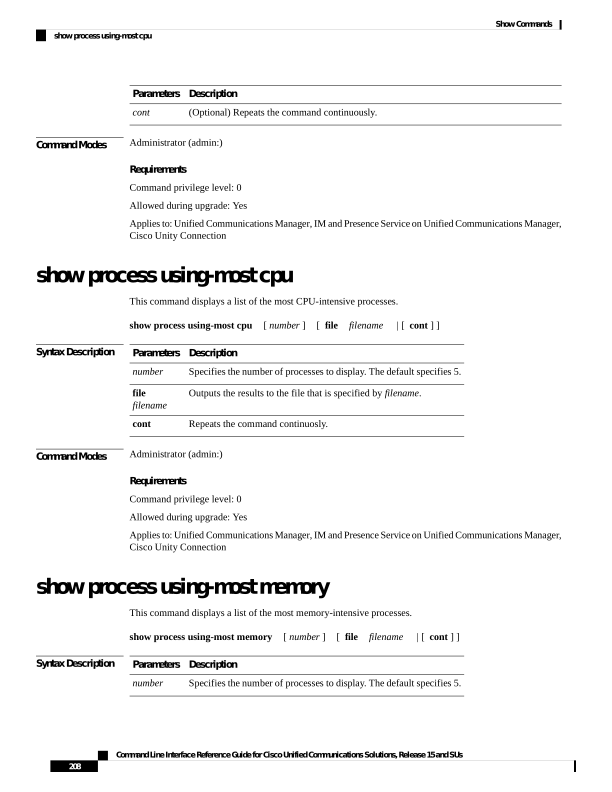
Page 233
Description
Parameters
Outputs the results to the file that is specified by filename.
file
filename
Repeats the command continuously.
cont
Command Modes
Administrator (admin:)
Requirements
Command privilege level: 0
Allowed during upgrade: Yes
Applies to: Unified Communications Manager, IM and Presence Service on Unified Communications Manager,
Cisco Unity Connection
show registry
This command displays the contents of the registry.
show registry system component [name] [page]
Syntax Description
Description
Parameters
Represents the registry system name.
system
Represents the registry component name.
component
Represents the name of the parameter to show.
name
Displays one page at a time.
page
Command Modes
Administrator (admin:)
Usage Guidelines
If the name is “page,” and you want to display the output one page at a time, use the command show registry
system component name page page
To show all components in a system, enter the wildcard character * in the command: show registry system
*
Requirements
Command privilege level: 1
Allowed during upgrade: Yes
Applies to: Unified Communications Manager, IM and Presence Service on Unified Communications Manager,
Cisco Unity Connection
Command Line Interface Reference Guide for Cisco Unified Communications Solutions, Release 15 and SUs
209
Show Commands
show registry
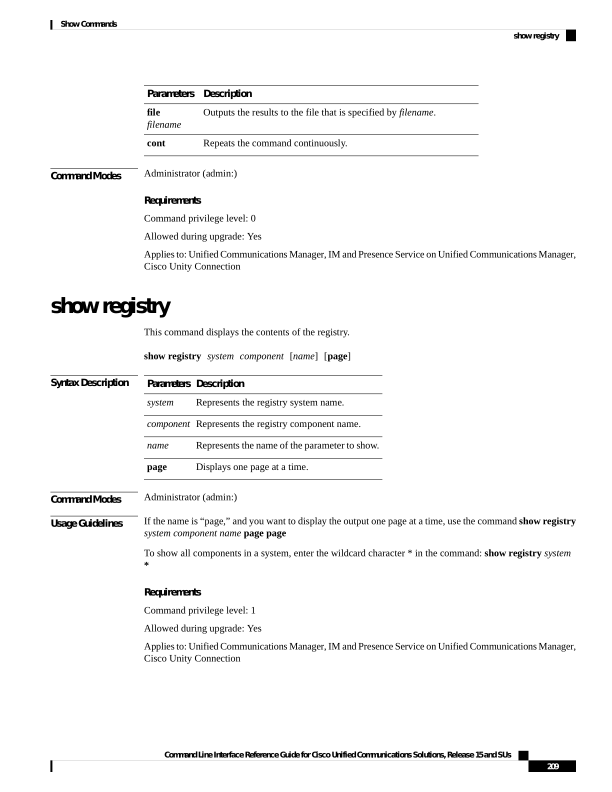
Page 234
Example
This example shows the contents of the cm system, dbl/sdi component.
admin:show registry cm dbl/sdi
system = cm
component = dbl/sdi
tracelevel=127
enable=1
outputdebugstringflag=0
numminutes=1440
tracefile=/var/log/active/cm/trace/dbl/sdi/dbl.log
numfiles=250
numlines=10000
show risdb list
This command displays the tables that are supported in the Realtime Information Service (RIS) database.
show risdb list [file filename]
Syntax Description
Description
Parameters
Outputs the information to a file.
file
filename
Command Modes
Administrator (admin:)
Usage Guidelines
The file option saves the information to platform/cli/filename.txt. Ensure that the filename does
not contain the “.” character.
Requirements
Command privilege level: 0
Allowed during upgrade: Yes
Applies to: Unified Communications Manager, IM and Presence Service on Unified Communications Manager,
Cisco Unity Connection
Example
This command displays a list of all RIS database tables.
admin: show risdb list
show risdb query
This command displays the contents of the specified RIS tables.
Command Line Interface Reference Guide for Cisco Unified Communications Solutions, Release 15 and SUs
210
Show Commands
show risdb list
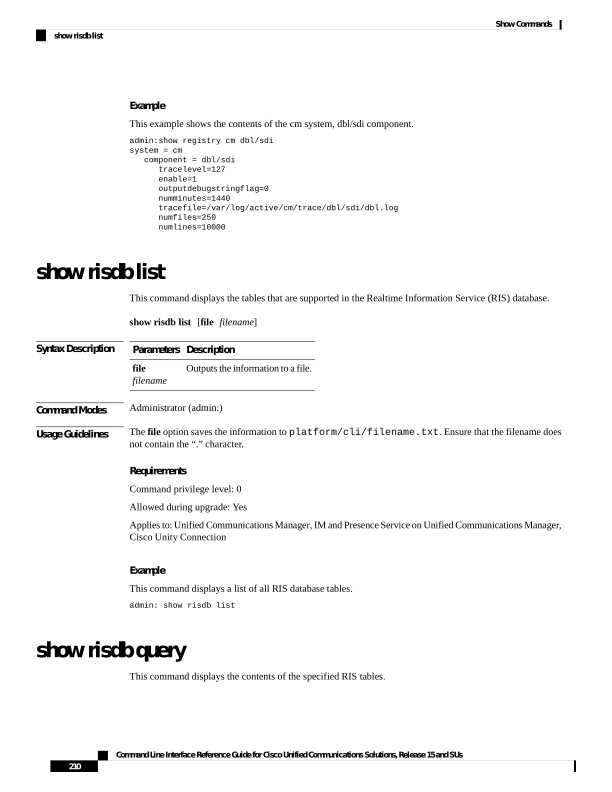
Page 235
show risdb query table1 table2 table3 ...[file filename]
Syntax Description
Description
Parameters
Specifies the name of a table.
table1
Outputs the information to a file.
file
filename
Command Modes
Administrator (admin:)
Usage Guidelines
The file option saves the information to platform/cli/filename.txt. Ensure that the filename does
not contain the “.” character.
Requirements
Command privilege level: 0
Allowed during upgrade: Yes
Applies to: Unified Communications Manager, IM and Presence Service on Unified Communications Manager,
Cisco Unity Connection
show samltrace level
This command displays the trace level that is currently configured.
show samltrace level
Command Modes
Administrator (admin:)
Requirements
Command privilege level: 0
Allowed during upgrade: Yes
Applies to: Unified Communications Manager, IM and Presence Service on Unified Communications Manager,
Cisco Unity Connection.
show session maxlimit
This command shows the upper limit for concurrent SSH sessions.
show session maxlimit
Command Modes
Administrator (admin:)
Requirements
Command privilege level: 0
Command Line Interface Reference Guide for Cisco Unified Communications Solutions, Release 15 and SUs
211
Show Commands
show samltrace level
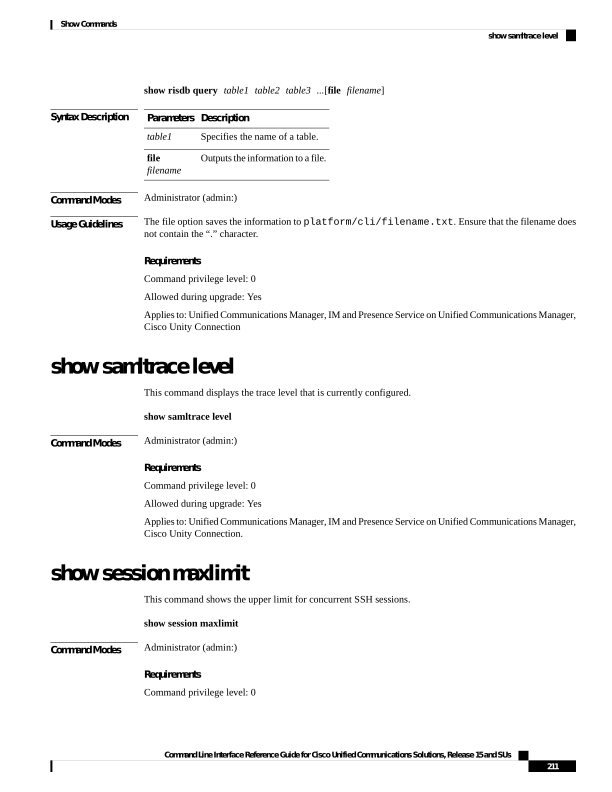
Page 236
Allowed during upgrade: Yes
Applies to: Unified Communications Manager, IM and Presence Service on Unified Communications Manager,
Cisco Unity Connection
show smtp
This command displays the name of the SMTP host.
show smtp
Command Modes
Administrator (admin:)
Requirements
Command privilege level: 0
Allowed during upgrade: Yes
Applies to: Unified Communications Manager, IM and Presence Service on Unified Communications Manager,
Cisco Unity Connection
Example
admin:show smtp
SMTP hostname: mail.cisco.com
show stats io
This command displays the IO statistics.
show stats io [kilo] [detail] [page] [file filename]
Syntax Description
Description
Parameters
Displays statistics in kilobytes.
kilo
Displays detailed statistics on every available device on the system and overrides the kilo
option.
detail
Displays one page at a time.
page
Outputs the information to a file specified by filename
file
filename
Command Modes
Administrator (admin:)
Usage Guidelines
The file option saves the information to platform/cli/filename.txt. Ensure that the filename does
not contain the “.” character.
Command Line Interface Reference Guide for Cisco Unified Communications Solutions, Release 15 and SUs
212
Show Commands
show smtp
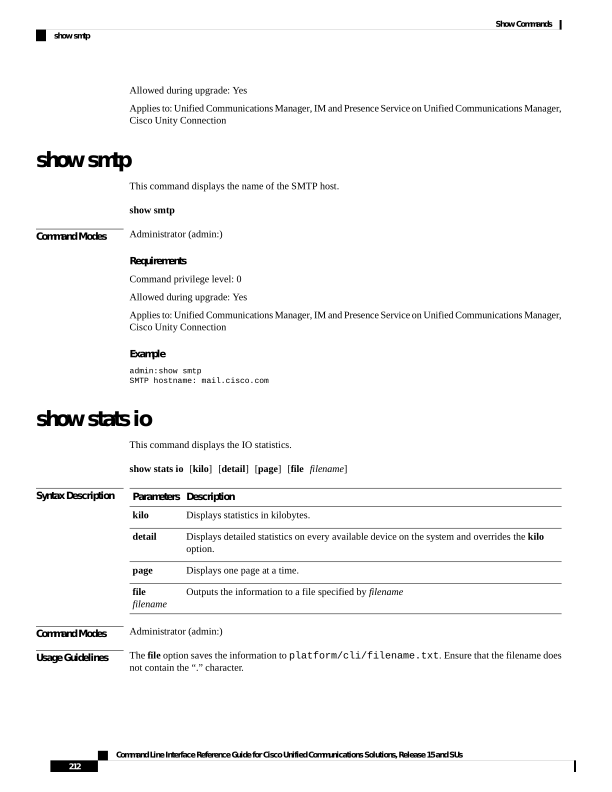
Page 237
Requirements
Command privilege level: 1
Allowed during upgrade: Yes
Applies to: Unified Communications Manager, IM and Presence Service on Unified Communications Manager,
Cisco Unity Connection
show status
This command displays basic platform status.
show status
Command Modes
Administrator (admin:)
Usage Guidelines
This command displays the following basic platform status:
• hostname
• date
• timezone
• locale
• product version
• platform version
• CPU usage
• memory and disk usage
Requirements
Command privilege level: 0
Allowed during upgrade: No
Applies to: Unified Communications Manager, IM and Presence Service on Unified Communications Manager,
Cisco Unity Connection
show tech activesql
This command displays the active queries to the database taken at one minute intervals as far back as the logs
allow.
show tech activesql
Command Modes
Administrator (admin:)
Requirements
Command privilege level: 0
Allowed during upgrade: Yes
Command Line Interface Reference Guide for Cisco Unified Communications Solutions, Release 15 and SUs
213
Show Commands
show status
Page 238
Applies to: Unified Communications Manager, IM and Presence Service on Unified Communications Manager,
Cisco Unity Connection
show tech all
This command displays the combined output of all show tech commands.
show tech all [page] [file filename]
Syntax Description
Description
Parameters
Displays one page at a time.
page
Outputs the information to a file.
file
filename
Command Modes
Administrator (admin:)
Usage Guidelines
The file option saves the information to platform/cli/filename.txt. Ensure that the file name does
not contain the “.” character
Requirements
Command privilege level: 1
Allowed during upgrade: Yes
Applies to: Unified Communications Manager, IM and Presence Service on Unified Communications Manager,
Cisco Unity Connection
show tech ccm_service
This command displays information about all services that can run on the system.
show tech ccm_service
Command Modes
Administrator (admin:)
Requirements
Command privilege level: 0
Allowed during upgrade: Yes
Applies to: Unified Communications Manager, IM and Presence Service on Unified Communications Manager,
Cisco Unity Connection
Command Line Interface Reference Guide for Cisco Unified Communications Solutions, Release 15 and SUs
214
Show Commands
show tech all
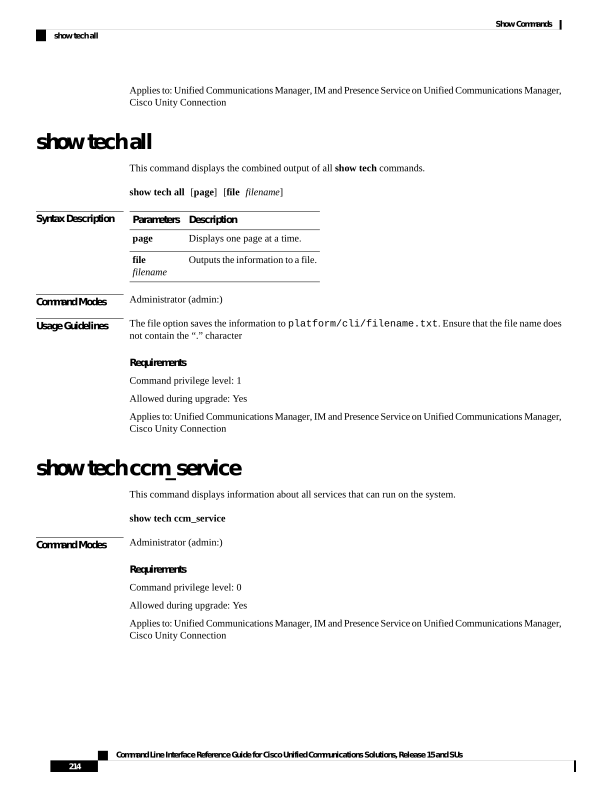
Page 239
show tech database
This command shows information about the database.
show tech database
{dump | sessions}
Syntax Description
Description
Parameters
Creates a CSV file of the entire database.
dump
Redirects the session and SQL information of the present session IDs to a file.
sessions
Command Modes
Administrator (admin:)
Requirements
Command privilege level: 1
Allowed during upgrade: Yes
Applies to: Unified Communications Manager, IM and Presence Service on Unified Communications Manager,
Cisco Unity Connection
show tech dberrcode
This command displays information (from the database log files) about the error code that is specified.
show tech dberrcode errorcode
Syntax Description
Description
Parameters
Specifies the error code as a positive integer.
errorcode
Command Modes
Administrator (admin:)
Usage Guidelines
If the error code is a negative number, enter it without the minus sign (-).
Requirements
Command privilege level: 0
Allowed during upgrade: Yes
Applies to: Unified Communications Manager, IM and Presence Service on Unified Communications Manager,
Cisco Unity Connection
show tech dbhighcputasks
This command displays the currently running high cost tasks and high CPU-intensive tasks.
Command Line Interface Reference Guide for Cisco Unified Communications Solutions, Release 15 and SUs
215
Show Commands
show tech database
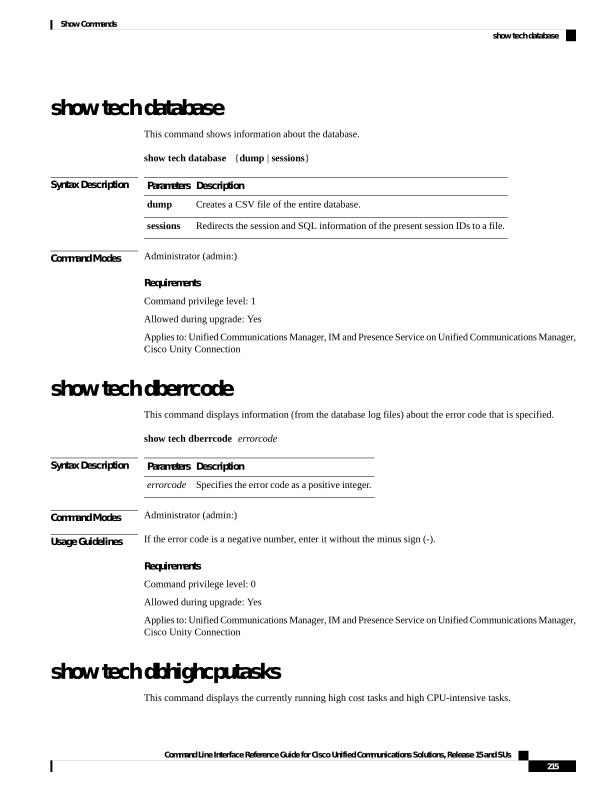
Page 240
show tech dbhighcputasks
Command Modes
Administrator (admin:)
Requirements
Command privilege level: 0
Allowed during upgrade: Yes
Applies to: Unified Communications Manager, IM and Presence Service on Unified Communications Manager,
Cisco Unity Connection
show tech dbintegrity
This command displays the database integrity.
show tech dbintegrity
Command Modes
Administrator (admin:)
Requirements
Applies to: Unified Communications Manager, IM and Presence Service on Unified Communications Manager,
Cisco Unity Connection
show tech dbschema
This command displays the database schema in a CSV file.
show tech dbschema [car | cm]
Syntax Description
Description
Parameters
Represents the car database.
car
Represents the cm database.
cm
Command Modes
Administrator (admin:)
Requirements
Command privilege level: 0
Allowed during upgrade: Yes
Applies to: Unified Communications Manager, IM and Presence Service on Unified Communications Manager,
Cisco Unity Connection
Command Line Interface Reference Guide for Cisco Unified Communications Solutions, Release 15 and SUs
216
Show Commands
show tech dbintegrity
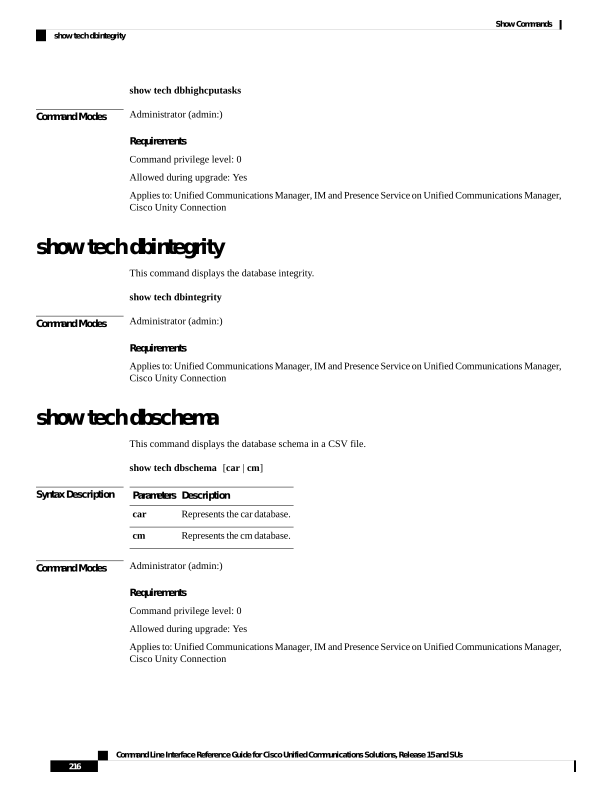
Page 241
show tech dbinuse
This command displays the database in use.
show tech dbinuse [car | cm]
Syntax Description
Description
Parameters
Represents the car database.
car
Represents the cm database.
cm
Command Modes
Administrator (admin:)
Requirements
Command privilege level: 0
Allowed during upgrade: Yes
Applies to: Unified Communications Manager, IM and Presence Service on Unified Communications Manager,
Cisco Unity Connection
show tech dbstateinfo
This command displays the state of the database.
show tech dbstateinfo [car | cm]
Syntax Description
Description
Parameters
Represents the car database.
car
Represents the cm database.
cm
Command Modes
Administrator (admin:)
Requirements
Command privilege level: 0
Allowed during upgrade: Yes
Applies to: Unified Communications Manager, IM and Presence Service on Unified Communications Manager,
Cisco Unity Connection
show tech devdefaults
This command displays the device defaults table.
Command Line Interface Reference Guide for Cisco Unified Communications Solutions, Release 15 and SUs
217
Show Commands
show tech dbinuse
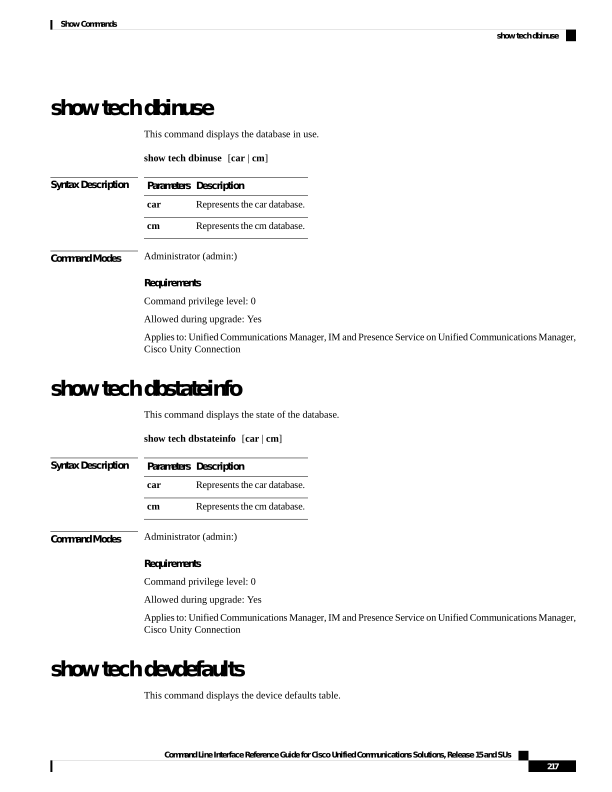
Page 242
show tech devdefaults
Command Modes
Administrator (admin:)
Requirements
Command privilege level: 0
Allowed during upgrade: Yes
Applies to: Unified Communications Manager, IM and Presence Service on Unified Communications Manager,
Cisco Unity Connection
show tech dumpCSVandXML
This command provides detailed information for customer support in the case of a standard upgrade condition.
show tech dumpCSVandXML
Command Modes
Administrator (admin:)
Usage Guidelines
You can get this file in the following ways:
1.
Use the file view activelog cm/trace/dbl/xmlcsv.tar command to view the contents of the file.
2.
Use the file get activelog cm/trace/dbl/xmlcsv.tar command to download the file.
3.
Use RTMT: Trace and Log Central > Collect Files > Cisco Database Cli Output > Install and upgrade
log.
Requirements
Command privilege level: 0
Allowed during upgrade: Yes
Applies to: Unified Communications Manager, IM and Presence Service on Unified Communications Manager,
Cisco Unity Connection
show tech gateway
This command displays the gateway table from the database.
show tech gateway
Command Modes
Administrator (admin:)
Requirements
Command privilege level: 0
Allowed during upgrade: Yes
Command Line Interface Reference Guide for Cisco Unified Communications Solutions, Release 15 and SUs
218
Show Commands
show tech dumpCSVandXML
Page 243
Applies to: Unified Communications Manager, IM and Presence Service on Unified Communications Manager,
Cisco Unity Connection
show tech locales
This command displays the locale information for devices, device pools, and end users.
show tech locales
Command Modes
Administrator (admin:)
Requirements
Command privilege level: 0
Allowed during upgrade: Yes
Applies to: Unified Communications Manager, IM and Presence Service on Unified Communications Manager,
Cisco Unity Connection
show tech network all
This command displays all network tech information.
show tech network all [page] [search text] [file filename]
Syntax Description
Description
Parameters
Displays one page at a time.
page
Searches the output for the string that text specifies. Be aware that the search is case insensitive.
search text
Outputs the information to a file.
file
filename
Command Modes
Administrator (admin:)
Usage Guidelines
The file option saves the information to platform/cli/filename.txt. Ensure that the file name does
not contain the “.” character
Requirements
Command privilege level: 0
Allowed during upgrade: Yes
Applies to: Unified Communications Manager, IM and Presence Service on Unified Communications Manager,
Cisco Unity Connection
Command Line Interface Reference Guide for Cisco Unified Communications Solutions, Release 15 and SUs
219
Show Commands
show tech locales
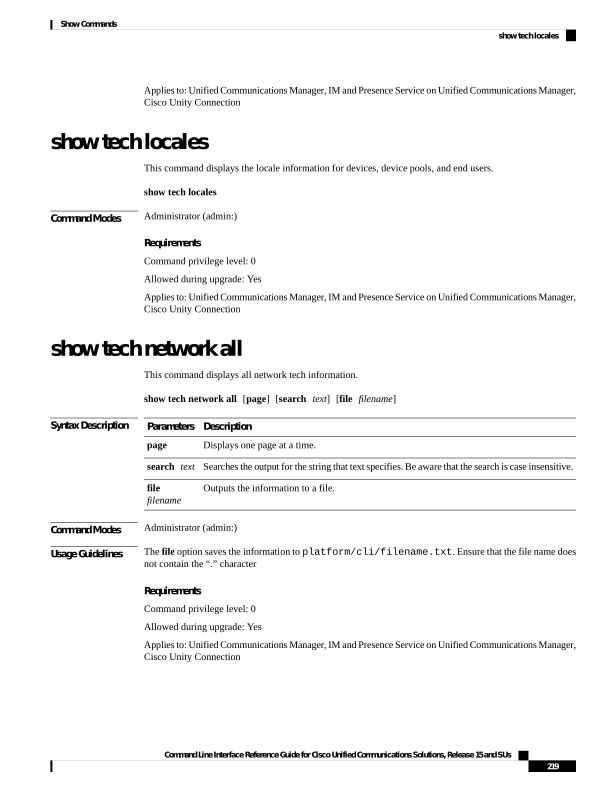
Page 244
show tech network hosts
This command displays information about hosts configuration.
show tech network hosts [page] [search text] [file filename]
Syntax Description
Description
Parameters
Displays one page at a time.
page
Searches the output for the string that text specifies. Be aware that the search is case insensitive.
search text
Outputs the information to a file.
file
filename
Command Modes
Administrator (admin:)
Usage Guidelines
The file option saves the information to platform/cli/filename.txt. Ensure that the file name does
not contain the “.” character
Requirements
Command privilege level: 1
Allowed during upgrade: Yes
Applies to: Unified Communications Manager, IM and Presence Service on Unified Communications Manager,
Cisco Unity Connection
show tech network interfaces
This command displays information about the network interfaces.
The output of some fields will vary by hypervisor, depending on the information reported to the workload by
the hypervisor.
Note
show tech network interfaces [page] [search text] [file filename]
Syntax Description
Description
Parameters
Displays one page at a time.
page
Searches the output for the string that text specifies. Be aware that the search is case insensitive.
search text
Outputs the information to a file.
file
filename
Command Line Interface Reference Guide for Cisco Unified Communications Solutions, Release 15 and SUs
220
Show Commands
show tech network hosts

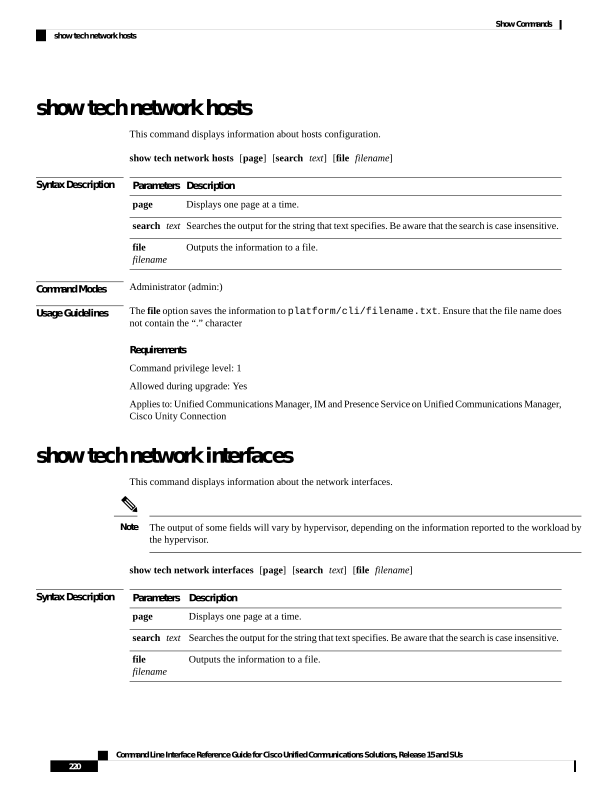
Page 245
Command Modes
Administrator (admin:)
Usage Guidelines
The file option saves the information to platform/cli/filename.txt. Ensure that the file name does
not contain the “.” character
Requirements
Command privilege level: 0
Allowed during upgrade: Yes
Applies to: Unified Communications Manager, IM and Presence Service on Unified Communications Manager,
Cisco Unity Connection
show tech network resolv
This command displays information about hostname resolution.
show tech network resolv [page] [search text] [file filename]
Syntax Description
Description
Parameters
Displays one page at a time.
page
Searches the output for the string that text specifies. Be aware that the search is case insensitive.
search text
Outputs the information to a file.
file
filename
Command Modes
Administrator (admin:)
Usage Guidelines
The file option saves the information to platform/cli/filename.txt. Ensure that the file name does
not contain the “.” character
Requirements
Command privilege level: 1
Allowed during upgrade: Yes
Applies to: Unified Communications Manager, IM and Presence Service on Unified Communications Manager,
Cisco Unity Connection
show tech network routes
This command displays information about network routes.
show tech network routes [page] [search text] [file filename]
Command Line Interface Reference Guide for Cisco Unified Communications Solutions, Release 15 and SUs
221
Show Commands
show tech network resolv
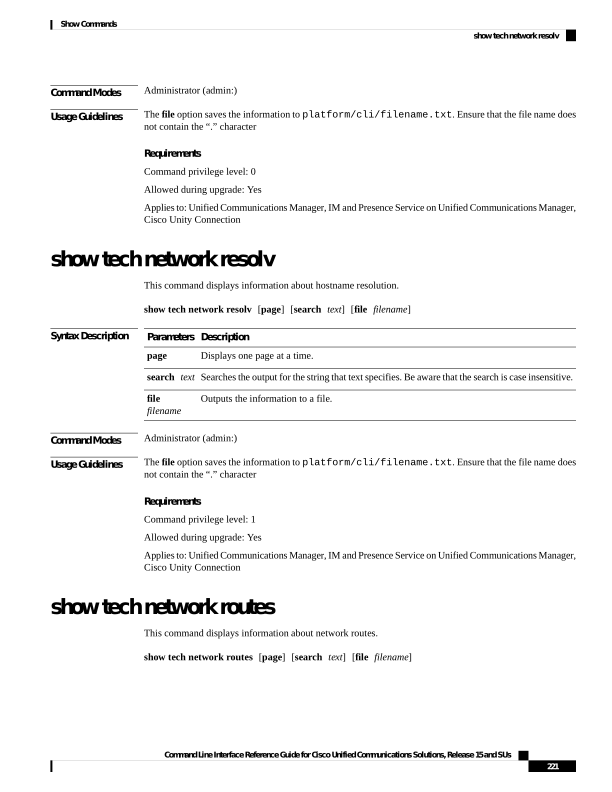
Page 246
Syntax Description
Description
Parameters
Displays one page at a time.
page
Searches the output for the string that text specifies. Be aware that the search is case insensitive.
search text
Outputs the information to a file.
file
filename
Command Modes
Administrator (admin:)
Usage Guidelines
The file option saves the information to platform/cli/filename.txt. Ensure that the file name does
not contain the “.” character
Requirements
Command privilege level: 1
Allowed during upgrade: Yes
Applies to: Unified Communications Manager, IM and Presence Service on Unified Communications Manager,
Cisco Unity Connection
show tech network sockets
This command displays the list of open sockets.
show tech network sockets {numeric}
Syntax Description
Description
Parameters
Displays the numerical addresses of the ports instead of determining symbolic hosts. This
parameter is equivalent to running the Linux shell numeric [-n] command.
numeric
Command Modes
Administrator (admin:)
Requirements
Command privilege level: 1
Allowed during upgrade: Yes
Applies to: Unified Communications Manager, IM and Presence Service on Unified Communications Manager,
Cisco Unity Connection
show tech notify
This command displays the database change notify monitor.
show tech notify [search pattern_to_match]
Command Line Interface Reference Guide for Cisco Unified Communications Solutions, Release 15 and SUs
222
Show Commands
show tech network sockets
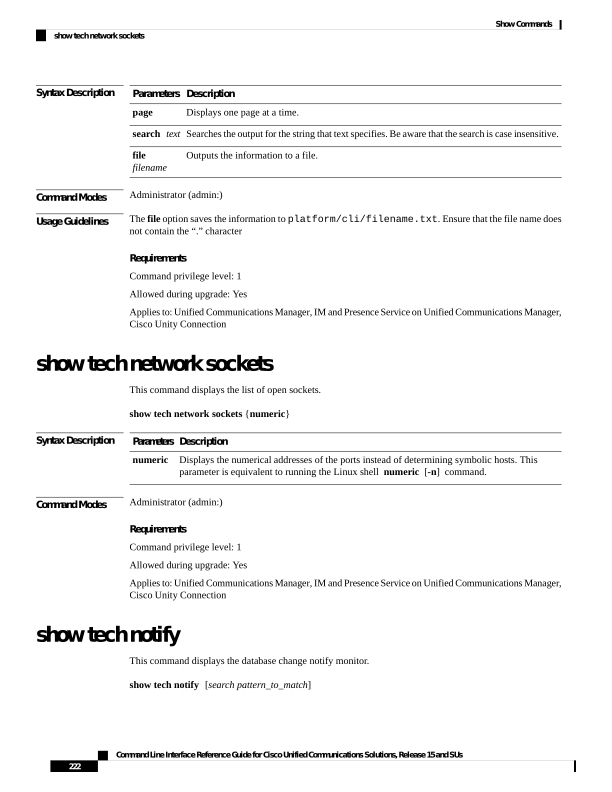
Page 247
Syntax Description
Description
Parameters
Represents the string that needs to be searched in the command output.
search pattern_to_match
Command Modes
Administrator (admin:)
Requirements
Command privilege level: 0
Allowed during upgrade: Yes
Applies to: Unified Communications Manager, IM and Presence Service on Unified Communications Manager,
Cisco Unity Connection
show tech params
This command displays the database parameters.
show tech params
{all
| enterprise
| service}
Syntax Description
Description
Parameters
Displays all the database parameters.
all
Displays the database enterprise parameters.
enterprise
Displays the database service parameters.
service
Command Modes
Administrator (admin:)
Requirements
Command privilege level: 0
Allowed during upgrade: Yes
Applies to: Unified Communications Manager, IM and Presence Service on Unified Communications Manager,
Cisco Unity Connection
show tech prefs
This command displays database settings.
show tech prefs
Command Modes
Administrator (admin:)
Requirements
Command privilege level: 0
Command Line Interface Reference Guide for Cisco Unified Communications Solutions, Release 15 and SUs
223
Show Commands
show tech params
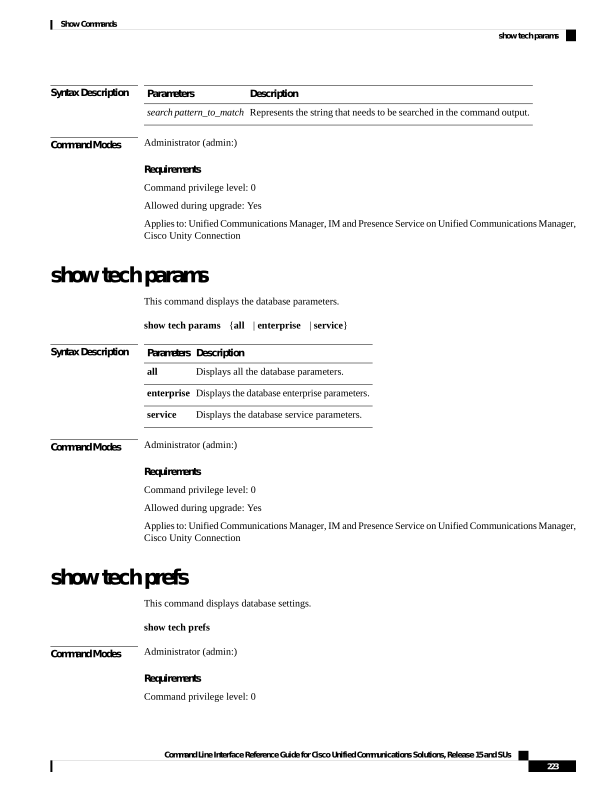
Page 248
Allowed during upgrade: Yes
Applies to: Unified Communications Manager, IM and Presence Service on Unified Communications Manager,
Cisco Unity Connection
show tech procedures
This command displays the CAR or CM procedures that are in use for the database.
show tech procedures
{car
| cm}
Syntax Description
Description
Parameters
Specifies the CAR procedures.
car
Specifies the CM procedures.
cm
Command Modes
Administrator (admin:)
Requirements
Command privilege level: 0
Allowed during upgrade: Yes
Applies to: Unified Communications Manager, IM and Presence Service on Unified Communications Manager,
Cisco Unity Connection
show tech repltimeout
This command displays the replication timeout.
show tech repltimeout
Command Modes
Administrator (admin:)
Usage Guidelines
When you increase the replication timeout, ensure that as many servers as possible in a large system are
included in the first round of replication setup. If you have the maximum number of servers and devices, set
the replication timeout to the maximum value. Be aware that this delays the initial set up of replication to give
all servers time to get ready for setup.
Requirements
Command privilege level: 0
Allowed during upgrade: Yes
Applies to: Unified Communications Manager, IM and Presence Service on Unified Communications Manager,
Cisco Unity Connection
Command Line Interface Reference Guide for Cisco Unified Communications Solutions, Release 15 and SUs
224
Show Commands
show tech procedures
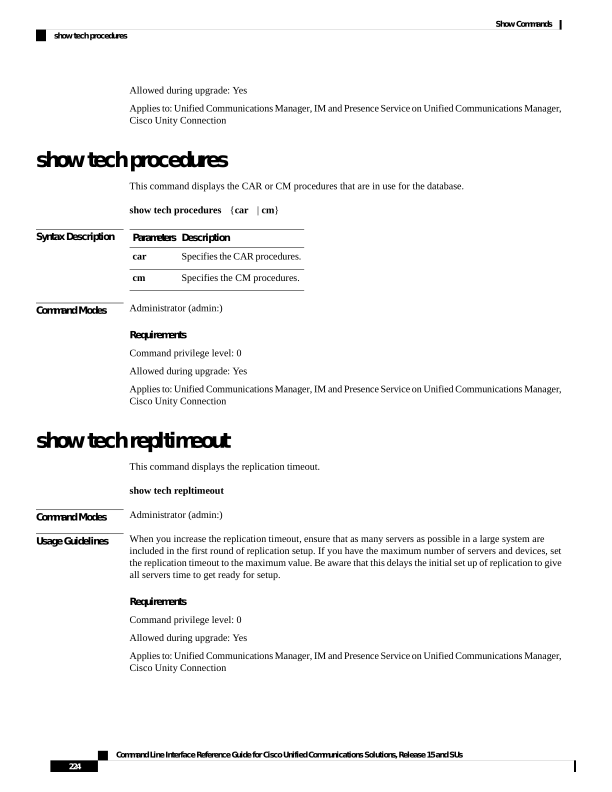
Page 249
show tech routepatterns
This command displays the route patterns that are configured for the system.
show tech routepatterns
Command Modes
Administrator (admin:)
Requirements
Command privilege level: 0
Allowed during upgrade: Yes
Applies to: Unified Communications Manager, IM and Presence Service on Unified Communications Manager,
Cisco Unity Connection
show tech routeplan
This command displays the route plans that are configured for the system.
show tech routeplan
Command Modes
Administrator (admin:)
Requirements
Command privilege level: 0
Allowed during upgrade: Yes
Applies to: Unified Communications Manager, IM and Presence Service on Unified Communications Manager,
Cisco Unity Connection
show tech runtime
This command displays CPU usage information at the time the command is run.
show tech runtime
{all | cpu | disk | env | memory} page file filename
Syntax Description
Description
Parameters
Displays all runtime information.
all
Displays CPU usage information at the time the command is run.
cpu
Displays system disk usage information.
disk
Displays environment variables.
env
Command Line Interface Reference Guide for Cisco Unified Communications Solutions, Release 15 and SUs
225
Show Commands
show tech routepatterns
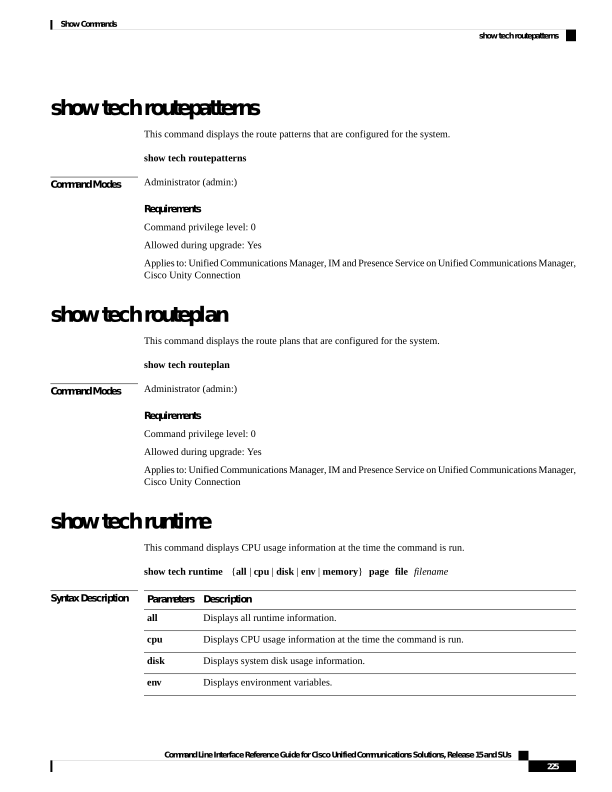
Page 250
Description
Parameters
Displays memory usage information.
memory
Displays one page at a time.
page
Outputs the information to a specified file.
Note
This option saves the information to platform/cli/<filename>.txt. Ensure that the file name
does not contain the "." character.
file
filename
Command Modes
Administrator (admin:)
Requirements
Command privilege level: 0
Allowed during upgrade: Yes
Applies to: Unified Communications Manager, IM and Presence Service on Unified Communications Manager,
and Cisco Unity Connection
show tech sqlhistory
This command prints the history of SQL statements executed.
show tech sqlhistory
Command Modes
Administrator (admin:)
Requirements
Command privilege level: 0
Allowed during upgrade: Yes
Applies to: Unified Communications Manager, IM and Presence Service on Unified Communications Manager,
Cisco Unity Connection
show tech systables
This command displays the name of all tables in the sysmaster database.
show tech systables
Command Modes
Administrator (admin:)
Requirements
Command privilege level: 0
Command Line Interface Reference Guide for Cisco Unified Communications Solutions, Release 15 and SUs
226
Show Commands
show tech sqlhistory
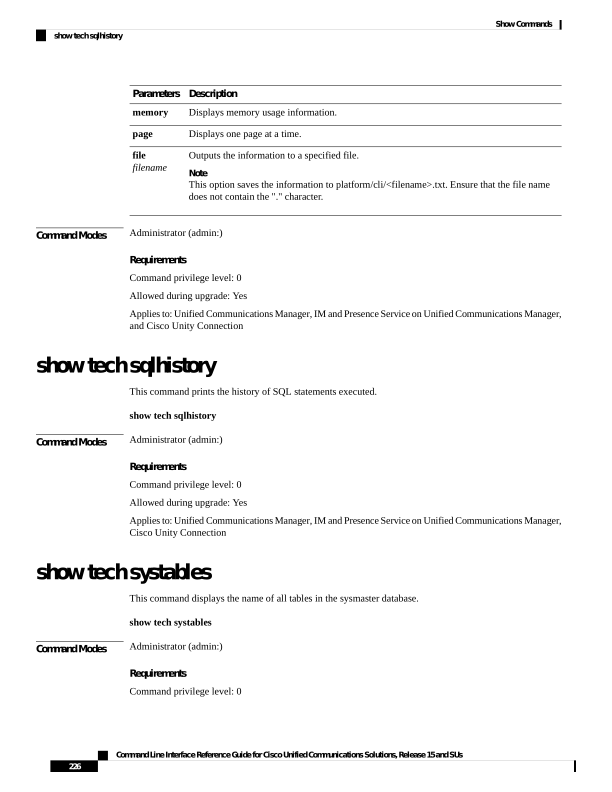
Page 251
Allowed during upgrade: Yes
Applies to: Unified Communications Manager, IM and Presence Service on Unified Communications Manager,
Cisco Unity Connection
show tech system
This command displays all the system information.
The output of some fields will vary by hypervisor, depending on the information reported to the workload by
the hypervisor.
Note
show tech system
{all | bus | hardware | host | kernel modules | software | tools}
page file filename
Syntax Description
Description
Parameters
Displays all the system information.
all
Displays information about the data
buses on the server.
bus
Displays information about the
server hardware.
hardware
Displays information about the
server.
host
Lists the installed kernel modules.
kernel modules
Displays information about the
installed software versions.
software
Displays information about the
software tools on the server.
tools
Displays one page at a time.
page
Outputs the information to a file.
This option saves the information
to platform/cli/<filename>.txt.
Ensure that the file name does not
contain the "." character.
file filename
Command Modes
Administrator (admin:)
Requirements
Command privilege level: 0
Allowed during upgrade: Yes
Command Line Interface Reference Guide for Cisco Unified Communications Solutions, Release 15 and SUs
227
Show Commands
show tech system

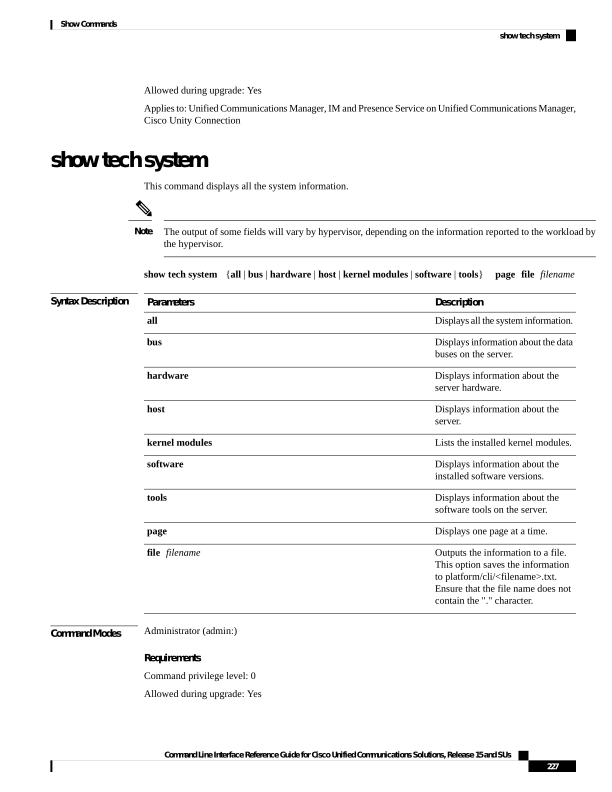
Page 252
Applies to: Unified Communications Manager, IM and Presence Service on Unified Communications Manager,
Cisco Unity Connection
show tech table
This command displays the contents of the specified database table.
show tech table table_name [page]
Syntax Description
Description
Parameters
Represents the name of the table to display.
table_name
Displays the output one page at a time.
page
Command Modes
Administrator (admin:)
Requirements
Command privilege level: 0
Allowed during upgrade: Yes
Applies to: Unified Communications Manager, IM and Presence Service on Unified Communications Manager,
Cisco Unity Connection
show tech triggers
This command displays table names and the triggers that are associated with those tables.
show tech triggers
Command Modes
Administrator (admin:)
Requirements
Command privilege level: 0
Allowed during upgrade: Yes
Applies to: Unified Communications Manager, IM and Presence Service on Unified Communications Manager,
Cisco Unity Connection
show tech version
This command displays the version of the installed components.
show tech version [page]
Command Line Interface Reference Guide for Cisco Unified Communications Solutions, Release 15 and SUs
228
Show Commands
show tech table
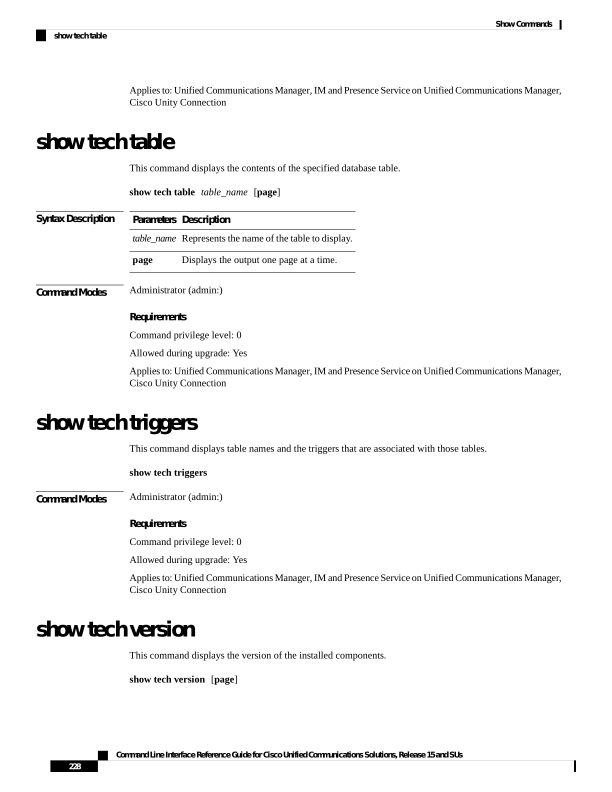
Page 253
Syntax Description
Description
Parameters
Displays one page at a time.
page
Command Modes
Administrator (admin:)
Requirements
Command privilege level: 0
Allowed during upgrade: Yes
Applies to: Unified Communications Manager, IM and Presence Service on Unified Communications Manager,
Cisco Unity Connection
show timezone config
This command displays the current timezone settings.
show timezone config
Command Modes
Administrator (admin:)
Requirements
Command privilege level: 0
Allowed during upgrade: Yes
Applies to: Unified Communications Manager, IM and Presence Service on Unified Communications Manager,
Cisco Unity Connection
show timezone list
This command displays the available timezones.
show timezone list [page]
Syntax Description
Description
Parameters
Displays the output one page at a time.
page
Command Modes
Administrator (admin:)
Usage Guidelines
Although the list of available time zones includes Factory, Unified Communications Manager does not support
the Factory timezone.
Requirements
Command privilege level: 0
Command Line Interface Reference Guide for Cisco Unified Communications Solutions, Release 15 and SUs
229
Show Commands
show timezone config
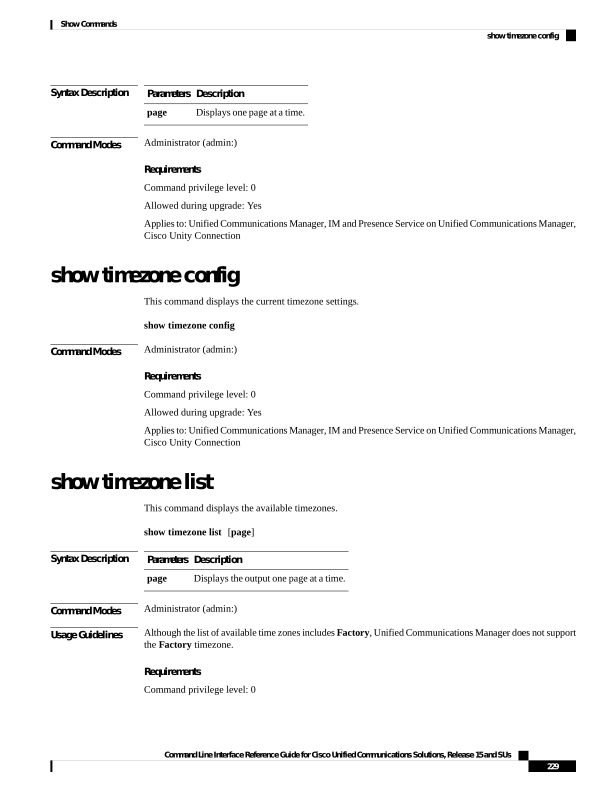
Page 254
Allowed during upgrade: Yes
Applies to: Unified Communications Manager, IM and Presence Service on Unified Communications Manager,
Cisco Unity Connection
show tls trace
This command shows the status of TLS trace for a service.
show tls trace
[ service ]
Syntax Description
Description
Parameters
Represents the TLS tracing status of a service. It is a mandatory parameter.
service
Command Modes
Administrator (admin:)
Requirements
Command privilege level: 0
Allowed during upgrade: Yes
Applies to: Unified Communications Manager, IM and Presence Service on Unified Communications Manager,
Cisco Unity Connection
show tls min-version
This command shows the minimum configured version of Transport Layer Security (TLS) protocol.
show tls min-version
Command Modes
Administrator (admin:)
Requirements
Command privilege level: 1
Allowed during upgrade: Yes
Applies to: Unified Communications Manager and IM and Presence Service on Unified Communications
Manager
Example
admin:show tls min-version
Configured TLS minimum version: 1.0
Command Line Interface Reference Guide for Cisco Unified Communications Solutions, Release 15 and SUs
230
Show Commands
show tls trace
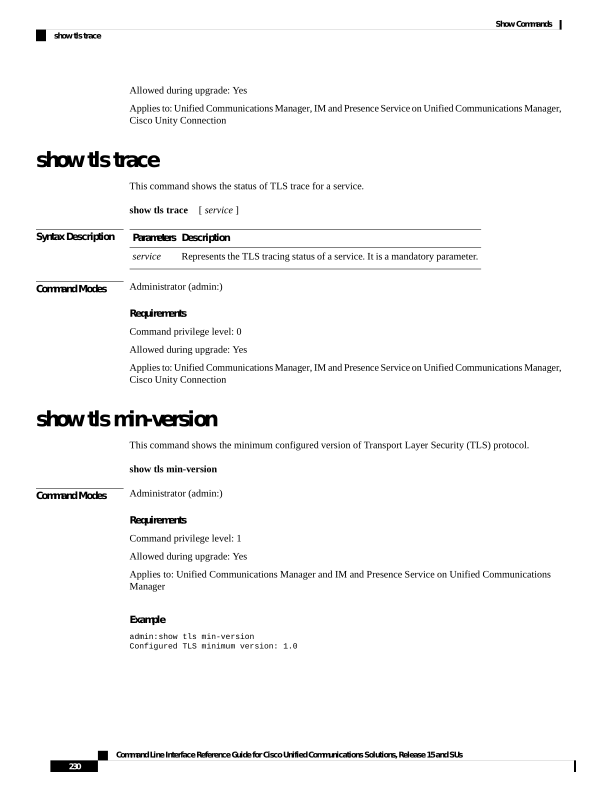
Page 255
show tlsresumptiontimeout
This command shows the TLS session resumption timeout.
show tlsresumptiontimeout
Command Modes
Administrator (admin:)
Requirements
Command privilege level: 0
Allowed during upgrade: Yes
Applies to: Unified Communications Manager, IM and Presence Service on Unified Communications Manager,
Cisco Unity Connection
show trace
This command displays trace information for a particular task.
show trace [task_name]
Syntax Description
Description
Parameters
Represents the name of the task for which you want to display the trace information.
task_name
Command Modes
Administrator (admin:)
Usage Guidelines
If you do not enter a parameter, the command returns a list of available tasks.
Requirements
Command privilege level: 0
Allowed during upgrade: Yes
Applies to: Unified Communications Manager, IM and Presence Service on Unified Communications Manager,
Cisco Unity Connection
Example
admin: show trace cdps
show ups status
This command shows the current status of the USB-connected APC smart-UPS device and starts the monitoring
service if this service is not already started.
Command Line Interface Reference Guide for Cisco Unified Communications Solutions, Release 15 and SUs
231
Show Commands
show tlsresumptiontimeout
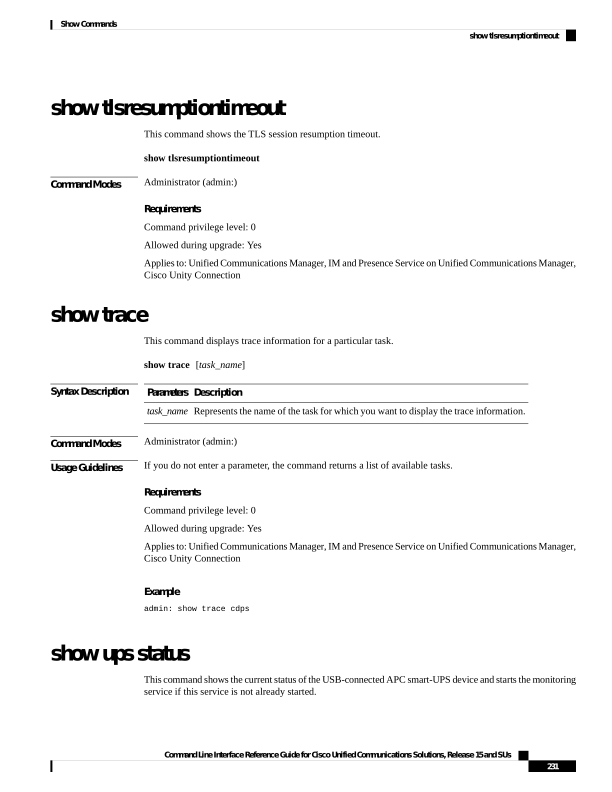
Page 256
show ups status
Command Modes
Administrator (admin:)
Usage Guidelines
This command provides full status only for 7835-H2 and 7825-H2 servers.
Requirements
Command privilege level: 0
Allowed during upgrade: Yes
Applies to: Unified Communications Manager, IM and Presence Service on Unified Communications Manager,
Cisco Unity Connection
show version active
This command displays the software version on the active partition.
show version active
Command Modes
Administrator (admin:)
Requirements
Command privilege level: 0
Allowed during upgrade: Yes
Applies to: Unified Communications Manager, IM and Presence Service on Unified Communications Manager,
Cisco Unity Connection
show version inactive
This command displays the software version on the inactive partition
show version inactive
Command Modes
Administrator (admin:)
Requirements
Command privilege level: 0
Allowed during upgrade: Yes
Applies to: Unified Communications Manager, IM and Presence Service on Unified Communications Manager,
Cisco Unity Connection
Command Line Interface Reference Guide for Cisco Unified Communications Solutions, Release 15 and SUs
232
Show Commands
show version active
Page 257
show vos version
With Unity Connection 12.0(1) and later, Unity Connection supports a specific ISO that is separated from the
Unified CM ISO. However, Unity Connection will provide all the latest VOS changes. To see the VOS version
integrated with Unity Connection show vos version CLI is introduced.
This command displays the VOS version stored in the active and inactive partitions. If there is no VOS version
in the inactive partition, it displays "VOS version not available".
For more information, see "Support for Cisco Unity Connection ISO" section of the Release Notes for Cisco
Unity Connection 12.0(1) available at
http://www.cisco.com/c/en/us/support/unified-communications/unity-connection/products-release-notes-list.html
show vos version
Command Modes
Administrator (admin:)
Usage Guidelines
This command always displays the VOS version in the active partition. If the active partition contains an
upgrade, the command also shows the VOS version in the inactive partition.
If you are upgrading from Cisco Unity Connection 11.5(1) or earlier version to 12.0(1) or later, the inactive
partition does not contain the information of VOS version.
Note
Requirements
Command privilege level: 0
Allowed during upgrade: Yes
Applies to: Cisco Unity Connection
Example
admin:show vos version
Active version: 12.0.1.10000-1
Inactive version: VOS version not available
show web-security
This command displays the contents of the current web-security certificate.
show web-security
Command Modes
Administrator (admin:)
Requirements
Command privilege level: 0
Command Line Interface Reference Guide for Cisco Unified Communications Solutions, Release 15 and SUs
233
Show Commands
show vos version

Page 258
Allowed during upgrade: Yes
Applies to: Unified Communications Manager, IM and Presence Service on Unified Communications Manager,
Cisco Unity Connection
show webapp session timeout
This command displays the webapp session timeout value, which is the amount of time, in minutes, that can
elapse before a web application times out and logs off the user.
show webapp session timeout
Command Modes
Administrator (admin:)
Requirements
Command privilege level: 0
Allowed during upgrade: Yes
Applies to: Unified Communications Manager, IM and Presence Service on Unified Communications Manager,
Cisco Unity Connection
show workingdir
This command retrieves the current working directory for activelog, inactivelog, install, and TFTP.
show workingdir
Command Modes
Administrator (admin:)
Requirements
Command privilege level: 0
Allowed during upgrade: Yes
Applies to: Unified Communications Manager, IM and Presence Service on Unified Communications Manager,
Cisco Unity Connection
show logins unsuccessful
Use this command to list recent unsuccessful login attempts to the following web applications:
• On Unified Communications Manager
• Disaster Recovery System
• Cisco Unified OS Administration
• On IM and Presence Service
Command Line Interface Reference Guide for Cisco Unified Communications Solutions, Release 15 and SUs
234
Show Commands
show webapp session timeout
Page 259
• IM and Presence Disaster Recovery System
• Unified IM and Presence OS Administration
show logins unsuccessful
[number]
Syntax Description
Description
Parameters
Specifies the number of most recent logins to display. The default is 20.
number
Command Modes
Administrator (admin)
Requirements
Command privilege level: 0
Allowed during upgrade: Yes
Applies to Unified Communications Manager and IM and Presence Service
Command Line Interface Reference Guide for Cisco Unified Communications Solutions, Release 15 and SUs
235
Show Commands
show logins unsuccessful
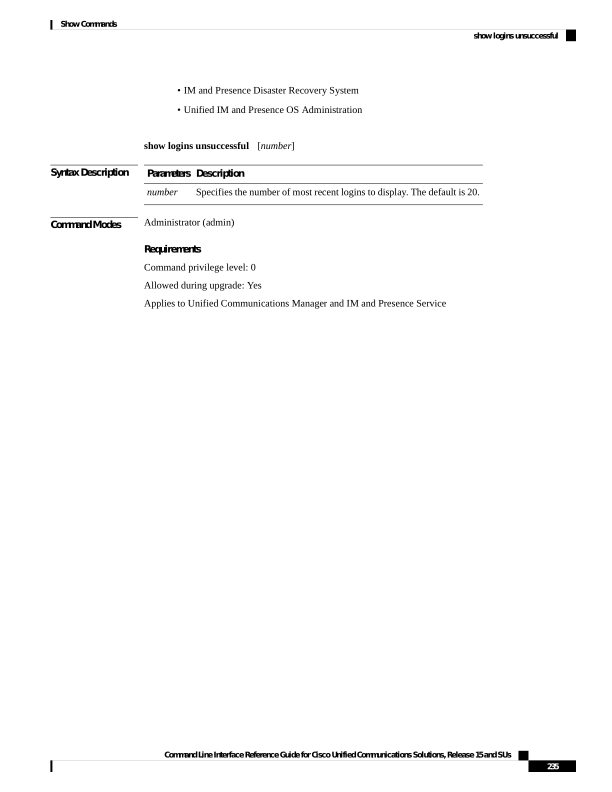
Page 260
Command Line Interface Reference Guide for Cisco Unified Communications Solutions, Release 15 and SUs
236
Show Commands
show logins unsuccessful
Page 261
C H A P T E R 9
Unset Commands
• unset ipsec policy_group, on page 237
• unset ipsec policy_name, on page 237
• unset network cluster subscriber details, on page 238
• unset network cluster subscriber dynamic-cluster-configuration, on page 238
• unset network dns options, on page 239
• unset network domain, on page 239
• unset network ntp options, on page 240
• unset network ipv6 gateway, on page 240
• unset network ipv6 static_address, on page 241
unset ipsec policy_group
This command disables the ipsec policy on the specified group.
unset ipsec policy_group policy_group
Syntax Description
Description
Parameters
Specifies the group
name.
policy_group
Command Modes
Administrator (admin:)
Requirements
Command privilege level: 1
Allowed during upgrade: No
Applies to: Unified Communications Manager, IM and Presence Service on Unified Communications Manager,
Cisco Unity Connection
unset ipsec policy_name
This command disables the ipsec policy with the specified name.
Command Line Interface Reference Guide for Cisco Unified Communications Solutions, Release 15 and SUs
237

Page 262
unset ipsec policy_name
policy_group
policy_name
Syntax Description
Description
Parameters
Specifies the name of a particular ipsec policy group to disable.
policy_group
Specifies the policy name to disable.
policy_name
Command Modes
Administrator (admin:)
Requirements
Command privilege level: 1
Allowed during upgrade: No
Applies to: Unified Communications Manager, IM and Presence Service on Unified Communications Manager,
Cisco Unity Connection
unset network cluster subscriber details
This command shows the message that you need to delete a subscriber node from the GUI instead of the
command prompt.
unset network cluster subscriber details
Command Modes
Administrator (admin:)
Requirements
Command privilege level: 1
Allowed during upgrade: No
Applies to Unified Communications Manager, IM and Presence Service on Communications Manager, and
Cisco Unity Connection
Message to delete the subscriber from GUI
admin: unset network cluster subscriber details
Please use the Cisco Unified Communications Manager on the first node.
Navigate to System > Server and click “Find”.
Unable to del: NULL
Executed command unsuccessfully.
unsetnetworkclustersubscriberdynamic-cluster-configuration
This command disables Dynamic Cluster Configuration on the publisher. The value of Dynamic Cluster
Configuration option is set to zero on publisher.
unset network cluster subscriber dynamic-cluster-configuration
Command Line Interface Reference Guide for Cisco Unified Communications Solutions, Release 15 and SUs
238
Unset Commands
unset network cluster subscriber details
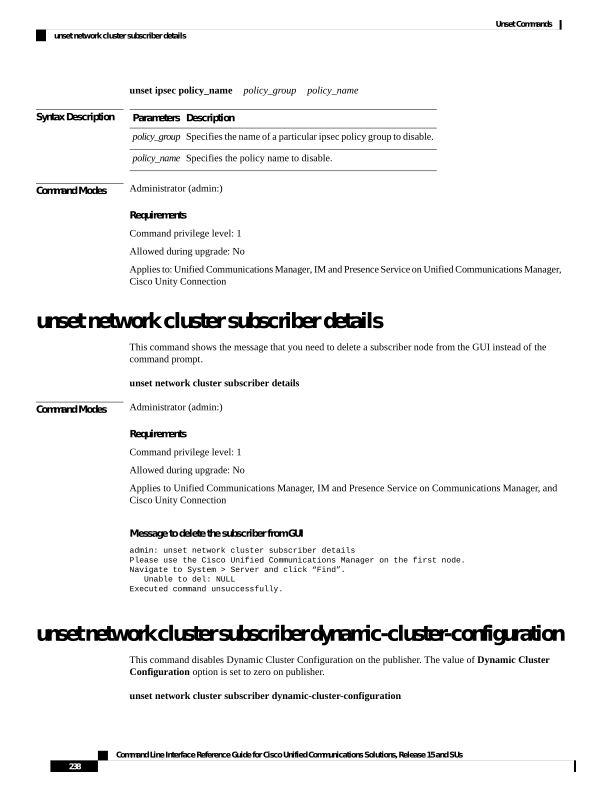
Page 263
Command Modes
Administrator (admin:)
Requirements
Command privilege level: 1
Allowed during upgrade: No
Applies to Unified Communications Manager, IM and Presence Service on Unified Communications Manager,
and Cisco Unity Connection
unset network dns options
This command unsets DNS options.
unset network dns options [timeout] [attempts] [rotate]
Syntax Description
Description
Parameters
Sets the wait time before the system considers a DNS query as failed to the default.
timeout
Sets the number of DNS attempts to make before the system fails to the default.
attempts
Sets the method for selecting a nameserver to the default. This affects how loads are distributed
across nameservers.
rotate
Usage Guidelines
Running this command causes an automatic system restart.
Command Modes
Administrator (admin:)
Usage Guidelines
You are asked to confirm that you want to execute this command.
If you continue, the system loses network connectivity temporarily.
Caution
Requirements
Applies to: Unified Communications Manager, IM and Presence Service on Unified Communications Manager,
Cisco Unity Connection
unset network domain
This command unsets the domain name and restarts the server.
unset network domain
Command Modes
Administrator (admin:)
Command Line Interface Reference Guide for Cisco Unified Communications Solutions, Release 15 and SUs
239
Unset Commands
unset network dns options

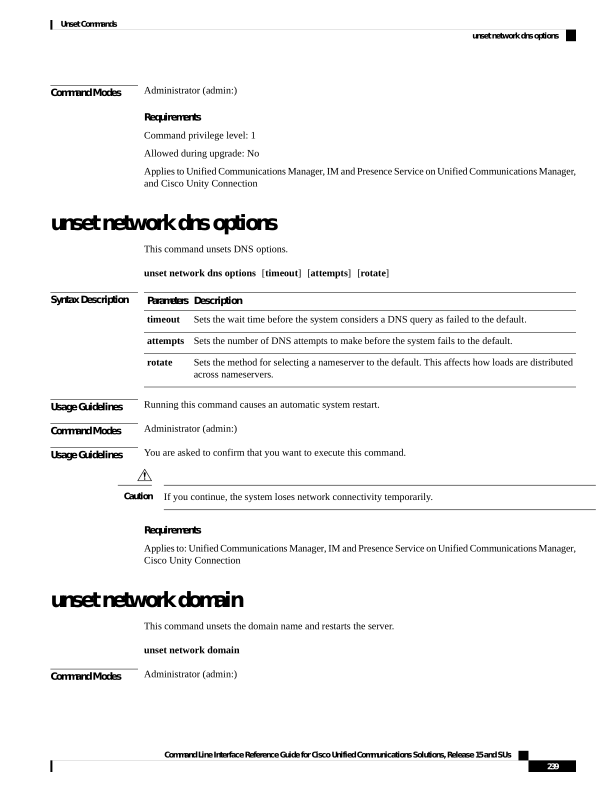
Page 264
Usage Guidelines
You are asked to confirm that you want to execute this command.
Requirements
Applies to: Unified Communications Manager, IM and Presence Service on Unified Communications Manager,
Cisco Unity Connection
Example
admin: unset network domain
cmdSetIp.domain.name.change.warning
Continue (y/n)?
trying to restart system...
Warning: Restart could take up to 5 minutes...
Shutting down Service Manager. Please wait...
unset network ntp options
This command unsets the domain name and restarts the server.
unset network ntp options
Command Modes
Administrator (admin:)
Requirements
Command privilege level: 1
Allowed during upgrade: Yes
Applies to: Unified Communications Manager, IM and Presence Service on Unified Communications Manager,
Cisco Unity Connection
unset network ipv6 gateway
This command unsets the IPv6 gateway on the server.
unset network ipv6 gateway [reboot]
Syntax Description
Description
Parameters
Reboots the server after applying the change.
Note
By default, the reboot on the server does not happen.
reboot
Command Modes
Administrator (admin:)
Command Line Interface Reference Guide for Cisco Unified Communications Solutions, Release 15 and SUs
240
Unset Commands
unset network ntp options
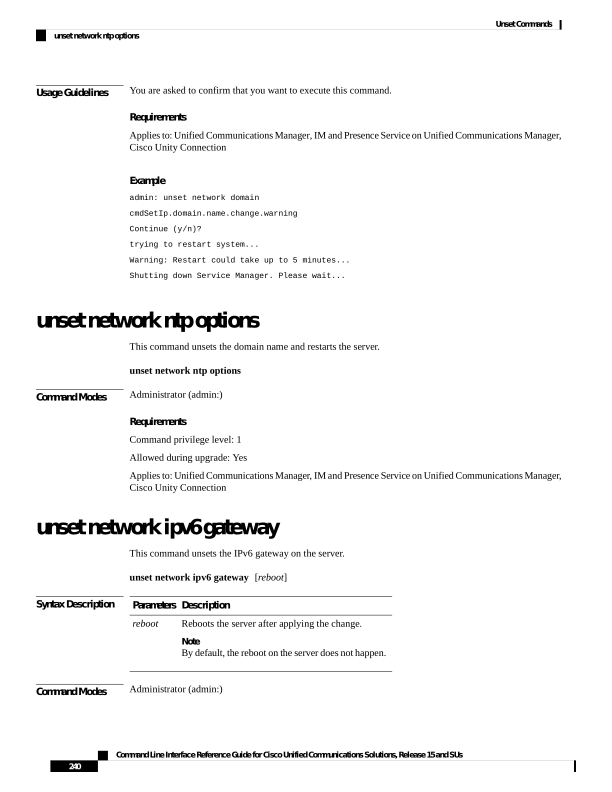
Page 265
Requirements
Command privilege level: 1
Allowed during upgrade: Yes
Applies to: Unified Communications Manager, IM and Presence Service on Unified Communications Manager,
Cisco Unity Connection
unset network ipv6 static_address
This command unsets the IPV6 static address.
unset network ipv6 static_address [reboot]
Syntax Description
Description
Parameters
Reboots the server after applying the change.
reboot
Command Modes
Administrator (admin:)
Requirements
Command privilege level: 1
Allowed during upgrade: No
Applies to: Unified Communications Manager, Cisco Unity Connection
Example
admin: admin:unset network ipv6 static_address
W A R N I N G
The Server must be rebooted for these changes to take effect.
Please make sure that you reboot this server.
IPv6 static address was removed.
Command Line Interface Reference Guide for Cisco Unified Communications Solutions, Release 15 and SUs
241
Unset Commands
unset network ipv6 static_address
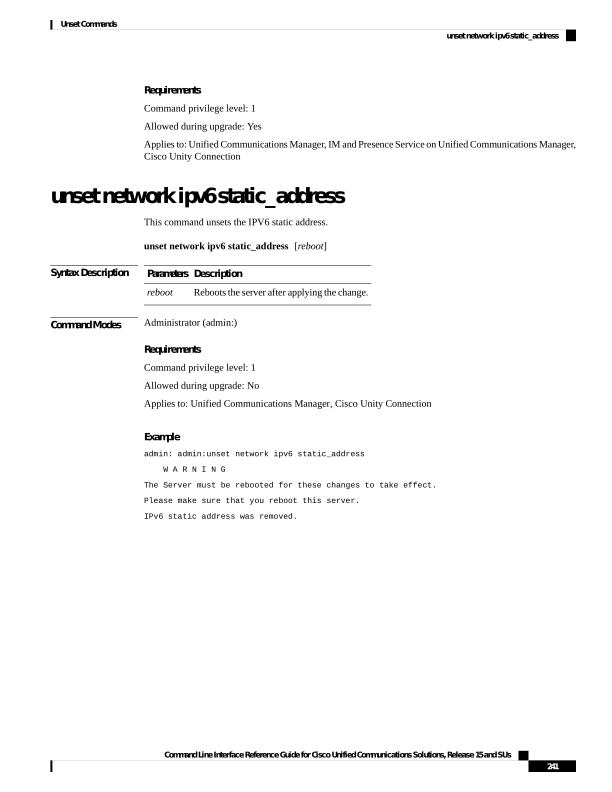
Page 266
Command Line Interface Reference Guide for Cisco Unified Communications Solutions, Release 15 and SUs
242
Unset Commands
unset network ipv6 static_address
Page 267
C H A P T E R 10
Utils Commands
• utils addon-input-validation enable, on page 248
• utils addon-input-validation disable, on page 249
• utils addon-input-validation status, on page 249
• utils auditd, on page 250
• utils BE6000Mode enable, on page 251
• utils BE6000Mode disable, on page 251
• utils BE6000Mode status, on page 251
• utils branding enable, on page 251
• utils branding disable, on page 252
• utils branding status, on page 252
• utils contactsearchauthentication disable, on page 252
• utils contactsearchauthentication enable, on page 253
• utils contactsearchauthentication status, on page 253
• utils core analyze, on page 253
• utils core list, on page 254
• utils capf cert import, on page 254
• utils capf set keep_alive, on page 255
• utils capf stale-lsc, on page 255
• utils create report, on page 255
• utils create report database, on page 256
• utils ctl, on page 256
• utils cuc activate CUSRSV, on page 258
• utils cuc auto ITL download, on page 258
• utils cuc cluster activate, on page 259
• utils cuc cluster deactivate, on page 260
• utils cuc cluster makeprimary, on page 260
• utils cuc cluster overwritedb, on page 260
• utils cuc cluster renegotiate, on page 261
• utils cuc create report, on page 261
• utils cuc dbreplication 01_tear_down , on page 262
• utils cuc dbreplication 02_define_servers , on page 263
• utils cuc dbreplication 03_define_db_template, on page 263
• utils cuc dbreplication 04_sync_database, on page 264
Command Line Interface Reference Guide for Cisco Unified Communications Solutions, Release 15 and SUs
243

Page 268
• utils cuc dbreplication reset_all, on page 265
• utils cuc encryption, on page 265
• utils cuc hwconfig update , on page 266
• utils cuc jetty ssl disable, on page 267
• utils cuc jetty ssl enable, on page 267
• utils cuc licensing reset udi , on page 268
• utils cuc networking clear_replication, on page 269
• utils cuc networking dscp, on page 269
• utils cuc odbc non-secure enable, on page 270
• utils cuc odbc non-secure disable, on page 270
• utils cuc odbc non-secure status, on page 270
• utils cuc reset password, on page 271
• utils cuc set PinExpiry_PromptTime “Authentication Rule Name”, on page 271
• utils container-engine start, on page 272
• utils container-engine stop, on page 272
• utils container-engine restart, on page 272
• utils container-engine status, on page 273
• utils dbreplication dropadmindb, on page 273
• utils dbreplication forcedatasyncsub, on page 273
• utils dbreplication quickaudit, on page 274
• utils dbreplication rebuild, on page 275
• utils dbreplication repair, on page 276
• utils dbreplication repairreplicate, on page 276
• utils dbreplication repairtable, on page 277
• utils dbreplication reset, on page 278
• utils dbreplication runtimestate, on page 278
• utils dbreplication setprocess, on page 279
• utils dbreplication setrepltimeout, on page 279
• utils dbreplication status, on page 280
• utils dbreplication stop, on page 281
• utils imdb_replication replication status, on page 281
• utils diagnose, on page 282
• utils disaster_recovery backup network, on page 283
• utils disaster_recovery cancel_backup, on page 283
• utils disaster_recovery device add network, on page 284
• utils disaster_recovery device delete, on page 284
• utils disaster_recovery device list, on page 285
• utils disaster_recovery estimate_tar_size , on page 285
• utils disaster_recovery history, on page 286
• utils disaster_recovery jschLogs operation, on page 286
• utils disaster_recovery prepare restore pub_from_sub, on page 287
• utils disaster_recovery restore network, on page 287
• utils disaster_recovery schedule add, on page 288
• utils disaster_recovery schedule, on page 288
• utils disaster_recovery schedule delete, on page 289
• utils disaster_recovery schedule disable, on page 289
Command Line Interface Reference Guide for Cisco Unified Communications Solutions, Release 15 and SUs
244
Utils Commands
Page 269
• utils disaster_recovery schedule list, on page 290
• utils disaster_recovery show_backupfiles, on page 290
• utils disaster_recovery show_registration, on page 291
• utils disaster_recovery status, on page 291
• utils EnhancedSecurityMode disable, on page 291
• utils EnhancedSecurityMode enable, on page 292
• utils EnhancedSecurityMode status, on page 292
• utils filebeat config, on page 292
• utils filebeat disable, on page 293
• utils filebeat enable, on page 293
• utils filebeat status, on page 294
• utils filebeat tls, on page 294
• utils fior, on page 295
• utils fior disable, on page 295
• utils fior enable, on page 295
• utils fior list, on page 296
• utils fior start, on page 296
• utils fior status, on page 297
• utils fior stop, on page 297
• utils fior top, on page 297
• utils fips, on page 298
• utils fips_common_criteria, on page 299
• utils firewall ipv4 debug, on page 300
• utils firewall ipv4, on page 300
• utils firewall ipv4 list, on page 301
• utils firewall ipv4 status, on page 301
• utils firewall ipv6 debug, on page 302
• utils firewall ipv6, on page 302
• utils firewall ipv6 list, on page 303
• utils firewall ipv6 status, on page 303
• utils ha failover, on page 304
• utils ha fallback, on page 304
• utils haproxy set {required|optional|disable} client-auth, on page 305
• utils ha recover, on page 307
• utils ha status, on page 308
• utils ils showpeerinfo, on page 309
• utils import config, on page 309
• utils iostat, on page 310
• utils iothrottle, on page 310
• utils itl reset localkey, on page 311
• utils ipsec restart, on page 312
• utils ldap config, on page 312
• utils managementAgent alarms minpushLevel, on page 313
• utils managementAgent alarms pushfrequency, on page 314
• utils managementAgent alarms pushnow, on page 314
• utils network arp delete, on page 314
Command Line Interface Reference Guide for Cisco Unified Communications Solutions, Release 15 and SUs
245
Utils Commands
Page 270
• utils network arp set, on page 315
• utils network arp list, on page 315
• utils network capture, on page 316
• utils network capture-rotate, on page 317
• utils network connectivity, on page 318
• utils network host, on page 319
• utils network ipv6 host, on page 320
• utils network ipv6 traceroute, on page 320
• utils network ipv6 ping, on page 321
• utils network name-service {hosts|services} cache invalidate, on page 321
• utils network ping, on page 322
• utils network traceroute, on page 322
• utils network usgv6 enable, on page 323
• utils network usgv6 disable, on page 323
• utils network usgv6 interface-reset, on page 324
• utils network usgv6 interface_identifier, on page 324
• utils network usgv6 ping, on page 325
• utils ntp auth symmetric-key, on page 326
• utils ntp server add, on page 328
• utils ntp server delete, on page 329
• utils ntp config, on page 331
• utils ntp restart, on page 331
• utils ntp server list, on page 331
• utils ntp start, on page 332
• utils ntp status, on page 332
• utils os kerneldump , on page 333
• utils os kerneldump ssh, on page 333
• utils os kerneldump status, on page 334
• utils os secure , on page 334
• utils os secure dynamic-policies compile, on page 335
• utils os secure dynamic-policies list, on page 335
• utils os secure dynamic-policies load, on page 336
• utils os secure dynamic-policies remove, on page 336
• utils os secure dynamic-policies show, on page 337
• utils os secure dynamic-policies start-recording, on page 337
• utils os secure dynamic-policies stop-recording, on page 338
• utils PlatformWebAccess disable, on page 338
• utils PlatformWebAccess enable, on page 339
• utils PlatformWebAccess status, on page 339
• utils processCoreDumps disable, on page 339
• utils processCoreDumps enable, on page 340
• utils processCoreDumps status, on page 340
• utils remote_account create, on page 340
• utils remote_account disable, on page 341
• utils remote_account enable, on page 341
• utils remote_account status, on page 341
Command Line Interface Reference Guide for Cisco Unified Communications Solutions, Release 15 and SUs
246
Utils Commands
Page 271
• utils remotesyslog set protocol tcp, on page 342
• utils remotesyslog set protocol udp, on page 342
• utils remotesyslog set protocol tls, on page 343
• utils remotesyslog show protocol, on page 343
• utils reset_application_ui_administrator_name, on page 344
• utils reset_application_ui_administrator_password, on page 344
• utils restore_application_ui_administrator_account, on page 344
• utils rosters list limited, on page 345
• utils rosters list full, on page 345
• utils rosters list watchers, on page 346
• utils rosters list contacts, on page 346
• utils rosters delete, on page 346
• utils sipOAuth-mode, on page 347
• utils scheduled-task disable, on page 347
• utils scheduled-task enable , on page 348
• utils scheduled-task list, on page 348
• utils set urlpattern disable, on page 349
• utils set urlpattern enable, on page 349
• utils service, on page 349
• utils service list, on page 350
• utils service auto-restart, on page 351
• utils service start, on page 351
• utils service stop, on page 352
• utils snmp config 1/2c community-string, on page 352
• utils snmp config 1/2c inform, on page 353
• utils snmp config 1/2c trap, on page 353
• utils snmp config 3 inform, on page 354
• utils snmp config mib2, on page 355
• utils snmp config 3 trap, on page 355
• utils snmp config 3 user, on page 356
• utils snmp get, on page 356
• utils snmp get 1, on page 357
• utils snmp get 2c, on page 358
• utils snmp get 3, on page 358
• utils snmp hardware-agents, on page 359
• utils snmp test, on page 360
• utils snmp walk, on page 360
• utils snmp walk 1, on page 362
• utils snmp walk 2c, on page 362
• utils snmp walk 3, on page 363
• utils soap realtimeservice test, on page 364
• utils sso, on page 364
• utils sso recovery-url, on page 365
• utils syslog logging rfc3339, on page 365
• utils system restart, on page 366
• utils system shutdown, on page 366
Command Line Interface Reference Guide for Cisco Unified Communications Solutions, Release 15 and SUs
247
Utils Commands
Page 272
• utils system switch-version, on page 367
• utils system boot, on page 367
• utils system upgrade (Release 14SU2), on page 367
• utils system upgrade (Release 14SU3 onwards), on page 370
• utils system upgrade cluster, on page 372
• utils system enableAdministration, on page 375
• utils update dst, on page 376
• utils users validate, on page 376
• utils vmtools status, on page 377
• utils system boot status, on page 377
• utils system upgrade dataexport initiate, on page 377
• utils system upgrade dataexport status, on page 378
• utils system upgrade dataexport cancel, on page 378
• utils tls client-auth-validation disable, on page 379
• utils tls client-auth-validation enable, on page 380
• utils tls client-auth-validation status, on page 380
• utils ucmgmt agent disable, on page 381
• utils ucmgmt agent enable, on page 381
• utils ucmgmt agent remove, on page 382
• utils ucmgmt agent restart, on page 382
• utils ucmgmt agent status, on page 382
• utils ucmgmt agent verification, on page 383
• utils ucmgmt config export, on page 383
• utils ucmgmt config import, on page 384
• utils ucmgmt organization, on page 384
• utils ucmgmt proxy add, on page 385
• utils ucmgmt proxy clear, on page 386
• utils ucmgmt proxy force add, on page 386
• utils ucmgmt proxy list, on page 387
utils addon-input-validation enable
This command enables addon input validation.
utils addon-input-validation enable
Usage Guidelines
It is recommended to:
• Take the system backup before running the command.
• Collect the screen log information along with command line logs if the command fails and escalate it to
Cisco TAC.
• Ensure that only Cisco TAC runs the command.
Note
Command Line Interface Reference Guide for Cisco Unified Communications Solutions, Release 15 and SUs
248
Utils Commands
utils addon-input-validation enable

Page 273
Command Modes
Administrator (admin:)
Requirements
Command privilege level: 4
Allowed during upgrade: No
Applies to: Unified Communications Manager and IM and Presence Service on Unified Communications
Manager
utils addon-input-validation disable
This command disables addon input validation.
utils addon-input-validation disable
Usage Guidelines
It is recommended to:
• Take the system backup before running the command.
• Collect the screen log information along with command line logs if the command fails and escalate it to
Cisco TAC.
• Ensure that only Cisco TAC runs the command.
Note
Command Modes
Administrator (admin:)
Requirements
Command privilege level: 4
Allowed during upgrade: No
Applies to: Unified Communications Manager and IM and Presence Service on Unified Communications
Manager
utils addon-input-validation status
This command displays the addon input validation status.
utils addon-input-validation status
Command Line Interface Reference Guide for Cisco Unified Communications Solutions, Release 15 and SUs
249
Utils Commands
utils addon-input-validation disable

Page 274
Usage Guidelines
It is recommended to:
• Take the system backup before running the command.
• Collect the screen log information along with command line logs if the command fails and escalate it to
Cisco TAC.
• Ensure that only Cisco TAC runs the command.
Note
Command Modes
Administrator (admin:)
Requirements
Command privilege level: 1
Allowed during upgrade: Yes
Applies to: Unified Communications Manager and IM and Presence Service on Unified Communications
Manager
utils auditd
This command starts, stops, and provides the status of the system auditing service.
utils auditd
{enable | disable | status}
Syntax Description
Description
Parameters
Enables the collection of audit logs. When enabled, the system monitors and records user actions
as well as Linux events such as the creation and removal of users, as well as the editing and
deleting of files .
enable
Disables the collection of audit logs.
disable
Displays the status of audit log collection. We recommend that you retrieve the audit log by
using the Real-Time Monitoring Tool, but you can also retrieve it by using the CLI.
status
Command Modes
Administrator (admin:)
Usage Guidelines
After the service has been enabled, it monitors and logs activity on the system. Be aware that the system
auditing service logs a lot of information. Care must be taken not to overfill the disk.
Requirements
Command privilege level: 1
Allowed during upgrade: Yes
Command Line Interface Reference Guide for Cisco Unified Communications Solutions, Release 15 and SUs
250
Utils Commands
utils auditd

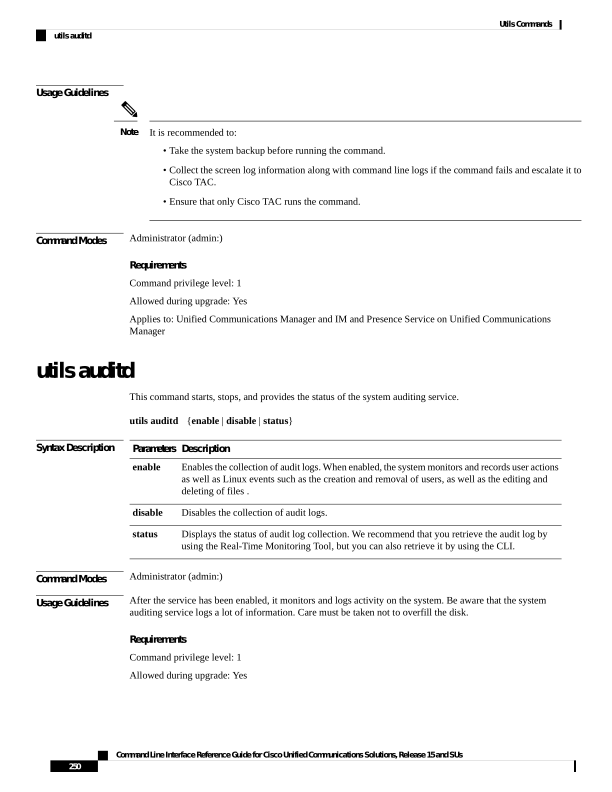
Page 275
Applies to: Unified Communications Manager, IM and Presence Service on Unified Communications Manager,
and Cisco Unity Connection.
utils BE6000Mode enable
Run this command to enable BE6000 mode on Unified Communications Manager.
Command Modes
Administrator (admin:)
Requirements
Command privilege level: 4
Allowed during upgrade: No
Applies to: Unified Communications Manager
utils BE6000Mode disable
Run this command to disable BE6000 mode on Unified Communications Manager.
Command Modes
Administrator (admin:)
Requirements
Command privilege level: 4
Allowed during upgrade: No
Applies to: Unified Communications Manager
utils BE6000Mode status
Run this command to see the Status of BE6000 mode on Unified Communications Manager.
Command Modes
Administrator (admin:)
Requirements
Command privilege level: 0
Allowed during upgrade: No
Applies to: Unified Communications Manager
utils branding enable
Run this command to enable branding on this node.
Command Line Interface Reference Guide for Cisco Unified Communications Solutions, Release 15 and SUs
251
Utils Commands
utils BE6000Mode enable
Page 276
Command Modes
Administrator (admin:)
Requirements
Command privilege level: 4
Applies to: Cisco Unified Communications Manager, IM and Presence Service, or Cisco Unity Connection.
utils branding disable
Run this command to disable branding on this node.
Command Modes
Administrator (admin:)
Requirements
Command privilege level: 4
Applies to: Unified Communications Manager, IM and Presence Service, or Cisco Unity Connection.
utils branding status
Run this command to see the status of whether branding is enabled or disabled on this node.
Command Modes
Administrator (admin:)
Requirements
Command privilege level: 4
Applies to: Unified Communications Manager, IM and Presence Service, or Cisco Unity Connection.
utils contactsearchauthentication disable
This command disables the secure contact search authentication mode. After this mode is disabled, you need
to reset the phone for the changes to take effect.
utils contactsearchauthentication disable
Command Modes
Administrator (admin:)
Requirements
Command privilege level: 4
Allowed during upgrade: No
Unified Communications Manager, IM and Presence Service on Unified Communications Manager, Cisco
Unity Connection
Command Line Interface Reference Guide for Cisco Unified Communications Solutions, Release 15 and SUs
252
Utils Commands
utils branding disable
Page 277
utils contactsearchauthentication enable
This command enables the secure contact search authentication mode. After this mode is enabled, reset the
phone for the changes to take effect.
utils contactsearchauthentication enable
Command Modes
Administrator (admin:)
Requirements
Command privilege level: 4
Allowed during upgrade: No
Unified Communications Manager, IM and Presence Service on Unified Communications Manager, Cisco
Unity Connection
utils contactsearchauthentication status
This command shows whether the system is operating in contact search authentication enable mode or contact
search authentication disable mode.
utils contactsearchauthentication status
Command Modes
Administrator (admin:)
Requirements
Command privilege level: 0
Allowed during upgrade: Yes
Unified Communications Manager, IM and Presence Service on Unified Communications Manager, Cisco
Unity Connection
utils core analyze
This command generates a backtrace for a core file, a thread list, and the current value of all CPU registers.
utils core
{active | inactive} analyze [core_filename]
Syntax Description
Description
Parameters
Specifies an active version
active
Specifies an inactive version
inactive
Command Line Interface Reference Guide for Cisco Unified Communications Solutions, Release 15 and SUs
253
Utils Commands
utils contactsearchauthentication enable
Page 278
Description
Parameters
Specifies the name of the core file
from which to generate the stack
trace.
core_filename
Command Modes
Administrator (admin:)
Usage Guidelines
This command creates a file of the same name as the core file, with a .txt extension, in the same directory as
the core file. After you execute this command on a core file created by cimserver, an unexpected message
displays. This message is a known limitation of the command.
Requirements
Command privilege level: 1
Allowed during upgrade: Yes
Applies to: Unified Communications Manager, IM and Presence Service on Unified Communications Manager,
and Cisco Unity Connection.
utils core list
This command displays all active or inactive core files.
utils core
{active | inactive} list
Command Modes
Administrator (admin:)
Requirements
Command privilege level: 1
Allowed during upgrade: Yes
Applies to: Unified Communications Manager, IM and Presence Service on Unified Communications Manager,
and Cisco Unity Connection.
utils capf cert import
utils capf cert import
Use this command to upload signed phone certificates to your system.
Usage Guidelines
You can choose to import your signed certificates through either FTP or TFTP.
Requirements
Command privilege level: 1
Allowed during upgrade: No
Command Line Interface Reference Guide for Cisco Unified Communications Solutions, Release 15 and SUs
254
Utils Commands
utils core list
Page 279
Applies to: Unified Communications Manager
utils capf set keep_alive
Run this command to set the keep_alive timer for all connections between the Certificate Authority Proxy
Function (CAPF) service and endpoints. The system default is 15 minutes.
Command Modes
Administrator (admin:)
Requirements
Command privilege level: 0
Allowed during upgrade: No
Applies to: Unified Communications Manager
utils capf stale-lsc
utils capf stale-lsc
{delete | list}
This command helps you manage your system's stale LSC certificates.
Syntax Description
Description
Parameters
Deletes all stale LSC certificates from your system.
delete
Lists all stale LSC certificates on the system.
list
Command Modes
Administrator (admin:)
Requirements
Command privilege level: 0
Allowed during upgrade: No
Applies to: Unified Communications Manager
utils create report
This command creates reports about the server in the platform/log directory.
utils create report
{hardware | platform | security}
Syntax Description
Description
Parameters
Creates a system report that contains disk array, remote console, diagnostic, and environmental
data.
hardware
Command Line Interface Reference Guide for Cisco Unified Communications Solutions, Release 15 and SUs
255
Utils Commands
utils capf set keep_alive
Page 280
Description
Parameters
Collects the platform configuration files into a TAR file.
platform
Collects the diagnostic reports and creates a TAR file that you can download for troubleshooting
purposes. You can retrieve this file with the file get command.
security
Command Modes
Administrator (admin:)
Usage Guidelines
You are prompted to continue after you enter the command.
After you create a report, use the command file get activelog platform/log/filename command, to get the
report. where filename specifies the report filename that displays after the command completes.
Requirements
Command privilege level: 1
Allowed during upgrade: No
Applies to: Unified Communications Manager, IM and Presence Service on Unified Communications Manager,
and Cisco Unity Connection.
utils create report database
This command collects all log the files that are needed for database troubleshooting.
utils create report
{hardware | platform | security}
Command Modes
Administrator (admin:)
Requirements
Command privilege level: 1
Allowed during upgrade: No
Applies to: Unified Communications Manager, IM and Presence Service on Unified Communications Manager,
Cisco Unity Connection
utils ctl
utils ctl
{set-cluster mixed-mode | set-cluster non-secure-mode | update CTLFile}
This command changes the cluster security mode or updates the CTL file in each of the nodes.
Command Line Interface Reference Guide for Cisco Unified Communications Solutions, Release 15 and SUs
256
Utils Commands
utils create report database
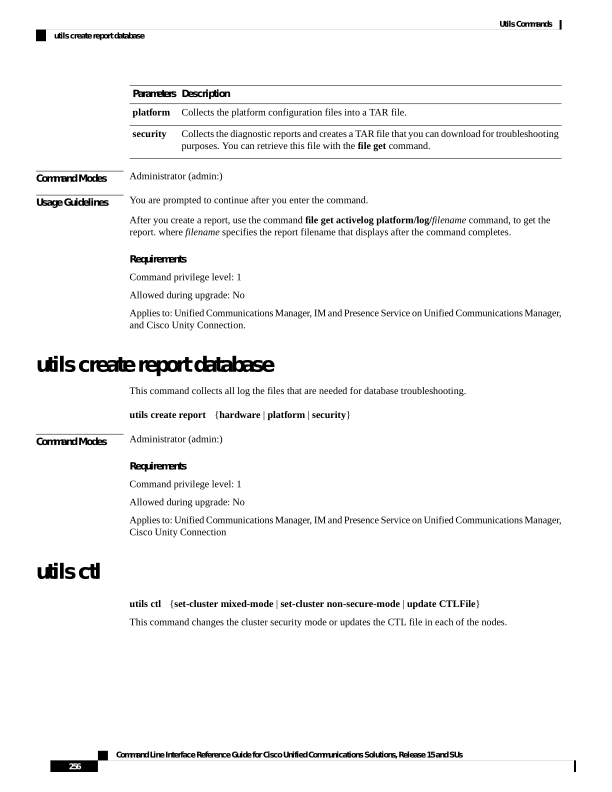
Page 281
Syntax Description
Description
Parameters
Updates the CTL file and sets the cluster to mixed mode (db secure mode is set to 1).
If the cluster is already in mixed mode, this command shows that Unified
Communications Manager is in mixed mode and Autoregistration is active. You need
to confirm your action.
Note
To enable mixed-mode, ensure that the Communications Manager is registered with
the Cisco Smart Software Manager or Cisco Smart Software Manager satellite and
the Registration Token received from the Smart account or Virtual account has Allow
export-controlled functionality enabled while registering with this cluster.
set-cluster
mixed-mode
Updates the CTL file and set the cluster to non-secure mode.
If the cluster is already in mixed mode, this command shows that Unified
Communications Manager is in non-secure mode.
set-cluster
non-secure-mode
Updates the CTL file in each of the nodes of the cluster.
Note
To update the CTLFile in mixed-mode, ensure that the Unified Communications
Manager is registered with the Cisco Smart Software Manager or Cisco Smart
Software Manager satellite and the Registration Token received from the Smart
account or Virtual account has Allow export-controlled functionality enabled while
registering with this cluster.
update CTLFile
Command Modes
Administrator (admin:)
Usage Guidelines
The CLI must be executed on the publisher. On all other nodes, this CLI command is disabled.
Ensure that you reset all the Encrypted and Authenticated phones for the CTL file updates to take effect.
Note
Requirements
Command privilege level: 1
Allowed during upgrade: Yes
Applies to: Unified Communications Manager.
utils ctl reset localkey
This command is used to regenerate the CTL file and sign it with the secondary SAST role (CallManager).
Use this command when the ITLRecovery certificate that was used to sign the original CTL file has changed
and the endpoints are locked out.
utils ctl reset
{localkey}
Command Line Interface Reference Guide for Cisco Unified Communications Solutions, Release 15 and SUs
257
Utils Commands
utils ctl reset localkey

Page 282
Syntax Description
Generates a new CTL file, updates the CTL file on the publisher. The command signs the CTLfile
with CallManager key.
localkey
Command Modes
Administrator (admin:)
Usage Guidelines
• You must run this command on the Unified Communications Manager publisher node.
• After the endpoints receive the new CTL file, which is signed by CallManager Key and contains the new
ITLRecovery certificate, execute the CTL update command (utils ctl update CTLFile) again to sign it
with the ITLRecovery certificate. The CTL file is regenerated but signed by the new ITLRecovery
certificate, which is now trusted by the endpoint.
Note
Requirements
Command privilege level: 4
Allowed during upgrade: No
Applies to: Unified Communications Manager
utils cuc activate CUSRSV
This command converts the standalone Cisco Unity Connection server to Cisco Unity Connection SRSV
server.
utils cuc activate CUSRSV
Command Modes
Administrator (admin:)
Requirements
Command privilege level: 1
Allowed during upgrade: No
Applies to: Cisco Unity Connection
utils cuc auto ITL download
This command allows Unity Connection to disable the functionality of automatically downloading CallManager
certificate for Cisco Unity Connection.
utils cuc auto ITL download { enable | disable | status }
Command Line Interface Reference Guide for Cisco Unified Communications Solutions, Release 15 and SUs
258
Utils Commands
utils cuc activate CUSRSV

Page 283
Syntex Description
Description
Parameters
Enables the functionality of automatically downloading the CallManager certificates on
port-group reset.
By default, the functionality is enabled.
enable
Disables the functionality of automatically downloading the CallManager certificates. When
disabled, you need to upload the certificates manually.
disable
Displays the status of the functionality.
status
In case of a cluster, the CLI commands are executed only on publisher server.
Note
Command Modes
Administrator (admin:)
Requirements
Command privilege level: 4
Allowed during upgrade: No
Applies to: Cisco Unity Connection
Example
admin:utils cuc auto ITL download enable
After successful execution,Unity Connection will download trust list from the TFTP server
automatically.
For this, you must do the following:
1.Configure TFTP server for Next Generation enabled port groups through Cisco Unity Connection
Administration
2. Restart the Connection Conversation Manager on all nodes in the cluster
Auto downloading of ITL enabled successfully
utils cuc cluster activate
This command activates this server in a Cisco Unity Connection cluster.
utils cuc cluster activate
Command Modes
Administrator (admin:)
Requirements
Command privilege level: 1
Command Line Interface Reference Guide for Cisco Unified Communications Solutions, Release 15 and SUs
259
Utils Commands
utils cuc cluster activate

Page 284
Allowed during upgrade: Yes
Applies to: Cisco Unity Connection
utils cuc cluster deactivate
This command deactivates this server in a Cisco Unity Connection cluster.
utils cuc cluster deactivate
Command Modes
Administrator (admin:)
Requirements
Command privilege level: 1
Allowed during upgrade: Yes
Applies to: Cisco Unity Connection
utils cuc cluster makeprimary
This command forces the specified server to take the primary server status in a Cisco Unity Connection cluster.
utils cuc cluster makeprimary
Syntax Description
Description
Parameters
Specifies the name of the server to take the primary server status in a Cisco Unity Connection
cluster.
server
Command Modes
Administrator (admin:)
Requirements
Command privilege level: 1
Allowed during upgrade: Yes
Applies to: Cisco Unity Connection
utils cuc cluster overwritedb
This command overwrites the data on the server with the data on the other server in a Cisco Unity Connection
cluster.
utils cuc cluster overwritedb
Command Modes
Administrator (admin:)
Command Line Interface Reference Guide for Cisco Unified Communications Solutions, Release 15 and SUs
260
Utils Commands
utils cuc cluster deactivate
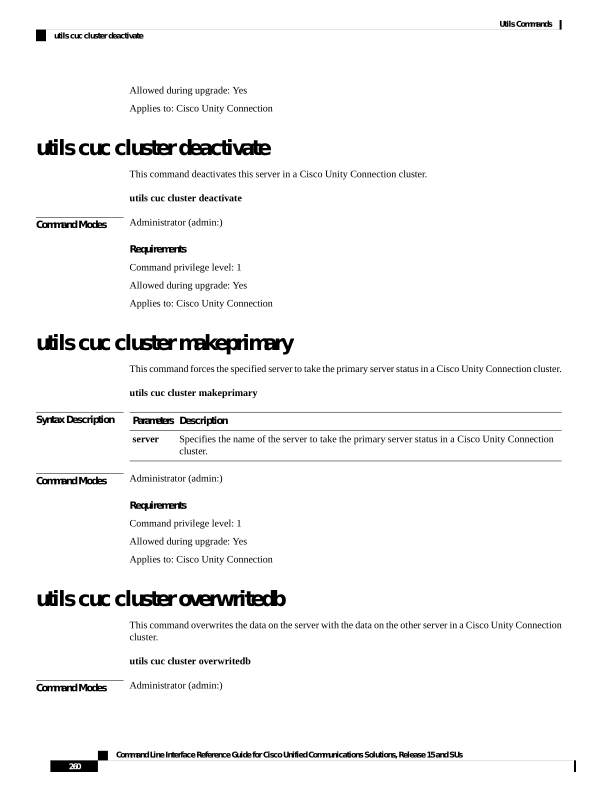
Page 285
Usage Guidelines
This command overwrites the database on the server on which you run this command with the database from
the other server in the Connection cluster. Replication restarts after the database is overwritten. This method
is used when you restore one server from a backup and must copy the restored data to the other server.
Requirements
Command privilege level: 1
Allowed during upgrade: Yes
Applies to: Cisco Unity Connection
utils cuc cluster renegotiate
This command creates a cluster relationship with the publisher server in a Connection cluster after the server
was replaced or the Connection was reinstalled on the publisher server. This command overwrites all data on
the publisher server with data from the subscriber server and initializes replication between the servers.
utils cuc cluster renegotiate
Command Modes
Administrator (admin:)
Usage Guidelines
Run this command on the subscriber server in a Connection cluster to set up a trust with a publisher server
that has been replaced or on which Connection has been reinstalled.
Requirements
Command privilege level: 1
Allowed during upgrade: Yes
Applies to: Cisco Unity Connection
utils cuc create report
This command collects data that is helpful to technical support staff for troubleshooting the system. Data
collected includes version information, cluster status, service information, database information, trace files,
log files, disk information, memory information, and restart information.
utils cuc create report
Command Modes
Administrator (admin:)
Usage Guidelines
After the command completes, detailed information gets saved in a .zip file, and the location of the zip file
displays. Use the file get command to move the file to a computer on which you can uncompress the file and
view the contents.
Requirements
Command privilege level: 1
Allowed during upgrade: Yes
Command Line Interface Reference Guide for Cisco Unified Communications Solutions, Release 15 and SUs
261
Utils Commands
utils cuc cluster renegotiate
Page 286
Applies to: Cisco Unity Connection only
Example
admin: utils cuc create report
Getting unity connection version. Please wait...Done
Getting cluster status. Please wait...Done
Getting service information. Please wait...Done
Getting installed locales. Please wait...Done
Getting database schema version. Please wait...Done
Getting database integrity. Please wait...Done
Getting database diagnostic log. Please wait...Done
Getting database message log. Please wait...Done
Getting trace files. Please wait...Done
Getting log files. Please wait...Done
Getting platform status. Please wait...Done
Compressing 75 files. Please wait...Done
Output is in file: cuc/cli/systeminfo_080318-140843.zip
To free disk space, delete the file after copying it to another computer
utils cuc dbreplication 01_tear_down
This command breaks the replication and connectivity between two Unity Connection servers in a cluster.
Running this command on both the servers ensures ideal cleanup before establishing a good replication between
the servers.
utils cuc dbreplication 01_tear_down
Command Modes
Administrator (admin:)
Usage Guidelines
In case of long Unity Connection database CDR queue buildup, this command cleans the buildup for providing
clean ground to establish server connectivity and replication between the two servers in the cluster.
It is recommended to :
• Take the system backup before running the command.
• Collect the screen log information along with command line logs if the command fails and escalate it to
Cisco TAC.
• Ensure that only Cisco TAC runs the command.
• Run the command on the server with obsolete data as the synchronization process deletes the data that
clashes with the information on the other server.
Note
Requirements
Command privilege level: 1
Allowed during upgrade: No
Applies to: Cisco Unity Connection
Command Line Interface Reference Guide for Cisco Unified Communications Solutions, Release 15 and SUs
262
Utils Commands
utils cuc dbreplication 01_tear_down

Page 287
utils cuc dbreplication 02_define_servers
This command establishes the network connectivity between the two Unity Connection servers in a cluster.
utils cuc dbreplication 02_define_servers
Command Modes
Administrator (admin:)
Usage Guidelines
You can use this command to track and report the CDR traffic from one server to another in a Unity Connection
cluster. During SBR process, this command helps in defining the roles of the two server in a cluster.
It is recommended to :
• Take the system backup before running the command.
• Collect the screen log information along with command line logs if the command fails and escalate it to
Cisco TAC.
• Ensure that only Cisco TAC runs the command.
• Run the command on the server with obsolete data as the synchronization process deletes the data that
clashes with the information on the other server.
Note
You should run this command on the server that has obsolete data in a Unity Connection cluster.
Note
Requirements
Command privilege level: 1
Allowed during upgrade: No
Applies to: Cisco Unity Connection
utils cuc dbreplication 03_define_db_template
This command creates the replication record of the set of tables in Unity Connection databases for replication
synchronization. This command also negotiates the table templates of Unity Connection database on which
the replication scheme needs to be established.
utils cuc dbreplication 03_define_db_template
Command Modes
Administrator (admin:)
Usage Guidelines
This command lists all the tables and defines templates on basis of which the data is negotiated and synchronized
between the two servers in a Unity Connection cluster.
Command Line Interface Reference Guide for Cisco Unified Communications Solutions, Release 15 and SUs
263
Utils Commands
utils cuc dbreplication 02_define_servers

Page 288
It is recommended to :
• Take the system backup before running the command.
• Collect the screen log information along with command line logs if the command fails and escalate it to
Cisco TAC.
• Ensure that only Cisco TAC runs the command.
• Run the command on the server with obsolete data as the synchronization process deletes the data that
clashes with the information on the other server.
Note
Requirements
Command privilege level: 1
Allowed during upgrade: No
Applies to: Cisco Unity Connection
utils cuc dbreplication 04_sync_database
This command synchronizes the database from the remote server to the server on which the command is
executed.
utils cuc dbreplication 04_sync_database
Command Modes
Administrator (admin:)
Usage Guidelines
You should run this command on the server that has obsolete data in a Unity Connection cluster to copy the
recent data from the remote server on the current server.
It is recommended to :
• Take the system backup before running the command.
• Collect the screen log information along with command line logs if the command fails and escalate it to
Cisco TAC.
• Ensure that only Cisco TAC runs the command.
• Run the command on the server with obsolete data as the synchronization process deletes the data that
clashes with the information on the other server.
Note
Requirements
Command privilege level: 1
Allowed during upgrade: No
Applies to: Cisco Unity Connection
Command Line Interface Reference Guide for Cisco Unified Communications Solutions, Release 15 and SUs
264
Utils Commands
utils cuc dbreplication 04_sync_database

Page 289
utils cuc dbreplication reset_all
This command performs all the tasks, such as tear down and defining servers required to reset database
replication between the two servers in a Unity Connection cluster.
utils cuc dbreplication reset_all
Command Modes
Administrator (admin:)
Usage Guidelines
This command executes the following commands sequentially to successfully reset database replication
between the two servers in a Unity Connection cluster:
• utils cuc dbreplication01_tear_down
• utils cuc dbreplication 02_define_servers
• utils cuc dbreplication 03_define_db_template
• utils cuc dbreplication 04_sync_database
It is recommended to :
• Take the system backup before running the command.
• Collect the screen log information along with command line logs if the command fails and escalate it to
Cisco TAC.
• Ensure that only Cisco TAC runs the command.
• Run the command on the server with obsolete data as the synchronization process deletes the data that
clashes with the information on the other server.
Note
Requirements
Command privilege level: 1
Allowed during upgrade: No
Applies to: Cisco Unity Connection
utils cuc encryption
This command enables, disables and provides the status of the encryption on Cisco Unity Connection.
utils cuc encryption { enable | disable | status }
Syntex Description
Description
Parameters
Enables the encryption on Unity Connection. When enabled, Unity connection allows you to
use the security features.
enable
Command Line Interface Reference Guide for Cisco Unified Communications Solutions, Release 15 and SUs
265
Utils Commands
utils cuc dbreplication reset_all

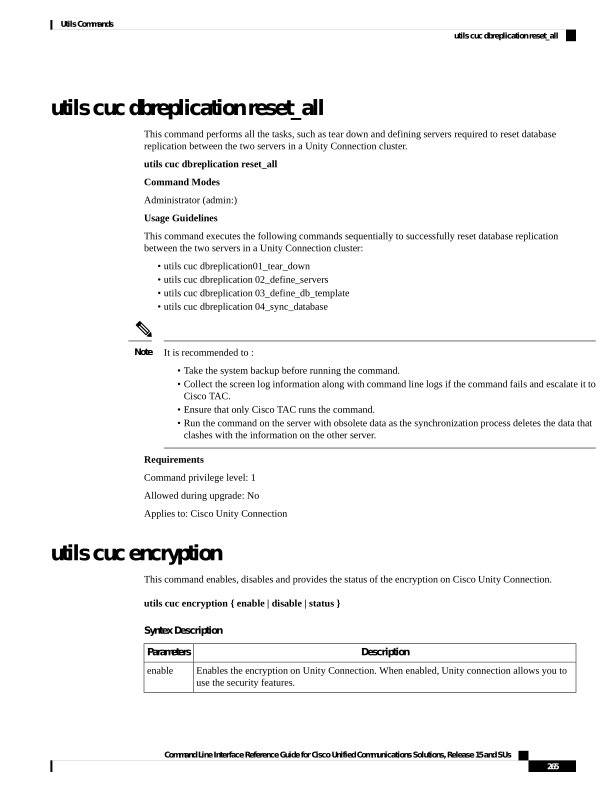
Page 290
Description
Parameters
Disables the encryption on Unity Connection. When disabled, you can not use the security
features in Unity Connection.
disable
Displays the encryption status of the Unity Connection.
status
Usage Guidelines
When you enable the encryption on Unity Connection, make sure the following:
• The Cisco Unity Connection is registered with Cisco Smart Software Manager (CSSM) or Cisco Smart
Software Manager satellite.
• Export Control Functionality is enabled for the product.
For more information on how to register and enable the Export Control Functionality for Cisco Unity
Connection, see " Configuring Cisco Smart Software Licensing in Unity Connection" section of "Managing
Licenses" chapter of Install, Upgrade and Maintenance Guide for Cisco Unity Connection Release 12.x
available at
"https://www.cisco.com/c/en/us/td/docs/voice\_ip\_comm/connection/12x/install\_upgrade/guide/b\_12xcuciumg.html".
In case of cluster, the CLI is executed only on publisher server.
Note
Command Modes
Administrator (admin:)
Requirements
Command privilege level: 4
Allowed during upgrade: No
Applies to: Cisco Unity Connection
Example
admin:utils cuc encryption enable
After successful execution, restart the following services on all nodes in the cluster
1.Connection Conversation Manager
2.Connection IMAP Server
Do you want to proceed (yes/no)? yes
Encryption enabled successfully
utils cuc hwconfig update
This CLI command updates the configuration dependencies of Connection Notifier service when the virtual
hardware configuration that is vCPU or vRAM are modified as per supported OVA configurations.
For supported OVA configurations, see Virtualization for Cisco Unity Connection (CUC).
utils cuc hwconfig update
Command Line Interface Reference Guide for Cisco Unified Communications Solutions, Release 15 and SUs
266
Utils Commands
utils cuc hwconfig update

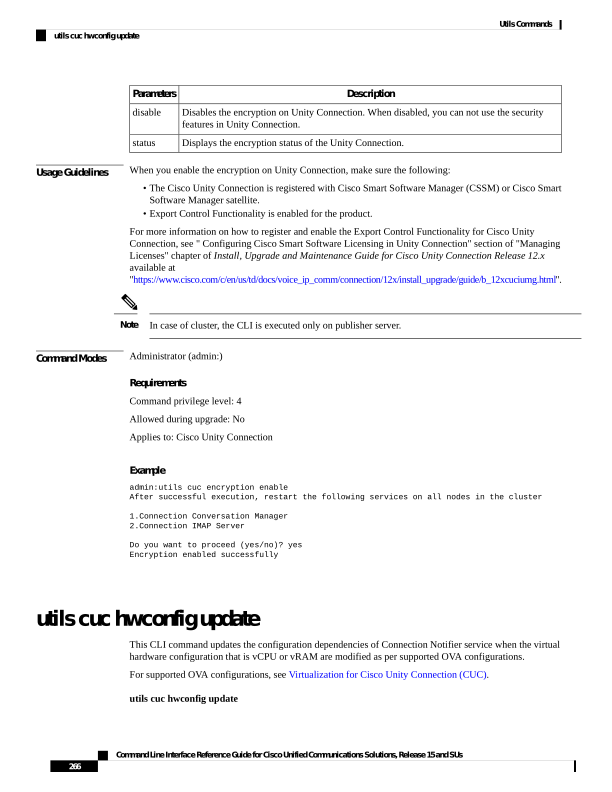
Page 291
Command Modes
Administrator (admin:)
Usage Guidelines
1.
You should execute this CLI on Unity Connection node after performing the hardware configuration
changes on virtual machines.Configuration applies to below OVA changes.
• 4vCPU 6GB vRAM configuration is increased to 7vCPU 10GB vRAM.
• 7vCPU 8GB vRAM configuration is increased to 7vCPU 10GB vRAM.
2.
In case of cluster, this CLI should be executed on both nodes.
3.
Restart Connection Notifier service on primary node of cluster after successful configuration changes.
Requirements
Command privilege level: 0
Allowed during upgrade: No
Applies to: Cisco Unity Connection.
utils cuc jetty ssl disable
This command allows you to set the status of SSL (Disabled) on the Jetty Server for notifications.
utils cuc jetty ssl disable
Command Modes
Administrator (admin:)
Requirements
Command privilege level: 1
Allowed during upgrade: Yes
Applies to: Cisco Unity Connection
Example
admin: utils cuc jetty ssl disable
After successful execution of this command restart of Jetty server is required, which will
result in loss of current event subscriptions. Are you sure?
Enter (yes/no)? yes
Command completed successfully.
Please restart Connection Jetty Service.
In case of cluster, run this command on the other node also.
utils cuc jetty ssl enable
This command allows you to enable the SSL on the Jetty Server for notifications.
Command Line Interface Reference Guide for Cisco Unified Communications Solutions, Release 15 and SUs
267
Utils Commands
utils cuc jetty ssl disable
Page 292
utils cuc jetty ssl enable
Usage Guidelines
When you enable the SSL on the Jetty server, make sure the following:
• You are using the Restricted version of Cisco Unity Connection.
• The encryption is enabled on the Cisco Unity Connection.
In Evaluation Mode, you are not allowed to run the CLI command.
Note
For more information, see "Cisco Unity Connection- Restricted and Unrestricted Version" chapter of Security
Guide for Cisco Unity Connection Release 12.x available at
https://www.cisco.com/c/en/us/td/docs/voice\_ip\_comm/connection/12x/security/b\_12xcucsecx.html.
Command Modes
Administrator (admin:)
Requirements
Command privilege level: 1
Allowed during upgrade: Yes
Applies to: Cisco Unity Connection
Example
admin: utils cuc jetty ssl enable
After successful execution of this command restart of Jetty server is required, which will
result in loss of current event subscriptions. Are you sure?
Enter (yes/no)? yes
Command completed successfully.
Please restart Connection Jetty Service.
In case of cluster, run this command on the other node also.
utils cuc licensing reset udi
This command resets the Cisco Unity Connection Server Product UDI. After the successful execution of the
CLI, registration with CSSM needs to be performed again.
utils cuc licensing reset udi
Command Modes
Administrator (admin:)
Usage Guidelines
Administrator can execute utils cuc licensing reset udi command. It resets the Product UDI and restarts the
Connection Smart License Manager Service upon successful execution.
This CLI command is allowed to run on Publisher only as Licensing of this system are managed by Publisher.
Note
Command Line Interface Reference Guide for Cisco Unified Communications Solutions, Release 15 and SUs
268
Utils Commands
utils cuc licensing reset udi

Page 293
Requirements
Command privilege level: 0
Allowed during upgrade: No
Applies to: Cisco Unity Connection.
utils cuc networking clear_replication
This command stops all Digital Networking replication activities on the server.
utils cuc networking clear_replication
Command Modes
Administrator (admin:)
Usage Guidelines
This command stops the Connection Digital Networking Replication Agent and Connection SMTP service,
deletes the drop, queue, and pickup replication folders, clears the status of in-progress directory pushes to or
pulls from this server, and restarts the Connection Digital Networking Replication Agent and Connection
SMTP service. Depending on the size of the replication folders, this operation may take several minutes.
Requirements
Command privilege level: 1
Allowed during upgrade: No
Applies to: Cisco Unity Connection
utils cuc networking dscp
This command causes Connection either to start or to stop including a DSCP value of 18 in packets sent
between the Connection servers in a cluster, so a router configured to prioritize packets based on their DSCP
value can prioritize Connection data and voice messages.
utils cuc networking dscp
{on | off}
Syntax Description
Description
Parameters
Causes Connection to start including a DSCP value of 18 packets sent over the network.
on
Causes to stop including a DSCP value of 18 in packets sent over the network. 18 is the default
value.
off
Command Modes
Administrator (admin:)
Usage Guidelines
This command makes the DSCP value available in the packets being passed between the Connection servers
in a cluster. For the information to be used, you must configure the router. The command lets you control
whether a DSCP value is included in outgoing packets, but you can not change the value.
Command Line Interface Reference Guide for Cisco Unified Communications Solutions, Release 15 and SUs
269
Utils Commands
utils cuc networking clear_replication
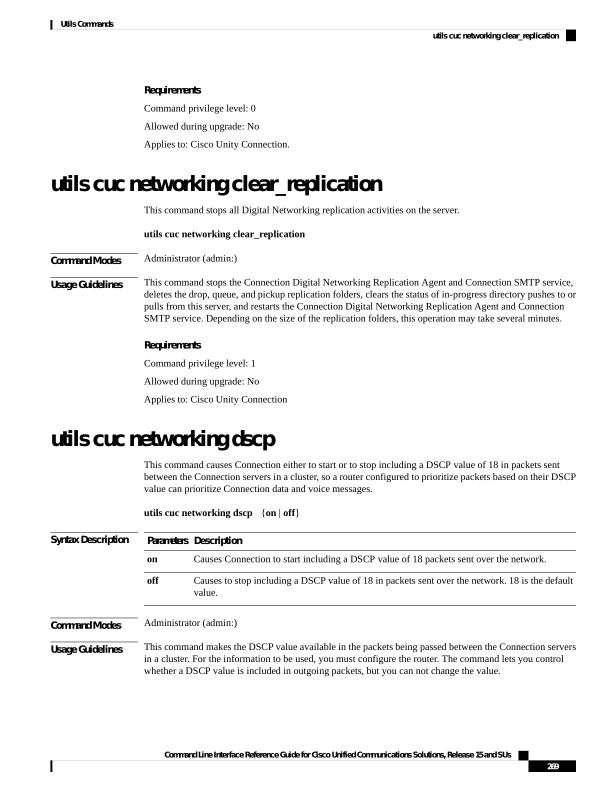
Page 294
Requirements
Command privilege level: 1
Allowed during upgrade: Yes
Applies to: Cisco Unity Connection only
utils cuc odbc non-secure enable
Use this CLI command to enable the non-secure port 20532 on the node. By default port 20532 is enabled.
utils cuc odbc non-secure enable
Command Modes
Administrator (admin:)
Usage Guidelines
In case of cluster, this CLI should be executed on both the nodes.
Requirements
Command privilege level: 4
Applies to: Cisco Unity Connection.
utils cuc odbc non-secure disable
Use this CLI command to disable the non-secure port 20532 on the node.
utils cuc odbc non-secure disable
Command Modes
Administrator (admin:)
Usage Guidelines
In case of cluster, this CLI should be executed on both nodes.
Requirements
Command privilege level: 4
Applies to: Cisco Unity Connection.
utils cuc odbc non-secure status
Use this CLI command to see the status of non-secure odbc port whether it is enabled or disabled on the node.
utils cuc odbc non-secure status
Command Modes
Administrator (admin:)
Command Line Interface Reference Guide for Cisco Unified Communications Solutions, Release 15 and SUs
270
Utils Commands
utils cuc odbc non-secure enable
Page 295
Requirements
Command privilege level: 4
Applies to: Cisco Unity Connection.
utils cuc reset password
This command resets the password for a specified user account. If Connection locked the account because of
too many failed sign-in attempts, this command also unlocks the account.
utils cuc reset password
Command Modes
Administrator (admin:)
Requirements
Command privilege level: 4
Allowed during upgrade: Yes
Applies to: Cisco Unity Connection only
Example
admin: utils cuc reset password jdoe
Enter password:
Re-enter password:
jdoe
07/29/2008 12:41:14.704 : Update SUCCESSED
utilscucsetPinExpiry_PromptTime“AuthenticationRuleName”
This Command enables the Cisco Unity Connection telephone user interface (touchtone conversation) PIN
feature and allows you to update the time interval during when the conditional expiry warning prompt will
be played.
Requirements
If the value is set to:
• 0: disabled
• 1: enabled
• Enter the time interval
For more information on utilscuc set PinExpiry_PromptTime "Authentication Rule Name" CLI command,
see the Cisco Unity Connection telephone user interface (touchtone conversation) PIN section in Release
Notes for Cisco Unity Connection 10.0(1).
Command Line Interface Reference Guide for Cisco Unified Communications Solutions, Release 15 and SUs
271
Utils Commands
utils cuc reset password
Page 296
utils container-engine start
This command starts the docker engine.
utils container-engine start
Command Modes
Administrator (admin:)
Requirements
Command privilege level: 1
Allowed during upgrade: Yes
Applies to: Unified Communications Manager and Cisco Unity Connection.
utils container-engine stop
This command stops the container engine.
utils container-engine stop
Command Modes
Administrator (admin:)
Requirements
Command privilege level: 1
Allowed during upgrade: Yes
Applies to: Unified Communications Manager and Cisco Unity Connection.
All the containers will be undeployed.
Note
utils container-engine restart
This command restarts the container engine.
utils container-engine restart
Command Modes
Administrator (admin:)
Requirements
Command privilege level: 1
Allowed during upgrade: Yes
Command Line Interface Reference Guide for Cisco Unified Communications Solutions, Release 15 and SUs
272
Utils Commands
utils container-engine start

Page 297
Applies to: Unified Communications Manager and Cisco Unity Connection.
utils container-engine status
This command shows the containers and it's states on the server when container-engine is running. Additionally
displays PIDs and usage of CPU, MEM, I/O for running containers.
utils container-engine status
Command Modes
Administrator (admin:)
Requirements
Command privilege level: 1
Allowed during upgrade: Yes
Applies to: Unified Communications Manager and Cisco Unity Connection.
utils dbreplication dropadmindb
This command drops the Informix syscdr database on any server in the cluster.
utils dbreplication dropadmindb
Command Modes
Administrator (admin:)
Usage Guidelines
You should run this command only if database replication reset or cluster reset fails and replication cannot
be restarted.
Requirements
Command privilege level: 1
Allowed during upgrade: No
Applies to: Unified Communications Manager, IM and Presence Service on Unified Communications Manager,
Cisco Unity Connection
utils dbreplication forcedatasyncsub
This command forces a subscriber server to have its data restored from data on the publisher server.
utils dbreplication forcedatasyncsub nodename
[offloadpub] [timeoutvalue]
Syntax Description
Description
Parameters
Specifies a particular subscriber server to have its data restored from data on the publisher
server. Enter all to restore data on all subscriber servers.
nodename
Command Line Interface Reference Guide for Cisco Unified Communications Solutions, Release 15 and SUs
273
Utils Commands
utils container-engine status
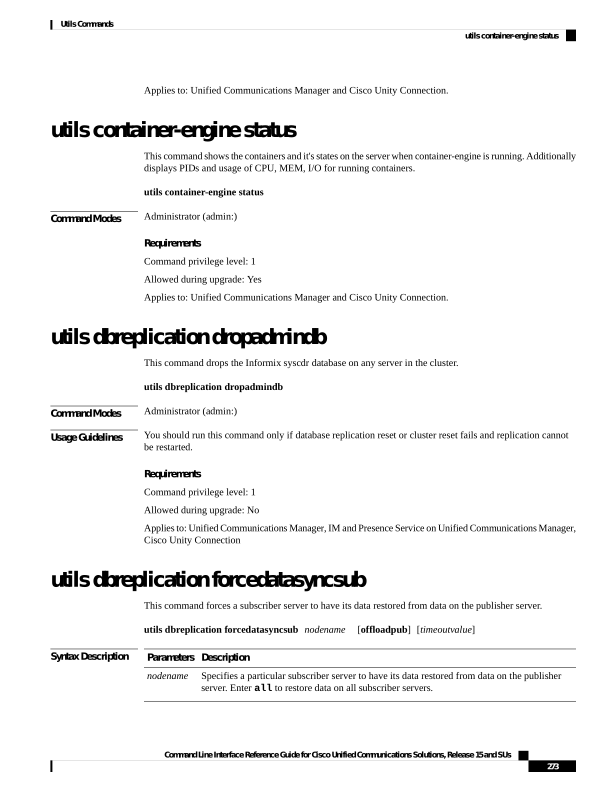
Page 298
Description
Parameters
Minimizes the usage of the publisher server during the forcedatasyncsub process.
Note
Adding this option increases the time taken for forcedatasyncsub to finish.
offloadpub
Specifies the recovery timeout value for each node in minutes (should be greater than the
default timeout).
Default: 40 minutes.
timeoutvalue
Command Modes
Administrator (admin:)
Usage Guidelines
Use this command before you run the utils dbreplication repair command several times; but the utils
dbreplication status command still shows non-dynamic tables that aren't in sync.
Don't run this command if only dynamic tables are out of sync; dynamic tables can be out of sync during
normal system operation.
Note
You can run this command only from the publisher server. Enter all to force sync on all subscriber servers in
the cluster. If only one subscriber server is out of sync, use the nodename parameter.
This command erases all existing data on the subscriber server and replaces it with the database from the
publisher server. This erasure makes it impossible to determine the root cause for the subscriber server tables
going out of sync.
Note
Reboot the subscriber node after the utils dbreplication forcedatasyncsub command is executed.
Cisco DB service will be in the stopped state in the subscriber node where the utils dbreplication
forcedatasyncsub command is executed; unless reboot on the subscriber(s) is performed.
Note
Requirements
Command privilege level: 1
Allowed during upgrade: No
Applies to: Unified Communications Manager, IM and Presence Service on Unified Communications Manager,
Cisco Unity Connection
utils dbreplication quickaudit
This command runs a quick database check on selected content on dynamic tables.
Command Line Interface Reference Guide for Cisco Unified Communications Solutions, Release 15 and SUs
274
Utils Commands
utils dbreplication quickaudit

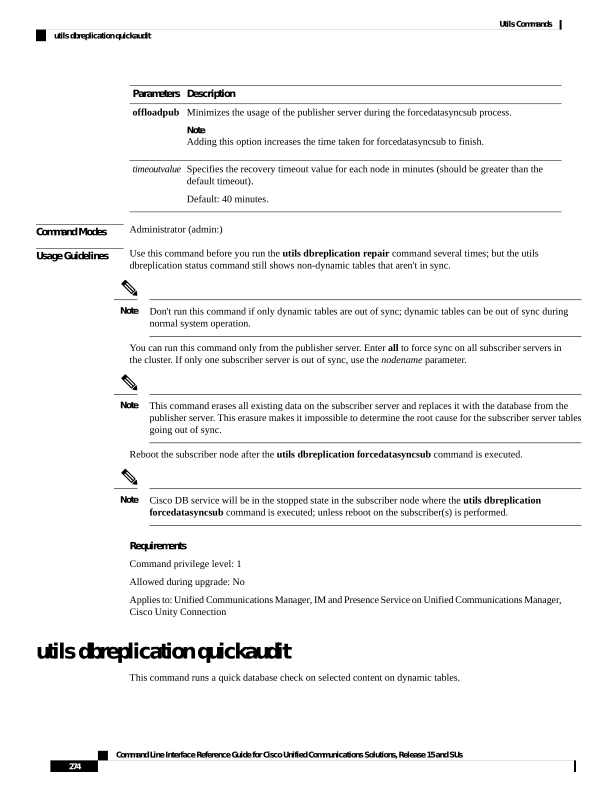
Page 299
utils dbreplication quickaudit
{nodename | all}
Syntax Description
Description
Parameters
Specifies the node on which the quick audit should be run.
nodename
Causes the audit to be run on all nodes
all
Command Modes
Administrator (admin:)
Requirements
Command privilege level: 1
Allowed during upgrade: No
Applies to: Unified Communications Manager, IM and Presence Service on Unified Communications Manager,
Cisco Unity Connection
utils dbreplication rebuild
This command is used to set up database replication across the cluster and runs the following commands on
the specified nodes:
• utils dbreplication stop
• utils dbreplication dropadmindb or dropadmindbforce
• utils dbreplication reset
utils dbreplication rebuild
{[nodename] | all}
Syntax Description
Description
Parameters
Specifies the node or nodes on which database replication will be rebuilt.
nodename
Specifies that database replication will be rebuilt on all nodes in the cluster.
all
Command Modes
Administrator (admin:)
Usage Guidelines
This command can affect performance of other nodes in your cluster. We recommend that you run this
command during a system maintenance window.
Caution
Requirements
Command privilege level: 1
Allowed during upgrade: No
Command Line Interface Reference Guide for Cisco Unified Communications Solutions, Release 15 and SUs
275
Utils Commands
utils dbreplication rebuild

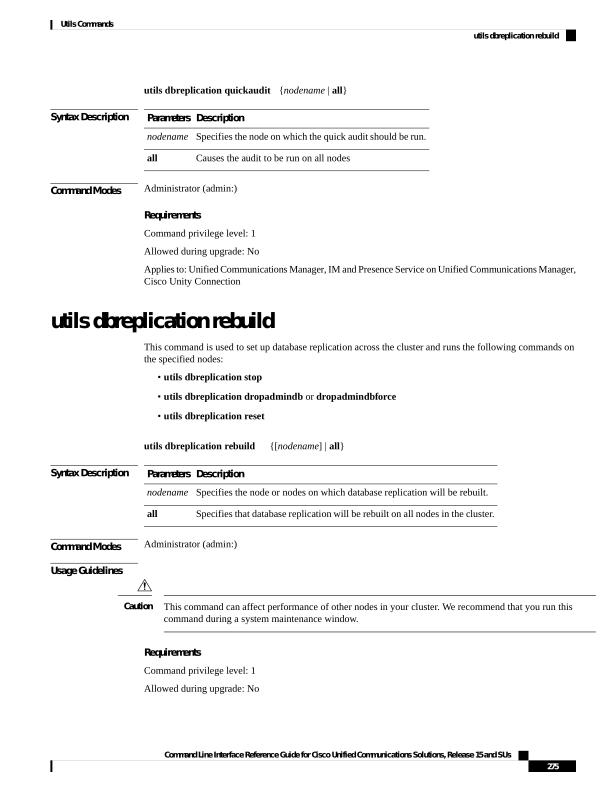
Page 300
Applies to: Unified Communications Manager, IM and Presence Service on Unified Communications Manager,
Cisco Unity Connection
utils dbreplication repair
This command repairs database replication.
utils dbreplication repair
{nodename | all}
Syntax Description
Description
Parameters
Specifies a particular subscriber server for data repair.
nodename
Causes data repair to take place on all subscriber servers.
all
Command Modes
Administrator (admin:)
Usage Guidelines
If the command utils dbreplication status shows that servers are connected but one or more tables have data
that is out of sync, the utils dbreplication repair repairs the data on the subscriber servers so that the data is
in sync with the data on the publisher server.
Specify all to repair all nodes in the cluster, or if only one subscriber server is out of sync, specify the nodename
parameter.
Requirements
Command privilege level: 1
Allowed during upgrade: Yes
Applies to: Unified Communications Manager, IM and Presence Service on Unified Communications Manager,
Cisco Unity Connection
utils dbreplication repairreplicate
This command repairs mismatched data between cluster nodes and changes the node data to match the publisher
data.
utils dbreplication repairreplicate replicatename [nodename | all]
Syntax Description
Description
Parameters
Specifies the replicate to repair.
replicatename
Specifies the node on which to repair replication.
nodename
Specifies to fix replication on all nodes.
all
Command Modes
Administrator (admin:)
Command Line Interface Reference Guide for Cisco Unified Communications Solutions, Release 15 and SUs
276
Utils Commands
utils dbreplication repair
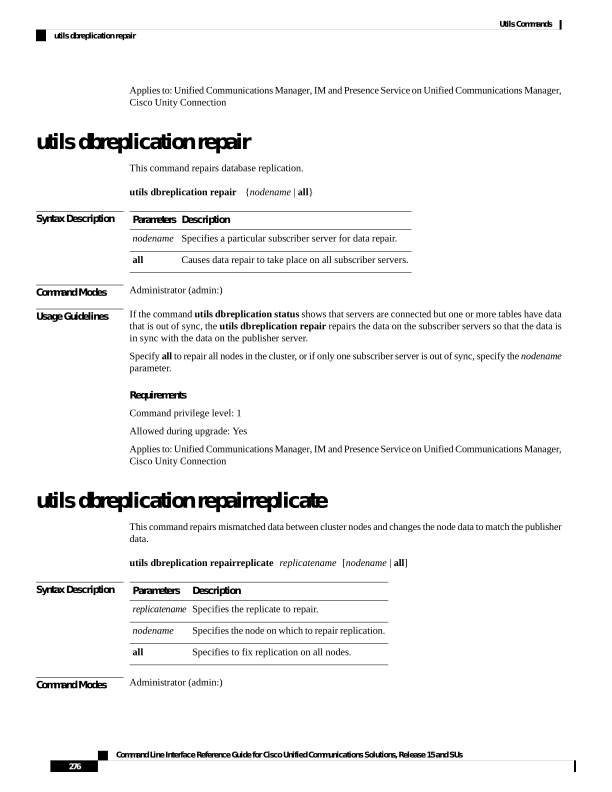
Page 301
Usage Guidelines
The parameter nodename may not specify the publisher; any subscriber node name is acceptable.
This command can be executed on the publisher.
Note
This command does not repair replication setup
Note
Requirements
Command privilege level: 1
Allowed during upgrade: Yes
Applies to: Unified Communications Manager, IM and Presence Service on Unified Communications Manager,
Cisco Unity Connection
utils dbreplication repairtable
This command repairs mismatched data between cluster nodes and changes the node to match the publisher
data.
utils dbreplication repairtable tablename [nodename | all]
Syntax Description
Description
Parameters
Specifies the table to repair
tablename
Specifies the node on which to repair replication.
nodename
Specifies to fix replication on all nodes.
all
Command Modes
Administrator (admin:)
Usage Guidelines
This command does not repair replication setup.
Note
Requirements
Command privilege level: 1
Allowed during upgrade: Yes
Applies to: Unified Communications Manager, IM and Presence Service on Unified Communications Manager,
Cisco Unity Connection
Command Line Interface Reference Guide for Cisco Unified Communications Solutions, Release 15 and SUs
277
Utils Commands
utils dbreplication repairtable

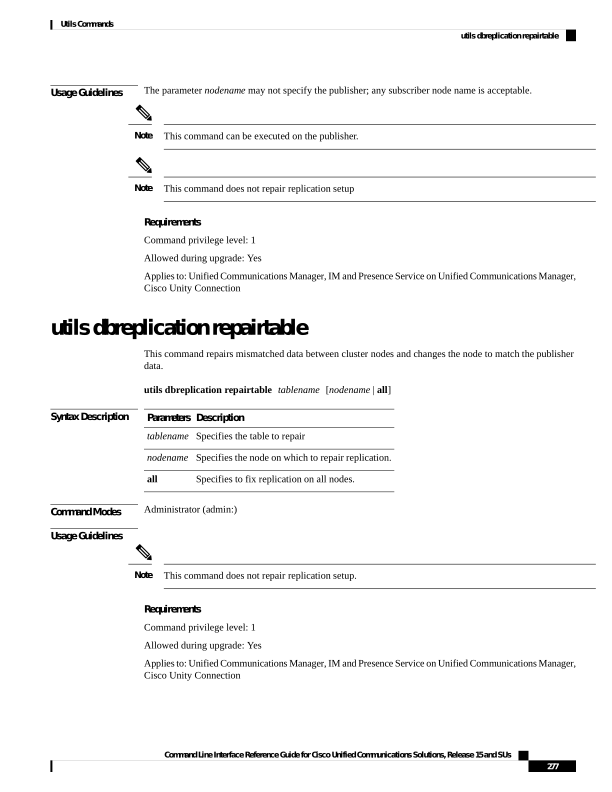
Page 302
utils dbreplication reset
This command resets and restarts database replication. You can use this command to rebuild replication when
the system has not set up replication properly.
utils dbreplication reset
{nodename | all}
Syntax Description
Description
Parameters
Specifies a particular subscriber
server to on which to have
replication rebuilt.
nodename
Specifies that all subscriber servers
in the cluster have replication
rebuilt.
all
Command Modes
Administrator (admin:)
Usage Guidelines
This command is the best option to use when servers show an RTMT state of 4. If only one subscriber server
shows an RTMT state of 4, you may reset that server by specifying the hostname parameter. To reset the
entire cluster, use the all parameter.
Before you run this command, first run the command utils dbreplication stop on all subscriber servers that
are reset and then on the publisher server.
Tip
Requirements
Command privilege level: 1
Allowed during upgrade: No
Applies to: Unified Communications Manager, IM and Presence Service on Unified Communications Manager,
Cisco Unity Connection
utils dbreplication runtimestate
This command monitors progress of the database replication process and provides replication state in the
cluster.
utils dbreplication runtimestate nodename
Syntax Description
Description
Parameters
Specifies the node to monitor.
nodename
Command Line Interface Reference Guide for Cisco Unified Communications Solutions, Release 15 and SUs
278
Utils Commands
utils dbreplication reset

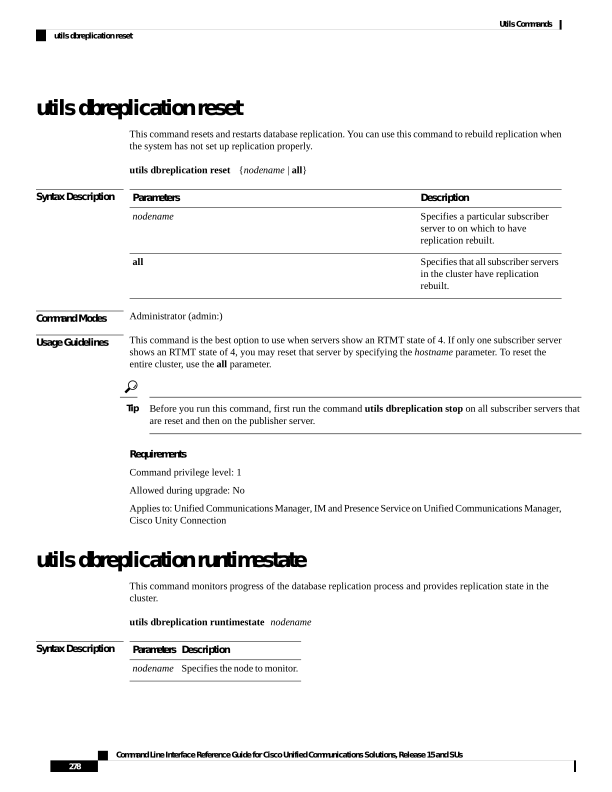
Page 303
Command Modes
Administrator (admin:)
Usage Guidelines
If you provide a node name, the system provides the replication state from the context of the selected node.
Requirements
Command privilege level: 0
Allowed during upgrade: Yes
Applies to: Unified Communications Manager, IM and Presence Service on Unified Communications Manager,
Cisco Unity Connection
utils dbreplication setprocess
This command improves replication performance of clusters that have nodes separated by WANs with delay
(Clustering over WAN configuration).
utils dbreplication setprocess [process]
Syntax Description
Description
Parameters
The new database replication . Ensure that the value is between 1 and 40.
Default value: 1
process
Command Modes
Administrator (admin:)
Usage Guidelines
Setting the PROCESS option to near maximum consumes more system resources.
Changes made to this setting after an upgrade but before the switch-over to the new version will need to be
manually re-applied.
Caution
Requirements
Command privilege level: 1
Allowed during upgrade: No
utils dbreplication setrepltimeout
This command sets the timeout for database replication on large clusters.
utils dbreplication setrepltimeout timeout
Command Line Interface Reference Guide for Cisco Unified Communications Solutions, Release 15 and SUs
279
Utils Commands
utils dbreplication setprocess

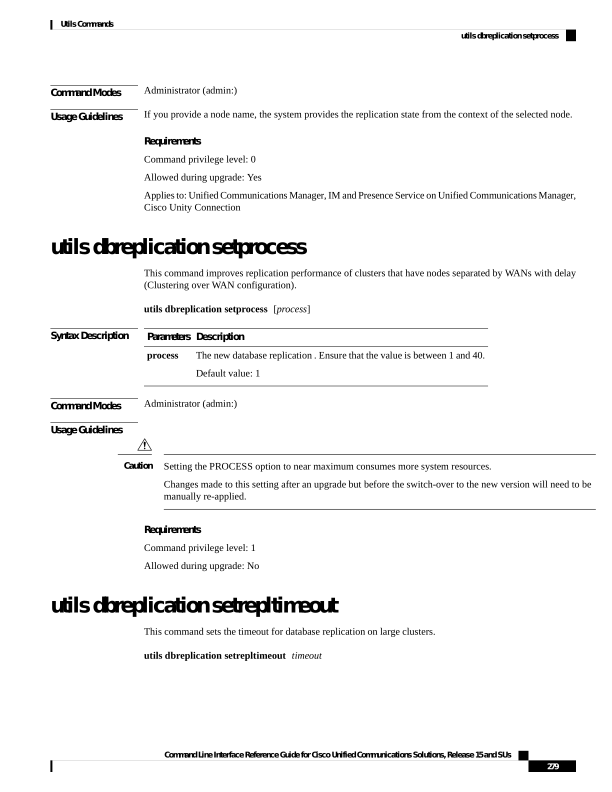
Page 304
Syntax Description
Description
Parameters
The new database replication timeout, in seconds. Ensure that the value is between 300 and
3600.
Default value: 300 (5 minutes)
timeout
Command Modes
Administrator (admin:)
Usage Guidelines
After the first subscriber server requests replication with the publisher server, the system sets this timer. After
the timer expires, the first subscriber server, plus all other subscriber servers that requested replication within
that time period, begin data replication with the publisher server in a batch. If you have several subscriber
servers, batch replication is more efficient than individual server replication. For large clusters, you can use
the command to increase the default timeout value, so that more subscriber servers are included in the batch.
Cisco recommends that you restore this value back to the default of 300 (5 minutes) after you finish upgrading
the entire cluster, and the subscriber servers have successfully set up replication.
Tip
After you upgrade the publisher server and restart it on the upgraded partition, you should set this timer value
before you switch the first subscriber server to the new release. After the first subscriber server requests
replication, the publisher server sets the replication timer based on the new value.
Note
Requirements
Command privilege level: 1
Allowed during upgrade: No
Applies to: Unified Communications Manager, IM and Presence Service on Unified Communications Manager,
Cisco Unity Connection
utils dbreplication status
This command shows the status of database replication and indicates whether the servers in the cluster are
connected and the data is in sync.
utils dbreplication status
{all | node | replicate}
Syntax Description
Description
Parameters
Specifies to show the status of all servers.
all
Specifies the node for which to show status.
node
Specifies the replicate for which to show status.
replicate
Command Modes
Administrator (admin:)
Command Line Interface Reference Guide for Cisco Unified Communications Solutions, Release 15 and SUs
280
Utils Commands
utils dbreplication status


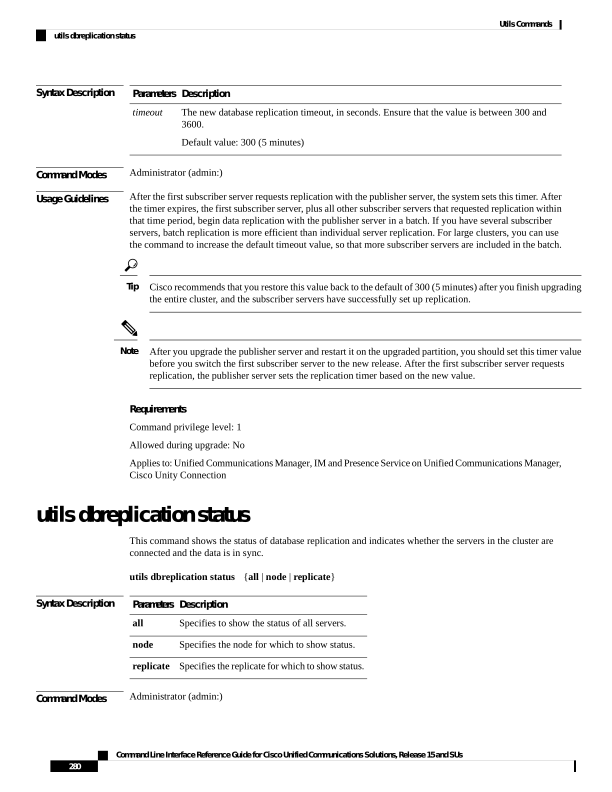
Page 305
Usage Guidelines
You should run this command only on the first node (publisher server) of a cluster.
Note
Requirements
Command privilege level: 0
Allowed during upgrade: No
Applies to: Unified Communications Manager, IM and Presence Service on Unified Communications Manager,
Cisco Unity Connection
utils dbreplication stop
This command stops the automatic setup of database replication. Run this command on subscriber and publisher
servers before executing the CLI command utils dbreplication reset. You can run this command on the
subscriber servers simultaneously, before you run it on the publisher server.
utils dbreplication stop
{nodename | all}
Syntax Description
Description
Parameters
Specifies the name of the node on which to stop the automatic setup of database replication.
nodename
Stops database replication on all nodes.
all
Command Modes
Administrator (admin:)
Requirements
Command privilege level: 1
Allowed during upgrade: No
Applies to: Unified Communications Manager, IM and Presence Service on Unified Communications Manager,
Cisco Unity Connection
utils imdb_replication replication status
This command validates that In Memory Database (IMDB) replication between the node pairs in each subcluster
of the deployment has run correctly.
The command performs writes and reads on IMDB tables in each relevant Datastore using a utility from the
calling IM and Presence Service node.
utils imdb_replication status
Command Modes
Administrator (admin:)
Command Line Interface Reference Guide for Cisco Unified Communications Solutions, Release 15 and SUs
281
Utils Commands
utils dbreplication stop

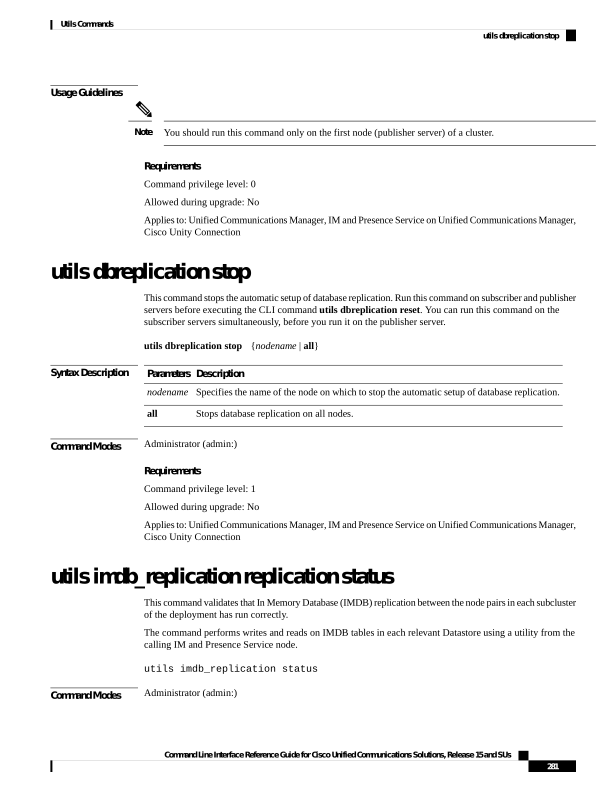
Page 306
Usage Guidelines
For the utility to run successfully, ports 6603, 6604, and 6605 must be opened on any firewalls that are
configured between the nodes on the IM and Presence Service clusters.
This is not required for the normal operation of the IMDB.
Requirements
Command privilege level: 0
Allowed during upgrade: Yes
Applies to: IM and Presence Service
utils diagnose
This command enables you to diagnose and attempt to automatically fix system problems.
utils diagnose
{ fix | list | test | version }
[module_name]
utils diagnose
{ module } [module_name] [container_name]
Syntax Description
Description
Parameters
Runs all diagnostic commands and attempts to fix problems.
fix
Lists all the diagnostic commands available for HCS services.
hcs
Lists all available diagnostic commands.
list
Runs a single diagnostic command or group of commands and attempts to fix problems.
module
Runs all diagnostic commands but does not attempt to fix problems.
test
Displays the diagnostic framework version.
version
Specifies the name of a diagnostics module.
module_name
Specifies the name of container. This is applicable only for the module parameter.
Note
Specifiy the container name, it runs the diagnostic module inside the container, if containers
are running.
container_name
Command Modes
Administrator (admin:)
Requirements
Command privilege level: 0 for version and 1 for all other parameters
Applies to: Unified Communications Manager, IM and Presence Service on Unified Communications Manager,
and Cisco Unity Connection
Command Line Interface Reference Guide for Cisco Unified Communications Solutions, Release 15 and SUs
282
Utils Commands
utils diagnose
Page 307
utils disaster_recovery backup network
Displays information about the backup files that are stored on a remote server.
utils disaster_recovery backup network
[featurelist][path][servername][username]
Syntax Description
Description
Parameters
Specifies a list of features to back up, separated by commas.
[featurelist]
Represents the location of the backup files on the remote server.
[path]
Represents the IP address or hostname of the server where you stored the backup files.
[servername]
Represents the username that is needed to log in to the remote server.
[username]
Command Modes
Administrator (admin:)
Usage Guidelines
The system prompts you to enter the password for the account on the remote server.
Requirements
Command privilege level: 1
Allowed during upgrade: Yes
Applies to: Unified Communications Manager, IM and Presence Service on Unified Communications Manager,
and Cisco Unity Connection
utils disaster_recovery cancel_backup
This command cancels the ongoing backup.
utils disaster_recovery cancel_backup
[confirm]
Command Modes
Administrator (admin:)
Usage Guidelines
After you enter the command, you must confirm that you want to cancel the backup. Enter Y to cancel the
backup or any other key to continue the backup.
Requirements
Command privilege level: 1
Allowed during upgrade: Yes
Applies to: Unified Communications Manager, IM and Presence Service on Unified Communications Manager,
and Cisco Unity Connection
Command Line Interface Reference Guide for Cisco Unified Communications Solutions, Release 15 and SUs
283
Utils Commands
utils disaster_recovery backup network
Page 308
Example
admin: utils disaster_recovery cancel_backup yes
Cancelling backup...
Backup cancelled successfully.
utils disaster_recovery device add network
This command adds the backup network device.
utils disaster_recovery device add network
devicename
path
server_namei/ip_address
username
[Number_of_backups]
Syntax Description
Description
Parameters
Specifies the name of the backup device to be added (mandatory).
devicename
Specifies the path to retrieve the backup device (mandatory).
path
Specifies the hostname or IP address of the server where the backup file is stored
(mandatory).
server_name/ip_address
Specifies the userid required to connect to the remote machine (mandatory).
username
Specifies the number of backups to store on the Network Directory (default 2). This
parameter is optional.
[Number_of_backups]
Command Modes
Administrator (admin:)
Requirements
Command privilege level: 1
Allowed during upgrade: Yes
Applies to: Unified Communications Manager, IM and Presence Service on Unified Communications Manager,
and Cisco Unity Connection
Example
admin: utils disaster_recovery device add network networkDevice /root 10.77.31.116 root 3
utils disaster_recovery device delete
This command deletes the specified device.
utils disaster_recovery device delete
device_name*
Command Line Interface Reference Guide for Cisco Unified Communications Solutions, Release 15 and SUs
284
Utils Commands
utils disaster_recovery device add network
Page 309
Syntax Description
Description
Parameters
Name of the device to be deleted.
device_name
Deletes all existing devices except for the ones associated to a schedule.
*
Command Modes
Administrator (admin:)
Usage Guidelines
Requirements
Command privilege level: 1
Allowed during upgrade: No
Applies to: Unified Communications Manager, IM and Presence Service on Unified Communications Manager,
and Cisco Unity Connection
utils disaster_recovery device list
Displays the device name, device type, and device path for all the backup devices.
utils disaster_recovery device list
Command Modes
Administrator (admin:)
Requirements
Command privilege level: 1
Allowed during upgrade: Yes
Applies to: Unified Communications Manager, IM and Presence Service on Unified Communications Manager,
and Cisco Unity Connection
utils disaster_recovery estimate_tar_size
This command provides the estimated size of last successful backup from SFTP or local device.
utils disaster_recovery estimate_tar_size
utils disaster_recovery device list
Syntax Description
Description
Parameters
Specifies a list of features to back up, separated by commas.
featurelist
Command Modes
Administrator (admin:)
Requirements
Command privilege level: 1
Allowed during upgrade: No
Command Line Interface Reference Guide for Cisco Unified Communications Solutions, Release 15 and SUs
285
Utils Commands
utils disaster_recovery device list
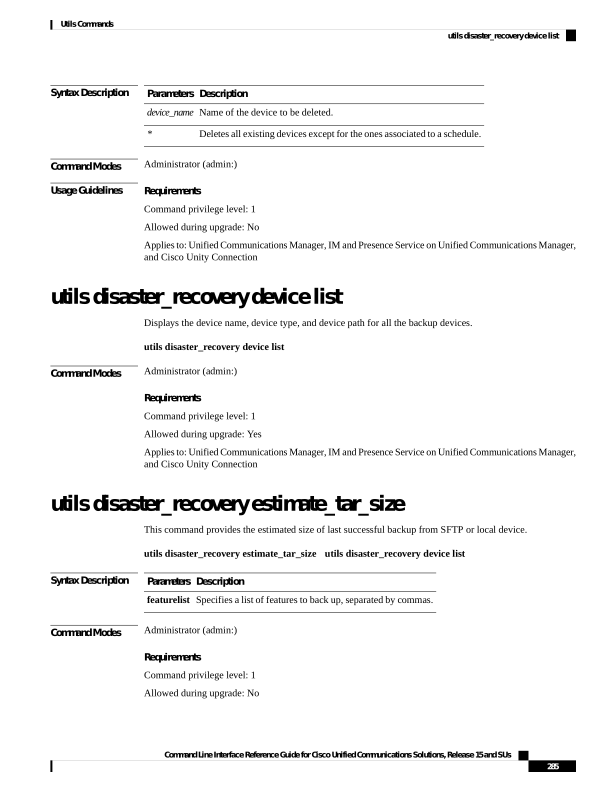
Page 310
Applies to: Unified Communications Manager, IM and Presence Service on Unified Communications Manager,
and Cisco Unity Connection
utils disaster_recovery history
This command displays the history of previous backups and restores.
utils disaster_recovery history
[operation]
Syntax Description
Description
Parameters
Specifies backup or
restore.
operation
Command Modes
Administrator (admin:)
Requirements
Command privilege level:
Allowed during upgrade:
Applies to: Unified Communications Manager, IM and Presence Service on Unified Communications Manager,
and Cisco Unity Connection
Example
admin: utils disaster_recovery history backup
Tar Filename: Backup Device: Completed On: Result: Backup Type: Features Backed Up:
2009-10-30-14-53-32.tar TAPE Fri Oct 30 14:55:31 CDT 2009 ERROR MANUAL
2009-12-10-10-30-17.tar TAPE Thu Dec 10 10:35:22 CST 2009 SUCCESS MANUAL CDR_CAR,CCM
utils disaster_recovery jschLogs operation
This command enables and disables the detailed JSch logging.
utils disaster_recovery jschLogs operation [operation]
Syntax Description
Description
Parameters
Specifies the name of operation—enable or disable.
operation
Command Modes
Administrator (admin:)
Requirements
Command privilege level: 1
Allowed during upgrade: Yes
Command Line Interface Reference Guide for Cisco Unified Communications Solutions, Release 15 and SUs
286
Utils Commands
utils disaster_recovery history
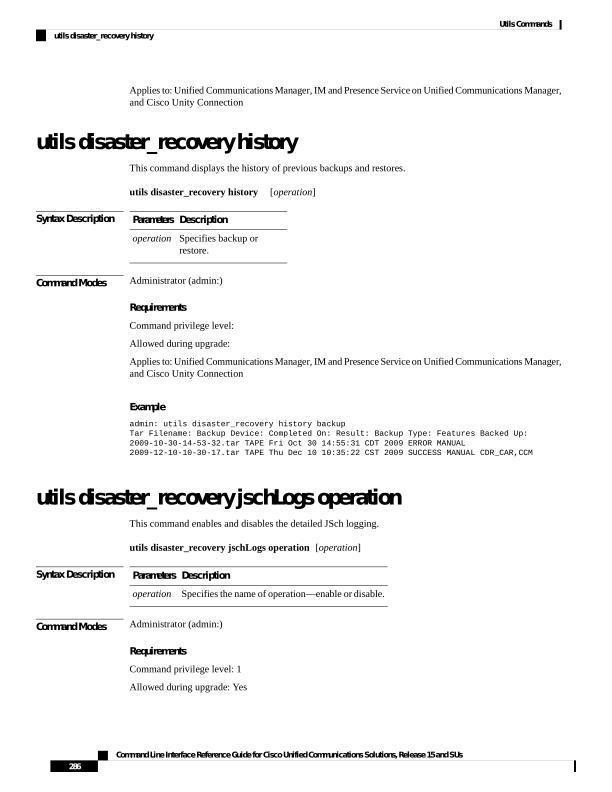
Page 311
Applies to: Unified Communications Manager, IM and Presence Service on Unified Communications Manager,
and Cisco Unity Connection
utils disaster_recovery prepare restore pub_from_sub
This command handles the tasks to prepare for restore of a publisher node from a subscriber node.
This command is applicable only when a publisher node is rebuilt and restored from the subscriber node
database. A specific procedure is used for restore instead of restoring the data from the remote backup source.
After a publisher node is rebuilt, you must use this command prior to the insertion of process node information.
Note
utils disaster_recovery prepare restore pub_from_sub
Command Modes
Administrator (admin:)
Requirements
Command privilege level: 1
Allowed during upgrade: No
Applies to: Unified Communications Manager, IM and Presence Service on Unified Communications Manager,
and Cisco Unity Connection
utils disaster_recovery restore network
This command restores a remote server. You must restore the Unified Communications Manager publisher
node before you restore subscriber nodes in the same cluster. If you are restoring IM and Presence Service
nodes, you must restore the database publisher node before you restore subscriber nodes in the same cluster.
utils disaster_recovery restore network restore_server tarfilename devicename
Syntax Description
Description
Parameters
Specifies the hostname of the remote server that you want to restore.
restore_server
Specifies the name of the file to restore.
tarfilename
Specifies the name of the device on which to restore files.
devicename
Command Modes
Administrator (admin:)
Requirements
Command privilege level: 1
Allowed during upgrade: Yes
Command Line Interface Reference Guide for Cisco Unified Communications Solutions, Release 15 and SUs
287
Utils Commands
utils disaster_recovery prepare restore pub_from_sub

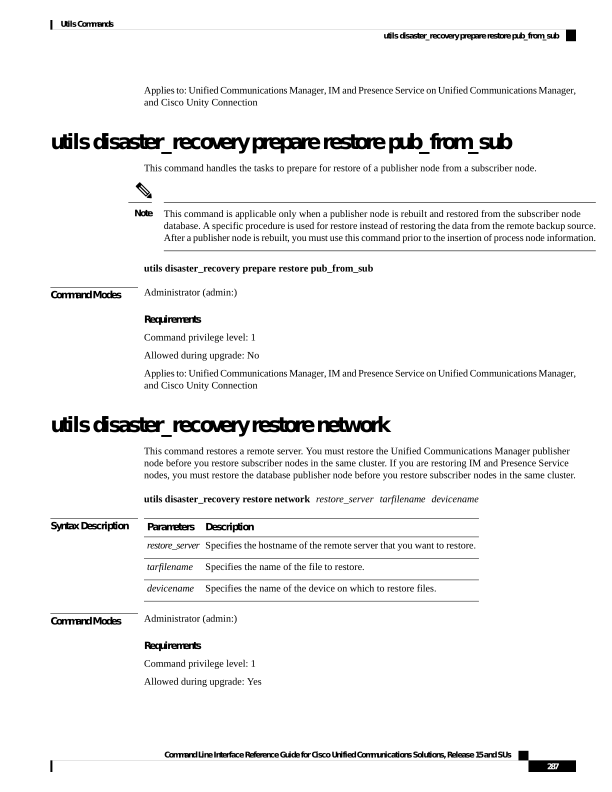
Page 312
Applies to: Unified Communications Manager, IM and Presence Service on Unified Communications Manager,
and Cisco Unity Connection
utils disaster_recovery schedule add
This command adds the configured schedules.
utils disaster_recovery schedule add schedulename devicename featurelist datetime frequency
Syntax Description
Description
Parameters
Represents the name of the scheduler (mandatory).
schedulename
Represents the name of the device for which scheduling is done (mandatory).
devicename
Represents the comma-separated feature list to back up (mandatory).
featurelist
Represents the date when the scheduler is set (mandatory). Format specified
(yyyy/mm/dd-hh:mm) 24-hr clock.
datetime
Represents the frequency at which the schedule is set to take a backup. Examples: once, daily,
weekly and monthly.
frequency
Command Modes
Administrator (admin:)
Requirements
Command privilege level: 1
Allowed during upgrade: No
Applies to: Unified Communications Manager, IM and Presence Service on Unified Communications Manager,
and Cisco Unity Connection
utils disaster_recovery schedule
This command enables or disables the specified schedule.
utils disaster_recovery schedule
{enable | disable} [schedulename]
Syntax Description
Description
Parameters
Enables the specified schedule.
enable
Disables the specified schedule.
disable
Represents the name of the scheduler.
schedulename
Command Modes
Administrator (admin:)
Command Line Interface Reference Guide for Cisco Unified Communications Solutions, Release 15 and SUs
288
Utils Commands
utils disaster_recovery schedule add
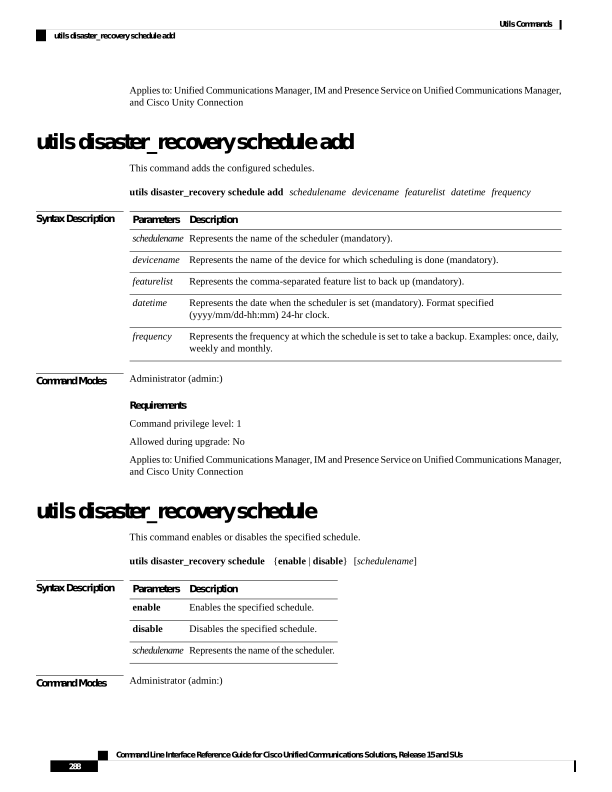
Page 313
Requirements
Command privilege level:1
Allowed during upgrade: No
Applies to: Unified Communications Manager, IM and Presence Service on Unified Communications Manager,
and Cisco Unity Connection
Example
admin: utils disaster_recovery schedule enable schedule1
Schedule enabled successfully.
utils disaster_recovery schedule delete
This command deletes the configured schedules.
utils disaster_recovery schedule delete schedulename
Syntax Description
Description
Parameters
Represents the name of the schedule that is to be deleted.
schedulename
Command Modes
Administrator (admin:)
Requirements
Command privilege level: 1
Allowed during upgrade: No
Applies to: Unified Communications Manager, IM and Presence Service on Unified Communications Manager,
and Cisco Unity Connection
utils disaster_recovery schedule disable
This command disables the configured schedules.
utils disaster_recovery schedule disable schedulename
Syntax Description
Description
Parameters
Represents the name of the schedule that is to be disabled.
schedulename
Command Modes
Administrator (admin:)
Requirements
Command privilege level: 1
Command Line Interface Reference Guide for Cisco Unified Communications Solutions, Release 15 and SUs
289
Utils Commands
utils disaster_recovery schedule delete
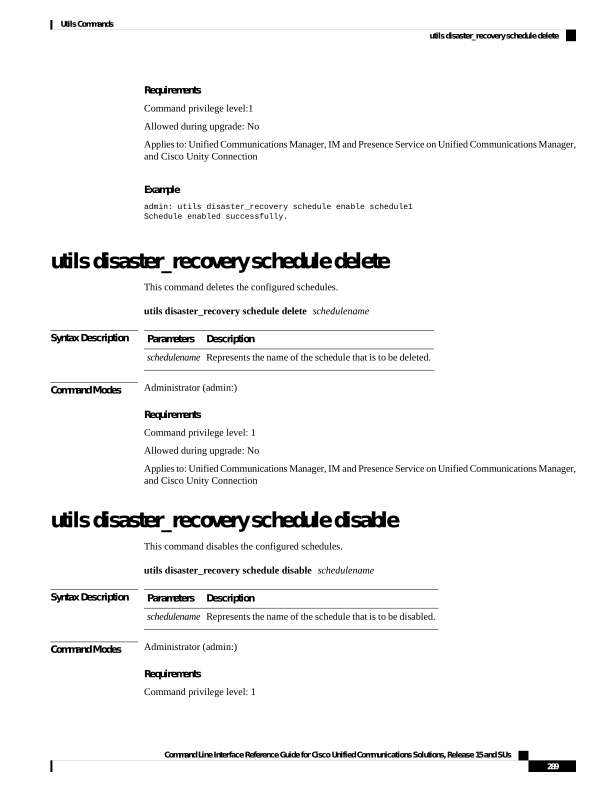
Page 314
Allowed during upgrade: No
Applies to: Unified Communications Manager, IM and Presence Service on Unified Communications Manager,
and Cisco Unity Connection
utils disaster_recovery schedule list
Displays the schedules that are configured.
utils disaster_recovery schedule list
Command Modes
Administrator (admin:)
Requirements
Command privilege level: 1
Allowed during upgrade: Yes
Applies to: Unified Communications Manager, IM and Presence Service on Unified Communications Manager,
and Cisco Unity Connection
Example
admin: utils disaster_recovery schedule list
schedule name device name Schedule Status
schedule1
device 1
enabled
schedule2
device 2
disabled
utils disaster_recovery show_backupfiles
This command retrieves the information of backup files, which are available at storage location.
utils disaster_recovery show_backupfiles devicename
Syntax Description
Description
Parameters
Represents the name of the device to show backup files at the storage location.
devicename
Command Modes
Administrator (admin:)
Requirements
Command privilege level: 0
Allowed during upgrade: Yes
Applies to: Unified Communications Manager, IM and Presence Service on Unified Communications Manager,
and Cisco Unity Connection
Command Line Interface Reference Guide for Cisco Unified Communications Solutions, Release 15 and SUs
290
Utils Commands
utils disaster_recovery schedule list
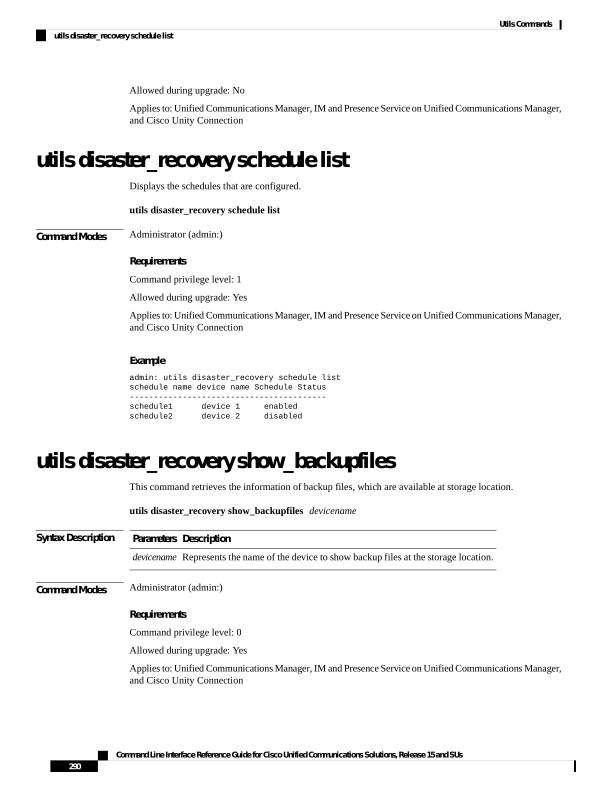
Page 315
utils disaster_recovery show_registration
This command displays the registered features and components on the specified server.
utils disaster_recovery show_registration hostname
Syntax Description
Description
Parameters
Specifies the server for which you want to display registration information.
hostname
Command Modes
Administrator (admin:)
Usage Guidelines
Requirements
Command privilege level: 1
Allowed during upgrade: No
Applies to: Unified Communications Manager, IM and Presence Service on Unified Communications Manager,
and Cisco Unity Connection
utils disaster_recovery status
This command displays the status of the current backup or restore job.
utils disaster_recovery status operation
Syntax Description
Description
Parameters
Specifies the name of the ongoing operation: backup or restore.
operation
Command Modes
Administrator (admin:)
Requirements
Command privilege level: 1
Allowed during upgrade: No
Applies to: Unified Communications Manager, IM and Presence Service on Unified Communications Manager,
and Cisco Unity Connection
utils EnhancedSecurityMode disable
The command disables the EnhancedSecurityMode mode on the system. The system reboots after this mode
is disabled.
utils EnhancedSecurityMode disable
Command Line Interface Reference Guide for Cisco Unified Communications Solutions, Release 15 and SUs
291
Utils Commands
utils disaster_recovery show_registration
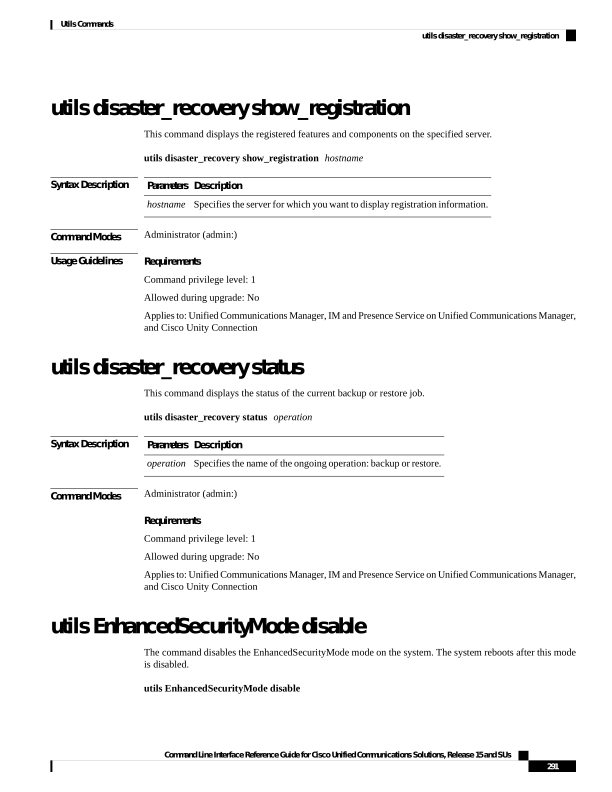
Page 316
Command Modes
Administrator (admin:)
Requirements
Command privilege level: 4
Allowed during upgrade: No
Applies to: Unified Communications Manager, IM and Presence Service on Unified Communications Manager,
and Cisco Unity Connection
utils EnhancedSecurityMode enable
The command enables the EnhancedSecurityMode mode on the system. The system reboots after this mode
is enabled.
utils EnhancedSecurityMode enable
Command Modes
Administrator (admin:)
Requirements
Command privilege level: 4
Allowed during upgrade: No
Applies to: Unified Communications Manager, IM and Presence Service on Unified Communications Manager,
and Cisco Unity Connection
utils EnhancedSecurityMode status
The command displays whether the system is operating in EnhancedSecurityMode or
non-EnhancedSecurityMode mode.
utils EnhancedSecurityMode status
Command Modes
Administrator (admin:)
Requirements
Command privilege level: 0
Allowed during upgrade: Yes
Applies to: Unified Communications Manager, IM and Presence Service on Unified Communications Manager,
and Cisco Unity Connection
utils filebeat config
The command configures the Logstash server details for downloading the information.
Command Line Interface Reference Guide for Cisco Unified Communications Solutions, Release 15 and SUs
292
Utils Commands
utils EnhancedSecurityMode enable
Page 317
utils filebeat configIP addressport numberlog type
Syntax Description
Description
Parameters
Enter the IP address of the Logstash server.
IP address
Enter the port number of Logstash server.
port
number
Enter the log type that you have to uploaded to the Logstash server.
log type
You can also secure the FileBeat service by enabling TLS. The following prompt is displayed after setting
the parameters.
Do you wish to secure the filebeat service by enabling TLS?
Enter (yes/no) ?
Enter Yes to enable TLS.
Command Modes
Administrator (admin:)
Requirements
Command privilege level: 4
Allowed during upgrade: No
Applies to: Unified Communications Manager, IM and Presence Service on Unified Communications Manager,
and Cisco Unity Connection
utils filebeat disable
The command disables the filebeat configuration on the system.
utils filebeat disable
Command Modes
Administrator (admin:)
Requirements
Command privilege level: 4
Allowed during upgrade: No
Applies to: Unified Communications Manager, IM and Presence Service on Unified Communications Manager,
and Cisco Unity Connection
utils filebeat enable
The command enables the filebeat configuration on the system.
utils filebeat disable
Command Line Interface Reference Guide for Cisco Unified Communications Solutions, Release 15 and SUs
293
Utils Commands
utils filebeat disable
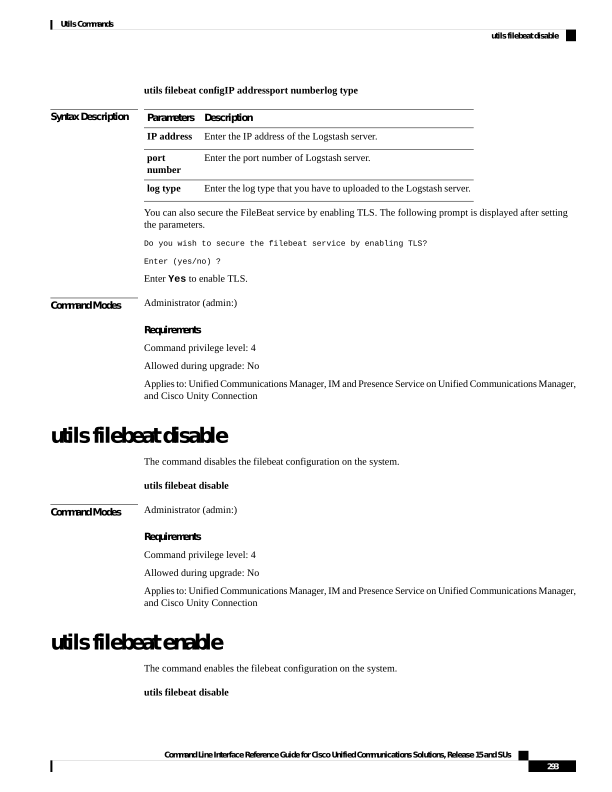
Page 318
Command Modes
Administrator (admin:)
Requirements
Command privilege level: 4
Allowed during upgrade: No
Applies to: Unified Communications Manager, IM and Presence Service on Unified Communications Manager,
and Cisco Unity Connection
utils filebeat status
The command shows whether the filebeat is running or not and its configuration values.
utils filebeat status
Command Modes
Administrator (admin:)
Requirements
Command privilege level: 4
Allowed during upgrade: No
Applies to: Unified Communications Manager, IM and Presence Service on Unified Communications Manager,
and Cisco Unity Connection
utils filebeat tls
This command configures Transport Layer Security (TLS) as the protocol for communication between the
FileBeat client and the logstash server. This enables a secure connection between the FileBeat client and the
logstash server, which is a requirement for compliance with Common Criteria guidelines.
In Common Criteria Mode, strict host name verification is implemented. Hence, it is required to configure
the server with a fully qualified domain name (FQDN) which matches the certificate.
utils filebeat tls
{enable | disable | status}
Syntax Description
Description
Parameters
Enables a secure connection between the FileBeat client and the logstash server.
enable
Disables the TLS for FileBeat client.
disable
Displays the status for TLS.
status
Command Modes
Administrator (admin:)
Requirements
Command privilege level: 4
Command Line Interface Reference Guide for Cisco Unified Communications Solutions, Release 15 and SUs
294
Utils Commands
utils filebeat status
Page 319
Applies to: Unified Communications Manager and IM and Presence Service on Unified Communications
Manager
A security certificate has to be uploaded from logstash server to the tomcat trust store on Unified
Communications Manager and IM and Presence Service.
utils fior
This command allows you to monitor the I/O on the server. The File I/O Reporting service provides a
kernel-base daemon for collecting file I/O per process.
utils fior
Command Modes
Administrator (admin:)
Requirements
Command privilege level: 1
Allowed during upgrade: Yes
Applies to: Unified Communications Manager, IM and Presence Service on Unified Communications Manager,
and Cisco Unity Connection
utils fior disable
This command disables I/O statistics monitoring and deletes all the monitoring data collected on the system.
Use this command to disable monitoring and free up disk space that is used by the monitoring data.
utils fior disable
Command Modes
Administrator (admin:)
Requirements
Command privilege level: 1
Allowed during upgrade: Yes
Applies to: Unified Communications Manager, IM and Presence Service on Unified Communications Manager,
and Cisco Unity Connection
utils fior enable
This command enables I/O statistics monitoring.
Use this command before monitoring begins.
Note
Command Line Interface Reference Guide for Cisco Unified Communications Solutions, Release 15 and SUs
295
Utils Commands
utils fior

Page 320
utils fior enable
Command Modes
Administrator (admin:)
Requirements
Command privilege level: 1
Allowed during upgrade: Yes
Applies to: Unified Communications Manager, IM and Presence Service on Unified Communications Manager,
and Cisco Unity Connection
utils fior list
This command displays a list of the I/O events for all processes.
utils fior list
Command Modes
Administrator (admin:)
Requirements
Command privilege level: 1
Allowed during upgrade: Yes
Applies to: Unified Communications Manager, IM and Presence Service on Unified Communications Manager,
and Cisco Unity Connection
utils fior start
This command starts the I/O statistics utility monitoring and data collection. After the monitoring starts, the
I/O statistics data is collected in the platform logs. This data can range up to 25 MB per day. Data is rotated
after 7 days of data collection. This data is deleted after you disable the I/O statistics utility monitoring.
Enable the I/O statistics utility monitoring begins before the monitoring begins.
Note
utils fior start
Command Modes
Administrator (admin:)
Requirements
Command privilege level: 1
Allowed during upgrade: Yes
Applies to: Unified Communications Manager, IM and Presence Service on Unified Communications Manager,
and Cisco Unity Connection
Command Line Interface Reference Guide for Cisco Unified Communications Solutions, Release 15 and SUs
296
Utils Commands
utils fior list

Page 321
utils fior status
This command provides the status of the I/O statistics monitoring utility.
utils fior status
Command Modes
Administrator (admin:)
Requirements
Command privilege level: 1
Allowed during upgrade: Yes
Applies to: Unified Communications Manager, IM and Presence Service on Unified Communications Manager,
and Cisco Unity Connection
utils fior stop
This command stops the I/O statistics monitoring and data collection. However, this command does not delete
the collected data.
If I/O statistics are no longer needed, disable the cleanup of the monitoring data from the platform logs.
Note
utils fior stop
Command Modes
Administrator (admin:)
Requirements
Command privilege level: 1
Allowed during upgrade: Yes
Applies to: Unified Communications Manager, IM and Presence Service on Unified Communications Manager,
and Cisco Unity Connection
utils fior top
This command displays a list of I/O statistics for I/O bound processes at the time that you run this command.
utils fior top
Command Modes
Administrator (admin:)
Command Line Interface Reference Guide for Cisco Unified Communications Solutions, Release 15 and SUs
297
Utils Commands
utils fior status

Page 322
Requirements
Command privilege level: 1
Allowed during upgrade: Yes
Applies to: Unified Communications Manager, IM and Presence Service on Unified Communications Manager,
and Cisco Unity Connection
utils fips
FIPS mode is only supported on releases that have been through FIPS compliance. Be warned that FIPS mode
should be disabled before you upgrade to a non-FIPS compliance version of Unified Communications Manager.
For information about which releases are FIPS compliant and to view their certifications, see the FIPS 140
document at https://www.cisco.com/c/en/us/solutions/industries/government/global-government-certifications/
fips-140.html.
Caution
This command enables, disables, or displays the status of FIPS 140-2 mode. FIPS 140-2 mode is disabled by
default; only an administrator can enable FIPS.
utils fips
{enable | disable | status}
Syntax Description
Description
Parameters
Activates FIPS 140-2 mode.
enable
Deactivates FIPS 140-2 mode.
disable
Displays the status of FIPS 140-2 mode.
status
Command Modes
Administrator (admin:)
Usage Guidelines
Before enabling FIPS mode, we recommend that you perform a system backup. If FIPS checks fail at start-up,
the system halts and requires a recovery CD to be restored.
Consider the following information before you enable FIPS 140-2 mode:
• When you switch from non-FIPS to FIPS mode, the MD5 and DES protocols will not be functional.
• After FIPS mode is enabled on a server, please wait until the server reboots and the phones re-register
successfully before enabling FIPS on the next server.
• In FIPS mode, the IM and Presence Service uses Red Hat Openswan (FIPS validated) in place of Racoon
(non-FIPS validated). If the security policies in Racoon contain functions that are not FIPS approved,
the CLI command asks you to redefine the security policies with FIPS approved functions and abort.
Certificates and SSH key are regenerated automatically, in accordance with FIPS requirements.
Note
Command Line Interface Reference Guide for Cisco Unified Communications Solutions, Release 15 and SUs
298
Utils Commands
utils fips


Page 323
Consider the following information before you disable FIPS 140-2 mode: In multiple server clusters, each
server must be disabled separately; FIPS mode is not disabled cluster-wide but on a per server basis.
Consider the following information after you enable FIPS 140-2 mode: If you have a single server cluster and
chose to apply "Prepare Cluster for Rolback to pre 8.0" enterprise parameter before enabling FIPS mode,
disable this parameter after making sure that all the phones registered successfully with the server.
Consider the following information before you enable or disable FIPS 140-2 mode for IM and Presence
Service: After you enable or disable FIPS 140-2 mode for IM and Presence Service, the Tomcat certificate is
regenerated and the node reboots. The Intercluster Sync Agent syncs the new Tomcat certificate across the
cluster; this can take up to 30 minutes. Until the new Tomcat certificate is synced across the cluster, an IM
and Presence Service subscriber node cannot access information from the IM and Presence Service database
publisher node. For example, a user who is logged into the Cisco Unified Serviceability GUI on a subscriber
node will not be able to view services on the IM and Presence Service database publisher node. Users will
see the following error message until the sync is complete: Connection to server cannot be
established (certificate exception)
Requirements
Command privilege level: 0
Allowed during upgrade: No
Applies to: Unified Communications Manager, IM and Presence Service on Unified Communications Manager,
and Cisco Unity Connection
utils fips_common_criteria
This command configures the Common Criteria mode in the system.
utils fips_common_criteria
{enable | disable | status}
Syntax Description
Description
Parameters
Enables the Common Criteria mode in the system
enable
Disables the Common Criteria mode in the system
When Common Criteria mode is disabled, a prompt is displayed to set the minimum TLS version.
disable
Displays the status of Common Criteria mode in the system
status
Command Modes
Administrator (admin:)
Usage Guidelines
Secure connections using TLS version 1.0 are not permitted after enabling the Common Criteria mode. FIPS
mode will be enabled while enabling Common Criteria mode. Enabling or disabling Common Criteria mode
does not require certificates to be regenerated. However, enabling or disabling FIPS does require rebooting
of the system along with regeneration of certificates.
Requirements
Command privilege level: 1
Command Line Interface Reference Guide for Cisco Unified Communications Solutions, Release 15 and SUs
299
Utils Commands
utils fips_common_criteria
Page 324
Allowed during upgrade: Yes
Applies to: Unified Communications Manager and IM and Presence Service
This CLI command is not applicable to Cisco Unity Connection.
Note
utils firewall ipv4 debug
This command turns IPv4 firewall debugging on or off. If you do not enter a time parameter, this command
turns on debugging for 5 minutes.
utils firewall ipv4 debug
{off[time]}
Syntax Description
Description
Parameters
Turns off the IPv4 firewall debugging. If you do not enter the time parameter, this command
disables the firewall for 5 minutes.
off
(Optional) Sets the duration for which the firewall debugging is to be enabled in the following
formats:
• Minutes: 0–1440m
• Hours: 0–23h
• Hours and minutes: 0–23h 0–60m
time
Command Modes
Administrator (admin:)
Requirements
Command privilege level: 1
Allowed during upgrade: Yes
Applies to: Unified Communications Manager, IM and Presence Service on Unified Communications Manager,
and Cisco Unity Connection.
utils firewall ipv4
This commands enables and disables IPv4 firewall.
utils firewall ipv4
{enable | disable[time]}
Syntax Description
Description
Parameters
Turns on the IPv4 firewall.
enable
Command Line Interface Reference Guide for Cisco Unified Communications Solutions, Release 15 and SUs
300
Utils Commands
utils firewall ipv4 debug

Page 325
Description
Parameters
Turns off the IPv4 firewall. If you do not enter the time parameter, this command disables the
firewall for 5 minutes.
disable
(Optional) Sets the duration for which the firewall is to be disabled in the following formats:
• Minutes: 0–1440m
• Hours: 0–23h
• Hours and minutes: 0–23h 0–60m
time
Command Modes
Administrator (admin:)
Requirements
Command privilege level: 1
Allowed during upgrade: Yes
Applies to: Unified Communications Manager, IM and Presence Service on Unified Communications Manager,
and Cisco Unity Connection.
utils firewall ipv4 list
This commands displays the current configuration of the IPv4 firewall.
utils firewall ipv4 list
Command Modes
Administrator (admin:)
Requirements
Command privilege level: 0
Allowed during upgrade: Yes
Applies to: Unified Communications Manager, IM and Presence Service on Unified Communications Manager,
and Cisco Unity Connection.
utils firewall ipv4 status
This command displays the current status of the IPv4 firewall.
utils firewall ipv4 status
Command Modes
Administrator (admin:)
Requirements
Command privilege level: 0
Command Line Interface Reference Guide for Cisco Unified Communications Solutions, Release 15 and SUs
301
Utils Commands
utils firewall ipv4 list
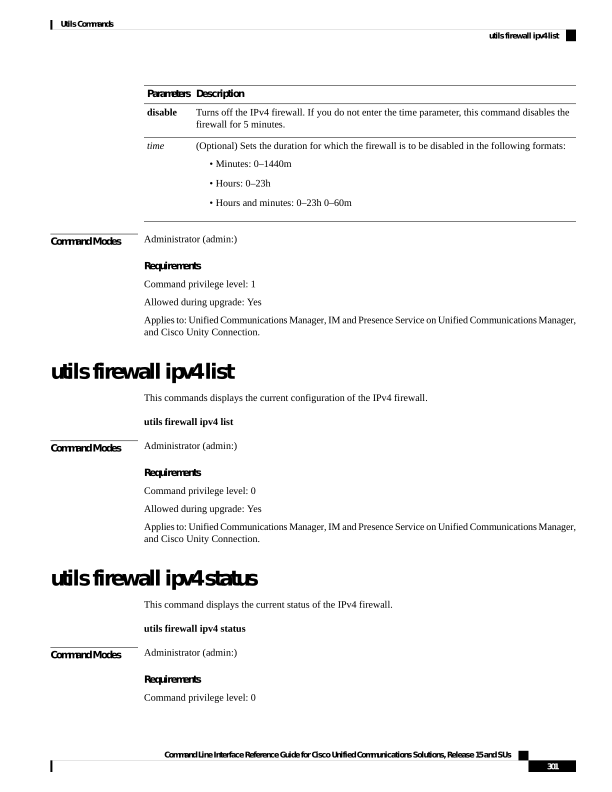
Page 326
Allowed during upgrade: Yes
Applies to: Unified Communications Manager, IM and Presence Service on Unified Communications Manager,
and Cisco Unity Connection.
utils firewall ipv6 debug
This command turns IPv6 firewall debugging on for the configured time period. The default value of time
period is 5 minutes.
utils ipv6 firewall debug
{off[time]}
Syntax Description
Description
Parameters
(Optional) Turns off the IPv6 firewall debugging. If you do not enter the time parameter, this
command disables the firewall as per the default time period value.
off
(Optional) Sets the duration for which the firewall debugging is to be enabled in the following
formats:
• Minutes: 0–1440m
• Hours: 0–23h
• Hours and minutes: 0–23h 0–60m
time
Command Modes
Administrator (admin:)
Requirements
Command privilege level: 1
Allowed during upgrade: Yes
Applies to: Unified Communications Manager, IM and Presence Service on Unified Communications Manager,
and Cisco Unity Connection.
utils firewall ipv6
This commands enables and disables IPv6 firewall.
utils firewall ipv6
{enable | disable[time]}
Syntax Description
Description
Parameters
Turns on the IPv6 firewall.
enable
Turns off the IPv6 firewall. If you do not enter the time parameter, this command disables the
firewall for 5 minutes.
disable
Command Line Interface Reference Guide for Cisco Unified Communications Solutions, Release 15 and SUs
302
Utils Commands
utils firewall ipv6 debug
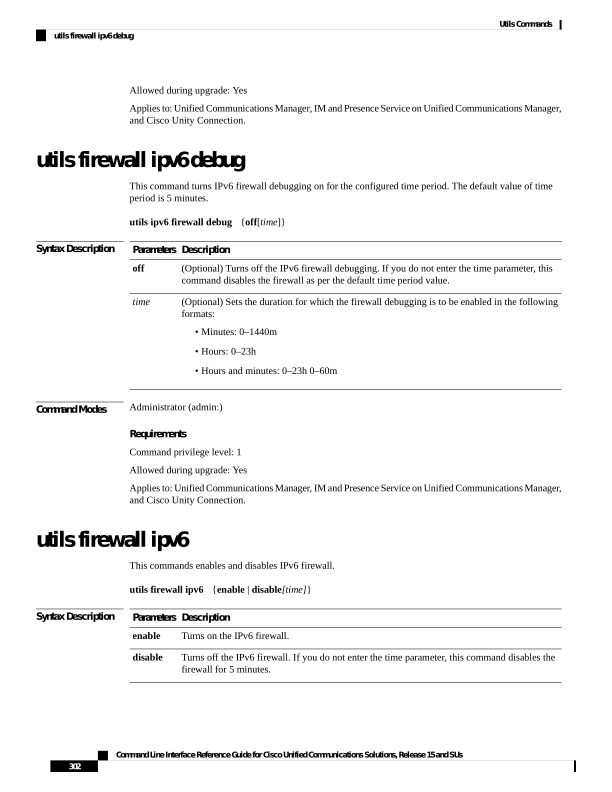
Page 327
Description
Parameters
(Optional) Sets the duration for which the firewall is to be disabled in the following formats:
• Minutes: 0–1440m
• Hours: 0–23h
• Hours and minutes: 0–23h 0–60m
time
Command Modes
Administrator (admin:)
Usage Guidelines
You can use this command to enable or disable firewall tables. If you are testing the Unified Communications
Manager for compliance with the USGv6 Profile, you must disable the IPv6 firewall tables for a duration of
23 hours before you begin the test.
Requirements
Command privilege level: 0
Allowed during upgrade: Yes
Applies to: Unified Communications Manager, IM and Presence Service on Unified Communications Manager,
and Cisco Unity Connection.
utils firewall ipv6 list
This commands displays the current configuration of the IPv6 firewall.
utils firewall ipv6 list
Command Modes
Administrator (admin:)
Requirements
Command privilege level: 0
Allowed during upgrade: Yes
Applies to: Unified Communications Manager, IM and Presence Service on Unified Communications Manager,
and Cisco Unity Connection.
utils firewall ipv6 status
This command displays the current status of the IPv6 firewall.
utils firewall ipv6 status
Command Modes
Administrator (admin:)
Command Line Interface Reference Guide for Cisco Unified Communications Solutions, Release 15 and SUs
303
Utils Commands
utils firewall ipv6 list
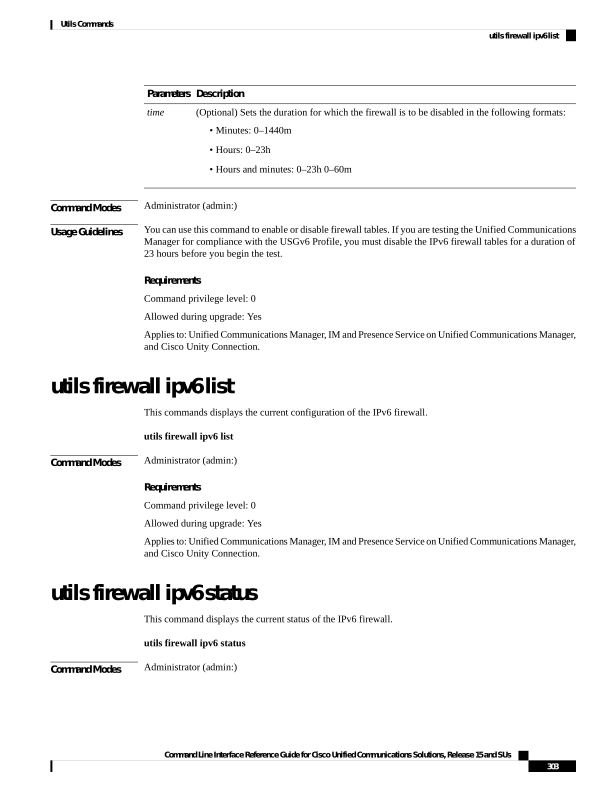
Page 328
Requirements
Command privilege level: 0
Allowed during upgrade: Yes
Applies to: Unified Communications Manager, IM and Presence Service on Unified Communications Manager,
and Cisco Unity Connection.
utils ha failover
This command initiates a manual failover for a specified node, where the Cisco Server Recovery Manager
stops the critical services on the failed node and moves all users to the backup node.
For IM and Presence Service nodes, the backup node must be another IM and Presence Service. Two servers
must be assigned to the same presence redundancy group before you specify the backup server. The back-up
server you specify is the other server that is assigned to the presence redundancy group.
utils ha failover
{node name}
Syntax Description
Description
Parameters
Specifies the node on which to
perform the manual failover.
node name
Command Modes
Administrator (admin:)
Requirements
Applies to: Unified Communications Manager and IM and Presence Service on Unified Communications
Manager
Failover Example
admin: ha failover shorty-cups
Initiate Manual Failover for Node > shorty-cups
Request SUCCESSFUL.
Subcluster Name: DefaultCluster
Node 1 Name : kal-cup1 State: Taking Over Reason: On Admin Request
Node 2 Name : shorty-cups State: Failover Reason: On Admin Request
utils ha fallback
This command initiates a manual fallback for a specified node, where the Cisco Server Recovery Manager
restarts the critical services on the active node and moves users back to the active node.
utils ha fallback node name
Command Line Interface Reference Guide for Cisco Unified Communications Solutions, Release 15 and SUs
304
Utils Commands
utils ha failover
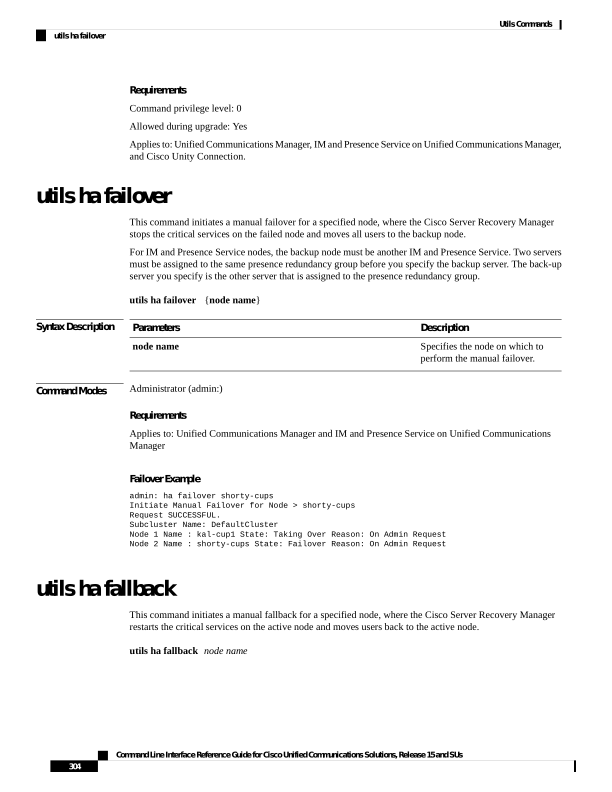
Page 329
Syntax Description
Description
Parameters
Specifies the node on which to perform a manual fallback.
node
name
Command Modes
Administrator (admin:)
Requirements
Applies to: Unified Communications Manager and IM and Presence Service on Unified Communications
Manager
Fallback Example
admin: ha fallback shorty-cups
Initiate Manual fallback for Node >shorty-cups<
Request SUCCESSFUL.
Subcluster Name: DefaultCluster
Node 1 Name : kal-cup1 State: Falling Back Reason: On Admin Request
Node 2 Name : shorty-cups State: Taking Back Reason: On Admin Request
utils haproxy set {required|optional|disable} client-auth
This command sets the value of client authentication on a specified port. The supported values for authentication
are Required, Optional, or Disable.
The following table depicts the default values for the ports.
Table 3: Default Values for the Ports
Default Value
Port
Optional
6971
Optional
6972
Required
9443
Setting the client authentication to anything other than default value could have serious implications. Please
change these values only as per Cisco TAC team advise.
Warning
utils haproxy set
{required | optional | disable}client-auth portnum
Syntax Description
Description
Parameter
Enter the port number to set HAProxy client
authentication.
Note
The supported port numbers are 6971, 6972 and 9443.
portnum
Command Line Interface Reference Guide for Cisco Unified Communications Solutions, Release 15 and SUs
305
Utils Commands
utils haproxy set {required|optional|disable} client-auth

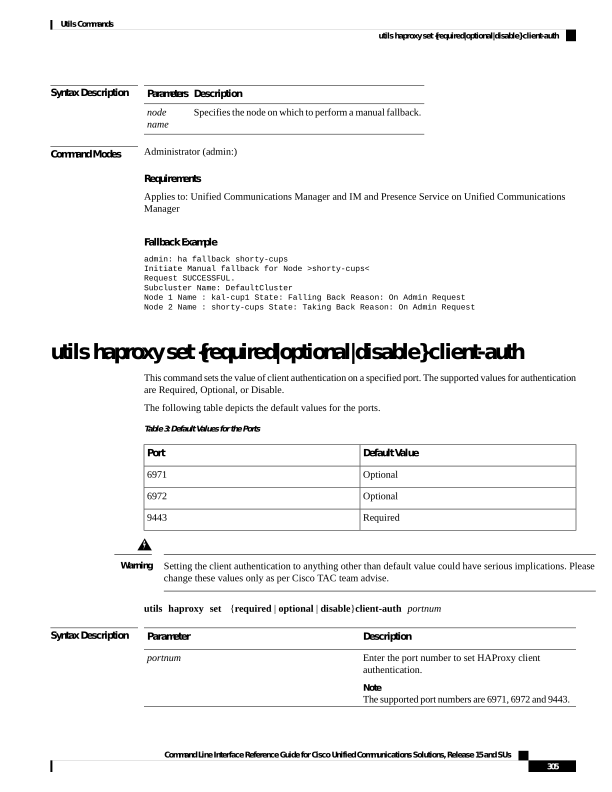
Page 330
Description
Parameter
Sets the value of client authentication to “required”
on a specified port.
required
Sets the value of client authentication to “optional”
on a specified port.
optional
Sets the value of client authentication to “disable” on
a specified port.
disable
Command Modes
Administrator (admin:)
Usage Guidelines
• If the user enters a portnum value other than 6971, 6972 or 9443, an error message is displayed to enter
a valid port number.
• Administrator can execute the help utils haproxy set optional client-auth command to view the help
content.
• The configured client-auth value for the portnum is retained during the upgrades and while performing
a backup using Disaster Recovery System (DRS) and restore.
• If you set client authentication to “required”, then server requests for a certificate from the clients. The
client must present the requested certificate to the server. Hence, the request can forward to the further
services.
• If you set client authentication to “optional”, then server requests for a certificate from the clients.
Although if the client does not present the requested certificate to the server, the request can forward to
the further services.
• If you set client authentication to “disable”, then the server will not request for a certificate from the
clients.
• The HAProxy process restarts when you execute this command.
Requirements
Command privilege level: 1
Applies to: Unified Communications Manager
Example
admin:utils haproxy set required client-auth 6971
This command will result in the HA Proxy service set the client
authentication as per your specification and restart the
HAProxy process. Restarting of the HAProxy process might
result in momentary disconnection of all Phones and Jabber
clients that are accessing this service for secure
configuration file downloads. It is recommended this
operation be performed during off-busy hours and ensure
there are no TFTP operations in progress.
Warning: Setting the client authentication to anything other
Command Line Interface Reference Guide for Cisco Unified Communications Solutions, Release 15 and SUs
306
Utils Commands
utils haproxy set {required|optional|disable} client-auth
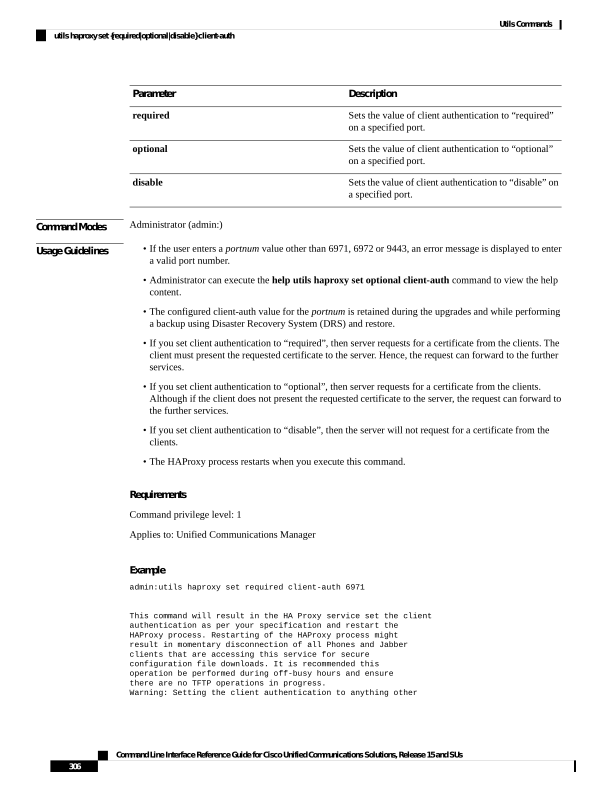
Page 331
than default value could have serious implications.
Please change these values only as per Cisco TAC team's advise
Do you want to continue (yes/no) ? yes
Successfully set client authentication to required
HAProxy Process already running .. restarting
admin:
admin:utils haproxy set disable client-auth 6972
HAProxy client authentication is already set to
disable on port 6972 . No action will be taken.
admin:utils haproxy client-auth set 1234 disable
Please enter valid values for the port.
Supported values are 6971, 6972 and 9443
admin:help utils haproxy set required client-auth 6971
utils haproxy set required client-auth
This command updates the value of client authentication
as required on specified port.
Example:
admin:utils haproxy set required client-auth 6971
HAProxy client authentication is already set to
required on port 6971. No action will be taken.
admin:
utils ha recover
This command initiates a manual recovery of the presence redundancy group (when nodes are in a Failed
state), where IM and Presence restarts the Cisco Server Recovery Manager service in that presence redundancy
group.
utils ha recover
presence redundancy group name
Syntax Description
Description
Parameters
Specifies the presence redundancy group on which to
monitor HA status. If no presence redundancy group
name is provided, all cluster information is provided.
presence redundancy group name
Command Modes
Administrator (admin:)
Requirements
Applies to: Unified Communications Manager and IM and Presence Service on Unified Communications
Manager
Command Line Interface Reference Guide for Cisco Unified Communications Solutions, Release 15 and SUs
307
Utils Commands
utils ha recover
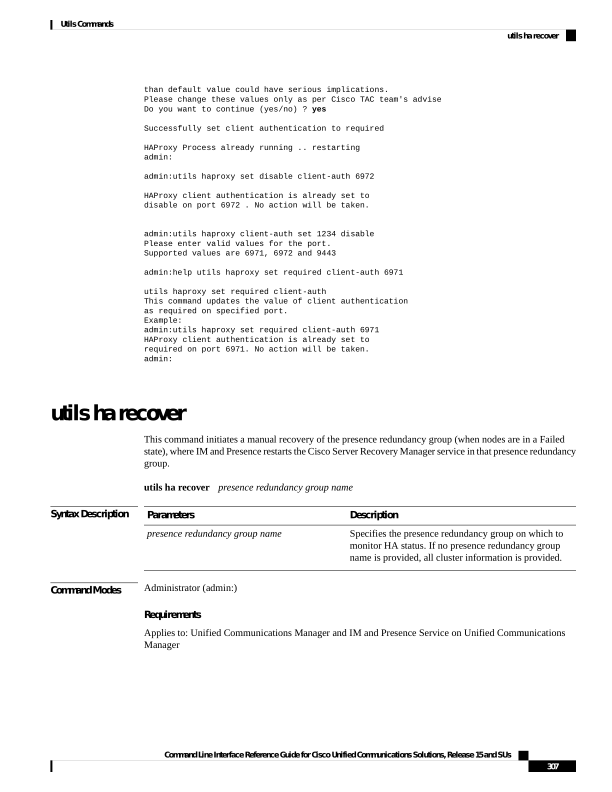
Page 332
Recover Example
admin: ha recover Defaultcluster
Stopping services... Stopped
Starting services... Started
admin:
utils ha status
This command displays the HA status for a specified presence redundancy group.
utils ha status presence redundancy group name
Syntax Description
Description
Parameters
Specifies the presence redundancy group for which to monitor HA status.
If no presence redundancy group name is provided, all cluster information
is displayed.
presence redundancy group name
Command Modes
Administrator (admin:)
Requirements
Applies to: Unified Communications Manager and IM and Presence Service on Unified Communications
Manager
Status Example with HA Not Enabled
admin: ha status
Subcluster Name: DefaultCluster
Node 1 Name : kal-cup1 State: Unknown Reason: High Availability Not Enabled
Node 2 Name : shorty-cups State: Unknown Reason: High Availability Not Enabled
Status Example with HA Enabled
admin: ha status
Subcluster Name: DefaultCluster
Node 1 Name : kal-cup1 State: Normal
Node 2 Name : shorty-cups State: Normal
Status Example with a Critical Service Down
admin: ha status
Subcluster Name: DefaultCluster
Node 1 Name : kal-cup1 State: Failed Over with Critical Services not Running Reason:
Critical Service Down
Node 2 Name : shorty-cups State: Running in Backup Mode Reason: Critical Service Down
Command Line Interface Reference Guide for Cisco Unified Communications Solutions, Release 15 and SUs
308
Utils Commands
utils ha status
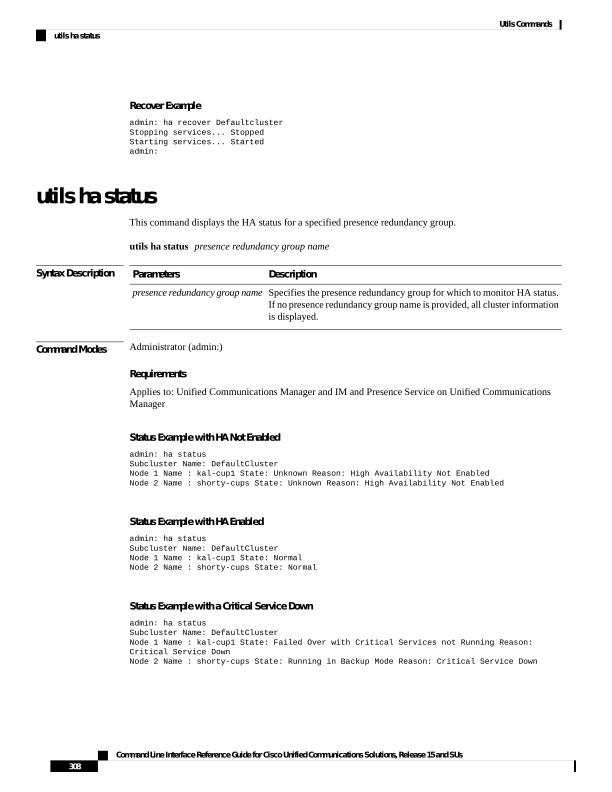
Page 333
Status Example Failed
admin: ha status
Subcluster Name: DefaultCluster
Node 1 Name : kal-cup1 State: Failed Reason: Critical Service Down
Node 2 Name : shorty-cups State: Failed Reason: Critical Service Down
utils ils showpeerinfo
This command returns the peer info vector for either a single cluster in an ILS network, or for all the clusters
in an ILS network.
utils ils showpeerinfo clustername
Syntax Description
Description
Parameters
Specifies the fully qualified domain name of the publisher node for a Unified Communications
Manager cluster in an ILS network.
clustername
Command Modes
Administrator (admin:)
Usage Guidelines
The peer info vector contains information about a cluster in an ILS network. The available information includes
clustername, cluster ID and IP addresses for the cluster nodes. If you want information about a specific cluster
in an ILS network, enter the clustername parameter. If you want information on all the clusters in the network,
leave the clustername parameter empty
Requirements
Command privilege level: 0
Allowed during upgrade: No
Applies to: Unified Communications Manager
utils import config
This command takes data from the platformConfig.xml file on the ISO image and modifies the system to
match the configuration file. The system reboots after the command successfully completes.
utils import config
Command Modes
Administrator (admin:)
Usage Guidelines
This command can be executed on any VMware deployment.
1.
Power on the VMware.
2.
Use the Answer File Generator (AFG) tool ( http://www.cisco.com/web/cuc\_afg/index.html ) to create a
platformConfig.xml file.
Command Line Interface Reference Guide for Cisco Unified Communications Solutions, Release 15 and SUs
309
Utils Commands
utils ils showpeerinfo
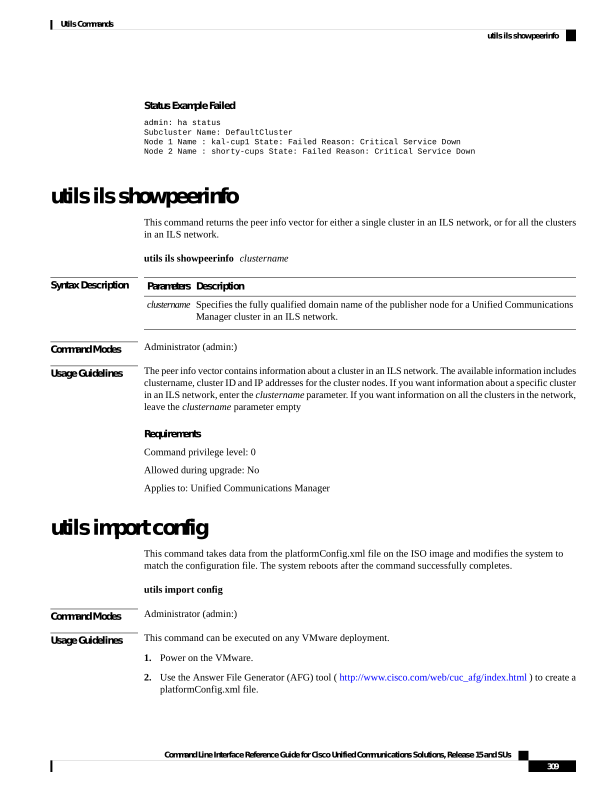
Page 334
Insert the Config.xml file into an ISO image (.iso file).
4.
Mount the .iso file in the CD/DVD Drive 2 of the new VMware.
5.
Sign in to the CLI of the VM (with console or SSH) and execute the utils import config command.
The command cycles through all of the data found in the xml file and if data is found that is different than
what is currently set on the VM, it modifies the VM to match the new data.
6.
The system reboots with the new identity.
Requirements
Command privilege level: 1
Allowed during upgrade: Yes
Applies to: Unified Communications Manager, IM and Presence Service on Unified Communications Manager,
Cisco Unity Connection
utils iostat
This command displays the iostat output for the given number of iterations and intervals.
utils iostat
{interval | iterations | filename}
Syntax Description
Description
Parameters
Sets the seconds between two iostat readings. You must set this value if you are using the iteration
parameter
interval
Sets the number of iostat iterations. You must set this value if you are using the interval parameter.
iterations
Redirects the output to a file.
filename
Command Modes
Administrator (admin:)
Requirements
Command privilege level: 1
Allowed during upgrade: No
Applies to: Unified Communications Manager, IM and Presence Service on Unified Communications Manager,
and Cisco Unity Connection
utils iothrottle
This command allows you to manage and monitor IO throttling on the server.
utils iothrottle
{enable | disable | status}
Command Line Interface Reference Guide for Cisco Unified Communications Solutions, Release 15 and SUs
310
Utils Commands
utils iostat
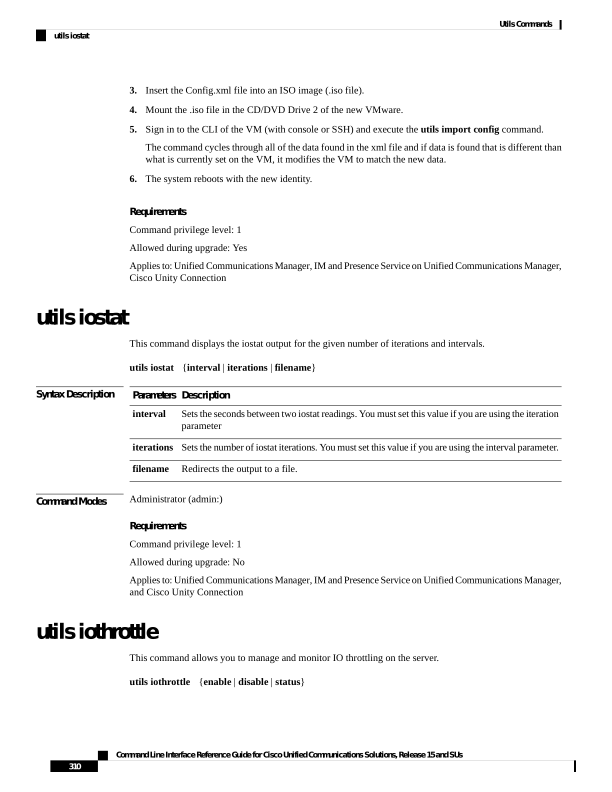
Page 335
Syntax Description
Description
Parameters
Enables I/0 throttling enhancements which lowers the impact of upgrades on an active system.
Enable
Disables I/0 throttling enhancements.
Disable
Displays the status of I/0 throttling enhancements.
Status
Command Modes
Administrator (admin:)
Usage Guidelines
Disabling I/0 throttling enhancements can adversely affect the system during upgrades.
Requirements
Command privilege level: 1 for Enable and Disable, 0 for Status
utils itl reset localkey
This command is used when endpoints are unable to validate their configuration files.
utils itl reset localkey
Syntax Description
Generates a new ITL file by taking the existing ITL file on the publisher. The command replaces
the signature of that ITL file and signs the new ITL file with the CallManager certificate key.
localkey
Command Modes
Administrator (admin:)
Usage Guidelines
You must run this command on the publisher node.
Note
Requirements
Command privilege level: 4
Allowed during upgrade: No
Applies to:
Example
admin:utils itl reset localkey
ITLFile on all the active TFTP nodes will be reset now
and signed using CallManager certificate key...
ITL file Reset.
Please reset all the phones to pickup the new ITL File.
Command Line Interface Reference Guide for Cisco Unified Communications Solutions, Release 15 and SUs
311
Utils Commands
utils itl reset localkey

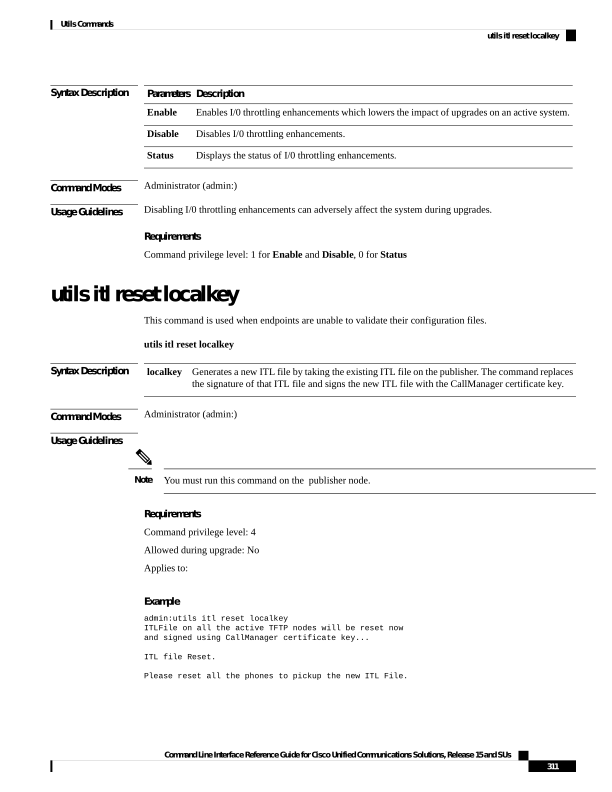
Page 336
utils ipsec restart
This command is used to restart the ipsec service.
utils ipsec restart
Command Modes
Administrator (admin:)
Requirments
Command privilege level:1
Allowed during upgrade: No
Applies to: Unified Communications Manager
Example
admin:utils ipsec restart
ipsec_setup: Stopping Openswan IPsec...
ipsec_setup: stop ordered, but IPsec appears to be already stopped!
ipsec_setup: doing cleanup anyway...
ipsec_setup: Starting Openswan IPsec U2.6.32/K2.6.32-573.18.1.el6.x86_64...
ipsec_setup: /usr/libexec/ipsec/addconn Non-fips mode set in /proc/sys/crypto/fips_enabled
ipsec_setup: pluto appears to be running already (`/var/run/pluto/pluto.pid' exists), will
not start another
Successfully Restarted IPsec Service
admin:
utils ldap config
This command configures the system LDAP authentication.
utils ldap config
{fqdnipaddr}
Syntax Description
Description
Parameters
Configures the system to use an FQDN for LDAP authentication.
fqdn
Configures the system to use an IP address for LDAP authentication
ipaddr
Command Modes
Administrator (admin:)
Usage Guidelines
• utils ldap config fqdn—This command is preferred for LDAP authentication, however, you can only
use this command if DNS is configured on the system; if the system is not configured to use DNS, use
utils ldap config ipaddr.
• utils ldap config ipaddr—This command is not preferred and should only be used if the system is not,
or can not be, configured to use DNS; if the system is configured to use DNS, use utils ldap config fqdn.
Command Line Interface Reference Guide for Cisco Unified Communications Solutions, Release 15 and SUs
312
Utils Commands
utils ipsec restart
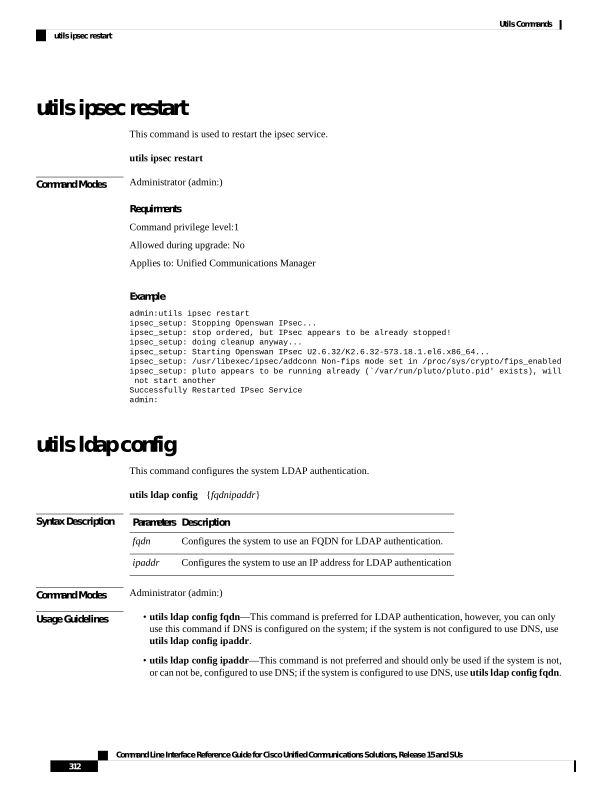
Page 337
Requirements
Command privilege level: 1
Applies to: Unified Communications Manager and Cisco Unity Connection
utils ldap config status
This command displays the utils ldap configuration status.
utils ldap config status
Command Modes
Administrator (admin:)
Requirements
Command privilege level: 0
Allowed during upgrade: Yes
utils managementAgent alarms minpushLevel
If Push Notifications is enabled, run this command to configure the minimum alarm severity for which Unified
Communications Manager sends push notifications alarms to the Cisco cloud.
utils managementAgent alarms minpushLevelseverity
Syntax Description
Description
Parameters
This value represents the minimum alarm severity for which Unified Communications Manager
sends Push Notifications alarms to the Cisco cloud. The possible options are:
• Critical
• Error (this is the default)
• Warning
• Notice
• Information
severity
Command Modes
Administrator (admin:)
Requirements
Command privilege level: 1
Allowed during upgrade: No
Applies to: Unified Communications Manager and IM and Presence Service
Command Line Interface Reference Guide for Cisco Unified Communications Solutions, Release 15 and SUs
313
Utils Commands
utils ldap config status
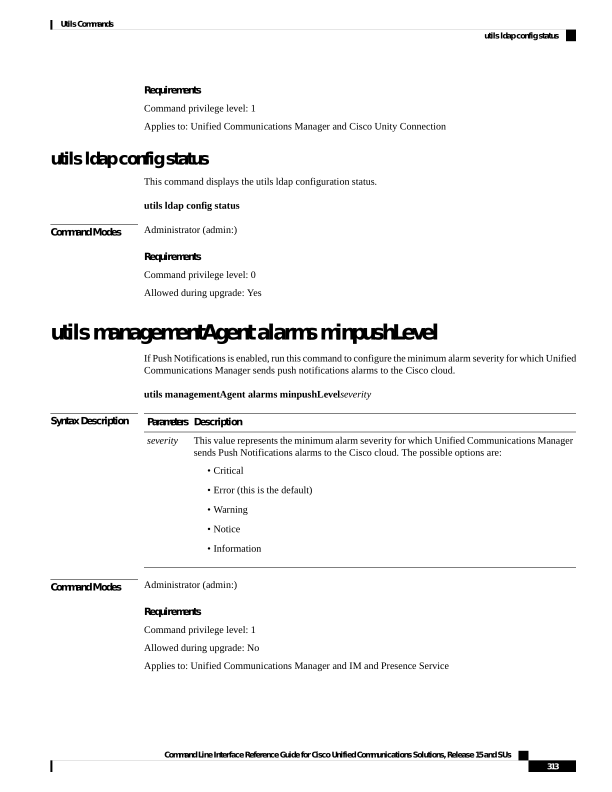
Page 338
utils managementAgent alarms pushfrequency
If Push Notifications is enabled, run this command to configure the interval following which Unified
Communications Manager sends push notifications alarms to the Cisco cloud.
utils managementAgent alarms pushfrequencyminutes
Syntax Description
Description
Parameters
The upload frequency in minutes. This value must be an integer between 5 and 90 with a default
of 30 minutes.
minutes
Command Modes
Administrator (admin:)
Requirements
Command privilege level: 1
Allowed during upgrade: No
Applies to: Unified Communications Manager and IM and Presence Service
utils managementAgent alarms pushnow
If Push Notifications is enabled, run this command to send push notifications alarms to the Cisco cloud
immediately, without having to wait for the next scheduled upload.
Command Modes
Administrator (admin:)
Requirements
Command privilege level: 1
Allowed during upgrade: No
Applies to: Unified Communications Manager and IM and Presence Service
utils network arp delete
This command deletes an entry in the Address Resolution Protocol table.
utils network arp delete host
Syntax Description
Description
Parameters
(Optional) Represents the host name or IP address of the host to delete from the table.
host
Command Modes
Administrator (admin:)
Command Line Interface Reference Guide for Cisco Unified Communications Solutions, Release 15 and SUs
314
Utils Commands
utils managementAgent alarms pushfrequency
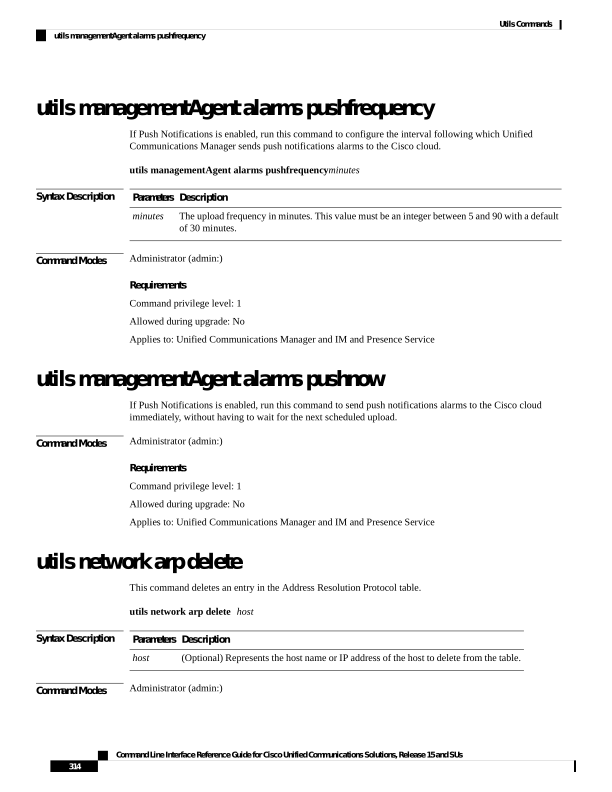
Page 339
Requirements
Command privilege level: 0
Allowed during upgrade: Yes
Applies to: Unified Communications Manager, IM and Presence Service on Unified Communications Manager,
and Cisco Unity Connection.
Delete Example
admin:utils network arp delete myhost
utils network arp set
This command sets an entry in the Address Resolution Protocol table.
utils network arp set
{host}
{addr}
Syntax Description
Description
Parameters
Represents the host name or IP address of the host to add to the table.
host
Represents the hardware address (MAC) of the host to be added in the format:
XX:XX:XX:XX:XX:XX
addr
Command Modes
Administrator (admin:)
Requirements
Command privilege level: 0
Allowed during upgrade: Yes
Applies to: Unified Communications Manager, IM and Presence Service on Unified Communications Manager,
and Cisco Unity Connection.
Set Example
admin:utils network arp set myhost 11:22:33:44:55:66
utils network arp list
This command lists the contents of the Address Resolution Protocol table.
utils network arp list host hostname [options]
Syntax Description
Description
Parameters
host
Command Line Interface Reference Guide for Cisco Unified Communications Solutions, Release 15 and SUs
315
Utils Commands
utils network arp set
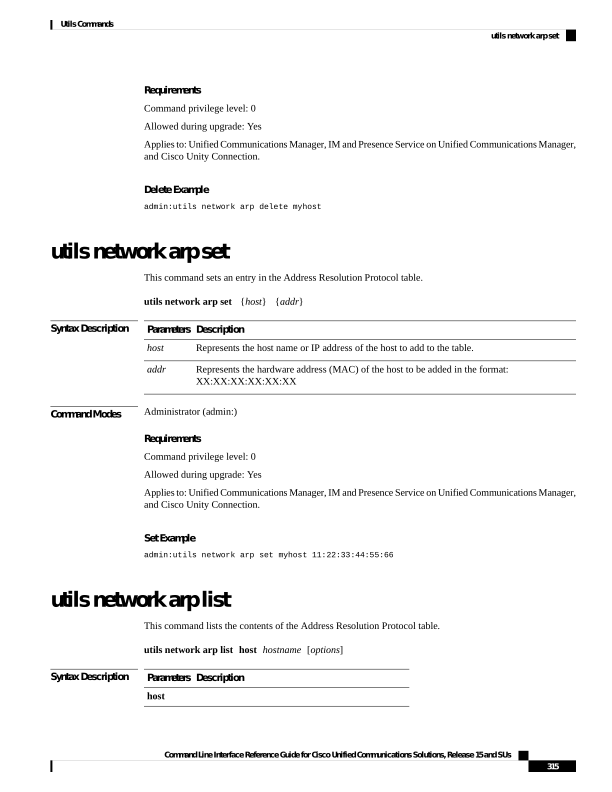
Page 340
Description
Parameters
hostname
(Optional) page, numeric
• Page: Pauses to display the output one page at a
time.
• Numeric: Shows hosts as dotted IP addresses.
options
Command Modes
Administrator (admin:)
Usage Guidelines
In the Flags column, C=cached, M=permanent, P=published.
Requirements
Command privilege level: 0
Allowed during upgrade: Yes
Applies to: Unified Communications Manager, IM and Presence Service on Unified Communications Manager,
and Cisco Unity Connection.
List example
admin:admin: utils network arp listAddress HWtype HWaddress
Flags Mask Iface
sjc21-3f-hsrp.cisco.com ether 00:00:0C:07:AC:71 C
eth0
philly.cisco.com ether 00:D0:B7:85:98:8E C
eth0
Entries: 2 Skipped: 0 Found: 2
utils network capture
This command captures IP packets on the specified Ethernet interface.
utils network capture eth0 [page] [numeric] [filefname] [countnum] [sizebytes] [srcaddr] [destaddr]
[portnum]
Syntax Description
Description
Parameters
Specifies Ethernet interface 0.
eth0
(Optional) Displays the output one page at a time.
When you use the page or file options, the complete capture of all requested packets must occur
before the command completes.
page
(Optional) Displays hosts as dotted IP addresses.
numeric
Command Line Interface Reference Guide for Cisco Unified Communications Solutions, Release 15 and SUs
316
Utils Commands
utils network capture
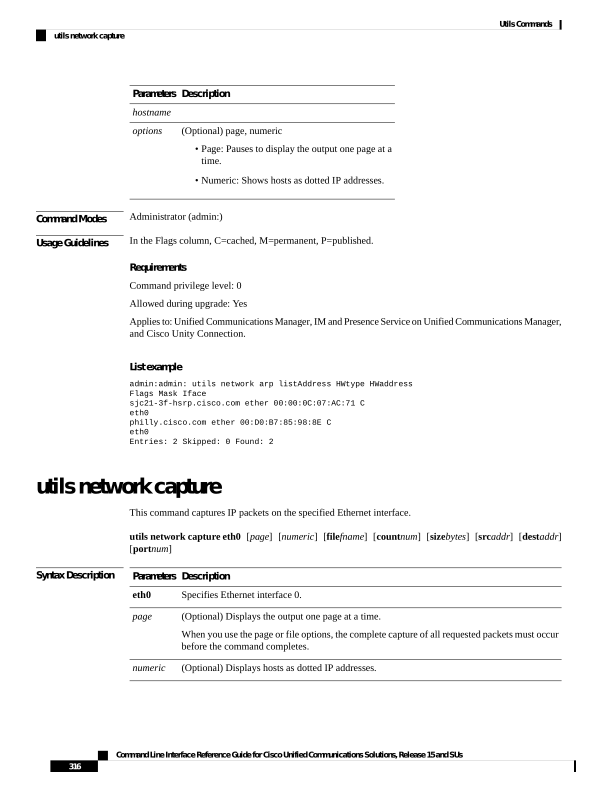
Page 341
Description
Parameters
(Optional) Outputs the information to a file.
The file option saves the information to platform/cli/fname.cap. The filename cannot
contain the “.” character.
file fname
(Optional) Sets a count of the number of packets to capture.
For screen output, the maximum count equals 1000, and, for file output, the maximum count
equals 10,000.
countnum
(Optional) Sets the number of bytes of the packet to capture.
For screen output, the maximum number of bytes equals 128, for file output, the maximum of
bytes can be either 262144 bytes or ALL.
sizebytes
(Optional) Specifies the source address of the packet as a host name or IPV4 address.
src addr
(Optional) Specifies the destination address of the packet as a host name or IPV4 address.
destaddr
(Optional) Specifies the port number of the packet, either source or destination.
portnum
Command Modes
Administrator (admin:)
Requirements
Command privilege level: 0
Allowed during upgrade: Yes
Applies to: Unified Communications Manager, IM and Presence Service on Unified Communications Manager,
and Cisco Unity Connection.
utils network capture-rotate
This command captures IP packets beyond the 100,000 packet limit of utils network capture.
utils network capture-rotate {filefname}
[sizebytes] [sizePerFilemegabytes ] {maxFiles num}[srcaddr]
[destaddr] [portnum][host protocoladdr]
Syntax Description
Description
Parameters
Outputs the information to a file.
Note
The file will be saved in platform/cli/fname. fname should not contain the "."
character.
file fname
The number of bytes of the packet to capture. Valid values include any number up
to 65535 or ALL. The default is ALL.
sizebytes
The sizePerFile sets the value for the size of the log files. (Unit is millions of bytes.)
The default value of sizePerFile is 25 MB.
sizePerFile megabytes
Command Line Interface Reference Guide for Cisco Unified Communications Solutions, Release 15 and SUs
317
Utils Commands
utils network capture-rotate
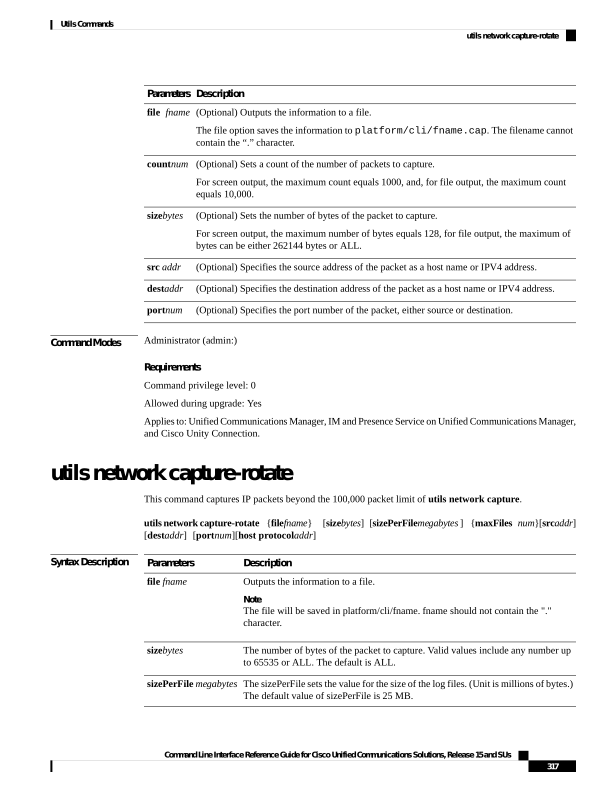
Page 342
Description
Parameters
the maxFiles indicates the maximum number of log files to be created. The default
value of maxFiles is 10.
maxFiles num
(Optional) Specifies the source address of the packet as a hostname or IPV4 address.
src addr
(Optional) Specifies the destination address of the packet as a host name or IPV4
address.
dest addr
(Optional) Specifies the port number of the packet, either source or destination.
port num
(Optional) Limits capture to traffic to and from a specific host. Options for protocol
are IP, arp, rarp, all, and addr must be in IPv4 or hostname format. If host is used,
do not provide src or dest.
host protocol addr
Command Modes
Administrator (admin:)
Requirements
Command privilege level: 1
Allowed during upgrade: Yes
Applies to: Unified Communications Manager, IM and Presence Service on Unified Communications Manager,
and Cisco Unity Connection.
utils network connectivity
This command verifies the node network connection to the first node in the cluster (this connection is only
valid on a subsequent node) and to a remote node.
utils network connectivity [reset] [hostname/ip address]
utils network connectivity
[hostname/ip address] [port-number] [timeout]
Syntax Description
Description
Parameters
This command verifies the node
network connection to the first node
in the cluster.
It is also used to check connectivity
to a remote node, where there are
two mandatory parameters,
hostname/ip address and
port-number.
connectivity
(Optional) Clears previous return
codes.
reset
Command Line Interface Reference Guide for Cisco Unified Communications Solutions, Release 15 and SUs
318
Utils Commands
utils network connectivity
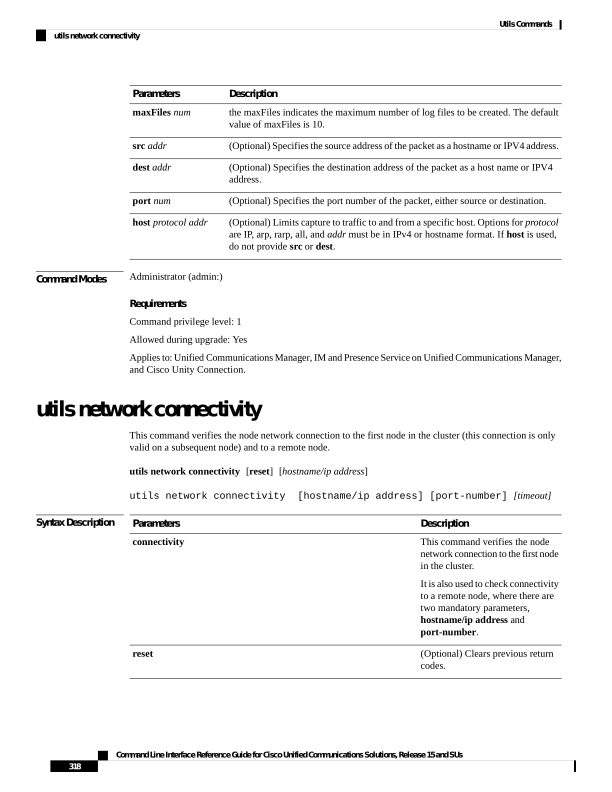
Page 343
Description
Parameters
• (Optional) Hostname or IP
address of cluster node to
check network connectivity
with the publisher or the first
node.
• (Mandatory) Hostname or IP
address of the host that has to
be tested for the TCP
connection, to check network
connectivity on the remote
server.
hostname/ip address
(Mandatory) Port number of the
host that requires connection test.
port-number
(Optional) Specifies the time in
seconds after which port
connectivity message is displayed.
timeout
Command Modes
Administrator (admin:)
Usage Guidelines
• The utils network connectivity [reset] [hostname/ip address] command is used to check the network
connectivity to the publisher or the first node.
• The utils network connectivity
[hostname/ip address] [port-number] [timeout] command is
used to check the network connectivity to a remote server.
Requirements
Command privilege level: 0
Allowed during upgrade: Yes
Applies to: Unified Communications Manager, IM and Presence Service on Unified Communications Manager,
and Cisco Unity Connection.
utils network host
This command resolves a host name to an address or an address to a host name.
utils network host name [serverserv] [page] [detail] [srv]
Syntax Description
Description
Parameters
Represents the host name or IP address that you want to resolve.
name
(Optional) Specifies an alternate domain name server.
serv
Command Line Interface Reference Guide for Cisco Unified Communications Solutions, Release 15 and SUs
319
Utils Commands
utils network host
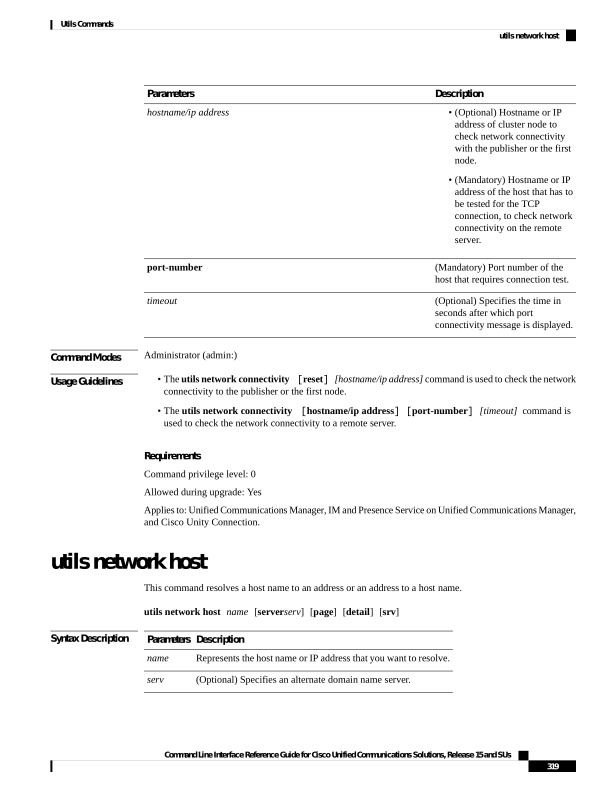
Page 344
Description
Parameters
(Optional) Displays the output one screen at a time.
[page]
(Optional) Displays a detailed listing.
[detail]
(Optional) Displays DNS SRV records.
[srv]
Command Modes
Administrator (admin:)
Requirements
Command privilege level: 0
Allowed during upgrade: Yes
Applies to: Unified Communications Manager, IM and Presence Service on Unified Communications Manager,
and Cisco Unity Connection.
utils network ipv6 host
This command does an IPv6 host lookup (or IPv6 address lookup) for the specified host name or IPv6 address.
utils network ipv6 host
{host_nameipv6_address}
Syntax Description
Description
Parameters
Specifies the name of the server.
host_name
Specifies the IPv6 address of the server.
ipv6_address
Command Modes
Administrator (admin:)
Requirements
Command privilege level: 0
Allowed during upgrade: Yes
Applies to: Unified Communications Manager and Cisco Unity Connection.
utils network ipv6 traceroute
This command to traces an IPv6 address or hostname.
utils network ipv6 traceroute [ipv6-addresshostname]
Syntax Description
Description
Parameters
Specifies IPv6 address that you want to trace.
ipv6-address
Command Line Interface Reference Guide for Cisco Unified Communications Solutions, Release 15 and SUs
320
Utils Commands
utils network ipv6 host
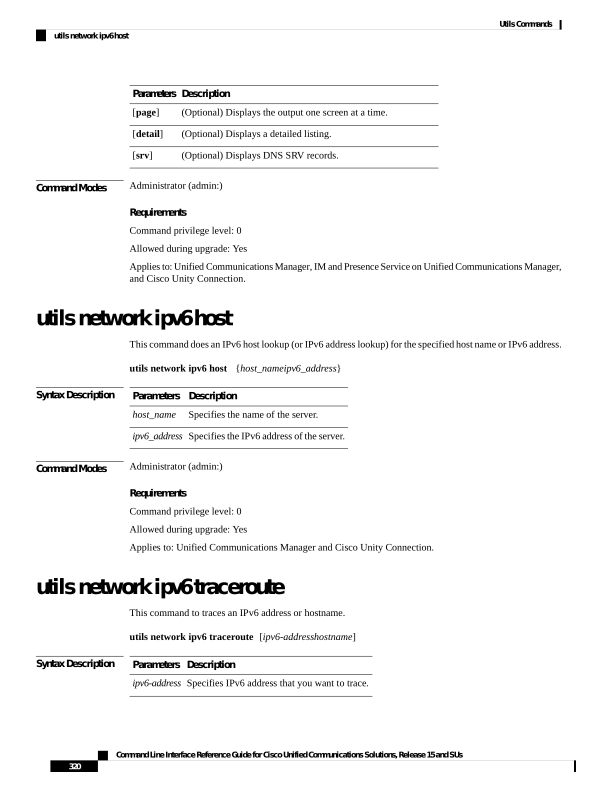
Page 345
Description
Parameters
Specifies the host name that you want to trace.
hostname
Command Modes
Administrator (admin:)
Requirements
Command privilege level: 0
Allowed during upgrade: Yes
Applies to: Unified Communications Manager and Cisco Unity Connection.
utils network ipv6 ping
This command allows you to ping an IPv6 address or hostname.
utils network ipv6 ping destination [count]
Syntax Description
Description
Parameters
Specifies a valid IPv6 address or host name that you want to ping.
destination
Specifies the number of times to ping the external server. The default count equals 4.
[count]
Command Modes
Administrator (admin:)
Requirements
Command privilege level: 0
Allowed during upgrade: Yes
Applies to: Unified Communications Manager and Cisco Unity Connection.
utils network name-service {hosts|services} cache invalidate
This command clears the name service cache.
utils network name-service {hosts \ services} [cache invalidate]
Syntax Description
Description
Parameters
Host services cache
Hosts
Services service cache
Services
Command Modes
Administrator (admin:)
Command Line Interface Reference Guide for Cisco Unified Communications Solutions, Release 15 and SUs
321
Utils Commands
utils network ipv6 ping
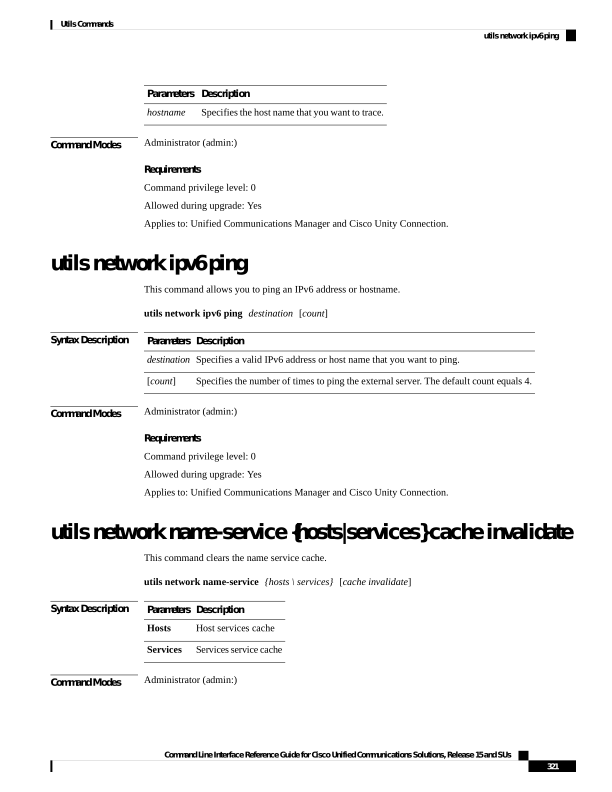
Page 346
Requirements
Command privilege level: 1
Allowed during upgrade: No
Consider the following example for flushing/clearing the cache:
admin:utils network name-service hosts cache invalidate
admin:
Successful
utils network ping
This command allows you to ping another server.
utils network ping destination [count] [size]
Syntax Description
Description
Parameters
Represents the ip address or host name of the server that you want to ping.
destination
Specifies the number of times to ping the external server. The default count is 4.
[count]
Specifies the size of ping packets in bytes. The default value is 56.
[size]
Command Modes
Administrator (admin:)
Requirements
Command privilege level: 0
Allowed during upgrade: Yes
Applies to: Unified Communications Manager, IM and Presence Service on Unified Communications Manager,
and Cisco Unity Connection.
utils network traceroute
This command traces IP packets that are sent to a remote destination.
utils network traceroute [destination]
Syntax Description
Description
Parameters
Represents the hostname or IP address of the server to which you want to send a trace.
destination
Command Modes
Administrator (admin:)
Command Line Interface Reference Guide for Cisco Unified Communications Solutions, Release 15 and SUs
322
Utils Commands
utils network ping
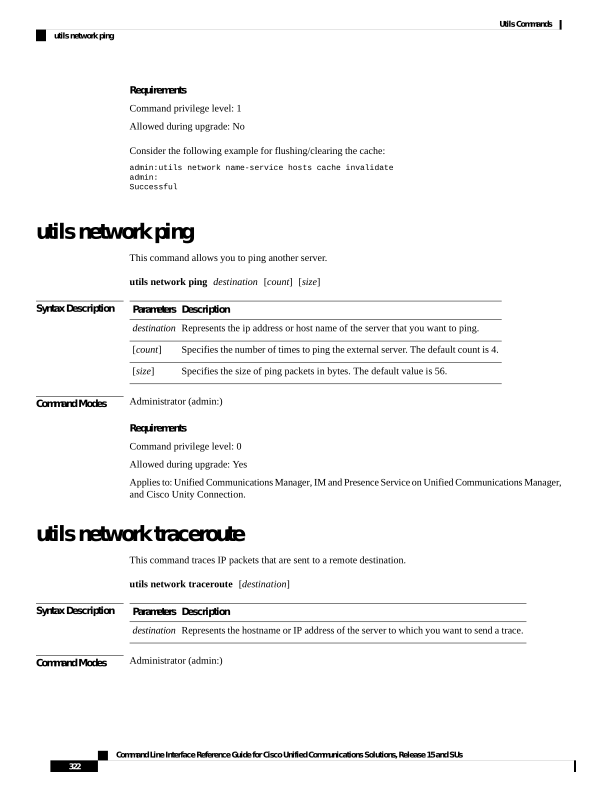
Page 347
Requirements
Command privilege level: 0
Allowed during upgrade: Yes
Applies to: Unified Communications Manager, IM and Presence Service on Unified Communications Manager,
and Cisco Unity Connection.
utils network usgv6 enable
This command enables the USGv6 configurations on this node.
utils network usgv6
enable
Syntax Description
Description
Parameters
Enables the USGv6 configurations.
enable
Command Modes
Administrator (admin:)
Requirements
Command privilege level: 4
Allowed during upgrade: No
Applies to: Unified Communications Manager, IM and Presence Service on Unified Communications Manager,
and Cisco Unity Connection
Example
admin:utils network usgv6 enable
Enabling USGv6 configurations in this mode.
Successfully enabled USGv6 configurations in this node.
utils network usgv6 disable
This command disables the USGv6 configurations on this node.
utils network usgv6
disable
Syntax Description
Description
Parameters
Disables the USGv6 configurations.
disable
Command Modes
Administrator (admin:)
Requirements
Command privilege level: 4
Command Line Interface Reference Guide for Cisco Unified Communications Solutions, Release 15 and SUs
323
Utils Commands
utils network usgv6 enable
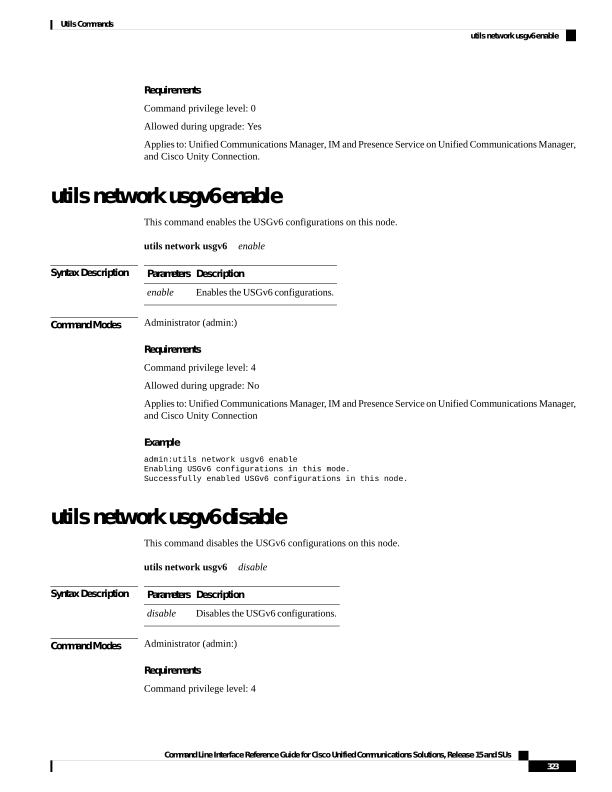
Page 348
Allowed during upgrade: No
Applies to: Unified Communications Manager, IM and Presence Service on Unified Communications Manager,
and Cisco Unity Connection
Example
admin:utils network usgv6 disable
Disabling USGv6 configurations in this mode.
Successfully disabled USGv6 configurations in this node.
utils network usgv6 interface-reset
This command resets the eth0 interface in this node.
utils network usgv6 interface-reset
Syntax Description
Description
Parameters
Resets the Ethernet interface.
interface-reset
Command Modes
Administrator (admin:)
Requirements
Command privilege level: 4
Allowed during upgrade: No
Applies to: Unified Communications Manager, IM and Presence Service on Unified Communications Manager,
and Cisco Unity Connection
Example
admin:utils network usgv6 interface-reset
Resetting the ipv6 interface in this node
Successfully resetted ipv6 interface in this node
utils network usgv6 interface_identifier
This command defines the IPv6 interface identifier used for this node. The identifier you choose determines
the method that is used for generating part of the IPv6 address. This is applicable to both the link-local IPv6
address and Stateless Address Auto-configuration (SLAAC). The address contains a 64-bit prefix and a 64-bit
interface identifier generated by the device.
Opaque, a random 64-bit interface identifier is generated as per RFC-7217 and MAC, an EUI-64 based
interface identifier is generated as per RFC-2373.
utils network usgv6 interface_identifier
{ opaque | mac }
[reboot]
Command Line Interface Reference Guide for Cisco Unified Communications Solutions, Release 15 and SUs
324
Utils Commands
utils network usgv6 interface-reset
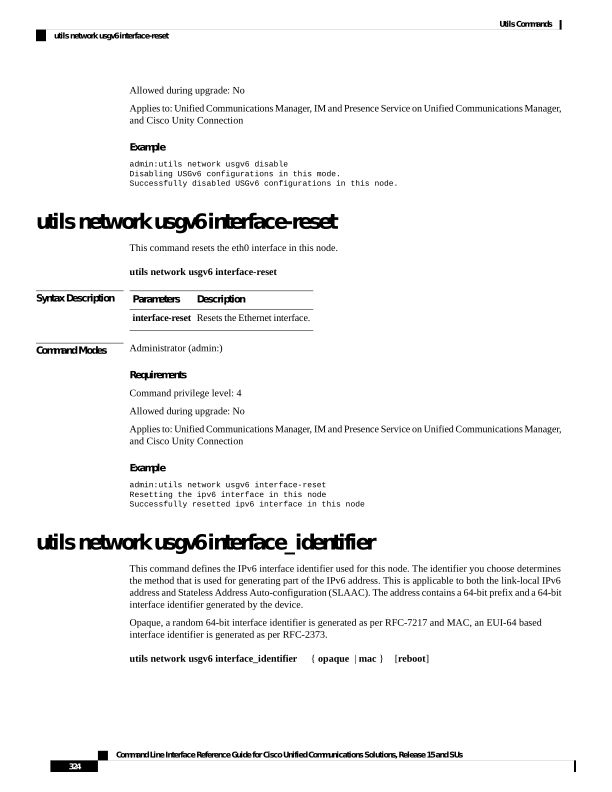
Page 349
Syntax Description
Description
Parameters
Defines the IPv6 interface identifier used for the first node in the cluster.
interface_identifier
Use this option to change the IPv6 interface identifier to Opaque.
opaque
Use this option to change the IPv6 interface identifier to MAC.
mac
(Optional) Reboots the network interface after making the required changes.
reboot
Command Modes
Administrator (admin:)
Requirements
Command privilege level: 4
Allowed during upgrade: No
Applies to: Unified Communications Manager, IM and Presence Service on Unified Communications Manager,
and Cisco Unity Connection
Example
utils network usgv6 interface_identifier opaque reboot
IPv6 interface identifier is set to Opaque successfully
This node will be rebooted
Stopping Service Manager...
/ Service Manager shutting down services...Please Wait
Service Manager [Stopped] Service Activated
Remote side unexpectedly closed network connection
Example
utils network usgv6 interface_identifier mac reboot
IPv6 interface identifier is set to MAC successfully
This node will be rebooted
Stopping Service Manager...
/ Service Manager shutting down services...Please Wait
Service Manager [Stopped] Service Activated
Remote side unexpectedly closed network connection
utils network usgv6 ping
This command sends one or more ping packets to a remote destination.
utils network usgv6 ping
interface
[interfaceid]
{ mtu_ipv6 | ipv6 } [address]
count [count]
size
[packet size]
Syntax Description
Description
Parameters
(Mandatory) Specifies the interface ID of the server that you want to ping. For example,
Interface-ID (eth0|eth1).
interface
Specifies the IPv6 address with pmtudisc_option.
mtu_ipv6
Command Line Interface Reference Guide for Cisco Unified Communications Solutions, Release 15 and SUs
325
Utils Commands
utils network usgv6 ping
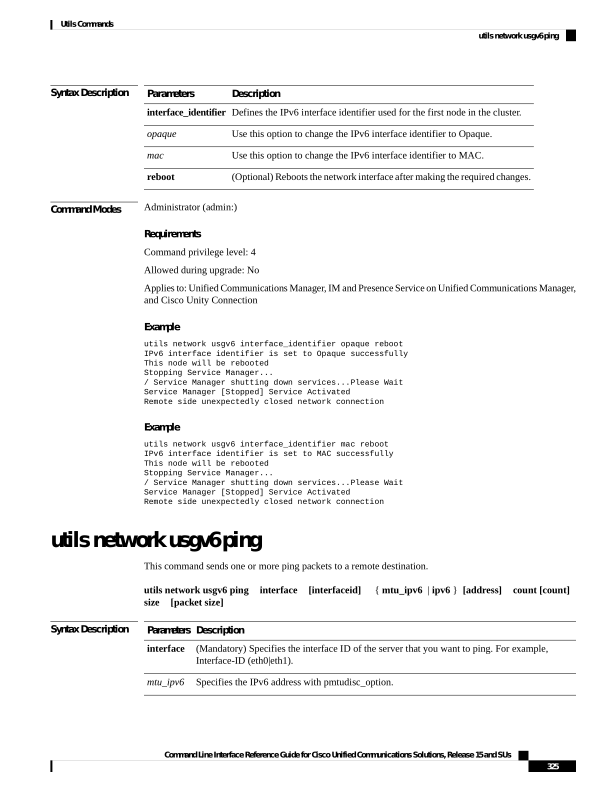
Page 350
Description
Parameters
Specifies the IPv6 address.
ipv6
(Optional) Specifies the count value. This value specifies the number of ICMPv6 messages that
will be exchanged.
By default, the value is 4.
count
(Optional) Specifies the size of the ping packet in bytes.
By default, the value is 56.
size
Command Modes
Administrator (admin:)
Requirements
Command privilege level: 4
Allowed during upgrade: No
Applies to: Unified Communications Manager, IM and Presence Service on Unified Communications Manager,
and Cisco Unity Connection
Example
utils network usgv6 ping interface eth0 mtu_ipv6 ffff:32::45
Example
utils network usgv6 ping interface eth0 ipv6 ffff:32::45 count 5 size 98
utils ntp auth symmetric-key
utils ntp auth symmetric-key
{enable | disable | status}
This command helps you enable or disable authentication of the selected NTP server. The authentication is
based on symmetric keyID and key. The symmetric key is stored in the encrypted format in Unified
Communications Manager.
Before you run this command, ensure that you know the NTP server keyID and its corresponding key.
Note
Syntax Description
Description
Parameters
Choose one of the NTP servers from the list of available servers and enable it for authentication.
enable
Choose one of the NTP servers from the list of available servers and disable it for authentication.
disable
Shows the authentication status of all the listed NTP servers.
status
Usage Guidelines
The system prompts you to enter the KeyID or Symmetric key for authentication of an NTP server.
Command Line Interface Reference Guide for Cisco Unified Communications Solutions, Release 15 and SUs
326
Utils Commands
utils ntp auth symmetric-key

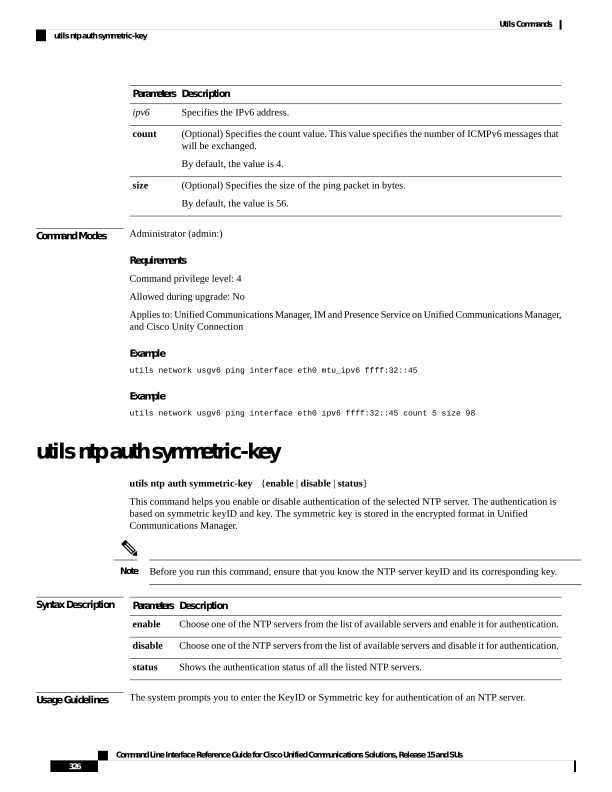
Page 351
• Unified Communications Manager sends Syslog alert messages when the authentication status of an NTP
server changes. You can secure the connections to the syslog server with TLS.
• You can configure the NTP server authentication after you install Unified Communications Manager.
Note
Requirements
Command privilege level: Level 1 can execute all commands, Level 0 can execute only status command
Allowed during upgrade: No
Applies to: Unified Communications Manager
Example: utils ntp auth symmetric-key status - View status when NTP authentication is not enabled
admin:utils ntp auth symmetric-key status
10.77.44.254 : NTP Authentication is disabled.
10.77.137.66 : NTP Authentication is disabled.
Example: utils ntp auth symmetric-key enable - Enable NTP authentication
admin:utils ntp auth symmetric-key enable
The List of NTP servers Configured:
- 10.77.44.254
- 10.77.137.66
q. press q to exit
Enter the selection for which to configure NTP Authentication:
2
Please enter the Key ID [1-65534]:
10
Please enter the Symmetric Key of the NTP Server(SHA1) character by character (do not paste):
Restarting NTP...
NTP restart completed.
Please run the 'utils ntp auth symmetric-key status' to check the status of NTP
Authentication.
Example: utils ntp auth symmetric-key status - View status after NTP authentication is enabled
admin:utils ntp auth symmetric-key status
10.77.44.254
:
NTP Authentication is disabled.
10.77.137.66
:
NTP Authentication is enabled.
Example: utils ntp auth symmetric-key disable - Disable NTP authentication
admin:utils ntp auth symmetric-key disable
The List of NTP servers Configured:
- All
- 10.77.44.254
- 10.77.137.66
q. press q to exit
Enter the selection for which to disable NTP Authentication:
2
NTP authentication has been disabled on the particular server.
Command Line Interface Reference Guide for Cisco Unified Communications Solutions, Release 15 and SUs
327
Utils Commands
utils ntp auth symmetric-key

Page 352
Restarting NTP...
NTP restart completed.
Example: utils ntp auth symmetric-key status - View status after NTP authentication is disabled
admin:utils ntp auth symmetric-key status
10.77.44.254
:
NTP Authentication is disabled.
10.77.137.66
:
NTP Authentication is disabled.
utils ntp server add
The command adds a maximum of five specified NTP servers.
utils ntp server add s1 [s1s2s3s4s5] [norestart]
Syntax Description
Description
Parameters
Specifies the NTP servers.
s1...
Causes the NTP service to not restart after you add the servers.
norestart
Command Modes
Administrator (admin:)
Usage Guidelines
If you use norestart, an explicit restart of the NTP service is required for the changes to take effect.
Requirements
Command privilege level: 0
Allowed during upgrade: Yes
Applies to: Unified Communications Manager
Example: Attempting to Add Servers with Incorrect Command Line Parameters
admin: admin:utils ntp server add s1 s2 s3 s4 s5 s6 s7 s8
Incorrect number of parameters entered for add
usage: utils ntp server add s1 [s2 s3 s4 s5] [norestart]
Example: Attempting to Add a Server Using norestart Without Specifying a Server
admin: utils ntp server add s1 s2 s3 s4 s5 s6 s7 s8
Incorrect number of parameters entered for add
usage: utils ntp server add s1 [s2 s3 s4 s5] [norestart]
Example: Adding servers without norestart
admin: utils ntp server add clock1.cisco.com clock2.cisco.com
clock1.cisco.com :
added successfully.
clock2.cisco.com :
added successfully.
Restarting NTP on the server.
Command Line Interface Reference Guide for Cisco Unified Communications Solutions, Release 15 and SUs
328
Utils Commands
utils ntp server add
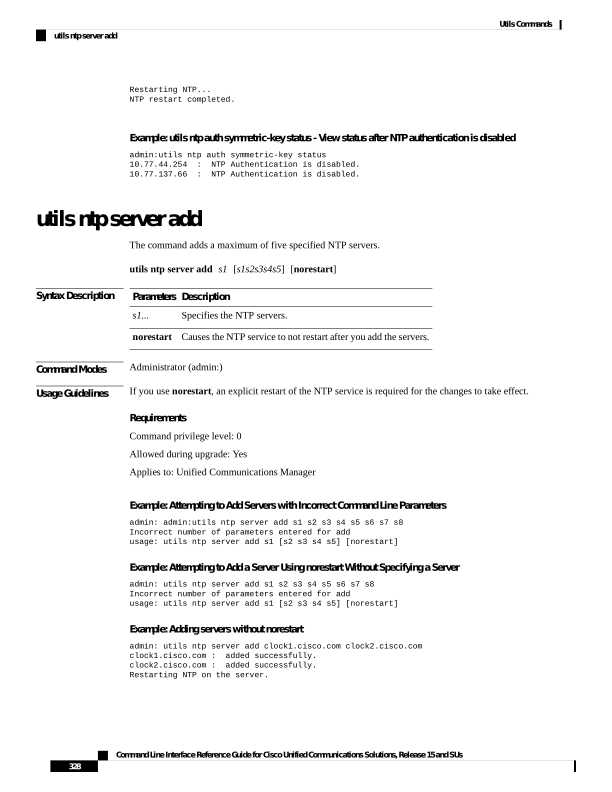
Page 353
Example: Adding Servers That Are Already Added, Without norestart
admin: utils ntp server add clock1.cisco.com clock2.cisco.com
clock1.cisco.com : [The host has already been added as an NTP server.]
clock2.cisco.com : [The host has already been added as an NTP server.]
Example: Adding Server to Self Without norestart
admin: utils ntp server add bglr-ccm26
bglr-ccm26 : [This server cannot be added as an NTP server.]
Example: Adding Inaccessible Server Without norestart
admin: utils ntp server add clock3.cisco.com
clock3.cisco.com : [ Inaccessible NTP server. Not added. ]
Example: Adding Servers with norestart
admin: utils ntp server add ntp01-syd.cisco.com ntp02-syd.cisco.com clock.cisco.com norestart
ntp01-syd.cisco.com :
added successfully.
ntp02-syd.cisco.com :
added successfully.
clock.cisco.com :
added successfully.
The NTP service will need to be restarted for the changes to take effect.
Example: Adding Servers When Five Are Already Configured
admin:utils ntp server add clock3.cisco.com
The maximum permissible limit of 5 NTP servers is already configured.
utils ntp server delete
This command deletes NTP servers that are configured.
utils ntp server delete
Command Modes
Administrator (admin:)
Usage Guidelines
This command allows you to delete a configured Network Time Protocol (NTP) server or multiple NTP
servers. When you choose the server to delete, you are prompted to indicate if you want to restart the NTP
service. If you choose no, the NTP service does not get restarted after the server is deleted.
It is required to have at least 1 NTP server configured. Therefore, you cannot delete an NTP server if only
one is configured. If you select the option to delete all the NTP servers, the NTP servers are deleted in top
down order and the last NTP server on the list does not get deleted. The process is similar to the top down
order followed during utils ntp config or utils ntp status
Note
Requirements
Command privilege level: 0
Allowed during upgrade: Yes
Command Line Interface Reference Guide for Cisco Unified Communications Solutions, Release 15 and SUs
329
Utils Commands
utils ntp server delete

Page 354
Applies to: Unified Communications Manager
Example: Deleting Servers with Incorrect Command Line Parameters
admin: utils ntp server delete clock1.cisco.com clock2.cisco.com
Incorrect number of optional parameters entered for delete
usage: utils ntp server delete
Example: Deleting Single Server with NTP Restart
admin: utils ntp server delete
1: clock1.cisco.com
2: clock2.cisco.com
3: ntp01-syd.cisco.com
4: ntp02-syd.cisco.com
5: clock.cisco.com
a: all
q: quit
Choice: 1
Restart NTP (y/n): y
clock1.cisco.com will be deleted from the list of configured NTP servers.
Continue (y/n)?y
clock1.cisco.com :
deleted successfully.
Restarting NTP on the server.
Example: Deleting All Servers Without NTP Restart
admin: utils ntp server delete
1: clock1.cisco.com
2: clock2.cisco.com
3: ntp01-syd.cisco.com
4: ntp02-syd.cisco.com
5: clock.cisco.com
a: all
q: quit
Choice: a
Restart NTP (y/n): n
This will result in all the configured NTP servers being deleted.
Continue (y/n)?y
clock1.cisco.com :
deleted successfully.
clock2.cisco.com :
deleted successfully.
ntp01-syd.cisco.com :
deleted successfully.
ntp02-syd.cisco.com :
deleted successfully.
clock.cisco.com :
[The NTP server was not deleted.
At least one NTP server is required.]
The NTP service will need to be restarted for the changes to take effect.
Example: Deleting All Servers When No Servers Are Configured
admin: utils ntp server delete
There are no NTP servers configured to delete.
Command Line Interface Reference Guide for Cisco Unified Communications Solutions, Release 15 and SUs
330
Utils Commands
utils ntp server delete
Page 355
utils ntp config
This command displays the current configuration of the NTP client and server.
To avoid potential compatibility, accuracy, and network jitter problems, the external NTP servers that you
specify for the primary node should be NTP v4 (version 4).
Note
utils ntp config
Command Modes
Administrator (admin:)
Requirements
Command privilege level: 0
Allowed during upgrade: Yes
Applies to: Unified Communications Manager, IM and Presence Service on Unified Communications Manager,
Cisco Unity Connection
utils ntp restart
This command restarts the NTP service.
utils ntp restart
Command Modes
Administrator (admin:)
Requirements
Command privilege level: 0
Allowed during upgrade: Yes
Applies to: Unified Communications Manager, IM and Presence Service on Unified Communications Manager,
and Cisco Unity Connection
utils ntp server list
This command lists all NTP servers.
utils ntp server list
Command Modes
Administrator (admin:)
Command Line Interface Reference Guide for Cisco Unified Communications Solutions, Release 15 and SUs
331
Utils Commands
utils ntp config

Page 356
Requirements
Command privilege level: 0
Allowed during upgrade: Yes
Applies to: Unified Communications Manager and IM and Presence Service on Unified Communications
Manager
utils ntp start
This command starts the NTP service if it is not already running.
You can not stop the NTP service from the command line interface. Use this command when the utils ntp
status command returns stopped.
Note
utils ntp start
Command Modes
Administrator (admin:)
Requirements
Command privilege level: 0
Allowed during upgrade: Yes
Applies to: Unified Communications Manager, IM and Presence Service on Unified Communications Manager,
and Cisco Unity Connection
utils ntp status
This command displays the current status of NTP.
utils ntp status
Command Modes
Administrator (admin:)
Requirements
Command privilege level:
Allowed during upgrade:
Applies to: Unified Communications Manager and IM and Presence Service on Unified Communications
Manager.
Command Line Interface Reference Guide for Cisco Unified Communications Solutions, Release 15 and SUs
332
Utils Commands
utils ntp start

Page 357
utils os kerneldump
This command configures kerneldump to provide a kernel crash dumping mechanism. The kernel captures
the dump to the local disk, in case of a kernel crash.
The netdump commands have been removed from release 8.6(1) and have been replaced with the kerneldump
commands.
Note
utils os kerneldump
{enable | disable}
Command Modes
Administrator (admin:)
Usage Guidelines
If a kernel crash occurs, the capture kernel dumps the core on the local disk of the server. The primary kernel
reserves 128MB of physical memory that the capture kernel uses to boot. The kerneldump uses the kexec
command to boot into a capture kernel whenever the kernel crashes.
Requirements
Command privilege level: 0
Allowed during upgrade: Yes
Applies to: Unified Communications Manager and Cisco Unity Connection
Example
admin: utils os kerneldump enable
WARNING****
Enabling kerneldump requires system reboot
Would you like to boot the machine (y/n):y
kerneldump enable operation succeeded
System going for a reboot
utils os kerneldump ssh
This command enables, disables, or displays the status of an external SSH server.
utils os kerneldump ssh
{enable | disable | status}
Syntax Description
Description
Parameters
Configures an external SSH server as a kerneldump server to kernel dumps.
enable
Removes support of the external SSH server that is configured to collect kernel dumps.
disable
Indicates whether an external SSH server is configured or not, to collect kernel dumps.
status
Command Line Interface Reference Guide for Cisco Unified Communications Solutions, Release 15 and SUs
333
Utils Commands
utils os kerneldump

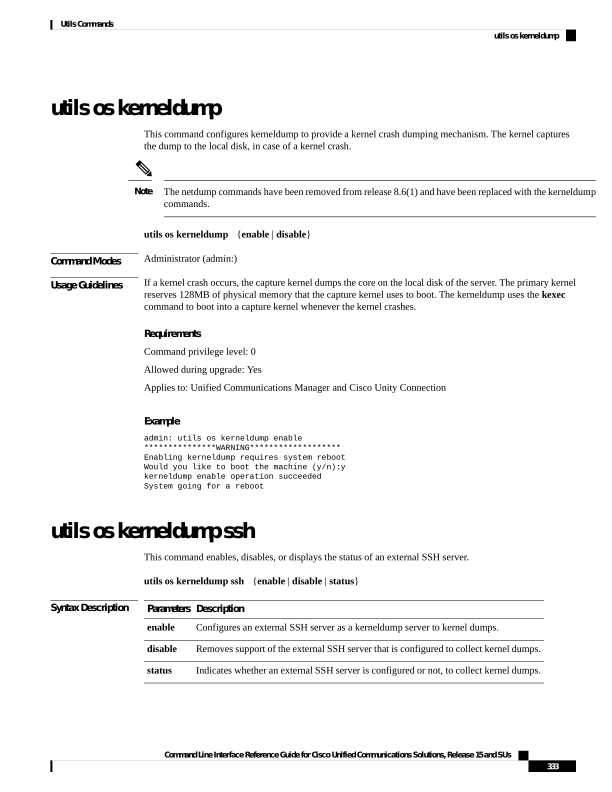
Page 358
Command Modes
Administrator (admin:)
Usage Guidelines
If external SSH server has the kerneldump service enabled and a kernel crash occurs, the capture kernel dumps
the core on the external server that is configured to collect the dump.
Enabling and disabling kerneldump require a system reboot for the changes to come into effect.
Requirements
Command privilege level: 1
Allowed during upgrade: Yes
Applies to: Unified Communications Manager and Cisco Unity Connection
Example
admin: utils os kerneldump ssh disable 10.77.31.60
Disabling kerneldump requires system reboot
Would you like to continue (y/n): y
kerneldump disable operation succeeded
System going for a reboot
utils os kerneldump status
This command provides the status of the kdump service.
utils os kerneldump status
Command Modes
Administrator (admin:)
Requirements
Command privilege level: 0
Allowed during upgrade: No
Applies to: Unified Communications Manager, IM and Presence Service on Unified Communications Manager,
and Cisco Unity Connection
utils os secure
This command is used to specify the level of security provided by selinux.
utils os secure
{enforce | permissive | status}
Syntax Description
Description
Parameters
enforce
permissive
status
Command Line Interface Reference Guide for Cisco Unified Communications Solutions, Release 15 and SUs
334
Utils Commands
utils os kerneldump status
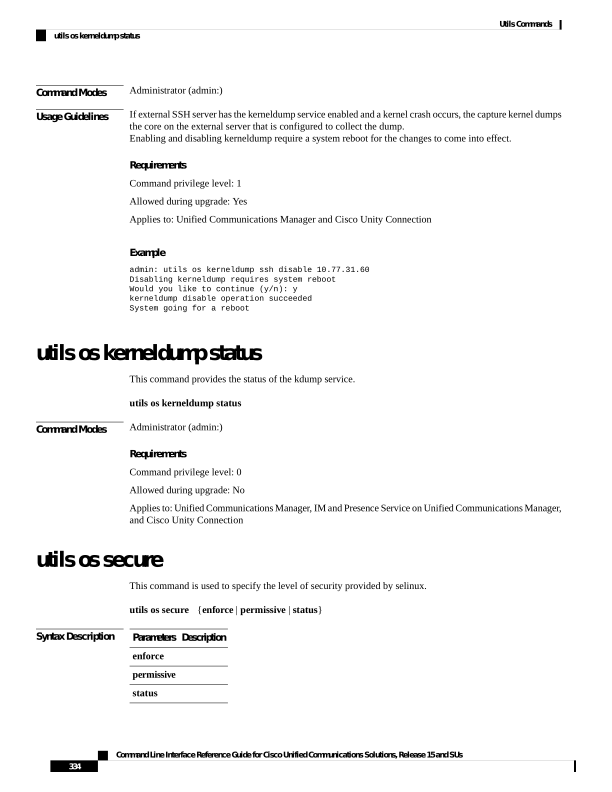
Page 359
Command Modes
Administrator (admin:)
Usage Guidelines
Note that selinux does not handle rate limiting. Rate limiting is handled by ipprefs and ip tables.
Requirements
Command privilege level: 1
Allowed during upgrade: No
Applies to: Unified Communications Manager and IM and Presence Service on Unified Communications
Manager
utils os secure dynamic-policies compile
This command generates the selinux policy module and type enforcement that resolves the recorded denials
under the dynamic policy.
utils os secure dynamic-policies compile policy name
Syntax Description
Description
Parameters
Type the dynamic policy name under which the compilation of the selinux policy module and
type enforcement is done.
policy
name
Command Modes
Administrator (admin:)
Usage Guidelines
Requirements
Command privilege level: 1
Allowed during upgrade: Yes
Applies to: Unified Communications Manager and IM and Presence Service on Unified Communications
Manager
utils os secure dynamic-policies list
This command lists all the operating system dynamic policies with their statuses.
utils os secure dynamic-policies list
Command Modes
Administrator (admin:)
Usage Guidelines
Requirements
Command privilege level: 1
Allowed during upgrade: Yes
Applies to: Unified Communications Manager and IM and Presence Service on Unified Communications
Manager
Command Line Interface Reference Guide for Cisco Unified Communications Solutions, Release 15 and SUs
335
Utils Commands
utils os secure dynamic-policies compile
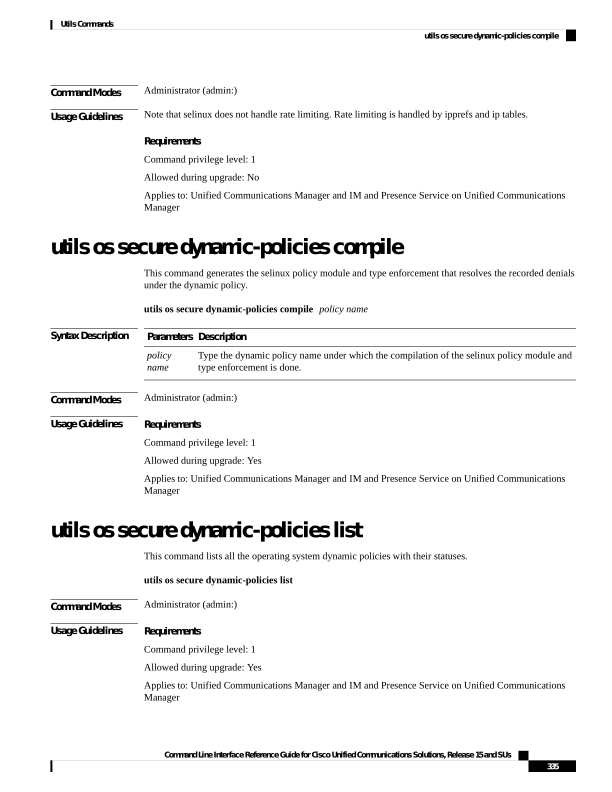
Page 360
utils os secure dynamic-policies load
This command loads the selinux policy module for the dynamic policy into selinux. This command applies
new rules into selinux that prevent the denials that are recorded under the dynamic policy from reoccurring.
utils os secure dynamic-policies load policy name
Syntax Description
Description
Parameters
Type the dynamic policy name that has a generated selinux policy module, which is not loaded
into selinux..
policy
name
Command Modes
Administrator (admin:)
Usage Guidelines
Requirements
Command privilege level: 1
Allowed during upgrade: Yes
Applies to: Unified Communications Manager and IM and Presence Service on Unified Communications
Manager
utils os secure dynamic-policies remove
This command deletes all the data for the dynamic policy from the operating system. The data includes
unloading the policy module from selinux and deleting the generated policy module, type enforcements,
recorded denials, and delta logs.
utils os secure dynamic-policies remove policy name
Syntax Description
Description
Parameters
Type the dynamic policy name that is unnecessary or no longer required.
policy
name
Command Modes
Administrator (admin:)
Usage Guidelines
Requirements
Command privilege level: 1
Allowed during upgrade: Yes
Applies to: Unified Communications Manager and IM and Presence Service on Unified Communications
Manager
Command Line Interface Reference Guide for Cisco Unified Communications Solutions, Release 15 and SUs
336
Utils Commands
utils os secure dynamic-policies load
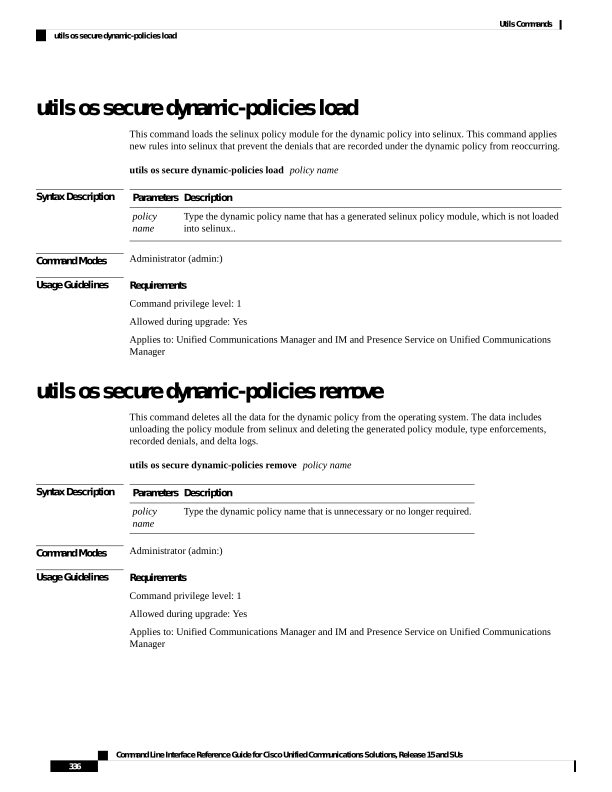
Page 361
utils os secure dynamic-policies show
This command displays the rules to be introduced by loading the generated selinux policy module of the
dynamic policy. Run this command after the successful compilation to verify that the rules to be loaded are
secure.
utils os secure dynamic-policies show policy name
Syntax Description
Description
Parameters
Type the dynamic policy name for which you want to view the rules.
policy
name
Command Modes
Administrator (admin:)
Usage Guidelines
Requirements
Command privilege level: 1
Allowed during upgrade: Yes
Applies to: Unified Communications Manager and IM and Presence Service on Unified Communications
Manager
utils os secure dynamic-policies start-recording
This command starts recording the selinux denials and organizes them under the new dynamic policy.
• This command sets the system into the permissive mode.
• The dynamic-policies are generated on a per-node basis. As a restriction, these policies cannot be exported
or imported. This restriction has the following advantages:
• Prevent loading external and unsigned policy modules into selinux that may create security
vulnerabilities.
• Prevent the transfer of policy modules between Unified Communications Manager clusters with
different configurations.
Note
utils os secure dynamic-policies start-recording policy name
Syntax Description
Description
Parameters
Type the dynamic policy name where the selinux denials and future policy data is to be organized.
policy
name
Command Modes
Administrator (admin:)
Command Line Interface Reference Guide for Cisco Unified Communications Solutions, Release 15 and SUs
337
Utils Commands
utils os secure dynamic-policies show

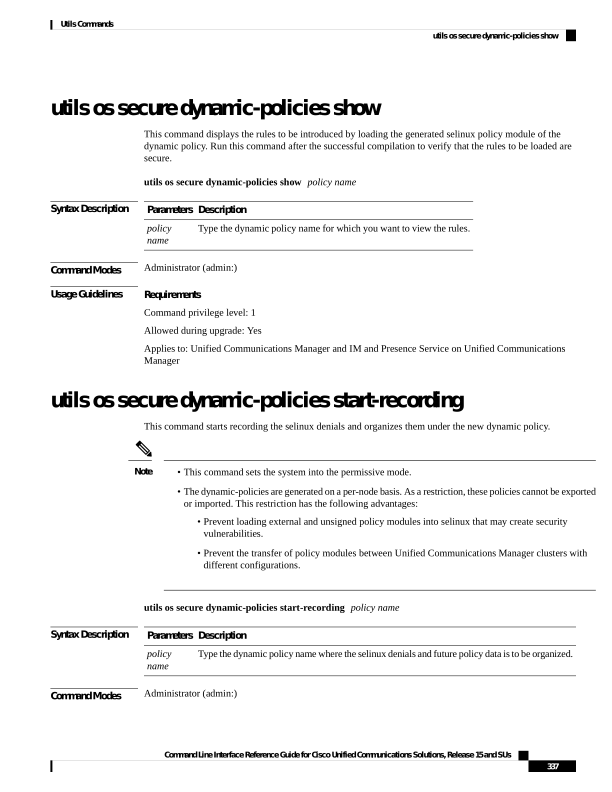
Page 362
Usage Guidelines
Requirements
Command privilege level: 1
Allowed during upgrade: Yes
Applies to: Unified Communications Manager and IM and Presence Service on Unified Communications
Manager
utils os secure dynamic-policies stop-recording
This command stops recording the selinux denials for the dynamic policy. This command switches the system
back to the original enforcement mode—either permissive mode or enforcing mode. This log generates a delta
log for all selinux denials that occurred between the start of the recording till it ends.
This command fails if the delta log has no new denials. Then, the dynamic policy is purged and you will have
to use this command again.
Note
utils os secure dynamic-policies stop-recording policy name
Syntax Description
Description
Parameters
Type the dynamic policy name the recording of which you want to stop.
policy
name
Command Modes
Administrator (admin:)
Usage Guidelines
Requirements
Command privilege level: 1
Allowed during upgrade: Yes
Applies to: Unified Communications Manager and IM and Presence Service on Unified Communications
Manager
utils PlatformWebAccess disable
Use this command to restrict the user sign-in to Cisco OS Administration and Disaster Recovery System
applications when SSO is enabled.
utils PlatformWebAccess disable
Command Modes
Administrator (admin:)
Requirements
Command privilege level: 4
Command Line Interface Reference Guide for Cisco Unified Communications Solutions, Release 15 and SUs
338
Utils Commands
utils os secure dynamic-policies stop-recording

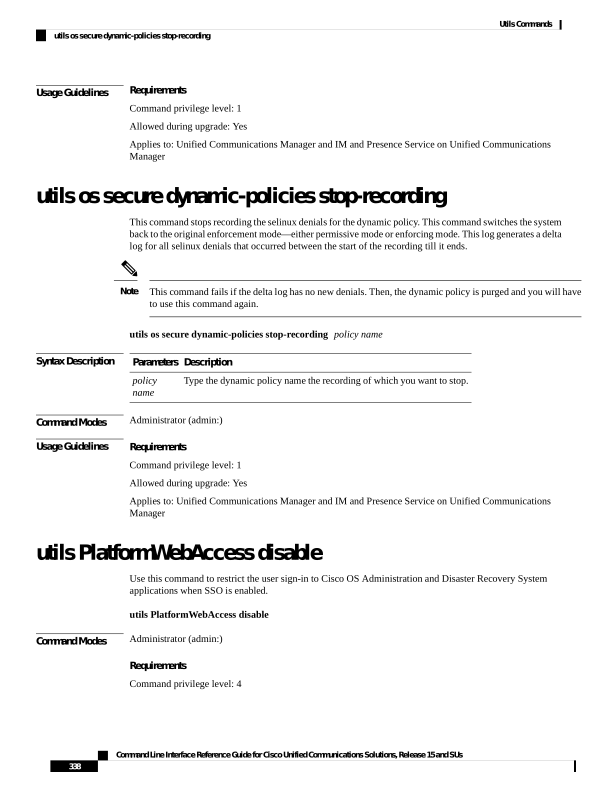
Page 363
Allowed during upgrade: Yes
Applies to: Unified Communications Manager, IM and Presence Service on Unified Communications Manager,
and Cisco Unity Connection
utils PlatformWebAccess enable
Use this command to enable the user sign-in to Cisco OS Administration and Disaster Recovery System
applications.
utils PlatformWebAccess enable
Command Modes
Administrator (admin:)
Requirements
Command privilege level: 4
Allowed during upgrade: Yes
Applies to: Unified Communications Manager, IM and Presence Service on Unified Communications Manager,
and Cisco Unity Connection
utils PlatformWebAccess status
Use this command to display the status of the web access of the system—whether the platform web access is
enabled or disabled for Cisco OS Administration and Disaster Recovery System applications.
utils PlatformWebAccess status
Command Modes
Administrator (admin:)
Requirements
Command privilege level: 4
Allowed during upgrade: Yes
Applies to: Unified Communications Manager, IM and Presence Service on Unified Communications Manager,
and Cisco Unity Connection
utils processCoreDumps disable
This command disables the process core dumps.
utils processCoreDumps disable
Command Modes
Administrator (admin:)
Command Line Interface Reference Guide for Cisco Unified Communications Solutions, Release 15 and SUs
339
Utils Commands
utils PlatformWebAccess enable
Page 364
Requirements
Command privilege level: 1
Allowed during upgrade: No
Applies to: Unified Communications Manager, IM and Presence Service on Unified Communications Manager,
Cisco Unity Connection
utils processCoreDumps enable
This command enables the process core dumps.
utils processCoreDumps enable
Command Modes
Administrator (admin:)
Requirements
Command privilege level: 1
Allowed during upgrade: No
Applies to: Unified Communications Manager, IM and Presence Service on Unified Communications Manager,
Cisco Unity Connection
utils processCoreDumps status
This command provides the status of the kdump service.
utils processCoreDumps status
Command Modes
Administrator (admin:)
Requirements
Command privilege level: 0
Allowed during upgrade: No
Applies to: Unified Communications Manager, IM and Presence Service on Unified Communications Manager,
Cisco Unity Connection
utils remote_account create
This command creates a remote account.
utils remote_account create
Command Modes
Administrator (admin:)
Command Line Interface Reference Guide for Cisco Unified Communications Solutions, Release 15 and SUs
340
Utils Commands
utils processCoreDumps enable
Page 365
Usage Guidelines
A remote account generates a pass phrase that allows Cisco Systems support personnel to get access to the
system for the specified life of the account.
Requirements
Command privilege level: 1
Allowed during upgrade: Yes
Applies to: Unified Communications Manager, IM and Presence Service on Unified Communications Manager,
Cisco Unity Connection
utils remote_account disable
This command allows you to disable a remote account.
utils remote_account disable
Command Modes
Administrator (admin:)
Requirements
Command privilege level: 1
Allowed during upgrade: Yes
Applies to: Unified Communications Manager, IM and Presence Service on Unified Communications Manager,
and Cisco Unity Connection
utils remote_account enable
This command allows you to enable a remote account.
utils remote_account enable
Command Modes
Administrator (admin:)
Usage Guidelines
You can have only one remote account that is enabled at a time.
Requirements
Command privilege level: 1
Allowed during upgrade: Yes
Applies to: Unified Communications Manager, IM and Presence Service on Unified Communications Manager,
and Cisco Unity Connection
utils remote_account status
This command allows you to check the status of a remote account.
Command Line Interface Reference Guide for Cisco Unified Communications Solutions, Release 15 and SUs
341
Utils Commands
utils remote_account disable
Page 366
utils remote_account status
Command Modes
Administrator (admin:)
Requirements
Command privilege level: 0
Allowed during upgrade: Yes
Applies to: Unified Communications Manager, IM and Presence Service on Unified Communications Manager,
and Cisco Unity Connection
utils remotesyslog set protocol tcp
This command configures the protocol for communication with remote syslog server as TCP on the system.
Restart the node for changes to take effect.
utils remotesyslog set protocol tcp
Command Modes
Administrator (admin:)
Requirements
Command privilege level: 4
Allowed during upgrade: No
Applies to: Unified Communications Manager, IM and Presence Service on Unified Communications Manager,
Cisco Unity Connection
utils remotesyslog set protocol udp
This command configures the protocol for communication with remote syslog server as UDP on the system.
Restart the node for changes to take effect.
utils remotesyslog set protocol udp
Command Modes
Administrator (admin:)
Requirements
Command privilege level: 4
Allowed during upgrade: No
Applies to: Unified Communications Manager, IM and Presence Service on Unified Communications Manager,
Cisco Unity Connection
Command Line Interface Reference Guide for Cisco Unified Communications Solutions, Release 15 and SUs
342
Utils Commands
utils remotesyslog set protocol tcp
Page 367
utils remotesyslog set protocol tls
This command configures the protocol for communication with the remote syslog server as Transport Layer
Security (TLS) 1.2 or 1.3 on the system. TLS enables Unified Communications Manager and IM and Presence
Service to establish a secure connection with syslog servers. This enables Unified Communications Manager
and IM and Presence Service to comply with Common Criteria guidelines.
TLS 1.3 is offered on this enterprise from Release 15SU2 onwards.
Note
• Ensure that the syslog server supports the minimum TLS version (1.2 or 1.3) supported.
• In Common Criteria Mode, strict host name verification is implemented. Hence, it is required to configure
the server with a fully qualified domain name (FQDN) which matches the certificate.
Note
Restart the node for the changes to take effect.
utils remotesyslog set protocol tls
Command Modes
Administrator (admin:)
Requirements
Command privilege level: 4
Allowed during upgrade: No
Applies to: Unified Communications Manager and IM and Presence Service on Unified Communications
Manager
A security certificate has to be uploaded from the syslog server to the tomcat trust store on Unified
Communications Manager and IM and Presence Service.
utils remotesyslog show protocol
This command shows whether the protocol for communication with remote syslog server is TCP or UDP on
the system.
utils remotesyslog show protocol
Command Modes
Administrator (admin:)
Requirements
Command privilege level: 0
Allowed during upgrade: No
Command Line Interface Reference Guide for Cisco Unified Communications Solutions, Release 15 and SUs
343
Utils Commands
utils remotesyslog set protocol tls

Page 368
Applies to: Unified Communications Manager, IM and Presence Service on Unified Communications Manager,
Cisco Unity Connection
utils reset_application_ui_administrator_name
This command resets the application user interface administrator name.
utils reset_application_ui_administrator_name
Command Modes
Administrator (admin:)
Requirements
Command privilege level: 1
Allowed during upgrade: Yes
Applies to: Unified Communications Manager, IM and Presence Service on Unified Communications Manager,
and Cisco Unity Connection
utils reset_application_ui_administrator_password
This command resets the application user interface administrator password.
For password changes on IM and Presence nodes, stop the Cisco Presence Engine service in all IM and
Presence nodes before resetting the administrator password. After the password reset, restart Cisco Presence
Engine service in all the nodes. Make sure that you perform this task during maintenance because you may
face presence issues when the PE is stopped. If you change the password from IM and Presence nodes, make
sure the new password is same as the current administrator password in Unified Communication Manager.
Note
utils reset_application_ui_administrator_password
Command Modes
Administrator (admin:)
Requirements
Command privilege level: 1
Allowed during upgrade: Yes
Applies to: Unified Communications Manager, IM and Presence Service on Unified Communications Manager,
and Cisco Unity Connection
utils restore_application_ui_administrator_account
This command restores the application user interface administrator account.
Command Line Interface Reference Guide for Cisco Unified Communications Solutions, Release 15 and SUs
344
Utils Commands
utils reset_application_ui_administrator_name

Page 369
utils restore_application_ui_administrator_account
Command Modes
Administrator (admin:)
Requirements
Command privilege level: 1
Allowed during upgrade: No
Applies to: Unified Communications Manager, IM and Presence Service on Unified Communications Manager,
Cisco Unity Connection
utils rosters list limited
Run this command on the database publisher node to obtain a count of invalid watchers and invalid contacts.
The total counts display in the CLI.
Command Modes
Administrator (admin:)
Usage Guidelines
We recommend that you run this command only during a maintenance window. This command will list only
the count and no details of the invalid records. For details on the invalid records, try utils rosters list [ watchers
| contacts | full.
Requirements
Command privilege level: 4
Allowed during upgrade: No
Applies to: IM and Presence Service
utils rosters list full
Run this command on the database publisher node to write the details of all invalid watchers and invalid
contacts to a file. The command also displays the total counts in the CLI.
Command Modes
Administrator (admin:)
Usage Guidelines
We recommend that you run this command only during a maintenance window.
Requirements
Command privilege level: 4
Allowed during upgrade: No
Applies to: IM and Presence Service
Command Line Interface Reference Guide for Cisco Unified Communications Solutions, Release 15 and SUs
345
Utils Commands
utils rosters list limited
Page 370
utils rosters list watchers
Run this command on the database publisher node to write the details of all invalid watchers in the cluster to
a file. The total count of invalid contacts also displays in the CLI.
Command Modes
Administrator (admin:)
Usage Guidelines
We recommend that you run this command only during a maintenance windows. While executing, progress
is displayed in the CLI as well as in a log file.
Requirements
Command privilege level: 4
Allowed during upgrade: No
Applies to: IM and Presence Service
utils rosters list contacts
Run this command on the database publisher node to write the details of all invalid contacts in the cluster to
a file. The total count of invalid contacts also displays in CLI.
Command Modes
Administrator (admin:)
Usage Guidelines
We recommend that you run this command only during a maintenance window.
Requirements
Command privilege level: 4
Allowed during upgrade: No
Applies to: IM and Presence Service
utils rosters delete
Run this command on the database publisher node to delete all invalid watchers and invalid contacts in the
IM and Presence cluster.
Command Modes
Administrator (admin:)
Usage Guidelines
We recommend that you run this command only during a maintenance windows. While executing, progress
is displayed in the CLI as well as in a log file.
Requirements
Command privilege level: 4
Allowed during upgrade: No
Command Line Interface Reference Guide for Cisco Unified Communications Solutions, Release 15 and SUs
346
Utils Commands
utils rosters list watchers
Page 371
Applies to: IM and Presence Service
utils sipOAuth-mode
This command is used to enable/disable SIP OAuth mode in a cluster. Once enabled, Unified Communication
Manager accepts SIP registrations with an OAuth token from secure devices that are configured to use the
SIP OAuth mode of registration.
utils sipOAuth-mode
{ enable | disable }
Command Modes
Administrator (admin:)
Usage Guidelines
You must run this command only on the Unified Communication Manager publisher node.
After enabling/disabling the SIPOauth mode, you must restart the Cisco CallManager service on all nodes in
the cluster where the Cisco CallManager service is running.
Note
Requirements
Command privilege level: 4
Allowed during upgrade: Yes
Applies to: Unified Communications Manager
Example
admin:utils sipOAuth-mode enable
SIP OAuth mode enabled.
Please restart the Cisco CallManager service on all nodes in the cluster where it is running.
Example
admin:utils sipOAuth-mode disable
SIP OAuth mode disabled.
Please restart the Cisco CallManager service on all nodes in the cluster where it is running.
utils scheduled-task disable
This command disables the scheduled-task.
utils scheduled-task disable scheduled-task
Syntax Description
Description
Parameters
Enter the name of the task that you need to disable.
scheduled-task
Command Line Interface Reference Guide for Cisco Unified Communications Solutions, Release 15 and SUs
347
Utils Commands
utils sipOAuth-mode

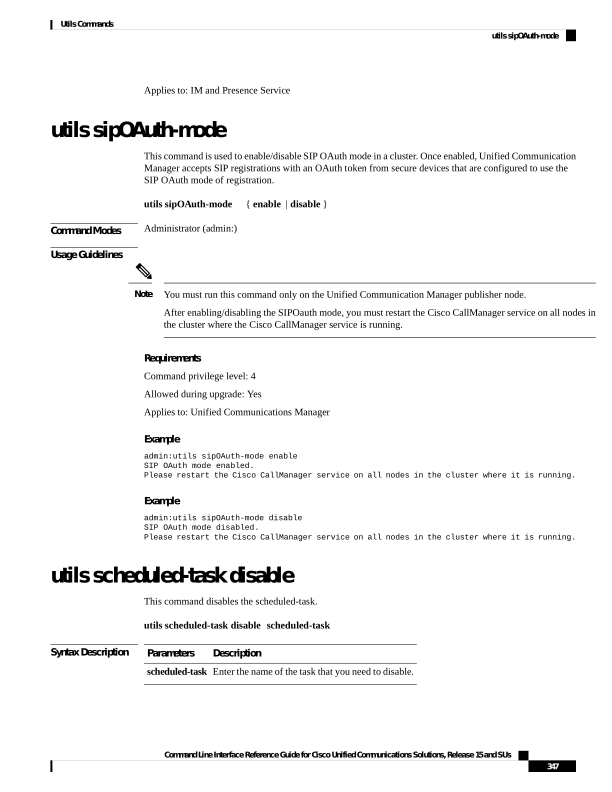
Page 372
Command Modes
Administrator (admin:)
Requirements
Command privilege level: 1
Allowed during upgrade: No
Applies to: Unified Communications Manager, IM and Presence Service on Unified Communications Manager,
Cisco Unity Connection
utils scheduled-task enable
This command enables the scheduled-task.
utils scheduled-task enable scheduled-task
Syntax Description
Description
Parameters
Enter the name of the task that you need to enable.
scheduled-task
Command Modes
Administrator (admin:)
Requirements
Command privilege level: 1
Allowed during upgrade: No
Applies to: Unified Communications Manager, IM and Presence Service on Unified Communications Manager,
Cisco Unity Connection
utils scheduled-task list
This command lists all the scheduled tasks.
utils scheduled-task list
Command Modes
Administrator (admin:)
Requirements
Command privilege level: 0
Allowed during upgrade: No
Applies to: Unified Communications Manager, IM and Presence Service on Unified Communications Manager,
Cisco Unity Connection
Command Line Interface Reference Guide for Cisco Unified Communications Solutions, Release 15 and SUs
348
Utils Commands
utils scheduled-task enable
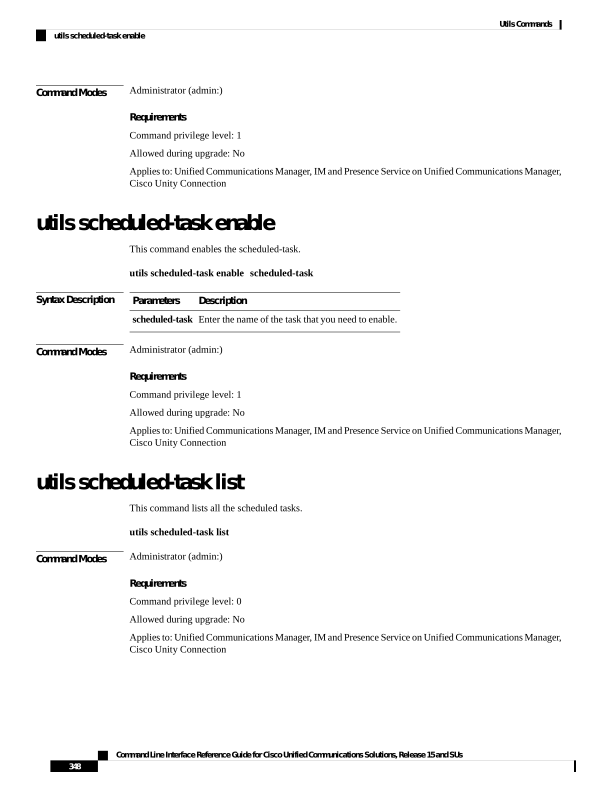
Page 373
utils set urlpattern disable
This command disables the URL pattern and modifies the zzz20_product_profile.sh file. After the
URL pattern is disabled, this command appends the following line:
export TOMCAT_EXCLUDE_URLPATTERNS="/ucmuser"
utils set urlpattern disable
Command Modes
Administrator (admin:)
Requirements
Command privilege level: 1
Allowed during upgrade: No
Applies to: Unified Communications Manager, IM and Presence Service on Unified Communications Manager,
Cisco Unity Connection
utils set urlpattern enable
This command enables the URL pattern and modifies the zzz20_product_profile.sh file. After the
URL pattern is enabled, this command appends the following line:
export TOMCAT_EXCLUDE_URLPATTERNS=""
utils set urlpattern enable
Command Modes
Administrator (admin:)
Requirements
Command privilege level: 1
Allowed during upgrade: No
Applies to: Unified Communications Manager, IM and Presence Service on Unified Communications Manager,
Cisco Unity Connection
utils service
This command activates, deactivates, starts, stops, or restarts a service.
utils service
{activate | deactivate | start | stop | restart} service_name
Command Line Interface Reference Guide for Cisco Unified Communications Solutions, Release 15 and SUs
349
Utils Commands
utils set urlpattern disable
Page 374
Syntax Description
Description
Parameters
Represents the name of the service you want to affect, for example:
• System NTP
• System SSH
• Service Manager
• A Cisco DB
• Cisco Database Layer Monitor
• Cisco Unified Serviceability
This list is not exhaustive. For a full list of services for the node enter the command: utils
service list
Note
If you want to restart the Cisco Tomcat service for standalone Cisco Prime License Manager,
execute the following command or reboot the server: utils service restart Cisco Prime LM
Server.
service_name
Command Modes
Administrator (admin:)
Requirements
Command privilege level: 1
Allowed during upgrade: No
Applies to: Unified Communications Manager, IM and Presence Service on Unified Communications Manager,
and Cisco Unity Connection
utils service list
This command retrieves a list of all services.
utils service list [page]
Syntax Description
Description
Parameters
Displays the output one page at a time.
[page]
Command Modes
Administrator (admin:)
Requirements
Command privilege level: 0
Allowed during upgrade: No
Command Line Interface Reference Guide for Cisco Unified Communications Solutions, Release 15 and SUs
350
Utils Commands
utils service list
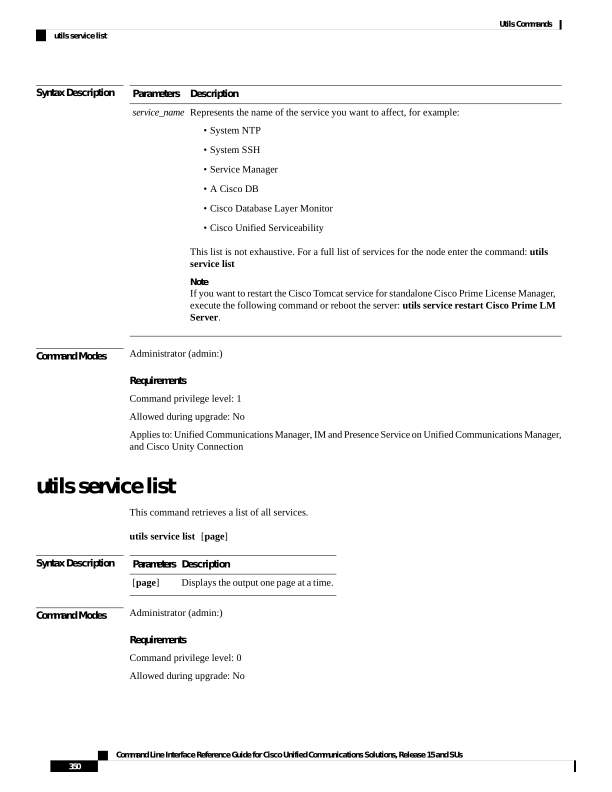
Page 375
Applies to: Unified Communications Manager and IM and Presence Service on Unified Communications
Manager
utils service auto-restart
This command starts or stops a specified service.
utils service auto-restart
{enable | disable | show}
service-name
Syntax Description
Description
Parameters
Starts auto-restart.
enable
Stops auto-restart.
disable
Shows the status of a service.
show
Represents the name of the service
that you want to start, stop, or
show:
• System NTP
• System SSH
• Service Manager
• A Cisco DB
• Cisco Tomcat
• Cisco Database Layer Monitor
• Cisco Unified Serviceability
service-name
Command Modes
Administrator (admin:)
Requirements
Command privilege level: 1
Allowed during upgrade: No
Applies to: Unified Communications Manager, IM and Presence Service on Unified Communications Manager,
and Cisco Unity Connection
utils service start
This command starts a service.
utils service start
Command Line Interface Reference Guide for Cisco Unified Communications Solutions, Release 15 and SUs
351
Utils Commands
utils service auto-restart
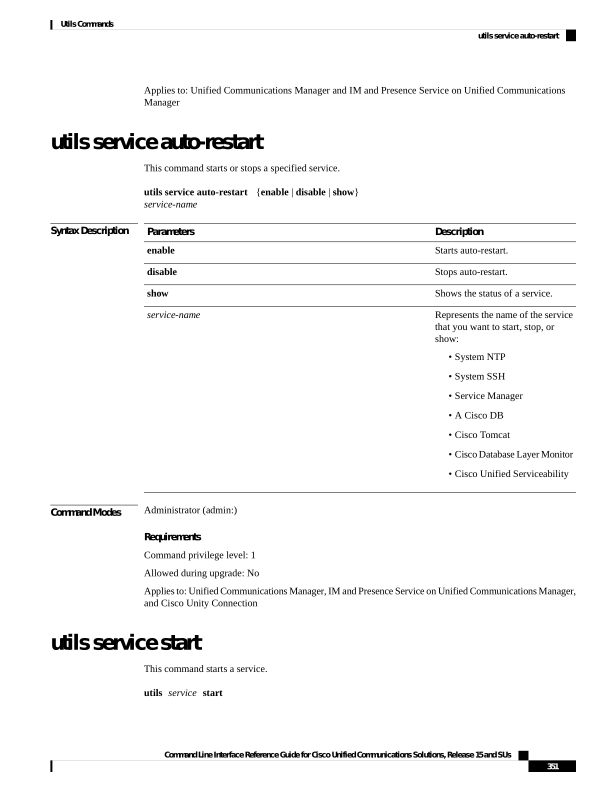
Page 376
Syntax Description
Description
Parameters
Enter the name of a service, which can consist of multiple words.
service
Command Modes
Administrator (admin:)
Requirements
Command privilege level: 1
Allowed during upgrade: No
Applies to: Unified Communications Manager, IM and Presence Service onUnified Communications Manager,
and Cisco Unity Connection
utils service stop
This command stops a service.
utils service stop
Syntax Description
Description
Parameters
Enter the name of a service, which can consist of multiple words.
service
Command Modes
Administrator (admin:)
Requirements
Command privilege level: 1
Allowed during upgrade: No
Applies to: Unified Communications Manager, IM and Presence Service onUnified Communications Manager,
and Cisco Unity Connection
utils snmp config 1/2c community-string
This interactive command adds, deletes, lists or updates a community string.
utils snmp config 1/2c community-string
{add
| delete
| list
| update}
Syntax Description
Description
Parameters
Adds a new community string.
add
Deletes a community string.
delete
Lists all community strings.
list
Updates a community string.
update
Command Line Interface Reference Guide for Cisco Unified Communications Solutions, Release 15 and SUs
352
Utils Commands
utils service stop
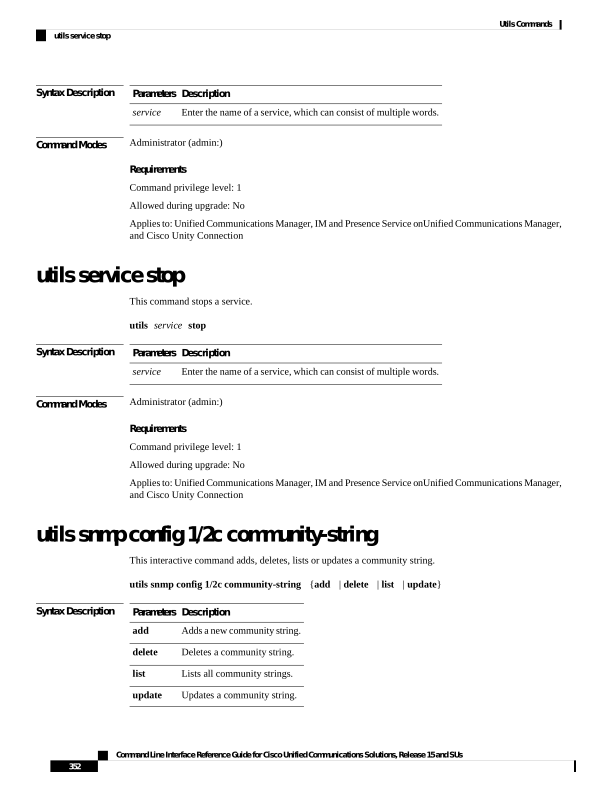
Page 377
Command Modes
Administrator (admin:)
Usage Guidelines
The system prompts you for the parameters.
The SNMP Master Agent service is restarted for configuration changes to take effect. Do not abort command
after execution until restart is complete. If the command is aborted during service restart, verify service status
of “SNMP Master Agent” by using utils service list. If service is down, start it by using utils service
start SNMP Master Agent
Requirements
Command privilege level: 1
Allowed during upgrade: Yes
Applies to: Unified Communications Manager, IM and Presence Service on Unified Communications Manager,
Cisco Unity Connection
utils snmp config 1/2c inform
This interactive command adds, deletes, lists or updates inform notification destinations.
utils snmp config 1/2c inform
{add
| delete
| list
| update}
Syntax Description
Description
Parameters
Adds a notification destination.
add
Deletes a notification destination.
delete
Lists all notification destinations.
list
Updates a notification destination.
update
Command Modes
Administrator (admin:)
Requirements
Applies to: Unified Communications Manager, IM and Presence Service on Unified Communications Manager,
Cisco Unity Connection
utils snmp config 1/2c trap
This interactive command affects trap notifications.
utils snmp config 1/2c trap
{add | delete | list | update}
Syntax Description
Description
Parameters
Adds a new v1/2c trap notification destination associated with a configured v1/2c community
string.
add
Command Line Interface Reference Guide for Cisco Unified Communications Solutions, Release 15 and SUs
353
Utils Commands
utils snmp config 1/2c inform
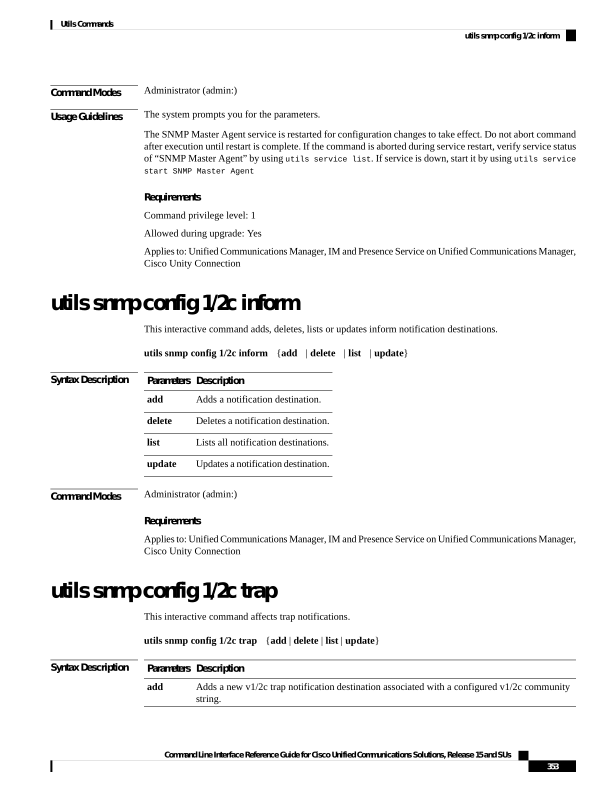
Page 378
Description
Parameters
Deletes the configuration information for an existing v1/2c trap notification destination.
delete
Lists the v1/2c trap notifications currently configured.
list
Updates configuration information for an existing v1/2c trap notification destination.
update
Command Modes
Administrator (admin:)
Requirements
Command privilege level: 1
Allowed during upgrade: Yes
Applies to: Unified Communications Manager and Cisco Unity Connection
utils snmp config 3 inform
This interactive command affects the v3 inform notification.
utils snmp config 3 inform
{add
| delete
| list
| update}
Syntax Description
Description
Parameters
Adds a new v3 inform notification destination associated with a configured v3 username.
add
Deletes the configuration information for an existing v3 inform notification destination.
delete
Lists the v3 inform notifications currently configured.
list
Updates configuration information for an existing v3 inform notification destination.
update
Command Modes
Administrator (admin:)
Usage Guidelines
The system prompts you for the parameters.
The SNMP Master Agent service is restarted for configuration changes to take effect. Do not abort command
after execution until restart is complete. If the command is aborted during service restart, verify service status
of “SNMP Master Agent” by using utils service list. If service is down, start it by using utils service
start SNMP Master Agent
Requirements
Command privilege level: 1
Allowed during upgrade: Yes
Applies to: Unified Communications Manager, IM and Presence Service on Unified Communications Manager,
Cisco Unity Connection
Command Line Interface Reference Guide for Cisco Unified Communications Solutions, Release 15 and SUs
354
Utils Commands
utils snmp config 3 inform
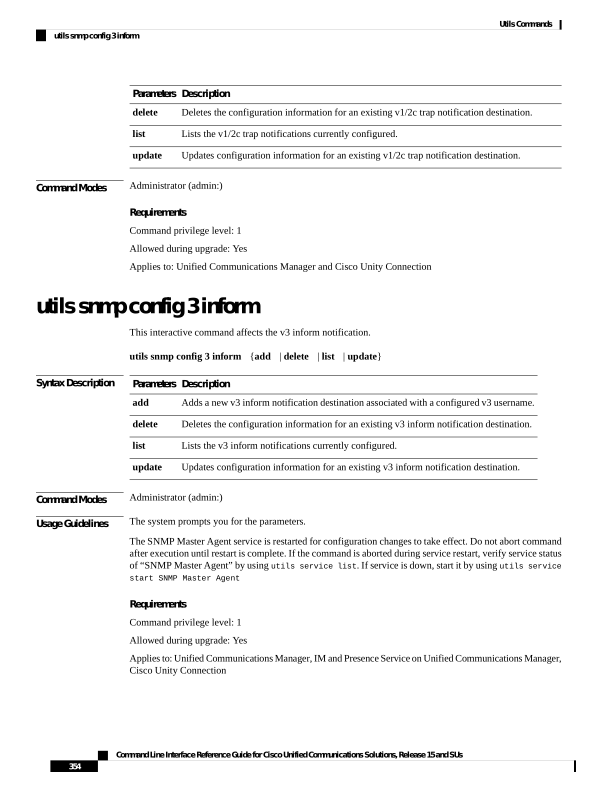
Page 379
utils snmp config mib2
This interactive command affects the Mib2 configuration information.
utils snmp config mib2
{add
| delete
| list
| update}
Syntax Description
Description
Parameters
Adds the Mib2 configuration information.
add
Deletes the Mib2 configuration information.
delete
Lists the Mib2 configuration information.
list
Updates the Mib2 configuration information.
update
Command Modes
Administrator (admin:)
Usage Guidelines
The system prompts you for the parameters.
Requirements
Command privilege level: 0
Allowed during upgrade: Yes
Applies to: Unified Communications Manager, IM and Presence Service on Unified Communications Manager,
Cisco Unity Connection
utils snmp config 3 trap
This interactive command affects trap notifications.
utils snmp config 3 trap
{add
| delete
| list
| update}
Syntax Description
Description
Parameters
Adds a new v3 trap notification destination associated with a configured v3 username.
add
Deletes the configuration information for an existing v 3 trap notification destination.
delete
Lists the v3 trap notifications currently configured.
list
Updates configuration information for an existing v3 trap notification destination.
update
Command Modes
Administrator (admin:)
Usage Guidelines
The system prompts you for the parameters.
Command Line Interface Reference Guide for Cisco Unified Communications Solutions, Release 15 and SUs
355
Utils Commands
utils snmp config mib2
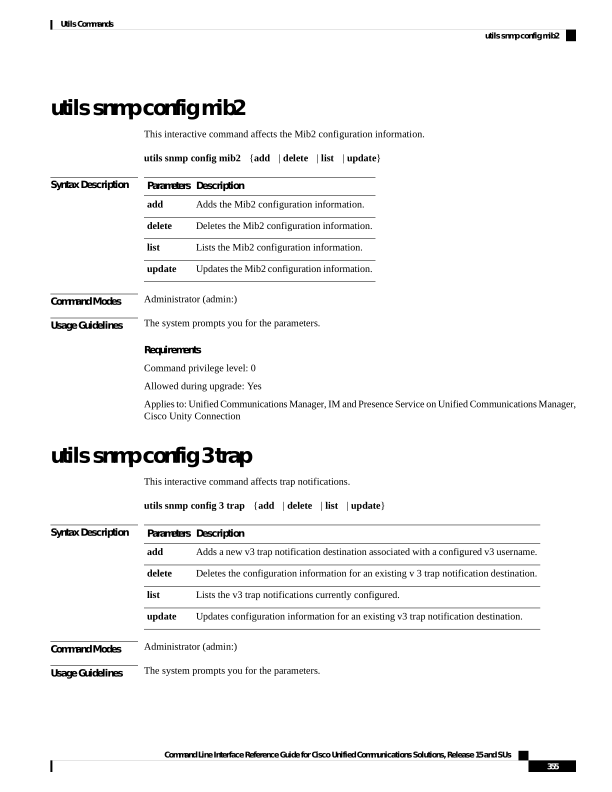
Page 380
Requirements
Command privilege level: 1
Allowed during upgrade: Yes
Applies to: Unified Communications Manager, IM and Presence Service on Unified Communications Manager,
Cisco Unity Connection
utils snmp config 3 user
This interactive command affects v3 user configuration.
utils snmp config 3 user
{add
| delete
| list
| update}
Syntax Description
Description
Parameters
Adds a new v3 user with the v3 authentication and privacy passwords.
add
Deletes the configuration information for an existing v3 user.
delete
Lists the v3 users currently configured.
list
Updates configuration information for an existing v3 user.
update
Command Modes
Administrator (admin:)
Usage Guidelines
The system prompts you for the parameters.
Requirements
Command privilege level: 1
Allowed during upgrade: Yes
Applies to: Unified Communications Manager, IM and Presence Service on Unified Communications Manager,
Cisco Unity Connection
utils snmp get
This interactive command gets the SNMP data using the specified version for the specified MIB OID.
utils snmp get version
Syntax Description
Description
Parameters
Specifies the SNMP version.
Possible values include 1, 2c or 3.
version
Specifies the SNMP community
string.
community
Command Line Interface Reference Guide for Cisco Unified Communications Solutions, Release 15 and SUs
356
Utils Commands
utils snmp config 3 user
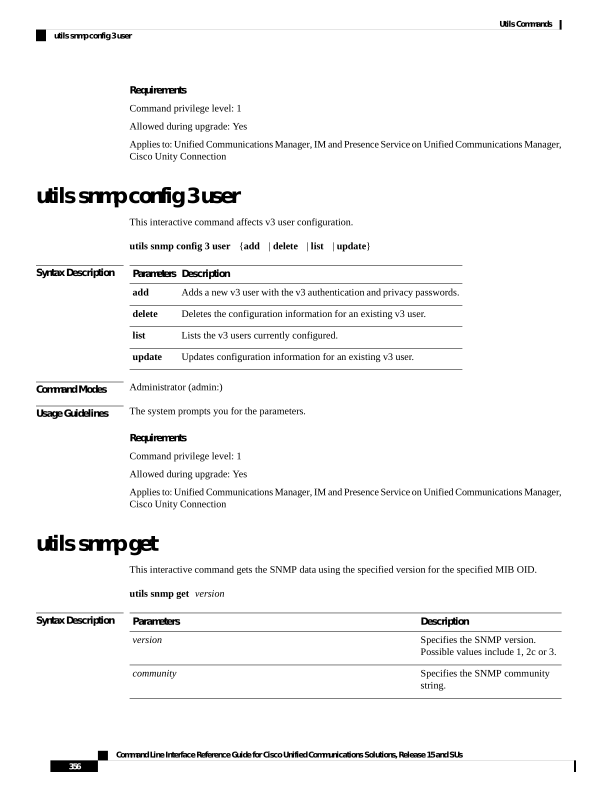
Page 381
Description
Parameters
Specifies the IPv4/IPv6 address of
the server. Enter 127.0.0.0 to
specify the local host. You can
enter the IPv4/IPv6 address of
another node in the cluster to run
the command on that node.
ip-address
Specifies the SNMP Object ID
(OID) to get.
object
Specifies a file in which to save the
command output.
file
Command Modes
Administrator (admin:)
Usage Guidelines
If you run the command on a specific OID (leaf) in the MIB, you get the value of the MIB. For example to
get the system uptime: iso.3.6.1.2.1.25.1.1.0 = Timeticks: (19836825) 2 days, 7:06:08.25
If you provide the IPv4/IPv6 address of a remote host, the command gets executed on the remote host.
The IPv4/IPv6 address is required. You cannot use a domain name.
Requirements
Command privilege level: 1
Allowed during upgrade: Yes
Applies to: Unified Communications Manager, IM and Presence Service on Unified Communications Manager,
Cisco Unity Connection
utils snmp get 1
This command gets the SNMP data using version 1 for the specified MIB OID.
utils snmp get 1 version
Syntax Description
Description
Parameters
Specifies the SNMP version. Possible values include 1, 2c or 3.
version
Specifies the SNMP community string.
community
Specifies the IPv4/IPv6 address of the server. Enter 127.0.0.0 to specify the local host. You can
enter the IPv4/IPv6 address of another node in the cluster to run the command on that node.
ip-address
Specifies the SNMP Object ID (OID) to get.
object
Specifies a file in which to save the command output.
file
Command Line Interface Reference Guide for Cisco Unified Communications Solutions, Release 15 and SUs
357
Utils Commands
utils snmp get 1
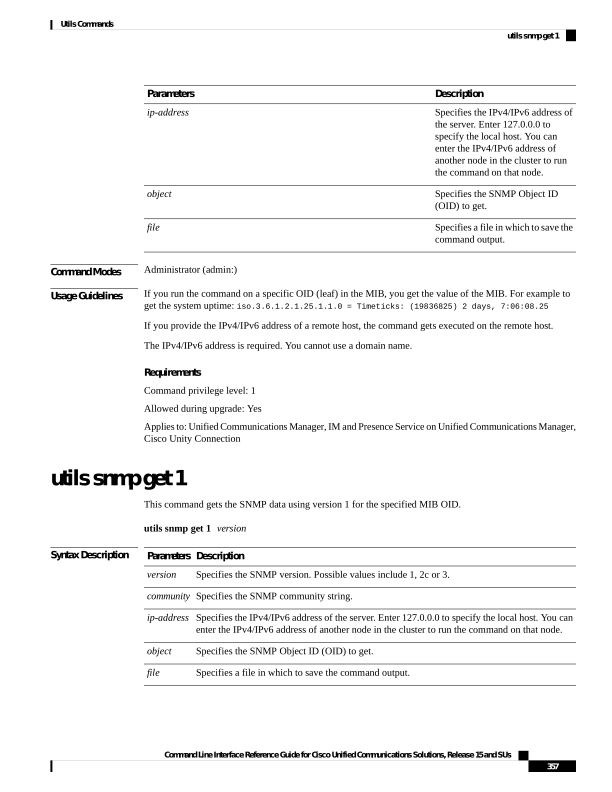
Page 382
Command Modes
Administrator (admin:)
Requirements
Command privilege level: 1
Allowed during upgrade: Yes
Applies to: Unified Communications Manager, IM and Presence Service on Unified Communications Manager,
Cisco Unity Connection
utils snmp get 2c
This command gets the SNMP data using version 2c for the specified MIB OID.
utils snmp get 2c version
Syntax Description
Description
Parameters
Specifies the SNMP version. Possible values include 1, 2c or 3.
version
Specifies the SNMP community string.
community
Specifies the IPv4/IPv6 address of the server. Enter 127.0.0.0 to specify the local host. You can
enter the IPv4/IPv6 address of another node in the cluster to run the command on that node.
ip-address
Specifies the SNMP Object ID (OID) to get.
object
Specifies a file in which to save the command output.
file
Command Modes
Administrator (admin:)
Requirements
Command privilege level: 1
Allowed during upgrade: Yes
Applies to: Unified Communications Manager, IM and Presence Service on Unified Communications Manager,
Cisco Unity Connection
utils snmp get 3
This command gets the SNMP data for the specified MIB OID.
utils snmp get 3 version
Syntax Description
Description
Parameters
Specifies the SNMP version. Possible values include 1, 2c or 3.
version
Specifies the SNMP community string.
community
Command Line Interface Reference Guide for Cisco Unified Communications Solutions, Release 15 and SUs
358
Utils Commands
utils snmp get 2c
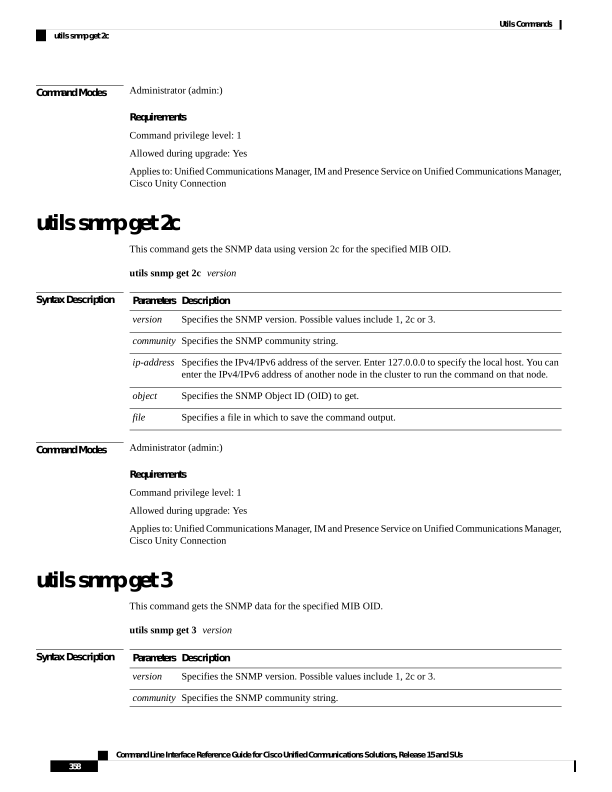
Page 383
Description
Parameters
Specifies the IPv4/IPv6 address of the server. Enter 127.0.0.0 to specify the local host. You can
enter the IPv4/IPv6 address of another node in the cluster to run the command on that node.
ip-address
Specifies the SNMP Object ID (OID) to get.
object
Specifies a file in which to save the command output.
file
Command Modes
Administrator (admin:)
Requirements
Command privilege level: 1
Allowed during upgrade: No
Applies to: Unified Communications Manager, IM and Presence Service on Unified Communications Manager,
Cisco Unity Connection
utils snmp hardware-agents
This command affects the SNMP agents on the server.
utils snmp hardware-agents
{status
| start
| stop
| restart}
Syntax Description
Description
Parameters
Displays the status of the SNMP agents provided by the vendor of the hardware.
Note
Only agents that provide status get displayed by this command. Not all hardware agents provide
status.
status
Stops all SNMP agents provided by the hardware vendor.
stop
Restarts all of the SNMP agents provided by the vendor of the hardware.
restart
Starts all of the SNMP agents provided by the vendor of the hardware.
start
Command Modes
Administrator (admin:)
Requirements
Command privilege level: 0
Allowed during upgrade: Yes
Applies to: Unified Communications Manager, IM and Presence Service on Unified Communications Manager,
Cisco Unity Connection
Command Line Interface Reference Guide for Cisco Unified Communications Solutions, Release 15 and SUs
359
Utils Commands
utils snmp hardware-agents
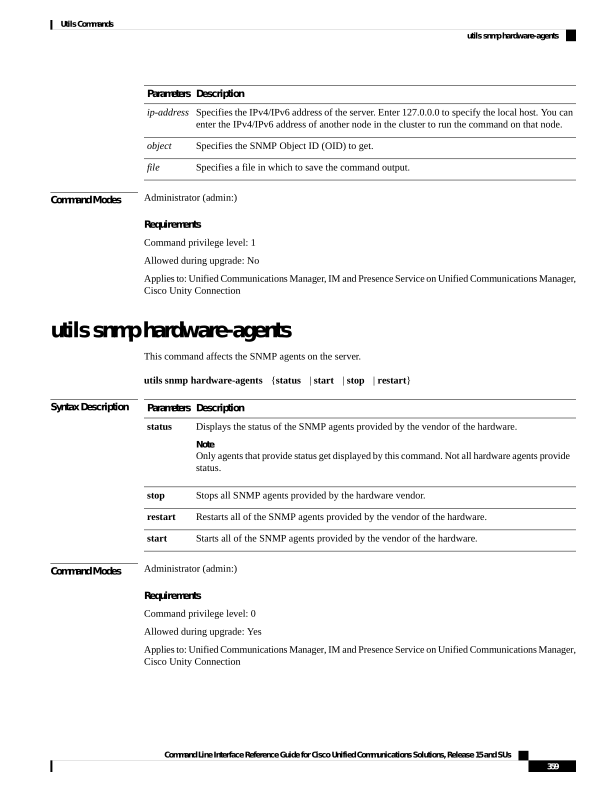
Page 384
utils snmp test
This command sends sample alarms to local syslog and remote syslog.
utils snmp test
Command Modes
Administrator (admin:)
Requirements
Command privilege level: 1
Allowed during upgrade: Yes
Applies to: Unified Communications Manager, IM and Presence Service on Unified Communications Manager,
Cisco Unity Connection
Example
admin: admin:utils snmp test
Service Manager is running
Test SNMP Trap starts with Local Host Name, Specify a Remote Sever Name to test Remote
Syslog
TestAlarmInformational sent [Returncode=0]
TestAlarmEmergency sent [Returncode=0]
TestAlarmAlert sent [returncode=0]
TestAlarmCritical sent [Returncode=0]
TestAlarmDebug sent [Returncode=0]
TestAlarmNotice sent [Returncode=0]
TestAlarmWarning sent [Returncode=0]
TestAlarmError sent [Returncode=0]
TestAlarmWindows sent [Returncode=0]
Message from syslogd@ipcbu-plat44 at Sat Jul 17 03:56:11 2010 ...
ipcbu-plat44 local7 0 : 1: ipcbu-plat44.blr.eng: Jul 16 2010 22:26:11.53 UTC :
%UC_-0-TestAlarmEmergency: %[AppID=Cisco CallManager][ClusterID=][NodeID=ipcbu-plat44]:
Testing EMERGENCY_ALARM
utils snmp walk
This interactive command command walks through the SNMP MIB using the specified version, starting with
the specified OID.
utils snmp walk version
Command Line Interface Reference Guide for Cisco Unified Communications Solutions, Release 15 and SUs
360
Utils Commands
utils snmp test
Page 385
Syntax Description
Description
Parameters
Specifies the SNMP version. Possible values include 1, 2c or 3.
version
Specifies the SNMP community string.
community
Specifies the IPv4/IPv6 address of the server. Enter 127.0.0.0 to specify the local host. You can
enter the IPv4/IPv6 address of another node in the cluster to run the command on that node.
ip-address
Specifies the SNMP Object ID (OID) to walk
object
Specifies a file in which to save the command output.
file
Command Modes
Administrator (admin:)
Requirements
Command privilege level: 1
Allowed during upgrade: Yes
Applies to: Unified Communications Manager, IM and Presence Service on Unified Communications Manager,
Cisco Unity Connection
Example
For the below example, community string is created using the utils snmp config 1/2c
community-string command.
admin:utils snmp walk 1
ctrl-c: To quit the input.
Enter the community string:: public
Enter the ip address of the Server, use 127.0.0.1 for localhost.
Note that you need to provide the IP address, not the hostname.:: <enter the IP address of
your server>
The Object ID (OID):: iso.3.6.1.2.1.1.1.0
Enter parameter as "file" to log the output to a file. [nofile]::
This command may temporarily impact CPU performance.
Continue (y/n)?y
SNMPv2-MIB::sysDescr.0 = STRING: Linux release:3.10.0-1062.18.1.el7.x86_64 machine:x86_64
#####################################################################################################
utils snmp walk 2c -> same as utils snmp walk 1
#####################################################################################################
For the below example, user is created using
utils snmp config 3 user add
utils snmp walk 3
admin:utils snmp walk 3
ctrl-c: To quit the input.
Enter the user name:: test
Enter the authentication protocol [SHA]:: SHA
Enter the authentication protocol pass phrase:: ********
Enter the privacy protocol [AES128]:: AES128
Command Line Interface Reference Guide for Cisco Unified Communications Solutions, Release 15 and SUs
361
Utils Commands
utils snmp walk
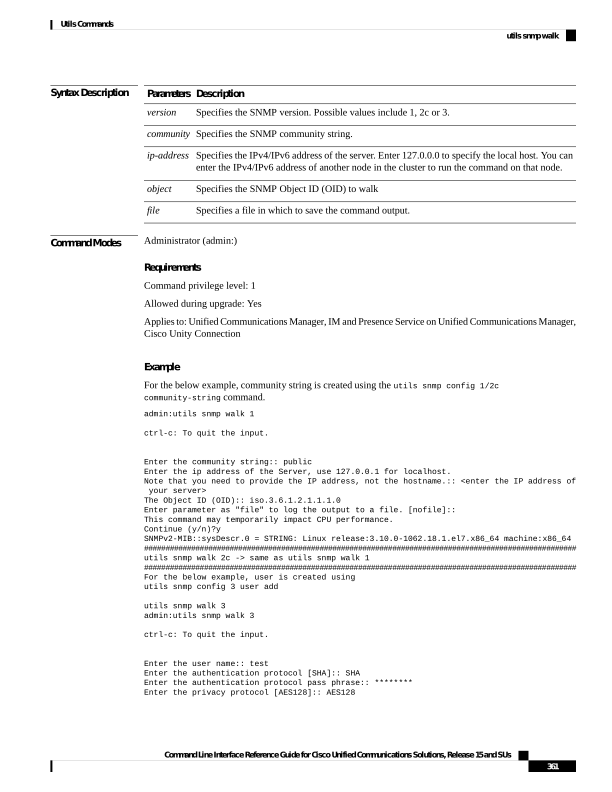
Page 386
Enter the privacy protocol pass phrase:: ********
Enter the ip address of the Server, use 127.0.0.1 for localhost.
Note that you need to provide the IP address, not the hostname.:: <enter the IP address of
your server>
The Object ID (OID):: iso.3.6.1.2.1.1.1.0
Enter parameter as "file" to log the output to a file. [nofile]::
This command may temporarily impact CPU performance.
Continue (y/n)?y
SNMPv2-MIB::sysDescr.0 = STRING: Linux release:3.10.0-1062.18.1.el7.x86_64 machine:x86_64
utils snmp walk 1
This interactive command walks through the SNMP MIB using SNMP version 1 starting with the specified
OID
utils snmp walk 1 version
Syntax Description
Description
Parameters
Specifies the SNMP version. Possible values include 1, 2c or 3.
version
Specifies the SNMP community string.
community
Specifies the IPv4/IPv6 address of the server. Enter 127.0.0.0 to specify the local host. You can
enter the IPv4/IPv6 address of another node in the cluster to run the command on that node.
ip-address
Specifies the SNMP Object ID (OID) to walk
object
Specifies a file in which to save the command output.
file
Command Modes
Administrator (admin:)
Requirements
Command privilege level: 1
Allowed during upgrade: Yes
Applies to: Unified Communications Manager, IM and Presence Service on Unified Communications Manager,
Cisco Unity Connection
utils snmp walk 2c
This interactive command walks through the SNMP MIB using SNMP version 2c starting with the specified
OID.
utils snmp walk 2c version
Syntax Description
Description
Parameters
Specifies the SNMP version. Possible values include 1, 2c or 3.
version
Command Line Interface Reference Guide for Cisco Unified Communications Solutions, Release 15 and SUs
362
Utils Commands
utils snmp walk 1
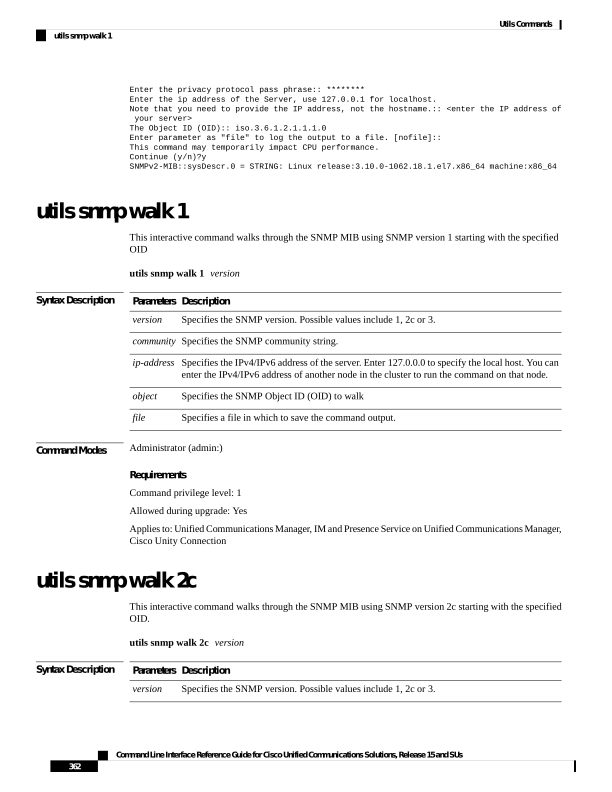
Page 387
Description
Parameters
Specifies the SNMP community string.
community
Specifies the IPv4/IPv6 address of the server. Enter 127.0.0.0 to specify the local host. You can
enter the IPv4/IPv6 address of another node in the cluster to run the command on that node.
ip-address
Specifies the SNMP Object ID (OID) to walk
object
Specifies a file in which to save the command output.
file
Command Modes
Administrator (admin:)
Requirements
Command privilege level: 1
Allowed during upgrade: Yes
Applies to: Unified Communications Manager, IM and Presence Service on Unified Communications Manager,
Cisco Unity Connection
utils snmp walk 3
This interactive command walks through the SNMP MIB starting with the specified OID.
utils snmp walk 3 version
Syntax Description
Description
Parameters
Specifies the SNMP version. Possible values include 1, 2c or 3.
version
Specifies the SNMP community string.
community
Specifies the SNMP Object ID (OID) to walk
object
Specifies the IPv4/IPv6 address of the server. Enter 127.0.0.0 to specify the local host. You can
enter the IPv4/IPv6 address of another node in the cluster to run the command on that node.
ip-address
Specifies a file in which to save the command output.
file
Command Modes
Administrator (admin:)
Requirements
Command privilege level: 1
Allowed during upgrade: No
Applies to: Unified Communications Manager, IM and Presence Service on Unified Communications Manager,
Cisco Unity Connection
Command Line Interface Reference Guide for Cisco Unified Communications Solutions, Release 15 and SUs
363
Utils Commands
utils snmp walk 3
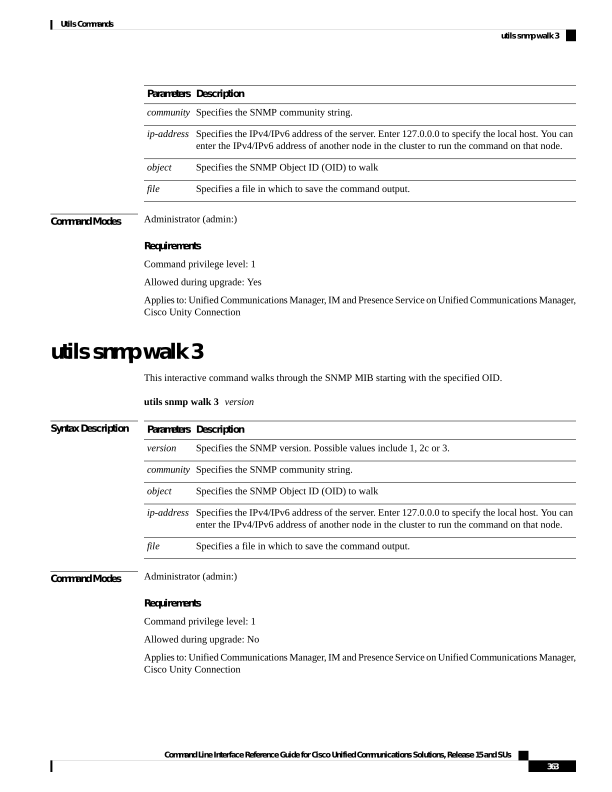
Page 388
utils soap realtimeservice test
This command executes a number of test cases on the remote server.
utils soap realtimeservice test
[remote-ip]remote-httpsremote https-password
Syntax Description
Description
Parameters
Specifies the IP address of the server under test.
remote-ip
Specifies a username with access to the SOAP API.
remote-https-user
Specifies the password for the account with SOAP API access.
remote-https-password
Command Modes
Administrator (admin:)
Requirements
Command privilege level: 0
Allowed during upgrade: No
Applies to: Unified Communications Manager, IM and Presence Service on Unified Communications Manager,
and Cisco Unity Connection
utils sso
This command provides information about SAML SSO authentication.
utils sso
{enable | disable | status}
Syntax Description
Description
Parameters
Provides the location in Cisco Unified CM Administration where you can enable SAML SSO.
enable
Disables SAML SSO based authentication.
disable
Provides the status of SAML SSO.
status
Command Modes
Administrator (admin:)
Requirements
Command privilege level: 1
Allowed during upgrade: No
Applies to: Unified Communications Manager, IM and Presence Service on Unified Communications Manager,
and Cisco Unity Connection
Command Line Interface Reference Guide for Cisco Unified Communications Solutions, Release 15 and SUs
364
Utils Commands
utils soap realtimeservice test
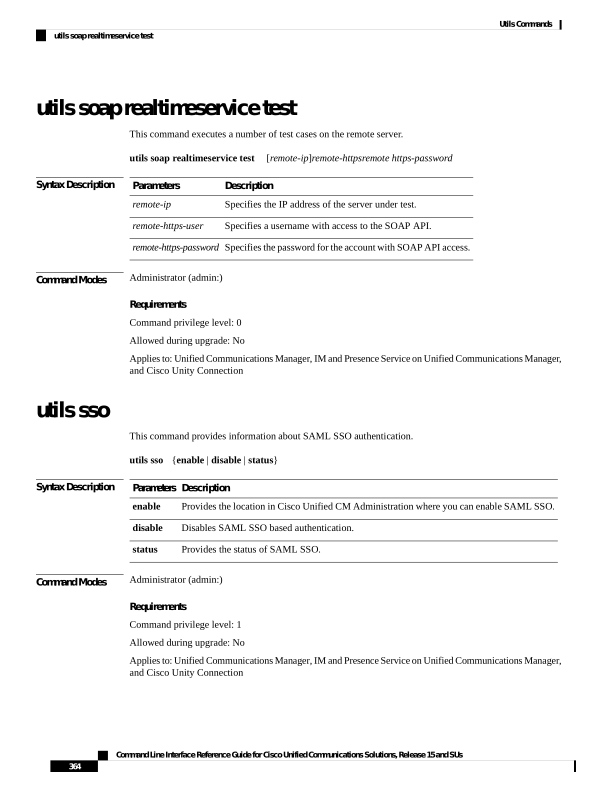
Page 389
Example
Admin: utils sso enable
*** W A R N I N G ***
SSO cannot be enabled using CLI command
To enable Cluster wide SAML SSO please access
Cisco Unified CM Administration Page->System->SAML Single Sign On
utils sso recovery-url
This command enables or disables recovery URL for SAML SSO based authentication.
utils sso recovery-url
{enable | disable}
Syntax Description
Description
Parameters
Enables recovery URL for SAML SSO based authentication.
enable
Disables recovery URL for SAML SSO based authentication.
disable
Command Modes
Administrator (admin:)
Requirements
Command privilege level: 1
Allowed during upgrade: Yes
Applies to: Unified Communications Manager, IM and Presence Service on Unified Communications Manager,
and Cisco Unity Connection
utils syslog logging rfc3339
This command controls the syslog logging format in the system.
utils syslog logging rfc3339
{ enable | disable | status }
Syntax Description
Description
Parameters
Enables RFC 3339-compliant timestamps for system logs.
enable
Disables RFC 3339-compliant timestamps and reverts logging to the default timestamp format.
disable
Displays the status of the RFC3339 syslog logging format.
status
Command Modes
Administrator (admin:)
Command Line Interface Reference Guide for Cisco Unified Communications Solutions, Release 15 and SUs
365
Utils Commands
utils sso recovery-url
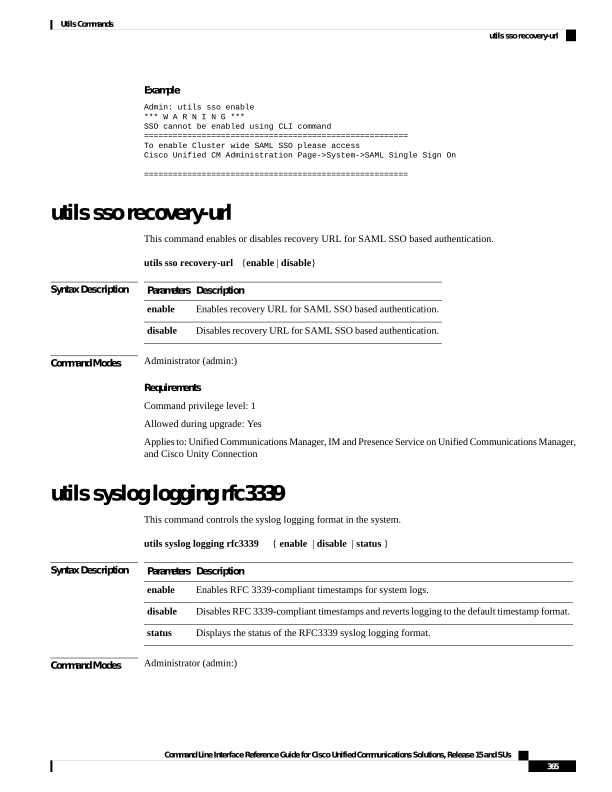
Page 390
Requirements
Command privilege level: Level 4 can execute enable and disable commands, Level 0 can execute only status
command
Allowed during upgrade: No
Applies to: Unified Communications Manager and IM and Presence Service
utils system restart
This command allows you to restart the system on the same partition.
utils system restart
Command Modes
Administrator (admin:)
Requirements
Command privilege level: 1
Allowed during upgrade: No
Applies to: Unified Communications Manager, IM and Presence Service on Unified Communications Manager,
Cisco Unity Connection
utils system shutdown
This command allows you to shut down the system.
utils system shutdown
Command Modes
Administrator (admin:)
Usage Guidelines
This command has a five-minute timeout. If the system does not shut down within five minutes, the command
gives you the option of doing a forced shutdown.
If the server is forced to shutdown and restart from your virtual machine, the file system may become corrupted.
Caution
Requirements
Command privilege level: 1
Allowed during upgrade: No
Applies to: Unified Communications Manager, IM and Presence Service on Unified Communications Manager,
Cisco Unity Connection
Command Line Interface Reference Guide for Cisco Unified Communications Solutions, Release 15 and SUs
366
Utils Commands
utils system restart

Page 391
utils system switch-version
This command allows you to restart the system on the inactive partition.
utils system switch-version
Command Modes
Administrator (admin:)
Requirements
Command privilege level: 1
Allowed during upgrade: No
Applies to: Unified Communications Manager, IM and Presence Service on Unified Communications Manager,
and Cisco Unity Connection
utils system boot
This command redirects where the system boot output gets sent.
utils system boot
{console | serial}
Syntax Description
Description
Parameters
Redirects the system boot output to the console.
console
Redirects the system boot output to the COM1 (serial port 1).
serial
Command Modes
Administrator (admin:)
Requirements
Command privilege level: 0
Allowed during upgrade: Yes
Applies to: Unified Communications Manager and Cisco Unity Connection
utils system upgrade (Release 14SU2)
This command allows you to install upgrades and Cisco Option (COP) files from both local and remote
directories.
utils system upgrade
{ initiate | cancel | status }
Syntax Description
Description
Parameters
Cancels the active upgrade.
cancel
Command Line Interface Reference Guide for Cisco Unified Communications Solutions, Release 15 and SUs
367
Utils Commands
utils system switch-version
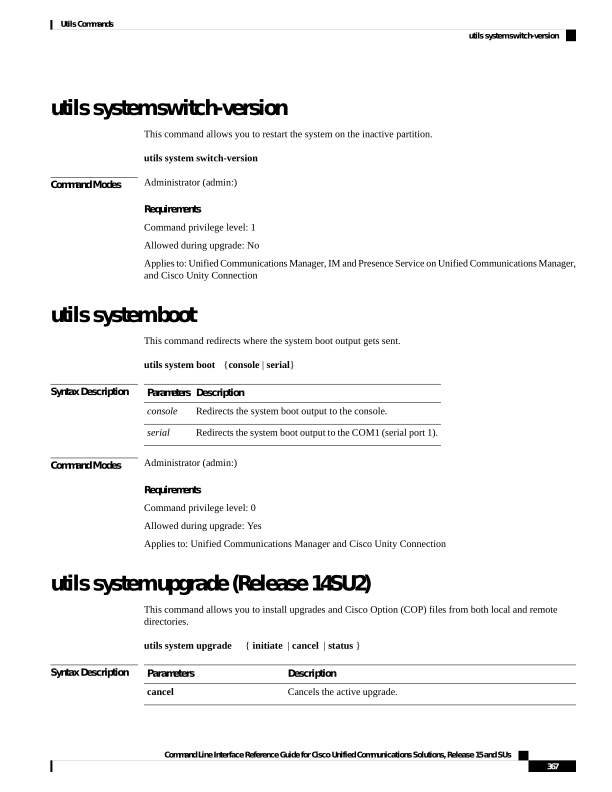
Page 392
Description
Parameters
Starts a new upgrade wizard or assumes control of an existing upgrade
wizard.
initiate
Displays the status of an upgrade.
status
Usage Guidelines
Before you begin to upgrade your system, use the Software Upgrades > Cluster Software Location menu
from the Cisco Unified OS Administration user interface of a Unified CM publisher to add, edit, or modify
any of the existing configurations for any node in the same cluster. In Release 14 SU2 and later, Software
Location settings for all cluster nodes are centrally managed from the Publisher instead of locally on each
cluster node.
The wizard displays the software location details to configure all the nodes in the same cluster.
• Credentials Information―Displays the credentials of the server on which the upgrade image is saved.
• Upgrade file source―Displays the location for the server where your upgrade file is saved. You can
upgrade from a local source (CD or DVD), or you can use FTP or SFTP to download a remote upgrade
file, or if you want to resume an upgrade after a cancel operation, you can use the previously downloaded
upgrade file through the local image source option.
• Continue with upgrade after download―Indicates the option selected whether you wanted the upgrade
to proceed automatically once the upgrade file is downloaded (the default value is yes). If you had chosen
to upgrade automatically, no checksum or SHA details get displayed. If you had set the value of to yes
or no, the setting remains in the system.
• Version switching―Displays the option selected whether you wanted to switch to the new version
automatically once the upgrade completes (the default value is no). If you had entered yes, the system
switches to the new version and reboots automatically after the upgrade completes. If you had set the
value to yes or no, the setting remains in the system.
Requirements
Command privilege level: 0
Applies to: Unified Communications Manager and IM and Presence Service on Unified Communications
Manager.
Example:
admin:utils system upgrade initiate
Warning: Do not close this window without first canceling the upgrade.
Warning: Before upgrading the cluster Cisco recommends installing the latest Upgrade Readiness
COP file. Refer to the Upgrade Guide on cisco.com for details.
Note: Below are the configurations used for the upgrade of current node.To review/modify
the configuration, navigate to Cisco unified OS Administration -> Software Upgrades ->
Cluster Software Location on publisher.
Source: Local Image
Continue with upgrade after download (yes/no): no
Switch-version server after upgrade [valid only for ISO] (yes/no): no
Do you want to continue with these settings (yes/no) [no]: yes
Command Line Interface Reference Guide for Cisco Unified Communications Solutions, Release 15 and SUs
368
Utils Commands
utils system upgrade (Release 14SU2)
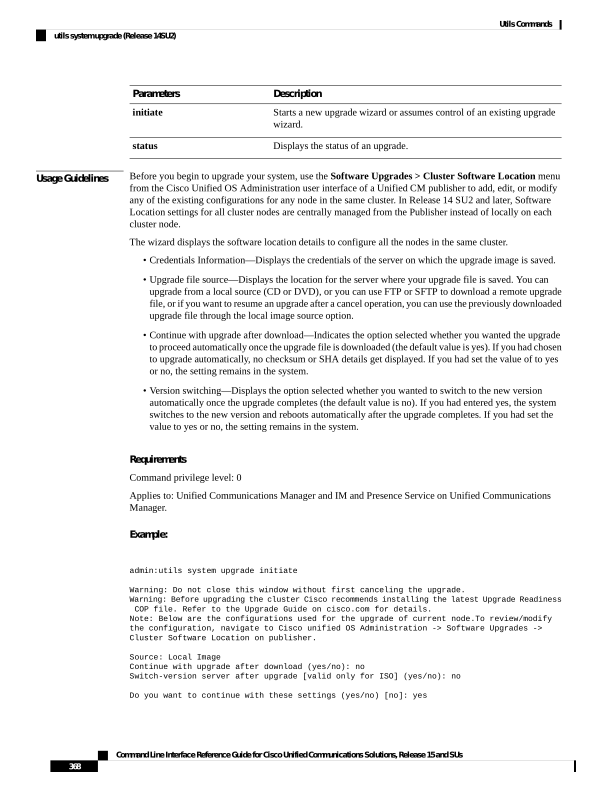
Page 393
Checking for valid upgrades.
Please wait...
Available options and upgrades in "upgrade" directory:
- UCSInstall_UCOS_14.0.1.11900-9000.iso
q) quit
Please select an option (1 - 1 or "q" ): 1
Accessing the file.
Please wait...
Validating the file...
A system reboot is required when the upgrade process completes or is canceled.
This will
ensure services affected by the upgrade process are functioning properly.
Note: system reboot may not be required for a COP file. Please follow the instructions seen
at the end of the COP installation.
Downloaded: UCSInstall_UCOS_14.0.1.11900-9000.iso
File version: 14.0.1.11900-9000
File checksum : (MD5): bc:43:e4:06:aa:cc:7d:a3:b1:2d:d7:ec:15:6e:eb:35
(SHA512):
a45055a8e3dcd4e060d14b82519f0f00f37b18e79c148bb12f617ac1d14408bfed4d3f708c101ec786379cb1dcea196f090cabb764fa17e8aa55719e617547ef
Automatically switch versions if the upgrade is successful (yes/no): no
Start installation (yes/no):
yes
Example:
admin:utils system upgrade initiate
Warning: Do not close this window without first canceling the upgrade.
Warning: Before upgrading the cluster Cisco recommends installing the latest Upgrade Readiness
COP file. Refer to the Upgrade Guide on cisco.com for details.
Note: Below are the configurations used for the upgrade of current node.To review/modify
the configuration, navigate to Cisco unified OS Administration -> Software Upgrades ->
Cluster Software Location on publisher.
Source: Remote Filesystem via SFTP
Directory: /common/adminsftp/fresh_install
Server: 10.77.30.197
User Name: root
Password: ******
Continue with upgrade after download (yes/no): no
Switch-version server after upgrade [valid only for ISO] (yes/no): no
Do you want to continue with these settings (yes/no) [no]: yes
Checking for valid upgrades.
Please wait...
Available options and upgrades in "10.77.30.197:/common/adminsftp/fresh_install":
- UCSInstall_UCOS_14.0.1.11900-9000.iso
- UCSInstall_UCOS_14.0.1.12900-9003.iso
- ciscocm.ucmap_platformconfig_relkey-v1.4.k4.cop.sha512
q) quit
Please select an option (1 - 3 or "q" ): 1
Accessing the file.
Please wait...
Command Line Interface Reference Guide for Cisco Unified Communications Solutions, Release 15 and SUs
369
Utils Commands
utils system upgrade (Release 14SU2)
Page 394
Downloaded 4408 MB.
Checksumming the file...
Validating the file...
A system reboot is required when the upgrade process completes or is canceled.
This will
ensure services affected by the upgrade process are functioning properly.
Note: system reboot may not be required for a COP file. Please follow the instructions seen
at the end of the COP installation.
Downloaded: UCSInstall_UCOS_14.0.1.11900-9000.iso
File version: 14.0.1.11900-9000
File checksum : (MD5): bc:43:e4:06:aa:cc:7d:a3:b1:2d:d7:ec:15:6e:eb:35
(SHA512):
a45055a8e3dcd4e060d14b82519f0f00f37b18e79c148bb12f617ac1d14408bfed4d3f708c101ec786379cb1dcea196f090cabb764fa17e8aa55719e617547ef
Automatically switch versions if the upgrade is successful (yes/no): no
Start installation (yes/no):
yes
utils system upgrade (Release 14SU3 onwards)
This command allows you to install upgrades and Cisco Option (COP) files from both local and remote
directories.
utils system upgrade
{ initiate | cancel | status }
Syntax Description
Description
Parameters
Cancels the active upgrade.
cancel
Starts a new upgrade wizard or assumes control of an existing upgrade
wizard.
initiate
Displays the status of an upgrade.
status
Usage Guidelines
You can continue to upgrade with the existing Software Location configurations details for all the nodes in
the cluster.
If you want to modify the existing Software Location configurations for any node in the same cluster, either
use the CLI prompts on the local node or quit and login to use the Software Upgrades > Cluster Software
Location menu from the Cisco Unified OS Administration user interface of a Unified CM publisher.
The wizard displays the software location details to configure all the nodes in the same cluster.
• Credentials Information―Displays the credentials of the server on which the upgrade image is saved.
• Upgrade file source―Displays the location for the server where your upgrade file is saved. You can
upgrade from a local source (CD or DVD), or you can use FTP or SFTP to download a remote upgrade
file, or if you want to resume an upgrade after a cancel operation, you can use the previously downloaded
upgrade file through the local image source option.
• Continue with upgrade after download―Indicates the option selected whether you wanted the upgrade
to proceed automatically once the upgrade file is downloaded (the default value is yes). If you had chosen
to upgrade automatically, no checksum or SHA details get displayed. If you had set the value of to yes
or no, the setting remains in the system.
Command Line Interface Reference Guide for Cisco Unified Communications Solutions, Release 15 and SUs
370
Utils Commands
utils system upgrade (Release 14SU3 onwards)
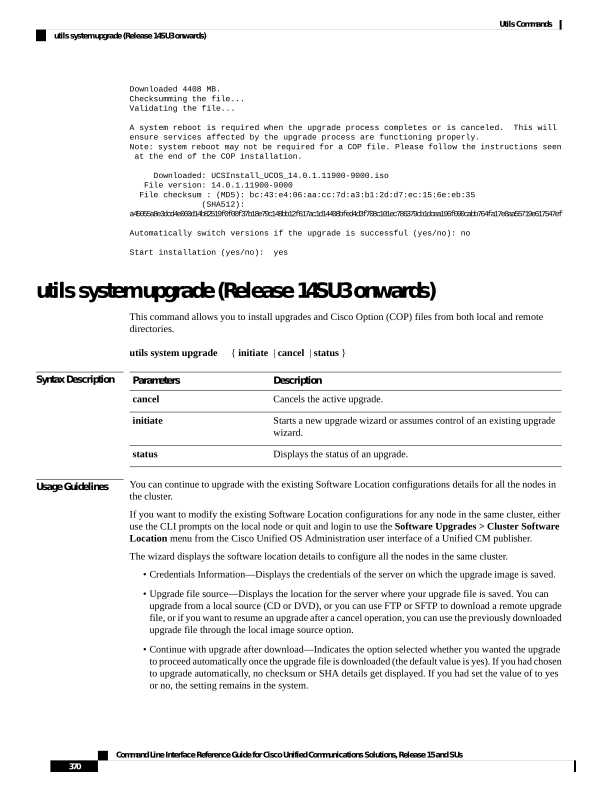
Page 395
• Version switching―Displays the option selected whether you wanted to switch to the new version
automatically once the upgrade completes (the default value is no). If you had entered yes, the system
switches to the new version and reboots automatically after the upgrade completes. If you had set the
value to yes or no, the setting remains in the system.
(Applicable for only Cisco Unity Connection) During the CLI upgrade process,
the system does not provide an option to automatically switch to the new version
after the upgrade completes. You must manually switch to the new version, as
the automatic version switch option is not available in the CLI upgrade workflow.
Note
Requirements
Command privilege level: 0
Applies to: Unified Communications Manager and IM and Presence Service on Unified Communications
Manager.
Example:
admin:utils system upgrade initiate
Warning: Do not close this window without first canceling the upgrade.
Warning: Before upgrading the cluster Cisco recommends installing the latest Upgrade Readiness
COP file. Refer to the Upgrade Guide on cisco.com for details.
Note: Below are the configurations used for the upgrade of current node.To review/modify
the configuration, navigate to Cisco unified OS Administration -> Software Upgrades ->
Cluster Software Location on publisher.
Source: Remote Filesystem via SFTP
Directory: /common/adminsftp/upgrade
Server: 10.77.30.197
User Name: root
Password: ******
Continue with upgrade after download (yes/no): yes
Switch-version server after upgrade [valid only for ISO] (yes/no): yes
Do you want to continue with these settings (yes/no) [no]: no
Note: To modify this node’s Software Location details, either use the prompts below or quit
and login to Cisco Unified Operating System Administration interface and navigate to
‘Software Upgrades -> Cluster Software Location’ page on the publisher.
Source:
- Remote Filesystem via SFTP
- Remote Filesystem via FTP
- Local DVD/CD
- Local Image <None>
q) quit
Please select an option (1 - 4 or "q" ): 1
Directory [/common/adminsftp/upgrade]: /common/adminsftp/fresh_install
Server [10.77.30.197]: 10.77.30.195
User Name [root]: root
Password [******]: ********
Please enter SMTP Host Server (optional):
Continue with upgrade after download (yes/no) [yes]: yes
Switch-version server after upgrade [valid only for ISO] (yes/no) [yes]: no
Checking for valid upgrades. Please wait...
Available options and upgrades in "10.77.30.195:/common/adminsftp/fresh_install":
- UCSInstall_UCOS_14.0.1.13900-9001.iso
q) quit
Please select an option (1 - 1 or "q" ):
Command Line Interface Reference Guide for Cisco Unified Communications Solutions, Release 15 and SUs
371
Utils Commands
utils system upgrade (Release 14SU3 onwards)

Page 396
Example:
admin:utils system upgrade initiate
Warning: Do not close this window without first canceling the upgrade.
Warning: Before upgrading the cluster Cisco recommends installing the latest Upgrade Readiness
COP file. Refer to the Upgrade Guide on cisco.com for details.
Note: Below are the configurations used for the upgrade of current node.To review/modify
the configuration, navigate to Cisco unified OS Administration -> Software Upgrades ->
Cluster Software Location on publisher.
Source: Remote Filesystem via SFTP
Directory: /common/adminsftp/upgrade
Server: 10.77.30.197
User Name: root
Password: ******
Continue with upgrade after download (yes/no): yes
Switch-version server after upgrade [valid only for ISO] (yes/no): yes
Do you want to continue with these settings (yes/no) [no]: yes
Checking for valid upgrades. Please wait...
Available options and upgrades in "10.77.30.197:/common/adminsftp/upgrade":
- ciscocm.ciscossl7_upgrade_CSCwa48315_CSCwa77974_v1.0.k4.cop
- ciscocm.ciscossl7_upgrade_CSCwa48315_CSCwa77974_v1.0.k4.cop.sha512
- ciscocm.ucmap_platformconfig-v1.3.k3.cop.sgn
- ciscocm.ucmap_platformconfig_relkey-v1.4.k4.cop.sha512
q) quit
Please select an option (1 - 4 or "q" ):
utils system upgrade cluster
This command allows you to install upgrades for cluster nodes (Unified Communications Manager and IM
and Presence) and Cisco Option Package (COP) files from both local and remote directories.
utils system upgrade cluster
{ initiate | cancel | status }
Syntax Description
Description
Parameters
Cancels the active upgrade.
cancel
Starts a new upgrade wizard or assumes control of an existing cluster
upgrade wizard.
This option is available only for the Unified Communications Manager
publisher and not for the Unified Communications Manager subscriber
or IM and Presence nodes.
initiate
Command Line Interface Reference Guide for Cisco Unified Communications Solutions, Release 15 and SUs
372
Utils Commands
utils system upgrade cluster
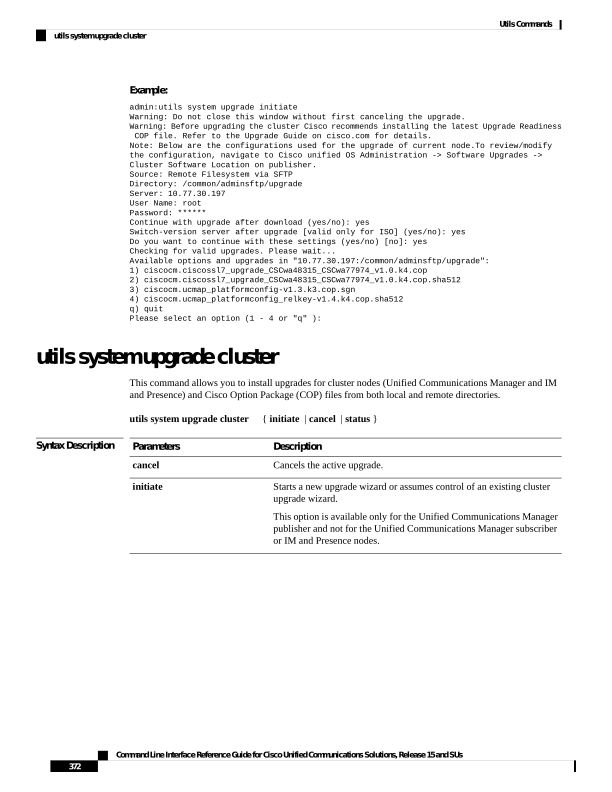
Page 397
Description
Parameters
Displays the status of an upgrade for each node in the cluster with the
following fields:
• Node—The hostname of the node.
• Role—The role of the node.
• Step—The current Step number or the Total number of steps to be
executed for upgrade completion.
• Description—The current component which is currently upgrading
for the particular node.
• Historical Time—The amount of time taken to complete the current
component/step for the respective node based on previous
clusterwide upgrade runs.
• Elapsed Time—The amount of time that passes from the start of
the current component/step to its finish for the respective node.
status
Usage Guidelines
Before you begin to upgrade your system, use the Software Upgrades > Cluster Software Location menu
from the Cisco Unified OS Administration user interface of a Unified CM publisher to add, edit, or modify
any of the existing configurations for any node in the same cluster. In Release 14 SU2 and later, Software
Location settings for all cluster nodes are centrally managed from the Publisher instead of locally on each
cluster node.
The wizard displays the software location details to configure all the nodes in the same cluster.
• Credentials Information―Displays the credentials of the server on which the upgrade image is saved.
• Upgrade file source―Enter the location for the server where your upgrade file is saved. You can upgrade
from a local source (CD or DVD), or you can use FTP or SFTP to download a remote upgrade file, or
if you want to resume an upgrade after a cancel operation, you can use the previously downloaded upgrade
file through the local image source option.
• Continue with upgrade after download―Indicates the option selected whether you wanted the upgrade
to proceed automatically once the upgrade file is downloaded (the default value is yes). If you had chosen
to upgrade automatically, no checksum or SHA details get displayed. If you had set the value of to yes
or no, the setting remains in the system.
• Version switching―Displays the option selected whether you wanted to switch to the new version
automatically once the upgrade completes (the default value is no). If you had entered yes, the system
switches to the new version and reboots automatically after the upgrade completes. If you had set the
value to yes or no, the setting remains in the system.
Requirements
Command privilege level: 0
Applies to: Unified Communications Manager and IM and Presence Service on Unified Communications
Manager.
Command Line Interface Reference Guide for Cisco Unified Communications Solutions, Release 15 and SUs
373
Utils Commands
utils system upgrade cluster
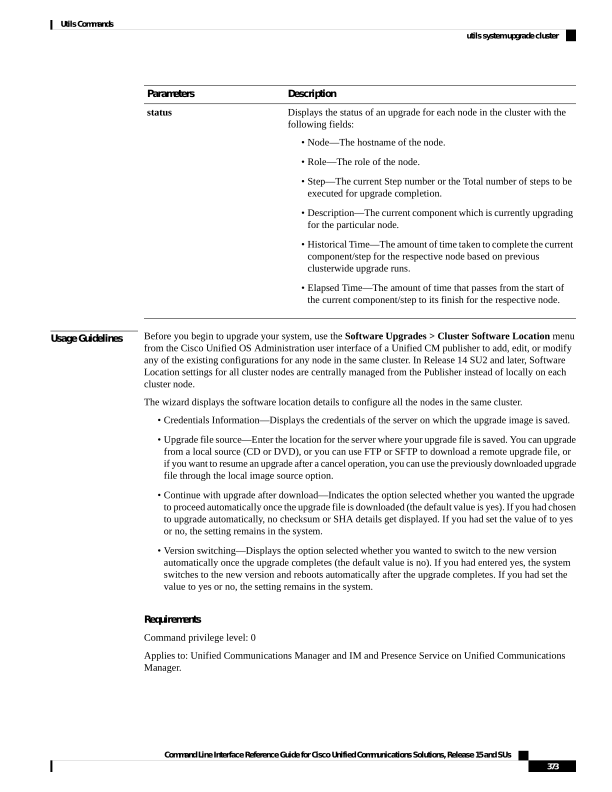
Page 398
Example:
admin:utils system upgrade cluster initiate
Warning: CLI upgrade status is best viewed when in full screen view.
Warning: Do not close this window without first canceling the upgrade.
Warning: Before upgrading the cluster Cisco recommends installing the latest Upgrade Readiness
COP file. Refer to the Upgrade Gui
de on cisco.com for details.
Note: Below are the configurations used for the upgrade of current node.To review/modify
the configuration, navigate to Cisco uni
fied OS Administration -> Software
Upgrades -> Cluster Software Location on publisher.
Source: Remote Filesystem via SFTP
Directory: /common/adminsftp/fresh_install
Server: 10.77.30.197
User Name: root
Password: ******
Continue with upgrade after download (yes/no): no
Switch-version server after upgrade [valid only for ISO] (yes/no): no
Do you want to continue with these settings (yes/no) [no]: yes
Checking for valid upgrades.
Please wait...
Available CUCM options and upgrades in "10.77.30.197:/common/adminsftp/fresh_install":
- UCSInstall_UCOS_14.0.1.11900-9000.iso
- UCSInstall_UCOS_14.0.1.12900-9003.iso
- ciscocm.ucmap_platformconfig_relkey-v1.4.k4.cop.sha512
q) quit
Please select an option (1 - 3 or "q" ): 2
Available IMP options and upgrades in "10.77.30.197:/common/adminsftp/fresh_install":
- UCSInstall_CUP_12.5.1.16000-9004.iso
- UCSInstall_CUP_14.0.1.11900-7.sha512.iso
- UCSInstall_CUP_14.0.1.12600-9002.iso
- ciscocm.ucmap_platformconfig_relkey-v1.4.k4.cop.sha512
q) quit
Please select an option (1 - 4 or "q" ): 3
Processing the cluster wide download...
CUCM-35
Download complete
CUCM-34
Download complete
IMP-37
Download complete
IMP-36
Download complete
Cluster wide Download complete
A system reboot is required when the upgrade process is complete or cancelled.This will
ensure the services affected by the upgra
de process are functioning properly
Downloaded UCM Image: UCSInstall_UCOS_14.0.1.12900-9003.iso
File version: 14.0.1.12900-9003
File checksum : (MD5): 3d:46:a5:d6:41:6e:9a:93:56:aa:56:d0:4b:4a:1b:9d
(SHA512):
0d2bb7d49752179eeb2555f3a983e166be0c097185c207e581f741bcde026d526cc4bea13ce1ec8cd4249b6cd4c926285e92e
27704bf61d7062af18ac4e0a2d0
Command Line Interface Reference Guide for Cisco Unified Communications Solutions, Release 15 and SUs
374
Utils Commands
utils system upgrade cluster
Page 399
Downloaded IMP Image: UCSInstall_CUP_14.0.1.12600-9002.iso
File version: 14.0.1.12600-9002
File checksum : (MD5): e0:0c:f8:b9:a3:a1:d3:2e:02:68:51:78:b1:31:04:4c
(SHA512):
e7e22a1d5068b3189148d343d41379dc0efe1a3a4b0c764ec7040d1a18de2b45d6bd307f0880af68c96b060255fe77be1795c
162878070b47b340a210873c36b
The IMP servers in the cluster must be rebooted after Unified CM publisher is switched to
the new version, even IF IMP servers ar
e not being being upgraded
Automatically switch versions if the upgrade is successful (yes/no): no
Start installation (yes/no):
yes
Cluster-wide upgrade has been initiated...
Node
Role
Step
Description
Historical
Time
Elapsed Time
CUCM-35
CUCM Subscriber
3/22
setup
00:01:15
00:01:14
CUCM-34
CUCM Publisher
3/22
setup
00:01:15
00:01:12
IMP-37
IM&P Subscriber
4/21
verify
00:00:13
00:00:09
IMP-36
IM&P Publisher
4/21
verify
00:00:13
00:00:15
Cluster
Overall cluster progress
04:30:22
00:01:18
utils system enableAdministration
Configuration changes are not permitted during an upgrade; however, you can use this command to enable
emergency provisioning during an upgrade.
Once you begin the upgrade process, configuration changes are not permitted until the upgrade is complete
and you have performed all of the post-upgrade tasks. Configuration changes include:
• changes made through any of the Unified Communications Manager or IM and Presence Service graphical
user interfaces (GUI), the command line interface (CLI), or the AXL API
• LDAP synchronizations, including incremental synchronizations that are pushed to Unified
Communications Manager from an Oracle LDAP
• automated jobs
• devices attempting to autoregister
Any configuration changes that you make during an upgrade may be lost, and some configuration changes
can cause the upgrade to fail.
Caution
utils system enableAdministration
Command Line Interface Reference Guide for Cisco Unified Communications Solutions, Release 15 and SUs
375
Utils Commands
utils system enableAdministration

Page 400
Command Modes
Administrator (admin:)
Requirements
Command privilege level: 1 and 4
utils update dst
This command updates the daylight saving time (DST) rules for the current year.
utils update dst
Command Modes
Administrator (admin:)
Usage Guidelines
This command takes a backup of the existing DST rules file and creates a new DST rules file for the current
year.
Restart the phones after you execute the command. Not restarting the phones results in wrong DST start and
stop dates.
Caution
Requirements
Command privilege level: 0
Allowed during upgrade: No
Applies to Unified Communications Manager and IM and Presence Service.
utils users validate
This command checks user records across all nodes and clusters in the deployment to identify duplicate or
invalid userid or directory URI values.
utils users validate
{all | userid | uri}
Syntax Description
Description
Parameters
Validate the userid and directory URI values for all users in the nodes and clusters.
all
Validate the userid value for all users in the nodes and clusters.
userid
Validate the directory URI value for all users in the nodes and clusters.
uri
Command Modes
Administrator (admin:)
Requirements
Command privilege level: 1
Command Line Interface Reference Guide for Cisco Unified Communications Solutions, Release 15 and SUs
376
Utils Commands
utils update dst

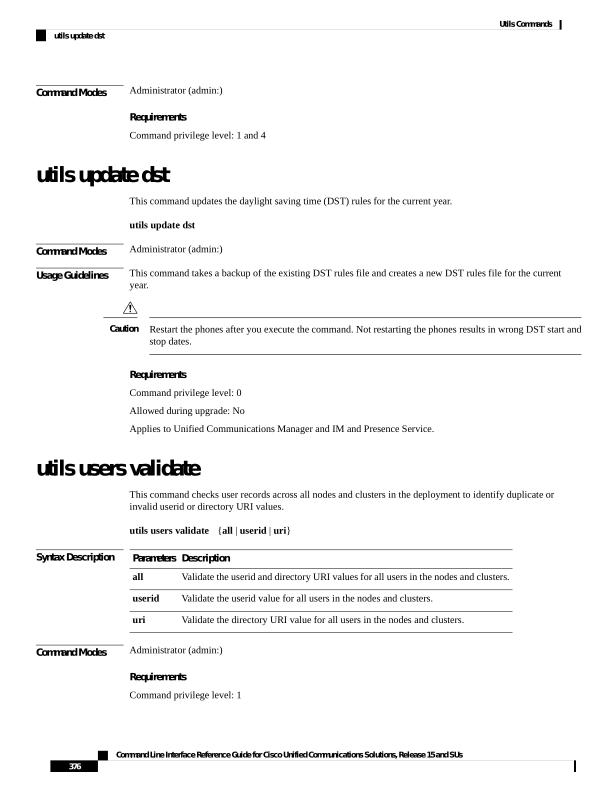
Page 401
Allowed during upgrade: No
Applies to: IM and Presence Service on Unified Communications Manager
utils vmtools status
This command displays the type and the version of currently installed VMware Tools.
This command is not available or applicable on Cisco NFVIS-for-UC or Nutanix AHV hypervisors.
Note
utils vmtools status
Command Modes
Administrator (admin:)
Requirements
Command privilege level: 1
Allowed during upgrade: No
Applies to: Unified Communications Manager, IM and Presence Service on Unified Communications Manager,
and Cisco Unity Connection
utils system boot status
This command shows the location where the system boot messages are to be sent. The location is either console
or serial port one.
utils system boot status
Command Modes
Administrator (admin:)
Requirements
Command privilege level: 0
Allowed during upgrade: Yes
Applies to: Unified Communications Manager, IM and Presence Service on Unified Communications Manager,
Cisco Unity Connection
utils system upgrade dataexport initiate
This command exports the nodes configuration and user data to a remote SFTP server, for use in a later fresh
install with data import.
utils system upgrade dataexport initiate
Command Line Interface Reference Guide for Cisco Unified Communications Solutions, Release 15 and SUs
377
Utils Commands
utils vmtools status

Page 402
Syntax Description
Description
Parameters
Remote directory
Export Data Directory
Remote SFTP
Remote Server Name or IP
Username of remote server
Remote Server Login ID
Password for remote server
Remote Server Password
Destination hostname
New Hostname
Destination IP
New IP Address
Command Modes
Administrator (admin:)
Requirements
Command privilege level: 1
Allowed during upgrade: Yes
Applies to: Unified Communications Manager, IM and Presence Service on Unified Communications Manager,
and Cisco Unity Connection
This command should be executed on Publisher first followed by all subscriber nodes in the cluster. Same
SFTP Remote server details should be configured for all nodes in the cluster.
Note
utils system upgrade dataexport status
This command displays the status of the dataexport operation for this cluster node.
utils system upgrade dataexport status
Command Modes
Administrator (admin:)
Requirements
Command privilege level: 1
Allowed during upgrade: Yes
Applies to: Unified Communications Manager, IM and Presence Service on Unified Communications Manager,
and Cisco Unity Connection
utils system upgrade dataexport cancel
This command cancels the ongoing dataexport operation.
Command Line Interface Reference Guide for Cisco Unified Communications Solutions, Release 15 and SUs
378
Utils Commands
utils system upgrade dataexport status

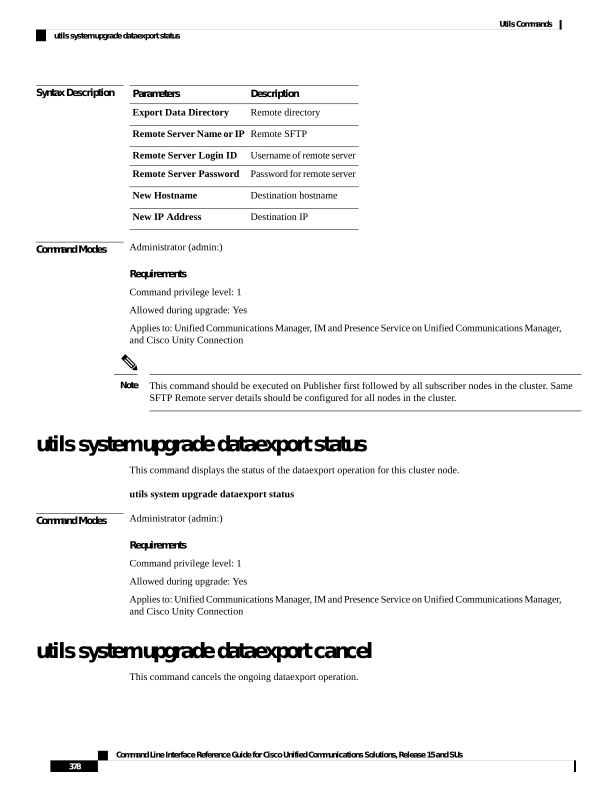
Page 403
utils system upgrade dataexport cancel
Command Modes
Administrator (admin:)
Requirements
Command privilege level: 1
Allowed during upgrade: Yes
Applies to: Unified Communications Manager, IM and Presence Service on Unified Communications Manager,
and Cisco Unity Connection
utils tls client-auth-validation disable
This command disables validation of the Client Authentication Extended Key Usage (EKU) for certificates
presented during mutual TLS handshakes across the cluster.
utils tls client-auth-validation disable
Command Modes
Administrator (admin:)
Requirements
Command privilege level: 1
Applies to: Unified Communications Manager, IM and Presence Service on Unified Communications Manager
Example
admin:utils tls client-auth-validation disable
Warning: Restart the following services on all nodes for the change to take
effect.
On Unified Communications Manager:
Cisco Tomcat
utils ipsec restart
On IM and Presence Service:
Cisco Config Agent
Cisco XCP Config Manager
Cisco XCP Router
Cisco XCP Connection Manager
Cisco Tomcat
utils ipsec restart
Proceed with this operation (yes|no)? yes
Client Authentication validation has been disabled successfully across all
nodes in the cluster.
Command Line Interface Reference Guide for Cisco Unified Communications Solutions, Release 15 and SUs
379
Utils Commands
utils tls client-auth-validation disable
Page 404
utils tls client-auth-validation enable
This command enables validation of the Client Authentication EKU for certificates presented during mutual
TLS handshakes across the cluster.
utils tls client-auth-validation enable
Command Modes
Administrator (admin:)
Requirements
Command privilege level: 1
Applies to: Unified Communications Manager, IM and Presence Service on Unified Communications Manager
Example
admin:utils tls client-auth-validation enable
Warning: Restart the following services on all nodes for the change to take
effect.
On Unified Communications Manager:
Cisco Tomcat
utils ipsec restart
On IM and Presence Service:
Cisco Config Agent
Cisco XCP Config Manager
Cisco XCP Router
Cisco XCP Connection Manager
Cisco Tomcat
utils ipsec restart
Proceed with this operation (yes|no)? yes
Client Authentication validation has been enabled successfully across all nodes
in the cluster.
utils tls client-auth-validation status
This command shows the validation status of the Client Authentication EKU for certificates presented during
mutual TLS handshakes across the cluster.
utils tls client-auth-validation status
Command Modes
Administrator (admin:)
Requirements
Command privilege level: 1
Applies to: Unified Communications Manager, IM and Presence Service on Unified Communications Manager
Command Line Interface Reference Guide for Cisco Unified Communications Solutions, Release 15 and SUs
380
Utils Commands
utils tls client-auth-validation enable
Page 405
Example
admin:utils tls client-auth-validation status
Client Authentication EKU validation is currently: DISABLED
utils ucmgmt agent disable
This command will disable the agent, stop it from running, and prevent it from restarting.
utils ucmgmt agent disable
Command Modes
Administrator (admin:)
Requirements
Command privilege level: 1
Allowed during upgrade: No
Applies to: Unified Communications Manager, IM and Presence Service on Unified Communications Manager,
and Unity Connection
Example
admin:utils ucmgmt agent disable
Stopping cloud_agent (via systemctl):
[
OK
]
utils ucmgmt agent enable
This command will start the agent and enable the watchdog process to ensure that it is running.
utils ucmgmt agent enable
Command Modes
Administrator (admin:)
Requirements
Command privilege level: 1
Allowed during upgrade: No
Applies to: Unified Communications Manager, IM and Presence Service on Unified Communications Manager,
and Cisco Unity Connection
Example
admin:utils ucmgmt agent enable
Agent watchdog activated.
Agent will start up shortly(~ 5 minutes).
Command Line Interface Reference Guide for Cisco Unified Communications Solutions, Release 15 and SUs
381
Utils Commands
utils ucmgmt agent disable
Page 406
utils ucmgmt agent remove
This command will remove the agent and all of its configurations. This is equivalent to running the uninstall
cop file.
utils ucmgmt agent remove
Command Modes
Administrator (admin:)
Requirements
Command privilege level: 1
Allowed during upgrade: No
Applies to: Unified Communications Manager, IM and Presence Service on Unified Communications Manager,
and Unity Connection
Example
admin:utils ucmgmt agent remove
Removing agent..
Starting removal of UC Management Agent
Agent removal complete.
utils ucmgmt agent restart
This command will restart a running agent immediately, and force the agent to register with the cloud service.
utils ucmgmt agent restart
Command Modes
Administrator (admin:)
Requirements
Command privilege level: 1
Allowed during upgrade: No
Applies to: Unified Communications Manager, IM and Presence Service on Unified Communications Manager,
and Unity Connection
Example
admin:utils ucmgmt agent restart
Stopping agent..
Agent is restarting. Check agent status with 'utils ucmgmt agent status'.
utils ucmgmt agent status
This command display status information about the agent.
Command Line Interface Reference Guide for Cisco Unified Communications Solutions, Release 15 and SUs
382
Utils Commands
utils ucmgmt agent remove
Page 407
utils ucmgmt agent status
Command Modes
Administrator (admin:)
Requirements
Command privilege level: 1
Allowed during upgrade: No
Applies to: Unified Communications Manager, IM and Presence Service on Unified Communications Manager,
and Unity Connection
Example
admin:utils ucmgmt agent status
Agent Config Information:
Verification Code: ZUSXXXP9
Installed UCMGMT Agent version: 20210831-VOS
Agent's organization id: XXXXXXXX-XXXX-XXXX-XXXX-XXXXXXXXXXXX
Agent Runtime Information:
Agent process is not running.
To start up the agent, run 'utils ucmgmt agent restart'.
Agent process is enabled.
Agent watchdog is enabled.
Agent is not verified in Webex Control Hub.
utils ucmgmt agent verification
This command displays the verification code of the successfully installed agent.
utils ucmgmt agent verification
Command Modes
Administrator (admin:)
Requirements
Command privilege level: 1
Allowed during upgrade: No
Applies to: Unified Communications Manager, IM and Presence Service on Unified Communications Manager,
and Unity Connection
Example
admin:utils ucmgmt agent verification
Verification Code: XXXXXXXX
utils ucmgmt config export
This command creates an agent configuration string for import into an unconfigured agent node.
Command Line Interface Reference Guide for Cisco Unified Communications Solutions, Release 15 and SUs
383
Utils Commands
utils ucmgmt agent verification
Page 408
utils ucmgmt config export
Command Modes
Administrator (admin:)
Requirements
Command privilege level: 1
Allowed during upgrade: No
Applies to: Unified Communications Manager, IM and Presence Service on Unified Communications Manager,
and Unity Connection
Example
admin:utils ucmgmt config export
Organization and proxy configuration processing complete.
This config can be imported into an unconfigured destination node by running (if available):
'utils ucmgmt config import [[2SedFCjFJiXYUuzwYrxf9mlY9FdH_....==]]'
utils ucmgmt config import
This command imports a configured agent and enables this agent. The agent still needs to be verified in Control
Hub.
utils ucmgmt config import
Command Modes
Administrator (admin:)
Requirements
Command privilege level: 1
Allowed during upgrade: No
Applies to: Unified Communications Manager, IM and Presence Service on Unified Communications Manager,
and Unity Connection
Example
admin:utils ucmgmt config import
[[2SedFCjFJiXYUuzwYrxf9mlY9FdH_U2FsdGVkX18QtlFwVd4dYKIQqnlLLuvilAGRhTapcaKxWdEFPmhsWIzApSmrymrkYHJq4.....
HE0AUZBfkjBvDpnq5incYdS8SOPTfVilxcKk7x/BIzuSYAIpcRKu+uP6XNQ318z/KigrDClCN03Z+bjrCrxg6ySzrPzA=]]
Found compatible org in config (XXXXXXXX-XXXX-XXXX-XXXX-XXXXXXXXXXXX).
Configuration import is complete.
Agent service will auto-start in the next 5 minutes.
To start the UCMGMT agent immediately run 'utils ucmgmt agent restart'
utils ucmgmt organization
This command sets the Control Hub organization ID for the agent if it is not already set.
Command Line Interface Reference Guide for Cisco Unified Communications Solutions, Release 15 and SUs
384
Utils Commands
utils ucmgmt config import
Page 409
utils ucmgmt organization
Syntax Description
Description
Parameters
Organization ID can be found on the Control Hub. This is a mandatory field.
organization_id
Command Modes
Administrator (admin:)
Requirements
Command privilege level: 1
Allowed during upgrade: No
Applies to: Unified Communications Manager, IM and Presence Service on Unified Communications Manager,
and Unity Connection
Example
min:utils ucmgmt organization
XXXXXXXX-XXXX-XXXX-XXXX-XXXXXXXXXXXX
utils ucmgmt proxy add
This command will validate the cloud controller access by using the supplied proxy information. If successful,
the proxy is added to the ucmgmt proxy list.
utils ucmgmt proxy add
Command Modes
Administrator (admin:)
Requirements
Command privilege level: 1
Allowed during upgrade: No
Applies to: Unified Communications Manager, IM and Presence Service on Unified Communications Manager,
and Unity Connection
Example
admin:utils ucmgmt proxy add http://proxy.proxy-example.com:8080 test
(Optional) Validating Proxy Password (won't display):
Re-enter Proxy Password (won't display):
Attempting to contact UCMGMT Cloud Controller... please wait (upto 30 seconds).
Successfully contacted controller.
{"serviceName": "Lookup Service", "serviceType":
"REQUIRED", "serviceState": "online", "message": "Healthy",
"lastUpdated": "2022-10-04T22:49:53", "upstreamServices": []}
Adding proxy.proxy-example.com:8080 to proxy list.
Command Line Interface Reference Guide for Cisco Unified Communications Solutions, Release 15 and SUs
385
Utils Commands
utils ucmgmt proxy add
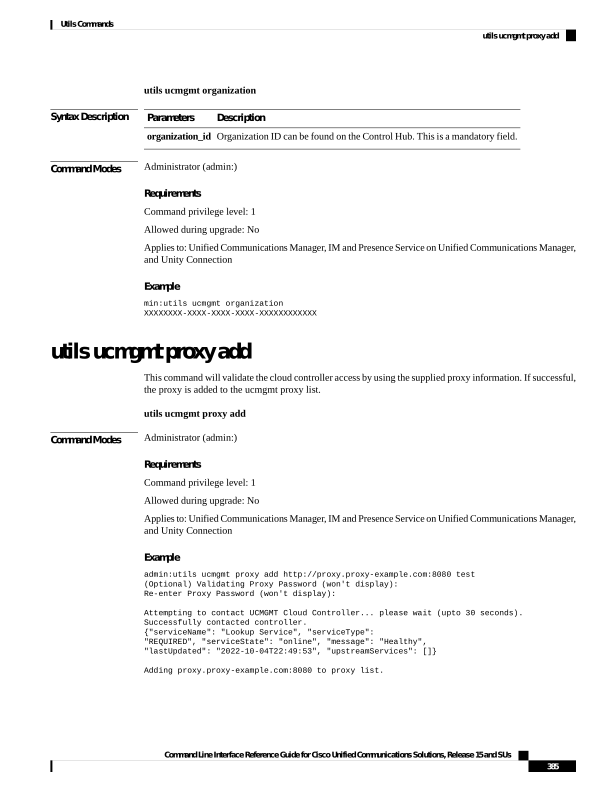
Page 410
Example
admin:utils ucmgmt proxy add http://proxy.proxy-example.com:80
Attempting to contact UCMGMT Cloud Controller... please wait (upto 30 seconds).
Successfully contacted controller.
{"serviceName": "Lookup Service", "serviceType": "REQUIRED",
"serviceState": "online", "message": "Healthy",
"lastUpdated": "2022-10-06T17:10:30", "upstreamServices": []}
Adding http://proxy.proxy-example.com:80 to proxy list.
utils ucmgmt proxy clear
This command will clear all the proxies stored for this node.
utils ucmgmt proxy clear
Command Modes
Administrator (admin:)
Requirements
Command privilege level: 1
Allowed during upgrade: No
Applies to: Unified Communications Manager, IM and Presence Service on Unified Communications Manager,
and Unity Connection
Example
admin:utils ucmgmt proxy clear
utils ucmgmt proxy force add
This command will add an unvalidated proxy to the agent configured. Proxy will be added to the ucmgmt
proxy list without access validation.
utils ucmgmt proxy force add
Command Modes
Administrator (admin:)
Requirements
Command privilege level: 1
Allowed during upgrade: No
Applies to: Unified Communications Manager, IM and Presence Service on Unified Communications Manager,
and Unity Connection
Command Line Interface Reference Guide for Cisco Unified Communications Solutions, Release 15 and SUs
386
Utils Commands
utils ucmgmt proxy clear
Page 411
Example
admin:utils ucmgmt proxy force add http://staged.proxy.example.com:8080 user1
(Optional) Validating Proxy Password (won't display):
Re-enter Proxy Password (won't display):
Adding http://staged.proxy.example.com:8080 to proxy list.
Example
admin:utils ucmgmt proxy force add http://proxy.proxy-example.com:80
Adding http://proxy.proxy-example.com:80 to proxy list.
utils ucmgmt proxy list
This command lists all the proxies stored for this node. Authenticating proxy credentials listings will redact
passwords.
utils ucmgmt proxy list
Command Modes
Administrator (admin:)
Requirements
Command privilege level: 1
Allowed during upgrade: No
Applies to: Unified Communications Manager, IM and Presence Service on Unified Communications Manager,
and Unity Connection
Example
admin:utils ucmgmt proxy list
"http://proxy.example.com:80"
"http://user1:<REDACTED>@staged.proxy.example.com:8080"
Command Line Interface Reference Guide for Cisco Unified Communications Solutions, Release 15 and SUs
387
Utils Commands
utils ucmgmt proxy list
Page 412
Command Line Interface Reference Guide for Cisco Unified Communications Solutions, Release 15 and SUs
388
Utils Commands
utils ucmgmt proxy list