Document Metadata
Format: PDF 1.4
Title: Voice Log Translator 2.3.1 User Guide
Author: ccimr_migadm.gen
Creator: FrameMaker 7.2
Producer: Acrobat Distiller 7.0 (Windows); modified using iText 2.1.7 by 1T3XT
Creation Date: D:20071205102024Z
Mod Date: D:20131214125503-08'00'
Page 1
Corporate Headquarters:
Copyright © 2004 Cisco Systems, Inc. All rights reserved.
Cisco Systems, Inc., 170 West Tasman Drive, San Jose, CA 95134-1706 USA
Voice Log Translator 2.3.1 User Guide
Cisco Voice Log Translator is a Microsoft Windows software-based tool that parses and translates
Cisco CallManager and Cisco Java Telephony API (JTAPI) client trace-log messages. The tool enables
you to filter and organize messages and access raw message text or detailed message-text descriptions
to aid in troubleshooting.
This document describes how to use Voice Log Translator.
Note
•
You can access more information about Voice Log Translator—including capabilities, supported
protocols, and how to download and install the latest version—from the following website:
http://www.cisco.com/partner/WWChannels/technologies/IPT/operate3.html
•
You can send feedback or questions (engineers will respond as time allows) to the following e-mail
address:
voice-log-translator-support@external.cisco.com
Contents
•
Prerequisites for Voice Log Translator, page 2
•
Information About Voice Log Translator, page 2
•
How to Use Voice Log Translator to Work with Trace-Log Messages, page 6
•
Obtaining Documentation, page 13
•
Documentation Feedback, page 14
•
Obtaining Technical Assistance, page 14
•
Obtaining Additional Publications and Information, page 15

Page 2
Voice Log Translator 2.3.1 User Guide
Prerequisites for Voice Log Translator
2
Xlog 2.3.1
Prerequisites for Voice Log Translator
•
Run—and generate system-diagnostic-interface (SDI) trace-log messages for—Cisco CallManager
up to version 3.3.x.
Note
It is important that you heed this prerequisite. Voice Log Translator version 2.3.1 does not
reliably open message files for Cisco CallManager versions later than 3.3.x.
•
Install Voice Log Translator on one of the following platforms:
–
Windows 95
–
Windows 98
–
Windows 2000
–
Windows Me
–
Windows NT
–
Windows XP
Note
Download Voice Log Translator from the website listed previously. Although versions
earlier than the current one (version 2.3.1) are listed on the website, you can download only
the current one. Memory requirements for download are 128 MB.
•
Install the Win32 Dynamic Linking Library for Visual Basic setup package with the following:
–
MSCOMCTL.OCX
–
RICHED32.DLL
–
VB6STKIT.DLL
•
Know the location of the folder in which your trace-log message files reside.
Information About Voice Log Translator
Voice Log Translator enables you to display, sort, and filter lists of trace-log messages—and then display
associated raw or translated message texts—to aid in troubleshooting.
This section contains the following information:
•
Capabilities, page 3
•
User Interface, page 3
•
Navigation, page 4
•
Message Translations, page 5
Page 3
Voice Log Translator 2.3.1 User Guide
Information About Voice Log Translator
3
Xlog 2.3.1
Capabilities
The following are examples of what you can do with Voice Log Translator:
•
Open trace-log files and display message lists and associated messages (see the “Displaying a
Message List” section on page 6).
•
Filter a trace-log message list so as to do the following (see the“Filtering a Message List” section
on page 8):
–
Display or exclude keepalive messages.
–
Display messages for a particular call (as identified by its call reference) or for all calls
involving a particular gateway IP, direction, protocol, command, message, or channel. For
example, you can display all messages related to the T1 1/0:3 on gateway A.B.C.D.
–
Display messages for calls with criteria that you specify.
–
Display messages by call reference; for each message, show timestamp, protocol, calling
number, and called number. For example, you can display all messages for a particular call leg
(any protocol) or for the two legs (SCCP side and MGCP/Q.931 side) of a call.
–
Display messages for calls whose gateway IP, direction, protocol, command, message, call
reference, or channel contain a particular text string.
•
Do the following with the text of a trace-log message (see the“Working with Message Text” section
on page 11):
–
Specify a level of translation.
–
Copy raw or translated message text to the clipboard for export to a text file.
–
Search for a specific text string in raw or translated message text across all messages.
User Interface
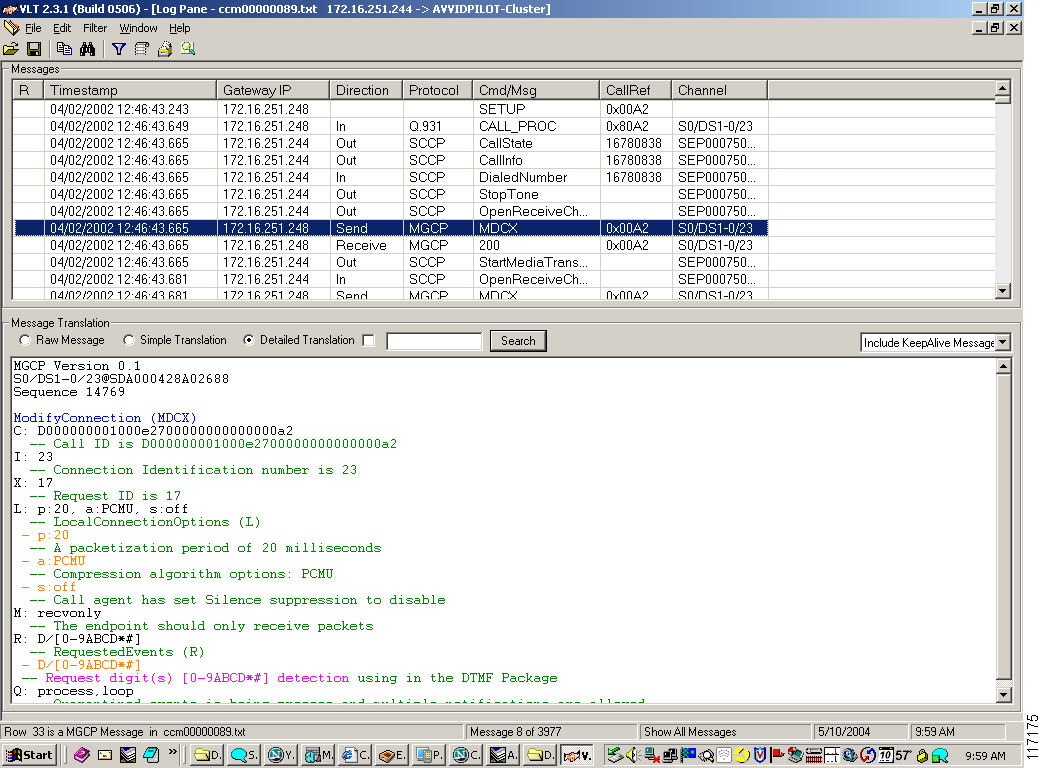
The Voice Log Translator user interface has a toolbar at the top and, below that, the following two
display areas (Figure 1):
•
Messages area—Displays a list of trace-log messages from one or more files.
•
Message-translation area—Displays the raw or translated text of a highlighted message.
Page 4
Voice Log Translator 2.3.1 User Guide
Information About Voice Log Translator
4
Xlog 2.3.1
Figure 1
Voice Log Translator User Interface
Navigation
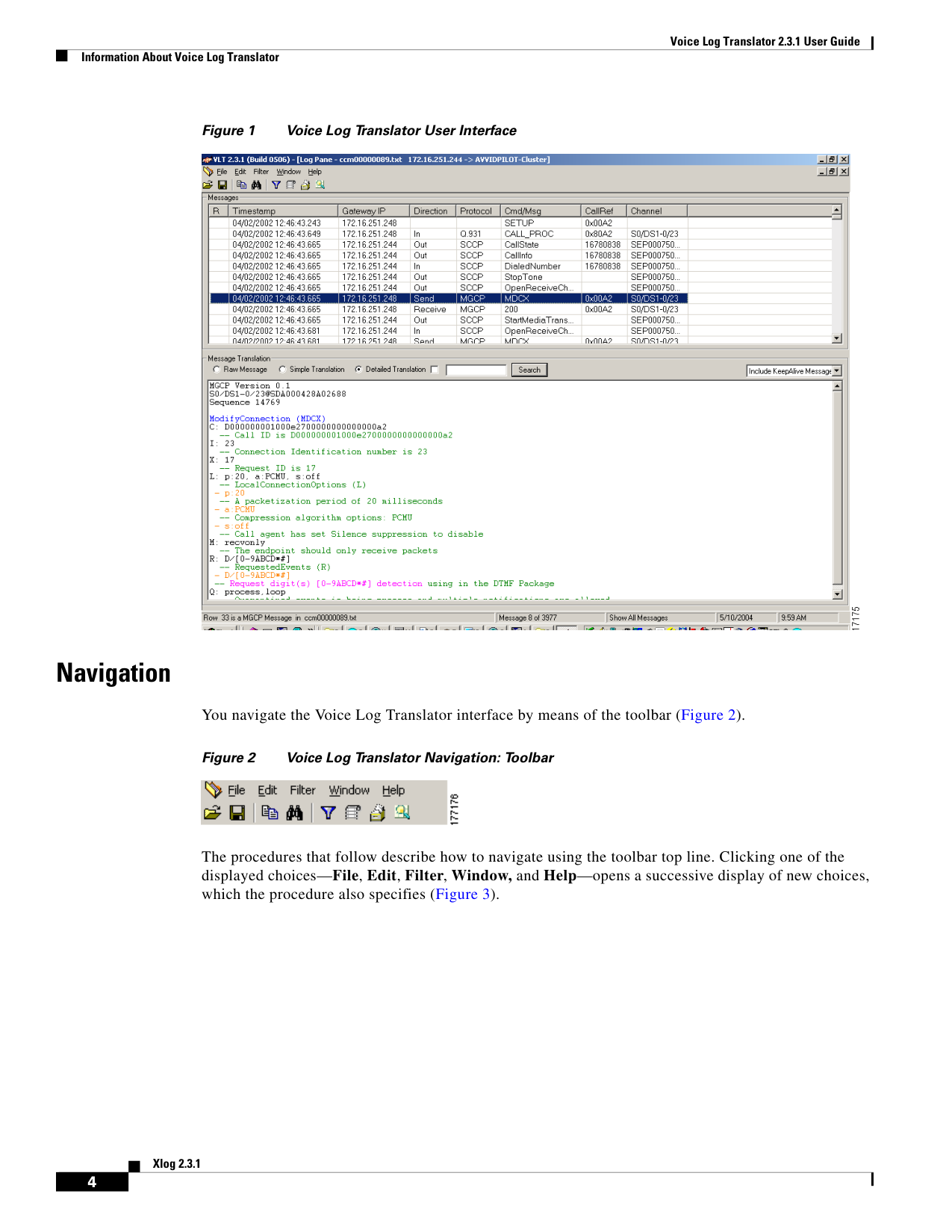
You navigate the Voice Log Translator interface by means of the toolbar (Figure 2).
Figure 2
Voice Log Translator Navigation: Toolbar
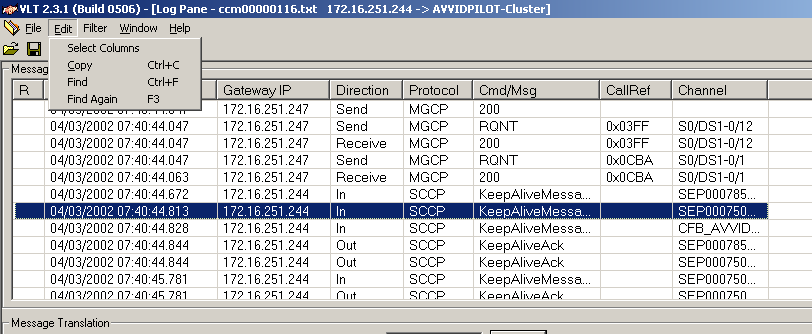
The procedures that follow describe how to navigate using the toolbar top line. Clicking one of the
displayed choices—File, Edit, Filter, Window, and Help—opens a successive display of new choices,
which the procedure also specifies (Figure 3).
Page 5
Voice Log Translator 2.3.1 User Guide
Information About Voice Log Translator
5
Xlog 2.3.1
Figure 3
Voice Log Translator Navigation: Successive Display of Choices
Alternatively, you can navigate using icons on the toolbar bottom line. Icons for Open, Save, Copy,
Find, Customized Filter, List All CallRefs, Select Columns, and Open Folder duplicate the choices
offered in the successive display mentioned above for the top line.
For example, if you are instructed to click the sequence File > Open Folder, you can achieve the same
result simply by clicking the Open Folder icon.
Message Translations
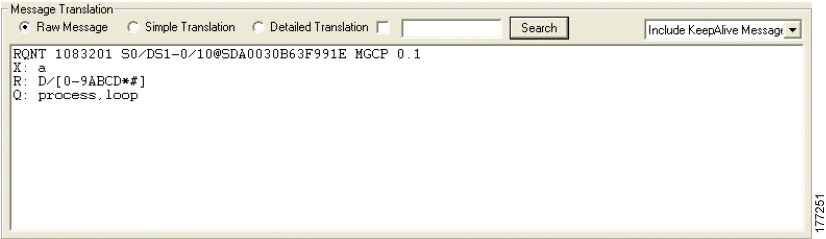
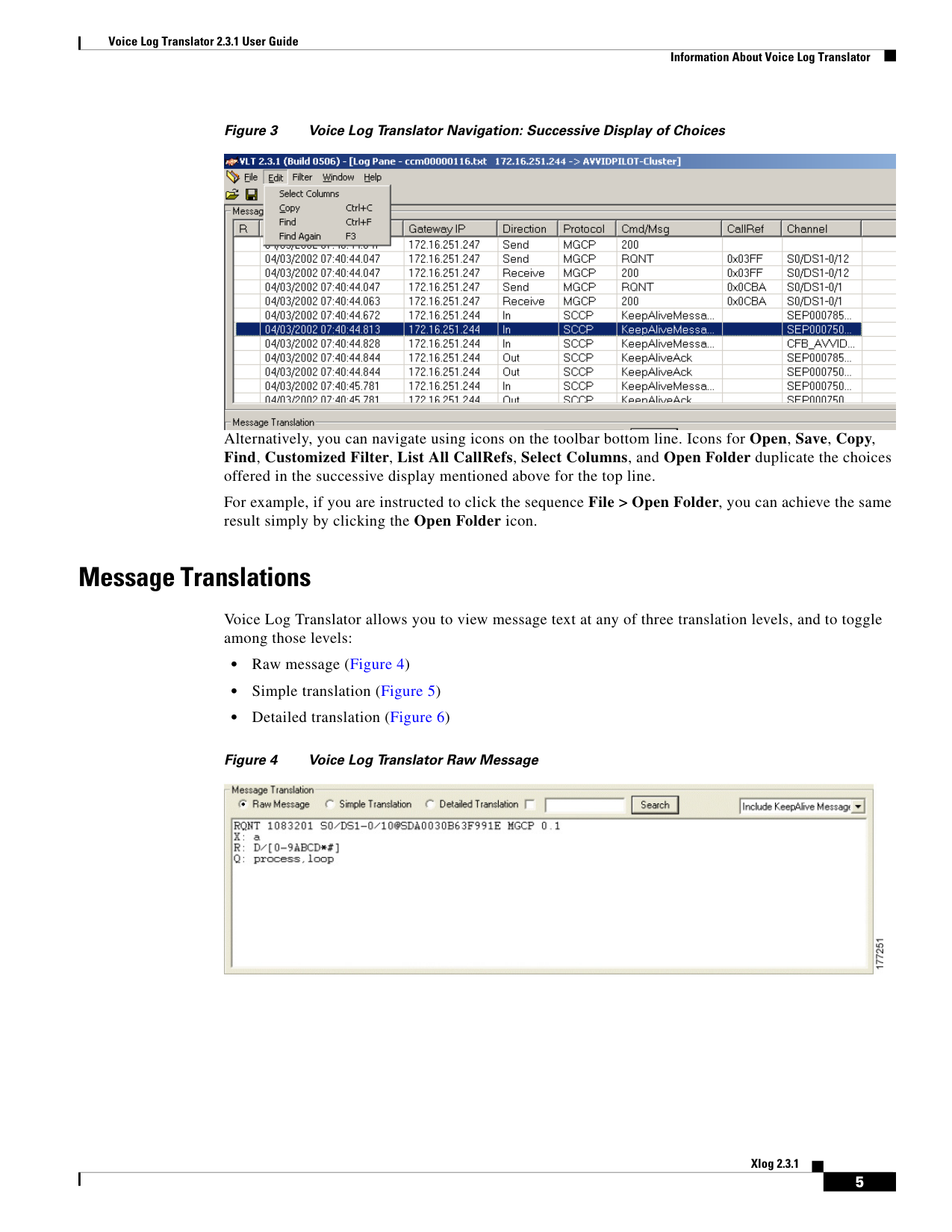
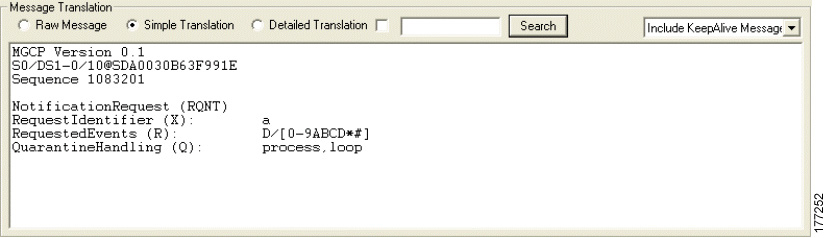
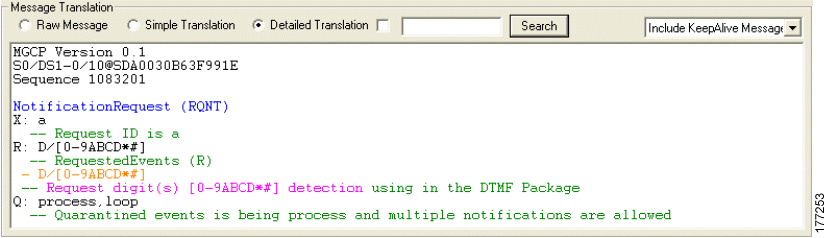
Voice Log Translator allows you to view message text at any of three translation levels, and to toggle
among those levels:
•
Raw message (Figure 4)
•
Simple translation (Figure 5)
•
Detailed translation (Figure 6)
Figure 4
Voice Log Translator Raw Message
Page 6
Voice Log Translator 2.3.1 User Guide
How to Use Voice Log Translator to Work with Trace-Log Messages
6
Xlog 2.3.1
Figure 5
Voice Log Translator Simple Translation
Figure 6
Voice Log Translator Detailed Translation
How to Use Voice Log Translator to Work with Trace-Log
Messages
This section contains the following information:
•
Displaying a Message List, page 6
•
Filtering a Message List, page 8
•
Working with Message Text, page 11
Displaying a Message List
Tip
You can open trace-log files and display a list of messages in the following ways:
•
Display a list of messages for a set of log files (Step 2 below).
•
Display a list of messages for an additional set of log files, in the same or a new pane (Step 3 below).
•
Edit the message-list display (Step 4 below).
Page 7
Voice Log Translator 2.3.1 User Guide
How to Use Voice Log Translator to Work with Trace-Log Messages
7
Xlog 2.3.1
SUMMARY STEPS
1.
Open Voice Log Translator
2.
File > Open Folder > Open > Yes/No
3.
File > Appending Open > Open > Yes/No or File > New Log Pane > Open > Yes/No
4.
Edit > Select Columns > OK
5.
Close files and exit Voice Log Translator
DETAILED STEPS
Step 1
Open Voice Log Translator.
Step 2
Open a set of log files as follows:
a.
Click File > Open Folder.
Note
If the desired log-file folder does not automatically open and display a list of filenames, click
Browse, locate the folder, and click Search. (On subsequent tool use, the last-used folder
automatically opens.)
b.
Highlight one or more filenames (using <Ctrl> or <Shift> as needed) and click Open.
c.
If a prompt asks whether or not to sort files by timestamp, click Yes or No.
Note
If you click No, the additional files simply append to the end of the previous ones. Be aware
that sorting by timestamp might take some time: A single file typically takes just seconds
but many large files can take a minute or more.
Step 3
Open an additional set of log files as follows:
a.
Do one of the following:
•
To open at the end of the existing open message-list pane, click File > Appending Open.
•
To open in a new message-list pane, click File > New Log Pane.
b.
Highlight one or more filenames and click Open.
c.
If a prompt asks whether or not to sort files by timestamp, click Yes or No.
Step 4
Edit the display appearance as follows:
a.
To adjust column widths for optimal viewing, click and move column separators.
b.
To display or hide columns, do the following:
1.
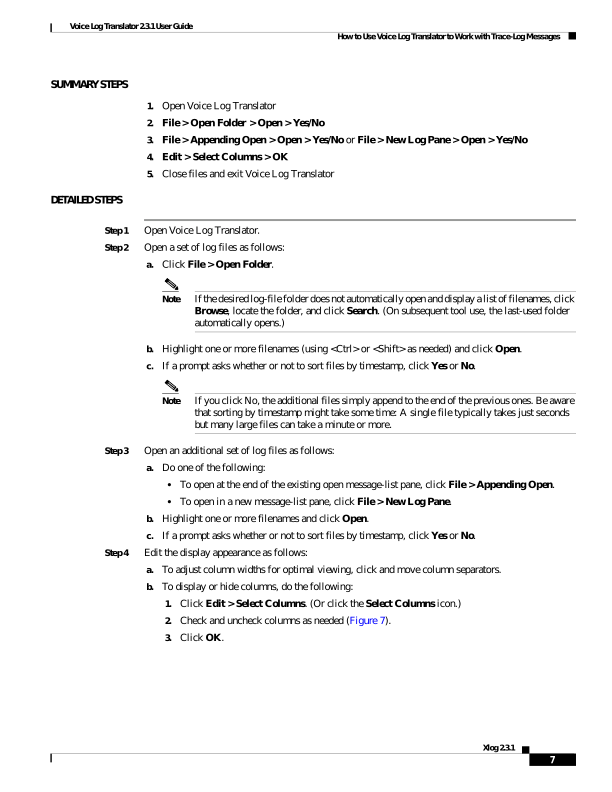
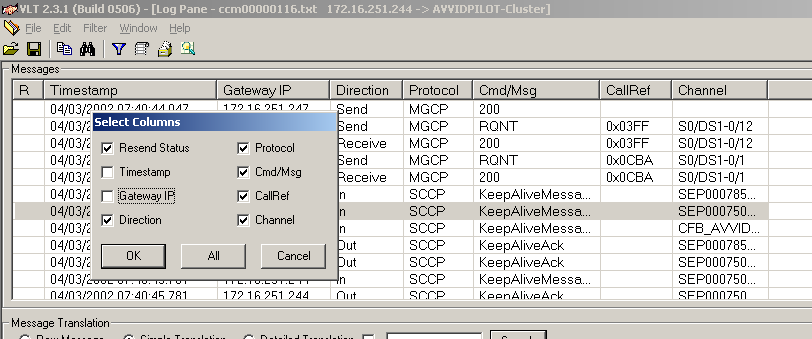
Click Edit > Select Columns. (Or click the Select Columns icon.)
2.
Check and uncheck columns as needed (Figure 7).
3.
Click OK.
Page 8
Voice Log Translator 2.3.1 User Guide
How to Use Voice Log Translator to Work with Trace-Log Messages
8
Xlog 2.3.1
Figure 7
Displaying or Hiding Columns
Step 5
When you are done, do the following:
a.
Close any active message-list panes by clicking File > Close.
b.
Exit Voice Log Translator by clicking File > Exit.
Filtering a Message List
Tip
You can filter a trace-log message list so as to do the following:
•
Display or exclude keepalive messages (Step 2 below).
•
Display messages for a particular call (as identified by its call reference) or for all calls involving a
particular gateway IP, direction, protocol, command, message, or channel (Step 3 below).
•
Display messages for calls with criteria that you specify—useful if you know the parameters and
prefer to enter them directly instead of constructing filters by selecting messages on the messages
window (Step 4 below).
•
Display messages by call reference (Step 5 below):
–
For all calls, sorted by call reference
–
For one particular call (as identified by its call reference)
•
Display messages for calls whose gateway IP, direction, protocol, command, message, call
reference, or channel contain a particular text string (Step 6 below).
SUMMARY STEPS
1.
Display message list
2.
Include KeepAlive Message or Exclude KeepAlive Message
3.
Filter > Log Filter > Selected column-heading
4.
Filter > Log Filter > Customized Filter
5.
Filter > Log Filter > List All CallRefs; optionally, also Apply
Page 9
Voice Log Translator 2.3.1 User Guide
How to Use Voice Log Translator to Work with Trace-Log Messages
9
Xlog 2.3.1
6.
Search
7.
Close files and exit Voice Log Translator
DETAILED STEPS
Step 1
Display the desired message list (see the “Displaying a Message List” section on page 6).
Step 2
Specify whether or not to display keepalive messages by toggling between the following choices:
Include KeepAlive Message and Exclude KeepAlive Message.
Step 3
To filter so as to display messages for a particular call (as identified by its call reference) or for all calls
involving a particular gateway IP, direction, protocol, command, message, or channel, do the following:
a.
Highlight a single message with the desired gateway IP, direction, protocol, command, message, call
reference, or channel.
b.
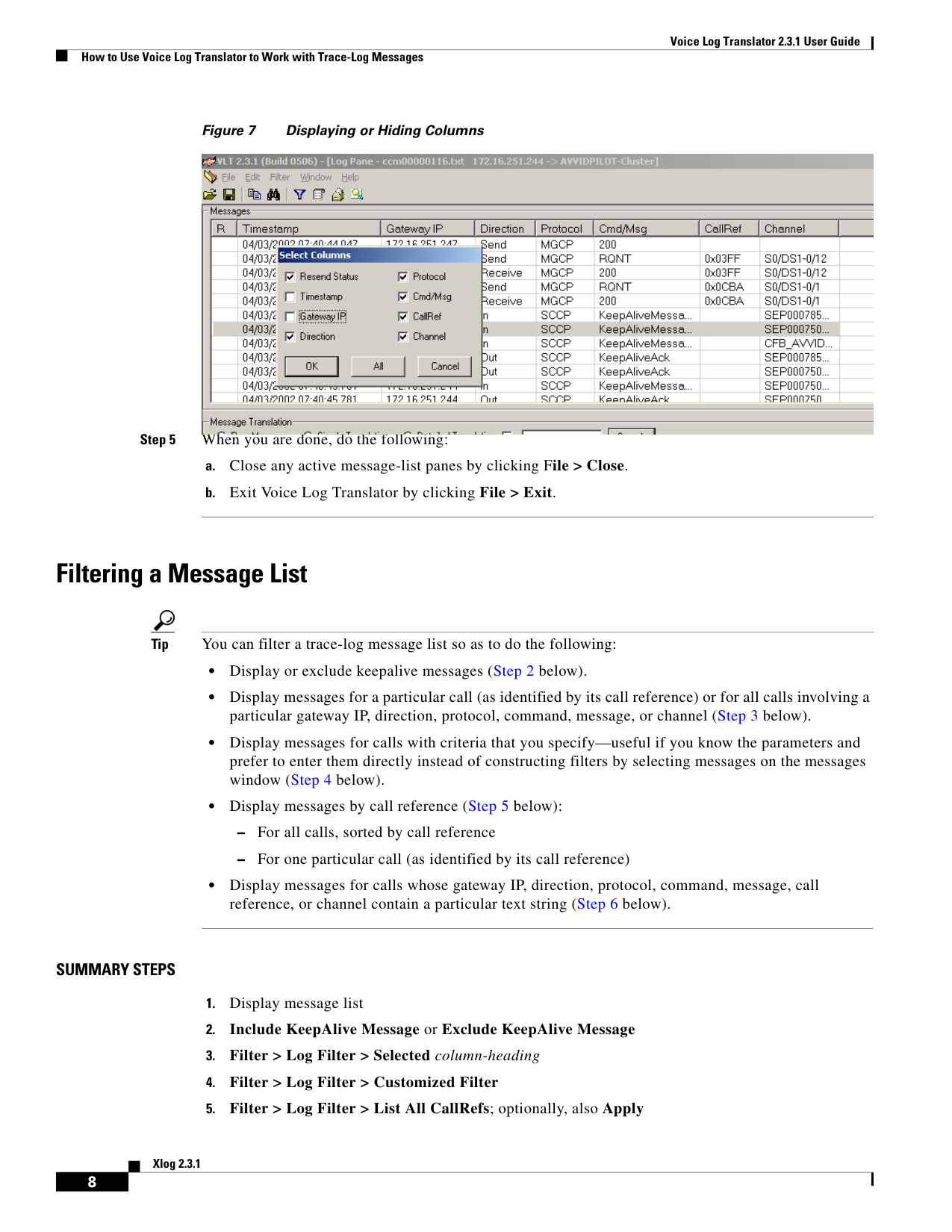
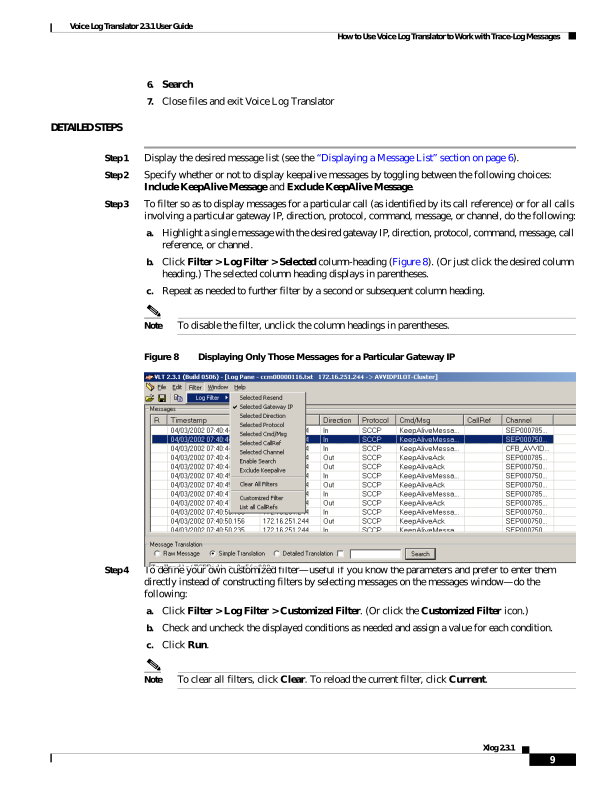
Click Filter > Log Filter > Selected column-heading (Figure 8). (Or just click the desired column
heading.) The selected column heading displays in parentheses.
c.
Repeat as needed to further filter by a second or subsequent column heading.
Note
To disable the filter, unclick the column headings in parentheses.
Figure 8
Displaying Only Those Messages for a Particular Gateway IP
Step 4
To define your own customized filter—useful if you know the parameters and prefer to enter them
directly instead of constructing filters by selecting messages on the messages window—do the
following:
a.
Click Filter > Log Filter > Customized Filter. (Or click the Customized Filter icon.)
b.
Check and uncheck the displayed conditions as needed and assign a value for each condition.
c.
Click Run.
Note
To clear all filters, click Clear. To reload the current filter, click Current.
Page 10
Voice Log Translator 2.3.1 User Guide
How to Use Voice Log Translator to Work with Trace-Log Messages
10
Xlog 2.3.1
Step 5
To filter so as to display messages by call reference, do the following:
a.
Click Filter > Log Filter > List All CallRefs.
A new message list displays all messages, sorted by protocol and call reference. It also shows
associated calling party and called party.
b.
To further filter so as to display messages for just a single call (as identified by its call reference),
do the following:
1.
From the new message list, highlight a message with the desired call reference.
2.
Click Apply.
The message list redisplays with only those messages for that call reference.
Note
This option is equivalent to Step 3 above if you click Filter > Log Filter > Selected
CallRef.
Step 6
To filter so as to display only those messages for calls whose gateway IP, protocol, command, message,
call reference, or channel contains a particular text string, do the following:
a.
In the Message Translation area, check the small check box and type the desired text string.
b.
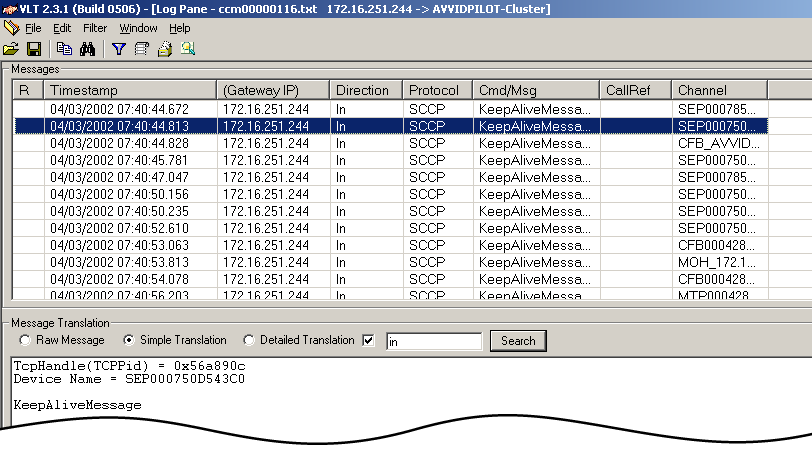
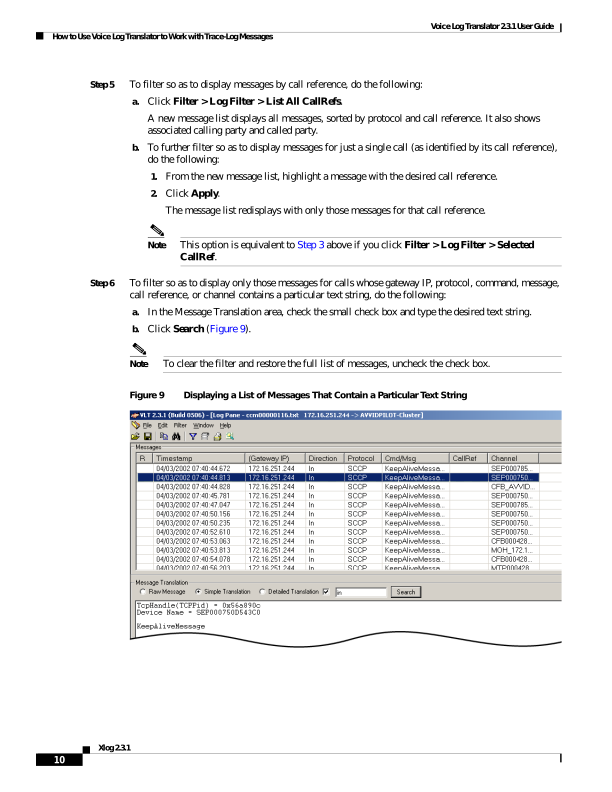
Click Search (Figure 9).
Note
To clear the filter and restore the full list of messages, uncheck the check box.
Figure 9
Displaying a List of Messages That Contain a Particular Text String
Page 11
Voice Log Translator 2.3.1 User Guide
How to Use Voice Log Translator to Work with Trace-Log Messages
11
Xlog 2.3.1
Step 7
When you are done, do the following:
a.
Close any active message-list panes by clicking File > Close.
b.
Exit Voice Log Translator by clicking File > Exit.
Working with Message Text
Tip
You can do the following with the text of a trace-log message:
•
Specify a level of translation (Step 2 below).
•
Copy message text to the clipboard (Step 3 below).
•
Search for a specific message-text string (Step 4 below).
SUMMARY STEPS
1.
Display message list
2.
Raw Message, Simple Translation, or Detailed Translation
3.
Edit > Copy
4.
Edit > Find
5.
Close files and exit Voice Log Translator
DETAILED STEPS
Step 1
Display the desired message list (see the “Displaying a Message List” section on page 6).
Step 2
Specify a level of translation by toggling among the following choices: Raw Message, Simple
Translation, and Detailed Translation (see samples of each in the “Message Translations” section on
page 5).
Step 3
To copy a raw or translated message to the clipboard, do the following:
a.
Click Edit > Copy. (Or click the Copy icon.)
b.
Highlight the text that you want to copy.
c.
Right-click and, on the popup menu, click Copy.
Step 4
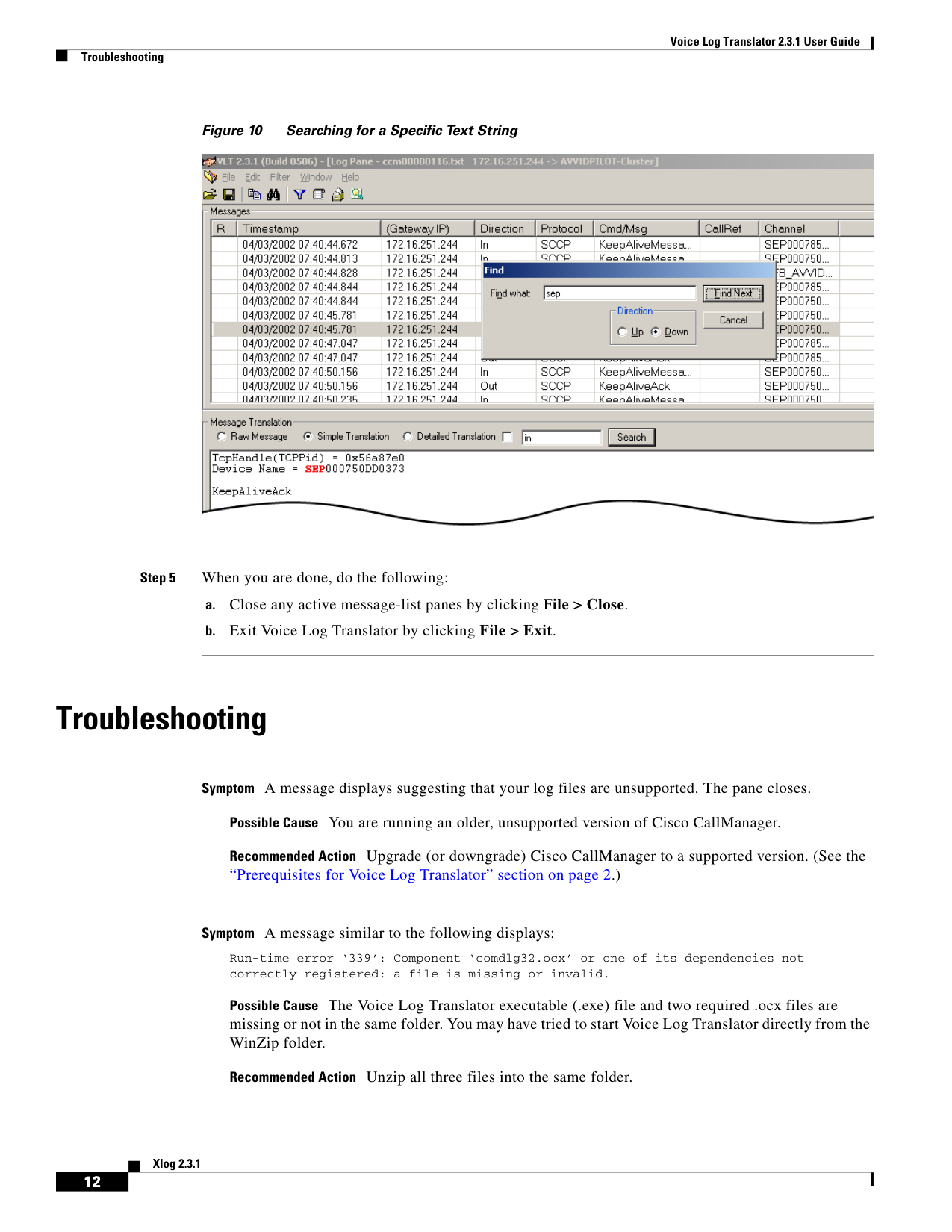
To search for a specific text string in all of the messages listed in a pane, do the following:
a.
Click Edit > Find. (Or click the Find icon.)
b.
Type a text string.
c.
Click Up or Down.
d.
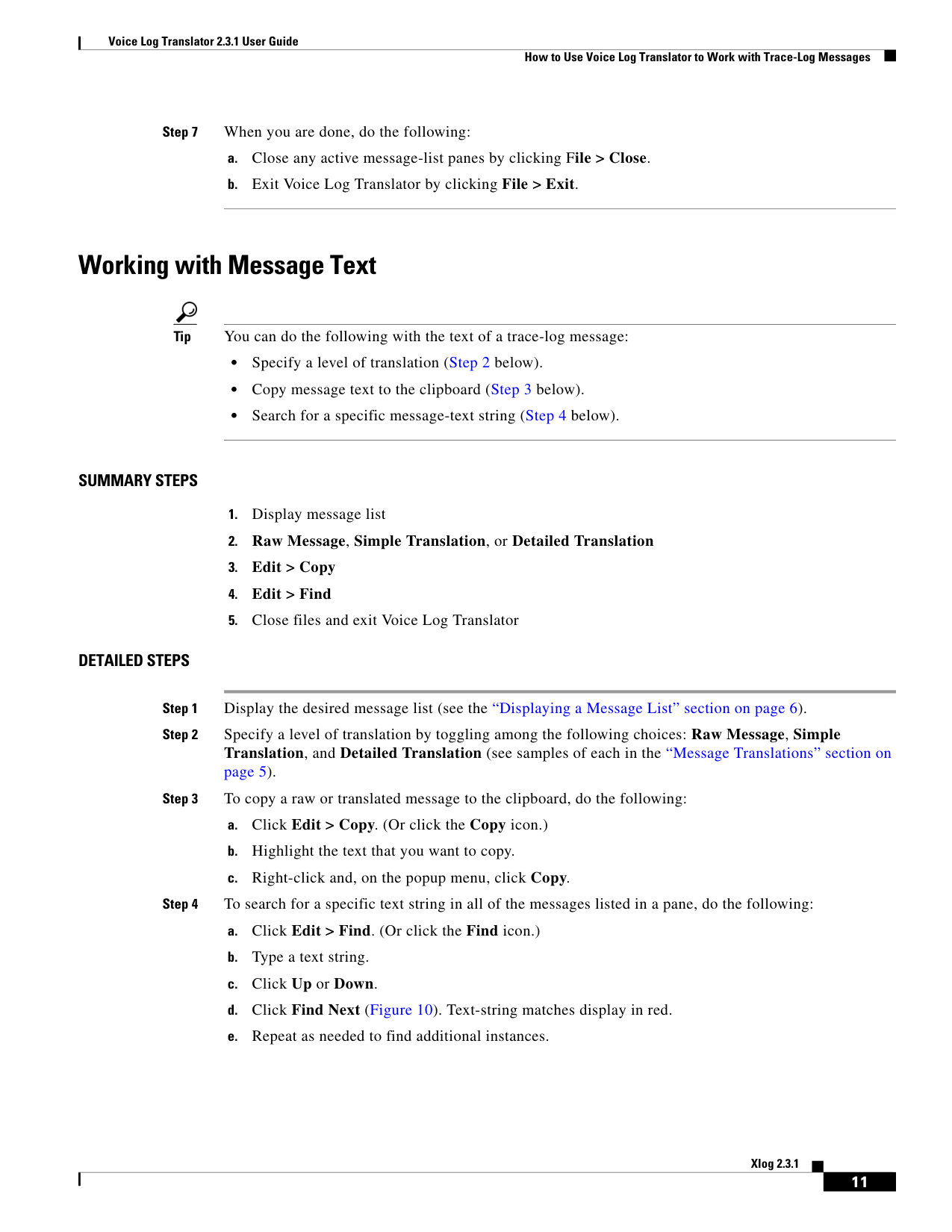
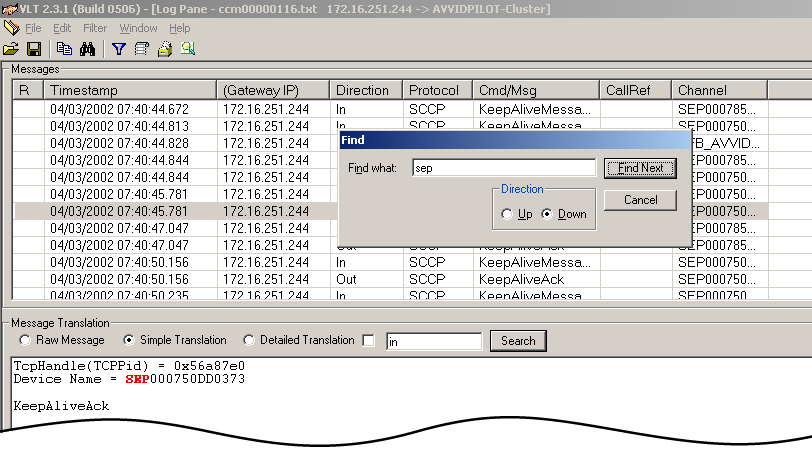
Click Find Next (Figure 10). Text-string matches display in red.
e.
Repeat as needed to find additional instances.
Page 12
Voice Log Translator 2.3.1 User Guide
Troubleshooting
12
Xlog 2.3.1
Figure 10
Searching for a Specific Text String
Step 5
When you are done, do the following:
a.
Close any active message-list panes by clicking File > Close.
b.
Exit Voice Log Translator by clicking File > Exit.
Troubleshooting
Symptom A message displays suggesting that your log files are unsupported. The pane closes.
Possible Cause You are running an older, unsupported version of Cisco CallManager.
Recommended Action Upgrade (or downgrade) Cisco CallManager to a supported version. (See the
“Prerequisites for Voice Log Translator” section on page 2.)
Symptom A message similar to the following displays:
Run-time error ‘339’: Component ‘comdlg32.ocx’ or one of its dependencies not
correctly registered: a file is missing or invalid.
Possible Cause The Voice Log Translator executable (.exe) file and two required .ocx files are
missing or not in the same folder. You may have tried to start Voice Log Translator directly from the
WinZip folder.
Recommended Action Unzip all three files into the same folder.
Page 13
Voice Log Translator 2.3.1 User Guide
Obtaining Documentation
13
Xlog 2.3.1
Symptom You can display raw but not simple-translation or detailed-translation messages.
Possible Cause The messages or their protocols are unsupported.
Recommended Action None.
Symptom The displayed message list shows only those calls at the beginning or end of a call flow.
Possible Cause Calls in the call flow span multiple log files.
Recommended Action Display the first log file in the call flow. Then append subsequent log files. (See
the “Displaying a Message List” section on page 6.)
Obtaining Documentation
Cisco documentation and additional literature are available on Cisco.com. Cisco also provides several
ways to obtain technical assistance and other technical resources. These sections explain how to obtain
technical information from Cisco Systems.
Cisco.com
•
You can access the most current Cisco documentation at
http://www.cisco.com/univercd/home/home.htm
•
You can access the Cisco website at http://www.cisco.com
•
You can access international Cisco websites at
http://www.cisco.com/public/countries\_languages.shtml
Ordering Documentation
You can find instructions for ordering documentation at
http://www.cisco.com/univercd/cc/td/doc/es\_inpck/pdi.htm
You can order Cisco documentation in these ways:
•
Registered Cisco.com users (Cisco direct customers) can order Cisco product documentation from
the Ordering tool at http://www.cisco.com/en/US/partner/ordering/index.shtml
•
Nonregistered Cisco.com users can order documentation through a local account representative by
calling Cisco Systems Corporate Headquarters (California, USA) at 408 526-7208 or, elsewhere in
North America, by calling 800 553-NETS (6387).
Page 14
Voice Log Translator 2.3.1 User Guide
Documentation Feedback
14
Xlog 2.3.1
Documentation Feedback
You can send comments about technical documentation to bug-doc@cisco.com.
You can submit comments by using the response card (if present) behind the front cover of your
document or by writing to the following address:
Cisco Systems
Attn: Customer Document Ordering
170 West Tasman Drive
San Jose, CA 95134-9883
We appreciate your comments.
Obtaining Technical Assistance
For all customers, partners, resellers, and distributors who hold valid Cisco service contracts, Cisco
Technical Support provides 24-hour-a-day, award-winning technical assistance. The Cisco Technical
Support Website on Cisco.com features extensive online support resources. In addition, Cisco Technical
Assistance Center (TAC) engineers provide telephone support. If you do not hold a valid Cisco service
contract, contact your reseller.
Cisco Technical Support Website
The Cisco Technical Support Website provides online documents and tools for troubleshooting and
resolving technical issues with Cisco products and technologies. The website is available 24 hours a day,
365 days a year at http://www.cisco.com/techsupport.
Access to all tools on the Cisco Technical Support Website requires a Cisco.com user ID and password.
If you have a valid service contract but do not have a user ID or password, you can register at
http://tools.cisco.com/RPF/register/register.do.
Submitting a Service Request
Using the online TAC Service Request Tool is the fastest way to open S3 and S4 service requests. (S3
and S4 service requests are those in which your network is minimally impaired or for which you require
product information.) After you describe your situation, the TAC Service Request Tool automatically
provides recommended solutions. If your issue is not resolved using the recommended resources, your
service request will be assigned to a Cisco TAC engineer. The TAC Service Request Tool is located at
http://www.cisco.com/techsupport/servicerequest.
For S1 or S2 service requests or if you do not have Internet access, contact the Cisco TAC by telephone.
(S1 or S2 service requests are those in which your production network is down or severely degraded.)
Cisco TAC engineers are assigned immediately to S1 and S2 service requests to help keep your business
operations running smoothly.
To open a service request by telephone, use one of the following numbers:
Asia-Pacific: +61 2 8446 7411 (Australia: 1 800 805 227)
EMEA: +32 2 704 55 55
USA: 1 800 553 2447
For a complete list of Cisco TAC contacts, go to http://www.cisco.com/techsupport/contacts.
Page 15
Voice Log Translator 2.3.1 User Guide
Obtaining Additional Publications and Information
15
Xlog 2.3.1
Definitions of Service Request Severity
To ensure that all service requests are reported in a standard format, Cisco has established severity
definitions.
•
Severity 1 (S1)—Your network is “down,” or there is a critical impact to your business operations.
You and Cisco will commit all necessary resources around the clock to resolve the situation.
•
Severity 2 (S2)—Operation of an existing network is severely degraded, or significant aspects of
your business operation are negatively affected by inadequate performance of Cisco products. You
and Cisco will commit full-time resources during normal business hours to resolve the situation.
•
Severity 3 (S3)—Operational performance of your network is impaired, but most business
operations remain functional. You and Cisco will commit resources during normal business hours
to restore service to satisfactory levels.
•
Severity 4 (S4)—You require information or assistance with Cisco product capabilities, installation,
or configuration. There is little or no effect on your business operations.
Obtaining Additional Publications and Information
Information about Cisco products, technologies, and network solutions is available from various online
and printed sources.
•
Cisco Marketplace provides a variety of Cisco books, reference guides, and logo merchandise. Visit
Cisco Marketplace, the company store, at http://www.cisco.com/go/marketplace/.
•
The Cisco Product Catalog describes the networking products offered by Cisco Systems, as well as
ordering and customer support services. Access the Cisco Product Catalog at
http://cisco.com/univercd/cc/td/doc/pcat/.
•
Cisco Press publishes a wide range of general networking, training and certification titles. Both new
and experienced users will benefit from these publications. For current Cisco Press titles and other
information, go to Cisco Press at http://www.ciscopress.com.
•
Packet magazine is the Cisco Systems technical user magazine for maximizing Internet and
networking investments. Each quarter, Packet delivers coverage of the latest industry trends,
technology breakthroughs, and Cisco products and solutions, as well as network deployment and
troubleshooting tips, configuration examples, customer case studies, certification and training
information, and links to scores of in-depth online resources. You can access Packet magazine at
http://www.cisco.com/packet.
•
iQ Magazine is the quarterly publication from Cisco Systems designed to help growing companies
learn how they can use technology to increase revenue, streamline their business, and expand
services. The publication identifies the challenges facing these companies and the technologies to
help solve them, using real-world case studies and business strategies to help readers make sound
technology investment decisions. You can access iQ Magazine at
http://www.cisco.com/go/iqmagazine.
•
Internet Protocol Journal is a quarterly journal published by Cisco Systems for engineering
professionals involved in designing, developing, and operating public and private internets and
intranets. You can access the Internet Protocol Journal at http://www.cisco.com/ipj.
•
World-class networking training is available from Cisco. You can view current offerings at
http://www.cisco.com/en/US/learning/index.html.
Page 16
Voice Log Translator 2.3.1 User Guide
Obtaining Additional Publications and Information
16
Xlog 2.3.1
Copyright © 2004 Cisco Systems, Inc. All rights reserved.
CCVP, the Cisco logo, and Welcome to the Human Network are trademarks of Cisco Systems, Inc.; Changing the Way We Work, Live, Play, and Learn is
a service mark of Cisco Systems, Inc.; and Access Registrar, Aironet, Catalyst, CCDA, CCDP, CCIE, CCIP, CCNA, CCNP, CCSP, Cisco, the Cisco
Certified Internetwork Expert logo, Cisco IOS, Cisco Press, Cisco Systems, Cisco Systems Capital, the Cisco Systems logo, Cisco Unity,
Enterprise/Solver, EtherChannel, EtherFast, EtherSwitch, Fast Step, Follow Me Browsing, FormShare, GigaDrive, HomeLink, Internet Quotient, IOS,
iPhone, IP/TV, iQ Expertise, the iQ logo, iQ Net Readiness Scorecard, iQuick Study, LightStream, Linksys, MeetingPlace, MGX, Networkers,
Networking Academy, Network Registrar, PIX, ProConnect, ScriptShare, SMARTnet, StackWise, The Fastest Way to Increase Your Internet Quotient,
and TransPath are registered trademarks of Cisco Systems, Inc. and/or its affiliates in the United States and certain other countries.
All other trademarks mentioned in this document or Website are the property of their respective owners. The use of the word partner does not imply a
partnership relationship between Cisco and any other company. (0711R)