Document Metadata
Format: PDF
Title: TR-069 Settings on the SPA100 Series
Page 1
TR-069 Settings on the SPA100 Series
Objective
Technical Report 069 (TR-069) allows you to establish an Auto-Configuration Server (ACS).
Internet Service Providers (ISP) use an ACS to automatically configure your devices
remotely. The feature allows the service providers and users to remotely configure the
device without user intervention. Through the use of TR-069 the terminals can get in contact
with the Auto Configuration Servers and establishes a connection. This article explains how
to configure the TR-069 settings on the SPA100 Series Analog Telephone Adapter (ATA).
Applicable Devices
• SPA100 Series
Software Version
• v1.1.0
TR-069 Configuration
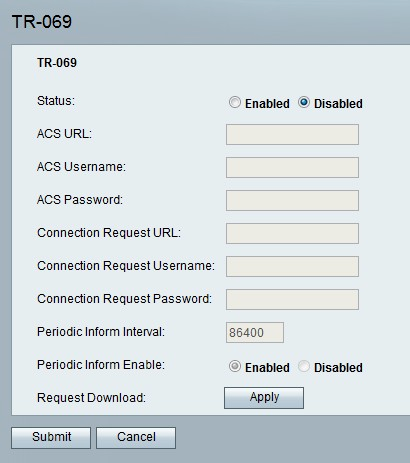
Step 1. Log in to the web configuration utility and choose Administration > Management >
TR-069. The TR-069 page opens:
Page 2
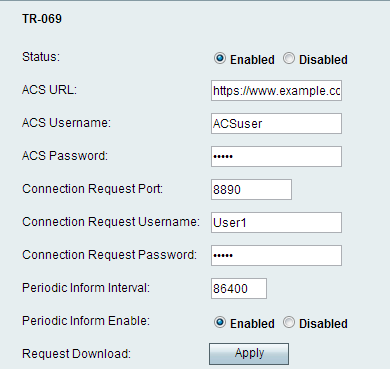
Step 2. Click the Enabled radio button to enable TR-069 on the device in the Status field.
Step 3. In the ACS URL field, enter the ACS URL provided by the ISP in the format of
protocol://host:port/path.
• Protocol — This is either http or https. Enter either http or https in the ACS URL field that
is provided by your ISP.
• Host — This is a Fully Qualified Domain Name (FQDN) or IP address such as
www.example.com.
• Port — This is optional and given by the ISP.
• Path — This is given by the ISP.
Step 4. In the ACS Username field, enter the ACS username provided by the ISP.
Step 5. In the ACS Password field, enter the password associated with the username.
Note: The configuration utility automatically enters information in the Connection Request
URL field so there is no need to enter it manually.
Step 6. Enter the connection request username for the ACS to initiate the connection in the
Connection Request Username field. This acts as the username for the ACS when a
connection is initiated and the user is asked for security credentials.
Step 7. Enter the connection request password for the ACS in the Connection Request
Password field. This acts as the password for the ACS when a connection is initiated and the
user is asked for security credentials.
Step 8. In the Periodic Inform Interval field, enter the time in seconds between when the ATA
reconnects to ACS.
Step 9. Click the Enabled radio button in the Periodic Inform Enable field to enable Periodic
Inform so it informs the user periodically about the connection setup, or click the Disabled

Page 3
radio button to disable it.
Step 10. (Optional) Click the Apply button in the Request Download field to have the ATA
request the ACS for the download RPC.
Step 11. Click Submit to apply changes or Cancel to discard them.