Document Metadata
Format: PDF
Title: Configure and Troubleshoot Finesse IP Phone Agent (FIPPA) in UCCX
Page 1
Configure and Troubleshoot Finesse IP Phone
Agent (FIPPA) in UCCX
Contents
Introduction
Prerequisites
Requirements
Components Used
Background Information
Architecture
Configuration
Manual Login
OneButton Login
Common Issues
No Call Variables Appear due to Phone URL Authentication Error
Idle Phones Display “Host not found”
Not supported phones with FIPPA.
Troubleshoot
Log Collection
Related Information
Introduction
This document describes how to configure and troubleshoot Finesse IP Phone Agent (FIPPA) on Unified
Contact Center Express (UCCX)
Prerequisites
Requirements
Cisco recommends that you have knowledge of these topics:
UCCX
•
Cisco Unified Communications Manager (CUCM)
•
Components Used
The information in this document is based on these software and hardware versions:
UCCX 11.0(1).
•
IP Phones.
•
The information in this document was created from the devices in a specific lab environment. All of the
devices used in this document started with a cleared (default) configuration. If your network is live, ensure
Page 2
that you understand the potential impact of any command.
Background Information
From UCCX 11.X onwards, Cisco Agent Desktop (CAD - the calabrio product suite) has been deferred and
Cisco Finesse is the only Agent Desktop product suite available on UCCX. In addition, there no desktop
services or CCX Lightweight Access Point (LDAP) exist. This was previously accesible via the Cisco
Desktop Administrator (CDA) WebGUI .
There is only a Cisco Finesse appliance that co-resides on UCCX and handles both Web browser based
Agent Desktop as well as IP Phone Agent - now packaged as Finesse IP Phone Agent (FIPPA). The Cisco
Finesse Tomcat is the only service exposed on the CCX Serviceability page. (Along with support services,
the CCX Engine and the CCX Notification service that are needed to log in agents)
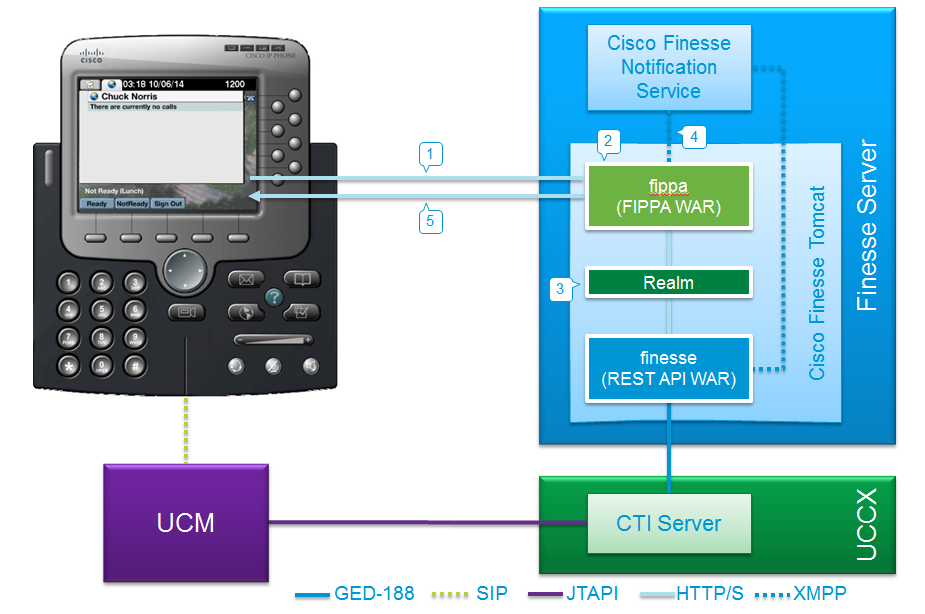
Architecture
The IP Phone makes requests and gets responses over Hypertext Transfer Protocol (HTTP) in the
form of CiscoIPPhone XML Objects. These responses are directly used to construct the FIPPA
Screens.
•
The heart of FIPPA is the FIPPA WAR which manages all the FIPPA Sessions. It uses the same
REST Application Programming Interface (APIs) and Extensible Messaging and Presence Protocol
(XMPP) interfaces used by the Desktop.
•
The FIPPA WAR makes REST APIs requests that are authorized to use the same Realm used for the
Finesse Desktop.
•
Thus all the configurations for wrap up codes, reason codes, etc for FIPPA are the same as Finesse
Desktop.
•
The FIPPA WAR gets event notifications with pure XMPP (unlike the BOSH the Desktop uses).
•
The IP Phone acts as a pseudo-HTTP Server as messages are pushed via HTTP. This is in the form of
a URL that the IP Phone, in turn, requests.
•
Page 3
Configuration
Manual Login
Step 1. Set the following parameters in Unified CM:
Set theWeb Accessparameter toEnabled.
•
Set theHTTPS Serverparameter toHTTP and HTTPS Enabled.
•
To set these parameters in Cisco Unified CM Administration, use either of the following pages:
Phone Configuration page (Product Specific Configuration portion of page): chooseDevice > Phone.
•
Enterprise Phone Configuration page: chooseSystem > Enterprise Phone Configuration.
•
Step 2. Configure FIPPA Application user.
You must configure a CUCM application user for FIPPA with the roles Standard CTI Enabled and
Standard CTI Allow Control of All Devices.
•
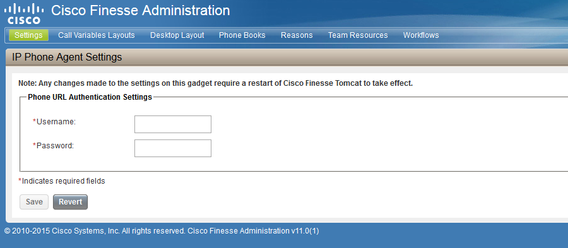
This application user is created on CUCM first, and the details are entered on the CFAdmin page as a
part of the Phone Authentication URL page. This is mandatory to log into FIPPA.
•
The URL for this configuration is (cfadmin) - https://UCCX-IP-or-FQDN:8445/cfadmin
•
Enter the application username and password here (must be alphanumeric).
•
Page 4
Click Save.
•
Restart the Cisco Finesse service: utils service restart Cisco Finesse Tomcat
•
Step 3. Add the Agent Phone and UDP under the FIPPA Application user.
On CUCM, ensure that the agent phone (device) and User Device Profile (UDP) is added under the
FIPPA Application user.
•
Note: FIPPA application user was created to offload FIPPA log in / device requests to this user
instead of putting load on the RMCM Application user. However in theory, either of them can be
interchangeably used for device control. It is important to note that the Phone Authentication URL on
CFAdmin (Finesse Admin) is the Application user on CUCM that handes FIPPA requests. In our case,
FIPPA Application User as per reccomended practices.
Note: For UCCX deployments using Finesse IP Phone Agent (FIPPA) from 11.0(1) onwards, the User
Device Profile (UDP) must be associated with the FIPPA Application User along with the physical
phones for agents using Extension Mobility. Per the UCCX release notes, only the agent UDP should
be associated to the RMCM application user.
Step 4. Create the FIPPA phone service.
Configure the Agent Phone and End user for UCCX (Assign IPCC Extension to the End User).
•
Finesse Tomcat must be [STARTED].
•
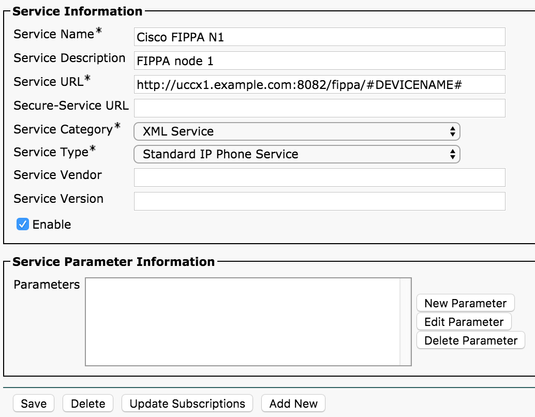
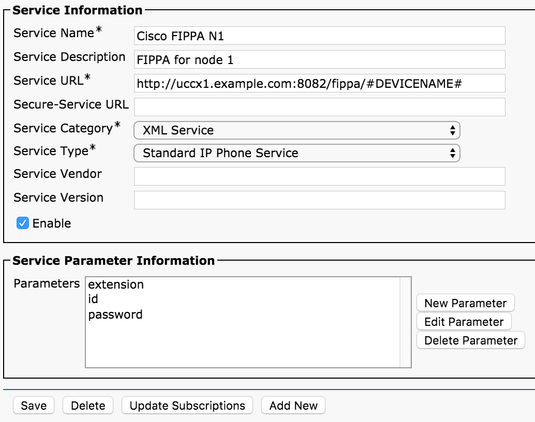
Configure the FIPPA Service as an IP Phone Service. There should be one service per UCCX server.
Agents will need to log into FIPPA with the service corresponding to the master UCCX server.
•
This is done on CUCM admin > Device > Device Settings > Phone Services.
•
URL: http://<UCCX_FQDN>:8082/fippa/#DEVICENAME#
where<UCCX_FQDN>is the fully qualified domain name (FQDN) of your UCCX server.

Page 5
Step 5. Associate the service to the phone.
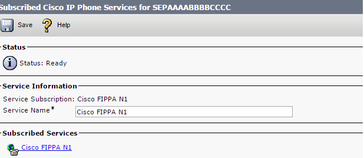
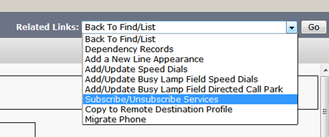
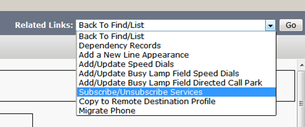
Navigate to the phone on the CUCM Device > Phone and subscribe the FIPPA service to the phone,
as shown in the image:
•
Step 6. Configure Wrap Up codes or Reasons (optional).
All Reason codes, wrap up codes, etc must be configured as a part of Finesse Admin (cfadmin).
•
All Enterprise variables are configured on Finesse Admin (cfadmin).
•
Page 6
This is same as Cisco Finesse agent desktop.
•
URL: https://UCCX-IP-or-FQDN:8445/cfadmin
One Button Login
This is a popular method of FIPPA Configuration.
All the steps are similar including the URL of Finesse. The only difference is the existence of service
parameters under the IP Phone Service, as well as the Phone Subscription page (Subscribe/ Unsubscribe
services). Only the additional configuration will be demonstrated.
Step 1. Add service parameters to the FIPPA phone service.
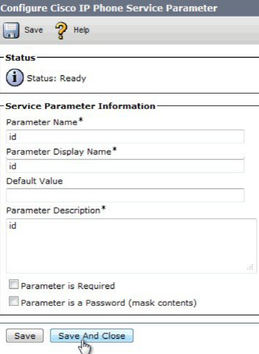
Under CUCM admin > Device > Device Settings > Phone Services access the FIPPA service(s).
Enter each of the parameter names in lowercase:
id
•
extension
•
password
•
Note: One Button Sign In is not supported with enterprise subscriptions.
The values entered are the exact query string parameters used for the subscription URL.

Page 7
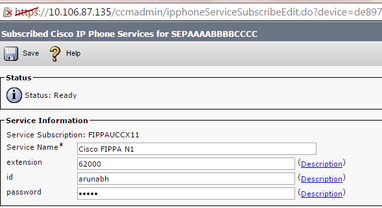
Step 2. Navigate to the FIPPA service(s) the phone is subscribed to and set the extension, id, and password
parameters corresponding to the agent.
Navigate to the phone on the CUCM Device > Phone and subscribe the FIPPA service to the phone.
•
•
Enter the values of the one button Login for the URL parameters, as shown in the image:
Common Issues
Page 8
No Call Variables Appear due to Phone URL Authentication Error
Error:
“Phone URL authentication username or password is incorrect in the IP Phone Agent settings. Contact you
Note: The same error appears on the IP Phone if the supervisor forces an agent to sign out from the Team
Solution :
Check that the Phone URL Authentication Settings entered in the IP Phone Agent Settings gadget
match those configured for the application user in Unified CM.
•
Also check that the agent extension is listed as a Controlled Device for the application user in Unified
CM.
•
Refer for more troubleshoot steps:
•
Idle Phones Display “Host not found”
Error:
“Error” and “Host not found”
Or
“Idle Application” and “Host not found”
Solution :
If you have Idle Display URL, be sure that the URL is correct. If the URL uses FQDN, ensure that the
DNS server can resolve this FQDN.
•
If you do not require the Idle Display, ensure that there is no Idle Display URL configured for the
phone. Also ensure that the Idle Timer field is blank.
•
Alternatively, if you use an Auto-registration Template in Unified CM, see the following for a
potential resolution:
•
https://supportforums.cisco.com/document/12332916/service-applet-pops-phone-idle-application-
showing-phone-host-not-found
•
Not supported phones with FIPPA.
Solution : check Compatibility of phones to use FIPPA:
https://www.cisco.com/c/en/us/td/docs/voice_ip_comm/cust_contact/contact_center/crs/express_compatibility/matrix
https://www.cisco.com/c/en/us/td/docs/voice_ip_comm/cust_contact/contact_center/crs/express_compatibility/matrix
Troubleshoot
Check and verify the configuration.
•
Finesse Tomcat must be IN_SERVICE on the node you try to Log in.
•
Page 9
https://UCCX-FQDN:8445/finesse/api/SystemInfo
FIPPA XML layout must be returned when accessed by a Web Browser.
•
http://UCCX-IP-or-FQDN:8082/fippa/#DEVICENAME#
Example: Open the URL in a Web Browser
http://UCCX-IP-or-FQDN:8082/fippa/SEPAAAABBBBCCCC
To actually test log in with a sample agent, one can test it in the web browser as well.
•
Example: For agent device SEPAAAABBBBCCCC, Agent ID=arunabh, password=cisco, Extension=62000
http://UCCX-IP-or-
FQDN:8082/fippa/SEPAAAABBBBCCCC/login?password=cisco&extension=62000&id=arunabh
Log Collection
The logs for FIPPA are named as FIPPA logs located at Cisco Finesse log folder.
•
<#root>
CLI :
file list activelog /desktop/logs/fippa/*
file get activelog /desktop/logs/fippa/*
From Real Time Monitoring Tool (RTMT) - Collect the Cisco Finesse logs.
•
This contains the Finesse localhost logs and the FIPPA logs.
•
Messages are also seen when agent log in treatment by the Finesse Tomcat - CCX Engine logs can
also be analyzed.
•
Related Information
Chapter: Finesse IP Phone Agent Tasks
•
Guidelines for Agent Phone Configuration
•