Document Metadata
Format: PDF
Title: Troubleshoot CM Telephony Subsystem and Application Manager Service Partial Service Issue
Page 1
Troubleshoot CM Telephony Subsystem and
Application Manager Service Partial Service
Issue
Contents
Introduction
Prerequisites
Requirements
Components Used
Background Information
CM Telephony Subsystem
Most Common Reasons
Troubleshoot
Application Manager Service
Troubleshoot
Introduction
This document describes how to troubleshoot the CM Telephony Subsystem and Application
Service Partial Service issue.
Prerequisites
Requirements
Cisco recommends that you have knowledge of these topics:
Cisco Unified Contact Center Express (UCCX)
G
Cisco Unified Communications Manager (CUCM)
G
Real Time Monitoring Tool
G
Real Time Reporting Tool
G
Components Used
This document is not restricted to specific software and hardware versions.
The information in this document was created from the devices in a specific lab environment. All of
the devices used in this document started with a cleared (default) configuration. If your network is
live, ensure that you understand the potential impact of any command.
Background Information
Page 2
UCCX Engine is a part of two manager services:
- Subsystem Manager
- Manager Manager
Unified CM Telephony Subsystem is a sub-component under Subsystem Manager.
Application Manager Service is a sub-component under Manager Manager.
CM Telephony Subsystem
CM Telephony Subsystem is a JTAPI client where you can provide Unified CM Telephony provider
information, Computer Telephony Interface (CTI) port group information, Unified CM Telephony
trigger information, and resynchronize Unified CM Telephony information.
Any communication between UCCX and CUCM resides on JTAPI. CTI Manager on CUCM
responds to the JTAPI requests from UCCX.
JTAPI provider is created on UCCX which is replicated on the CUCM.
Quick Check:
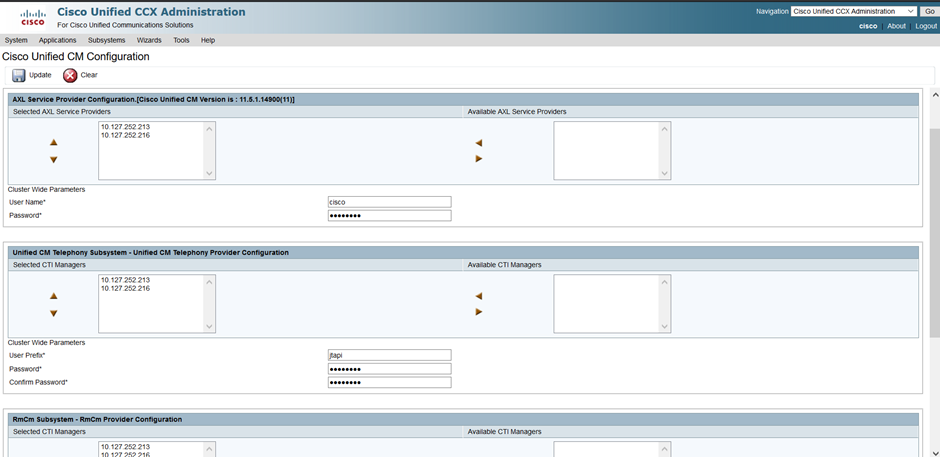
Log in to the CCX Administration page. Navigate to System > CM Configuration. It lists
information about axl, jtapi, and rmcm providers. The JTAPI Username and password created on
this page get replicated on CUCM under the application user as shown in the image.
Note: It is always recommended to point the local CUCM node on top of the list followed by the
remote CUCM node. Whenever an agent creates a CTI PORT or ROUTE POINT it gets assigned
under the respective JTAPI user on CUCM.
Quick Check:

Page 3
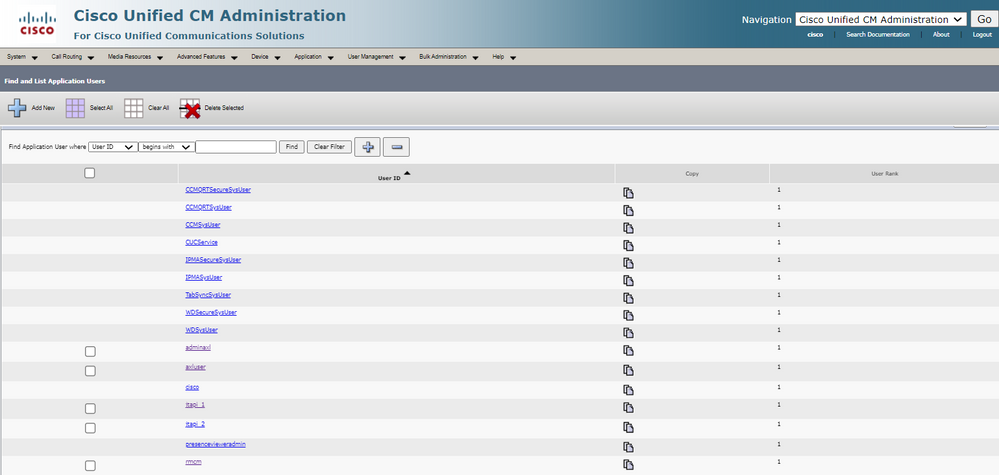
Log In to CUCM Admin Page > User Management > Application User in order to verify if the
JTAPI and rmcm providers created on UCCX got reflected on CUCM.
Most Common Reasons
Some of the CTI ports or triggers appear to be unregistered
G
In case of misconfiguration of the trigger on CCX
G
Trigger on the application has no call control group
G
The same translation pattern exists as the trigger
G
CTI Route Point with/without the partition and device pool as per the network configuration
G
Trigger deleted from CUCM
G
Tip: Whenever you tend to remove some trigger or cti port completely follow these
recommendations.
Delete triggers from UCCX - this process automatically removes corresponding CTI Route Points
on CUCM
Delete control groups from UCCX (CTI ports) - this automatically removes corresponding phone
devices (CTI Ports) from CUCM
Troubleshoot
Method 1:
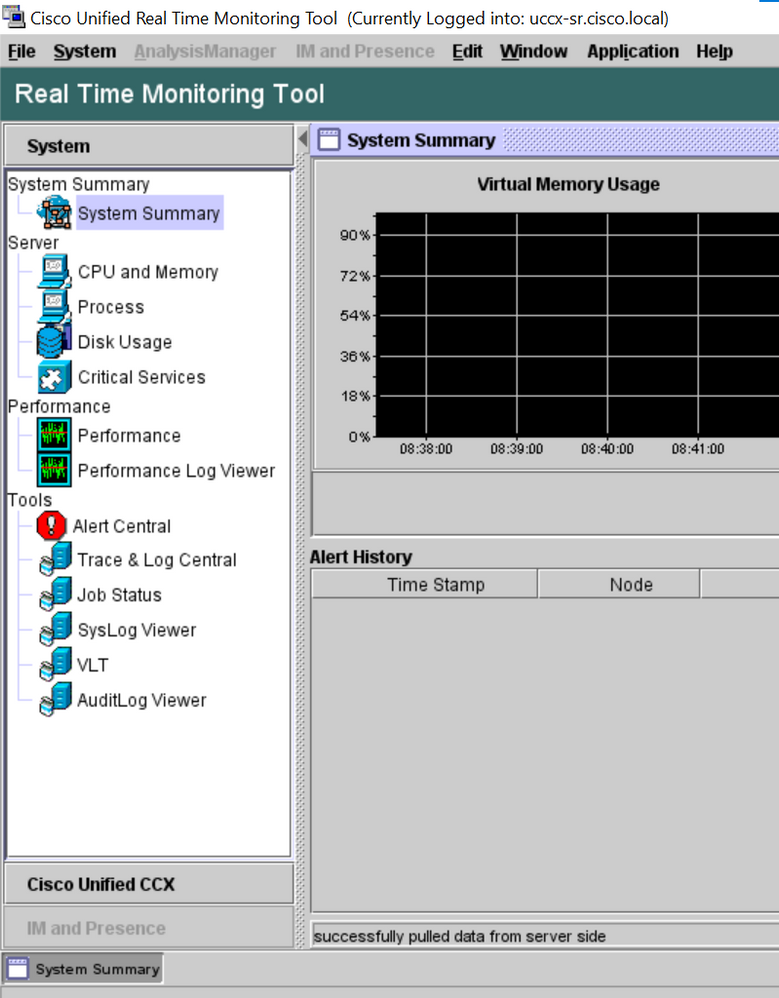
With RTMT Tool, you can easily verify the trigger/cti port registration status and summary. Log in
to the RTMT with admin credentials. Select Cisco Unified CCX on the bottom left side of the
RTMT page.

Page 4
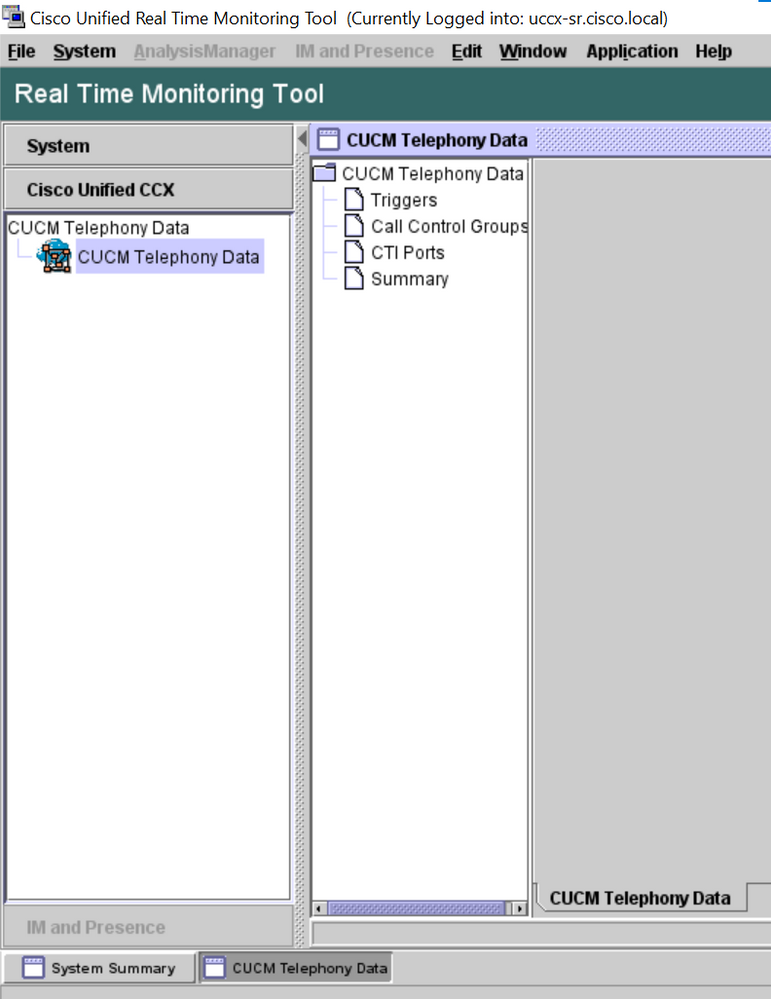
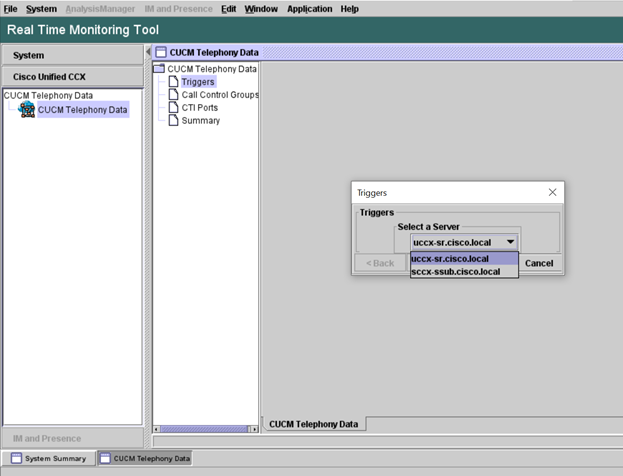
Select CUCM Telephony Data. Few options get listed out such as Triggers, Call Control groups,
CTI ports, and Summary.

Page 5
Select one of the options in order to verify its status of it. For example, Triggers. A dialog box pops
out which has the option to choose the server (in the case of HA, both pub and sub are listed).
Choose a server name and click Finish as shown in the image.

Page 6
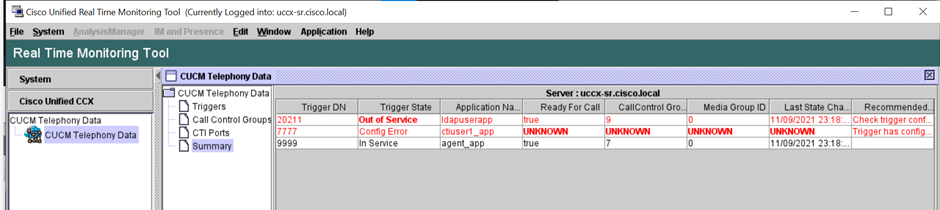
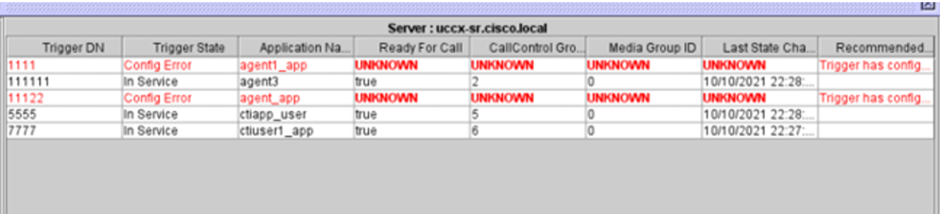
In this example, the triggers option was selected, so the triggers and their respective status along
with recommendations are shown.
Summary status when the summary option is selected.



Page 7
Call Control Groups status.
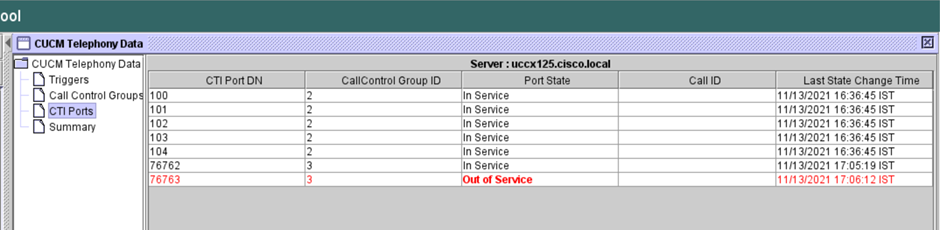
CTI Ports status.
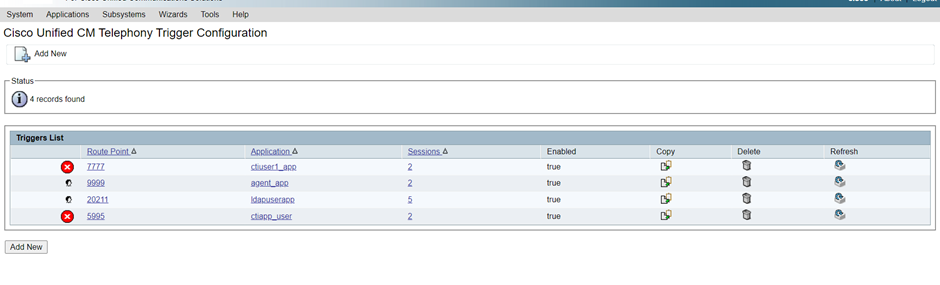
Trigger status can be verified from the CCX Admin page > Subsystems > Triggers as shown in
the image.
Method 2:
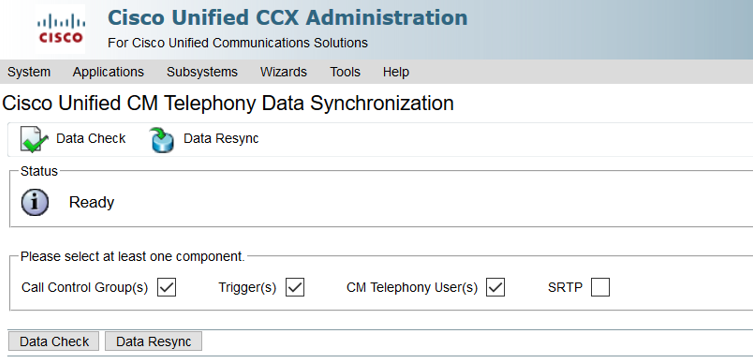
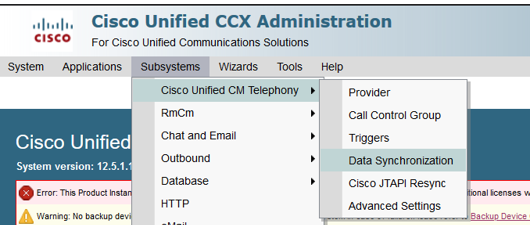
From the CCX Admin page, you can perform data checks and data resync. Log in to CCX
Administration Page > Cisco Unified CM Telephony > Data Synchronization as shown in the
image.




Page 8
Select Triggers, Call Control Groups, CM Telephony Users, and select Data Check this takes a
considerable amount of time based on the number of triggers, CCG, and users configured on the
server.
The Data check option displays the status of selected components. Once the proper action is
taken against the errors, you can perform Data Resync which is recommended to run during less
call volume.
Method 3:
In case there are no errors with any components. Check the CM configuration page of UCCX for a
list of providers and restart CTI service on all those CUCM providers followed by CCX Engine
restart on UCCX nodes.
Method 4:
Log in to RTMT > Trace and Configuration > Collect Logs.


Page 9
UCCX:
Cisco Unified CCX Engine (MIVR)
G
JTAPI logs
G
CUCM:
Callmanager
G
CTI Manager
G
Common Errors on RTMT:
Problem 1:
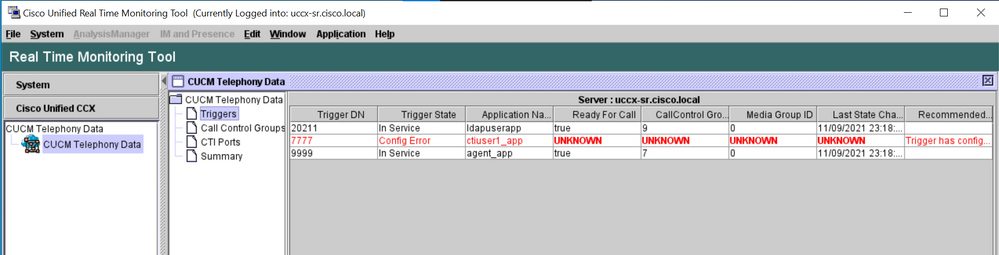
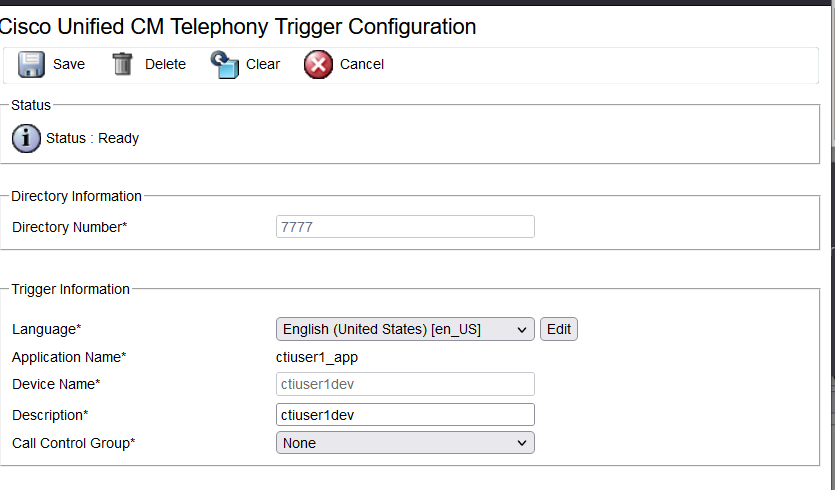
Trigger 7777 has a configuration error on Trigger state, Call Control Group is Unknown.
Verify the trigger status on the CCX Admin page. Navigate to Subsystems > Cisco Unified CM
Telephony >Trigger.
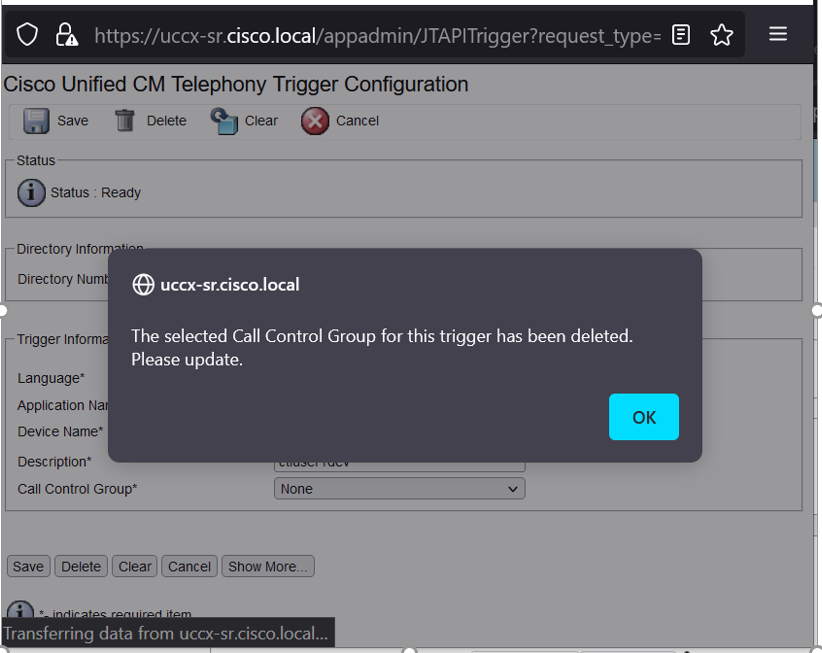
As soon as the trigger is selected a dialog box pops up on the screen.

Page 10
Click OK and notice that there is no call control group added here.


Page 11
Solution:
Update the call control group from the drop-down list. Verify trigger status. If the issue persists
restart CTI Manager Service on CUCM and CCX Engine on UCCX
Problem 2:
Trigger as out of service appears in 2 scenarios. Either the CTI Route point got deleted on CUCM
or the directory number on the CTI route point does not exist.
Scenario 1:
Cause: On CUCM the CTI route point is deleted.
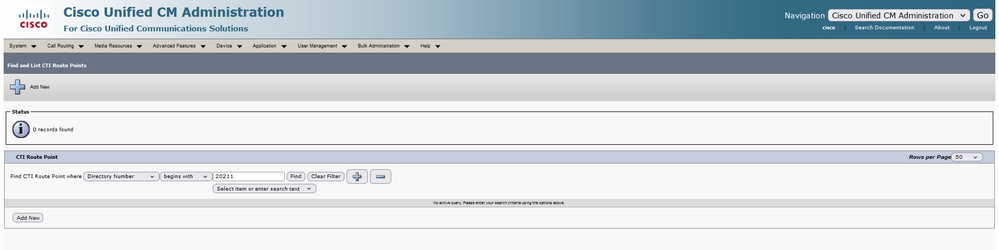
Log In to the CM Admin page > Device > CTI Route Point and check whether the route point
exists. In this scenario, the route point listed on rtmt does not exist as shown in the image.
However, the trigger exists on CCX.
Perform Data check on Cisco Unified CM Telephony Data synchronization page and observe the
error as "Could not Create on Cisco Unified CM".
The possible reason would be the route point was deleted but the directory number still exists on
CUCM.
Log in to the CM Admin page, select Call Routing > Route Plan Report and search with
directory number-->click delete
Navigate back to the CCX admin page, Subsystems > Cisco Unified CM Telephony > Data
Synchronization > Data Resync, or recreate the CTI Route point on CUCM with the same device
name if that specific route point/trigger is required.
If the issue persists restart CTI Manager Service on CUCM and CCX Engine on UCCX.





Page 12
Scenario 2:
Cause: The directory number 20211 is deleted on CUCM or the device is dissociated from the
directory number.
In such a scenario, CTI route point appears under device > CTI route point. But, you can notice
that the extension does not exist. Perform Data Check on UCCX shows the same error as the
previous scenario "Doesn't exist on Cisco Unified CM" but for Director Number.
Solution:
Navigate to the respective CTI route point and add the directory number on CUCM or perform data
resync on UCCX.
If the issue persists, restart CTI Manager Service on CUCM and CCX Engine on UCCX.
Problem 3:
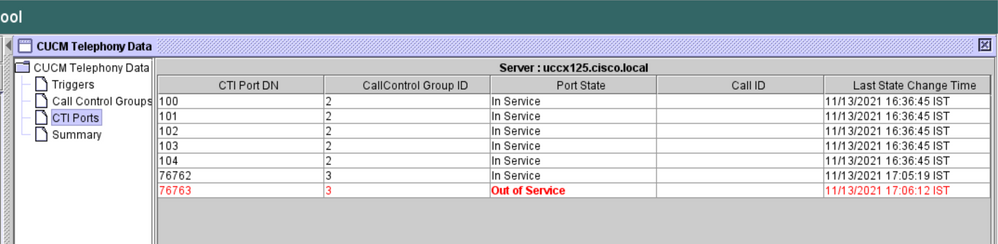
CTI PORT status appears as out of service:
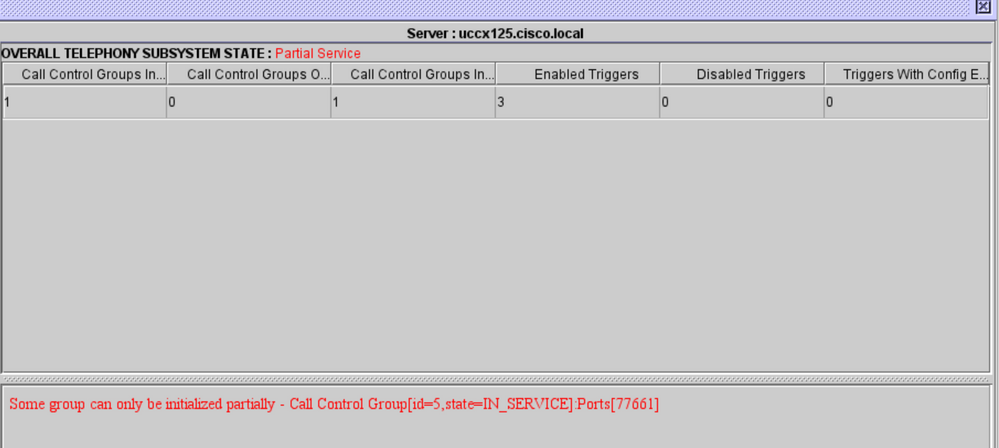
Call Control group associated with respective CTI PORT shows PARTIAL SERVICE.
Similarly, the summary page includes the error with CTI port 77661 on-call control group id=5.





Page 13
Cause: The CTI port was dissociated from the device or deleted on CUCM.
Solution:
Restart CCX Engine if that did not fix the issue. Recreate the affected call control group, and
restart CTI Manager service on CUCM and CCX Engine on UCCX.
Application Manager Service
Under Application Management particularly you can add, configure, copy, delete, or refresh a
specific application, associate trigger, script, and other parameters.
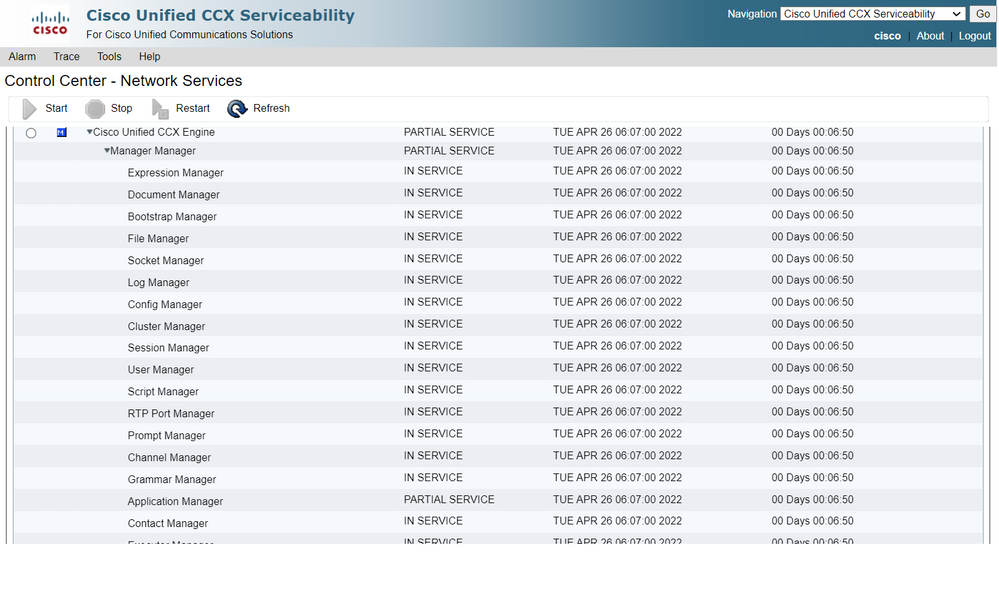
The image represents the Application manager status as a partial service.

Page 14
The most common reasons for Application Manager service partial service are:
The script does not exist on script management which was assigned to an application earlier
G
Invalid Script
G
Application unable to load a particular script
G
Troubleshoot
Method 1:
With Real Time Reporting Tool the affected application can be identified easily.
Real Time Reporting Tool (RTR) is a Java application and hence requires Java Runtime
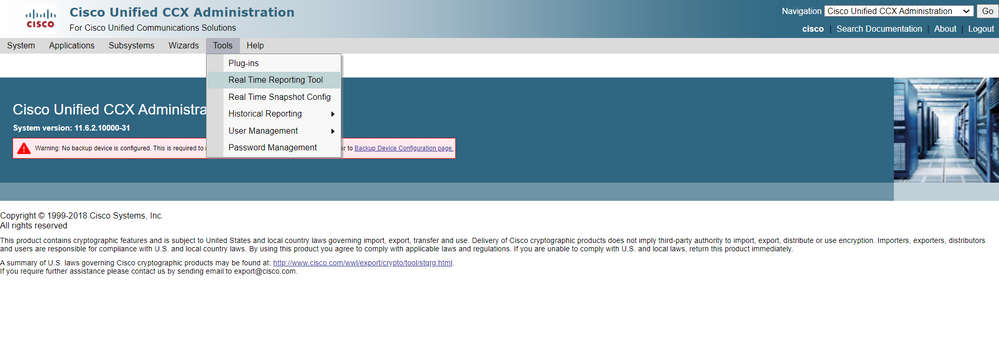
Environment (JRE) to be installed on the client machine. Log in to CCX Administration page and
navigate to Tools > Real Time Reporting and select Download.
Note: To run the Real Time Reporting client, in the Security tab of the Java Control Panel, add the


Page 15
fully qualified domain name (FQDN) of the Unified CCX server to the Exception Site List. For a
high availability deployment, add the FQDN of both the Unified CCX servers to the Exception Site
List.
- Launch RTR Application on the system and log In with the Unified CCX Administrator or
Supervisor credentials.
- Navigate to Report > Applications and check the last column Valid.
For the problematic application, the flag "valid" appears as false
Method 2:
With the help of logs. Trace level setting
Navigate to Cisco Unified CCX Serviceability > Trace > Configuration. Select Cisco Unified
CCX Engine and set the traces:
APP_MGR - Debug, Xdebug1 ENG - Debug, Xdebug1 ICD_CTI - Debug, Xdebug1 SS_TEL - Debug, Xdebug1
Restart CCX Engine and Collect Cisco Unified CCX Engine logs from RTMT. Apply filter with
“%MIVR-APP_MGR” on log file to find the root cause.
From CLI.
file search activelog /uccx/log/MIVR/* "%MIVR-APP_MGR" recurs ignorecase
With one of the two methods, you can get the problematic application.
Navigate to the application management on UCCX administration page, verify the problematic
application and make necessary changes. Restart CCX Engine and verify the status.

