McDewey
/mcpPage 8
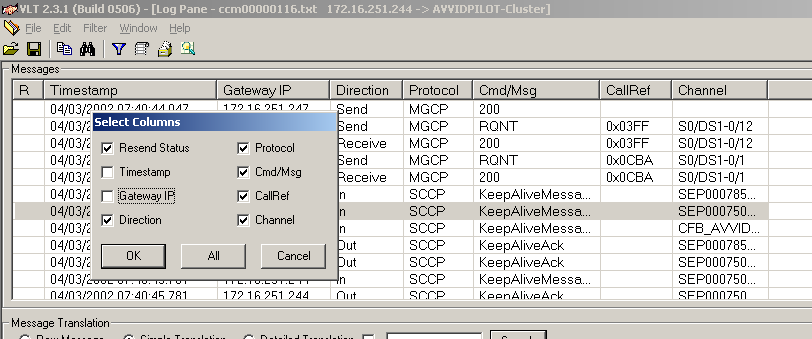
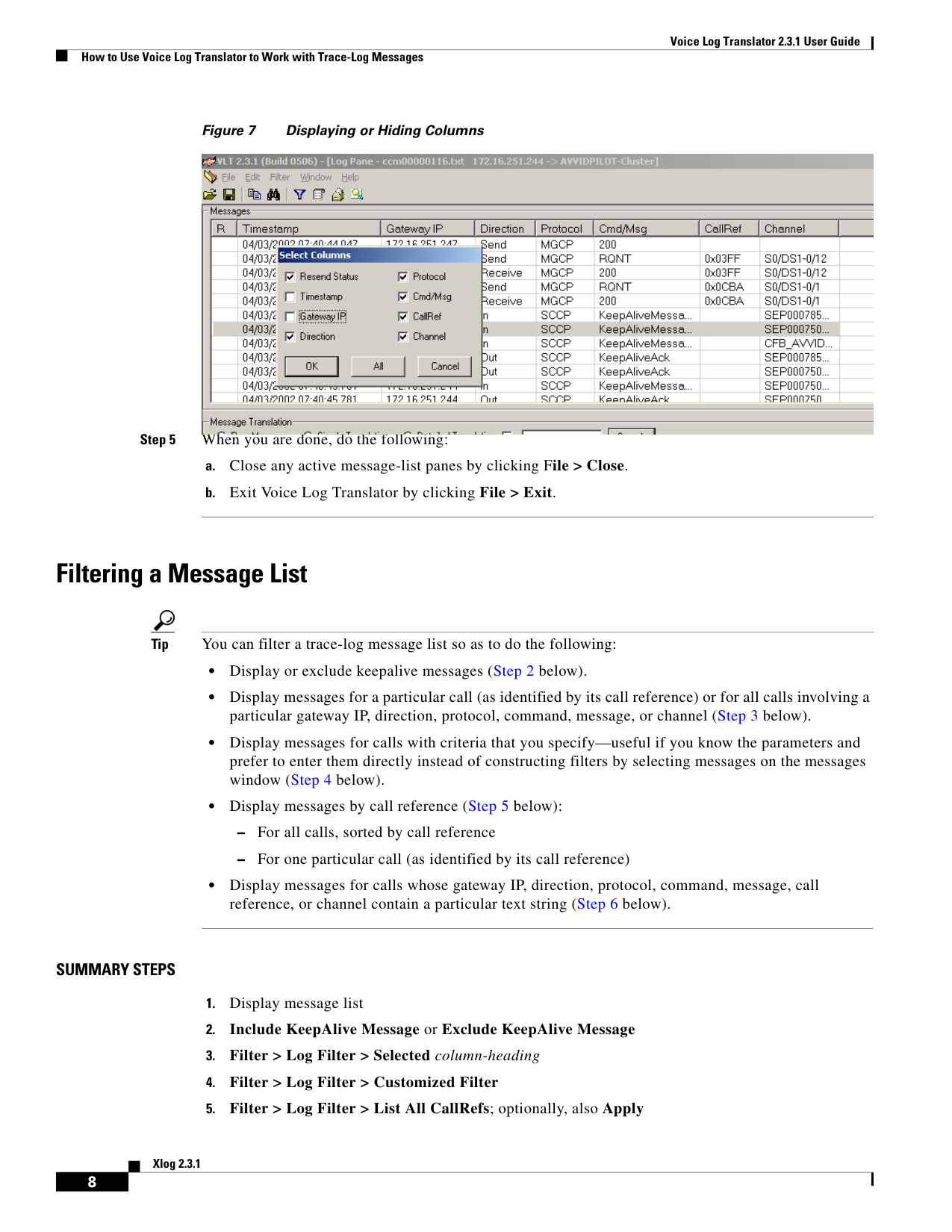
↗ View in doc contextVoice Log Translator 2.3.1 User Guide How to Use Voice Log Translator to Work with Trace-Log Messages 8 Xlog 2.3.1 Figure 7 Displaying or Hiding Columns Step 5 When you are done, do the following: a. Close any active message-list panes by clicking File > Close. b. Exit Voice Log Translator by clicking File > Exit. Filtering a Message List Tip You can filter a trace-log message list so as to do the following: • Display or exclude keepalive messages (Step 2 below). • Display messages for a particular call (as identified by its call reference) or for all calls involving a particular gateway IP, direction, protocol, command, message, or channel (Step 3 below). • Display messages for calls with criteria that you specify—useful if you know the parameters and prefer to enter them directly instead of constructing filters by selecting messages on the messages window (Step 4 below). • Display messages by call reference (Step 5 below): – For all calls, sorted by call reference – For one particular call (as identified by its call reference) • Display messages for calls whose gateway IP, direction, protocol, command, message, call reference, or channel contain a particular text string (Step 6 below). SUMMARY STEPS 1. Display message list 2. Include KeepAlive Message or Exclude KeepAlive Message 3. Filter > Log Filter > Selected column-heading 4. Filter > Log Filter > Customized Filter 5. Filter > Log Filter > List All CallRefs; optionally, also Apply