McDewey
/mcpPage 9
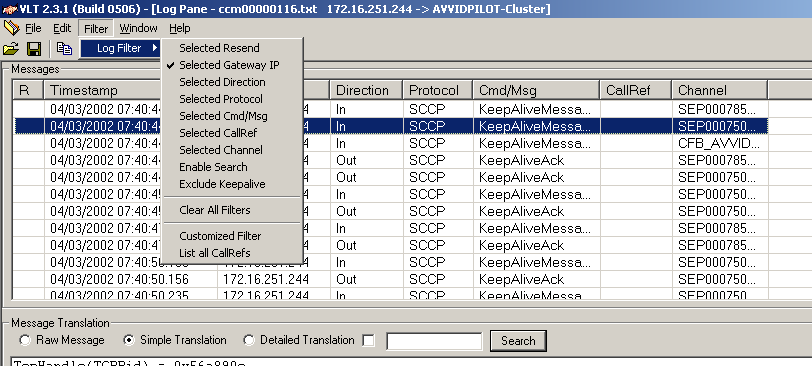
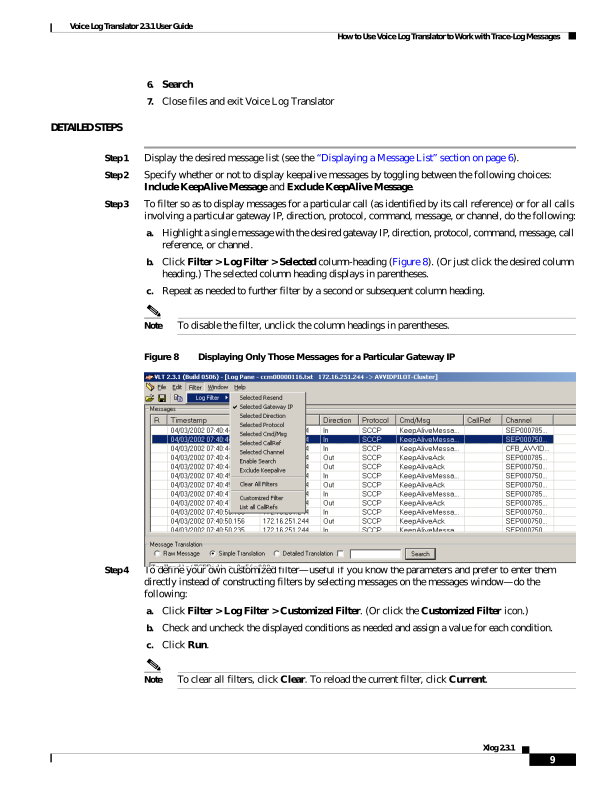
↗ View in doc contextVoice Log Translator 2.3.1 User Guide How to Use Voice Log Translator to Work with Trace-Log Messages 9 Xlog 2.3.1 6. Search 7. Close files and exit Voice Log Translator DETAILED STEPS Step 1 Display the desired message list (see the “Displaying a Message List” section on page 6). Step 2 Specify whether or not to display keepalive messages by toggling between the following choices: Include KeepAlive Message and Exclude KeepAlive Message. Step 3 To filter so as to display messages for a particular call (as identified by its call reference) or for all calls involving a particular gateway IP, direction, protocol, command, message, or channel, do the following: a. Highlight a single message with the desired gateway IP, direction, protocol, command, message, call reference, or channel. b. Click Filter > Log Filter > Selected column-heading (Figure 8). (Or just click the desired column heading.) The selected column heading displays in parentheses. c. Repeat as needed to further filter by a second or subsequent column heading. Note To disable the filter, unclick the column headings in parentheses. Figure 8 Displaying Only Those Messages for a Particular Gateway IP Step 4 To define your own customized filter—useful if you know the parameters and prefer to enter them directly instead of constructing filters by selecting messages on the messages window—do the following: a. Click Filter > Log Filter > Customized Filter. (Or click the Customized Filter icon.) b. Check and uncheck the displayed conditions as needed and assign a value for each condition. c. Click Run. Note To clear all filters, click Clear. To reload the current filter, click Current.