McDewey
/mcpPage 51
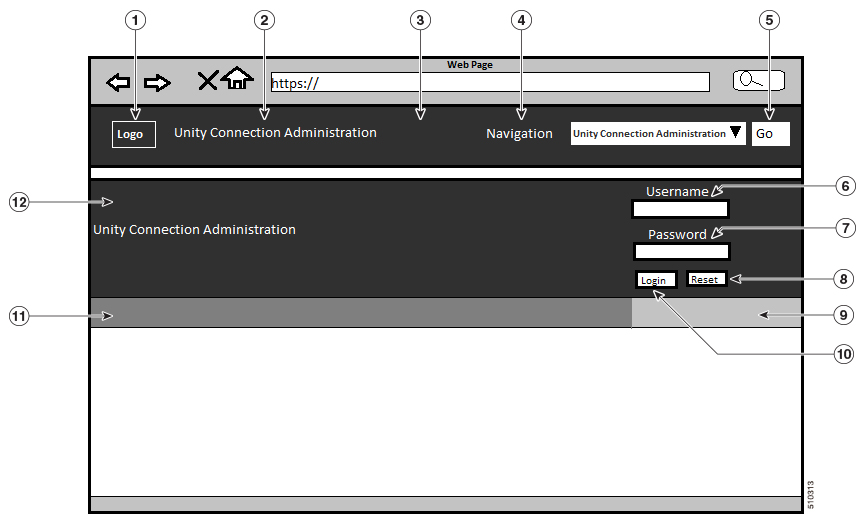
↗ View in doc contextAfter successfully uploading the file, select Enable Branding. To disable the customized branding, select Disable Branding on the Branding page. To enable or disable the branding, you can also execute utils branding enable/disable CLI command. For more information on CLI, see Command Line Interface Guide for Cisco Unified Communications Solutions available at, https://www.cisco.com/c/en/us/support/unified-communications/ unified-communications-manager-callmanager/products-maintenance-guides-list.html. Note 4. Restart the Tomcat service to reflect the branding updates on Cisco Unity Connection web applications. In case of a cluster, you must enable or disable the branding on each node of the cluster. Note User Interface Branding Options Below images describe the branding customization options for one of the web application of Unity Connection ( Example: Cisco Unity Connection Administration ). Figure 1: Branding Options for Cisco Unity Connection Administration Login Screen Cisco Unified Communications Operating System Administration Guide for Cisco Unity Connection Release 15 45 Software Upgrades User Interface Branding Options