McDewey
/mcpPage 17
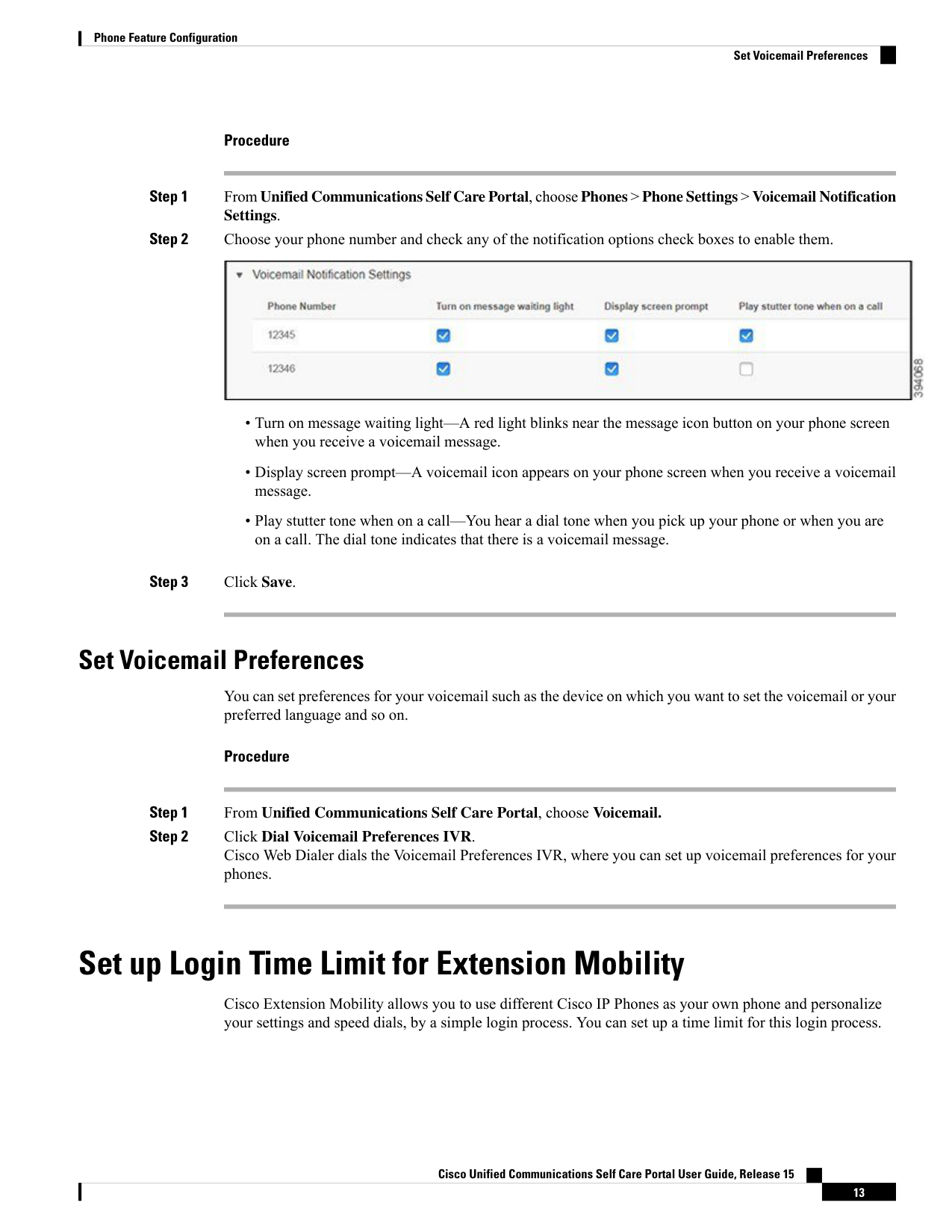
↗ View in doc contextProcedure Step 1 From Unified Communications Self Care Portal, choose Phones > Phone Settings > Voicemail Notification Settings. Step 2 Choose your phone number and check any of the notification options check boxes to enable them. • Turn on message waiting light—A red light blinks near the message icon button on your phone screen when you receive a voicemail message. • Display screen prompt—A voicemail icon appears on your phone screen when you receive a voicemail message. • Play stutter tone when on a call—You hear a dial tone when you pick up your phone or when you are on a call. The dial tone indicates that there is a voicemail message. Step 3 Click Save. Set Voicemail Preferences You can set preferences for your voicemail such as the device on which you want to set the voicemail or your preferred language and so on. Procedure Step 1 From Unified Communications Self Care Portal, choose Voicemail. Step 2 Click Dial Voicemail Preferences IVR. Cisco Web Dialer dials the Voicemail Preferences IVR, where you can set up voicemail preferences for your phones. Set up Login Time Limit for Extension Mobility Cisco Extension Mobility allows you to use different Cisco IP Phones as your own phone and personalize your settings and speed dials, by a simple login process. You can set up a time limit for this login process. Cisco Unified Communications Self Care Portal User Guide, Release 15 13 Phone Feature Configuration Set Voicemail Preferences